Sender Domains determine which domain is used to send an email campaign and whether the From Email address is valid and compliant. Proper sender domain selection helps prevent campaign failures, protects domain reputation, and improves inbox placement.
Sender Domain behavior applies only to LC Email locations. SMTP-based email sending follows its existing workflow.
What Are Sender Domain Settings?
Sender Domain Settings are available when you send or schedule an email campaign under Marketing → Emails → Campaigns. They determine which domain is used to send a campaign and ensure that the From Email address aligns with that domain.
Email providers expect this alignment to authenticate messages correctly. When the sending domain and sender email do not match, campaigns may fail to send or be filtered as spam. With Sender Domain Settings, you can choose the appropriate sending domain for each campaign, validate the sender email in real time, and prevent campaigns from launching if domain compliance requirements are not met.
This per-campaign control helps reduce delivery issues and improves overall sending reliability. Once a campaign is sent or scheduled, the selected sender domain is locked for that campaign.
Key Benefits of Sender Domain Settings
How Sender Domains Behave in Different Scenarios
When a campaign uses a shared sending domain, public email addresses such as Gmail or Yahoo are supported. The platform automatically adjusts the sender email behind the scenes to meet compliance requirements, allowing the campaign to send successfully without user intervention.
If a location has one verified dedicated domain, it is automatically selected during the send or schedule step. The sender email must match this domain, and real-time validation ensures the campaign is compliant before sending.
When multiple verified domains are available, you can choose a specific domain for the campaign or select All Domains. Choosing All Domains allows the platform to rotate sending across eligible domains based on internal rules to help manage deliverability at scale.
The table below summarizes how sender domains behave across common campaign scenarios.
| Scenario | What the User Enters | What Happens |
|---|---|---|
| Shared domain + public email | name@gmail.com | Email is auto-refactored for compliance |
| One dedicated domain | Matching domain email | Domain auto-selected and validated |
| Multiple domains (single) | Selects one domain | Uses selected domain only |
| Multiple domains (All Domains) | Enters marketing | Domains rotate automatically |
| Dedicated domain mismatch | Domain ≠ sender email | Send is blocked |
| Domain not verified | DNS incomplete | Warning shown with fix link |
How to Set Up and Configure Sender Domains for a Campaign
Sender domain selection happens naturally as part of sending or scheduling an email campaign. There's no separate setting to turn on or configure in advance.
Go to Marketing → Emails → Campaigns.
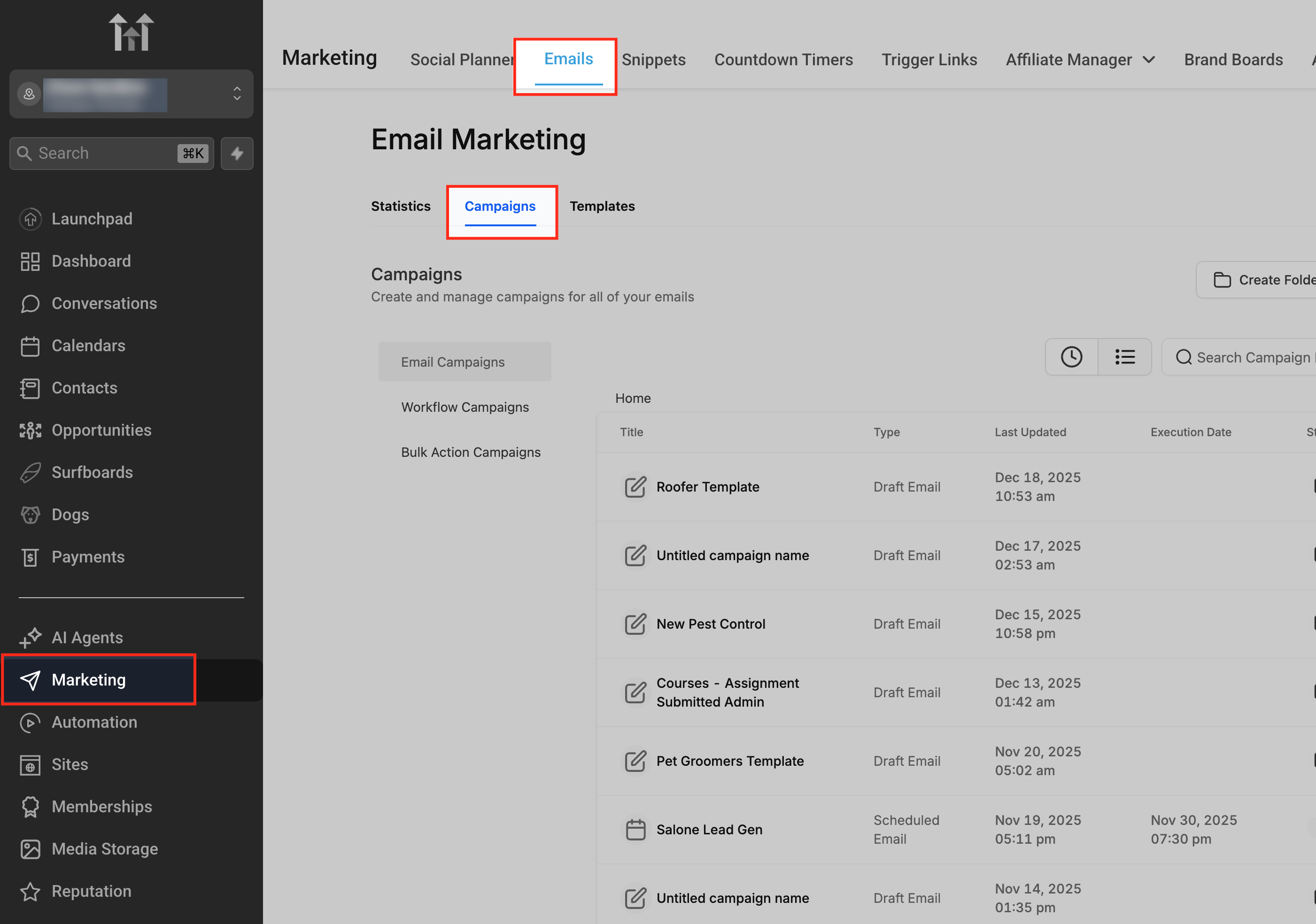
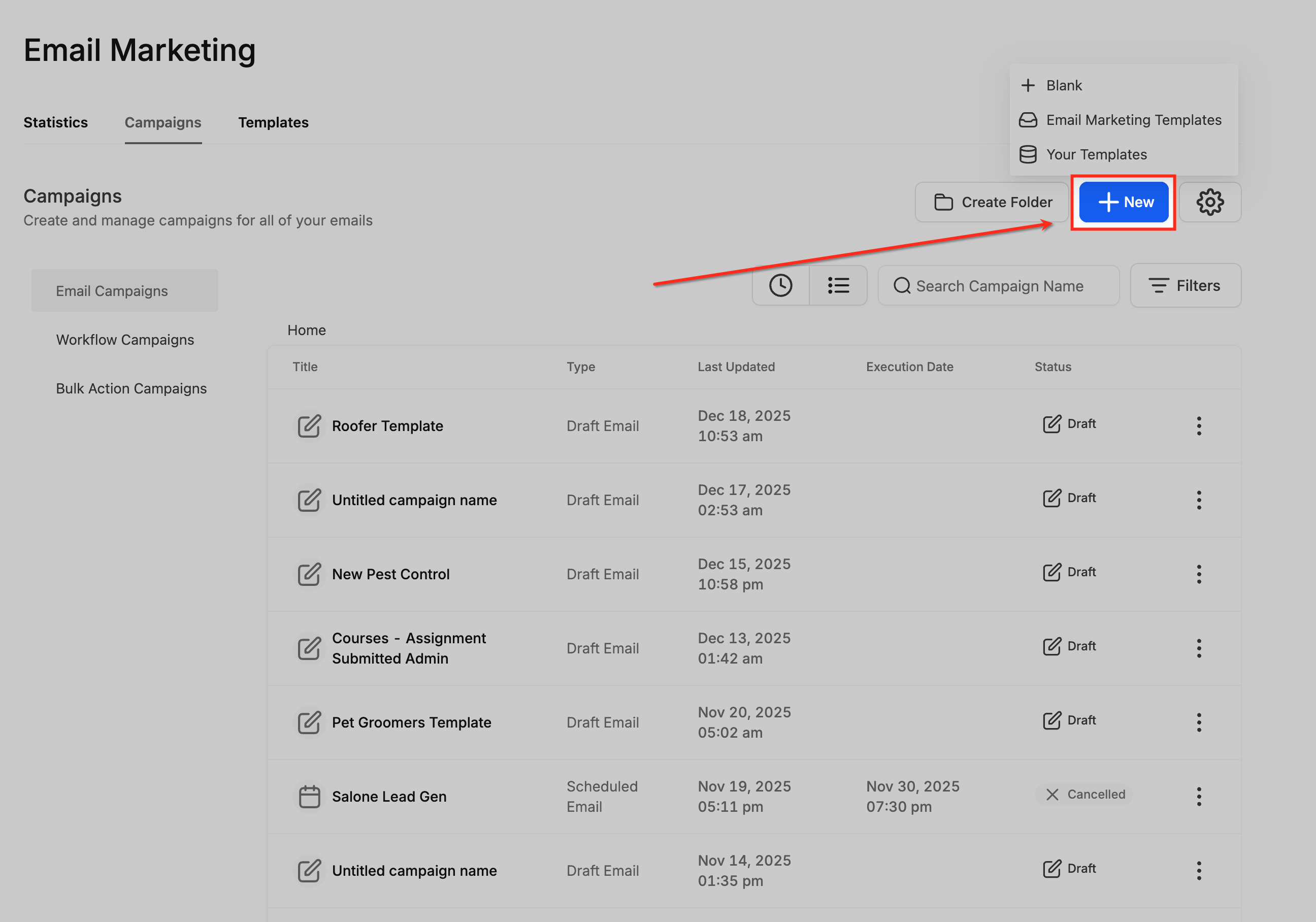
Open a new campaign or an existing draft.
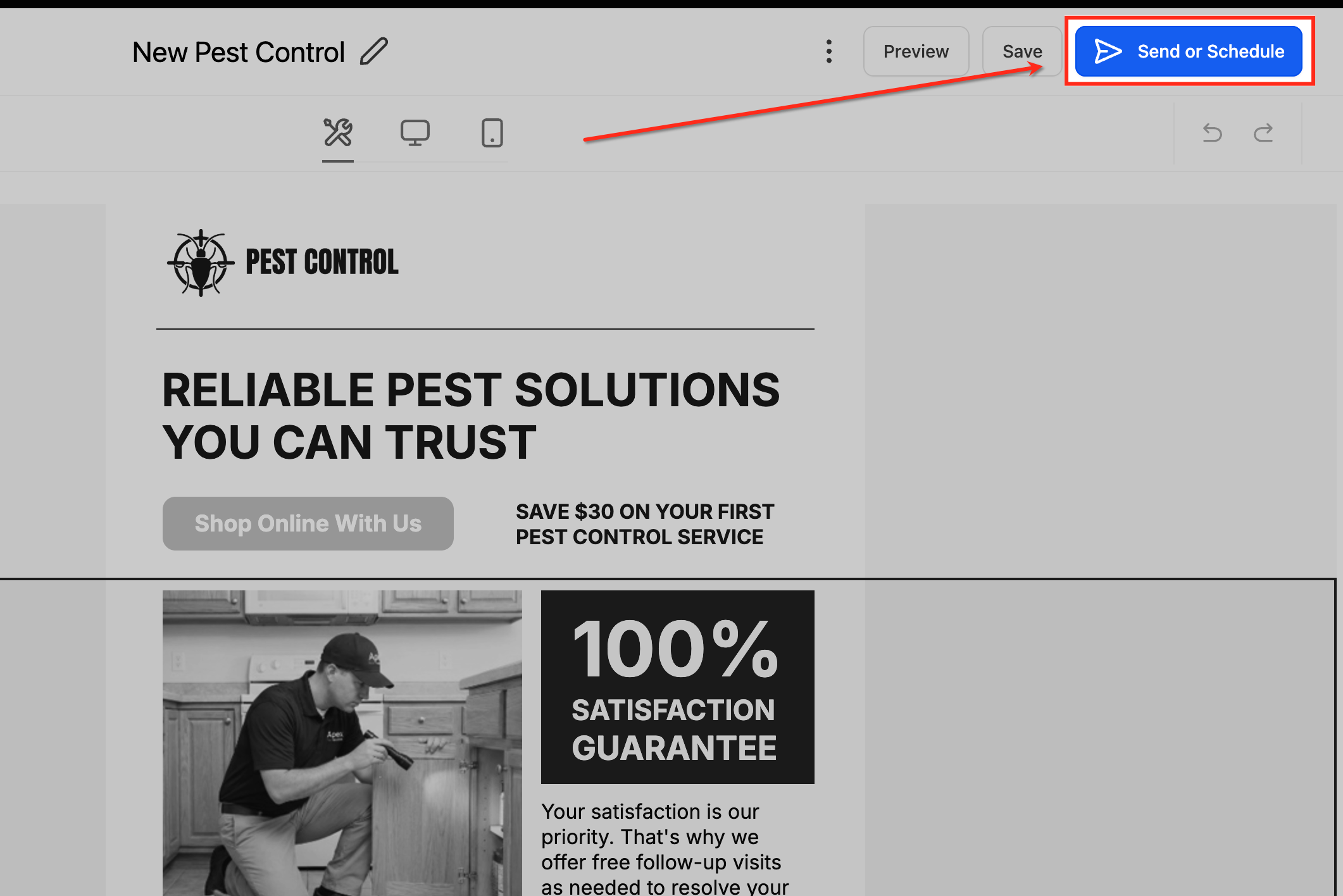
Inside the email campaign builder, click Send or Schedule to review the campaign details.
In the Sender Details section, take a moment to confirm the Sender Name and Sender Email.
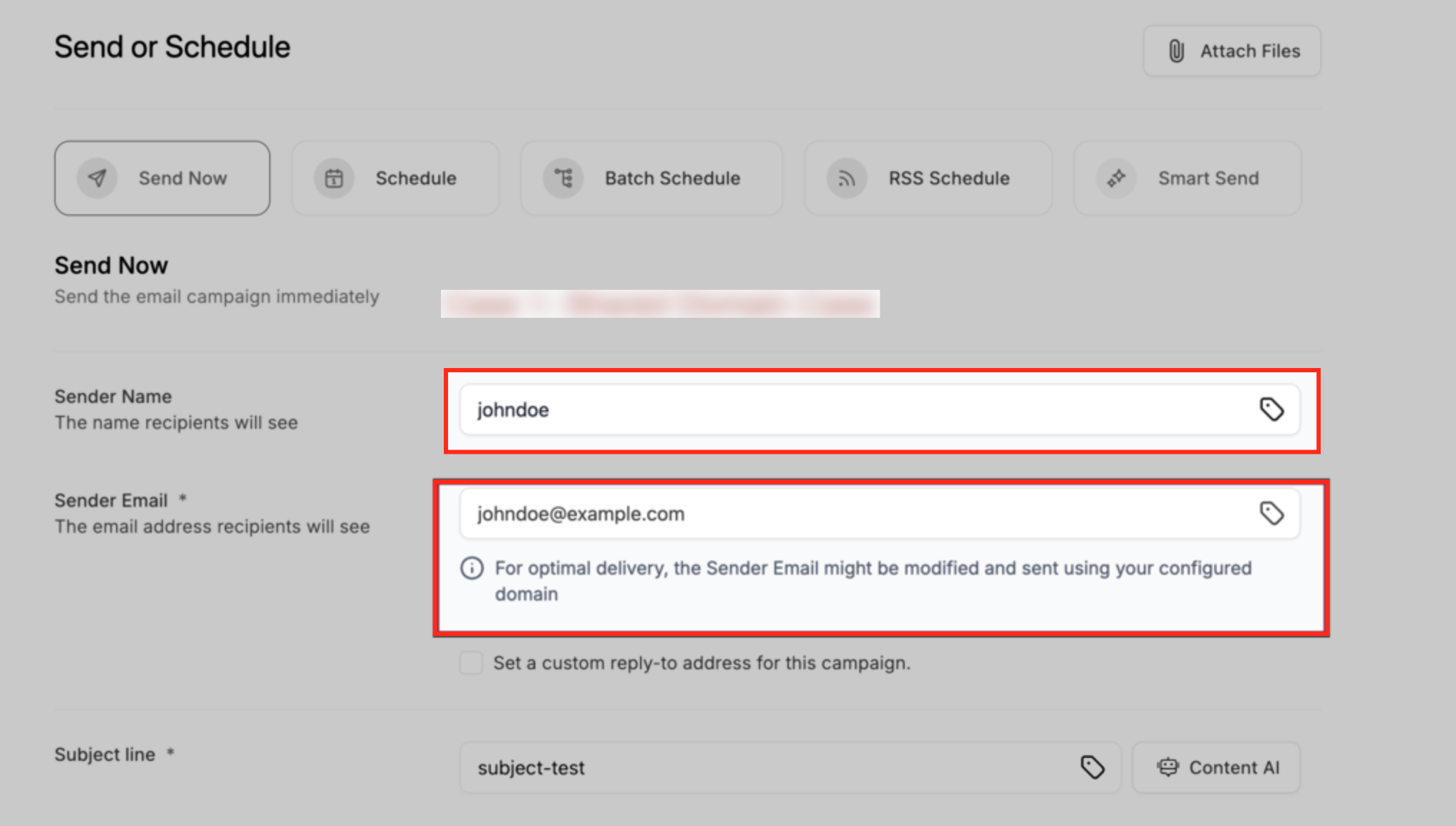
Open the Sender Domain dropdown to see which sending options are available for your location. The options shown change based on how your email domains are configured:
- If you're using shared domains, public email addresses are supported and automatically adjusted for compliance.
- If one dedicated domain is available, it's pre-selected and must match the sender email.
- If multiple dedicated domains are configured, you can choose a specific domain or select All Domains to let the platform rotate sending across eligible domains to manage deliverability.
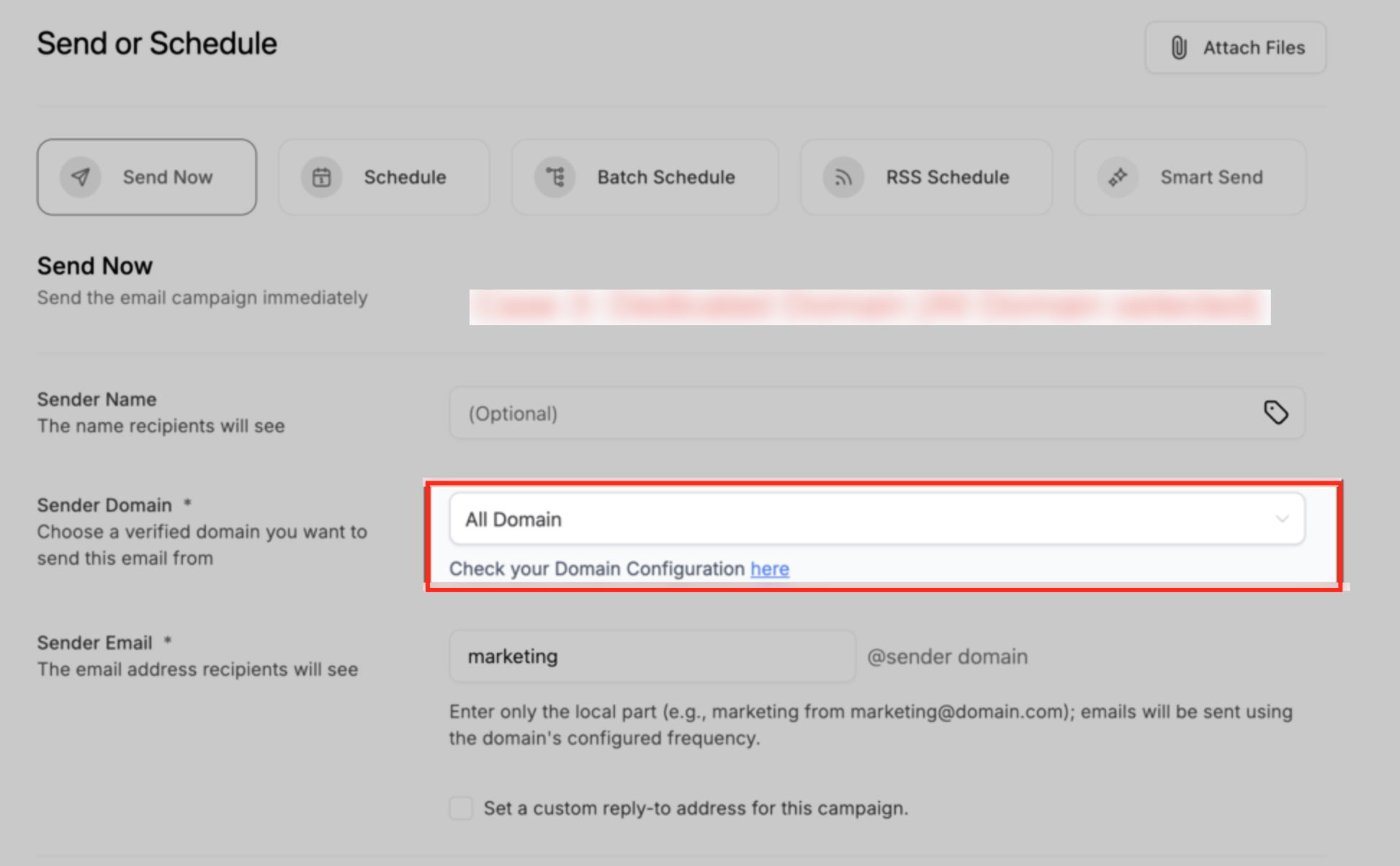
If a warning or error appears, use the Review Domain Configuration hyperlink to check things like domain verification, warm-up status, or IP assignment.
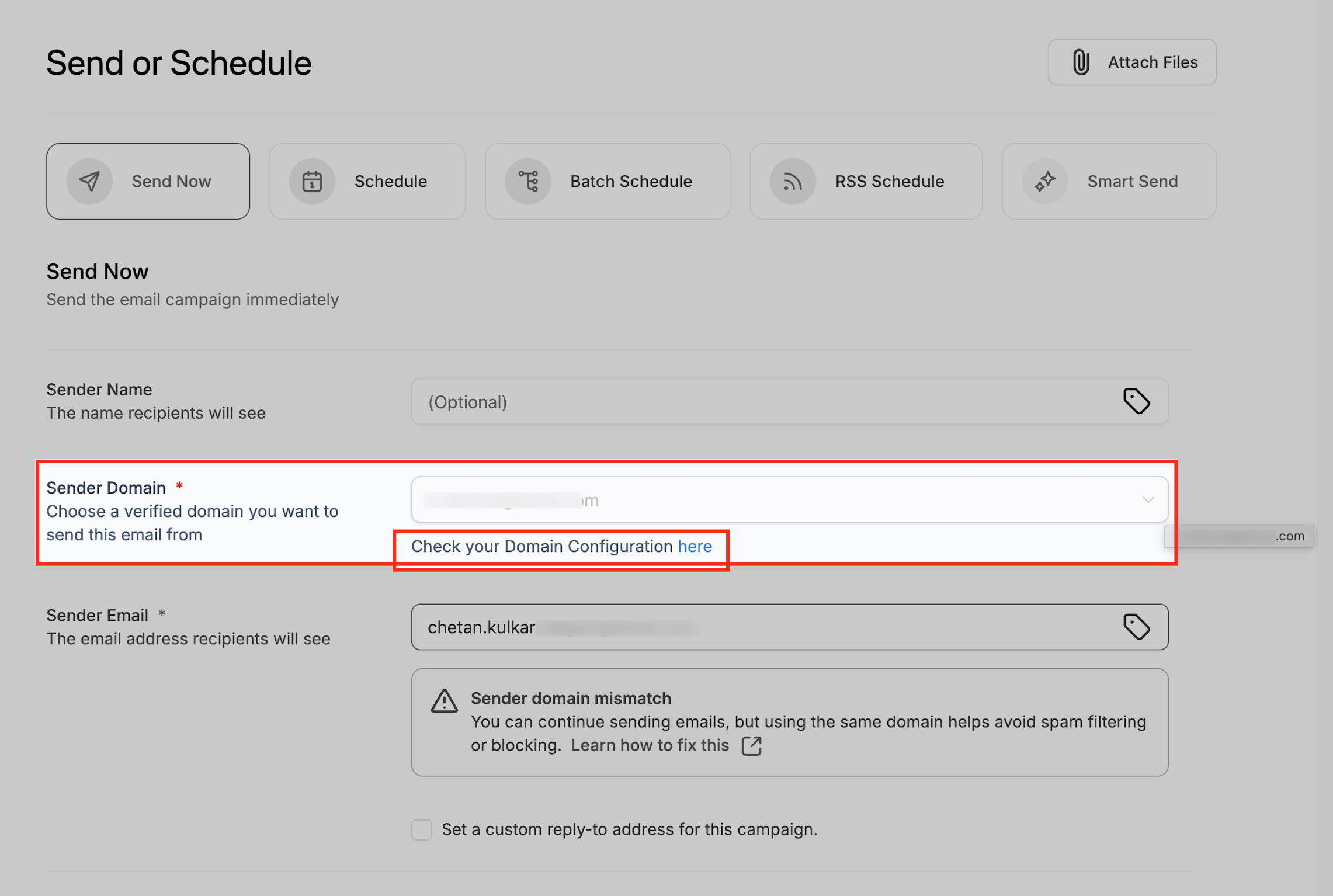
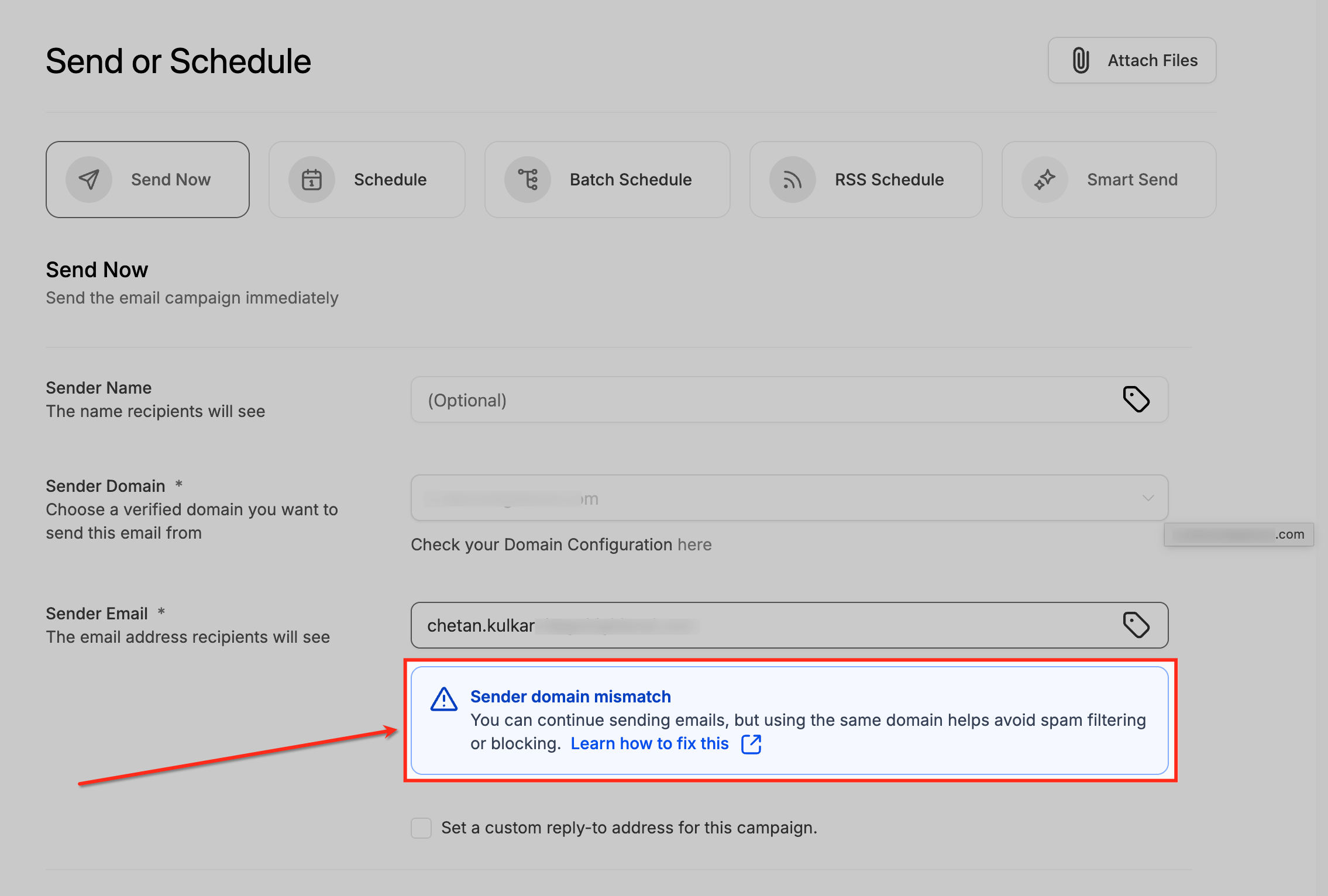
Warnings indicate a potential issue, such as a sender email and sender domain mismatch — the campaign can still be sent, but matching domains is recommended to reduce the risk of spam filtering. Errors indicate blocking issues where the campaign cannot be sent until the problem is fixed.
Once everything looks good, finish sending or scheduling the campaign. The sender domain you choose is locked to the campaign when it's sent or scheduled.
Frequently Asked Questions
Was this article helpful?
That’s Great!
Thank you for your feedback
Sorry! We couldn't be helpful
Thank you for your feedback
Feedback sent
We appreciate your effort and will try to fix the article