To comply with carrier requirements for Application-to-Person (A2P) messaging in the U.S., all businesses using 10-digit long code (10DLC) messaging must register their brand. This article explains the process of registering as a Standard Brand, which is required for most U.S. based businesses with a valid EIN (Employer Identification Number).
TABLE OF CONTENTS
- What is A2P Standard Brand Registration?
- Key Benefits of Registering as a Standard Brand
- What Are the Requirements for Standard Brand Registration?
- Brand Compliance Checklist (Required for Approval)
- How to Register for A2P as a Standard Brand
- IMPORTANT NOTE
- Handling the "Maximum 3 Tries Exhausted" Error
- Understanding Trust Scores & Throughput
- Frequently Asked Questions
- Related Articles
What is A2P Standard Brand Registration?
A2P messaging refers to any message sent from an application to a person — for example, automated marketing texts or appointment reminders. To send A2P messages in the U.S., you must register your brand and campaign(s) with The Campaign Registry (TCR) through your messaging provider (e.g., Twilio).
A Standard Brand is designed for businesses registered with an EIN. It allows greater messaging throughput and access to a wider variety of campaign use cases than Sole Proprietor brands.
Note: If your business does not have an EIN and only has one employee per company, you can register for sole prop here: A2P Sole Proprietor Brand Registration for 10DLC
Key Benefits of Registering as a Standard Brand
- Higher message throughput compared to Sole Proprietor Brands.
- Required for LLCs, corporations, and most U.S. businesses.
- Improved trust score potential through EIN verification.
- Enables access to broader campaign use cases.
- Lower chance of carrier filtering or message rejection
What Are the Requirements for Standard Brand Registration?
Before registering, ensure you have the following:
- Business Legal Name (must exactly match IRS records)
- Valid EIN (Employer Identification Number) – U.S. only
- Business Type: LLC, Corporation, etc.
- Business Industry
- Official Business Website
- Business Address
- Business Contact Information
- Authorized Representative’s Name, Title, Email, and Phone Number
Brand Compliance Checklist (Required for Approval)
Before submitting your A2P Brand Registration, verify the following:
Note: Failure to comply with these standards will result in brand rejection by carriers.- Verify Message Category
Ensure your campaign does not fall under a Forbidden Message Category:- Debt relief, consolidation, and forgiveness programs are prohibited for A2P SMS, even if first-party.
- Lead Generation and Marketing used to acquire new leads are not allowed (including bought lists, shared databases, or unclear opt-in practices).
- Promotional campaigns for lending and investment brands are disallowed, even if first-party. These brands may only send transactional notifications.
- Websites mentioning data sharing with affiliates or third parties will likely be rejected.
- Debt relief, consolidation, and forgiveness programs are prohibited for A2P SMS, even if first-party.
- Avoid Deceptive Advertising
Your website must NOT include:- False claims about products or services
- Missing required disclosures
- Misleading information
- Hidden terms in small print
- Unverified comparative claims
- False claims about products or services
How to Register for A2P as a Standard Brand
Follow these steps carefully to complete your Standard Brand registration:
Step 1: Navigate to Trust Center
- Click on Settings from your sub-account.
- Select Phone System under Business Services.
- Click on the Trust Center tab.

Step 2: Determine Profile Needs
- Click on the Start Registration button under A2P Messaging (SMS) tab.

- Select United States or Canada from the "In which country is your business entity registered?" dropdown.
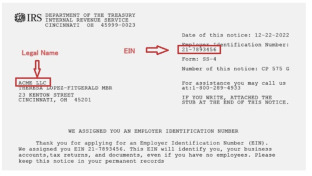
- Select 'Yes, the business I'm registering has a tax ID' option from the "Does the business you're registering have a tax ID (Ex. US EIN, Canada BN9, etc)?" section. You can find your US EIN on your CP 575 form from IRS
- Click on Continue.

Step 3: Add Business Details
These details are important for your A2P Approvals:

LeadConnector will submit this information to The Campaign Registry (TCR) during the registration. Based on this information, TCR will approve or reject the registrations, so please make sure all the details exactly match those in your US EIN listing (or your country Tax ID form). If there are any differences - for example, in the business name, number or address - your application would be rejected.

DUNS for USA and CCN for Canada are not accepted for A2P Registration.
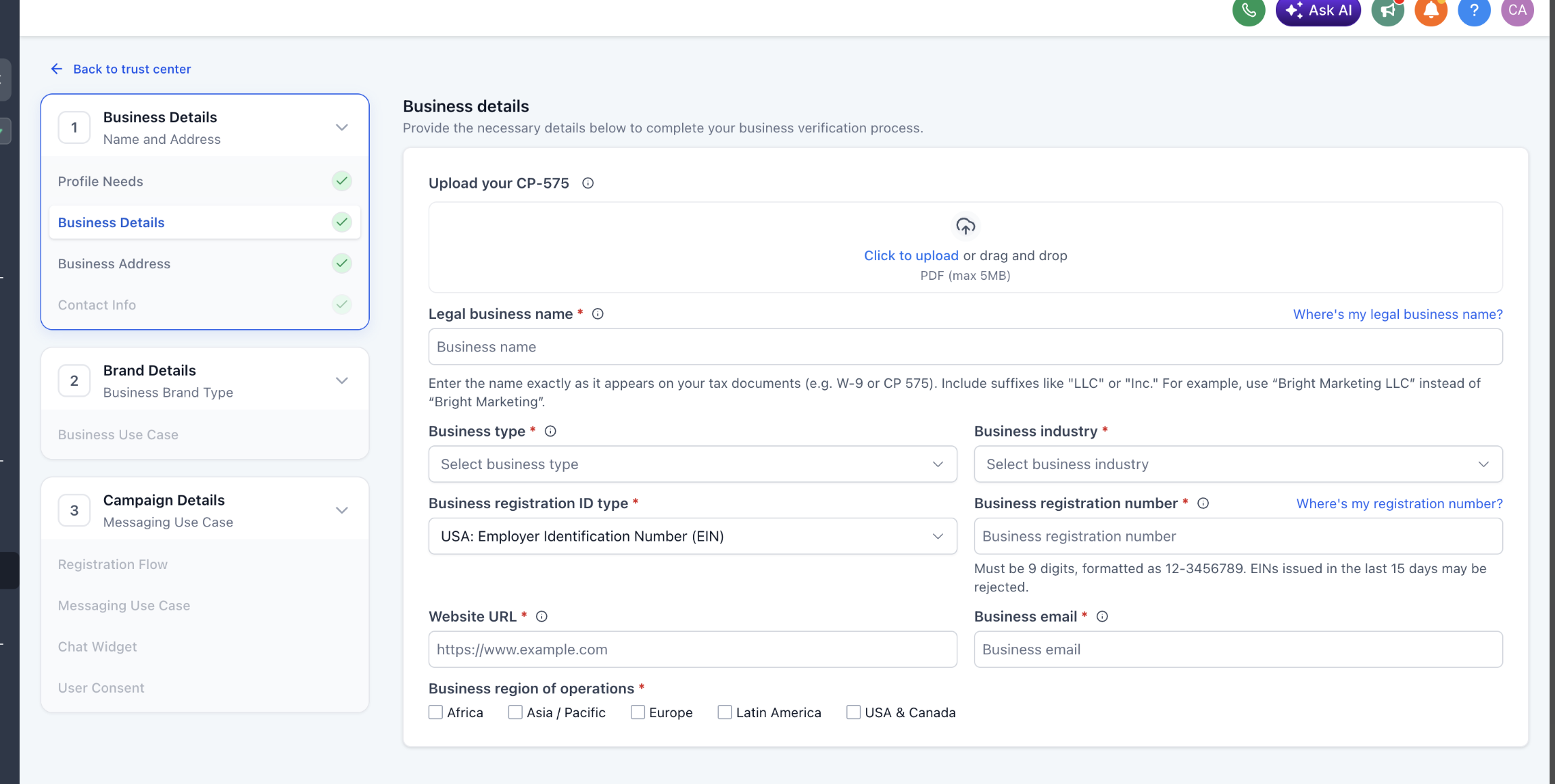
New: Upload Your CP-575 to Auto-Fill Business Details
You can now upload your IRS CP-575 form directly on the Business Details page. Once uploaded, the following fields will be automatically pre-filled for you:
- Legal Business Name
- EIN (Business Registration Number)
- Registered Business Address
To upload your CP-575:
- In the "Upload your CP-575" section at the top of the Business Details page, click "Click to upload" or drag and drop your CP-575 PDF (max 5MB) into the upload area.
- Once processed, you will see a confirmation banner: "CP-575 uploaded and verified — We've pulled your business details and pre-filled your registration. Review below and continue."
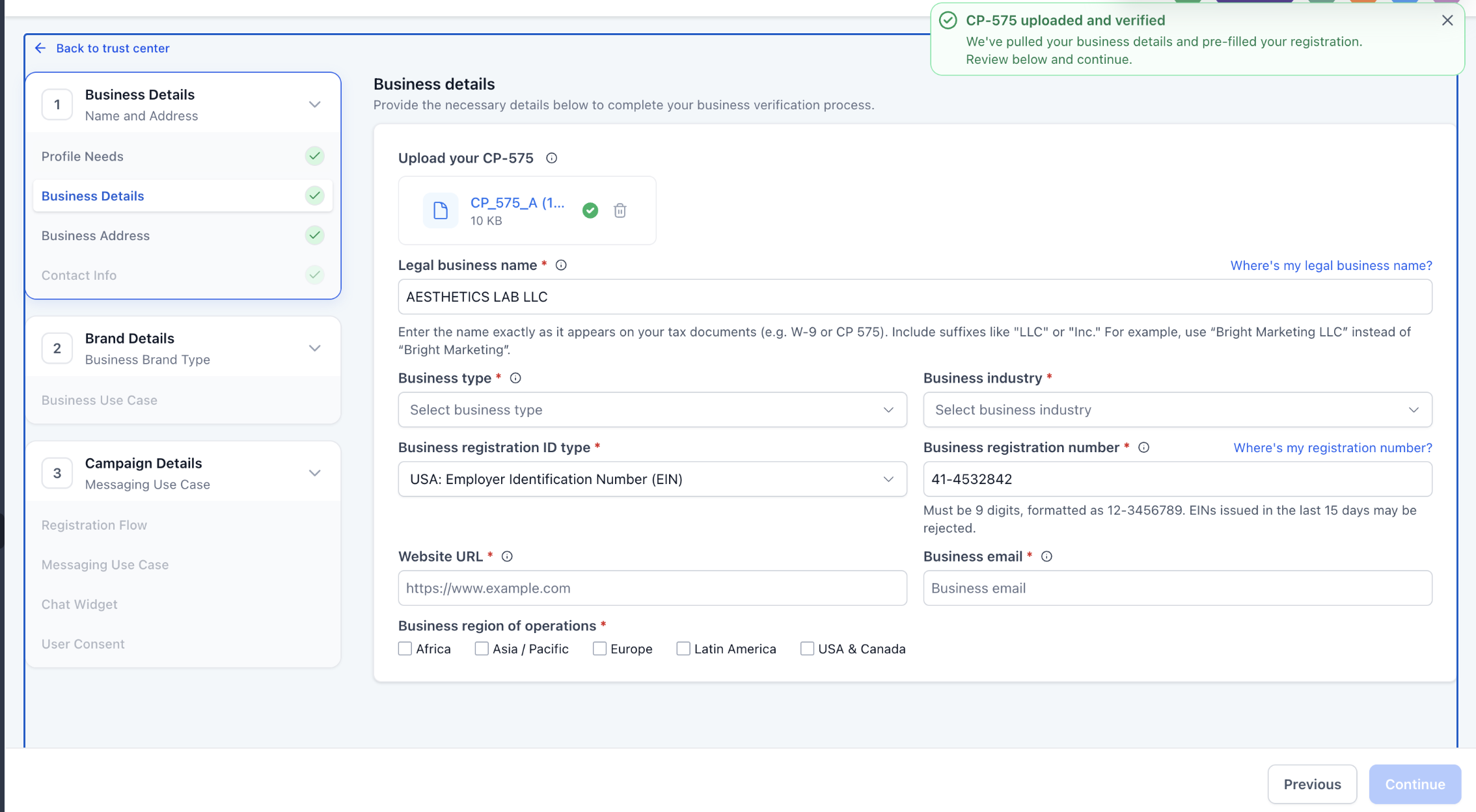
- Review the pre-filled fields, edit any details if needed and then complete the remaining fields that require manual input.
Why this matters:

A large share of A2P Brand rejections come from small mismatches between what you enter and what's on file with the IRS — a missing "LLC," a transposed digit in the EIN, or an outdated address. Uploading your CP-575 removes the guesswork and significantly improves your chances of first-time approval.

Note: A2P Brand registrations using newly generated US EINs (registered in the last 15 days) may be rejected by TCR.
Complete the remaining Business Details fields:
- Enter Legal Business Name as registered with the Government and mentioned in your tax documents (W2, W9 or CP 575). E.g. Leadconnector LLC rather than Leadconnector.
- Enter your Business Type from the list.
- Choose your Business Registration ID Type from the list.
- Enter your Business Registration Number as per your country.
- Select your Business Industry from the list of available industries.
- Enter your Business Email.
- Add your Website URL.
- Select your Business Region of Operations from the list.
- Click on Continue.
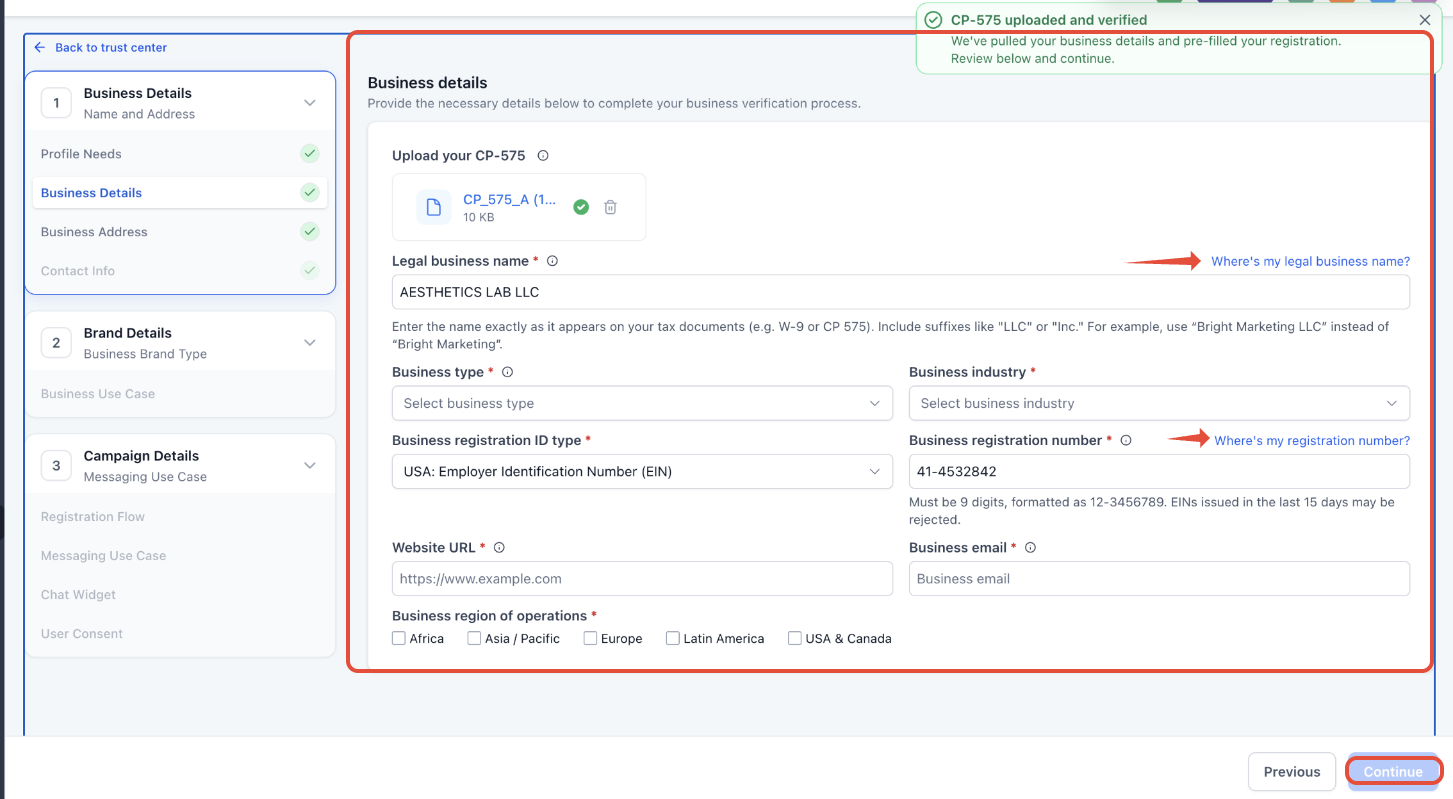
Tip: Field-level help links, such as "Where's my legal business name?" and "Where's my registration number?" are now displayed inline next to each field label for quick reference.
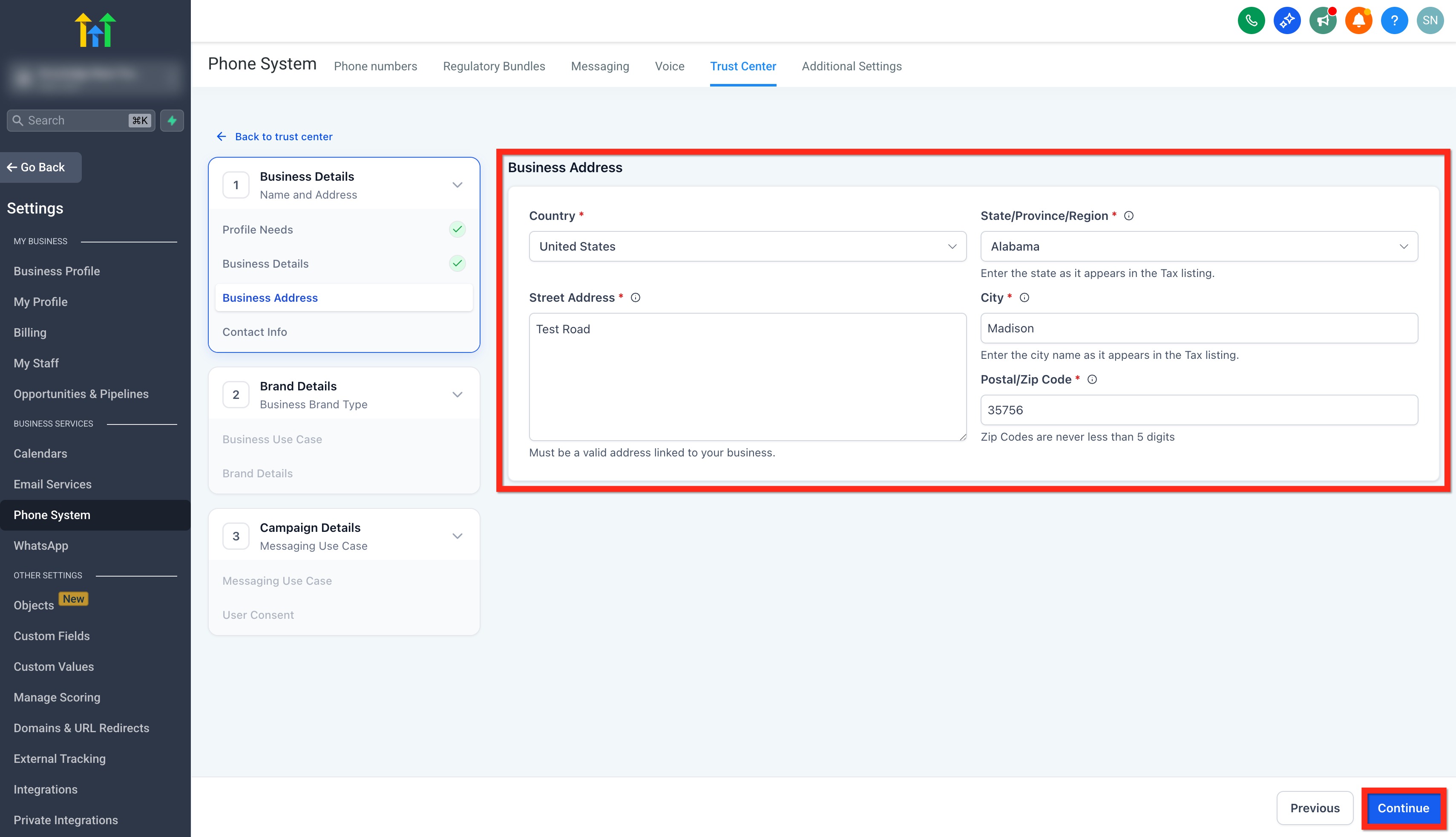
Step 4: Add Business Address
- Select your Country.
- Select your State/Province/Region. (The address provided here should match the address mentioned in the cp575 form (US Only)
- Add Street Address. (Must be a valid address linked to your business. Please don't add a P.O box in the Street Address)
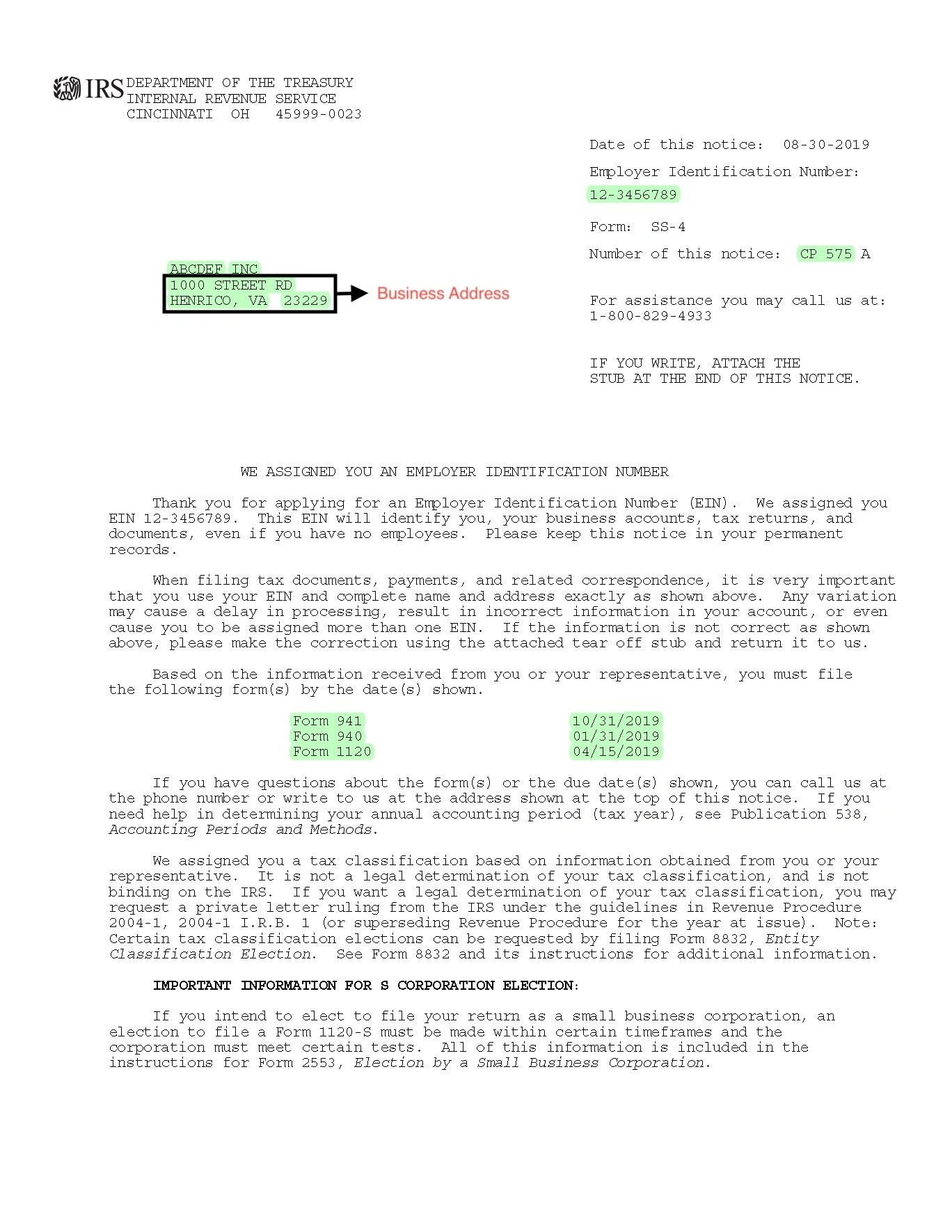
- Add your City. (The address provided here should match the address mentioned in the cp575 form (US Only)
- Enter your Postal/Zip code. (The address provided here should match the address mentioned in the cp575 form (US Only)
- Click on Continue.
Step 5: Add Contact Information of Authorized Representatives
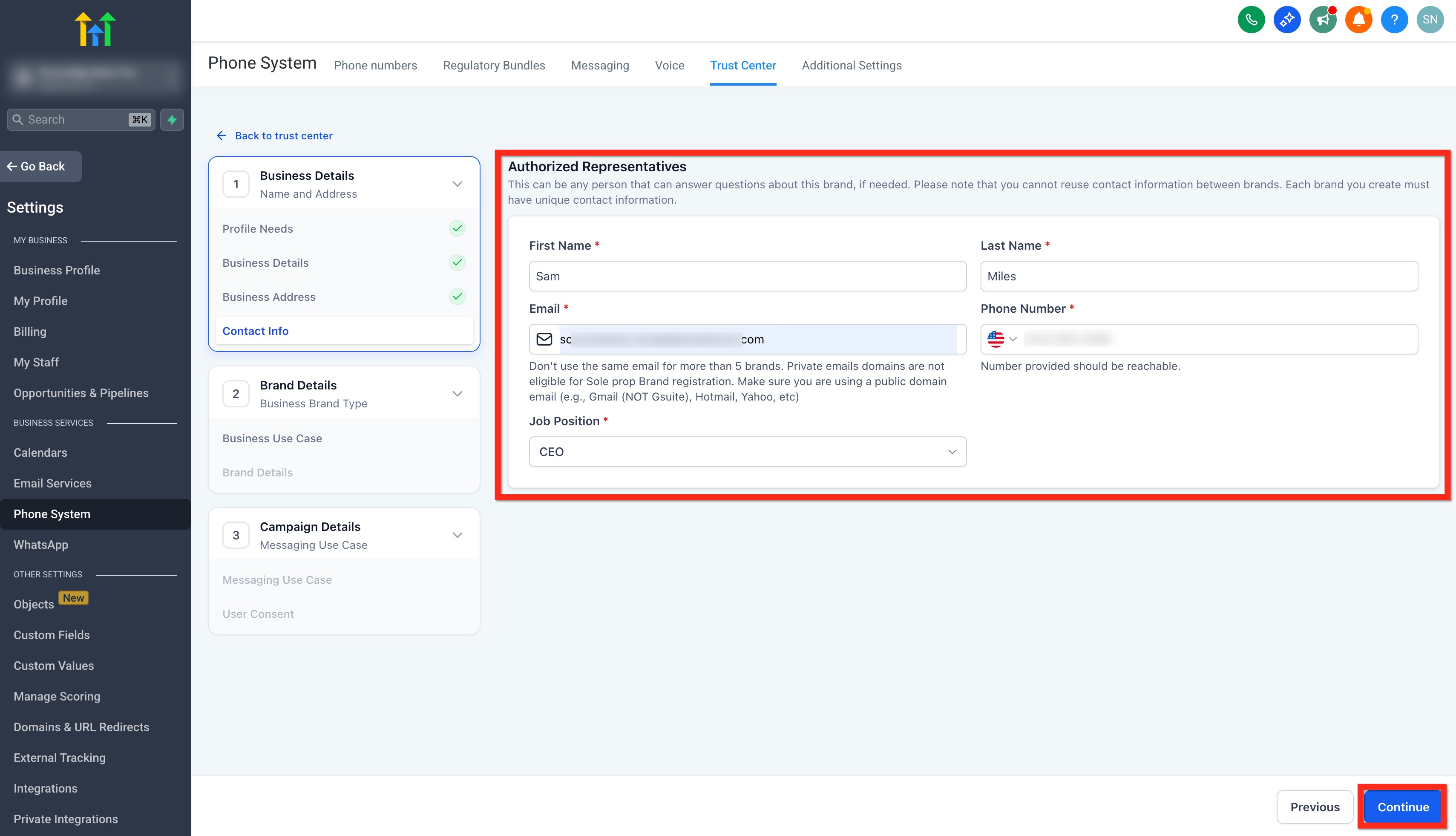
This can be any person that can answer questions about this brand, if needed. Please note that you cannot reuse contact information between brands. Each brand you create must have unique contact information.
- Add Authorized Representative's First and Last Name.
- Add Email Address. (Don't use the same email for more than 5 brands. Private email domains are not eligible for Sole prop Brand registration. Make sure you are using a public domain email (e.g., Gmail (NOT Gsuite), Hotmail, Yahoo, etc)
- Add Phone Number. (Don't use the same number for more than 5 brands and number provided should be reachable)
- Select your Job Position from the list of designations or select Other and type in your designation.
- Click on Continue.
Note: One email can be used for max 5 brands. Please use different email if you have already used the email for more than 5 brands.
IMPORTANT: Once you click "Continue" or submit your contact details, you will now have to validate this through an OTP sent to your email address. It validates each email address by sending a unique 6-digit one-time password to ensure the sender’s identity is genuine.
 This new step strengthens the integrity of brand registrations and helps protect the platform from misuse without disrupting the experience for legitimate users. For more, refer to Email OTP Verification for Secure A2P Brand Registration.
Step 6: Choose Your Business Use Case
The Business Brand Type will be automatically set to "Low/High Volume Standard" based on the responses provided under Profile Needs.
Note: A2P Registration Fee Pricing is accurate as of August 2, 2025
Low Volume Standard
It is designed for businesses with a valid EIN that need moderate-scale messaging capabilities using 10DLC.Requires a valid EIN (Employer Identification Number)
Supports multiple phone numbers
Allows up to 6,000 SMS segments per day
One-time registration fee of $24.49875 (includes $3 Fast Track fee for approval within ~3 business days)
Additional campaign fee up to $11.025 per month will apply in accordance with TCR rules for both failed and approved campaigns.

High Volume Standard
It is suited for larger businesses with high messaging needs, offering extensive daily capacity and multiple phone number support.Requires a valid EIN
Supports multiple phone numbers
Allows up to 600,000 SMS segments per day
One-time registration fee of $71.90625 (includes $3 Fast Track fee for approval within ~3 business days)
Additional campaign fee up to $11.025 per month will apply in accordance with TCR rules for both failed and approved campaigns.

Select the Brand Type as per your need and click on Continue.

Step 7: Add Campaign Details
- From the Campaign Use Case dropdown, select Low Volume Mixed or Mixed (recommended). You can also select a specific use case as per your need from the list.
- In the Use Case Description field, explain what the campaign will be used for.
Example: This campaign sends appointment information - confirmation & reminder messages to customers once they have booked an appointment with company_name on website and opted in to receive promotional and notification SMS from company_name.
Note: If you have an EIN but use a different brand name, include “We are doing DBA as [Business_Name]” in the Campaign Use Case Description. You can register up to 10 brands per EIN. - Add Sample Message #1
In the Sample Message #1 field, provide a message that includes:- Lead's Name
- Your name
- Business name
- Opt-out language (e.g., Reply STOP to unsubscribe)
Example: Hi John! This is Jane from company_name. Our appointment for July 20 at 11:00 AM is confirmed. Please reach out to (phone number) if you need to reschedule. Reply STOP to unsubscribe.
- Provide a second sample message in the Sample Message #2 filed with the same required elements as above.
Example: Hey Brian! This is Jane from company_name. I see you weren't able to make it to our appointment. Want to reschedule? - https://www.mycompany.com/book. Reply STOP to unsubscribe. - Choose Content Included in Your Messages
Select the options that your messages might include:- The message will include an embedded link.
- The messages will include phone numbers.
- The messages include age-gated content as defined by Carrier and CTA guidelines.
- The messages will include content related to direct lending or other loan arrangements.
- Click on Continue.

Step 8: User Consent
To comply with carrier regulations, you’ll need to provide details on how your contacts give consent to receive messages and what your opt-in message looks like. Follow these steps:
Opt-In Method
- Choose an Opt-In Method from the options: Website Form, Paper Form, Facebook Lead Form, QR Code, Kiosk, Verbal.

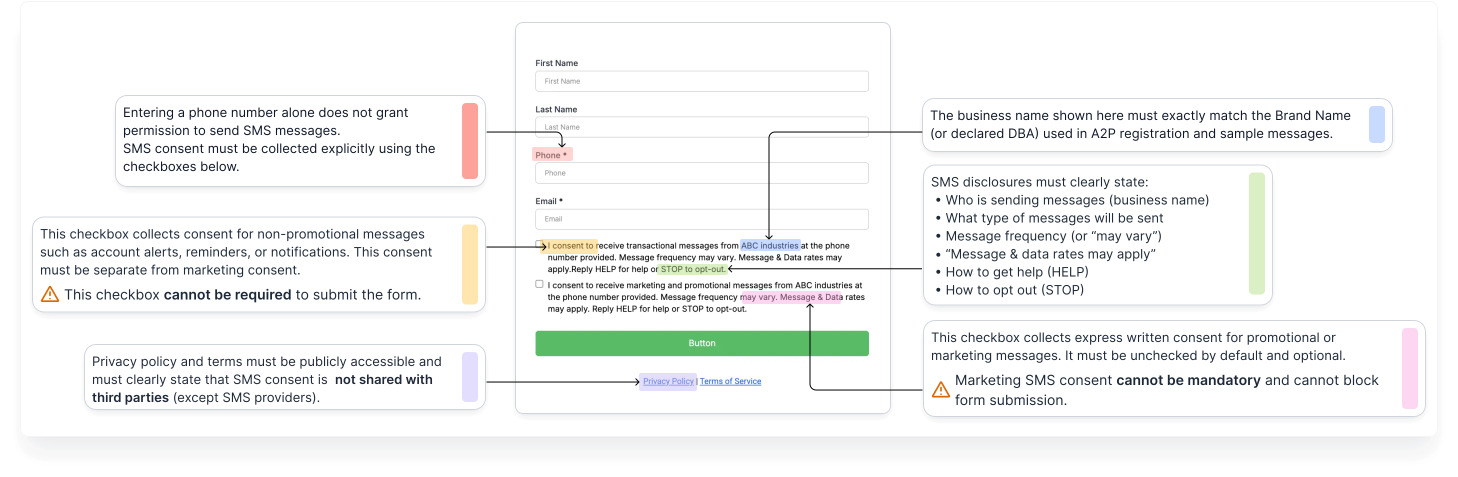
- Add Opt-In Form URL: Share a publicly accessible link to the website form where users enter their phone number and opt in to receive messages.

- Example opt-In Form:
Add the Opt-in Flow and Confirmation Message
- Add your Opt-in flow in the How do Contacts Opt-in to Messages? field.
Example: Customers opt in to receive SMS messages from LeadConnector LLC by entering their phone number into a website form that discloses message purpose, low-frequency expectations, and opt-out instructions. Proof of consent is available at (link)
- In the "Opt-in Message" field, enter the confirmation message users receive once they’ve opted in.
This message must: Include your business name and the opt-out keyword like STOP.
Example: LeadConnector LLC will send you recurring informational and promotional text messages. Message frequency varies. Msg & data rates may apply. Reply STOP to opt out. Reply HELP for help.
- Privacy Policy URL and Terms & Conditions URL These fields are now required for self-serve campaign registration.
- In the "Privacy Policy URL" field, enter the publicly accessible link to your business's Privacy Policy page.
- In the "Terms & Conditions URL" field, enter the publicly accessible link to your Terms & Conditions (or Terms of Service) page.
- Both fields appear directly below the "How do contacts Opt-in" and "Opt-in Message" fields in the registration flow.
If you do not have these URLs, consider registering through the prebuilt chat widget flow, which includes compliant Privacy Policy and Terms & Conditions automatically.
Tip: Your Privacy Policy must include:
 "No mobile information will be shared with third parties/affiliates for marketing/promotional purposes. Information sharing to subcontractors in support services, such as customer service is permitted. All other use case categories exclude text messaging originator opt-in data and consent; this information will not be shared with any third parties."
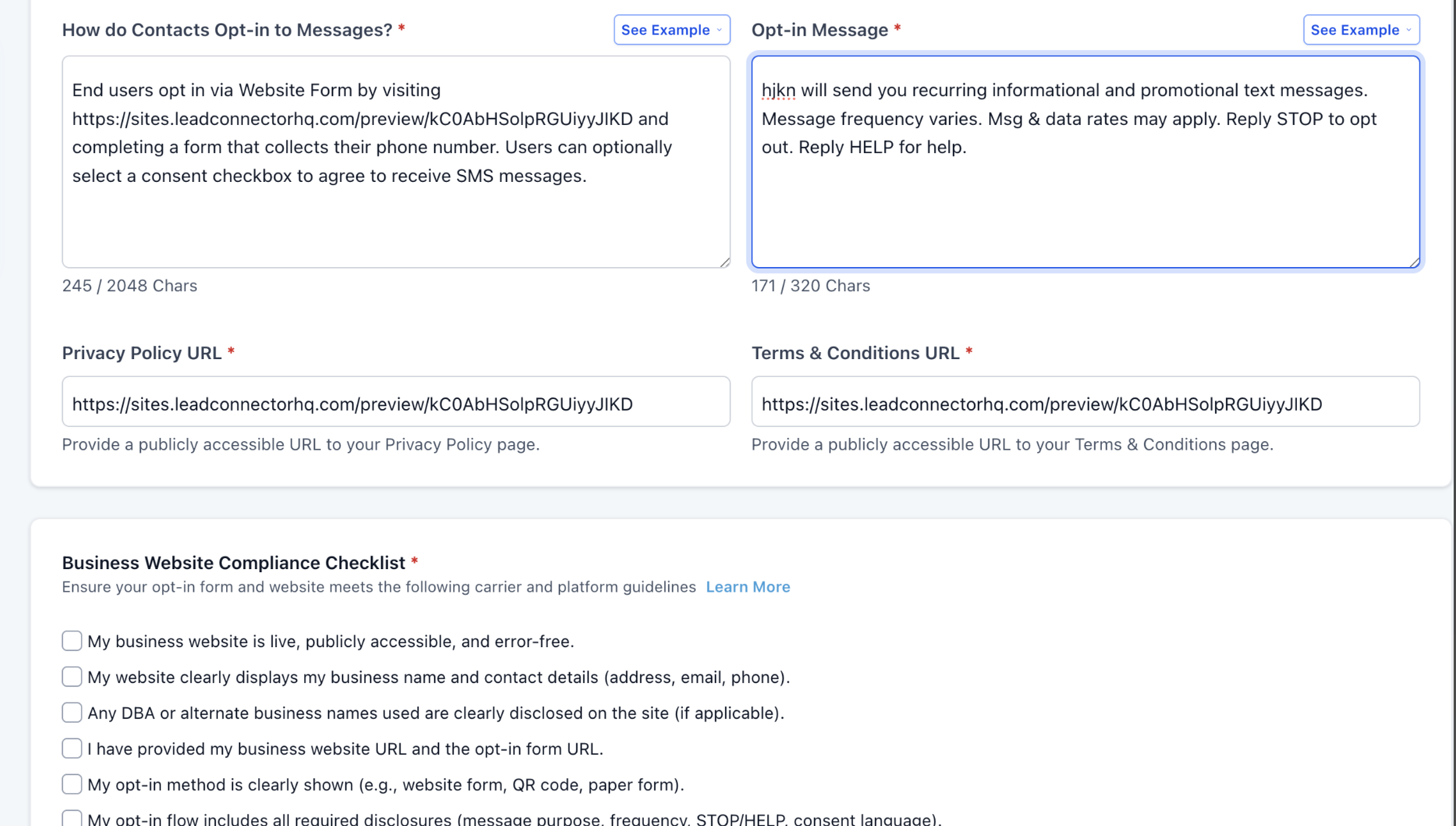
Business Website Compliance Checklist
Ensure your opt-in form and website meets the following carrier and platform guidelines.
Business Website Best Practices:

1. Use a live, publicly accessible website with no broken links or "under construction" pages.

2. Clearly display your business name and maintain consistent branding across your domain, website content, and legal policies.

3. Clearly explain the services or products offered on your website.

4. Provide visible and up-to-date Privacy Policy and Terms & Conditions pages.

5. Ensure your opt-in form is easy to find and easy to understand, with CTIA-compliant language.

6. Collect explicit SMS opt-in consent; consent must be clearly stated and not implied.

7. Ensure sample messages accurately reflect your website content and intended messaging use case.

8. Link social media icons directly to your brand's official pages (not generic platform homepages).

9. Implement age-gating where required (e.g., alcohol, tobacco, or restricted content).

10. Use social media pages or app store listings only as supporting proof if a full website is not available.

11. Clearly display any DBA or alternate business names in the footer, Privacy Policy, or Terms & Conditions (if applicable).
- Please select all items in the Website Compliance Checklist to proceed and click Review Application.

- Our system will review your application, provide improvement suggestions, and display a Pass/Fail status. Make sure to address all flagged items and achieve a “Pass” across every section to maximize your chances of approval.
- Once done, click on Proceed.

- Review your details for the last time and click on Submit Application.

IMPORTANT NOTE
- Ensure all registration information matches government records exactly.
- Non-compliance or errors will result in rejection and additional fees.
- Consult a legal professional if unsure about privacy policy, terms of service, or messaging language.
- Be aware of Sev-0 fines for prohibited content, which can range from $500-$2,000 per violation.
Handling the "Maximum 3 Tries Exhausted" Error
If you see the error "Maximum 3 tries exhausted", please fill out this form once you have collected the CP 575 Form. It means the registration attempts have failed due to mismatched or invalid business details.
Next Steps:
- Obtain your CP 575 EIN Confirmation Letter (or request a 147c letter from the IRS if the CP 575 is unavailable).
Upload your business registration form in your support communication with us.
Email or send a screenshot of your CP 575 form to the HighLevel team.
We will submit this documentation on your behalf for Brand approval.
Important Tips:
Ensure the legal business name and EIN number exactly match what’s shown on the CP 575 form.
- Do not use the business name found on W2 or W9 forms, as they may differ.
If the business name spans multiple lines on your CP 575/147c letter, you must enter all lines above the address line during registration.
Example:
ABC Holding Group Inc.
Division of Regional Services
123 Main Street
New York, NY 10001
The legal name to enter would be: ABC Holding Group Inc. Division of Regional Services
Understanding Trust Scores & Throughput
Once submitted, your brand will be vetted and assigned a Trust Score (0–100) by TCR.
Higher scores allow for higher Message Throughput (MPS) and better delivery rates. The Trust Score is determined based on your submitted information — EIN match, business type, domain verification, and more.
Check out our article for more information: Trust Scores and MPS Explained
Frequently Asked Questions
Q: What’s the difference between Sole Proprietor and Standard Brand?
Sole Prop is for individuals without an EIN. Standard Brand is for registered U.S. businesses with an EIN.
Q: Why was my brand rejected?
Likely reasons include EIN mismatch, invalid website, or use of a PO Box.
Q: Can I add new numbers after completing A2P Brand and Campaign Registration?
Yes. Any numbers you add after your brand and campaign are approved will be automatically registered under the same campaign — no resubmission is needed. It may take several days for registration to complete.
Q: How much does this cost?
Fees vary, checkout our article on Understanding A2P 10DLC Messaging Fees: Registration, Monthly, and Carrier Costs.
Q: Can I register multiple campaigns under one Standard Brand?
Yes, you can register multiple use-case-specific campaigns.
Q: I don't want to deal with all of this. Is there any alternative for me and my clients?
Yes, you can bypass A2P 10DLC by switching to Toll-Free Numbers. These also require registration, but the process is free and less complex. You can continue messaging in the U.S. without A2P 10DLC restrictions. See: Toll-Free Verification Guide for LC - Phone (US/Canada)
Q: How do we move from low volume sending to higher volume sending?
Please reach out to HighLevel support. We’ll share a form that you can submit, and our team will create the brand and campaign manually in the backend for increased throughput.
Q: Does this apply to only marketing campaigns or does it apply to all SMS?
A2P 10DLC is applicable for all Application-to-Person texting like marketing SMS, reactivation campaigns, appointment reminders, prospecting, billing alerts, 2FA login codes, etc.
Q: How can I become compliant?
Please refer to the following help articles:
Q: How do I request this info from my clients?
You can use the following forms to collect this information from your clients
[Google Doc Link] [Printable PDF Link]
Related Articles
Was this article helpful?
That’s Great!
Thank you for your feedback
Sorry! We couldn't be helpful
Thank you for your feedback
Feedback sent
We appreciate your effort and will try to fix the article