A2P 10DLC Campaign approval depends on whether your Campaign information clearly and consistently explains who is sending messages, what is being sent, why recipients receive the messages, and how they consented.
Use this guide before submitting or resubmitting a Campaign to catch common approval problems with your use case, sample messages, website, consent flow, Privacy Policy, and Terms & Conditions. HighLevel provides the registration workflow, but carriers and registration partners make the final approval decision.
If the video does not display, watch it on YouTube .
Table of Contents
- What Is A2P 10DLC Campaign Vetting?
- Key Benefits of Following Campaign Approval Best Practices
- Campaign Approval Checklist
- Campaign Use Case and Description
- Sample Messages
- Consent and Web Form Opt-In
- Providing Verifiable Opt-In Proof
- Text Message and Offline Opt-In
- Website, Privacy Policy, and Terms & Conditions
- Restricted and Forbidden Messaging
- How to Prepare Your A2P Campaign for Approval
- What to Do if Your Campaign Is Rejected
- Frequently Asked Questions
- Related Articles
What Is A2P 10DLC Campaign Vetting?
A2P 10DLC Campaign vetting reviews how your business intends to use SMS or MMS messaging. Reviewers compare your Campaign use case, description, sample messages, website, and consent process to confirm that the information is accurate, verifiable, and consistent.
Your Campaign should tell one consistent story:
- Brand: Who is sending the messages
- Use Case: Why messages are being sent
- Campaign Description: Who receives them and what they can expect
- Sample Messages: Examples of the actual messages you plan to send
- Opt-In Flow: How recipients give consent
- Website: A working site that represents the registered business
- Privacy Policy and Terms & Conditions: Publicly accessible policies that support the messaging program
Key Benefits of Following Campaign Approval Best Practices
A complete and consistent Campaign submission makes it easier for reviewers to understand and verify your messaging program before approval.
- Fewer Avoidable Rejections: Catch missing, conflicting, or unverifiable information before submission.
- Clearer Consent Verification: Show reviewers exactly where and how contacts agree to receive messages.
- Better Campaign Consistency: Keep your use case, description, sample messages, website, and opt-in language aligned.
- Faster Troubleshooting: Make rejection reasons easier to identify and correct.
- Stronger Messaging Compliance: Reduce the risk of registering a Campaign that does not match the messages you actually send.
Campaign Approval Checklist
A reviewer should be able to understand your messaging program without making assumptions. Check each item before submitting or resubmitting your Campaign.
- Your Campaign Use Case matches the messages you actually plan to send.
- Your Campaign Description identifies the sender, recipients, message purpose, and consent method.
- Your sample messages reflect real messages your business will send.
- Your business or sender name appears in your sample messages.
- Your sample messages match the selected Campaign Use Case.
- Your website is live, accessible, and represents the registered business.
- Your opt-in method can be verified by a reviewer.
- Your consent language explains what messages the contact agrees to receive.
- Your opt-out workflow clearly explains how contacts can stop messages and what confirmation they receive.
- Your HELP response identifies the business and provides a valid support method.
- Your Privacy Policy and Terms & Conditions are publicly accessible.
- Your Campaign does not involve restricted or prohibited messaging.
- If your Campaign includes both promotional and informational messaging, your sample messages represent both message types.
Campaign Use Case and Description
The Campaign Use Case defines the type of messaging you plan to send, while the Campaign Description explains how that messaging works for your business. Both should match the messages recipients will actually receive.
Choose the use case that most accurately represents your messaging purpose, such as Marketing, Customer Care, 2FA, Account Notifications, or another supported Campaign type.
A strong Campaign Description should answer:
- Who is sending the messages?
- Who receives the messages?
- What types of messages are sent?
- Why are the messages being sent?
- How do recipients opt in?
Good example:
Avoid:
The second example does not provide enough information for a reviewer to clearly understand the Campaign.
Sample Messages
Sample messages show reviewers what recipients can expect after opting in. They should represent actual messaging content and match both your Campaign Use Case and Campaign Description.
Include:
- Your business or sender name
- Realistic message content
- The same messaging purpose described in the Campaign
- Appropriate opt-out language, such as Reply STOP to unsubscribe
- Bracketed placeholders for variable content, such as [First Name] or [Appointment Date]
If your Campaign includes multiple message types, make sure the samples represent each type of messaging you plan to send. For mixed messaging, include at least one promotional/marketing example and one transactional/informational example when applicable.Example:
Consent and Web Form Opt-In
Consent must clearly show that the contact knowingly agreed to receive the type of messages described in your Campaign. Reviewers also need to be able to verify how consent is collected.
For a web form opt-in:
- Clearly identify the business sending the messages.
- Explain the type of messages the contact agrees to receive.
- Include message frequency information.
- Include a Message and data rates may apply disclosure.
- Include applicable HELP and STOP instructions.
- Provide accessible Privacy Policy and Terms & Conditions links.
- Do not preselect SMS consent checkboxes.
- Do not require SMS consent in order to submit the form.
- Clearly separate marketing and non-marketing consent when both are collected.
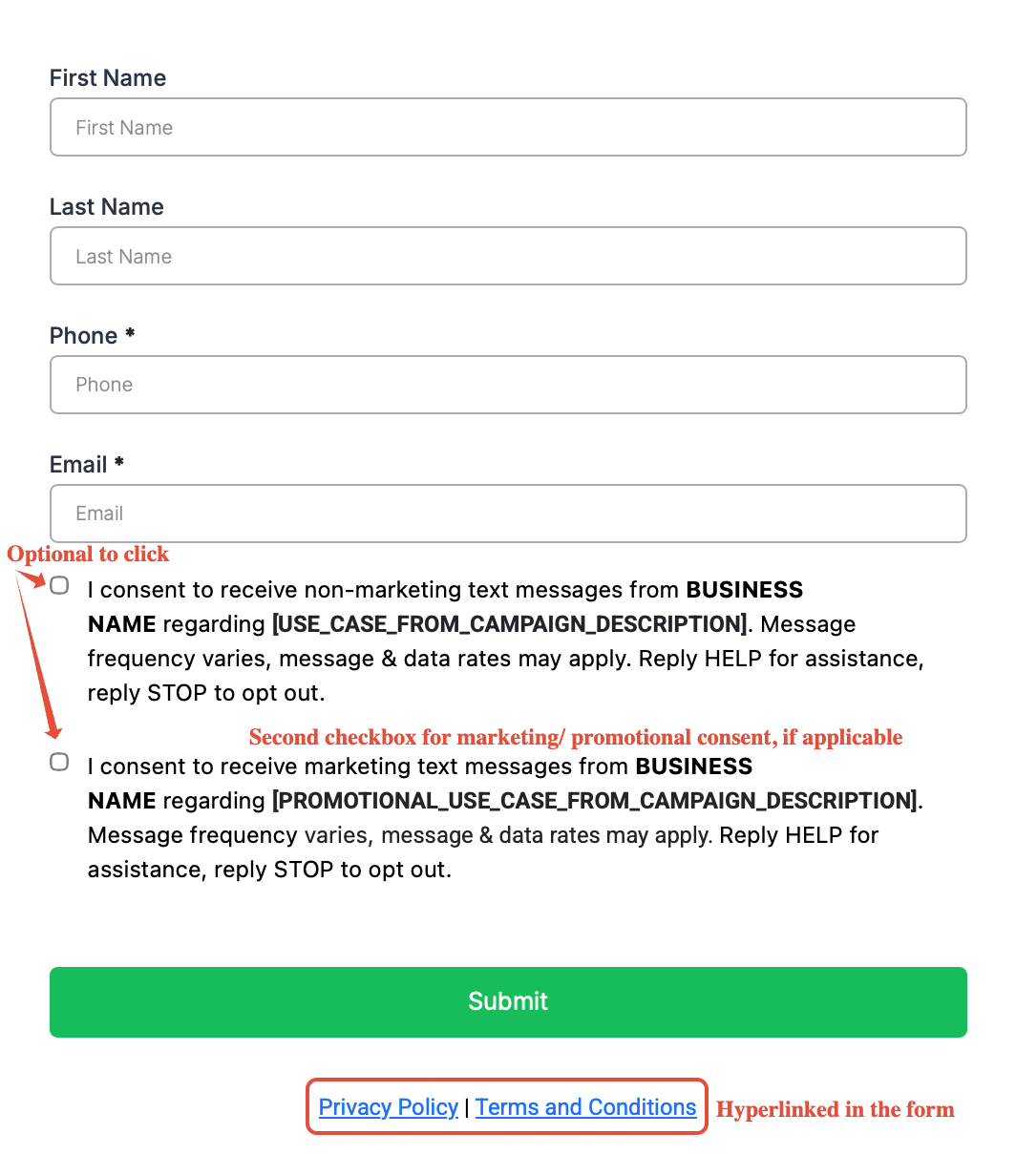
Collecting a contact's phone number does not by itself establish consent to receive SMS messages.A reviewer should be able to understand what the contact is agreeing to by viewing the form itself.
For detailed requirements, see A2P Opt-In Form - Privacy Policy and Terms and Conditions Guidelines .
Providing Verifiable Opt-In Proof
Reviewers must be able to verify the consent method described in your Campaign. If the original opt-in experience cannot be viewed publicly, provide accessible evidence showing what the recipient sees before consenting.
This commonly applies to:
- Paper forms
- Forms behind a login
- Unpublished or pre-launch forms
- QR-code flows
- Offline promotional materials
- Other opt-in methods that cannot be directly opened by a reviewer
You can upload a screenshot of the opt-in evidence to HighLevel Media Storage and obtain a shareable link.
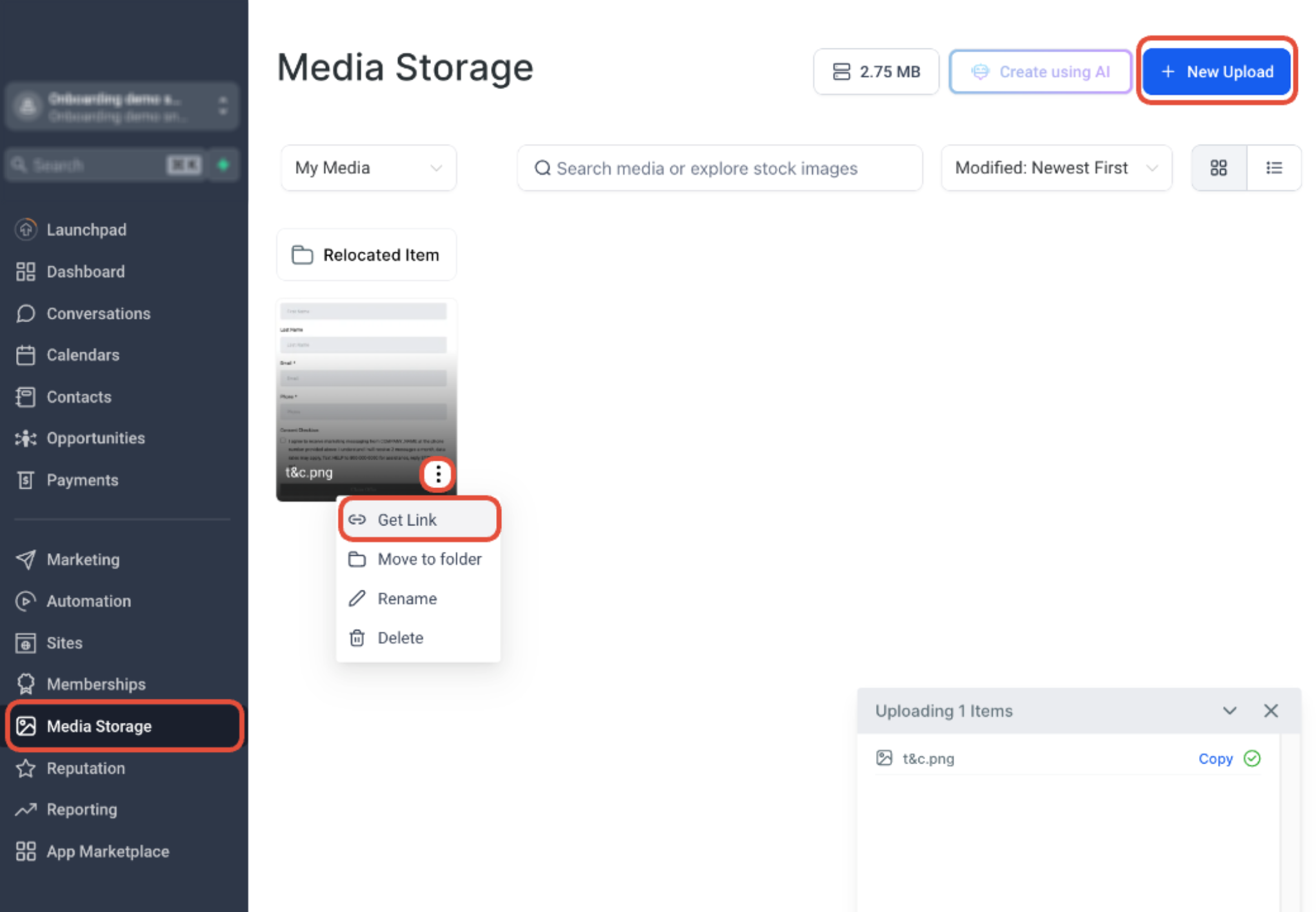
Video: Preparing Verifiable Opt-In Proof
Watch this example to understand how supporting opt-in evidence can be prepared for Campaign review.
If the video does not display, open the video directly .
Your supporting evidence should clearly show the consent language and applicable disclosures. Do not provide a URL that requires the reviewer to sign in.
Text Message and Offline Opt-In
Text-to-join and offline Campaigns still need a clear Call to Action that explains what the recipient is joining before they opt in.
Include information such as:
- Business or program name
- Opt-in keyword and destination number
- Type of messages the contact will receive
- Message frequency
- Message and data rate disclosure
- HELP information
- STOP instructions
- Privacy Policy and Terms information when applicable
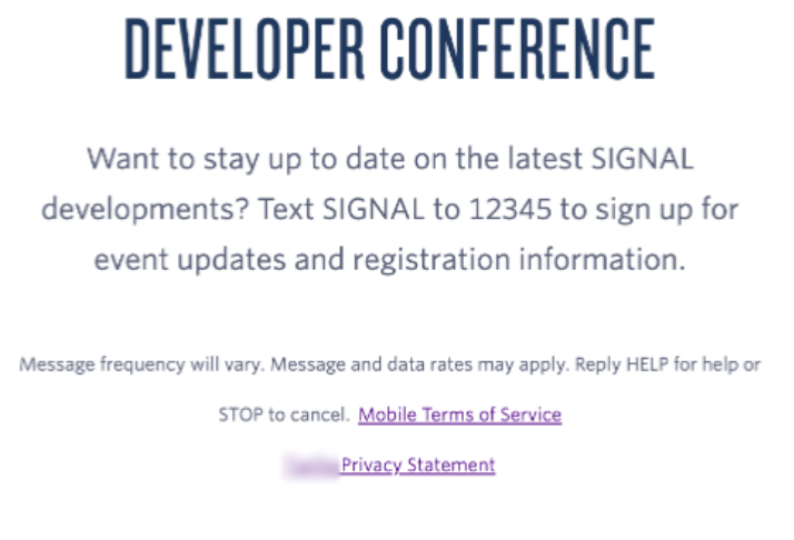
When registering this type of opt-in, provide enough information and supporting evidence for a reviewer to verify the consent experience.
HELP and STOP Responses
HELP and STOP responses give recipients a clear way to manage their messaging preferences and get support. These responses should identify your business and provide enough information for recipients and reviewers to understand what happens after a keyword is sent.
- STOP response: Acknowledge the opt-out request, identify the business or brand, and confirm that no further messages will be sent.
- HELP response: Identify the business or brand and provide a valid phone number, email address, or other support contact method.
- Make sure the HELP and STOP behavior described in your Campaign matches the actual messaging experience.
Website, Privacy Policy, and Terms & Conditions
Your website helps reviewers confirm that the Campaign belongs to the business being registered. Your business identity, Campaign information, website, and consent flow should remain consistent.
Before submitting, verify that:
- The website URL works.
- The website represents the registered business or declared DBA.
- Business information on the website matches the Campaign.
- The opt-in page can be accessed if website opt-in is being used.
- Privacy Policy and Terms & Conditions pages are publicly accessible.
- The Privacy Policy appropriately addresses SMS opt-in data and consent.
For detailed policy requirements, see A2P Opt-In Form - Privacy Policy and Terms and Conditions Guidelines .
Restricted and Forbidden Messaging
Selecting an available Campaign Use Case does not make prohibited messaging eligible for A2P 10DLC. Certain business categories and message types may be restricted, rejected, filtered, suspended, or subject to additional requirements.
Examples can include certain:
- High-risk financial services
- Third-party lead generation
- Debt-related services
- Illegal or controlled substances
- Gambling
- Firearms or vaping-related messaging
- Other restricted or regulated content
Review Forbidden Message Categories for SMS and MMS in the U.S. and Canada before registering if you are unsure whether your business or messaging content is eligible.
How to Prepare Your A2P Campaign for Approval
Reviewing the Campaign as one complete customer journey helps uncover inconsistencies that may not be obvious when each registration field is completed separately.
- Go to Settings → Phone System → Trust Center.
- Open Brand & Campaigns from the A2P Messaging card.
- Confirm that your Brand represents the business that will actually send the messages.
- Choose a Campaign Use Case that matches your messaging purpose.
- Write a Campaign Description that identifies the sender, recipient, message purpose, and consent method.
- Add realistic sample messages that match the selected use case.
- Verify your opt-in flow, website, Privacy Policy, and Terms & Conditions.
- Check for mismatched names, URLs, messaging purposes, or consent language before submission.
For the complete registration workflow, see A2P Campaign Registration: Step-by-Step Guide and FAQs .
What to Do if Your Campaign Is Rejected
A rejection reason identifies an issue discovered during Campaign vetting. Review the complete submission before resubmitting so another issue does not cause an additional rejection.
- Go to Settings → Phone System → Trust Center.
- Open your A2P Brand and Campaign information.
- Locate the rejected Campaign.
- Review the displayed failure or rejection reason.
- Open any available required-fix information.
- Correct the identified issue.
- Review the complete Campaign again before resubmitting.
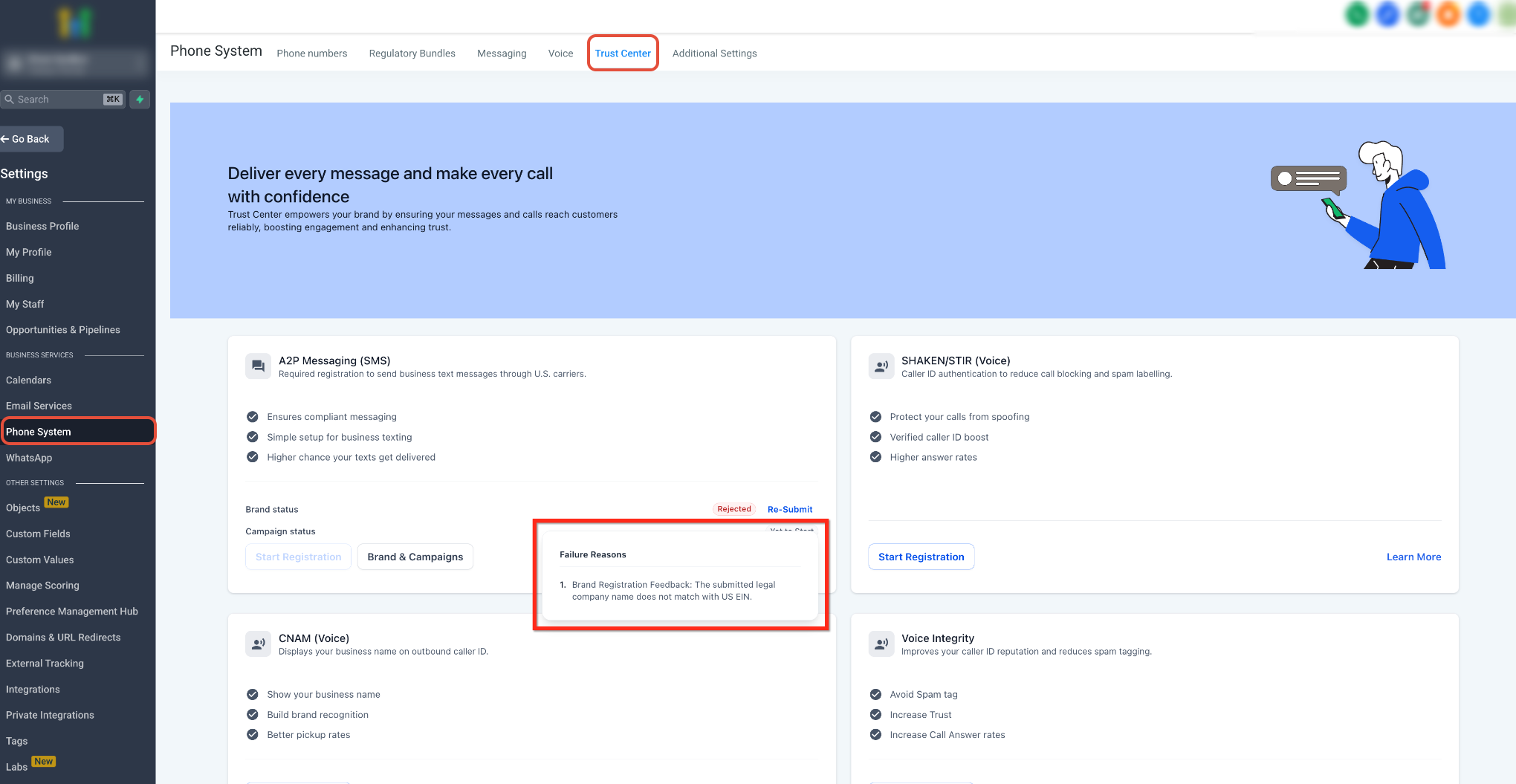
IMPORTANT: Some Campaign fields may not be editable during resubmission. If the required fix involves a locked field, such as the Campaign use case or opt-in message, you may need to create and submit a new Campaign. Review the displayed required fixes before making changes.
For detailed rejection guidance, see A2P Campaign Rejections, Required Fixes & Vetting Errors .
Frequently Asked Questions
Q: Does following every recommendation guarantee Campaign approval?
No. These practices improve the quality and consistency of your submission, but carriers and registration partners make the final approval decision.
Q: Why can a correct-looking Campaign still be rejected?
Reviewers evaluate the Campaign as a whole. A working website does not correct a sample message that conflicts with the selected use case or an opt-in flow that cannot be verified.
Q: What should my HELP response contain?
Your HELP response should identify the business or brand and provide a valid way for the recipient to get assistance, such as a phone number or email address.
Q: What should happen after a contact replies STOP?
The response should acknowledge the opt-out request, identify the business or brand, and confirm that the recipient will no longer receive messages from the messaging program.
Q: What if my Campaign uses more than one opt-in method?
Describe every opt-in method selected during registration and provide enough information or supporting evidence for reviewers to verify each consent experience.
Q: What should I do if my Campaign is rejected more than once?
Review the latest required fixes and recheck the entire Campaign rather than correcting only the most recent issue.
Related Articles
- A2P Campaign Registration: Step-by-Step Guide and FAQs
- A2P Campaign Rejections, Required Fixes & Vetting Errors
- A2P 10DLC Campaign Use Cases
Was this article helpful?
That’s Great!
Thank you for your feedback
Sorry! We couldn't be helpful
Thank you for your feedback
Feedback sent
We appreciate your effort and will try to fix the article