If your agency uses its own Twilio account connected to HighLevel, purchase new phone numbers directly from the Twilio Console. Purchasing the number from the Twilio sub-account connected to the correct HighLevel location allows the number to sync back to that location. This guide explains how to identify the correct Twilio sub-account, purchase a number, and verify that it appears in HighLevel.
Important: You do not need to select Twilio from a provider dropdown in HighLevel to complete this process. These instructions apply only to agencies using their own Twilio account connected to HighLevel.
TABLE OF CONTENTS
- What Is Purchasing a Twilio Number for HighLevel?
- Key Benefits of Purchasing a Number in Twilio
- Before You Begin
- How to Purchase a Twilio Number and Sync It to HighLevel
- Troubleshooting a Twilio Number That Does Not Appear
- Frequently Asked Questions
- Related Articles
What Is Purchasing a Twilio Number for HighLevel?
Each HighLevel location using your agency's connected Twilio account is associated with a Twilio sub-account. Purchasing a phone number from the correct Twilio sub-account ensures the number is associated with the intended HighLevel location.
If your agency has multiple Twilio sub-accounts, confirm the Account SID associated with the HighLevel location before purchasing a number.
Key Benefits of Purchasing a Number in Twilio
Purchasing from the correct Twilio sub-account lets agencies access Twilio's available number inventory while keeping new numbers associated with the intended HighLevel location.
- Correct location assignment: Purchase the number from the Twilio sub-account associated with the intended HighLevel location.
- Direct number access: Search the phone number inventory available through your Twilio account.
- Capability filtering: Search for numbers that support Voice, SMS, MMS, or other available capabilities.
- Number type options: Find local, mobile, or toll-free numbers when supported and available.
- Automatic syncing: Numbers purchased from the connected Twilio sub-account can appear in the corresponding HighLevel location.
Before You Begin
Confirming the Twilio connection before purchasing helps prevent a number from being purchased under the wrong account. Access to both HighLevel and Twilio is important because the Account SID is used to identify the correct Twilio sub-account.
Before getting started, make sure:
- Your agency uses its own Twilio account connected to HighLevel.
- You can access Agency View in HighLevel.
- You can access the connected Twilio account.
- You have permission to purchase phone numbers in Twilio.
- You know which HighLevel location should receive the new number.
Important: Phone number availability, capabilities, pricing, and regulatory requirements vary by country and number type.How to Purchase a Twilio Number and Sync It to HighLevel
The Twilio sub-account used to purchase the number determines which connected HighLevel location receives it. Confirm the correct sub-account first, then complete the purchase from that account.
Step 1: Find the Location's Twilio Sub-Account
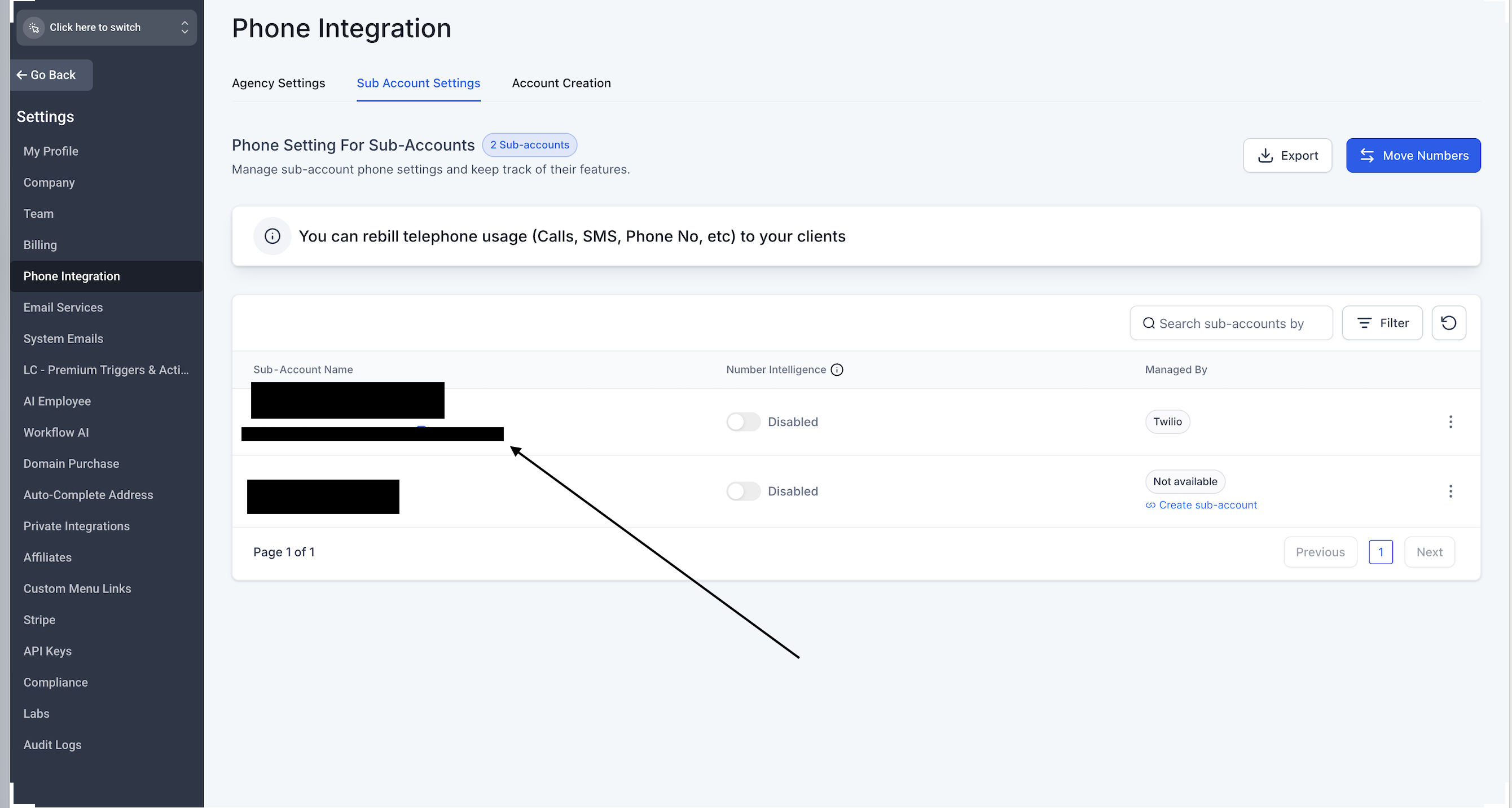
- Sign in to HighLevel and switch to Agency View.
- Go to Settings → Phone Integration.
- Select Sub Account Settings.
- Locate the destination HighLevel location.
- Confirm that the location shows Twilio under Managed By.
- Copy or note the Twilio Account SID associated with the location.
Step 2: Open the Correct Twilio Sub-Account
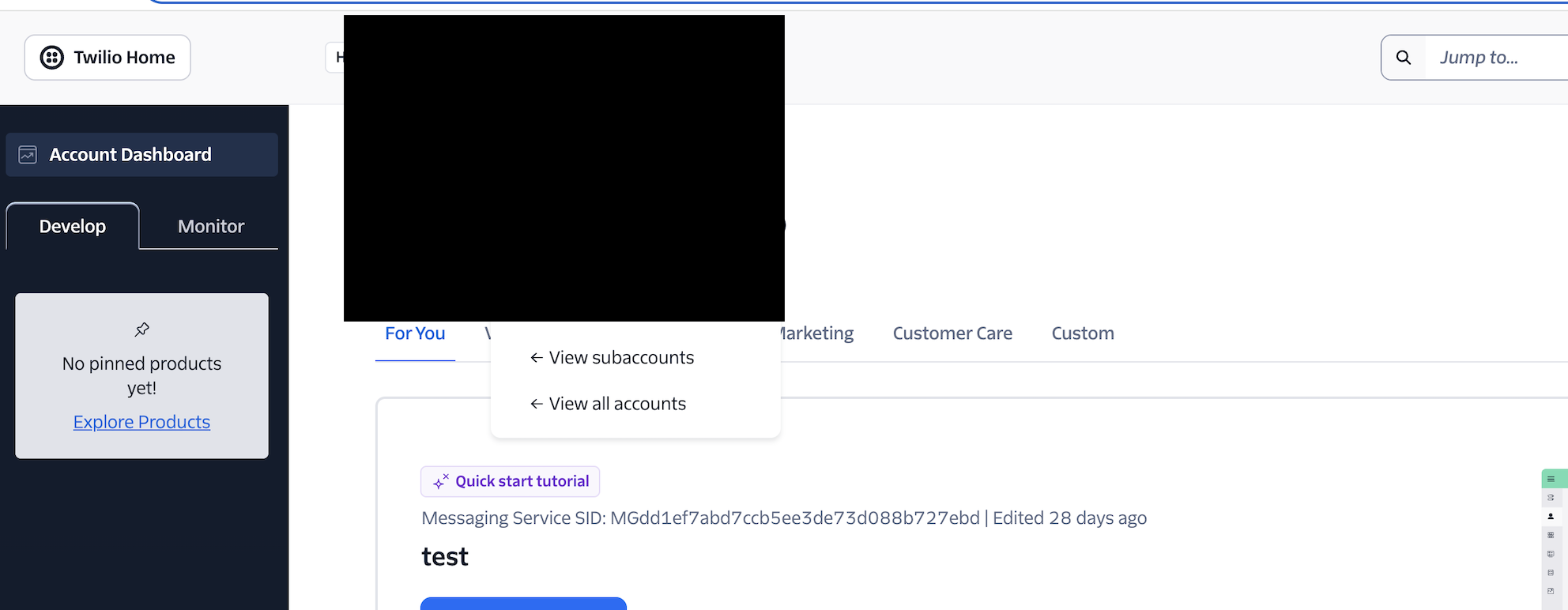
- Sign in to the Twilio Console.
- Open the account switcher.
- Select View subaccounts or View all accounts.
- Open the Subaccounts page.
- Search by account name or Account SID.
- Match the SID with the HighLevel location identified in Step 1.
- Open the matching Twilio sub-account.
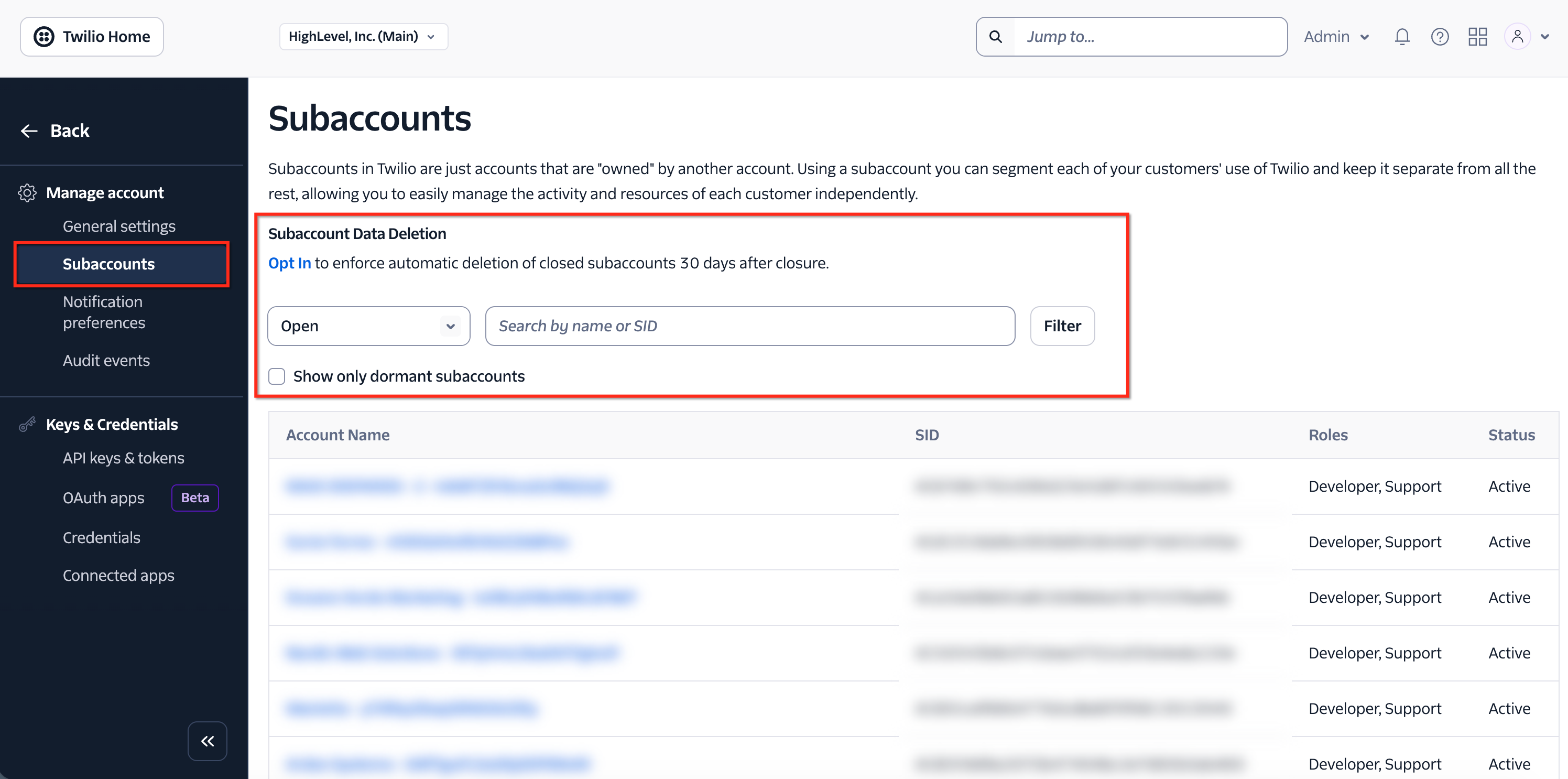
Important: Confirm that you are inside the correct Twilio sub-account before purchasing the number. Purchasing the number from the main Twilio account or an unrelated sub-account can prevent it from appearing in the intended HighLevel location.
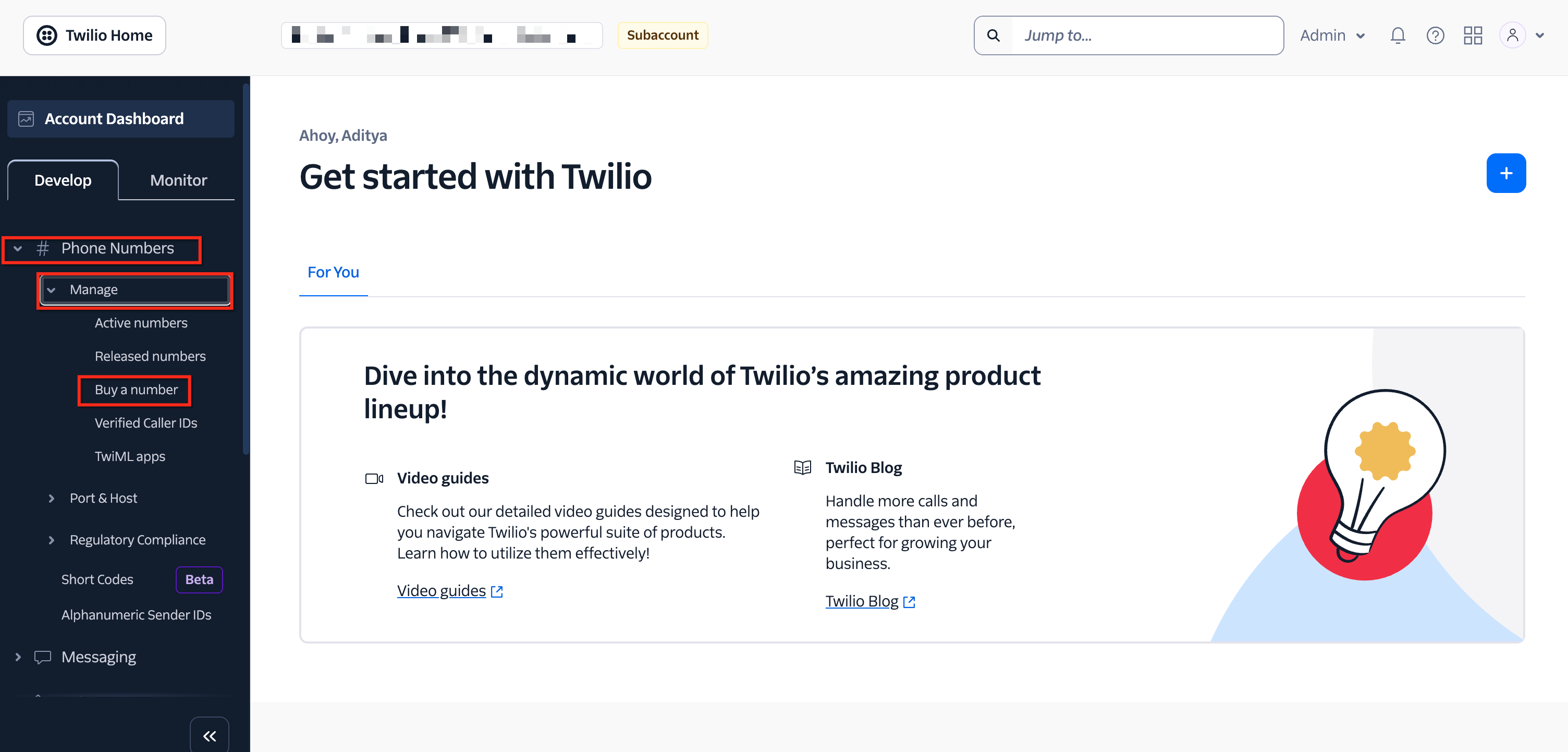
Step 3: Open the Buy a Number Page
From the Twilio Console sidebar, go to: Develop → Phone Numbers → Manage → Buy a number
Step 4: Search for an Available Number
Searching within the correct Twilio sub-account lets you choose from the phone number inventory and capabilities currently available for the selected country.
- Select the desired country.
- Select the required capabilities, such as:
- Voice
- SMS
- MMS
- Fax
- Enter an area code, digits, or phrase when needed.
- Click Search.
- Review the available numbers, number type, capabilities, address requirements, and monthly fee.
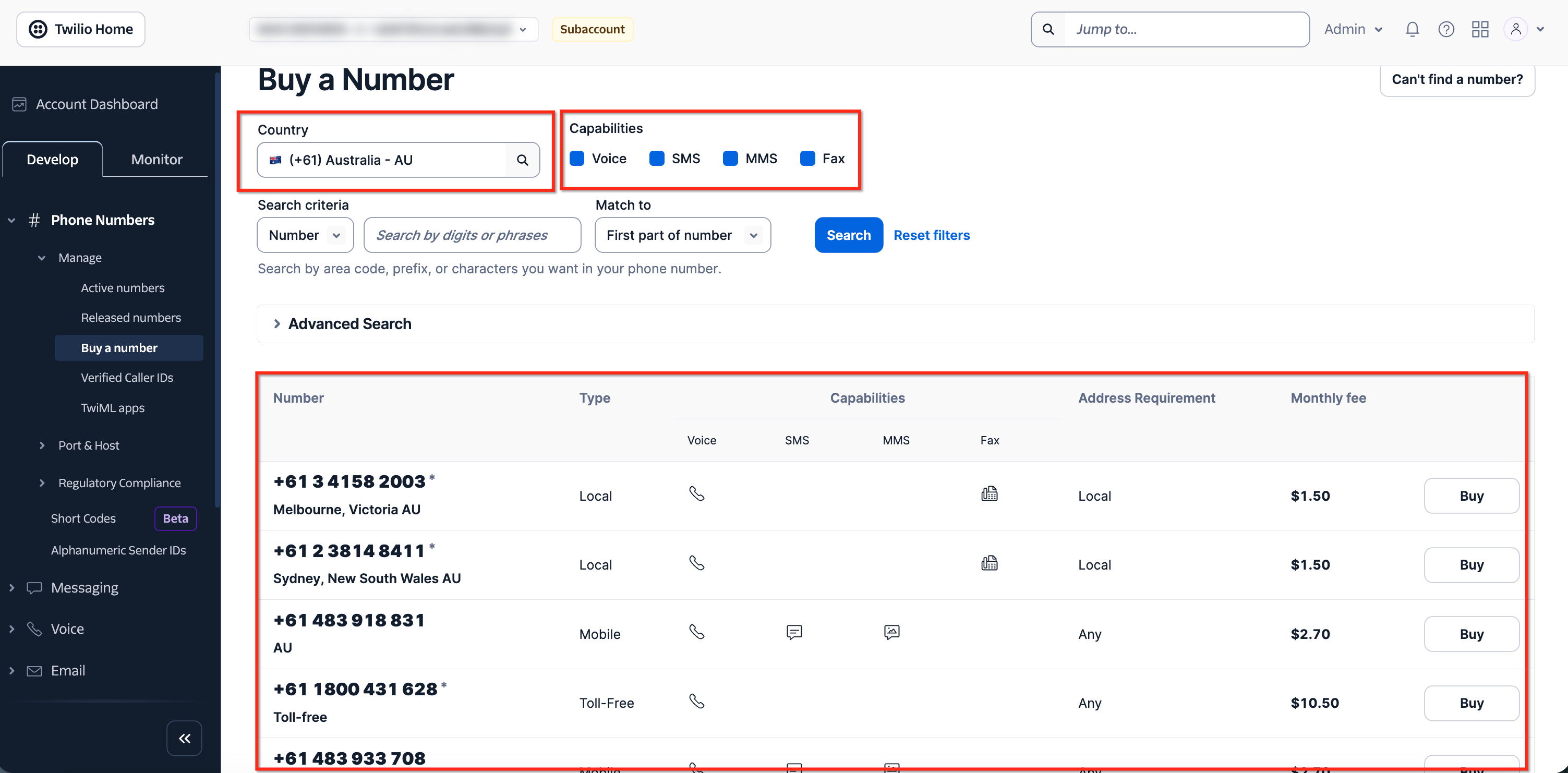
Number availability and supported capabilities depend on the selected country and Twilio's current inventory.
Step 5: Refine the Number Search
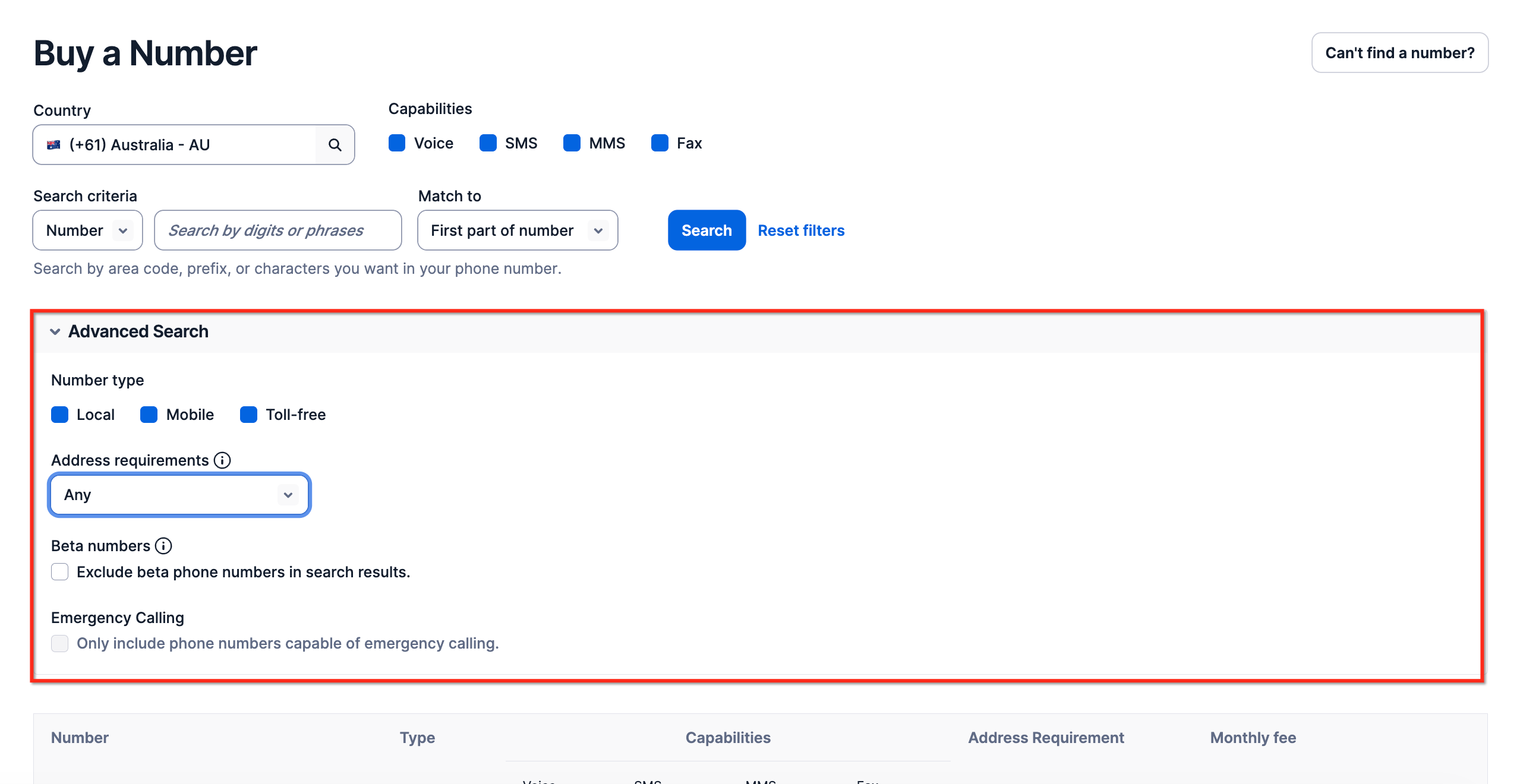
Advanced Search can narrow the available inventory when you need a particular number type or have additional requirements.
- Expand Advanced Search.
- Select the preferred number type:
- Local: A geographic number.
- Mobile: A mobile number, when available.
- Toll-free: A toll-free number.
- Local: A geographic number.
- Review the Address requirements filter.
- Apply additional filters when needed.
- Run the search again.
Step 6: Purchase the Number
Reviewing the number before completing the purchase helps ensure it supports the capabilities you need and identifies any additional requirements associated with the number.
- Review the number's capabilities and monthly fee.
- Click Buy next to the preferred number.
- Review any regulatory, address, or emergency-calling requirements.
- Accept the applicable terms when required.
- Confirm the purchase.
Some numbers may display additional requirements before the purchase can be completed.
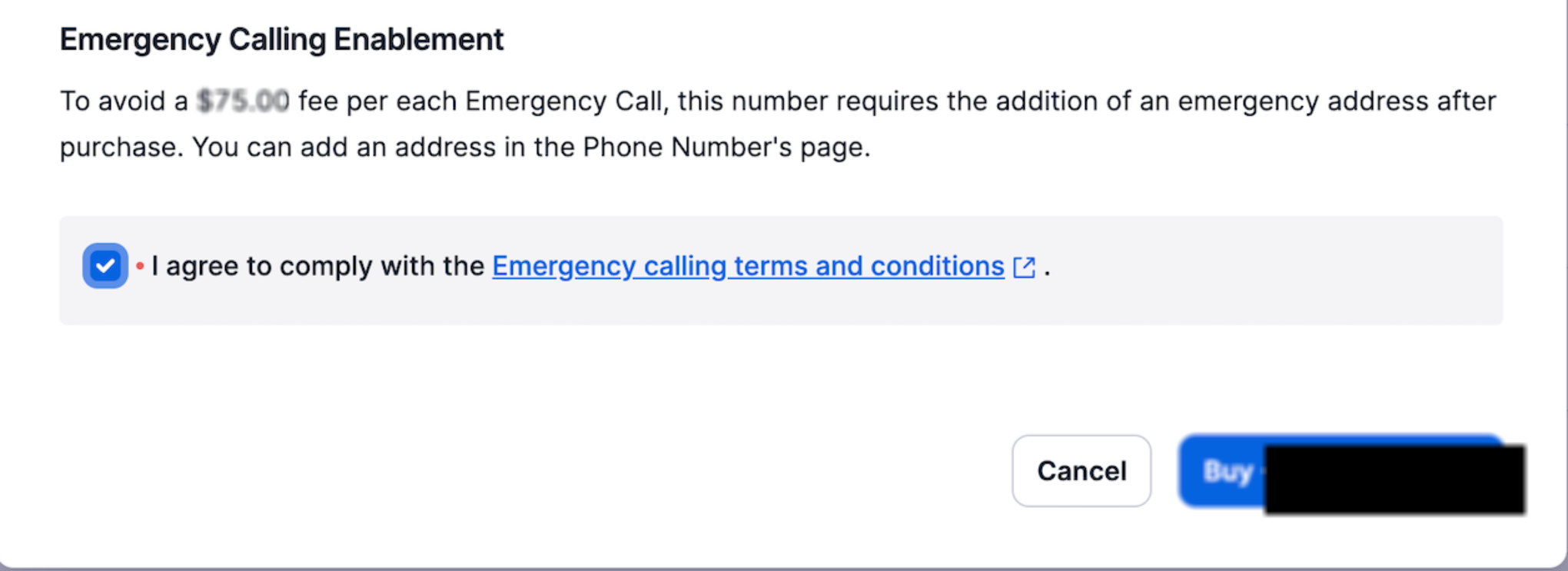
Important: Some numbers may require additional identity, address, regulatory, messaging, or emergency-calling configuration before they can be fully used.
Step 7: Verify the Number in HighLevel
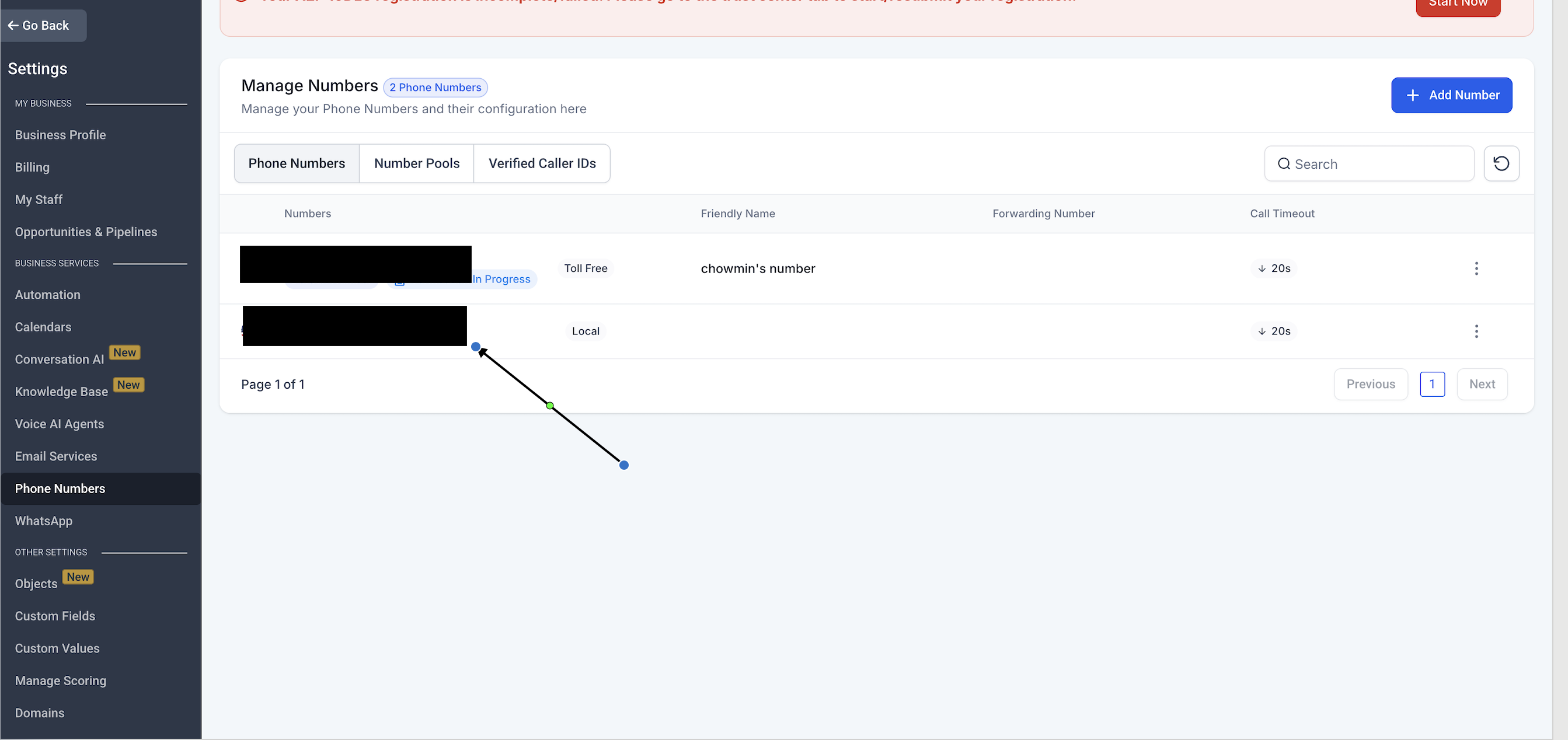
A number purchased from the correct connected Twilio sub-account should sync to the corresponding HighLevel location. Verifying the number confirms that it was purchased from the correct account.
- Return to the destination HighLevel location.
- Go to Settings → Phone Numbers.
- Refresh the page if needed.
- Confirm that the purchased number appears in the Phone Numbers list.
- Open the number's settings and complete any required routing, forwarding, user assignment, or compliance configuration.
Troubleshooting a Twilio Number That Does Not Appear
A newly purchased number may not appear in the intended HighLevel location if it was purchased from the wrong Twilio sub-account or if the Account SID does not match the location's connection. Comparing the Account SID in HighLevel and Twilio can help identify an account mismatch.
If the number does not appear:
- Confirm that the purchased number appears under Phone Numbers → Manage → Active numbers in Twilio.
- Verify that the Twilio sub-account SID matches the Account SID connected to the HighLevel location.
- Make sure the number was not purchased from the main Twilio account or another sub-account.
- Refresh Settings → Phone Numbers in HighLevel.
- Sign out and back in if the page does not update.
- If the number is in the correct connected Twilio sub-account but still does not appear, contact HighLevel Support.
Frequently Asked Questions
Q: Why don't I see Twilio as a provider when purchasing a number in HighLevel?
You do not need to select Twilio from a provider dropdown for the process described in this article. If your agency manages its own connected Twilio account, purchase the number directly from the Twilio sub-account associated with the HighLevel location.
Q: How do I confirm that I am using the correct Twilio sub-account?
Go to Agency View → Settings → Phone Integration → Sub Account Settings and locate the HighLevel location.
Match its Account SID with the corresponding sub-account in Twilio.
Q: What happens if I purchase the number in the wrong Twilio sub-account?
The number may not appear in the intended HighLevel location. Verify the Account SID and use the appropriate number-moving process if the number was purchased under the wrong account.
Q: Will the number appear in HighLevel immediately?
A number purchased from the correct connected Twilio sub-account should sync to the corresponding HighLevel location. Refresh the Phone Numbers page if it does not appear right away.
Q: Is the number ready for SMS as soon as it appears?
Not necessarily. The number must support SMS, and additional registration or compliance requirements may apply.
Q: Can I purchase a toll-free number using this process?
Yes, when toll-free inventory is available. Additional toll-free messaging verification requirements may apply.
Q: Can I use this process for an existing Twilio number?
No. These steps are for purchasing a new number. Existing Twilio numbers may require an import, transfer, or sub-account move.
Related Articles
- Moving Numbers Between Sub-Accounts (Same Agency)
- Moving Phone Numbers Across Accounts (US and International)
Was this article helpful?
That’s Great!
Thank you for your feedback
Sorry! We couldn't be helpful
Thank you for your feedback
Feedback sent
We appreciate your effort and will try to fix the article