This article explains attachment size limits for SMS/MMS and email sent through HighLevel. It also explains how HighLevel uses the Media Library to handle files that cannot be delivered directly and how attachment behavior differs between messaging channels.
What are File Size Limits for SMS and Email Attachments?
Attachment size limits determine whether a file can be delivered directly through MMS or email or must be shared another way. Understanding these limits helps reduce delivery failures and clarifies when HighLevel will use a Media Library link instead of sending the original file as a direct attachment.
Key Benefits of Understanding File Size Limits
Knowing attachment limits helps you avoid failed deliveries and understand when files can be sent directly or should be shared through the Media Library.
- Improved Deliverability: Reduce delivery issues caused by attachments that exceed supported limits.
- Clearer Channel Requirements: Understand how attachment handling differs between SMS/MMS and email.
- Simplified File Handling: Use the Media Library for files that cannot be sent directly.
- Fewer Manual Workarounds: Reduce the need to compress files or use third-party hosting.
- Better Engagement: Use supported video thumbnails and file links to make messages easier for recipients to access.
SMS Attachment Size Limits
SMS itself supports text only. When supported media is sent directly with a text message, the message is delivered as MMS. If a file cannot be sent directly because of its size, file type, or delivery requirements, HighLevel can use the Media Library to share the file through a clickable link instead.
Commonly supported image types for direct MMS include:
Other media types, including MP3, MP4, and PDF, may be handled differently depending on the carrier, device, and whether the file can be delivered directly as MMS. Files that cannot be delivered directly can be shared through a Media Library link.
Carrier and number-type limits can vary. For the broadest compatibility, keeping direct MMS attachments under 500 KB is a conservative best practice, even when a higher technical limit may be supported.
| Carrier | Long Code MMS | Toll-Free MMS | Short Code MMS |
|---|---|---|---|
| AT&T* | 1.0 MB | 0.6 MB | 0.6 MB |
| T-Mobile | 1.5 MB | 0.6 MB | 1.0 MB |
| Verizon | 1.0 MB | 0.6 MB | 1.2 MB |
Long Code, Short Code, and Toll-Free numbers can support MMS. The maximum supported file size can differ by carrier and number type, so the values below should be treated as upper limits rather than guaranteed delivery thresholds.
| Message Type | Supports MMS? | Maximum Size Reference |
|---|---|---|
| Long Code (10DLC) | ✅ Yes | Varies by carrier |
| Short Code | ✅ Yes | Up to 5 MB |
| Toll-Free | ✅ Yes | Up to 5 MB |
Email Attachment Size Limits
HighLevel limits the size of files that can be attached directly through the email composer. Recipient or sending email providers may also apply their own restrictions, so keeping attachments within the HighLevel composer limit helps reduce delivery issues.
HighLevel's email composer allows up to 20 MB in direct attachments. Files above this size are uploaded to the Media Library and shared as clickable links instead of being sent as direct email attachments.
How to Upload Attachments in Conversations
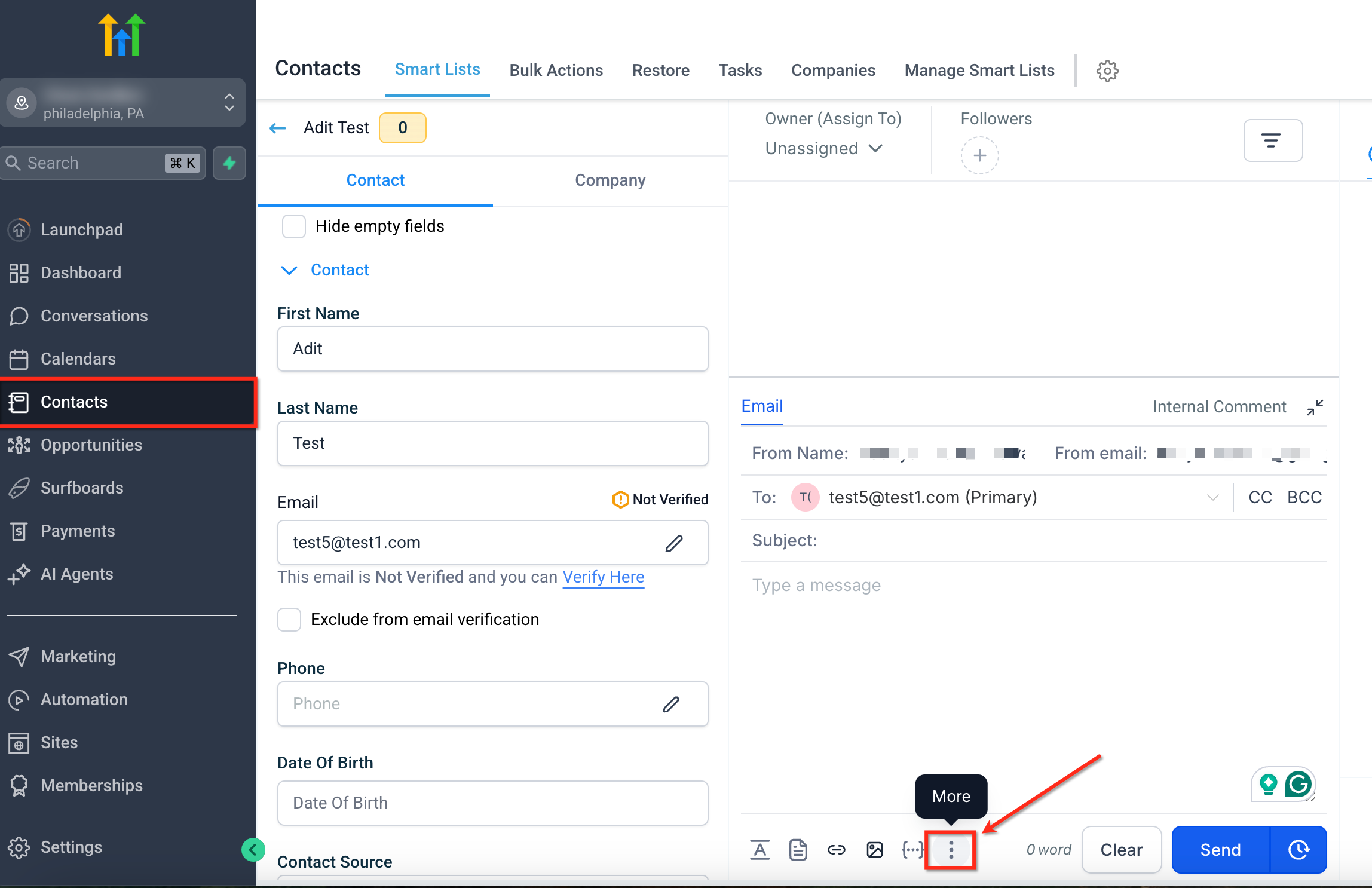
HighLevel lets you attach files directly from your device or select existing files from the Media Library while composing an SMS/MMS or email in Conversations. The steps below show where to access these options.
Open a conversation under the Conversations tab and click the three-dot icon (•••) in the message composer.
After clicking the three-dot icon, select Attach Files. You'll see two options:
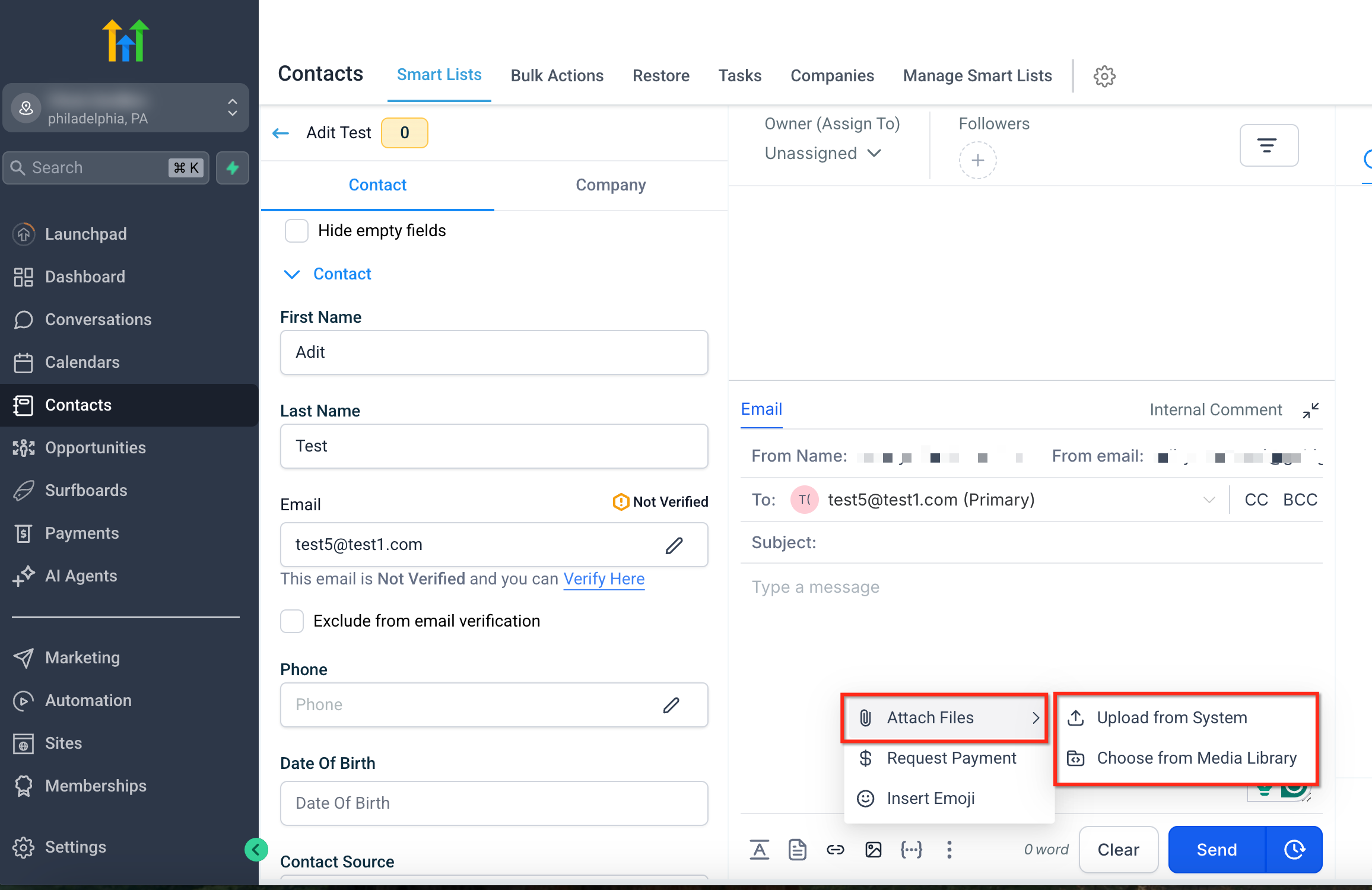
For email, files above 20 MB are uploaded to the Media Library and inserted into the message as a clickable link.
For SMS/MMS, files that cannot be delivered directly because of their size, type, or channel requirements can also be shared using a Media Library link.
Video Uploads Get Auto-Generated Thumbnails. When a video file is uploaded through the Media Library for use in email, HighLevel can generate a GIF thumbnail that gives recipients a visual preview and clickable entry point to the video.
Paste Attachments from Clipboard
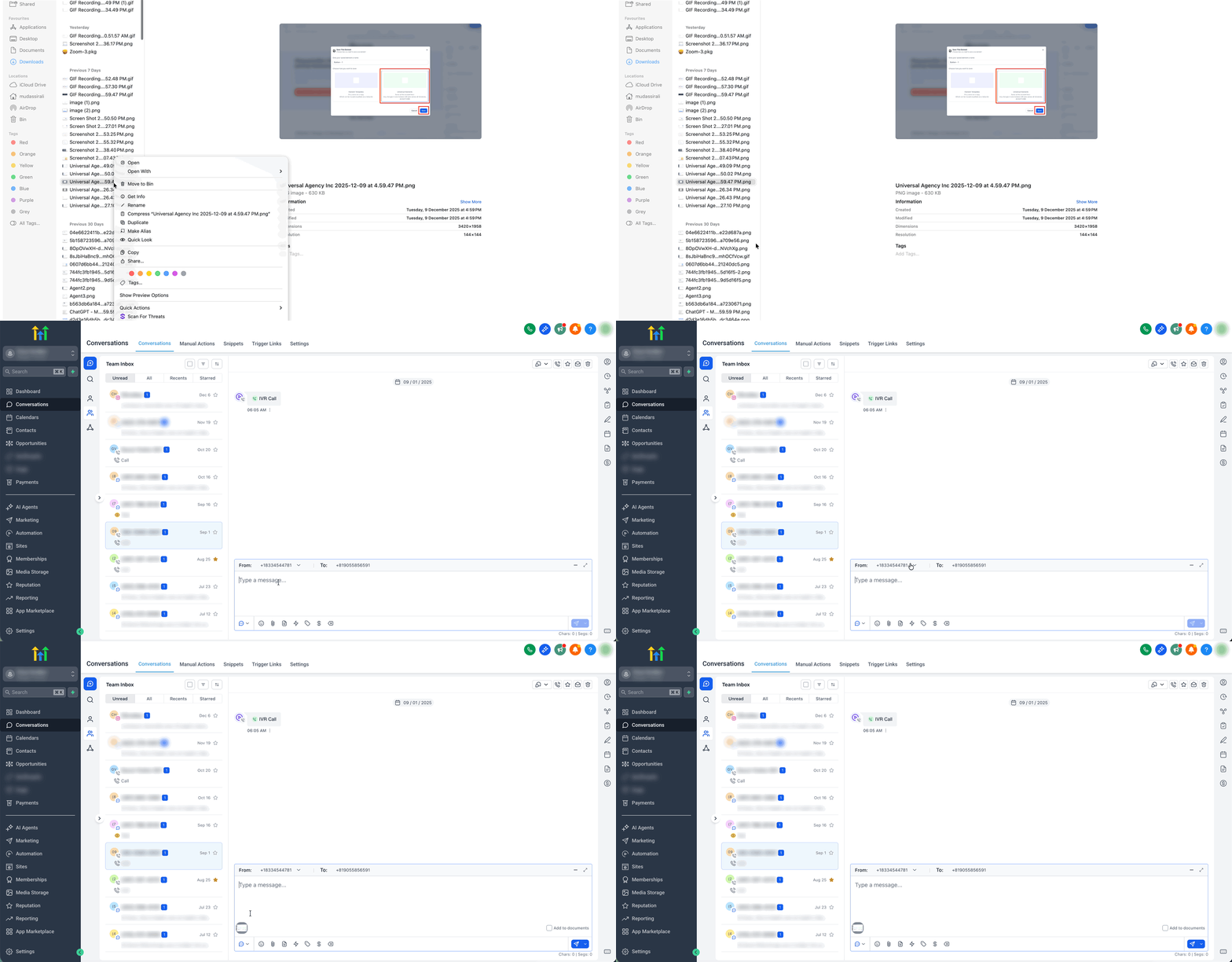
Clipboard pasting provides a faster way to attach a supported file or image without opening the attachment menu.
- Copy a supported file or image on your computer.
- Click inside the message composer in Conversations.
- Press Ctrl + V (Windows) or Cmd + V (Mac), or right-click and select Paste.
The pasted file is added to the current message and follows the same attachment-size and delivery rules described above.
How to Send Larger Files
Large files do not always need to be compressed or hosted outside HighLevel. The Media Library provides a way to share files as links when they exceed direct attachment limits.
- Upload the file through the email or SMS/MMS composer.
- Email files above 20 MB are hosted through the Media Library and inserted as clickable links.
- SMS/MMS files that cannot be delivered directly can be shared through a Media Library link.
- Use external cloud hosting only when the file needs to be managed outside HighLevel.
- Use Media Library video uploads when you want HighLevel to generate a visual thumbnail for email.
Frequently Asked Questions
Was this article helpful?
That’s Great!
Thank you for your feedback
Sorry! We couldn't be helpful
Thank you for your feedback
Feedback sent
We appreciate your effort and will try to fix the article