HighLevel's Email Builder allows you to attach files directly to email campaigns, making it easy to share documents and supporting resources with recipients. You can include multiple attachments, such as PDFs and images, when sending or scheduling a campaign.Attachments are delivered with your email, allowing recipients to access important files directly from their inbox. This article explains how to add attachments, understand file size limits, and send email campaigns with files.
TABLE OF CONTENTS
- What Are Email Attachments in HighLevel's Email Builder?
- Key Benefits of Adding Attachments to Emails in Email Builder
- Email Attachment Limits and Delivery
- How to Attach Files
- Frequently Asked Questions
- Related Articles
What Are Email Attachments in HighLevel's Email Builder?
Email attachments allow you to include files alongside an email campaign rather than requiring recipients to access documents through external links. This makes it easier to share supporting materials such as brochures, proposals, pricing sheets, and onboarding documents.
HighLevel allows you to attach multiple files during the Send or Schedule process, with a combined attachment size limit of 10 MB.
Attachments are delivered as standard email attachments and do not appear within the email body.
Key Benefits of Adding Attachments to Emails in Email Builder
Adding attachments to email campaigns simplifies how you share documents and resources with recipients. Instead of directing contacts to separate file-sharing links, you can include supporting materials directly with your email.
- Simplified Workflow: Attach files directly when sending or scheduling email campaigns without leaving the Email Builder.
- Convenient File Access: Allow recipients to access supporting documents directly from their inbox.
- Multiple File Attachments: Include multiple supporting files in a single email campaign, provided their combined size does not exceed 10 MB.
- Flexible Use Cases: Share brochures, proposals, pricing sheets, menus, onboarding documents, forms, and other relevant resources.
- Consistent File Delivery: Send the intended version of a document with your email rather than relying on an external file link that could change.
Email Attachment Limits and Delivery
Understanding attachment limits helps you prepare email campaigns and avoid issues when adding supporting files. HighLevel supports multiple attachments within a combined size limit, and the files are delivered separately from the email body.
- Multiple Attachments: You can attach more than one file to an email campaign.
- Combined Size Limit: The total size of all attachments must not exceed 10 MB.
- Email Delivery: Recipients receive the files as attachments in their email client.
- Email Body Preview: Attachments do not display inside the campaign's email body.
Important: Attachment limits vary across HighLevel features. The 10 MB combined limit applies to attachments added through the Email Builder campaign workflow. Other features, such as Conversations and Documents & Templates, have separate attachment restrictions.
If a file is too large to include within the campaign attachment limit, consider hosting it externally and including a link in the email instead.
How to Attach Files
Adding attachments during the campaign sending process allows you to deliver supporting documents alongside your email content. Selecting the correct files and confirming they have been added before sending helps ensure recipients receive the intended materials.
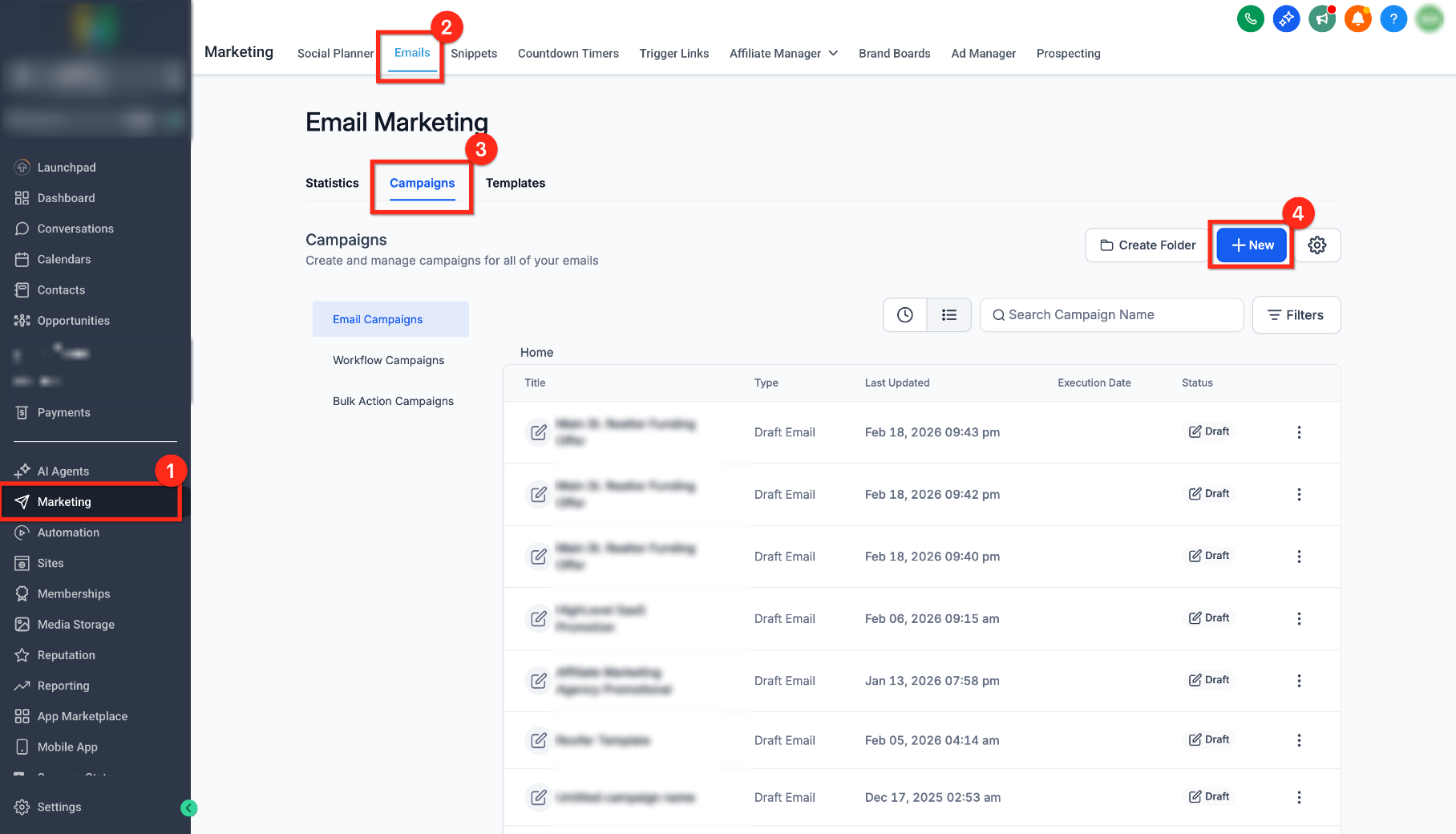
Go to Marketing → Emails → Campaigns → + New (or open the email campaign you're editing).
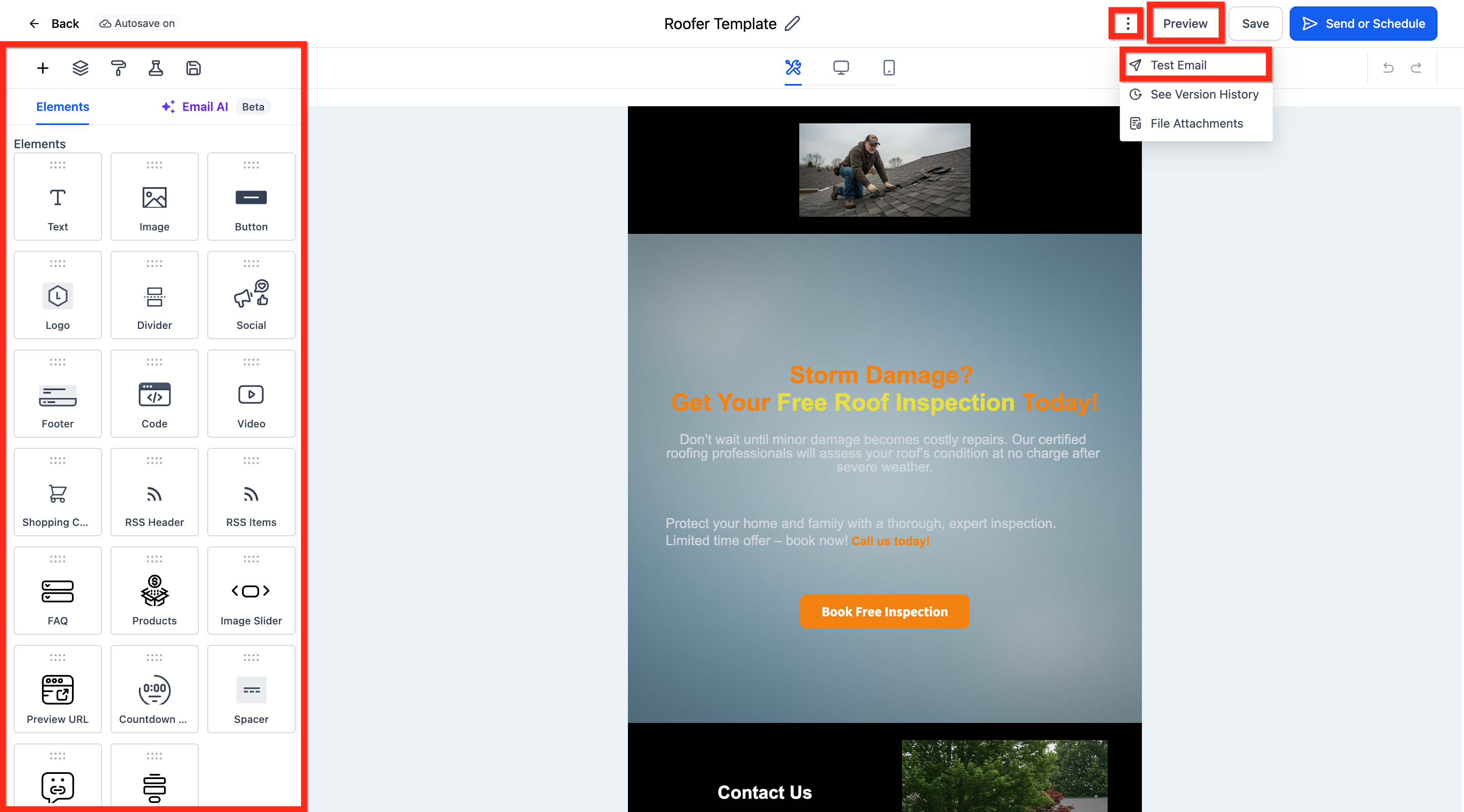
Open the email in the Email Builder and finish designing your email content.
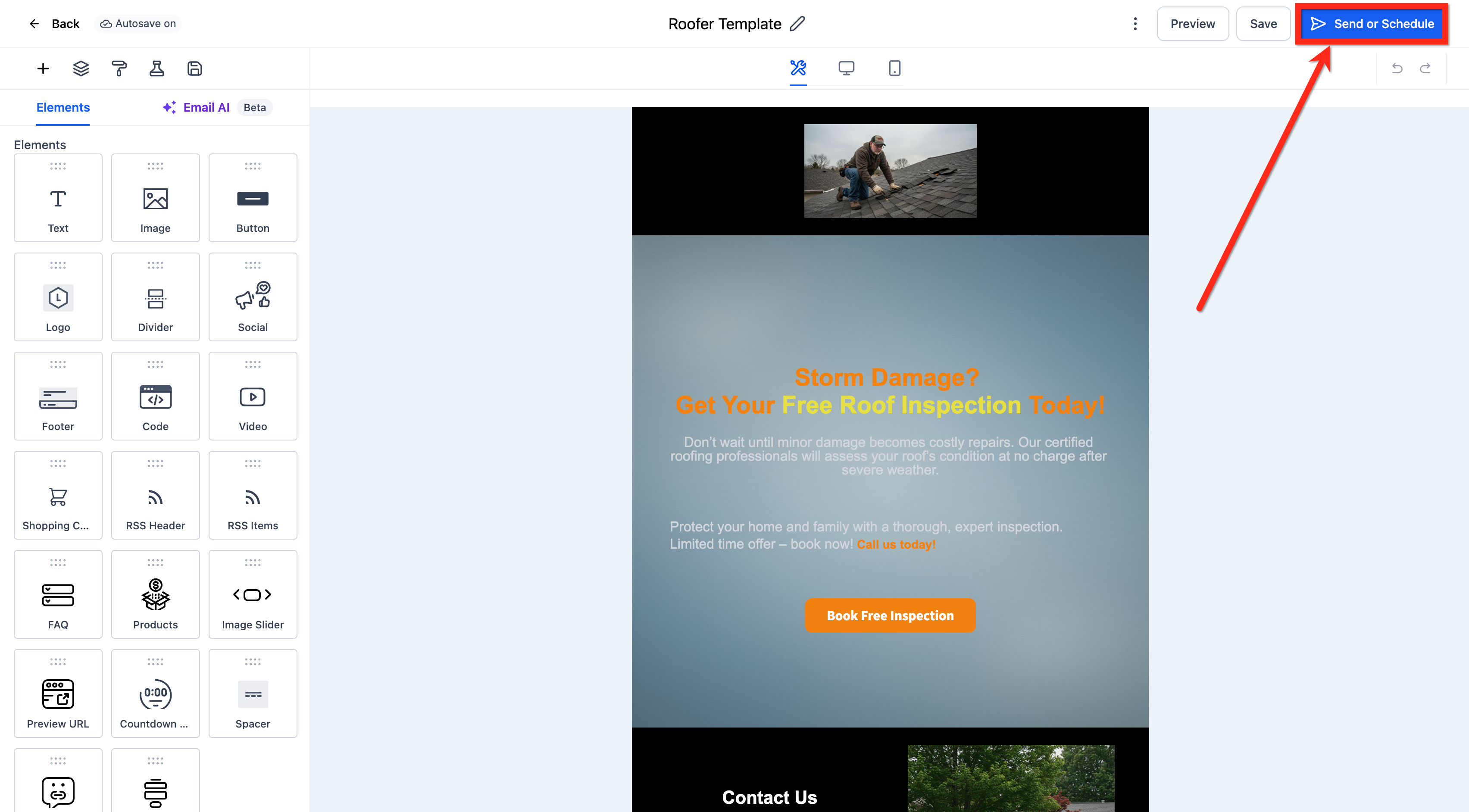
Click Send or Schedule.
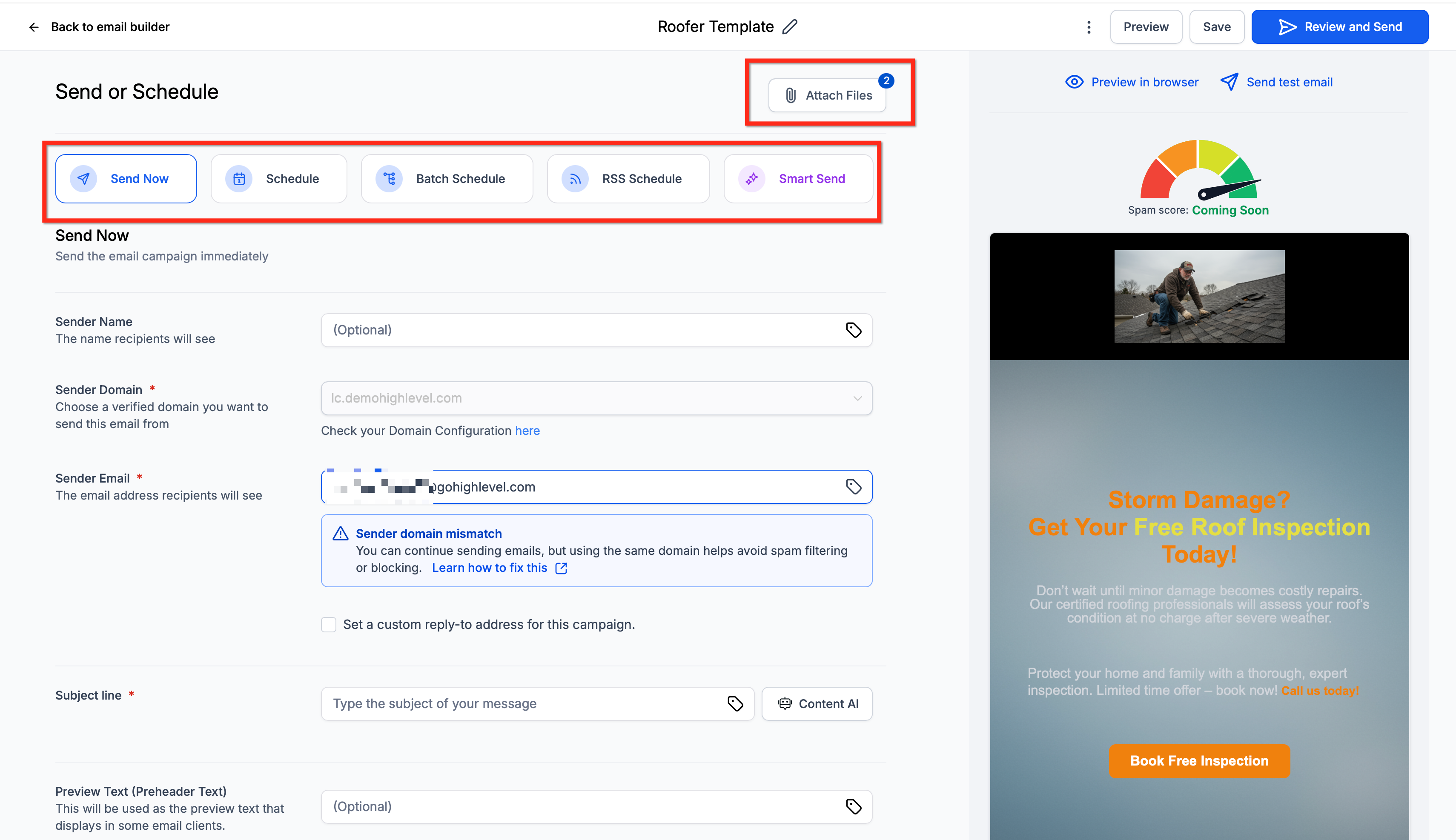
On the Send or Schedule screen, click Attach Files at the top of the screen.
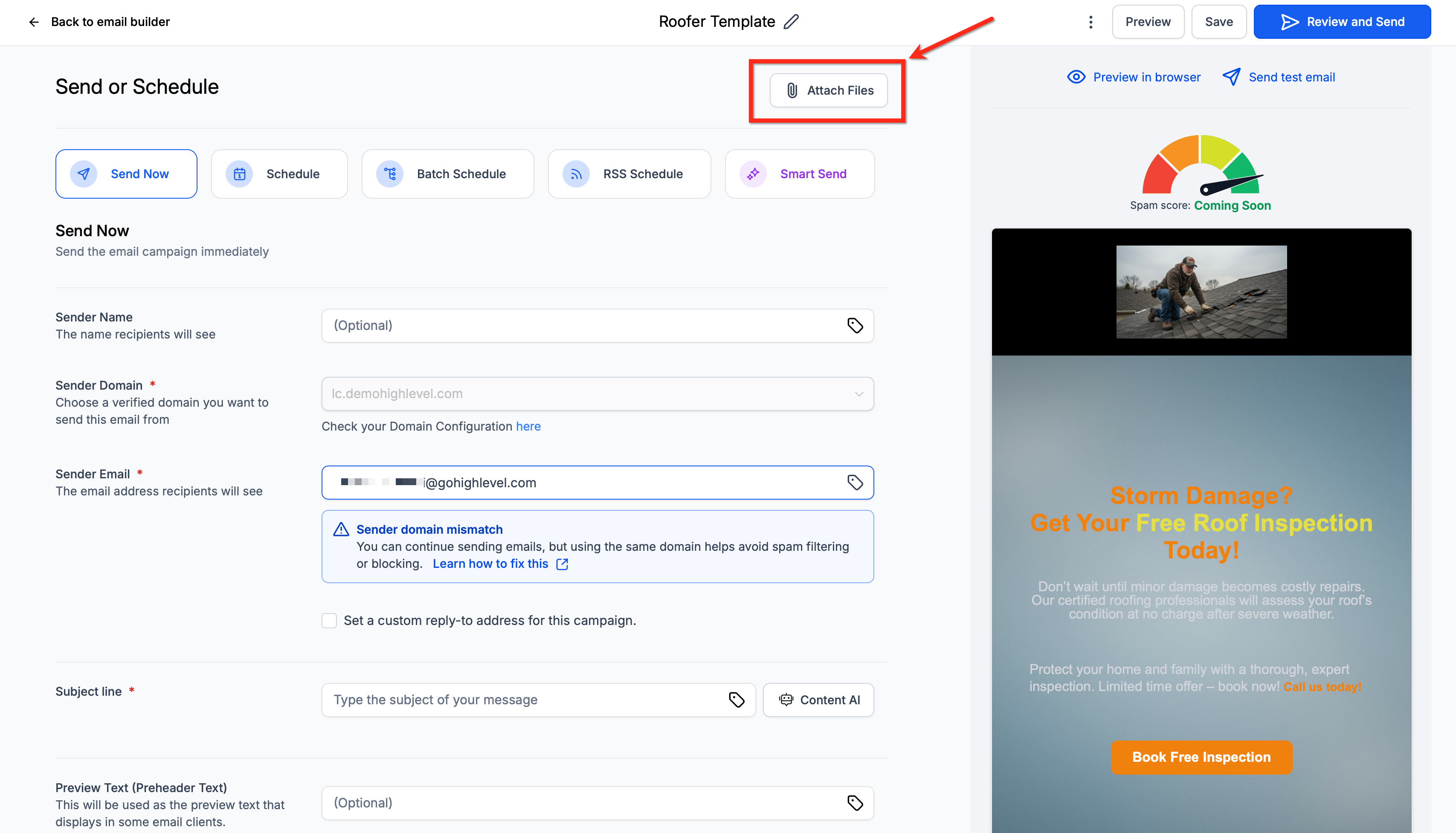
Upload or select the files you want to attach to your campaign. You can add multiple files, provided their combined size does not exceed 10 MB.
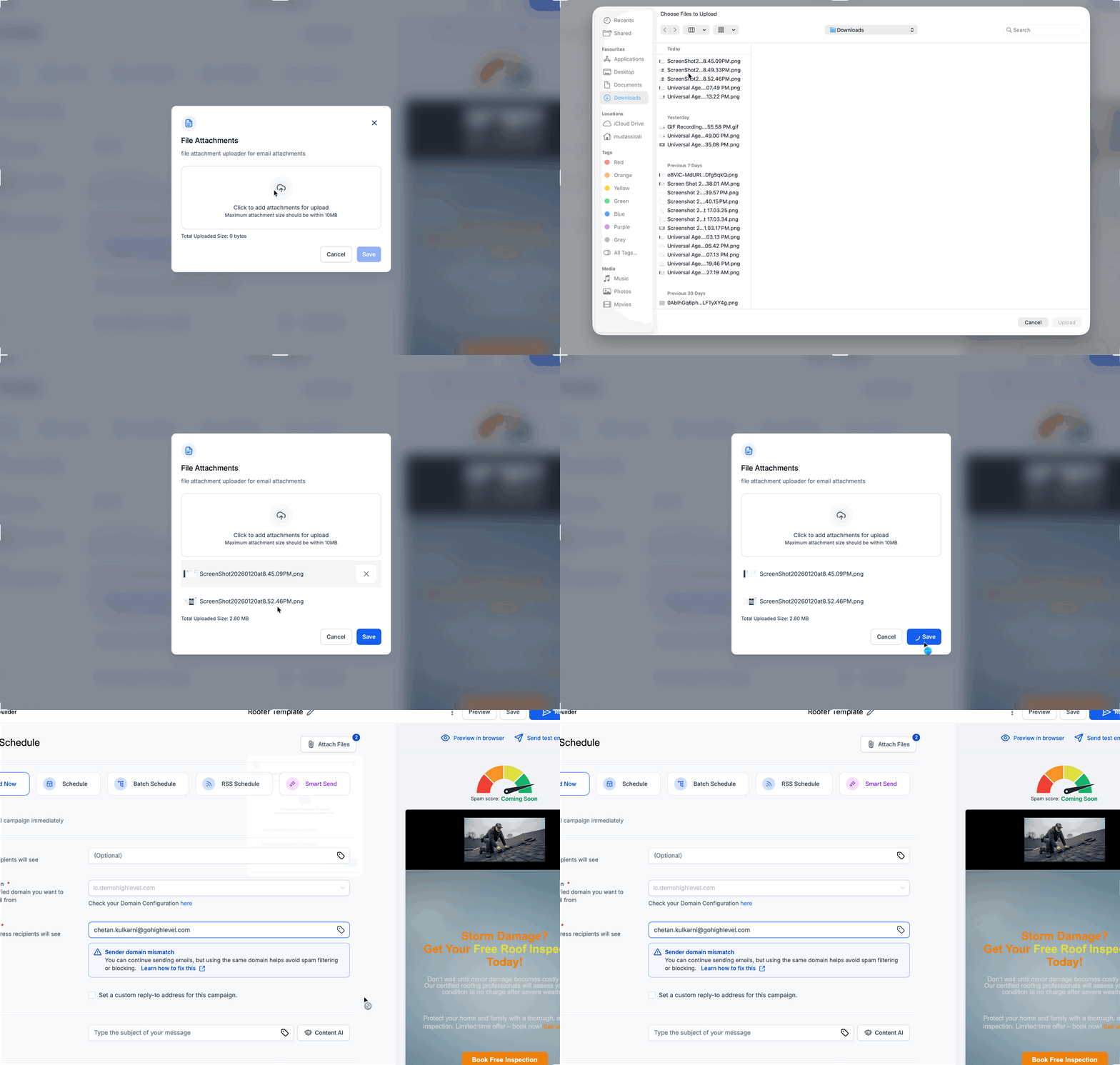
Confirm that the selected attachments have been added successfully before sending or scheduling your campaign.
After reviewing your attachments, choose one of the available delivery options:
- Send Now: Send the campaign immediately.
- Schedule: Choose a future date and time.
- Batch Schedule: Deliver emails in smaller groups over time.
- RSS Schedule: Schedule campaigns using an RSS feed.
- Smart Send: Use HighLevel's engagement-based recommendation to select a delivery time, when eligible.
- Complete the required campaign information and confirm your selected delivery method.
- Send Now: Send the campaign immediately.
Frequently Asked Questions
Q: Can I attach multiple files to an email campaign?
Yes. You can attach multiple files as long as their combined size does not exceed 10 MB.
Q: Will attachments affect email deliverability?
They can. Large attachments or uncommon file types may increase the likelihood of filtering or delivery issues. Consider using a hosted file link when sharing larger documents.
Q: Why don't attachments appear in the email body preview?
Attachments are separate from the email's designed content. They are delivered as files that recipients can access through their email client rather than displayed inside the email body.
Q: How can I confirm that files have been added to my campaign?
Before sending or scheduling your campaign, check the Attach Files area to confirm that your selected files are listed.
Q: Can I attach files when scheduling an email campaign for later delivery?
Yes. You can add attachments during the Send or Schedule workflow before scheduling your campaign.
Related Articles
- Send or Schedule an Email Campaign
- Preview and Test Your Email Campaigns/Templates
- Different Email Sending/Delivery Methods
- Smart Send: Email Marketing Campaigns
- How to Reschedule an Email Campaign
- Attachments Made Easy in Conversations
Was this article helpful?
That’s Great!
Thank you for your feedback
Sorry! We couldn't be helpful
Thank you for your feedback
Feedback sent
We appreciate your effort and will try to fix the article