Wallet Attribution gives agencies a clearer view of where their wallet funds are spent and what generates those charges. With spending breakdowns by activity and source, along with execution-level details through Event Trace, agencies can easily track usage, identify spending drivers, and investigate billing costs directly within HighLevel.
What is Wallet Attribution in HighLevel?
Wallet Attribution helps HighLevel agencies understand where wallet funds are spent, what generates charges, and which executions are responsible. With activity breakdowns, source-level insights, and execution traces, agencies can investigate wallet spending without relying solely on transaction exports.
Wallet Attribution is available through Labs for eligible agencies on the $497/month Founders Plan.
TABLE OF CONTENTS
- What is Wallet Attribution in HighLevel?
- What is Wallet Attribution?
- Key Benefits of Wallet Attribution
- By Activity
- By Source
- Event Trace
- Source Attribution Coverage
- Filters and Guided Experience
- How to Set Up Wallet Attribution
- Frequently Asked Questions
- Related Articles
What is Wallet Attribution?
Wallet Attribution is a billing analytics feature that connects Agency Wallet charges to the activities, sources, and individual executions that generate them. It provides three main views:
By Activity: Analyze spending across categories and products, including SMS, Email, Voice, WhatsApp, and other billable services.
By Source: Identify charges originating from Workflows, Messages, Conversations, Campaigns, Voice AI, and other sources.
Event Trace: Investigate individual billed executions, including their duration, billing events, timestamps, and costs.
The dashboard also displays source attribution coverage, indicating how much spending can be traced to identifiable sources.
Navigation: Agency View → Settings → Billing → Wallet & Transactions
Availability: Labs — $497/month Founders Plan agencies.
Key Benefits of Wallet Attribution
Wallet Attribution helps administrators monitor usage-based billing and quickly identify what drives wallet expenses.
Spending Transparency: See which activities and products generate the highest costs.
Source-Level Visibility: Identify the workflows, messages, campaigns, and other processes responsible for charges.
Execution-Level Investigation: Trace charges to individual runs and billing events.
Faster Cost Analysis: Investigate spending without always exporting transactions.
Usage Monitoring: Filter spending by month, sub-account, or product.
Attribution Visibility: Identify spending with available source details and understand attribution gaps.
By Activity
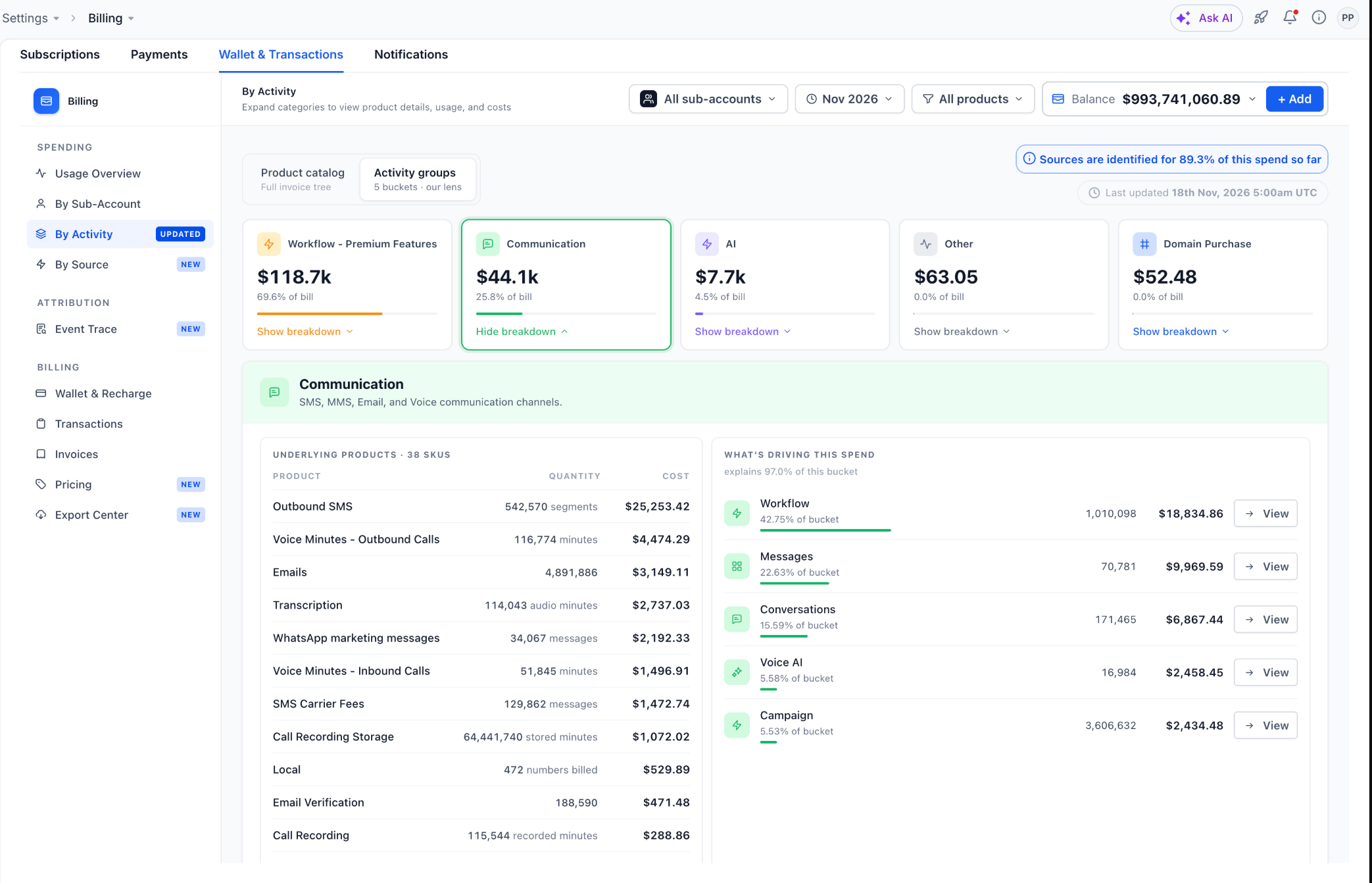
The By Activity view groups wallet spending into categories and individual products, helping administrators identify which services contribute most to their costs.
To access: Go to Settings → Billing → Wallet & Transactions → By Activity in Agency View and apply the Month, Sub-Account, or Product filters as needed.
Activity Groups
Activity Groups organize spending into five categories:
Workflow - Premium Features: Supported premium workflow charges.
Communication: SMS, MMS, Email, Voice, and other communication charges.
AI: Supported AI service charges.
Other: Additional spending classified under Other.
Domain Purchase: Domain purchase costs.
Each group displays its total spend, percentage of the bill, visual spending indicator, and a Show Breakdown option.
To investigate a category, select Activity Groups, then click Show Breakdown. The expanded view contains:
Underlying Products: Lists individual services, usage quantities, and costs. Depending on the category, products may include Outbound SMS, Voice Minutes (Inbound/Outbound), Emails, Transcription, WhatsApp marketing messages, SMS Carrier Fees, Call Recording Storage, and Email Verification.
What's Driving This Spend: Shows contributing sources, their percentage of category spending, usage or event counts, total costs, and a View button for further investigation. For example, Communication spending may originate from Workflows, Messages, Conversations, Voice AI, or Campaigns.
Click View to investigate a source, or Hide Breakdown to collapse the category.
Product Catalog
The Product Catalog provides a product-level view of wallet spending instead of grouping charges into broader activity categories.
Use Activity Groups to compare spending categories and Product Catalog to investigate individual billed products.
By Source
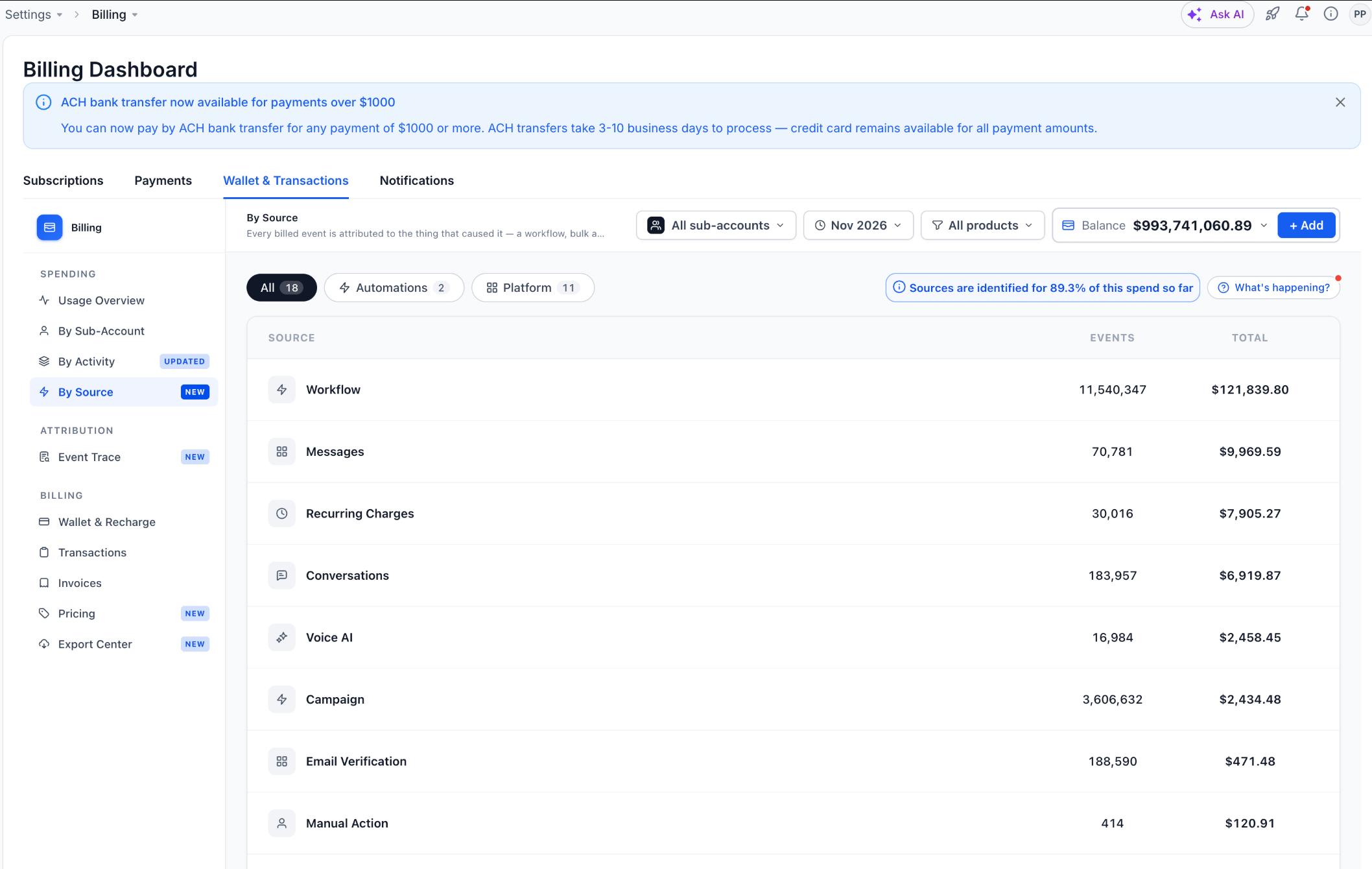
By Source identifies the features and processes responsible for wallet charges, helping agencies determine what triggered spending.
For example, SMS costs may originate from a workflow, campaign, or another supported communication process.
To access: Open Settings → Billing → Wallet & Transactions → By Source, then apply the required reporting filters.
The table displays:
Source: Originating feature or process.
Events: Number of associated billed events.
Total: Total attributed spending within the selected reporting scope.
Sources may include Workflow, Messages, Recurring Charges, Conversations, Voice AI, Campaign, Email Verification, Manual Action, Bulk Actions, and other supported sources.
Use All, Automations, or Platform to filter source categories.
Viewing Source-Level Spending Details
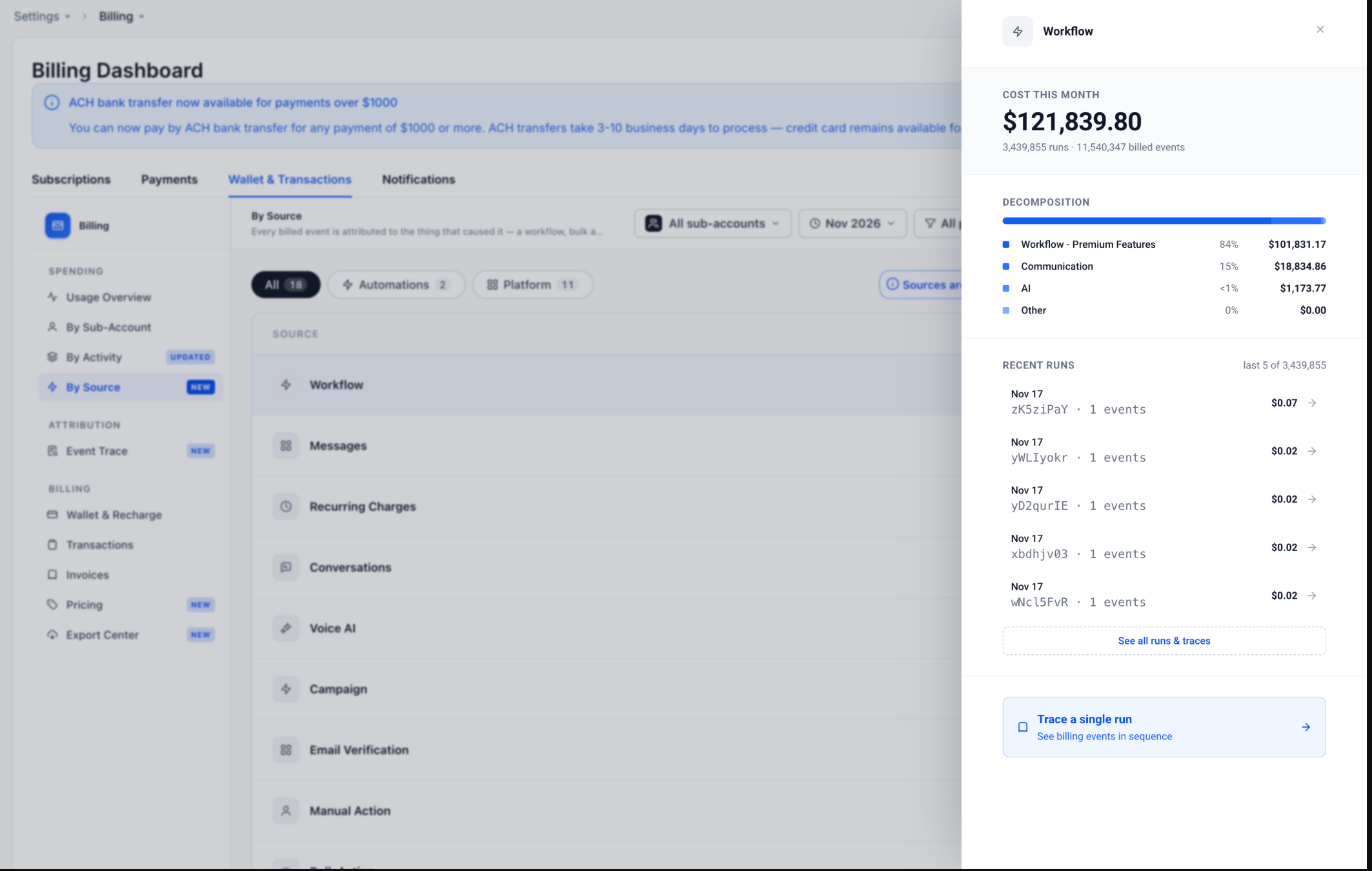
Click a source, such as Workflow, to open its detail panel. The panel includes:
Cost This Month: Total spending for the reporting month, along with run and billed event counts.
Decomposition: Spending distribution across Workflow - Premium Features, Communication, AI, and Other.
Recent Runs: Recent billed executions with available dates, run identifiers, event counts, and costs.
Select a recent run to examine its billing details. Use See all runs & traces for the broader execution view or Trace a single run to investigate an individual execution.
Event Trace
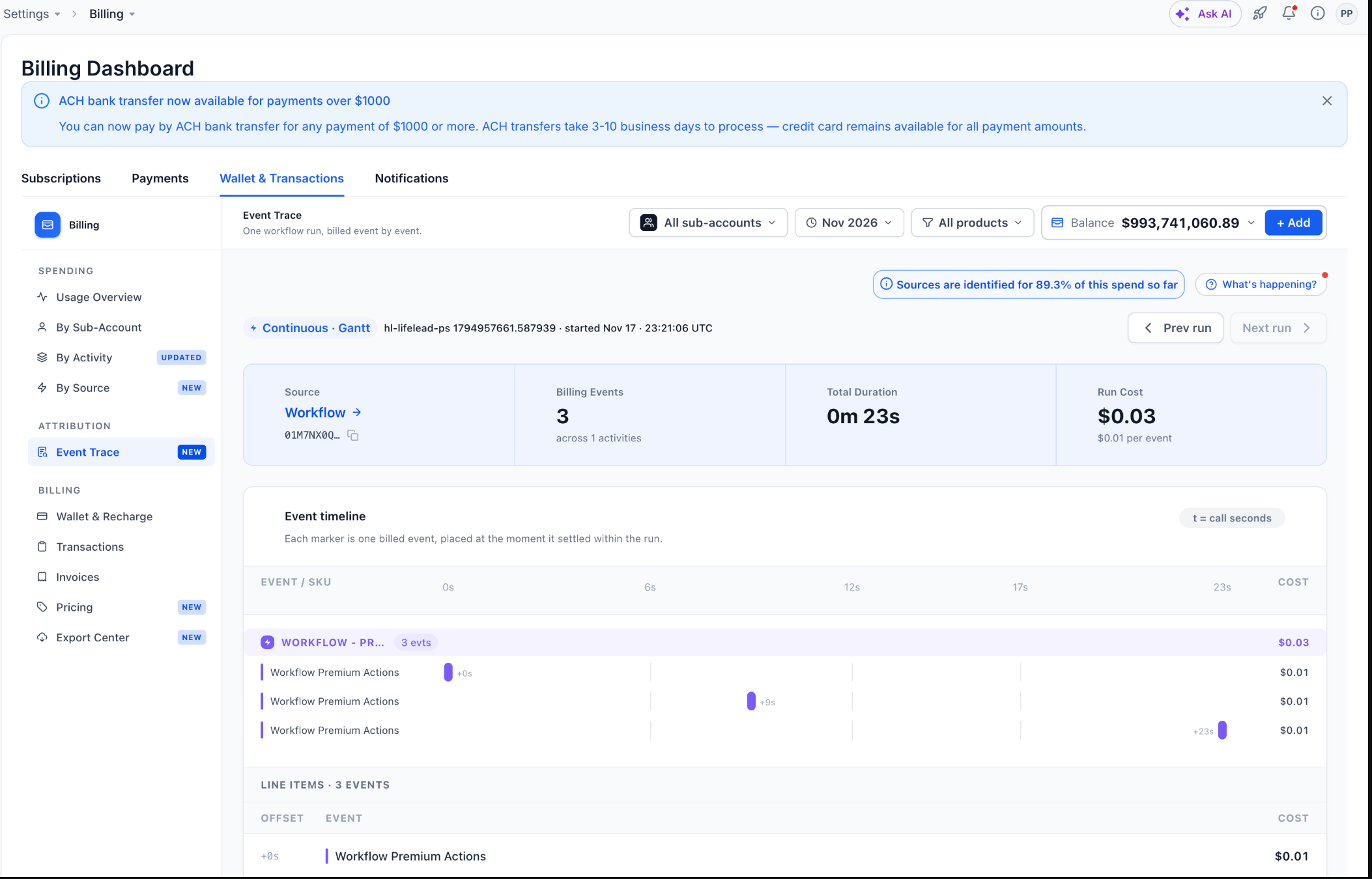
Event Trace helps administrators investigate individual billed executions, including when charges occurred, what generated them, and how multiple events contribute to a run's total cost.
Understanding the Event Trace Dashboard
Each execution displays its type or workflow name, associated sub-account, start time, and source identifier.
The run summary includes:
| Field | Description |
|---|---|
| Source | Feature or process that originated the execution |
| Billing Events | Number of billed events during the run |
| Total Duration | Execution duration |
| Run Cost | Combined cost of the run's billed events |
For example, a workflow run with three billed events at $0.01 each costs $0.03. Actual event prices depend on the applicable product, plan, pricing, and allowances.
Event Timeline
The Event Timeline displays individual settled charges at their respective time offsets within the execution.
It shows event or SKU names, event counts, timeline offsets, individual costs, and grouped totals.
For example, a 23-second workflow run might contain:
+0s: Workflow Premium Actions — $0.01
+9s: Workflow Premium Actions — $0.01
+23s: Workflow Premium Actions — $0.01
Total Run Cost: $0.03
The Line Items area provides an additional event-level breakdown.
Important: One workflow run can generate multiple billed events. Each qualifying billable action may create a separate charge.
How to Investigate an Individual Execution
Go to Settings → Billing → Wallet & Transactions → Event Trace in Agency View, or open a run through By Source.
Locate the execution and review its source, start time, and other run details.
Check Billing Events, Total Duration, and Run Cost.
Review the Event Timeline and Line Items to identify individual charges.
Use Prev run or Next run to navigate between executions.
For premium workflow pricing and rebilling, see How to Enable and Rebill Workflow Premium Features.
Source Attribution Coverage
Source Attribution Coverage shows the percentage of wallet spending that can currently be linked to identifiable originating sources.
For example, “Sources are identified for 89.3% of this spend so far” means:
89.3% of spending has identifiable source information.
The remaining 10.7% does not yet have complete source attribution.
Unidentified charges are still included in overall spending totals.
Important: Coverage measures the percentage of spending attributed, not the percentage of transactions or billed events identified.
Why Attribution Coverage May Be Incomplete
Some HighLevel products are still integrating source and execution details. Attribution coverage can improve as additional products support these capabilities.
An unidentified charge does not necessarily indicate incorrect billing; it means the information needed to identify its source is not currently available.
Filters and Guided Experience
Filters and contextual guidance help agencies narrow spending investigations and understand their billing data.
Reporting Filters
Wallet Attribution provides three primary filters:
| Filter | Purpose |
|---|---|
| Month | Select the reporting period |
| Sub-Account | View all or individual sub-accounts |
| Product | View all or specific products |
To filter spending, open the appropriate Wallet & Transactions view and select the desired Month, Sub-Account, and Product. The displayed spending information reflects the selected reporting scope.
What's Happening? Guide
The What's happening? option near the attribution coverage indicator provides contextual guidance about the billing analytics experience and displayed spending information.
Use it when you need help understanding the available reporting views.
How to Set Up Wallet Attribution
Wallet Attribution must be enabled through Labs before eligible agencies can use the new spending investigation tools.
Prerequisites
Confirm that:
Your agency is on the $497/month Founders Plan specified in the release.
You have appropriate agency-level Labs permissions.
Wallet Attribution is available in your agency's Labs environment.
Step 1: Open Agency Labs
Sign in to HighLevel, switch to Agency View, and navigate to Settings → Labs → Agency.
Step 2: Enable Wallet Attribution
Locate Wallet Attribution in the available Labs features, review its description and eligibility, and enable its toggle.
Note: The exact Labs feature-card name and toggle location require verification against the live interface before publication.
Step 3: Open Wallet & Transactions
Navigate to Agency View → Settings → Billing → Wallet & Transactions.
The updated navigation includes:
Spending: Usage Overview, By Sub-Account, By Activity, and By Source.
Attribution: Event Trace.
Step 4: Verify the Feature
Open By Activity to review activity groups.
Select By Source to investigate spending origins, decomposition, and recent runs.
Open Event Trace to review an available billed execution.
Check the source attribution coverage indicator.
If the feature is unavailable, confirm your plan eligibility, Labs access, and permissions.
For general Labs instructions, see Labs Features - Complete Overview.
Frequently Asked Questions
Q: Why is attribution coverage below 100%?
Some products have not yet integrated complete source and execution details. Coverage will improve as more products support attribution.
Q: Are unidentified charges excluded from wallet totals?
No. All charges remain included in overall spending totals, even without complete source attribution.
Q: Why can a workflow run have multiple billing events?
A workflow may execute multiple billable actions, each generating a separate event and contributing to the run cost.
Q: Does every workflow action incur a charge?
No. Standard actions are not necessarily billable. Supported premium triggers, actions, and other features may incur charges based on applicable pricing and allowances.
Q: Can Event Trace replace transaction exports?
Event Trace supports execution-level investigation. Exports remain useful for external reporting, reconciliation, and recordkeeping.
Q: Why are charges from one source distributed across multiple activity groups?
A source may generate different billable activities. For example, a workflow can generate both premium feature and communication charges.
Q: Is Source Attribution Coverage the same as AI Billing Coverage?
No. Source Attribution Coverage measures spending with identifiable originating sources, while AI Billing Coverage describes how AI usage is billed or covered.
Q: What if Wallet Attribution isn't available in my account?
Verify the agency's plan eligibility, Labs access, and permissions. Check whether the feature is available and enabled in Agency Labs.
Related Articles
Was this article helpful?
That’s Great!
Thank you for your feedback
Sorry! We couldn't be helpful
Thank you for your feedback
Feedback sent
We appreciate your effort and will try to fix the article