The Export Center gives agencies more control over how Agency Wallet transaction data is filtered, exported, and delivered. You can create focused one-time exports or automate recurring reports using scheduled exports.
Filters for scope, transaction type, product, and reporting period help you retrieve the data you need without manually cleaning a larger export afterward.
TABLE OF CONTENTS
- What Is the Export Center for Agency Wallet Transactions?
- Key Benefits of the Export Center
- Prerequisites and Limitations
- How to Create a One-Time Wallet Transaction Export
- How to Schedule Recurring Wallet Transaction Exports
- How Reporting Periods Work
- How to Access Previous Exports
- Frequently Asked Questions
- Related Articles
What Is the Export Center for Agency Wallet Transactions?
The Export Center is an Agency Billing tool for creating and managing Agency Wallet transaction exports.
Instead of exporting all wallet activity and filtering the data afterward, you can narrow an export by agency or wallet scope, transaction type, product, and reporting period.
You can also configure recurring exports that run automatically on a Daily, Weekly, Monthly, or Quarterly schedule.
Key Benefits of the Export Center
The Export Center helps agencies create focused billing reports and automate recurring transaction-export workflows.
- Focused transaction exports: Filter by the entire agency or a specific wallet before generating an export.
- Debit and credit filtering: Export all transactions or limit the report to Debit or Credit activity.
- Product-level filtering: Include all products or narrow the export to a specific product.
- Flexible reporting periods: Use predefined reporting periods or select a custom date range.
- Automated reporting: Schedule exports to run Daily, Weekly, Monthly, or Quarterly.
- Scheduled delivery: Configure the applicable day, UTC time, start date, and recipients for recurring exports.
- Export history: Access previous export runs from Recent Exports.
- Reusable downloads: Re-download previous exports using their permanent download links.
Prerequisites and Limitations
Keep the following points in mind when configuring Agency Wallet exports:
- The Export Center is available from the Agency Wallet & Transactions area.
- Scheduled export times use UTC.
- The current month is always treated as a partial reporting period.
- When an export includes the current month, that period is regenerated to include the latest available data.
- Each completed export run remains available through a permanent download link under Recent Exports.
- The available release information does not specify the exported file format.
- Scheduled exports support Daily, Weekly, Monthly, and Quarterly frequencies.
How to Create a One-Time Wallet Transaction Export
Use the Export tab when you need transaction data for a specific reporting request without creating a recurring schedule.
Step 1: Open the Export Center
- From Agency View, select Settings.
- Select Billing.
- Open Wallet & Transactions.
- Select Export Center.
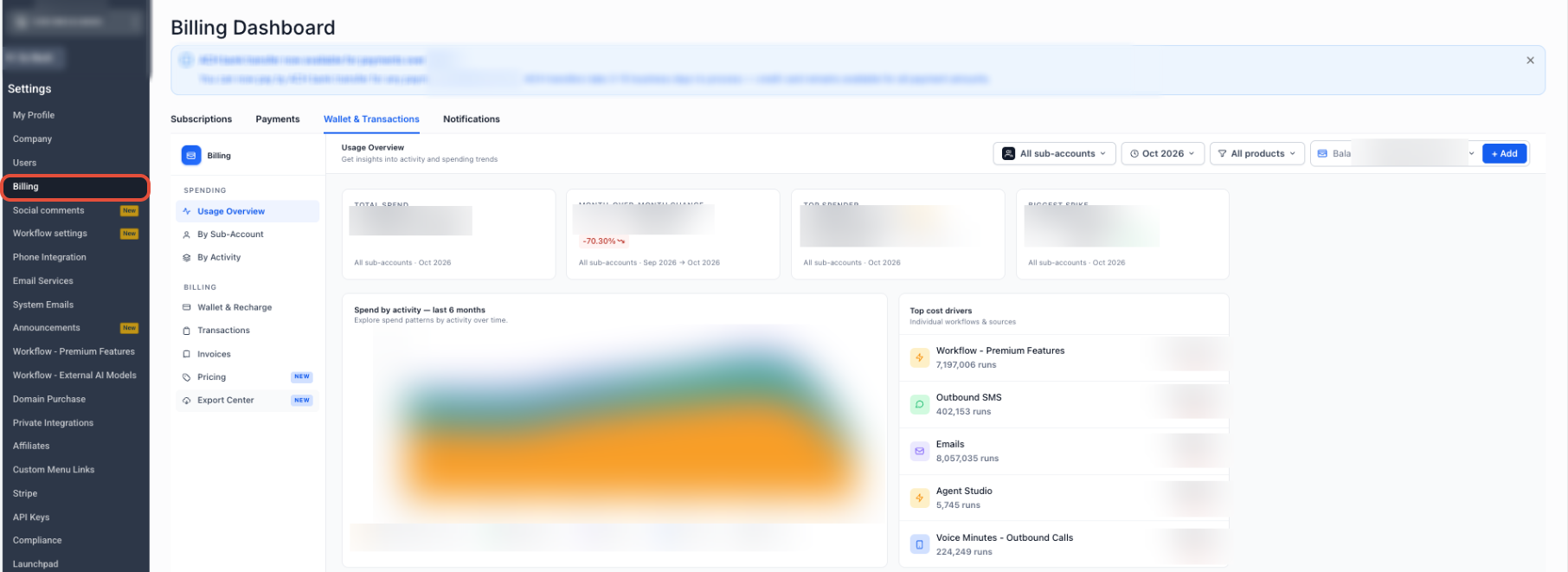
Step 2: Open the Export Tab
Select the Export tab to configure a one-time transaction export.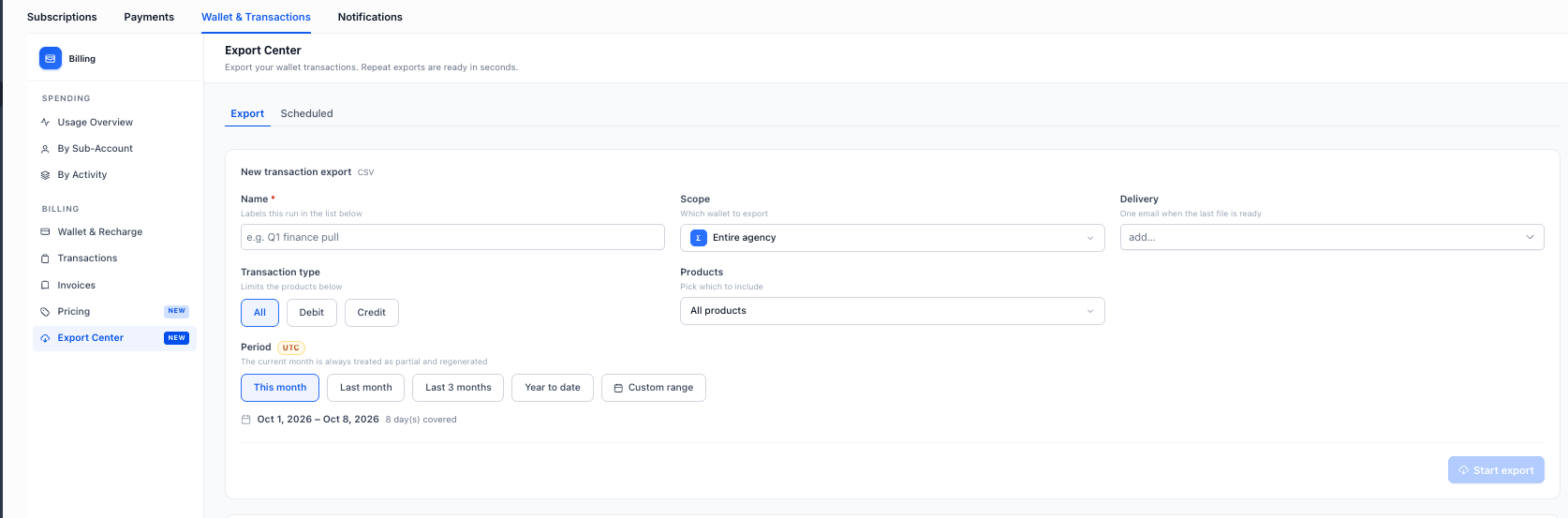
Step 3: Select the Scope
Use Scope to determine which wallet activity should be included.
Choose:
- The entire agency, or
- A specific wallet
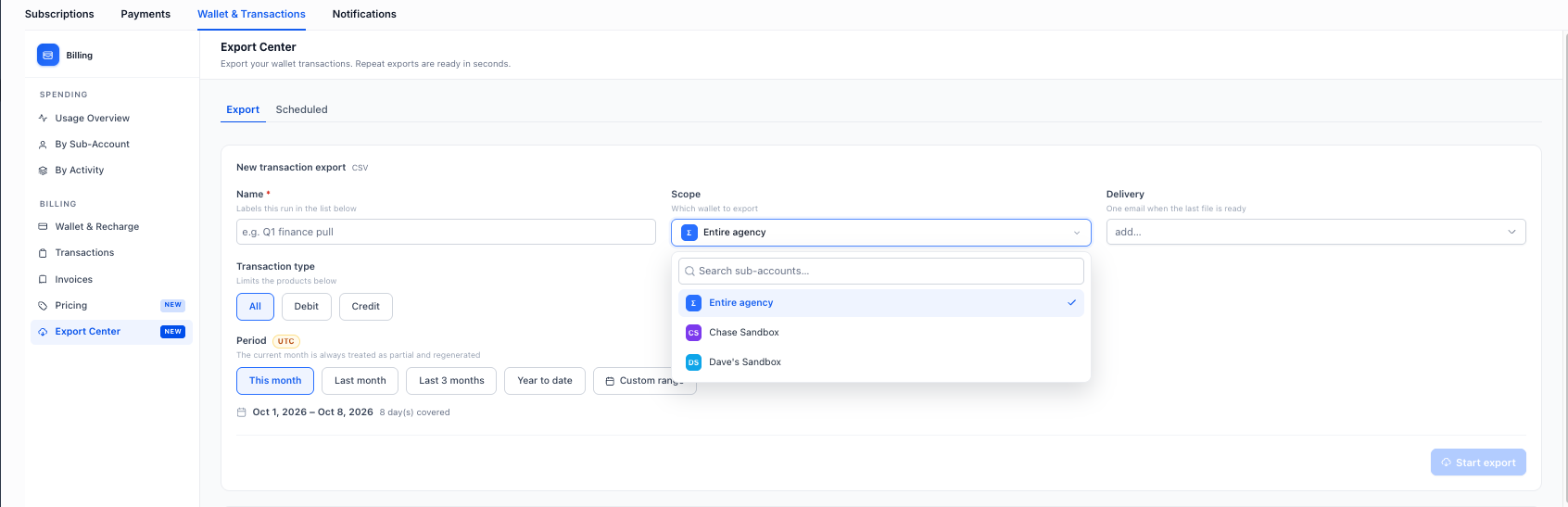
Step 4: Select the Transaction Type
Choose the transaction activity you want to include:
- All
- Debit
- Credit
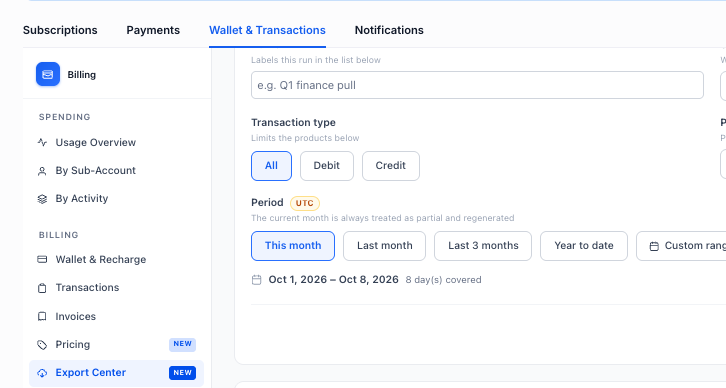
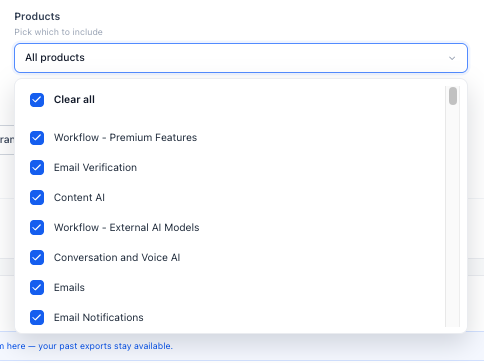
Step 5: Select the Product
Choose whether the export should include:
- All products, or
- A specific product
Step 6: Select the Reporting Period
Choose one of the available reporting-period options:
- This month
- Last month
- Last 3 months
- Year to date
- Custom range
If you select Custom range, choose the applicable start and end dates.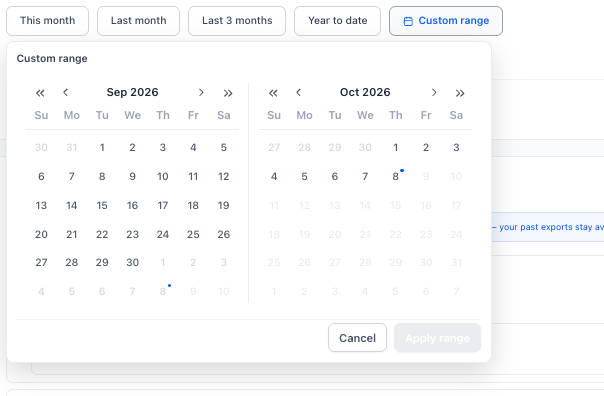
Step 7: Select the Delivery Recipients
Add the recipients who should receive the completed export notification.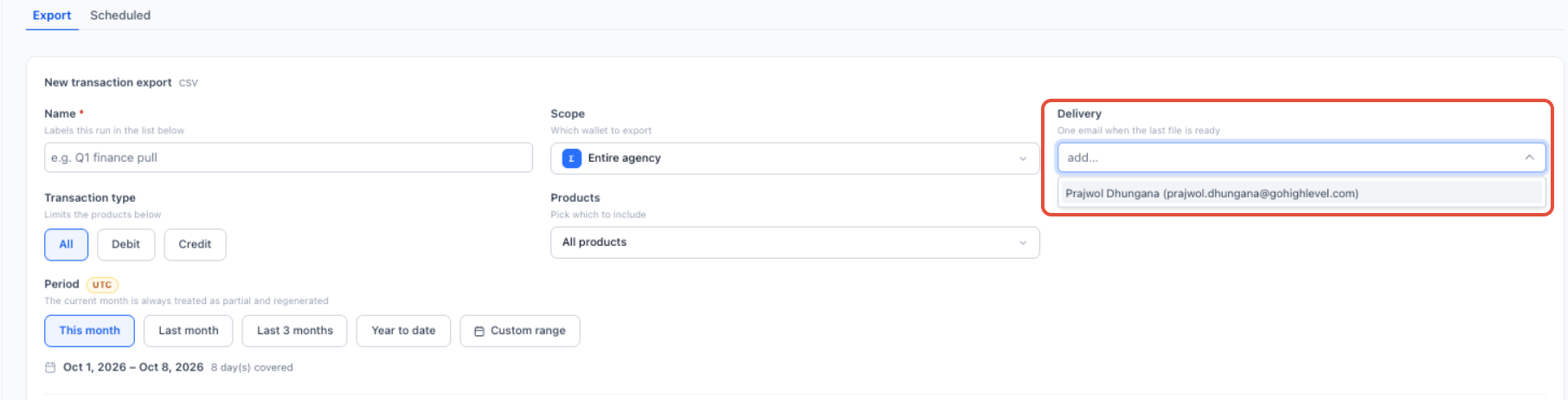
Step 8: Run the Export
Review the selected scope, transaction type, product, reporting period, and recipients, then use the available export action to start the export.
The export processes in the background and becomes available in Recent Exports after the run is completed.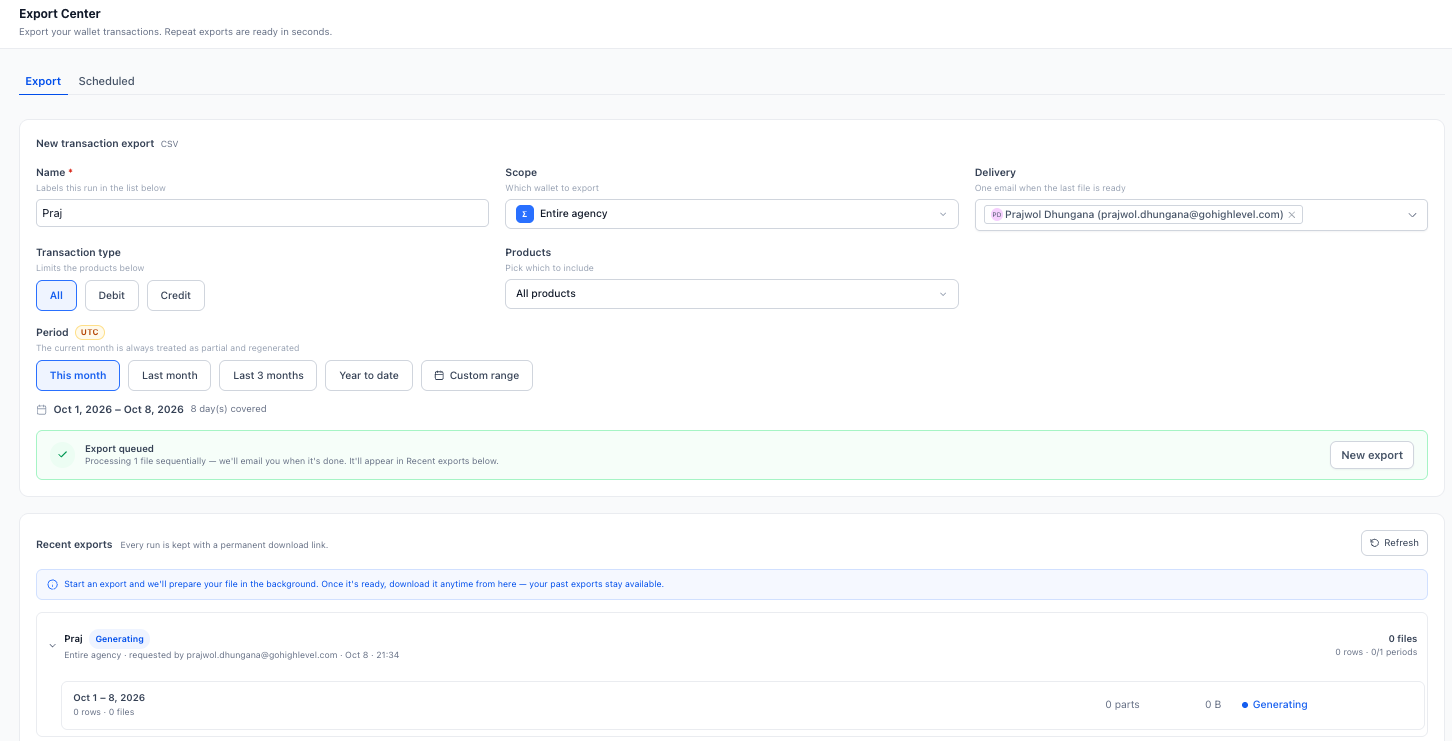
How to Schedule Recurring Wallet Transaction Exports
Scheduled exports automatically generate wallet transaction reports using the configuration and cadence you select. This can help with recurring finance, reconciliation, or internal reporting workflows.
Step 1: Open Scheduled Exports
- From Agency View, select Settings.
- Select Billing.
- Open Wallet & Transactions.
- Select Export Center.
- Open the Scheduled tab.
Step 2: Configure the Export Filters
Select the applicable:
- Scope
- Transaction Type
- Product
- Period

These filters determine which Wallet transactions are included each time the schedule runs.
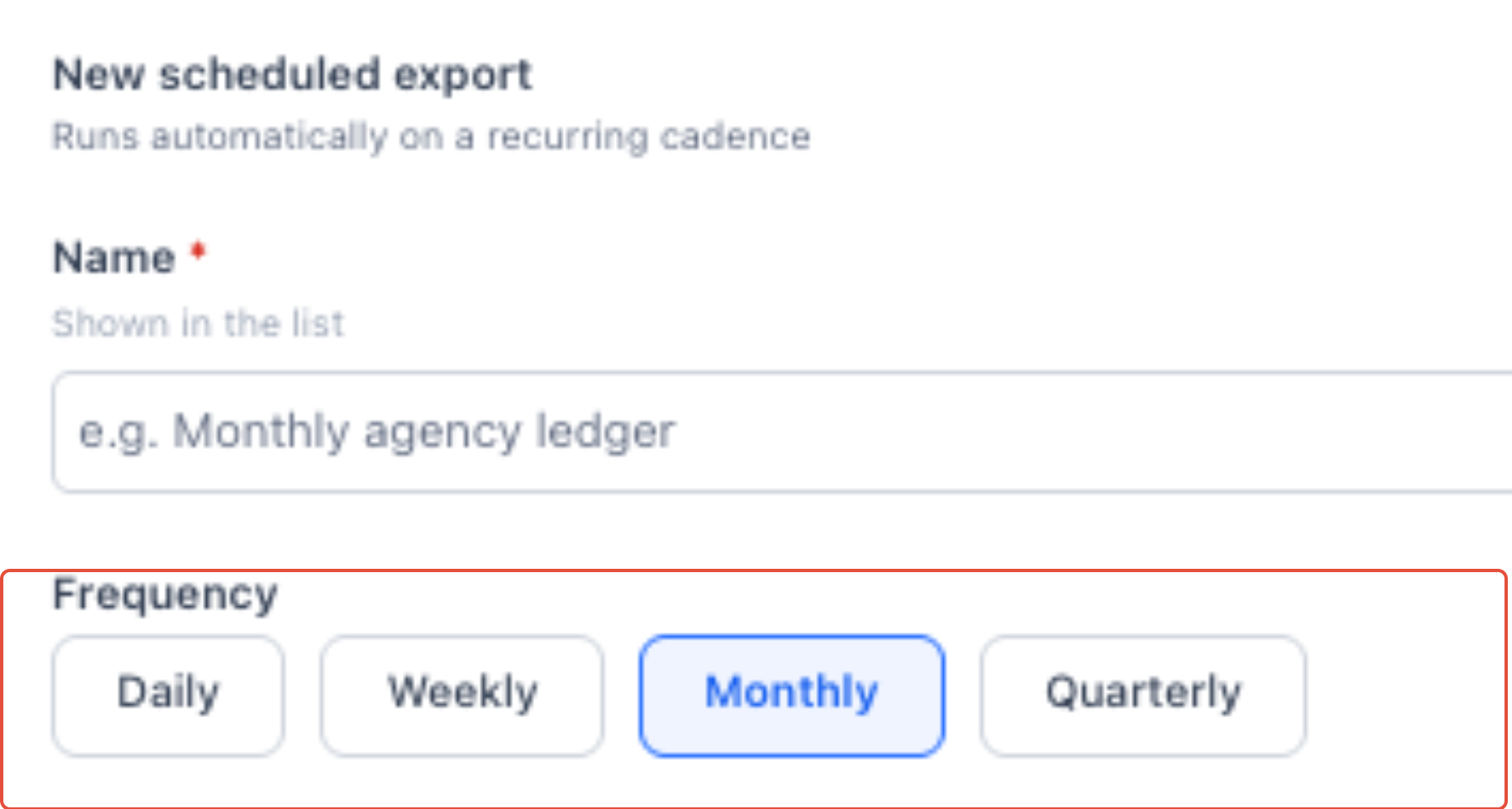
Step 3: Select the Frequency
Choose how often the export should run:
- Daily
- Weekly
- Monthly
- Quarterly
Step 4: Configure the Schedule
Set the scheduling options required for the selected frequency.
Configure the applicable:
- Day
- Time
- Start date

Note: All scheduled export times use UTC.
Step 5: Select Delivery Recipients
Add the recipients who should receive the recurring export notification.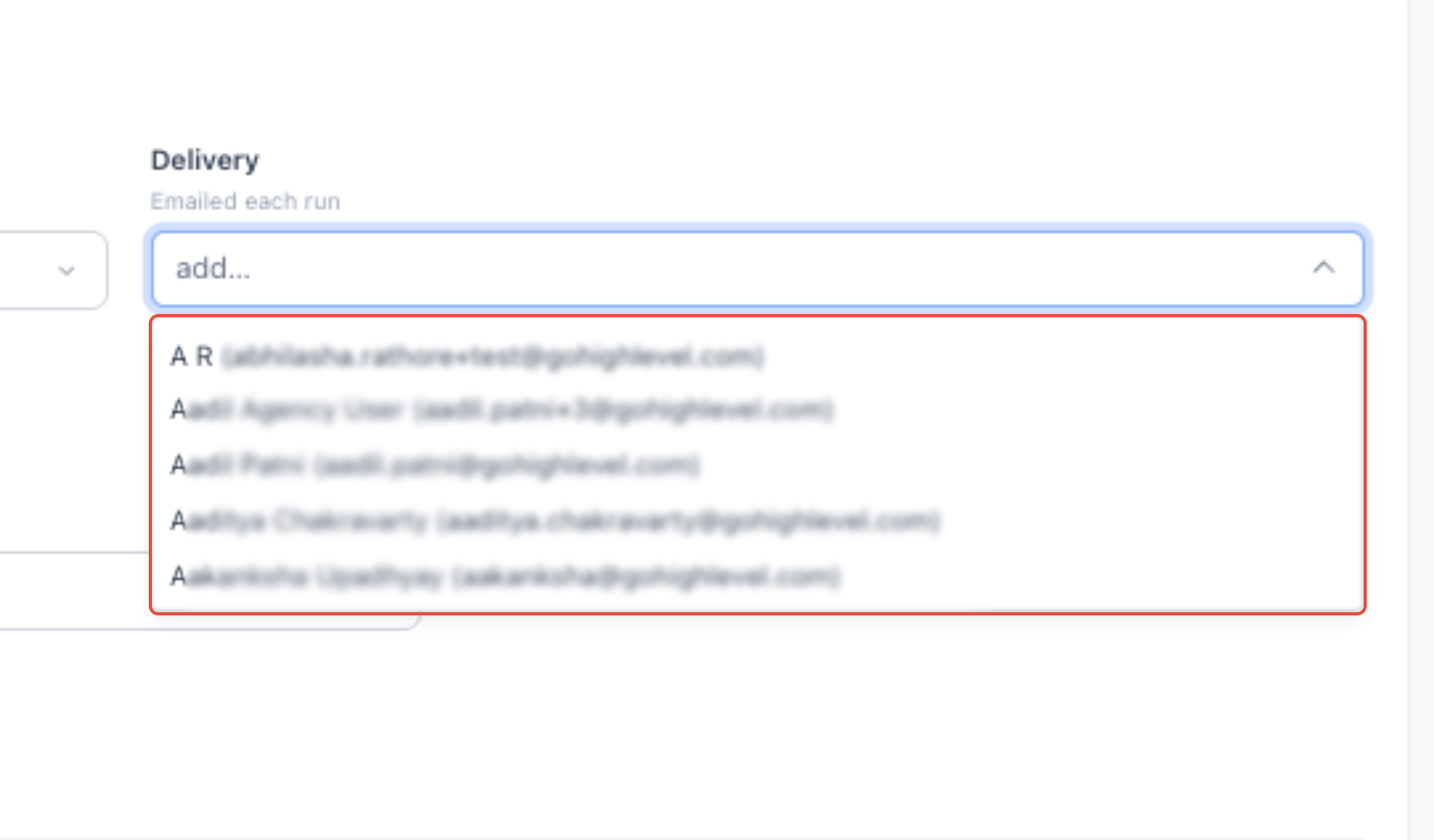
Step 6: Save the Scheduled Export
Review the export filters, frequency, schedule, and recipients, then use the available save or create action to complete the schedule.
After the schedule is created, the export runs automatically according to the configured schedule.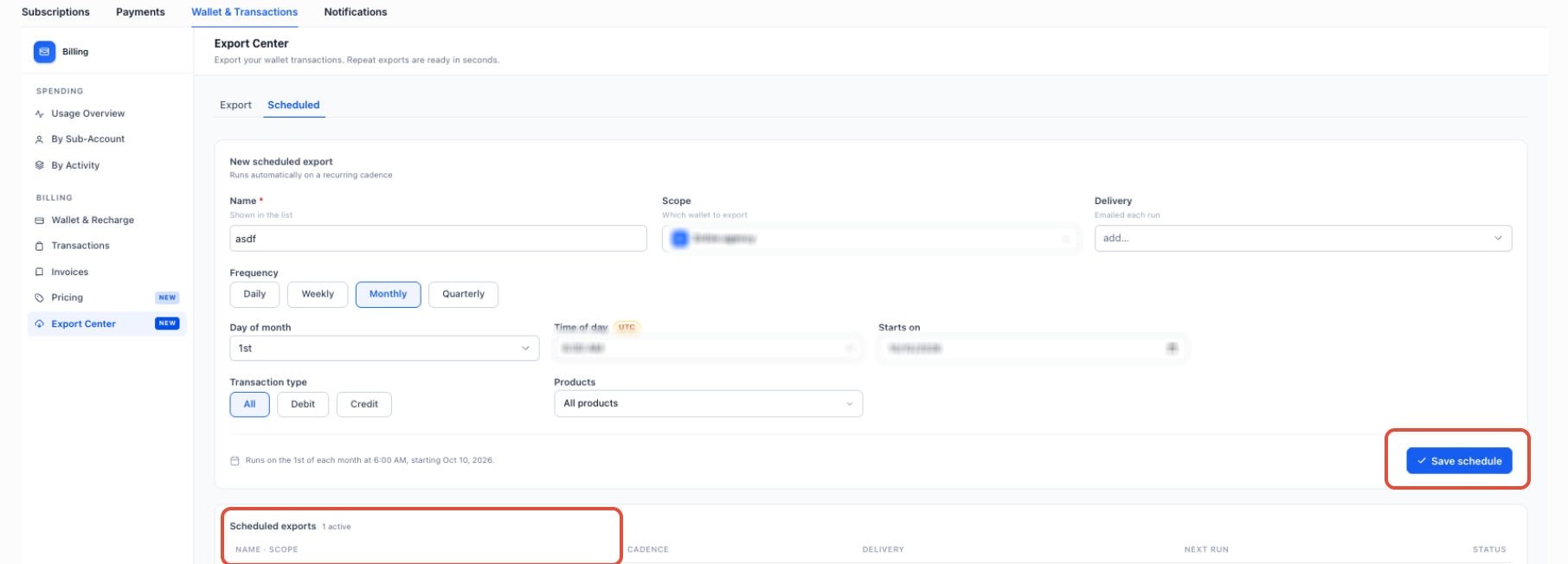
How Reporting Periods Work
Reporting-period controls make it easier to create consistent exports without manually calculating date ranges each time.
- This month: Includes activity from the beginning of the current month through the latest available data.
- Last month: Uses the previous month's reporting period.
- Last 3 months: Includes the applicable previous three-month period.
- Year to date: Includes the applicable period from the beginning of the current year.
- Custom range: Lets you select your own start and end dates.
Note: The current month is always treated as a partial reporting period. When the current month is included in an export, that period is regenerated so the export can reflect the latest available data.
How to Access Previous Exports
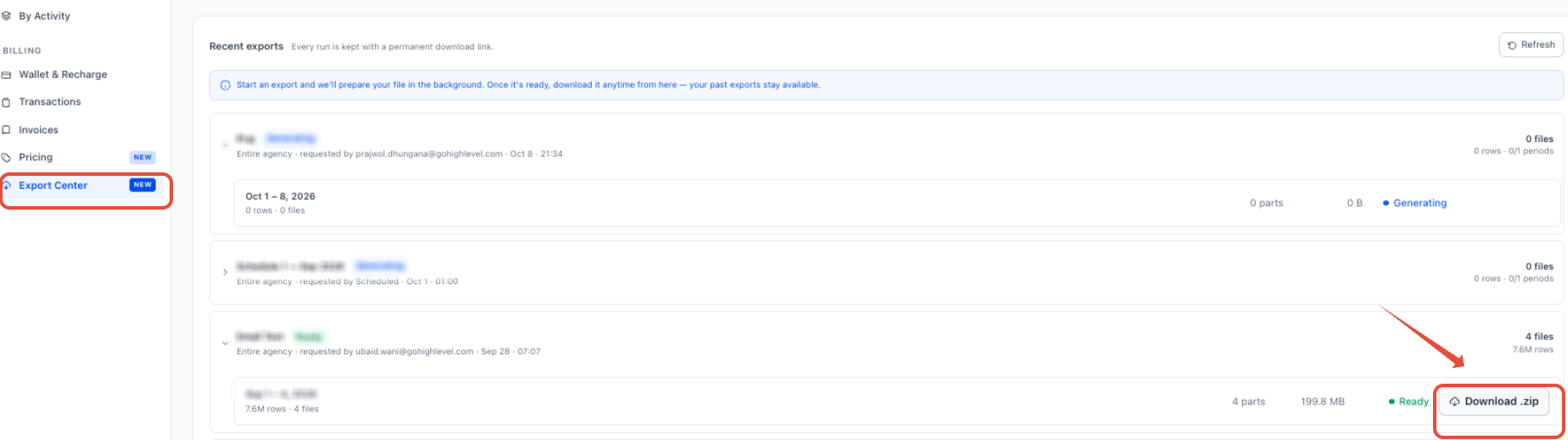
Recent Exports provides a history of completed export runs so you can retrieve previously generated reports without creating the export again.
Access Recent Exports
- From Agency View, select Settings.
- Select Billing.
- Open Wallet & Transactions.
- Select Export Center.
- Open Recent Exports.
- Locate the export you want to retrieve.
- Select its permanent download link to download the previously generated export.
Each completed export run is retained with a permanent download link, allowing you to return to previous exports when needed.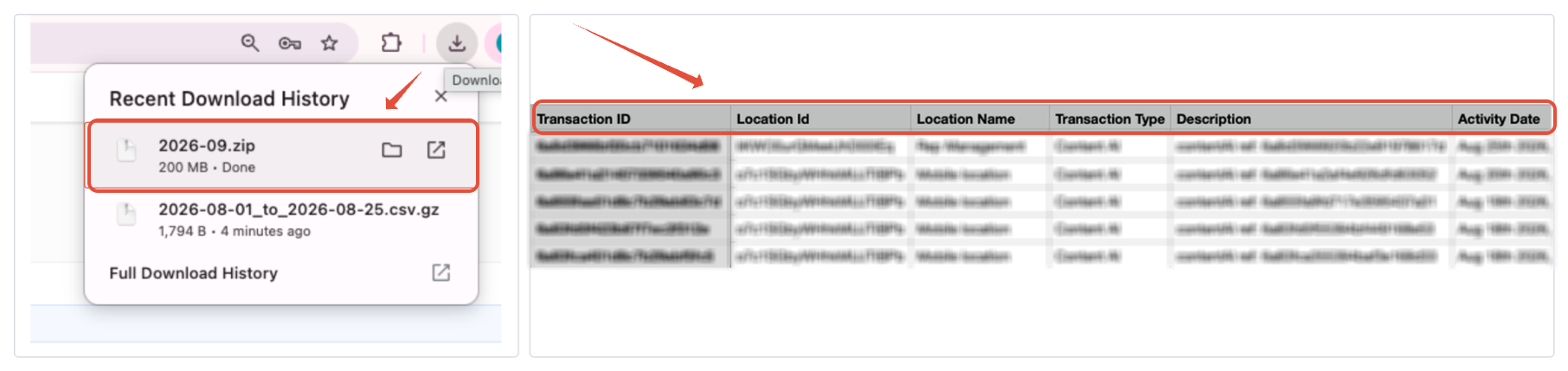
Frequently Asked Questions
Q: Can I export transactions for only one wallet?
Yes. Use the Scope filter to select the entire agency or a specific wallet.
Q: Can I export only debit or credit transactions?
Yes. Transaction Type supports All, Debit, and Credit.
Q: Can I create exports for a specific product?
Yes. You can include all products or select a specific product.
Q: What recurring schedules are supported?
Scheduled exports support Daily, Weekly, Monthly, and Quarterly frequencies.
Q: Which timezone is used for scheduled exports?
All scheduled export times use UTC.
Q: What happens when my export includes the current month?
The current month is treated as a partial reporting period and regenerated to include the latest available data.
Q: Can I download an older export without running it again?
Yes. Completed export runs are available in Recent Exports through permanent download links.
Related Articles
Was this article helpful?
That’s Great!
Thank you for your feedback
Sorry! We couldn't be helpful
Thank you for your feedback
Feedback sent
We appreciate your effort and will try to fix the article