HighLevel Events allows you to unpublish an event without deleting it. You can temporarily take an event offline, update its details, and publish it again when you're ready.
Unpublishing moves the event back to Draft, stops new registrations and ticket sales, and preserves your event configuration, including tickets, schedules, speakers, and existing registration records.
TABLE OF CONTENTS
- What Happens When You Unpublish an Event?
- How to Unpublish an Event
- Resolve Issues That Prevent Unpublishing
- How to Republish an Even
- Frequently Asked Questions
- Related Articles
What Happens When You Unpublish an Event?
Unpublishing lets you temporarily remove an event from public access without recreating it later.
When an event is unpublished:
Its status changes from Published to Draft.
The public event page becomes unavailable.
New registrations and ticket purchases are stopped.
Existing event details, tickets, schedules, speakers, and registration records are preserved.
You can make changes and republish the event later.
Important: Unpublishing does not automatically cancel registrations or issue refunds. HighLevel checks for outstanding items that must be resolved before an event can be unpublished.
How to Unpublish an Event
You can unpublish an event from the Events list or its detail page.
Before you begin, make sure you have an existing published event.
Open Events in your HighLevel sub-account.
Find the published event you want to take offline.
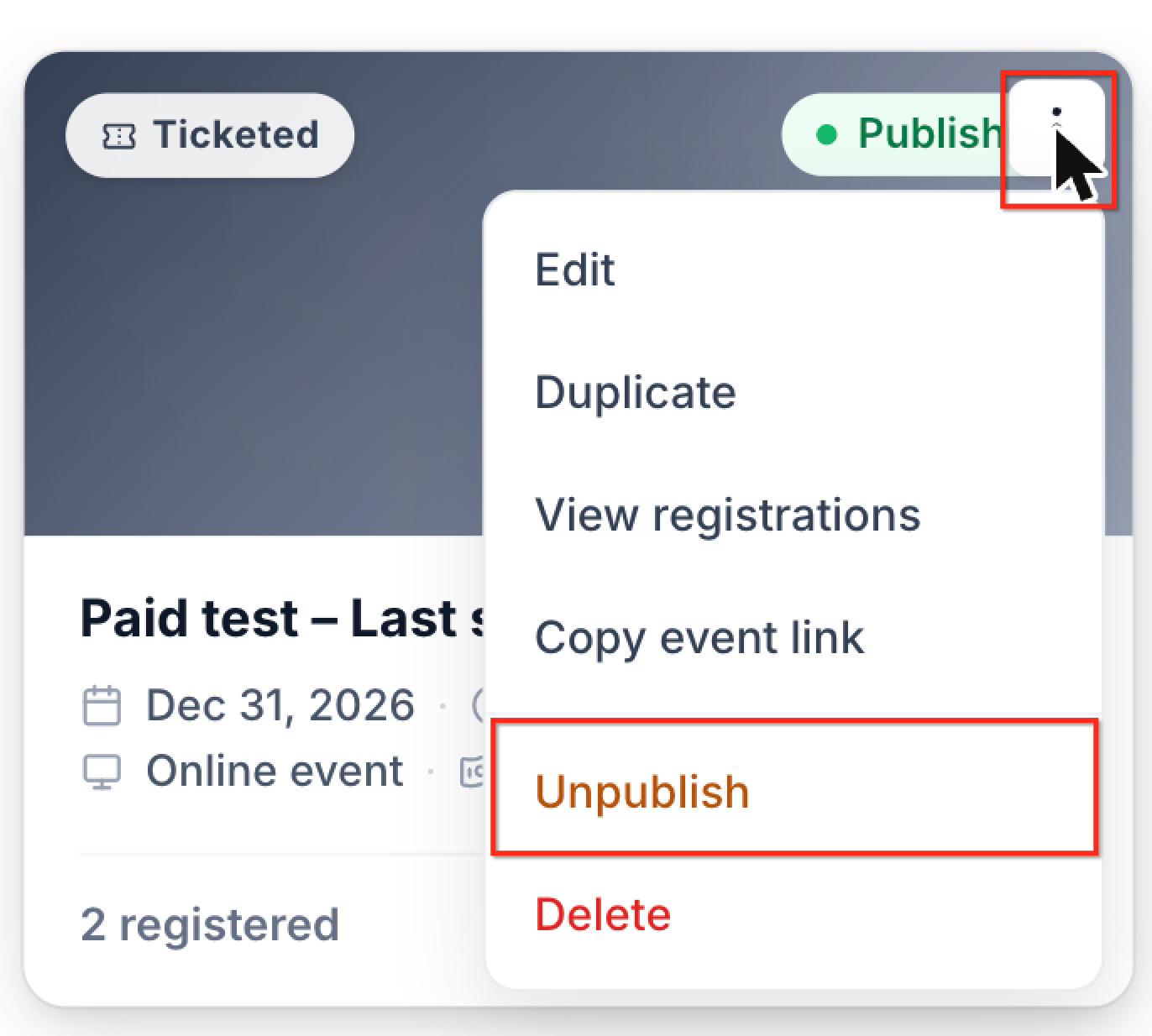
Click the three-dot (⋮) menu on the event card or open the event detail page.
Select Unpublish.
Review any warnings or outstanding items displayed by HighLevel.
If the event is eligible, follow the on-screen confirmation to unpublish it.
Once completed, the event moves to Draft and is no longer available for public registration.
Note: If HighLevel prevents unpublishing, resolve the listed issues before trying again.
Resolve Issues That Prevent Unpublishing
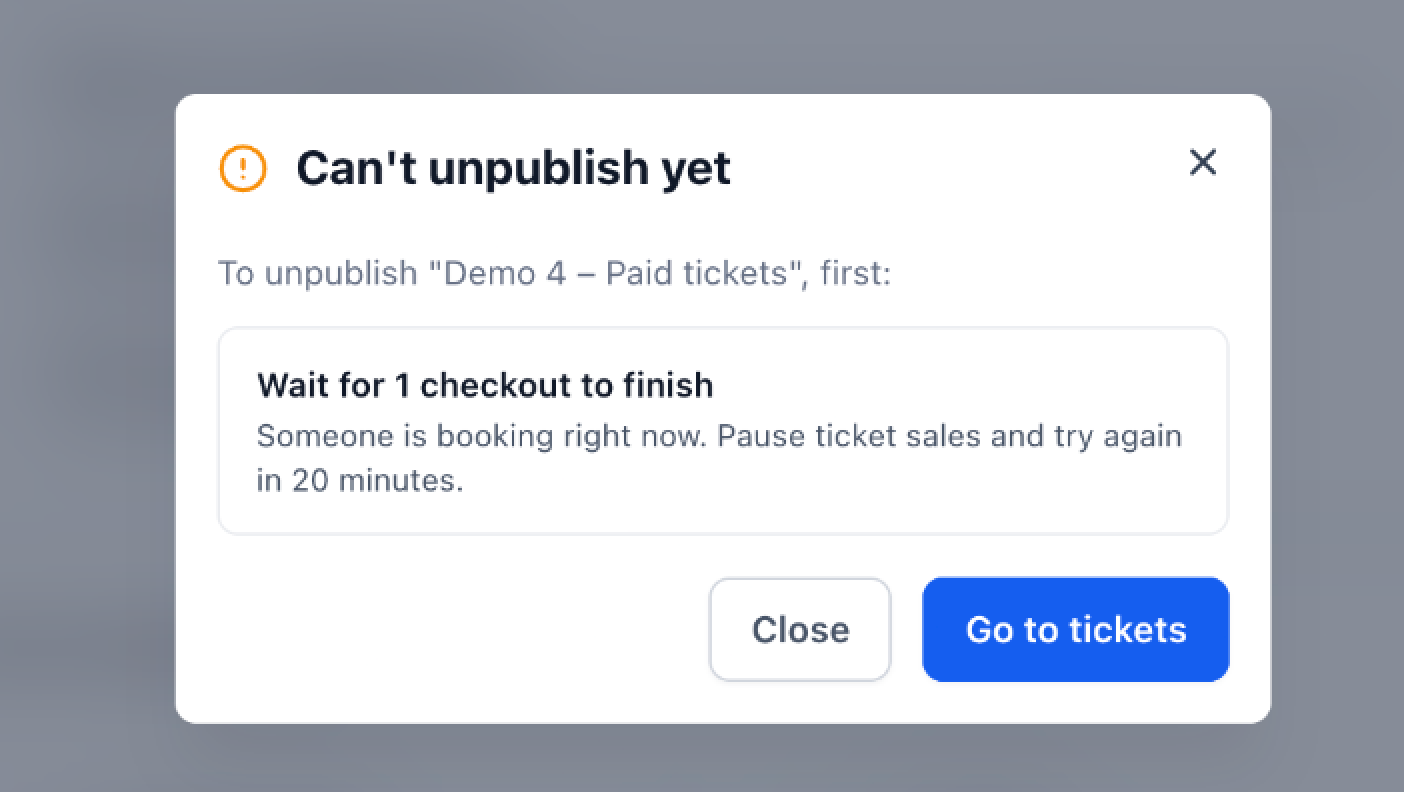
HighLevel checks for outstanding registrations and payment activity before allowing an event to be unpublished. This helps prevent organizers from taking events offline while attendees still have unresolved transactions.
If the action is blocked, HighLevel displays the reason and may provide a shortcut to the relevant Registrations or Tickets section.
| Issue | What to Do |
|---|---|
| Registrations requiring cancellation | Open Registrations and resolve the affected registrations. |
| Outstanding refunds | Review the relevant registration and complete any required refund actions. |
| Payments or refunds still processing | Allow processing to complete before retrying. |
| Checkout currently in progress | Follow the displayed instructions. You may need to pause ticket sales and retry after the checkout is resolved. |
How to Review Registrations and Refunds
If an outstanding registration or payment prevents unpublishing:
Open the event.
Go to Registrations.
Find the affected attendee or registration.
Open the available actions to review cancellation or refund options.
Complete the necessary action and check its status.
Return to the event and try Unpublish again.
Refunding and canceling are separate actions. A refund returns money to the original payment method, while cancellation removes the active event registration. Depending on the situation, you may need to perform one or both.
For detailed instructions, see How to Manage Event Refunds, Cancellations, and Check-In Eligibility.
Important: Do not assume every existing registration must be canceled. Resolve the specific items identified by HighLevel.
How to Republish an Event
After making the necessary changes, you can publish the event again without creating a new one.
Open Events in your HighLevel sub-account.
Find the event with Draft status.
Review its event details, tickets, schedules, and registration settings.
Open the three-dot (⋮) menu and select Publish, or open the event and use its publishing option.
Complete the publishing process shown on the screen.
The event becomes available again after it is successfully published.
What Buyers See When an Event Is Unpublished
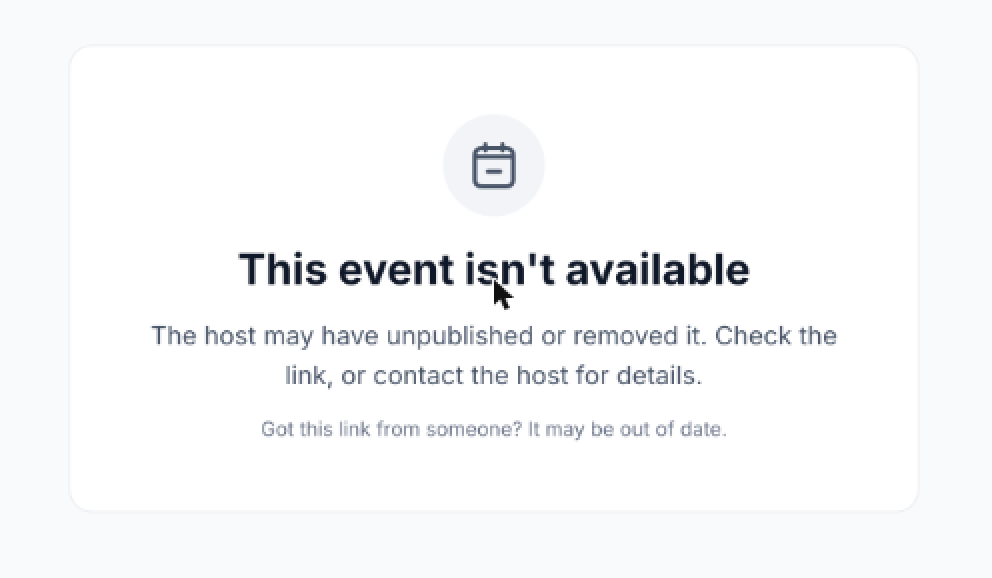
Visitors attempting to open an unpublished event's public page see a message stating:
This event isn't available.
Buyers who are already on the checkout page may instead see:
This event is no longer available.
These messages indicate that the event cannot currently accept new registrations.
Frequently Asked Questions
Q: Does unpublishing delete my event?
No. Unpublishing moves the event back to Draft while preserving its configuration, tickets, schedules, speakers, and registration records.
Q: What happens to existing registrations?
Existing registration records are preserved. However, HighLevel may require you to resolve certain active registrations before it allows the event to be unpublished.
Q: Why can't I unpublish my event?
Unpublishing may be blocked by registrations requiring cancellation, outstanding refunds, processing payments or refunds, or checkouts currently in progress. Follow the instructions in the warning message and try again after resolving the issue.
Q: Does unpublishing automatically cancel registrations or refund attendees?
No. Cancellation and refund actions must be handled separately when required. Review the event's Registrations section to manage affected attendees.
Q: Can I publish an unpublished event again?
Yes. Open the event in Draft status, review its settings, and select Publish from the event page or Events list.
Related Articles
Was this article helpful?
That’s Great!
Thank you for your feedback
Sorry! We couldn't be helpful
Thank you for your feedback
Feedback sent
We appreciate your effort and will try to fix the article