Each of your sub-accounts has an AI usage page. It shows the sub-account's AI plan, how much of its monthly AI limit it has used, what its plan includes, and what happens when it reaches the limit. From the same page, the sub-account can ask you for more usage or upgrade its own plan. Sub-accounts you rebill for AI can also set their own monthly AI limit, on top of yours, once you allow it.
This article shows you, as the agency, exactly what your sub-accounts see and can do, so you can set things up the way you want and answer their questions. What a sub-account sees depends on two things you control: how you bill it for AI, and who you give access to.
Note: The sub-account AI usage page is currently available in Labs. Features and screens may change as we roll it out more widely.
TABLE OF CONTENTS
- Who Sees the Page
- How Your Billing Setup Changes What They See
- What the Page Shows
- Letting Sub-Accounts Set Their Own AI Limit
- Near the Limit, Stopped, or Past the Limit
- How Sub-Accounts Ask You for More Usage
- Plan Upgrades From the Sub-Account
- Frequently Asked Questions
- Related Articles
Who Sees the Page
| Who | Sees the AI usage page? |
|---|---|
| Agency admins and agency users | Yes, in any sub-account they switch into |
| Sub-account admins | Yes, in their own sub-account |
| Sub-account users | No. The page is not in their menu. |
Sub-account users still see usage banners on the AI product pages when the limit gets close, and they can ask for more usage from those banners. See Near the Limit, Stopped, or Past the Limit.
Where sub-account admins find it
- New menu: AI → AI Usage.
- Classic menu: AI Agents, then the AI Usage tab at the top.
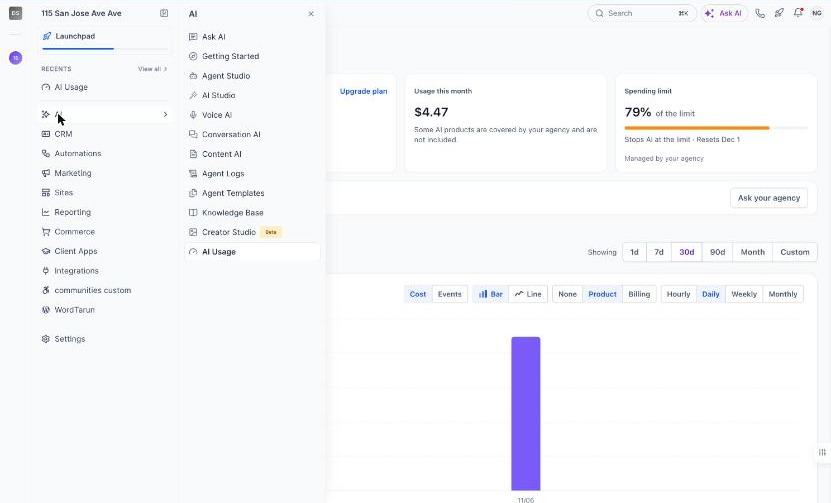
The new menu: AI, then AI Usage
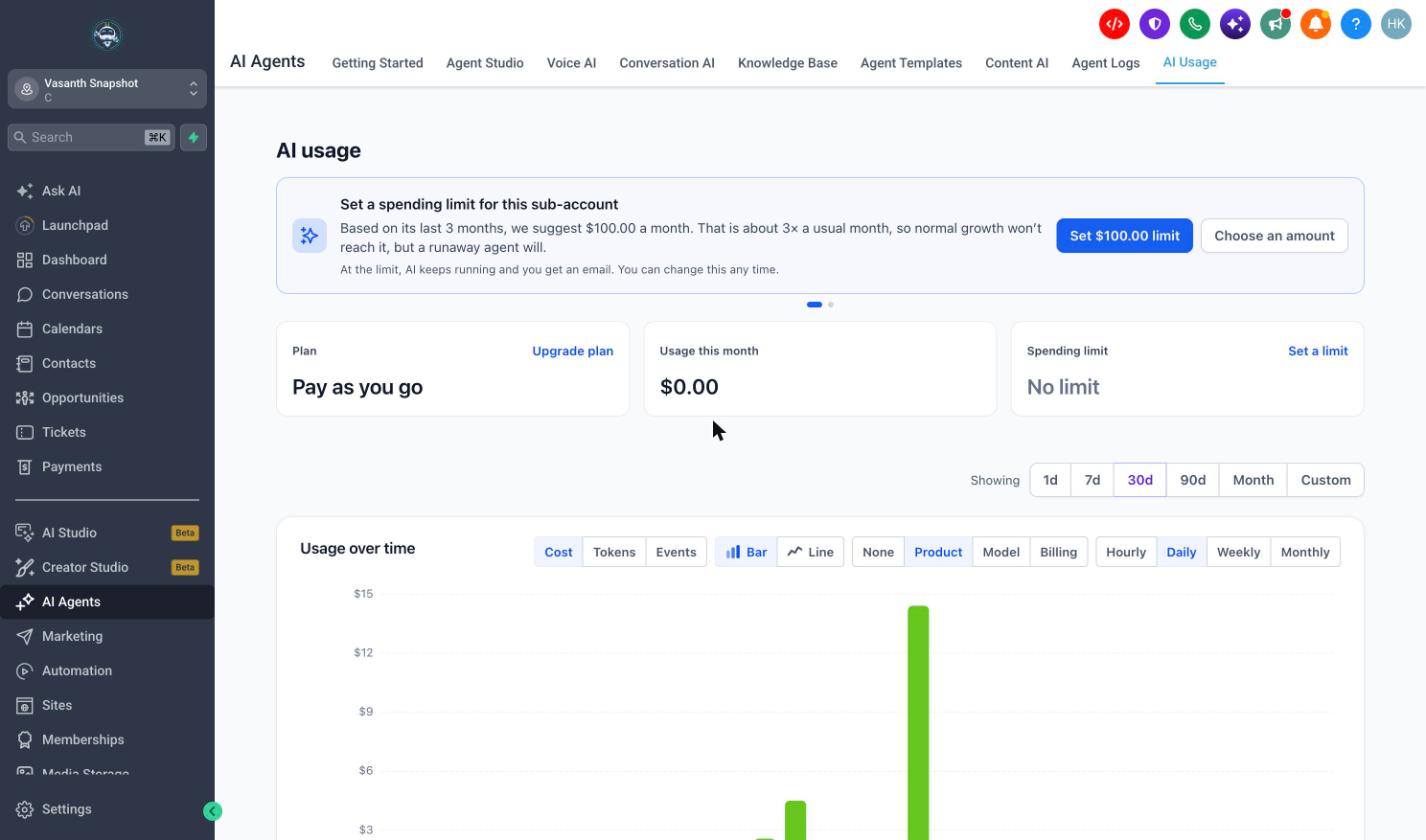
The classic menu: the AI Usage tab under AI Agents
Prerequisite: AI Agents must be turned on for the sub-account. You can turn it on with the AI Agents toggle for that sub-account in AI Suite → Plans & Limits. If AI Agents is off, the sub-account cannot open the AI usage page.
How Your Billing Setup Changes What They See
How you rebill a sub-account's AI (in AI Suite → Plans & Limits → Configure Rebilling) decides two things on its page: whether the sub-account sees its limit in dollars or as a percentage, and whether its admins can change your limit or ask you.
By default, a sub-account can't set its own AI limit. It can only once you turn on Let rebilled sub-accounts set their own AI limit in Plans & Limits → Edit defaults, and only for the AI you rebill to it. The table and examples below show the page with that switch off, and what changes when you turn it on. See Letting Sub-Accounts Set Their Own AI Limit.
| How you bill the sub-account's AI | Its usage shows as | Its limit shows as | Who changes its limit (switch off) | With the switch on |
|---|---|---|---|---|
| Every product rebilled at one rate | Dollars | Dollars | Its sub-account admins, or you | Only you change your limit. Its admins set their own limit instead. |
| Some products rebilled | Dollars, with a note that some products are covered by your agency | Percentage of the limit | You | You. Its admins can also set their own limit, for the rebilled products only. |
| Every product rebilled, at different rates | Dollars | Percentage of the limit | You | You. Its admins can also set their own limit. |
| Not rebilled (you cover its AI) | Covered by your agency | Percentage of the limit | You | You. It can't set its own limit, because nothing is billed to it. |
Note: A sub-account sees dollars only when every AI charge it had this month was billed at the same markup. Otherwise it sees a percentage.
Rebilled at one rate: sub-account admins can change your limit
The sub-account's admins see Set a limit (or Edit) on the Spending limit card, and the page may suggest a limit based on their usual spending. Requests from their own team go to them, not to you. This is the spending limit you set for the sub-account, shown in its dollars. It is not a limit of its own. Once you turn on Let rebilled sub-accounts set their own AI limit, its admins set their own limit instead, and your limit is yours alone.
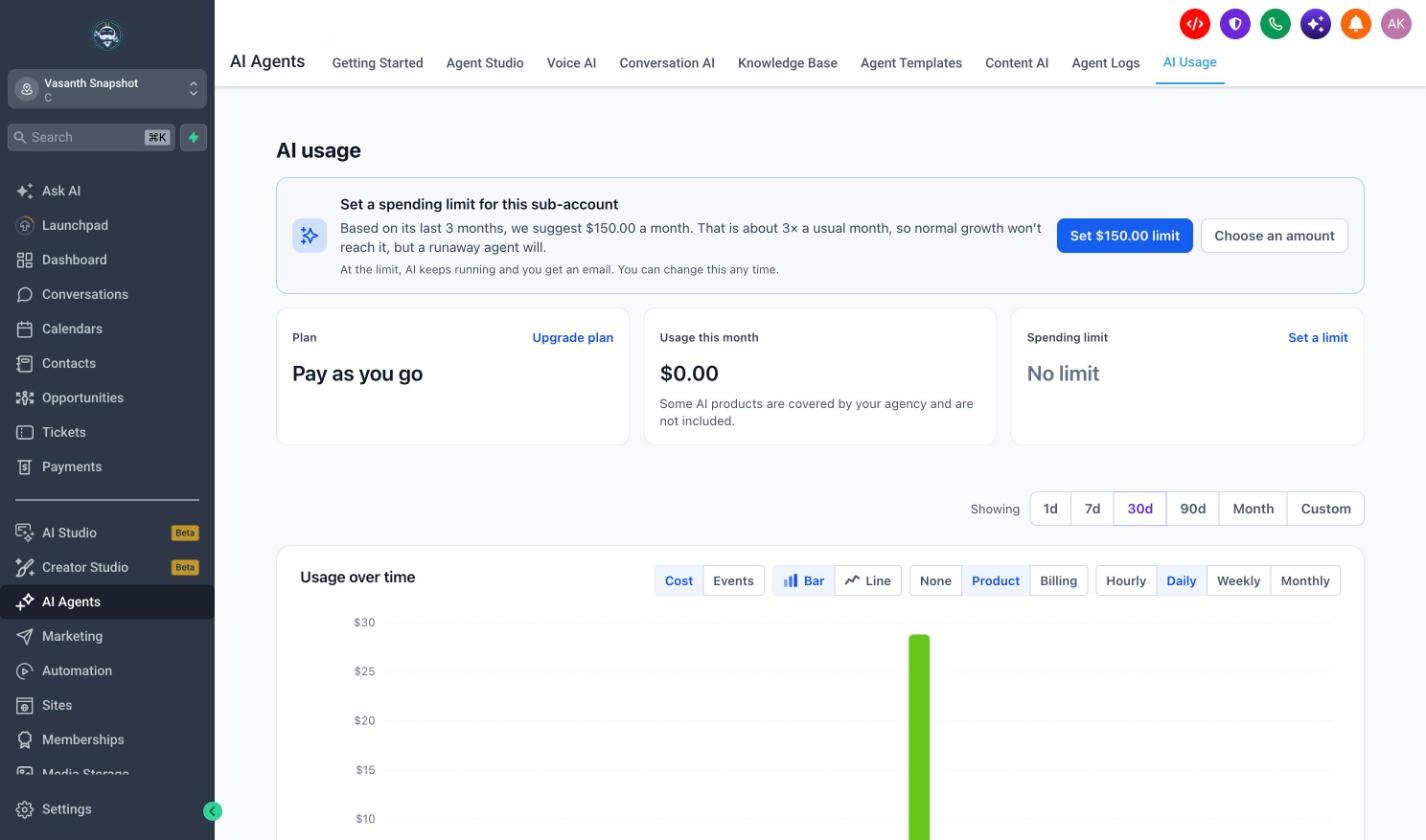
Rebilled at one rate: the sub-account admin can set the spending limit
Some products rebilled
Usage shows in dollars with Some AI products are covered by your agency and are not included. The limit card shows Managed by your agency, and Ask your agency sends a request to you. With Let rebilled sub-accounts set their own AI limit on, its admins can also set their own limit, which counts only the products you rebill to it.
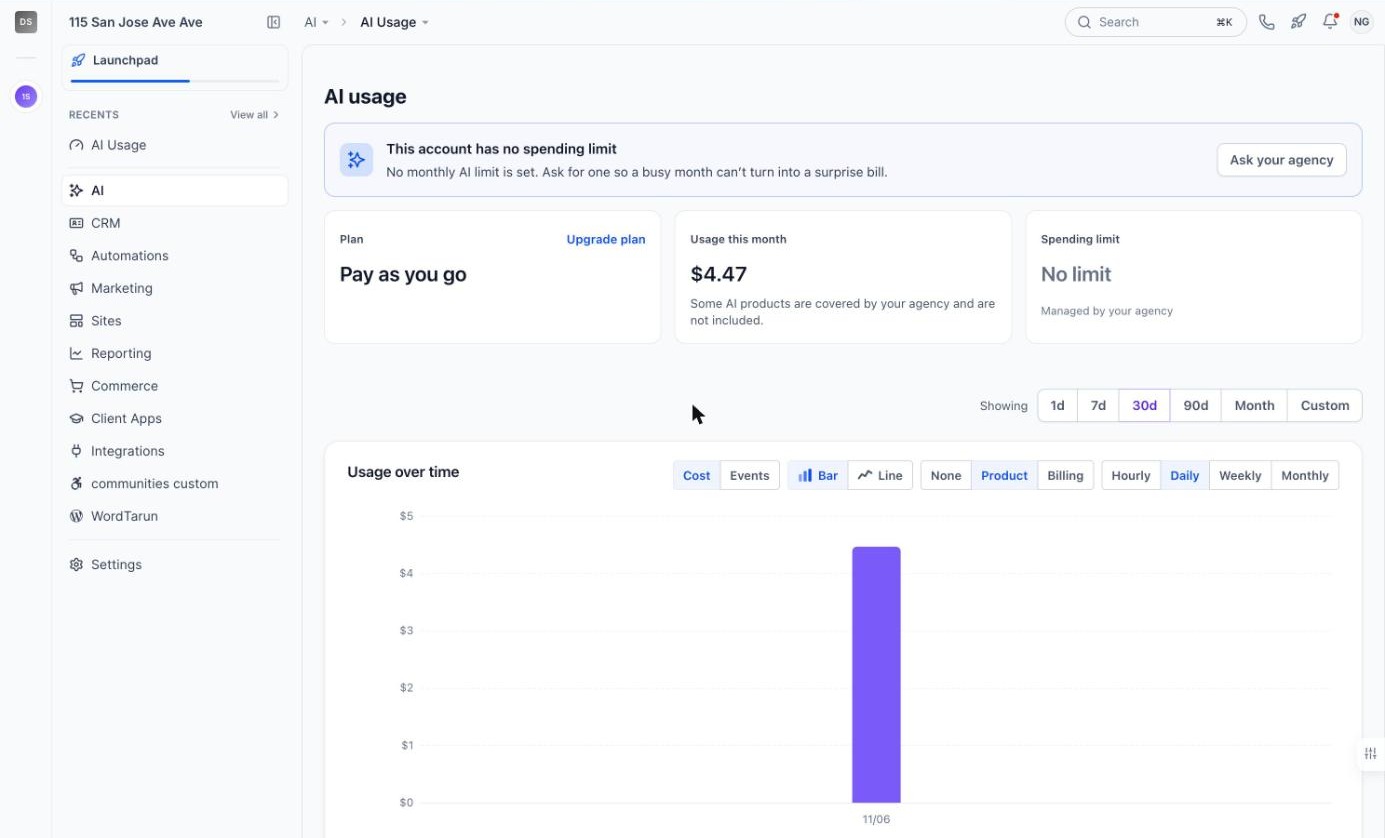
Some products rebilled: the limit is managed by your agency
Rebilled at different rates
The sub-account sees its usage in dollars, but you manage its limit, and it asks you for changes with Ask your agency. With Let rebilled sub-accounts set their own AI limit on, its admins can also set their own limit.
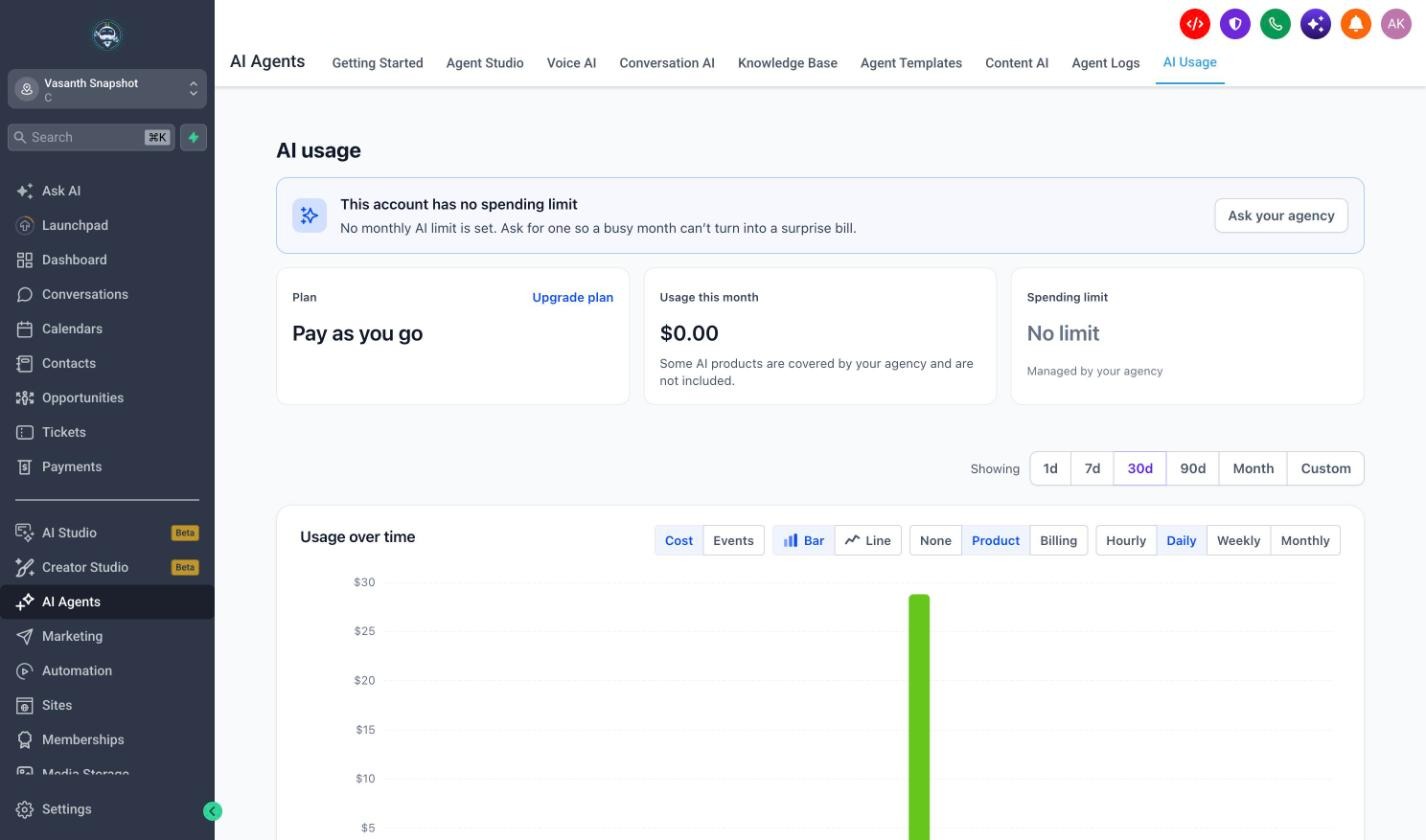
Different rates per product: the limit is managed by your agency
Not rebilled
You pay for the sub-account's AI, so Usage this month shows Covered by your agency. You manage the limit, and the sub-account can still ask you for more. It can't set its own limit, because nothing is billed to it.
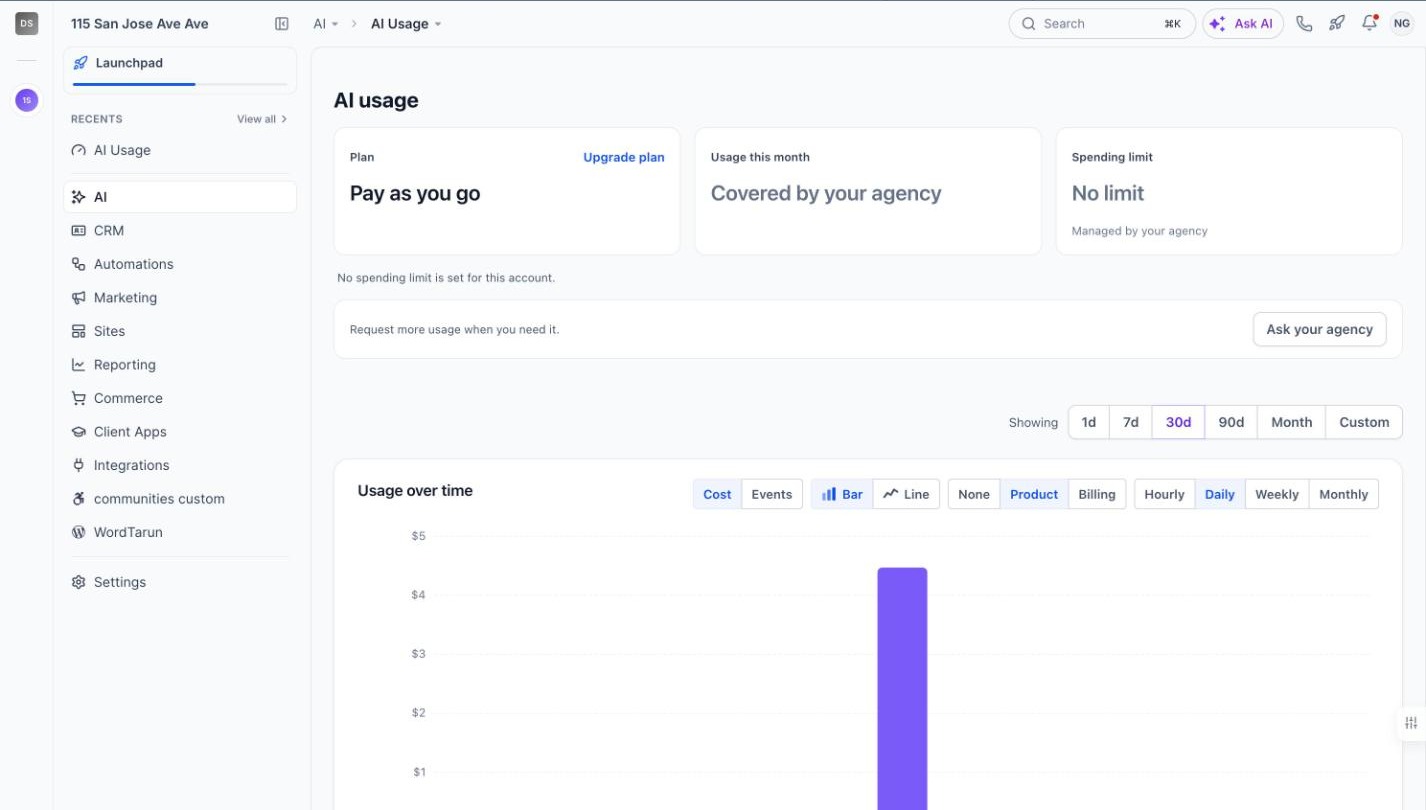
Not rebilled: usage covered by your agency
On an AI Employee plan
On a plan, the page shows Extra usage this month, an Extra usage card for usage beyond the plan, and an Included in your plan card listing what the plan includes.
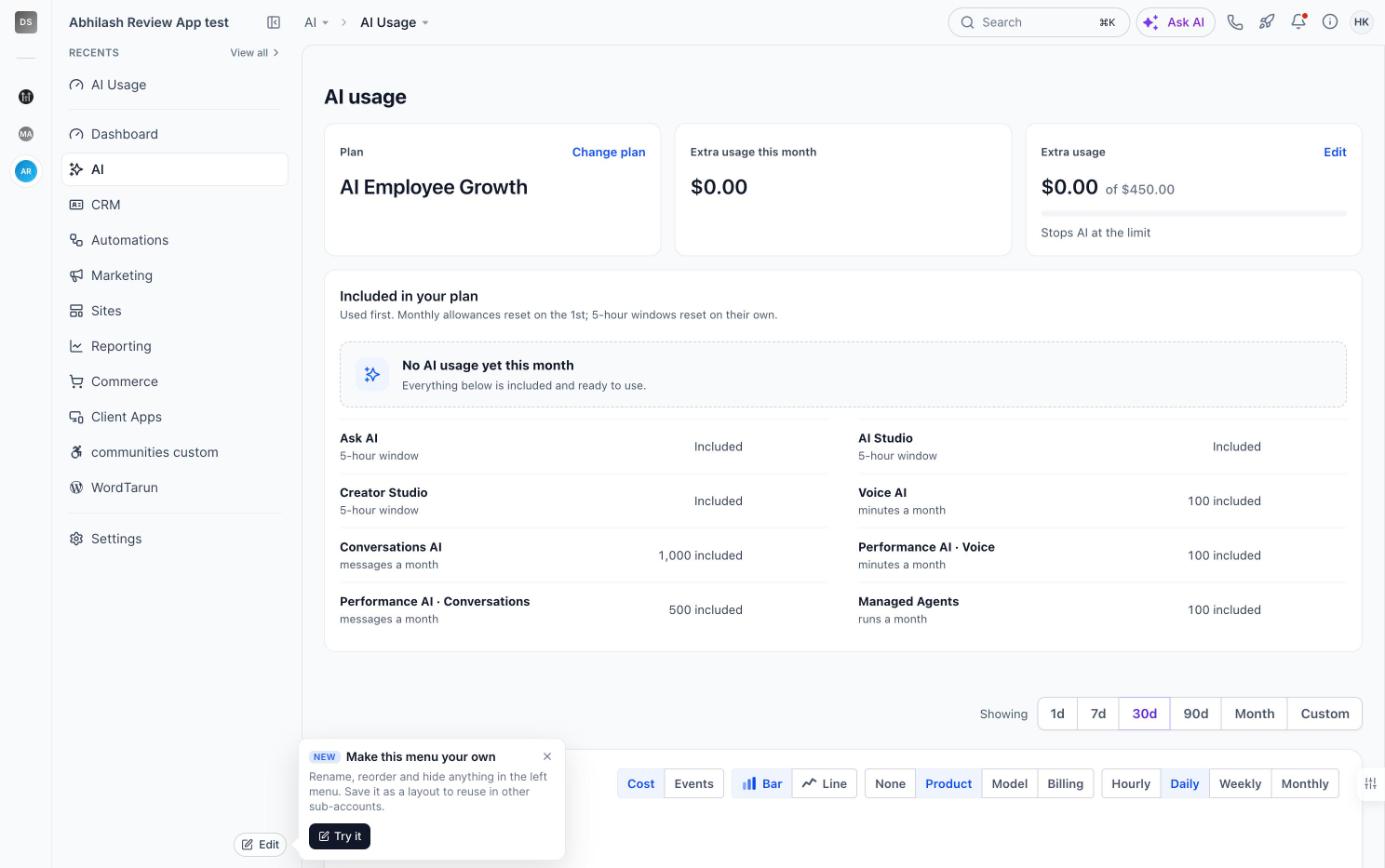
A sub-account on the AI Employee Growth plan
What the Page Shows
The cards
| Card | What it shows |
|---|---|
| Plan | The sub-account's AI plan: Pay as you go, AI Employee Starter, AI Employee Growth or AI Employee Unlimited, with Upgrade plan when an upgrade is available to its admins. |
| Usage this month | Billable AI used this month. On a plan, this is Extra usage this month: usage beyond what the plan includes. |
| Spending limit or Extra usage | How much of the month's limit is used, what happens at the limit (Stops AI at the limit or Alerts only), when it resets, and who manages it. A red Stopped tag means AI has stopped. No limit means no monthly limit is set. |
| Monthly limits | Shown instead of the Spending limit card when the sub-account can set its own limit: your limit and its own limit side by side, each with how much is used, what happens at the limit and when it resets. See Letting Sub-Accounts Set Their Own AI Limit. |
| Included in your plan | On a plan only. What the plan includes and how much is left. Monthly allowances reset on the 1st; Ask AI, AI Studio and Creator Studio use 5-hour windows. |
Below the cards, Request more usage when you need it. appears with a button to ask whoever manages the limit.
Activity
Usage over time charts the sub-account's AI cost or number of events, grouped by product. The table below lists each AI charge with its date, product and amount, and View details opens a charge. Sub-accounts do not see AI model names or token counts.
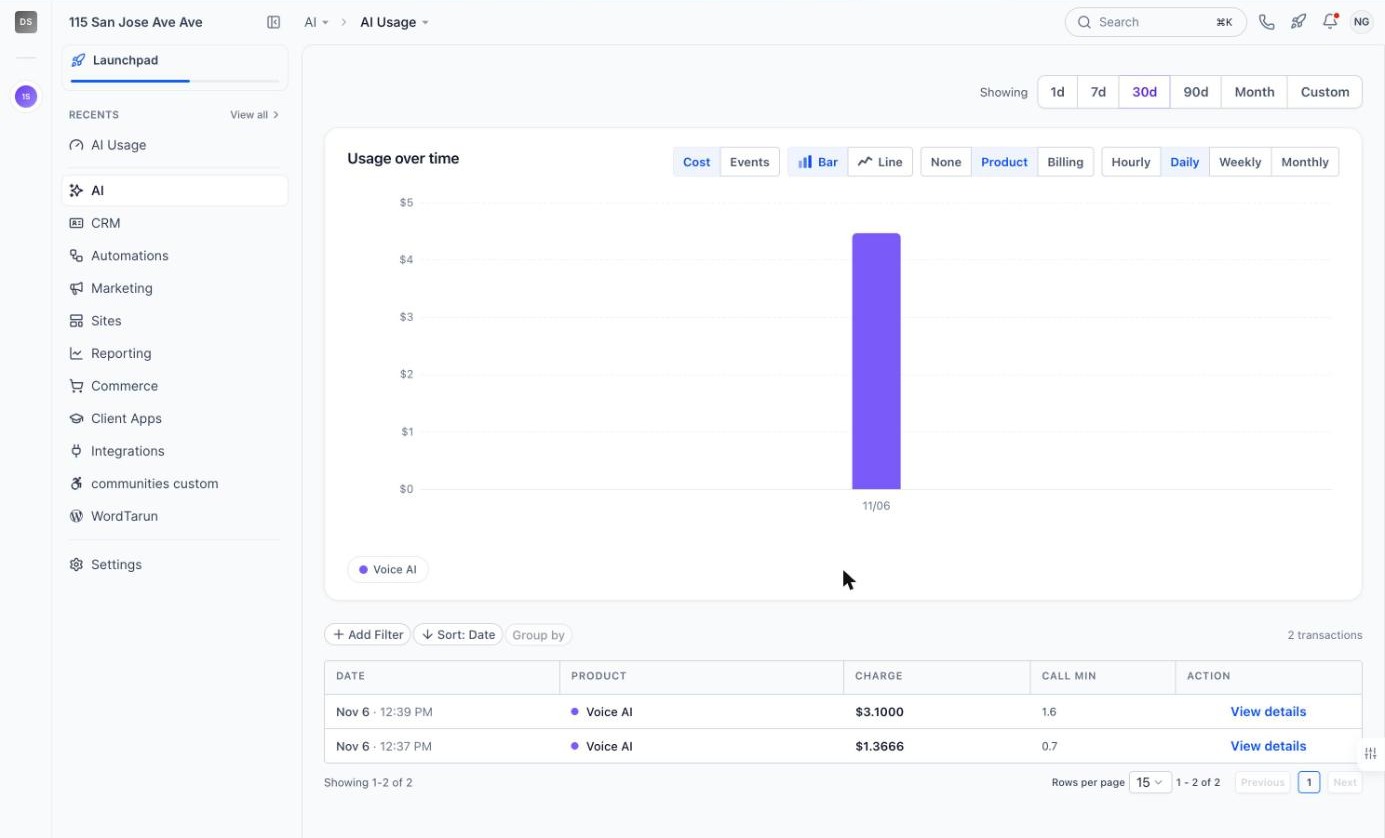
Usage over time and the list of AI charges, as a sub-account admin sees them
Note: Limits and allowances reset on the 1st of each month at 00:00 UTC. In the Americas this is the evening of the last day of the previous month.
Letting Sub-Accounts Set Their Own AI Limit
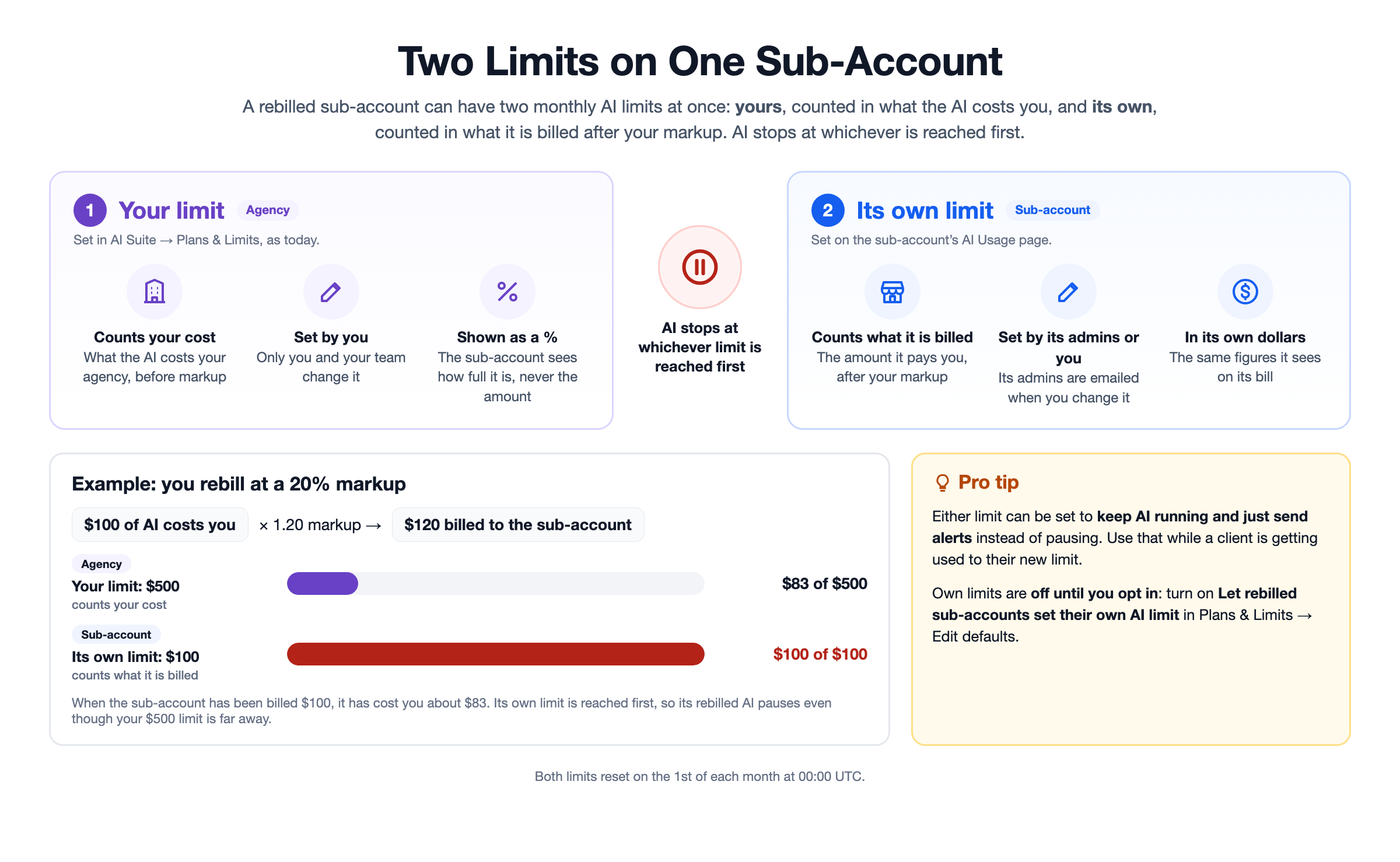
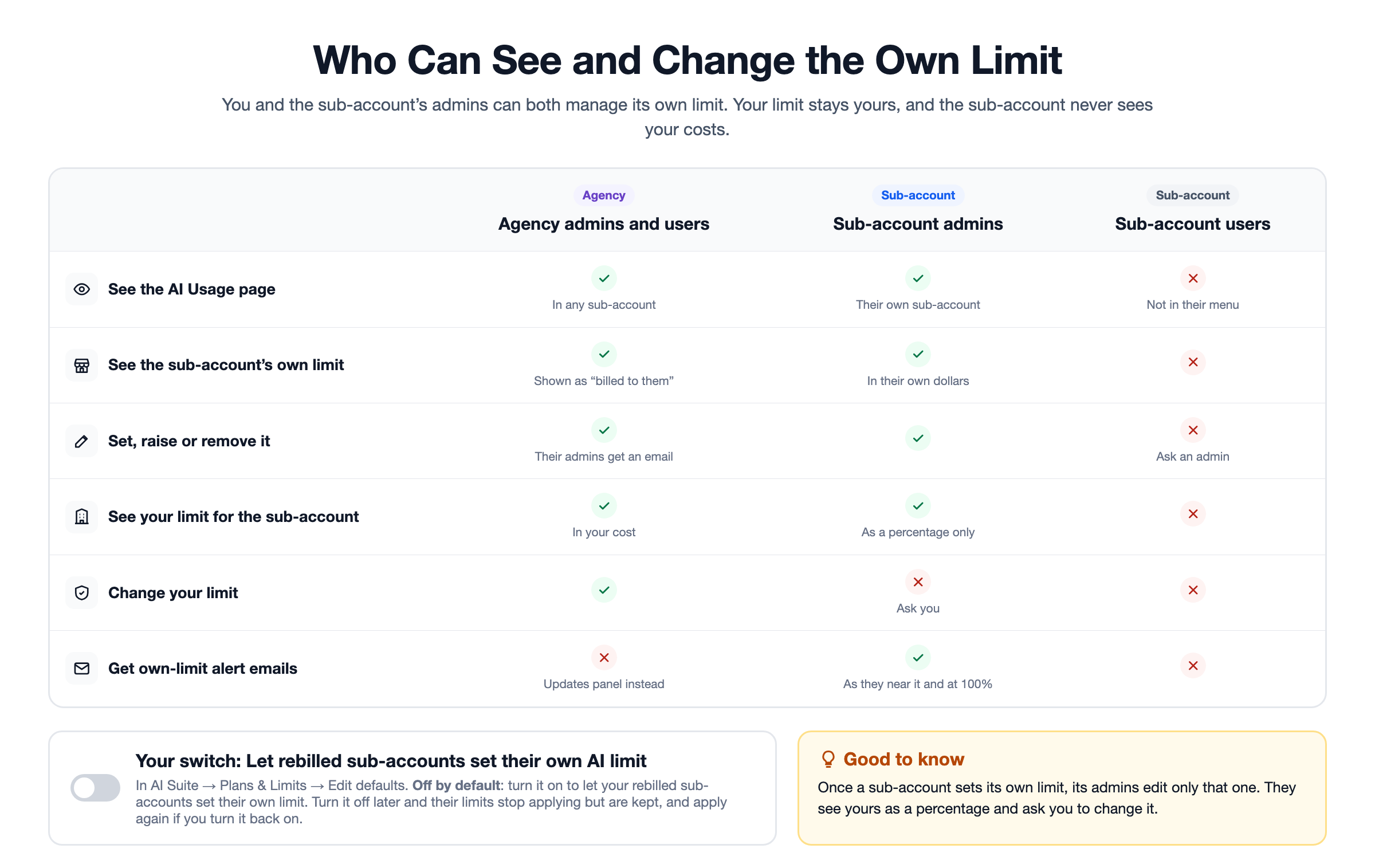
You can let the sub-accounts you rebill for AI set a monthly limit of their own. It caps what they are billed for AI each month, so a busy month never turns into a surprise bill. Your own limit for the sub-account stays exactly as it is, and stays yours.
Turn it on
It is off until you turn it on, and it applies to your whole agency.
- Go to AI Suite → Plans & Limits and click Edit defaults.
- Under Sub-account own limits, turn on Let rebilled sub-accounts set their own AI limit.

The switch in Plans & Limits → Edit defaults
What the page looks like, switch off and on
| Switch off | Switch on | |
|---|---|---|
| Limit cards | One Spending limit card: your limit | A Monthly limits section with two cards: Your limit (Agency) and the sub-account's own limit (Sub-account) |
| Who sets a limit | You. If you rebill every product at one rate, its admins can change it too. | Only you change your limit. Its admins, or you, set its own. |
| Sub-accounts you don't rebill | No change. They aren't billed for AI, so they have no own limit. | |
Switch off: the sub-account's page shows only your limit.

Switch on: both limits sit side by side under Monthly limits. Hover the (i) next to each card for a short explanation.
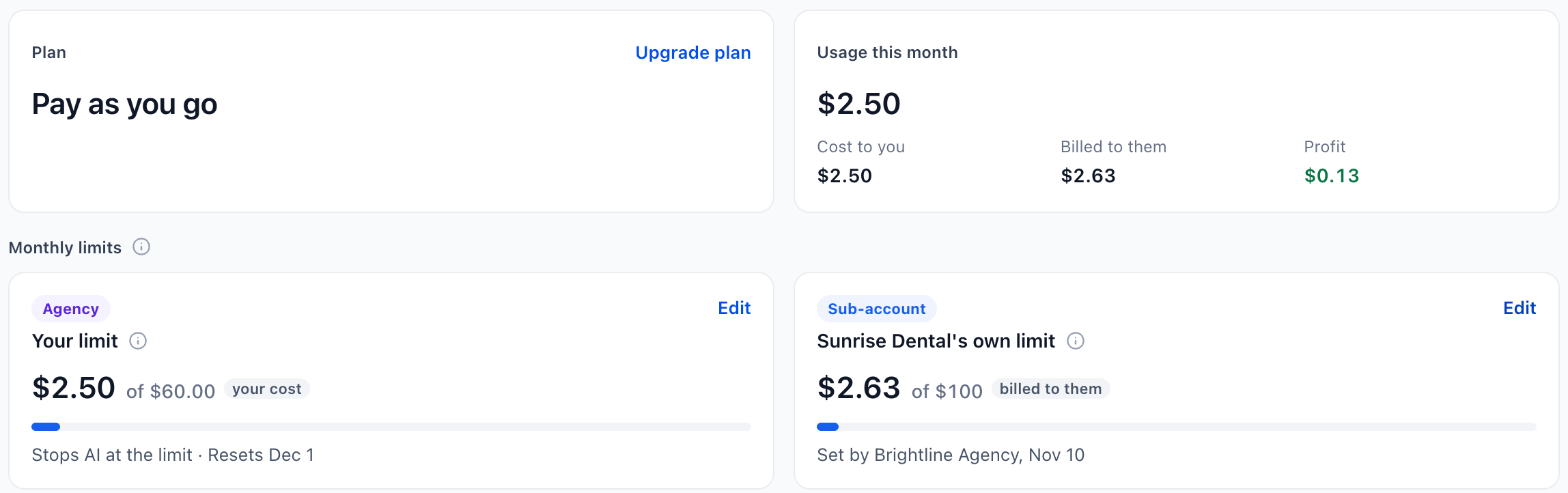
On the sub-account’s own page, your limit shows only as a percentage, with Contact [your agency] to change it, and the Request more usage row no longer appears: its admins manage their own limit instead.
With the switch off
If you rebill every product of a sub-account at one rate, its admins can also change your spending limit for it:
- They open AI → AI Usage and click Set a limit (or Edit) on the Spending limit card. On a plan, they use the Extra usage card. (its button is Edit)
- They turn on Limit monthly spending (on a plan, Keep AI running past the plan) and enter an amount, or pick the suggested one.
- Under Advanced settings, they choose Stop AI or Keep running and alert me for when the limit is reached.
- They click Save.
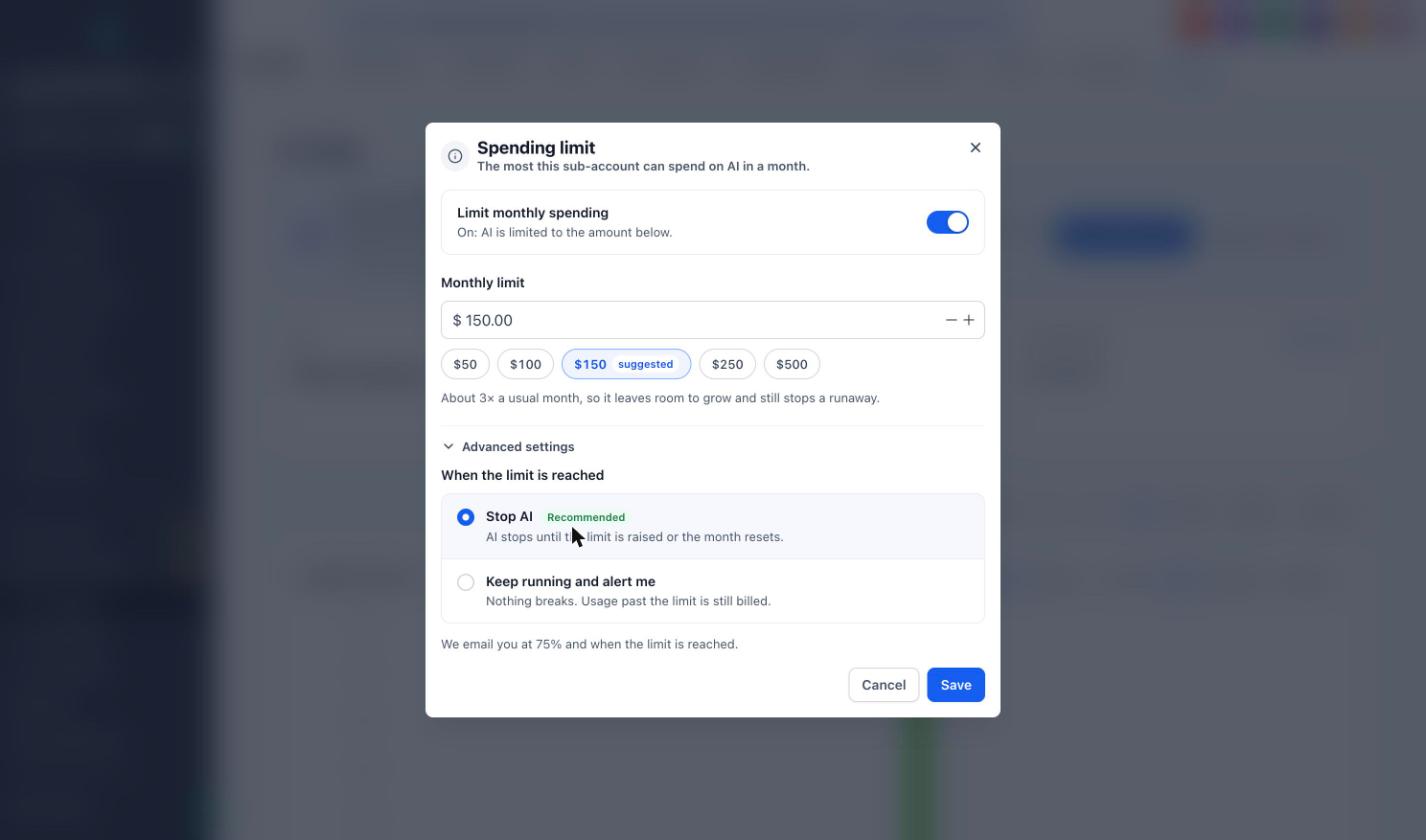
A sub-account admin changing the spending limit
You can still change that sub-account's limit at any time from AI Suite → Plans & Limits.
In every other billing setup, the sub-account's admins see Ask your agency instead, and their requests come to you.
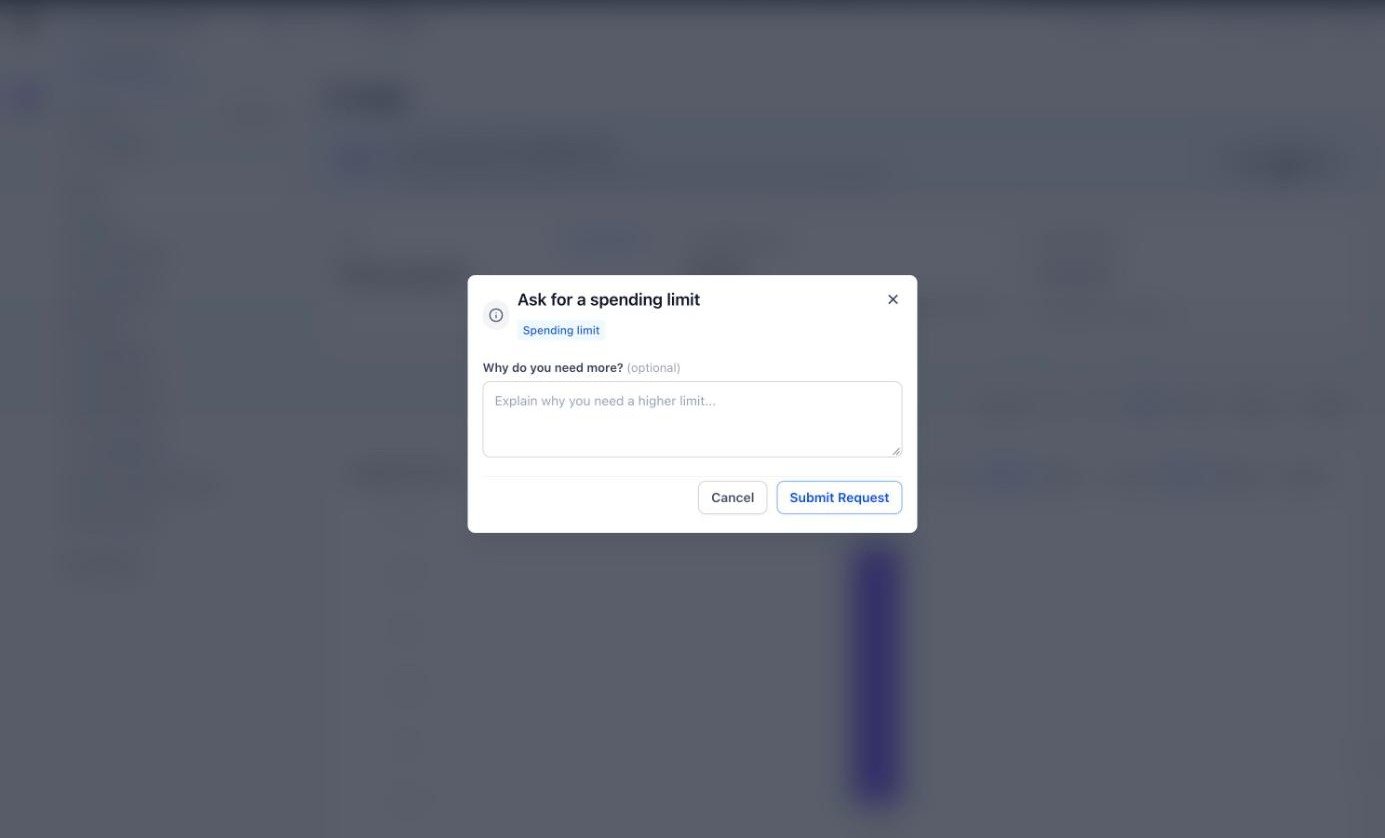
A sub-account asking you for a spending limit
Which limit is for what
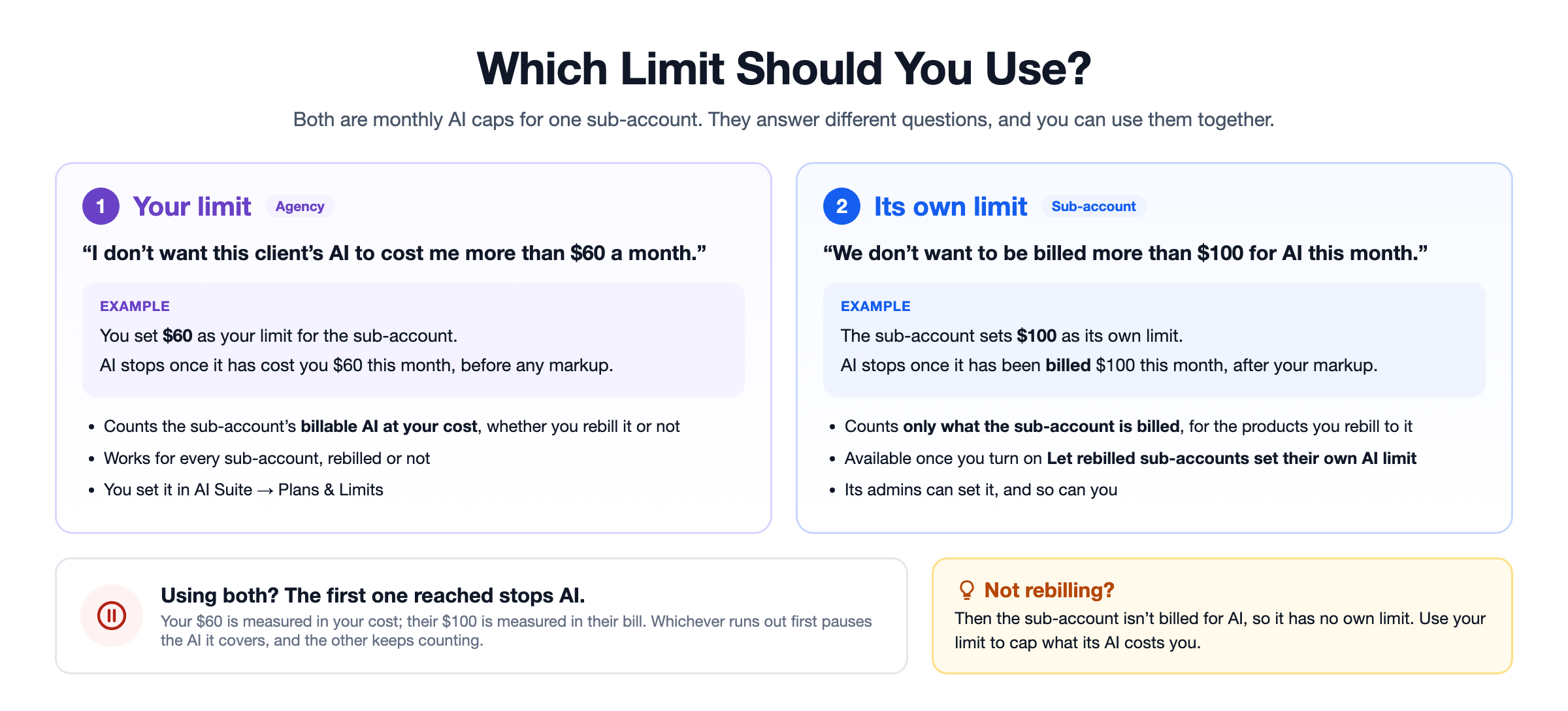
Both are monthly AI caps for one sub-account, but they measure different money:
- Your limit (Agency) caps what the sub-account's AI costs you, before any markup. It works whether you rebill or not. Use it when you think: "I don't want this client's AI to cost me more than $60 a month."
- Its own limit (Sub-account) caps what the sub-account is billed, after your markup. Use it when they think: "We don't want to be billed more than $100 for AI this month."
Which limit wins?
Whichever is reached first. Example, with every AI product rebilled at a 50% markup, so each $1 of AI costs you $1 and bills them $1.50:
- Your limit is $60 and theirs is $100. When AI has cost you $60, they have been billed $90. Your limit is reached first, so AI stops even though theirs isn't reached.
- Your limit is $60 and theirs is $75. When they have been billed $75, it has cost you $50. Their limit is reached first, so their billed AI stops.
Which products each limit covers
Your limit always covers every AI product in the sub-account. Its own limit covers only the products you rebill to it, because those are the only ones it is billed for.
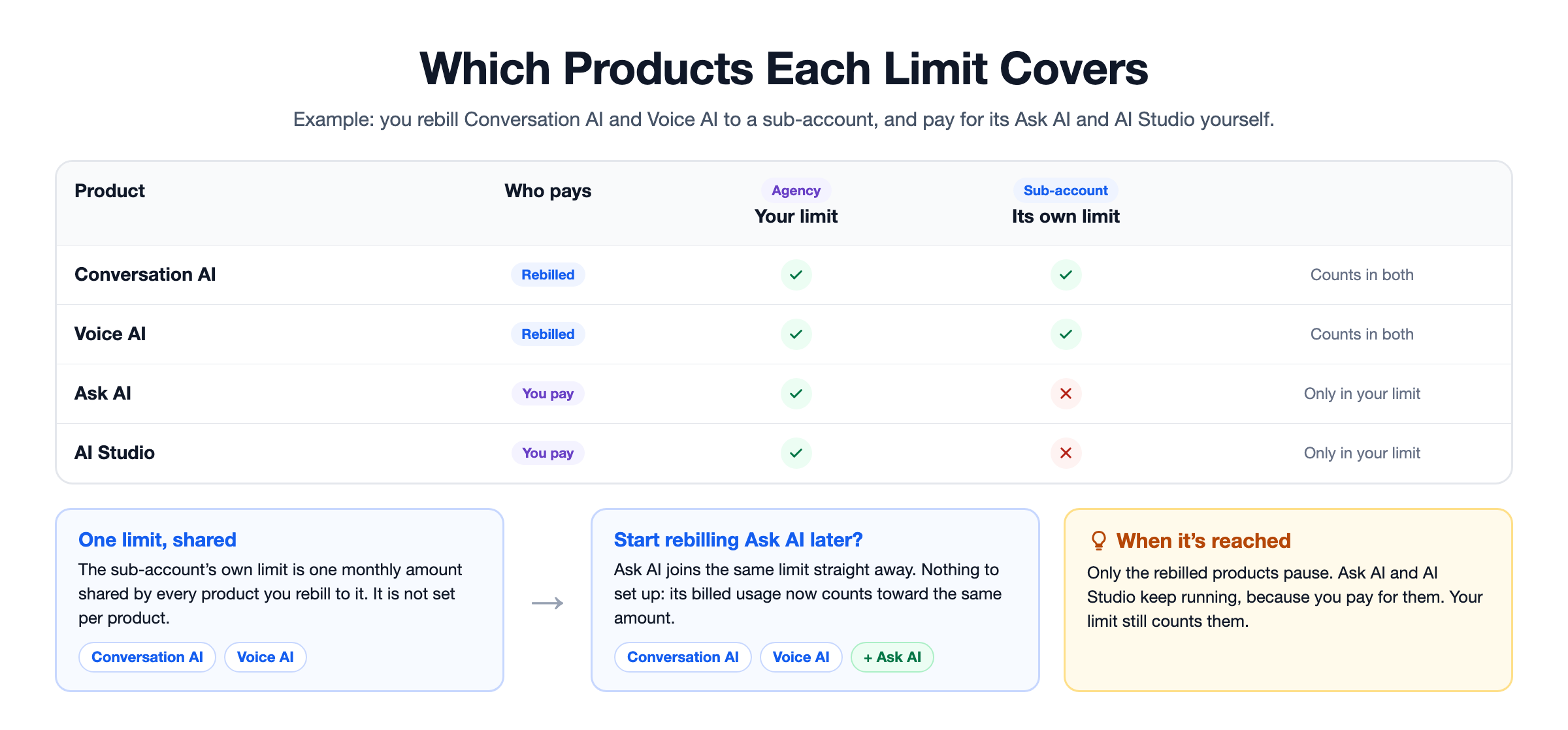
- Say you rebill Conversation AI and Voice AI, but pay for Ask AI and AI Studio yourself. Your limit counts all four. Its own limit counts only Conversation AI and Voice AI.
- When its own limit is reached, only Conversation AI and Voice AI pause. Ask AI and AI Studio keep running, because you pay for them.
- Start rebilling another product later? It joins the same own limit straight away. The own limit is one monthly amount shared by every rebilled product, not one per product.
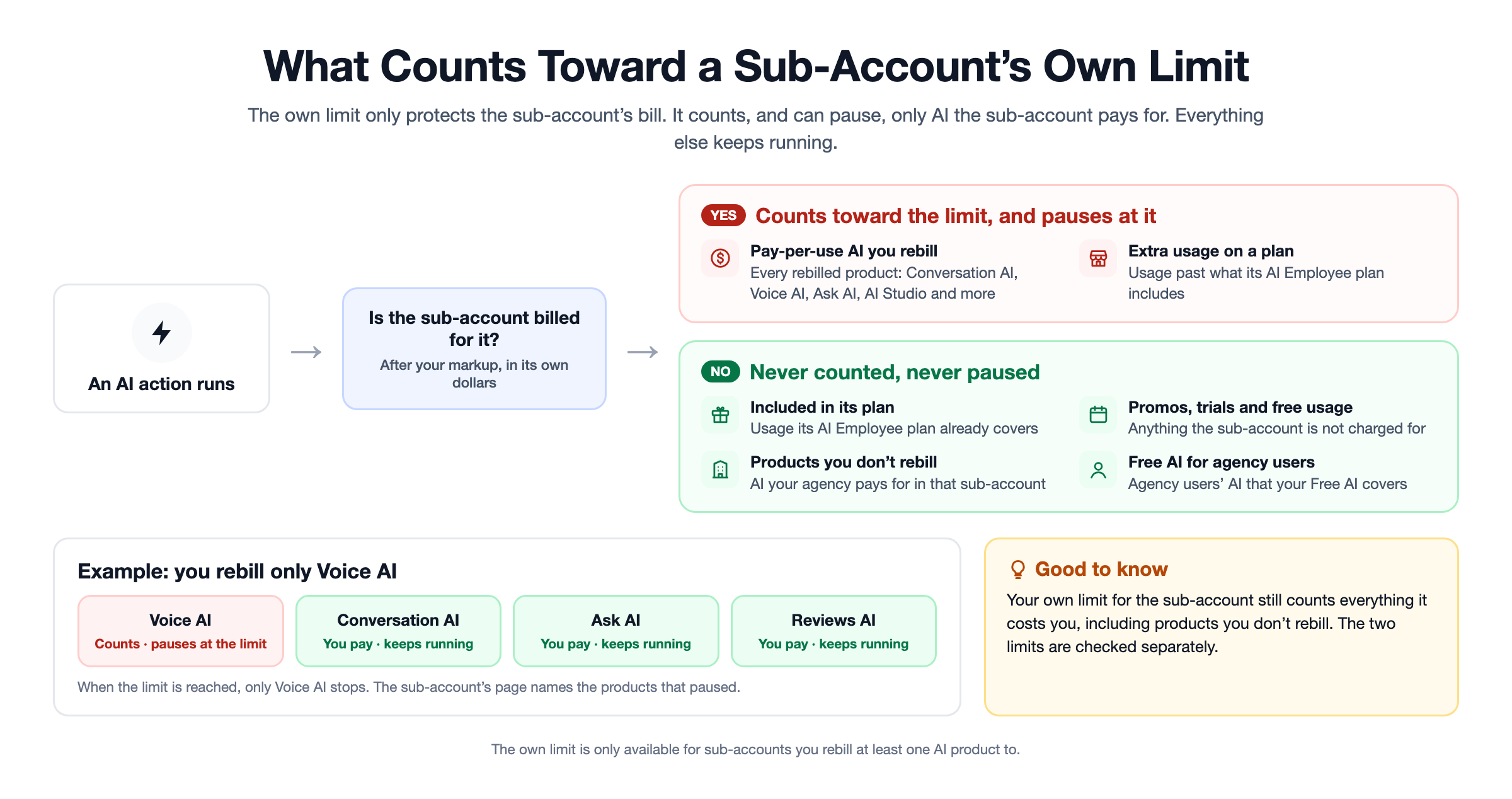
Anything the sub-account isn't charged for never counts toward its own limit and is never paused by it: usage included in its AI Employee plan, promos, trials and free usage, and products you don't rebill to it.
Setting the own limit
Sub-account admins open AI → AI Usage and click Set a limit on their own-limit card. You can do the same from the sub-account's AI Usage page.
- Turn on Limit monthly spending and enter an amount, or pick one of the suggested amounts.
- Under Advanced settings, choose Stop AI (recommended) or Keep running and alert me.
- Click Save.
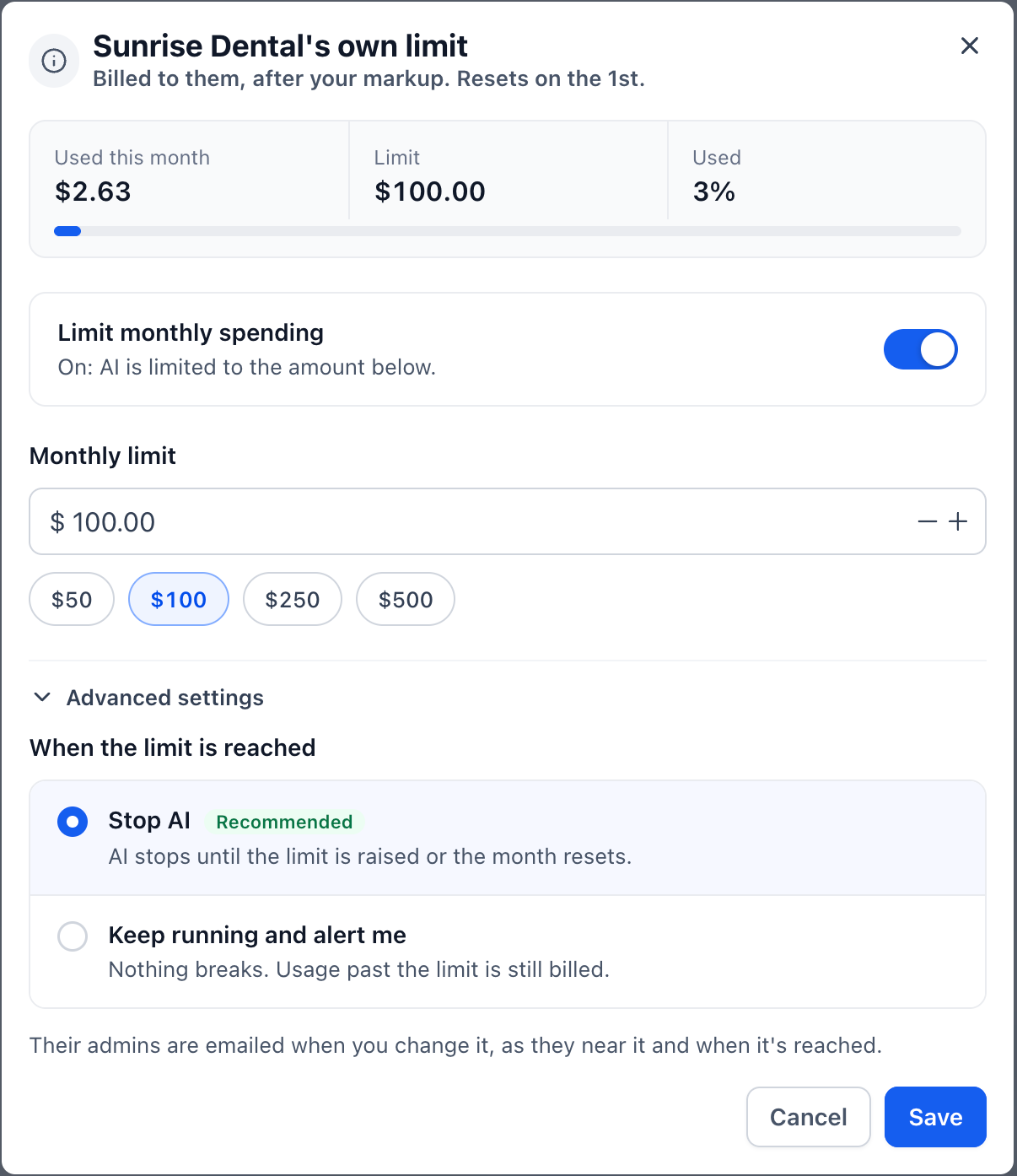
When you set or change a sub-account's own limit, its admins are emailed. Sub-account users can't change it; they ask an admin.
When the own limit is reached
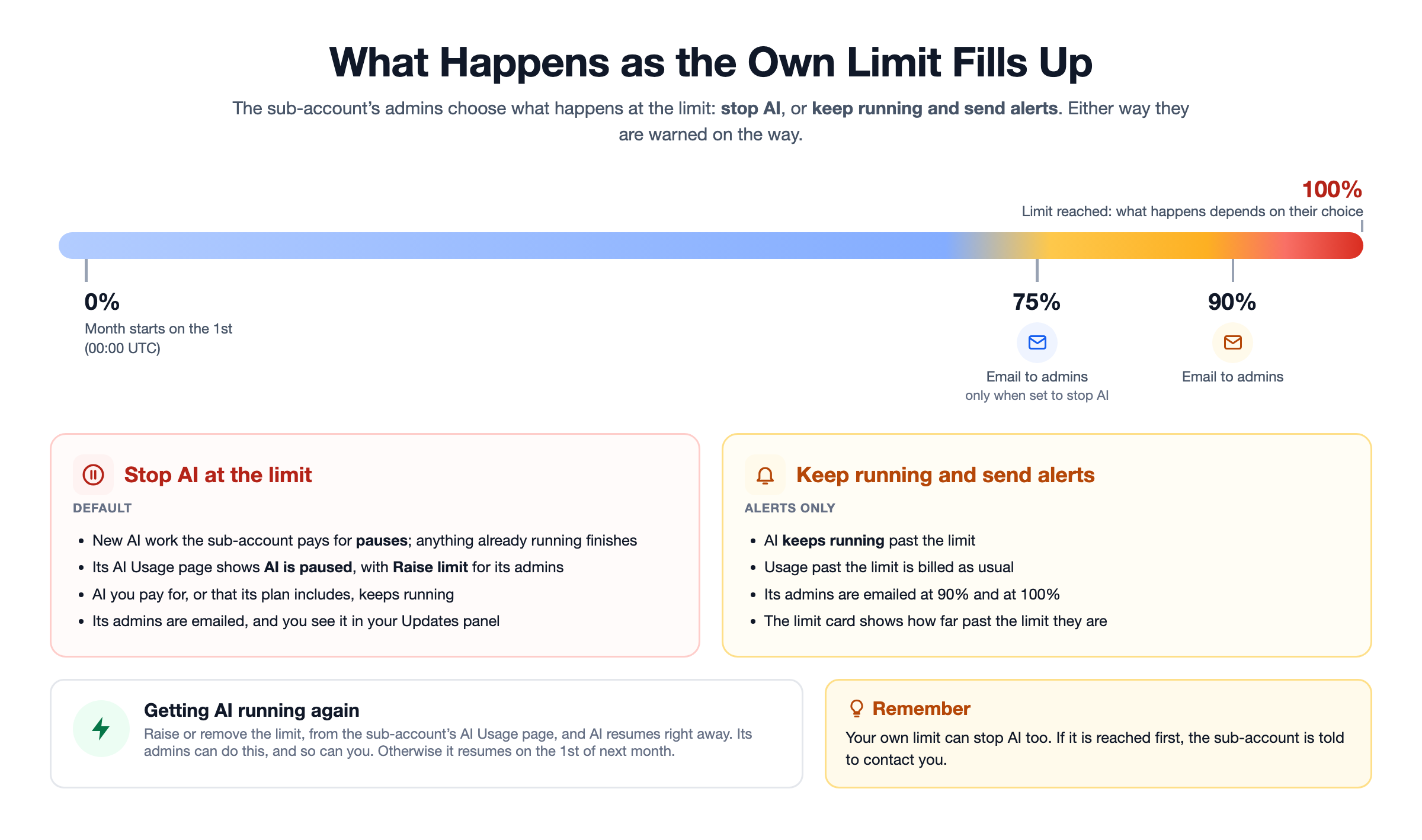
- Stop AI: new AI work the sub-account pays for pauses, and anything already running finishes. AI you pay for, or that its plan includes, keeps running. Its admins see that AI is paused, with Raise limit.
- Keep running and alert me: AI keeps running, and usage past the limit is billed as usual.
Its admins are emailed as usage nears the limit and when it is reached. AI runs again as soon as the limit is raised or removed, or on the 1st of next month.
Turning the switch off later
Before it turns off, you'll see how many sub-accounts have set their own limit. Once it's off, those limits stop applying and their AI Usage page shows only your limit. Nothing is deleted: turn the switch back on and the same limits apply again.
Note: Per-user limits have been retired. Each sub-account has one monthly limit for everyone in it.
Near the Limit, Stopped, or Past the Limit
As a sub-account's usage grows, its AI usage page updates, and banners appear on its AI product pages, such as Conversation AI, Voice AI, Agent Studio and Managed Agents. Everyone in the sub-account sees these banners, including sub-account users.
| Situation | What happens to AI | Banner on AI product pages |
|---|---|---|
| Near the limit (75% or more) | Keeps running | How much of the month's limit is used, and that AI pauses at 100% (with Keep running and alert me: that you’ll be alerted) |
| Stopped (limit reached, Stop AI) | New AI work stops; anything already running finishes | AI is paused, what has stopped, and when it resumes |
| Past the limit (Keep running and alert me) | Keeps running; usage past the limit is billed | The sub-account is past its limit and AI keeps running |
Near the limit
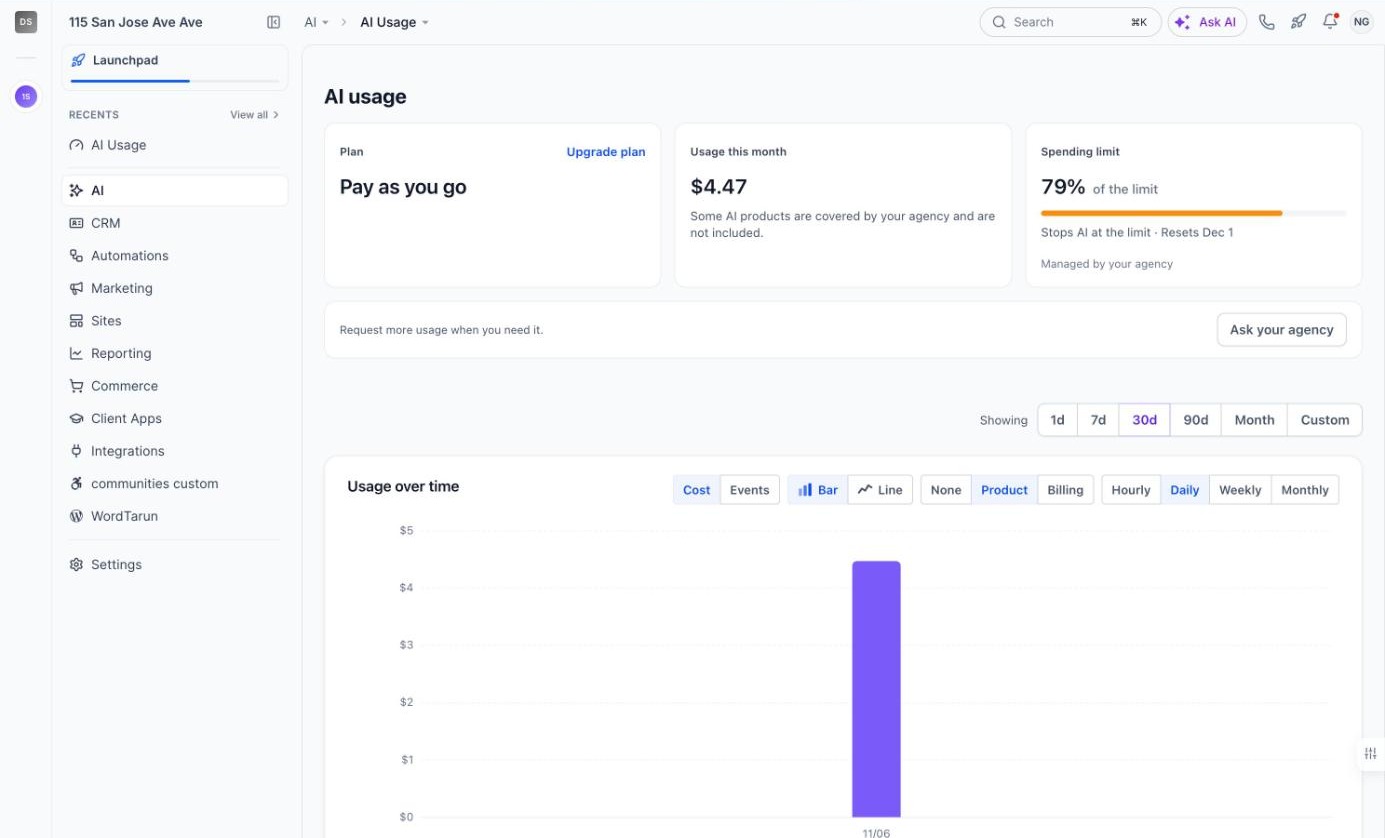
The AI usage page near the limit
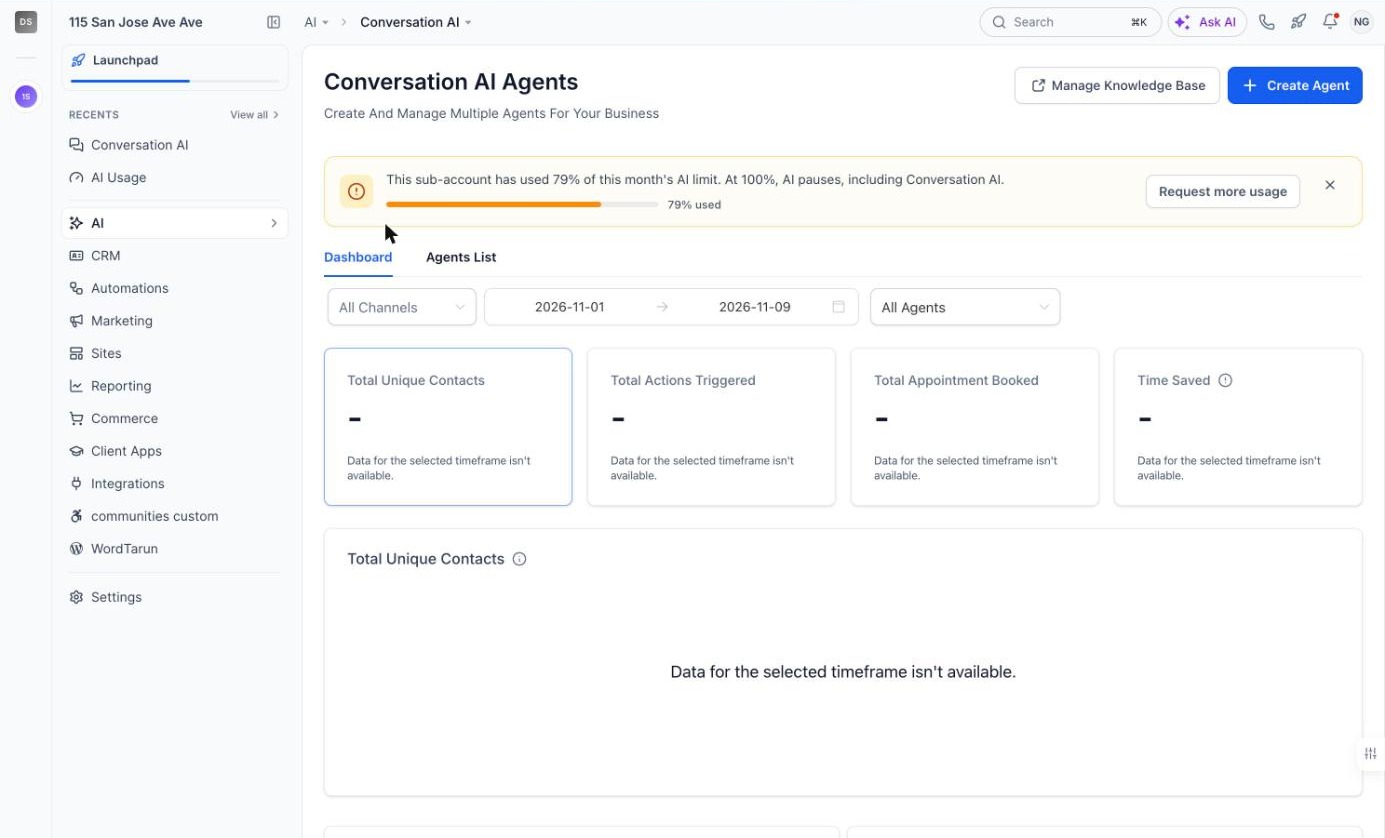
The banner on Conversation AI near the limit, with Request more usage
Stopped
The page shows AI stopped. and a red Stopped tag. On the product pages, the banner says what has stopped, for example that Conversation AI replies are not being sent or that Voice AI is not taking calls. AI runs again as soon as the limit is raised, or on the 1st of next month.
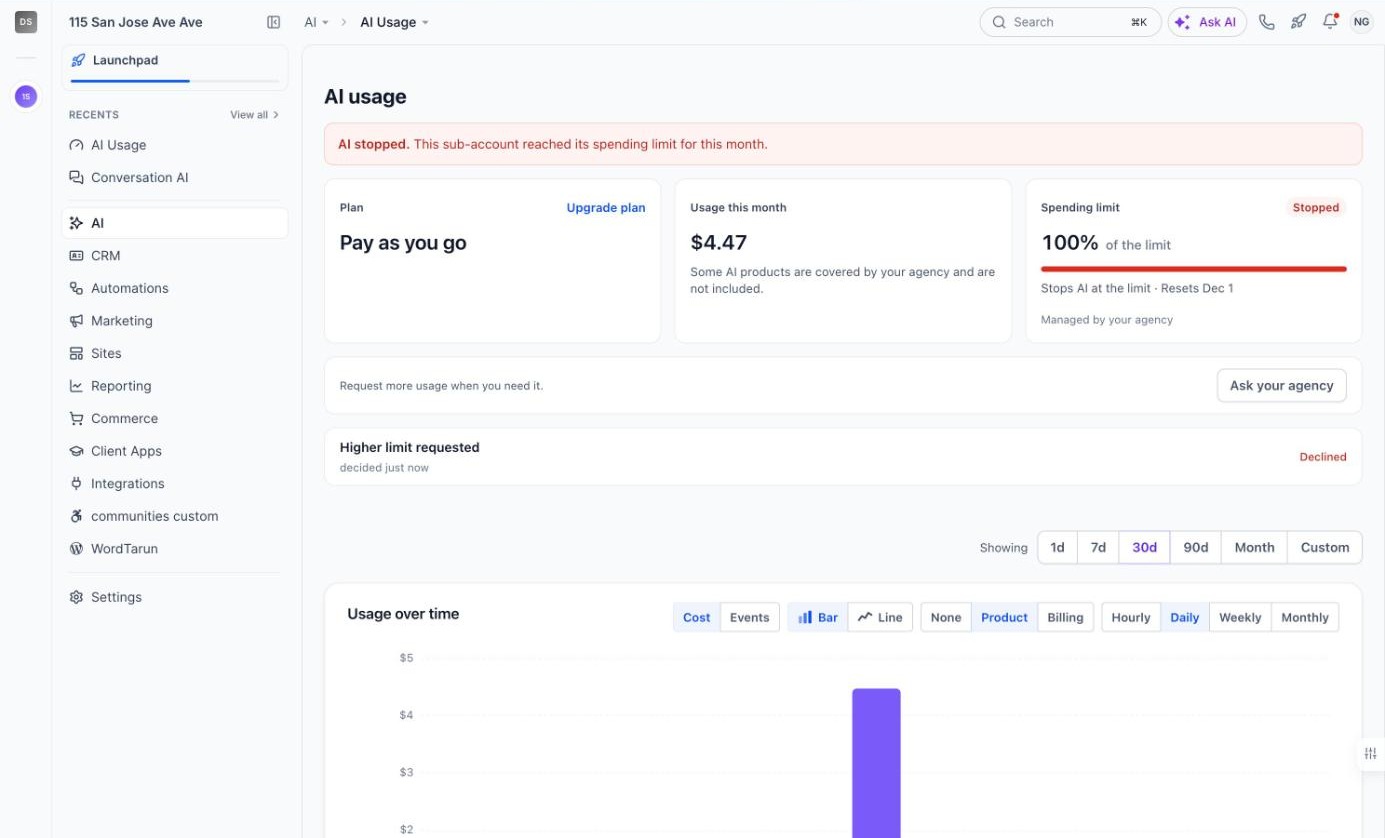
The AI usage page when AI has stopped at the limit
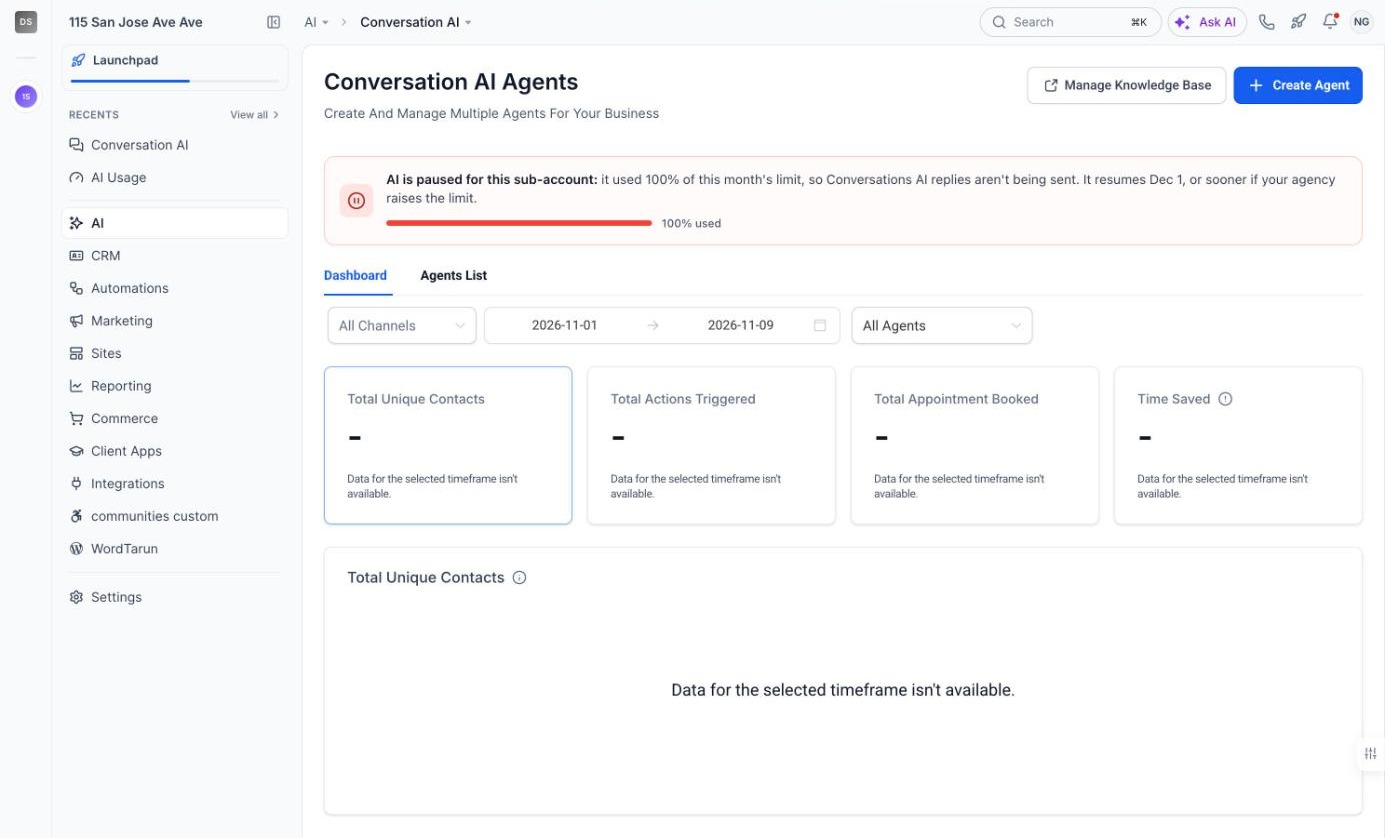
The banner on Conversation AI when AI is paused
Past the limit, still running
With Keep running and alert me, the limit card says Alerts only and AI carries on.
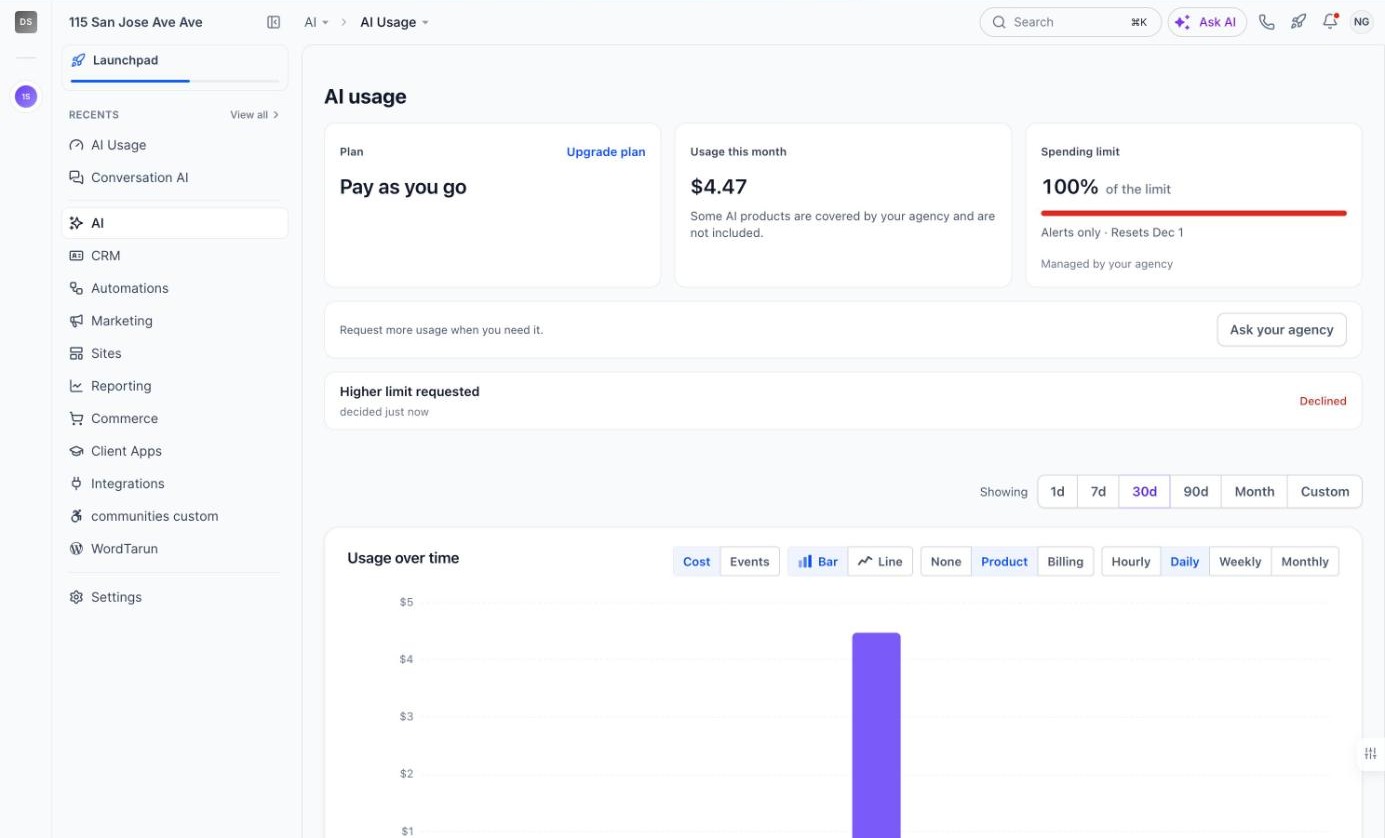
The AI usage page past the limit, with Alerts only
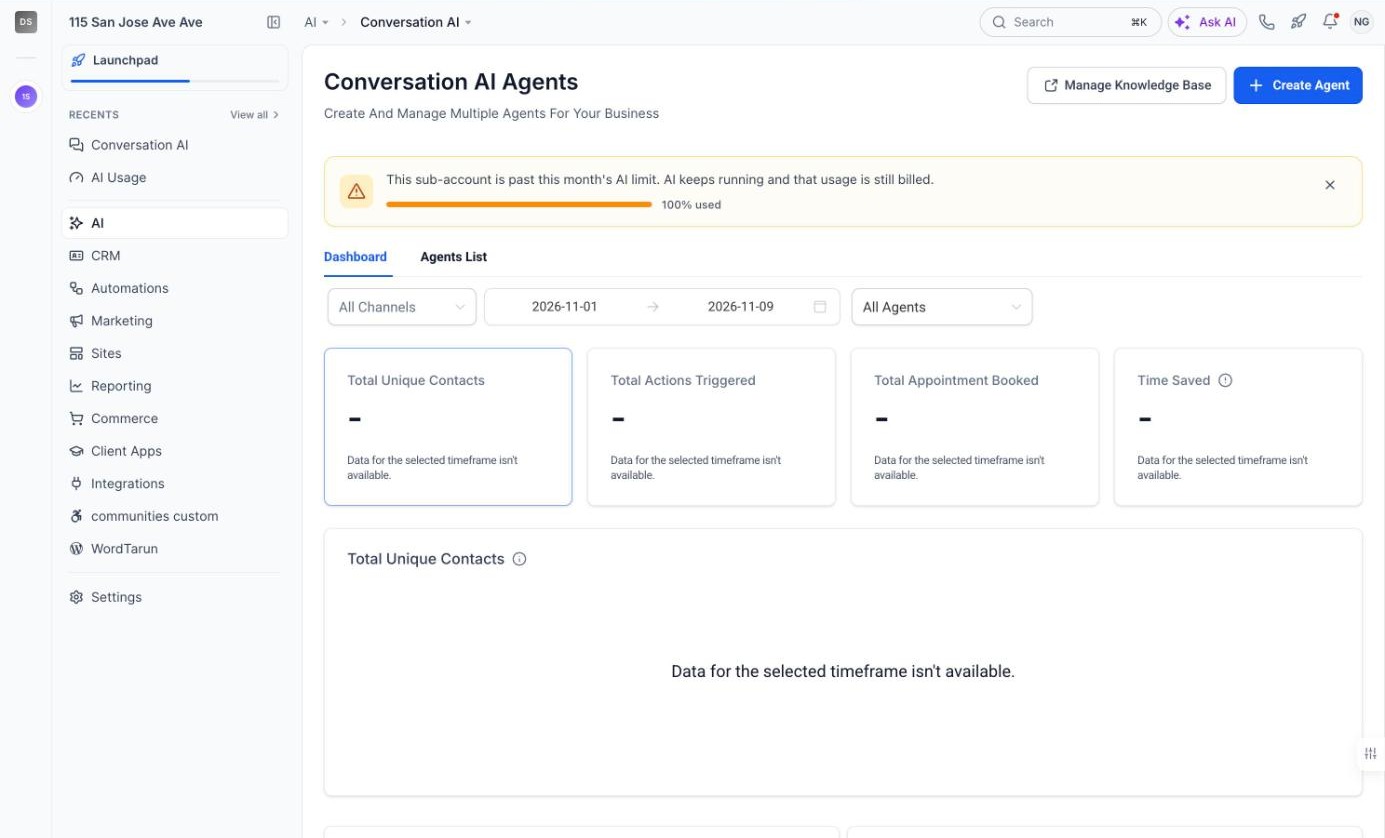
The banner on Conversation AI past the limit
Note: If someone closes a banner, it stays hidden in that browser until usage reaches the next level (75%, 90%, 100%). The banner shown when AI has stopped can’t be closed.
How Sub-Accounts Ask You for More Usage
When you manage a sub-account's limit, anyone in it can ask you for more, from a banner (Request more usage) or from the AI usage page (Ask your agency). They can add a reason, then click Submit Request.
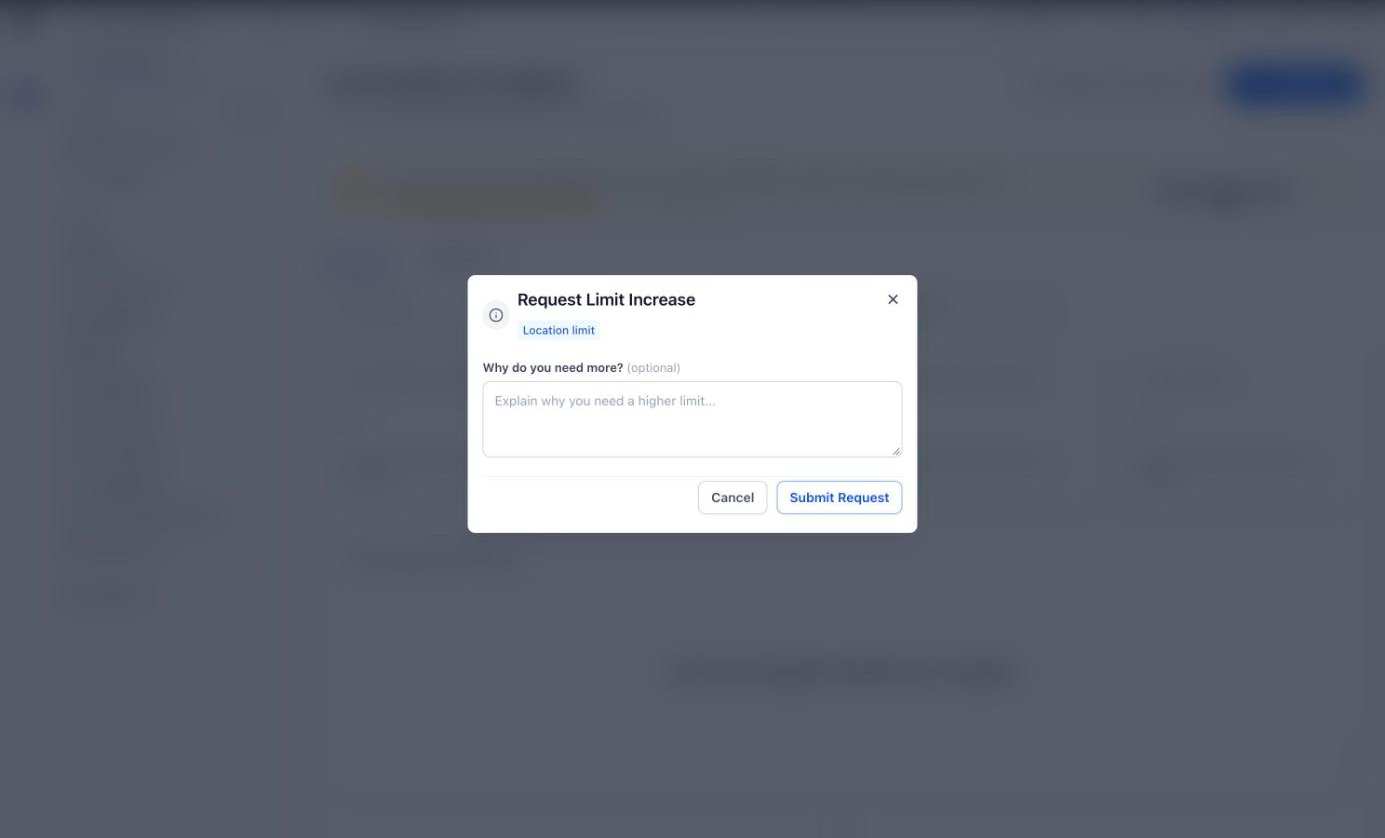
What the sub-account sees when it asks for more usage
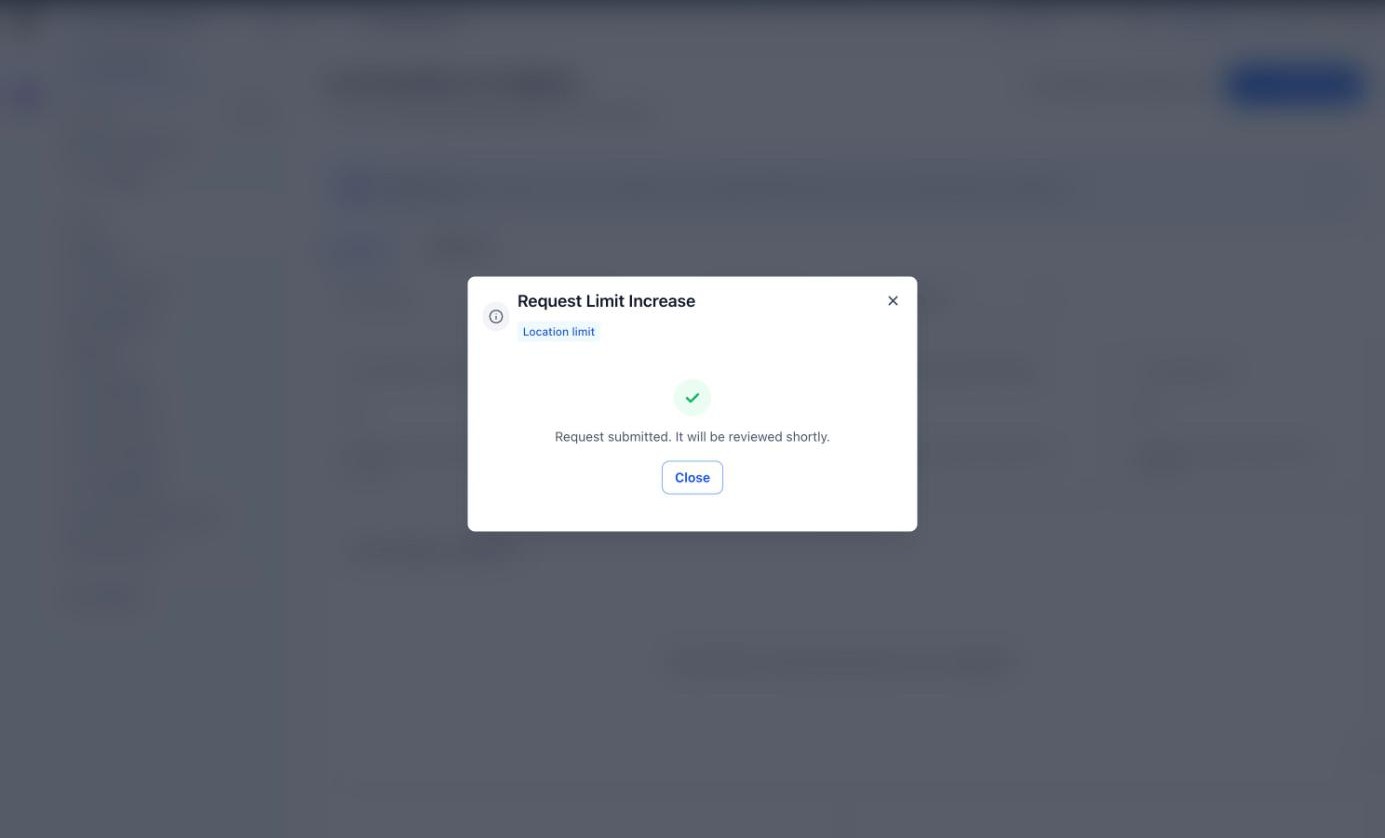
The confirmation after a request is sent
On the sub-account's AI usage page, the request shows under Higher limit requested as Waiting for review, with Withdraw to cancel it. Once you decide, it changes to approved or Declined.
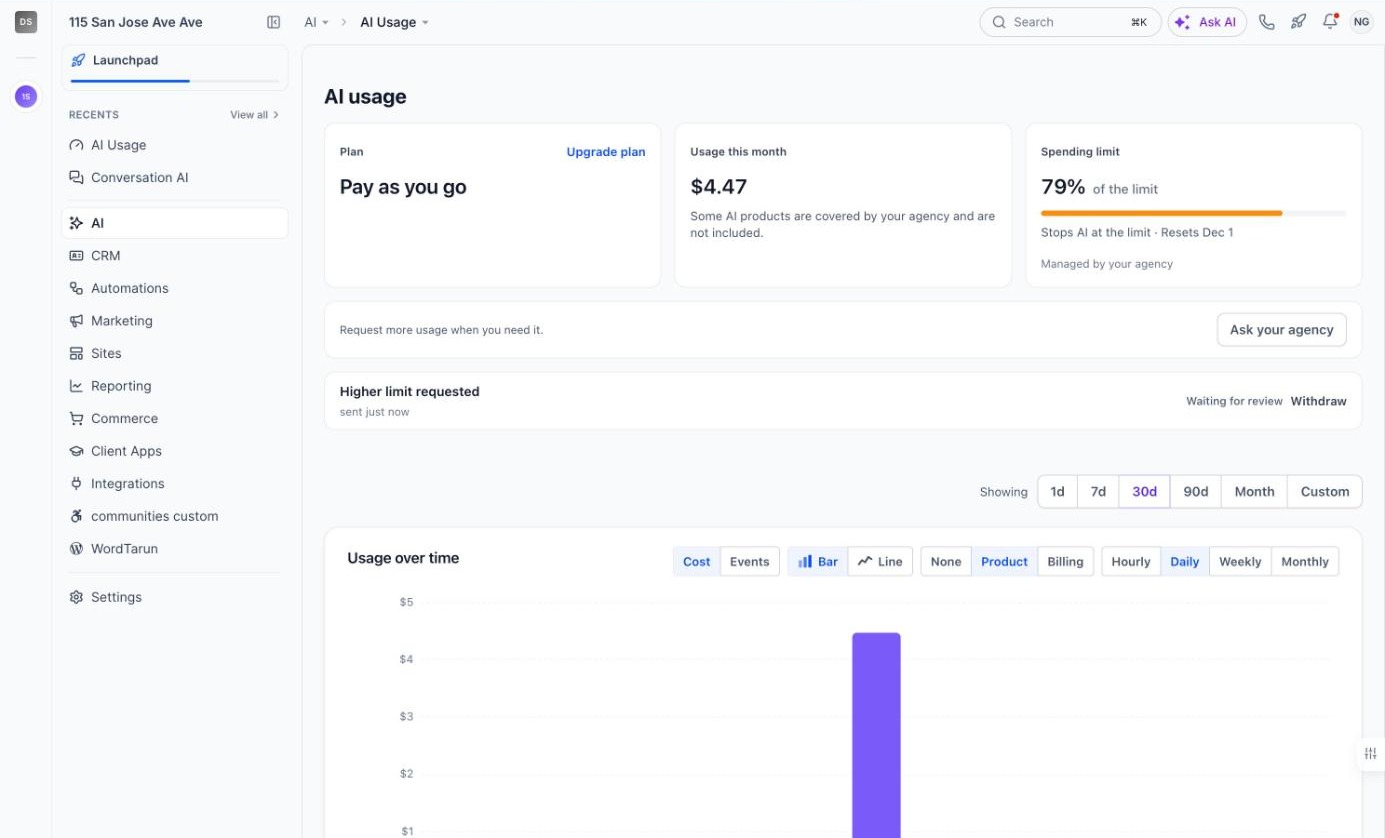
A request waiting for your review, as the sub-account sees it
What you see and do
The request appears above your AI Suite → Plans & Limits table and in the Updates panel. Click Raise limit to approve it, at the amount you choose, or Deny to decline it. When you raise the limit, the person who asked gets an email, and if the sub-account's AI was paused it runs again right away. For the full steps, see AI Usage Limits.
Note: Each person in a sub-account can have one open request at a time. If you rebill all of a sub-account's AI at one rate, requests from its users go to its own admins instead, under Requests from your team, and you are not asked.
Plan Upgrades From the Sub-Account
Sub-account admins can upgrade their own AI Employee plan from the AI usage page. The page may also suggest a plan that fits their recent usage.
Who can change a plan
| Who | What they see on the Plan card | What they can do |
|---|---|---|
| Agency admins and agency users | Upgrade plan on Pay as you go, Change plan on any plan | Upgrade, downgrade or cancel, and choose who pays |
| Sub-account admins | Upgrade plan, when on Pay as you go or AI Employee Starter, or on a Growth plan the sub-account bought itself | Upgrade only, paid by the sub-account |
| Sub-account admins, plan set up by you | Managed by and your agency's name | Ask you to change it |
| Sub-account users | No access to the page | Ask their admin |
On AI Employee Unlimited, the highest plan, sub-accounts see no upgrade option. Sub-accounts cannot downgrade or cancel; only you can.
Which prices sub-accounts see
Sub-accounts see the prices you set, not HighLevel's prices. You set them in AI Suite → Plans & Limits → Edit defaults → Pricing, under Subscription prices: what you charge a sub-account each month when it pays for its own plan. From Pay as you go or Starter, sub-accounts are offered Growth and Unlimited; from Growth, Unlimited.
In your own agency view, you see HighLevel's list prices for each plan, because that is what your agency pays.
What the sub-account admin sees
- They click Upgrade plan on the Plan card, or on a plan suggestion.
- In Choose your AI plan, they compare the plans at your prices and select one.
- They click Continue to payment, choose Pay Using Card or Pay Using Wallet, and click Pay [amount] & Subscribe.
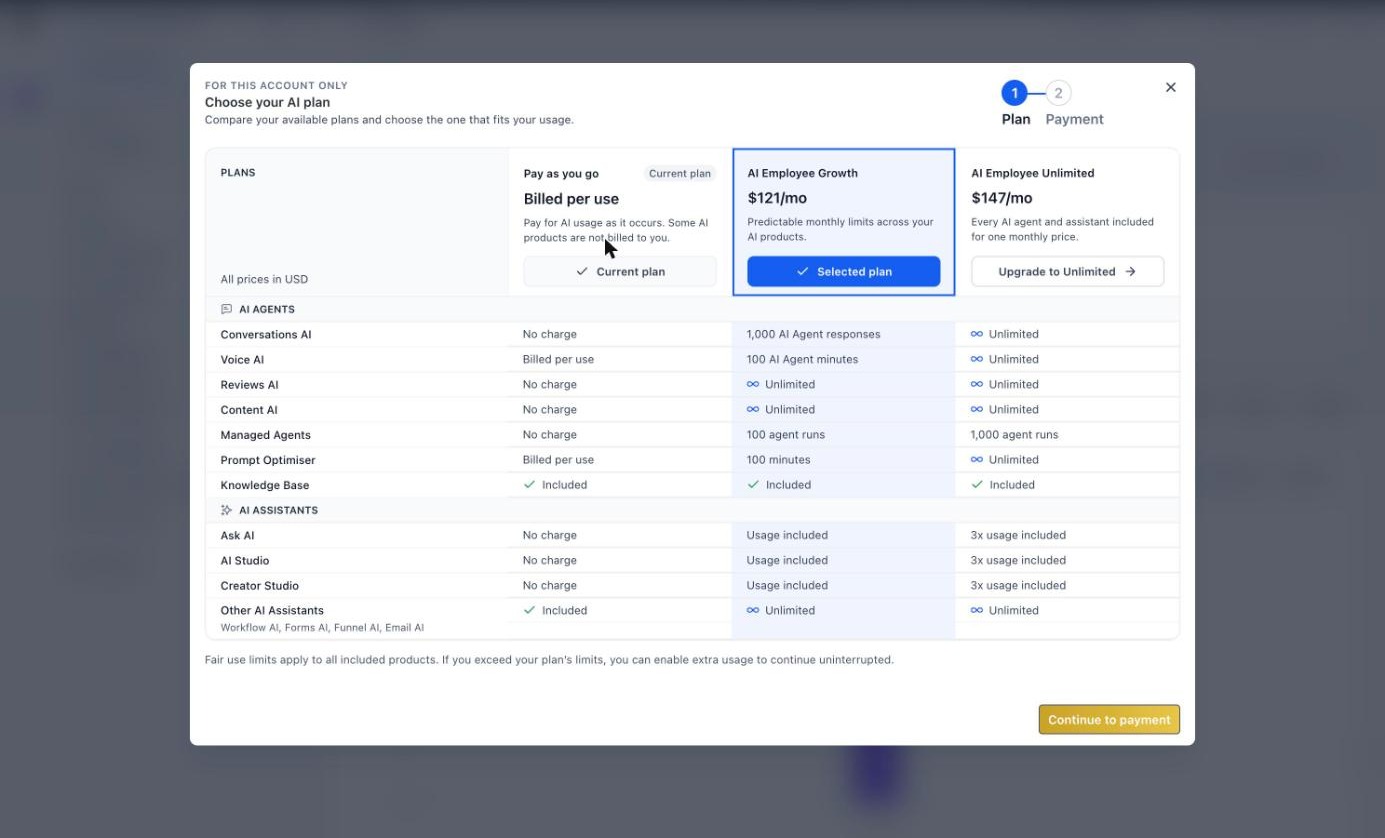
Choose your AI plan: the plans offered to the sub-account, at your prices
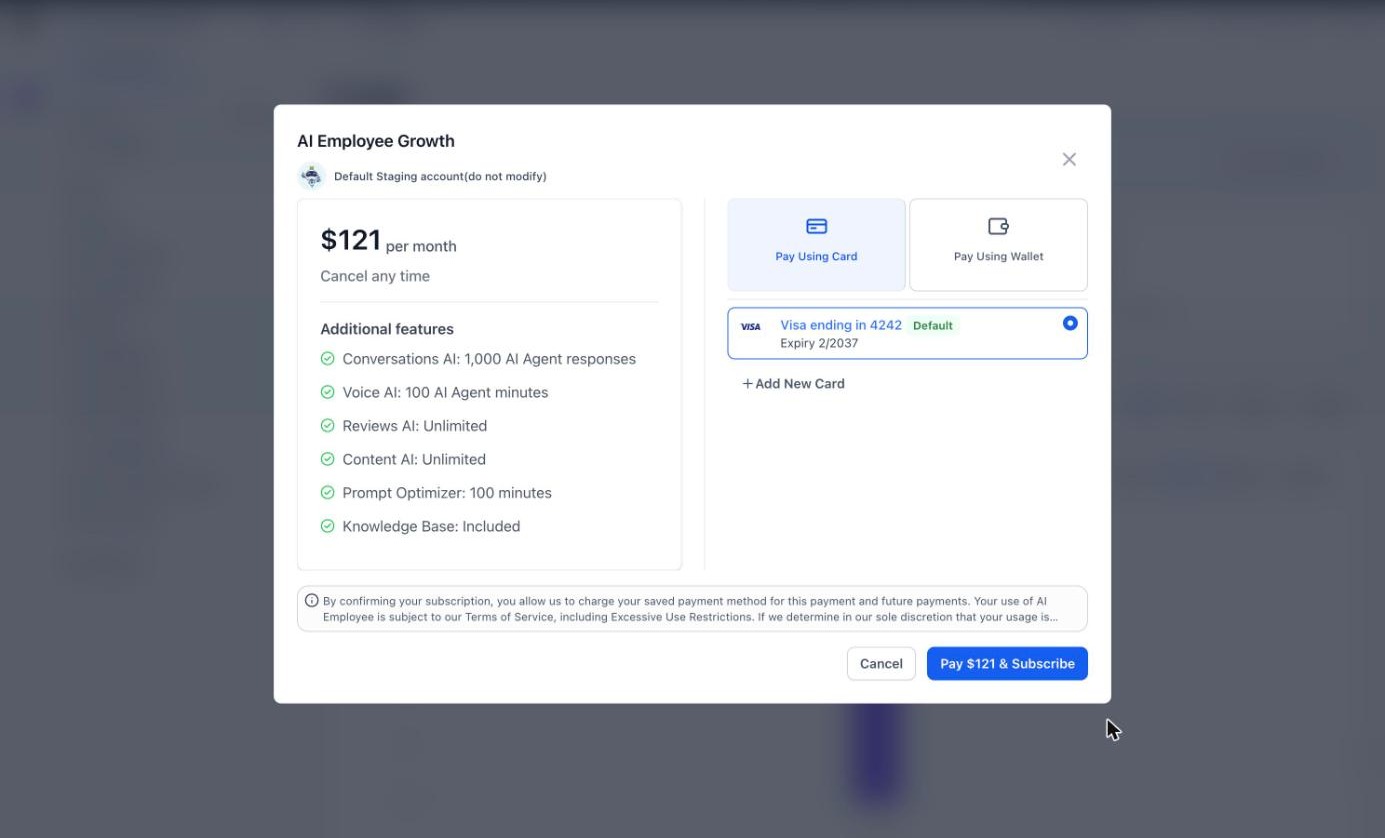
The payment step: the sub-account pays with its own card or wallet
The sub-account pays for the plan itself, and the subscription renews monthly until it is cancelled. From Growth to Unlimited there’s no payment step: the existing subscription switches straight away.
What you see
You change a sub-account's plan from its AI usage page or from Plans & Limits, with HighLevel's prices and the option to charge your agency or the sub-account.
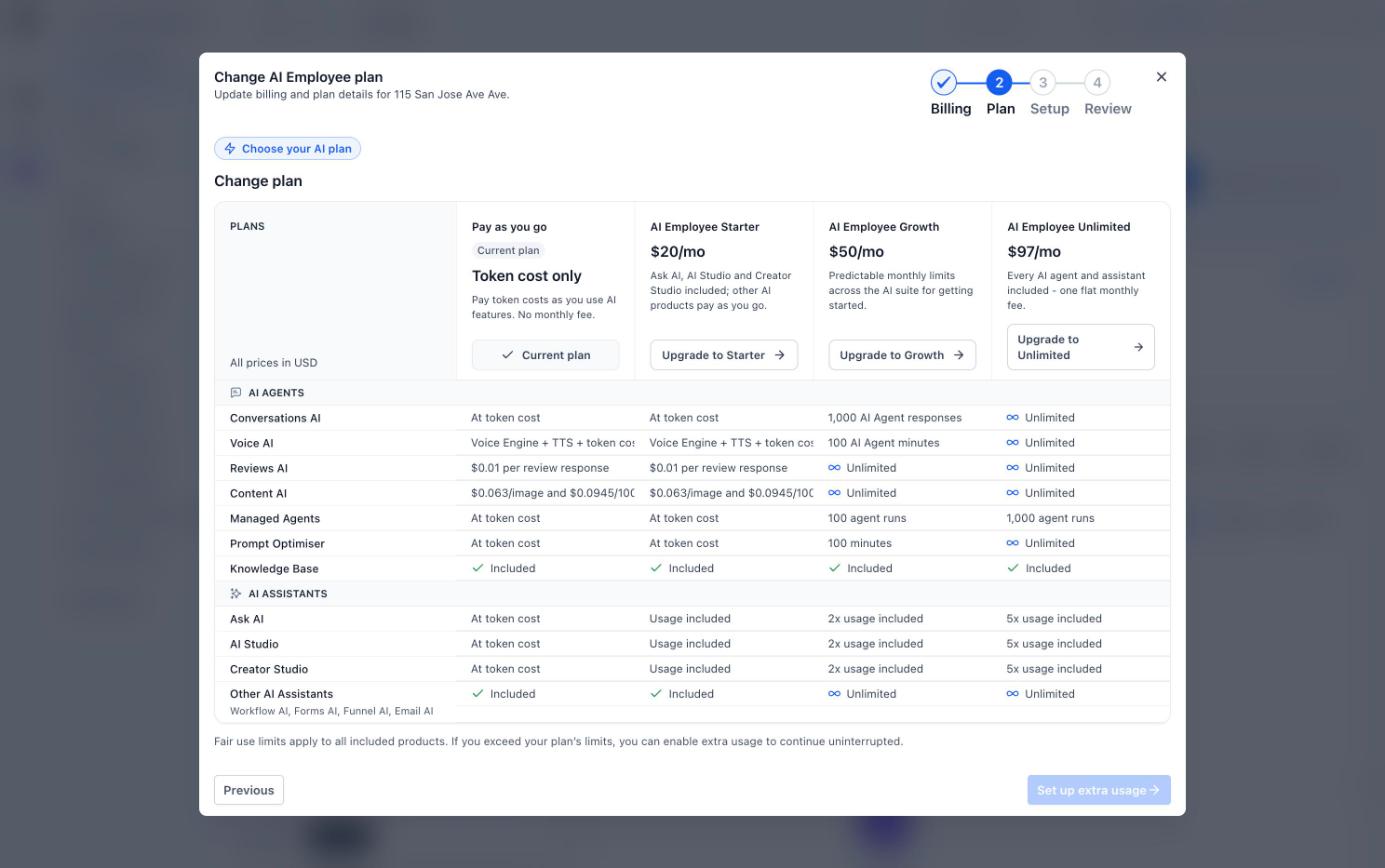
Your plan picker, at HighLevel's prices
Frequently Asked Questions
Q. Can sub-account users see the AI usage page?
A. No. Only sub-account admins see it, along with you and your agency team. Sub-account users see usage banners on the AI product pages and can ask for more usage from them.
Q. Why does my sub-account see its limit as a percentage instead of dollars?
A. Sub-accounts see their limit in dollars only when you rebill all their AI at one rate. In every other setup you manage the limit, and they see how much of it is used as a percentage.
Q. How do I let a sub-account change its spending limit?
A. Rebill every AI product for that sub-account at one rate in Configure Rebilling. From the next month in which all its charges are at that rate, its admins can change your spending limit for it (in its dollars) and approve requests from their team.
Q. Can my sub-account set its own limit?
A. Yes, once you turn on Let rebilled sub-accounts set their own AI limit in Plans & Limits → Edit defaults and you rebill at least one AI product to it. Its admins set it on their AI Usage page. It counts only what they are billed and sits alongside your limit, which stays yours.
Q. Which limit applies if both are set?
A. Both. AI stops at whichever is reached first.
Q. Can a sub-account see my costs or markup?
A. No. Once you let it set its own limit, it sees its own limit in its own dollars and your limit only as a percentage. Before that, if you rebill everything at one rate, it sees your limit converted into its own dollars, never your cost or markup.
Q. Can I change or remove a sub-account’s own limit?
A. Yes, from its AI Usage page. Its admins are emailed when you do.
Q. What happens to own limits if I turn the switch off?
A. They stop applying, but they are kept. Turn the switch back on and the same limits apply again.
Q. A sub-account's AI stopped. What can it do?
A. It can click Request more usage or Ask your agency to send you a request, or its admins can upgrade its plan. If its admins manage their own limit, they can raise it themselves. You can raise the limit at any time in Plans & Limits, and AI runs again right away.
Q. Why do my sub-accounts see different plan prices from the ones I see?
A. Sub-accounts see the prices you set under Edit defaults → Pricing → Subscription prices. In your agency view you see HighLevel's list prices, which is what your agency pays.
Q. Can a sub-account downgrade or cancel its own plan?
A. No. Only you can downgrade or cancel a sub-account's plan.
Q. Does usage included in a plan count toward the limit?
A. No. Included usage is used first and never counts. Only billable usage counts toward the limit.
Q. When does a limit reset?
A. On the 1st of every month at 00:00 UTC.
Q. Can sub-accounts set a limit for each of their users?
A. Not at the moment. Per-user limits have been retired, and each sub-account has one monthly limit. We plan to bring user-level controls back in a future update.
Related Articles
Was this article helpful?
That’s Great!
Thank you for your feedback
Sorry! We couldn't be helpful
Thank you for your feedback
Feedback sent
We appreciate your effort and will try to fix the article