Configure a separate notification email domain for each SaaS brand in HighLevel to maintain a consistent and professional sender identity across your customer communications.
TABLE OF CONTENTS
- What You'll Learn
- What Is SaaS Multi-Brand Management?
- How Notification Domains Work Per Brand
- Before You Begin
- How to Set Up a Notification Domain for a Brand
- Understanding the Notification Section
- Frequently Asked Questions
What You'll Learn
This article explains how to configure, verify, and manage dedicated notification email domains for brands using SaaS Multi-Brand Management.
You'll learn how notification domains work for individual brands, how to set them up, and what happens when a brand doesn't have its own notification domain.
What Is SaaS Multi-Brand Management?
SaaS Multi-Brand Management allows agencies to manage up to two independent brand identities within a single SaaS account.
Each brand can have its own configuration and branding, allowing agencies to maintain distinct brand experiences while managing everything from one account.
Manage up to two SaaS brands.
Configure notification email domains independently for each brand.
Manage both brands from a centralized interface.
Why Notification Email Domains Matter
Notification emails are part of the customer experience. When multiple brands use the same sender domain, customers may receive system-generated notifications that don't reflect the brand they recognize.
With brand-specific notification email domains, each brand can use its own sending domain, helping maintain a consistent and recognizable sender identity.
How Notification Domains Work Per Brand
Each SaaS brand can have its own notification email domain, configured through Agency Settings → Email Services → Dedicated Domain and IP → Notification Section.
| Brand Configuration | Notification Emails Use |
|---|---|
| Brand has its own notification domain | That brand's configured notification domain |
| Brand has no notification domain | The default brand's notification domain |
Important: If you don't configure a notification email domain for a brand, its system-generated notifications use the default brand's notification domain.
To maintain separate sender identities, configure a notification domain for each brand.
Before You Begin
Make sure you have the following:
SaaS Multi-Brand Management: Your agency uses Multi-Brand Management, which supports up to two brands.
Configured brands: The brands you want to configure already exist in your SaaS account.
Domain or subdomain: Prepare a domain or subdomain for each brand, such as
notify.brandname.com.DNS access: Ensure you can access the DNS provider for each domain to configure the required records.
Availability: Brand-specific notification email domains are available to agencies using SaaS Multi-Brand Management.
How to Set Up a Notification Domain for a Brand
Follow these steps to configure a notification email domain for each brand.
Step 1: Open Email Services
Log in to your HighLevel agency account.
Open Agency View.
Navigate to Settings → Email Services.
Open Dedicated Domain and IP.
Step 2: Locate the Notification Section
Scroll to the Notification Section.
This section displays the notification domain configurations for your SaaS brands and allows you to review their verification status.
Use the Brand filter, if available, to locate the brand you want to configure.
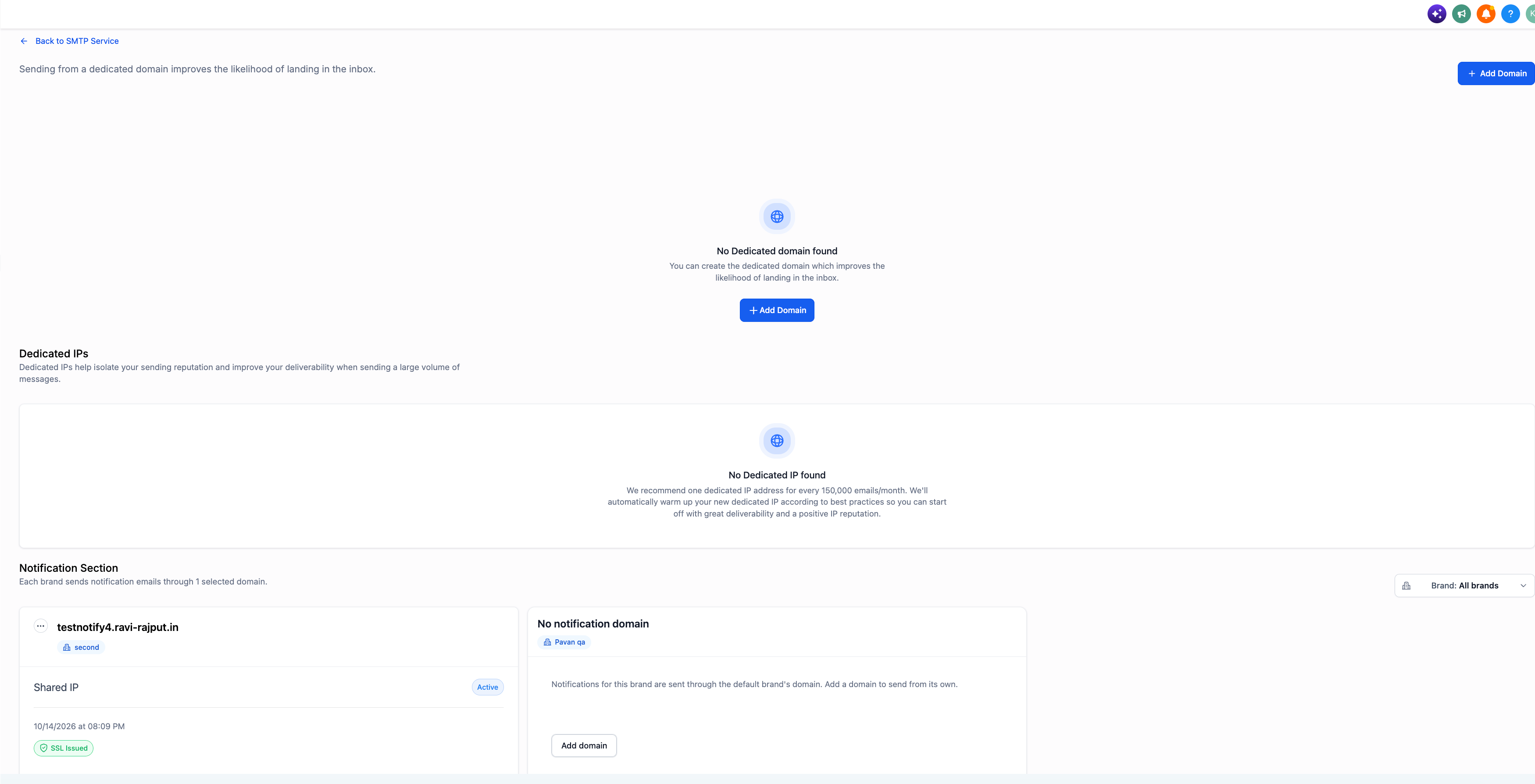
Step 3: Add a Notification Domain
Locate the brand that needs a notification email domain.
Select Add domain.
Proceed to the domain configuration screen.
Step 4: Enter the Domain
Enter the domain or subdomain you want to use for the selected brand.
For example: notify.brandname.com
Continue to the DNS configuration step.
Step 5: Configure DNS Records and Verify
Copy the DNS records displayed during domain setup.
Open your domain's DNS provider.
Add the required DNS records as displayed.
Return to HighLevel.
Complete the domain verification process.
DNS changes may take time to propagate. If verification is unsuccessful, check that the DNS records match the required values.
Step 6: Confirm the Domain Configuration
Return to the Notification Section and review the brand's notification domain.
Confirm that:
The correct notification domain is associated with the brand.
The domain verification status indicates successful verification.
You're All Set!
Once the domain is configured and verified, system-generated notification emails for that brand use its notification domain.
Repeat these steps for any other brand that needs its own sender identity.
Understanding the Notification Section
The Notification Section provides a centralized location for managing notification email domains across your SaaS brands.
You can:
View notification domains configured for each brand.
Check domain verification status.
Identify brands that don't have a notification domain.
Verify notification domains independently.
Update an existing brand's notification domain.
Remove a brand's notification domain.
How Domain Configuration Affects Each Brand
| Configuration | Behavior |
|---|---|
| Brand has a configured notification domain | System-generated notification emails use that brand's domain. |
| Brand has no configured notification domain | Notification emails use the default brand's notification domain. |
| Brand's notification domain needs verification | Review its verification status and complete the required configuration. |
Manage Notification Domains Independently
Each brand's notification domain configuration is managed independently.
You can verify, update, or remove a notification domain for one brand without changing another brand's configuration.
Tip: To maintain a separate notification email sender identity for every brand, configure and verify a notification domain for each one.
Frequently Asked Questions
Q. How many brands can have their own notification email domain?
SaaS Multi-Brand Management supports up to two brands. Each brand can have its own notification email domain.
Q. What happens if a brand doesn't have a notification email domain?
System-generated notification emails for that brand use the default brand's notification domain.
To maintain a separate sender identity, configure a notification domain for the brand.
Q. Can I configure a different domain for each brand?
Yes. Each brand supports an independent notification email domain configuration, allowing you to use a separate domain or subdomain for each brand.
Q. Can I use a subdomain for notification emails?
Yes. You can configure a domain or subdomain for a brand, such as notify.brandname.com.
Q. Where do I configure notification email domains?
Navigate to Agency Settings → Email Services → Dedicated Domain and IP → Notification Section.
Q. Can I update or remove an existing notification domain?
Yes. You can update or remove notification domains independently for each brand.
Q. How can I check whether a notification domain is verified?
Open the Notification Section under Dedicated Domain and IP to view the domain verification status for each brand.
Q. What should I do if my domain isn't verifying?
Confirm that the required DNS records have been added to your DNS provider and that their values match the records provided during setup.
Allow time for DNS propagation, then check the domain verification status again.
Q. Will changing one brand's notification domain affect another brand?
No. Notification domain configurations are managed independently for each brand.
Q. Do I need to configure a notification domain for every brand?
You don't need to configure a separate domain for every brand. However, brands without their own notification domains use the default brand's notification domain.
For distinct sender identities, configure a notification domain for each brand.
Was this article helpful?
That’s Great!
Thank you for your feedback
Sorry! We couldn't be helpful
Thank you for your feedback
Feedback sent
We appreciate your effort and will try to fix the article