HighLevel uses domains and subdomains for different products, including Websites, Funnels, WordPress, email sending, Client Portal, and agency branding. Choosing the correct domain type helps you connect the right service without creating conflicting DNS records.
This guide explains the different domain types used in HighLevel and helps you determine which one you need. For DNS records and step-by-step configuration, follow the linked setup guide for the specific HighLevel product you are connecting.
TABLE OF CONTENTS
Which Domain Do I Need?
Different HighLevel products use domains for different purposes. Identifying what you want to publish, brand, or authenticate helps you choose the correct domain configuration before making DNS changes.
| Domain Type | Use It For |
|---|---|
| Website/Funnel Domain | Publishing Websites, Funnels, Stores, Blogs, and other supported Sites experiences |
| HighLevel-Purchased Domain | Using a domain purchased and managed directly through HighLevel |
| White Label Domain | Providing an agency-branded HighLevel application/login URL |
| API/Branded Domain | Supporting applicable branded HighLevel services |
| Dedicated Sending Domain | Authenticating a domain used to send email through LC Email |
| Client Portal Domain | Providing a branded URL for the Client Portal |
| WordPress Domain | Publishing a WordPress site hosted through HighLevel |
Important: The DNS records required for one domain type should not automatically be reused for another. Follow the setup instructions HighLevel provides for the specific product you are connecting.
What is a Domain?
A domain serves as the digital address for online services like websites, email hosting, and more, by mapping them to IP addresses through DNS. Domain names are essential for your online presence, enhancing website accessibility and enabling email communication.
Domains are crucial for website hosting, white-label branding, configuring branded/API domains, email setup, and the Client portal. They form the foundation upon which HighLevel users build their digital presence.
What are Root & Sub-Domains
When working with domains, it's important to distinguish between a root domain and a subdomain.
Root Domain (Example: “mywebsite.com”)
The root domain is the primary address of your website, appearing after "www." in a URL (e.g., in "www.mywebsite.com," the root domain is "mywebsite.com"). It serves as the main entry point to your website.
Subdomain (Example: "help.domain.com")
Subdomains are extensions of your root domain, directing users to specific sections or areas within your online infrastructure (e.g., "help.domain.com" for support). This allows for separate content, landing pages, and marketing campaigns without affecting the primary site. This setup is useful for ads, promotions, and utilizing different SEO strategies.
IMPORTANT NOTE: Be careful when adding root domains. Many users accidentally break their existing mailbox or site by adding a root domain already in use. We recommend adding a sub-domain if your root domain is used somewhere else.Seamlessly Connect Domains with Domain Connect
Domain Connect can automatically configure DNS records with supported domain providers, reducing the need to manually create records. When Domain Connect is available for your provider, follow the prompts in HighLevel to authorize and complete the connection.
To see more information about seamlessly connecting domains, please visit How to Use the Domain Connect Feature

Manual Option
If your domain provider is not Google, Cloudflare, or GoDaddy, manual DNS configuration is required. The system simplifies this process by generating the necessary record values for you to input into your domain provider's system. This ensures seamless integration of your domain with HighLevel, supporting branded domains, websites/funnels, dedicated domains, and the client portal.


1) Now you open your DNS provider of choice and add the records in. Adding records are much the same, with some variation based on the provider. Go to your DNS manager and click add record.

2) Select the record type provided by HighLevel

3) Input the Hostname into the “Name” field and Value/Target into the “target field”

4) Save the record. If utilizing Cloudflare the Proxy Status will need to be toggled off.

To learn more about this manual process, go here.
Places to Add Domains to in HighLevel
Within HighLevel, there are many places to add a domain, let’s briefly explore each one. We will provide resources to learn more.
Whitelabel Domain
Whitelabeling your desktop web app ensures that your customers interact with your domain instead of the default one. Simply follow four steps: create a CNAME in your DNS records, configure it in your HighLevel Agency account, upload your agency logo, and update your agency Terms & Conditions. Once your DNS record propagates, your customers
can access the app using your domain, seeing your branding elements like logo and terms & conditions.
A sub-domain is Recommended for whitelabeling. Most Commonly agencies will use "app" as the sub-domain for their whitelabel desktop app.
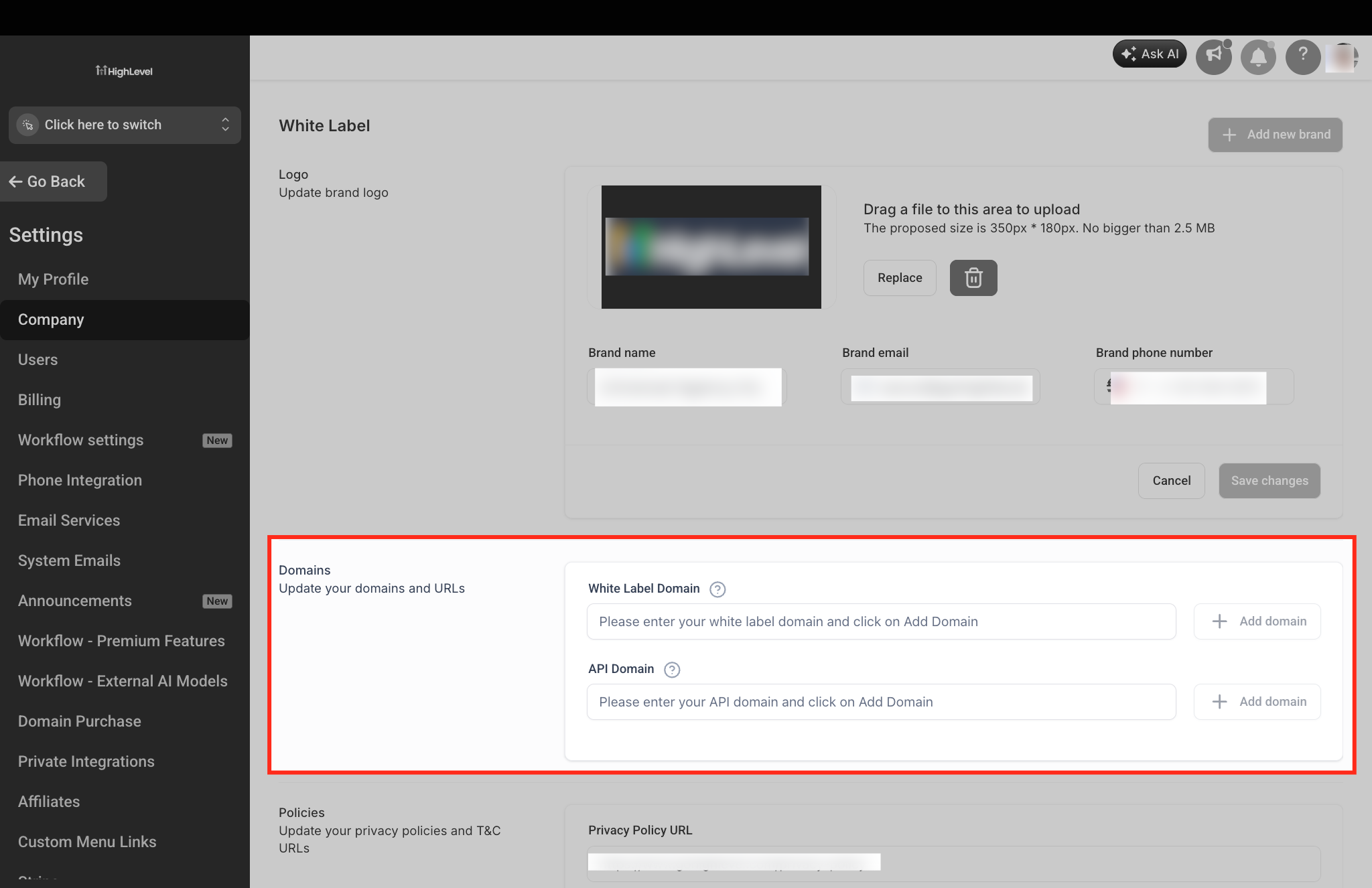
Navigate to the Agency View > Settings > Company Settings > Whitelabel
For more information on setting up your Whitelabel Domain please visit How to Set Up a Whitelabel Domain
API or Branded Domain
Enhance your brand visibility and link deliverability by customizing system-generated links with our API/Branded Domains. By doing so, you can personalize links for forms, surveys, calendars, and more.
Custom API domains allow for branding of system-generated links, improving brand recognition and link deliverability. Configure API domains at the agency level company settings to establish a default branded domain for all sub-accounts.
Navigate to the Agency View > Settings > Company Settings > White Label
At the sub-account level to customize domains for individual clients a branded domain can be set up. This will be done under the sub-account settings, within the business profile.
Navigate to the Sub-Account > Settings > Business Profile > Branded Domain
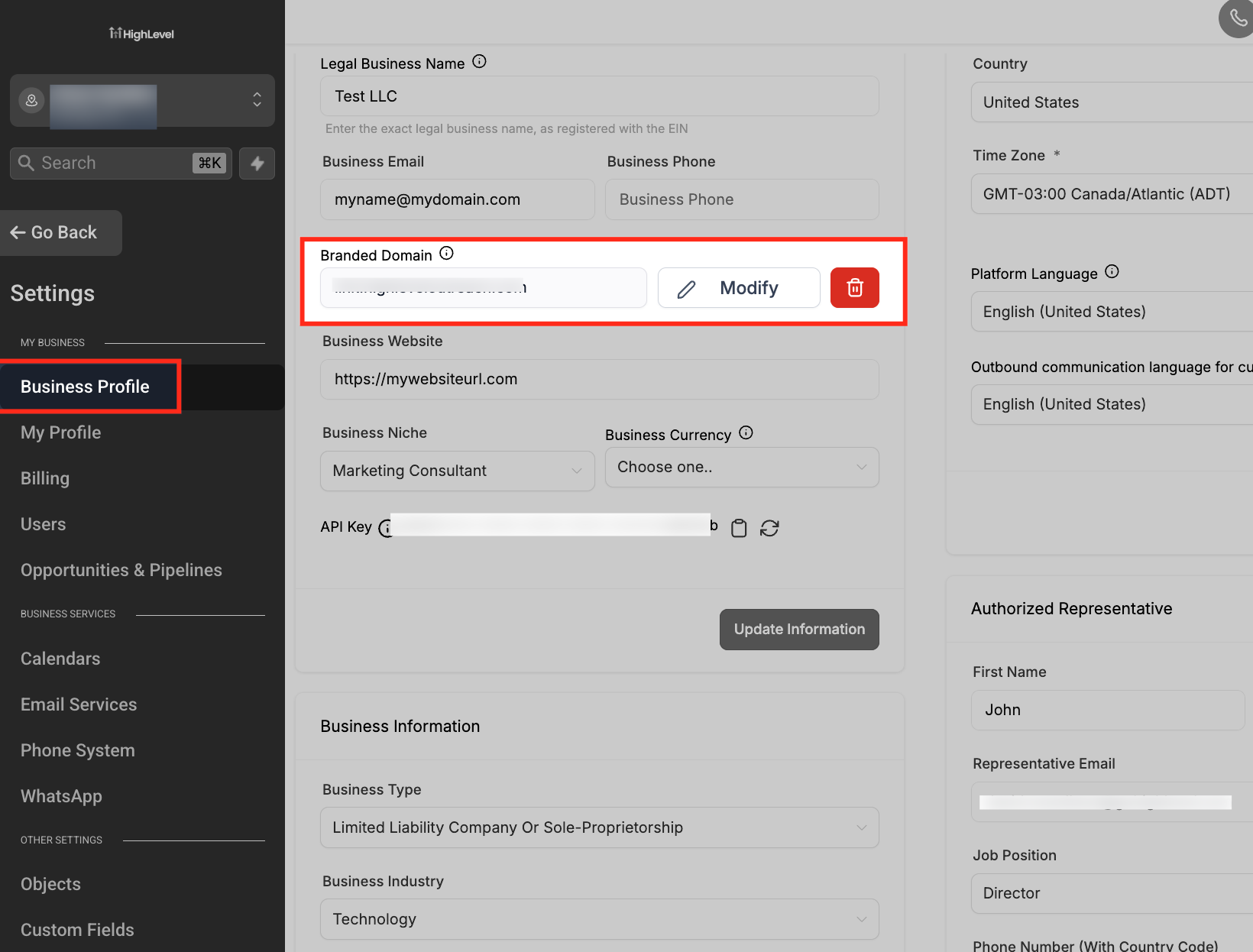
For more information on the API/Branded Domain setup please view How to Configure Brand System Generated Links
For both the API and Branded Domains, utilize a sub-domain as utilizing a root domain here will cause your domain to point away from your website.
Sites (Settings > Domains)
Sites Domains provide the public URLs used for HighLevel Websites, Funnels, Stores, Blogs, and other supported Sites experiences.
Manage these domains from:
Sub-Account → Settings → Domains
When connecting an external domain, follow the DNS records displayed by HighLevel for that configuration. After the required records are added at your DNS provider, return to HighLevel to verify and connect the domain.
Domains Purchased Through HighLevel
Domains purchased through HighLevel can be managed directly within the platform, reducing the need to use a separate registrar for routine domain management. Use this option when the domain itself was purchased through HighLevel rather than connected from an external provider. For setup and management instructions, see Configure & Connect Domains Purchased Through HighLevel.
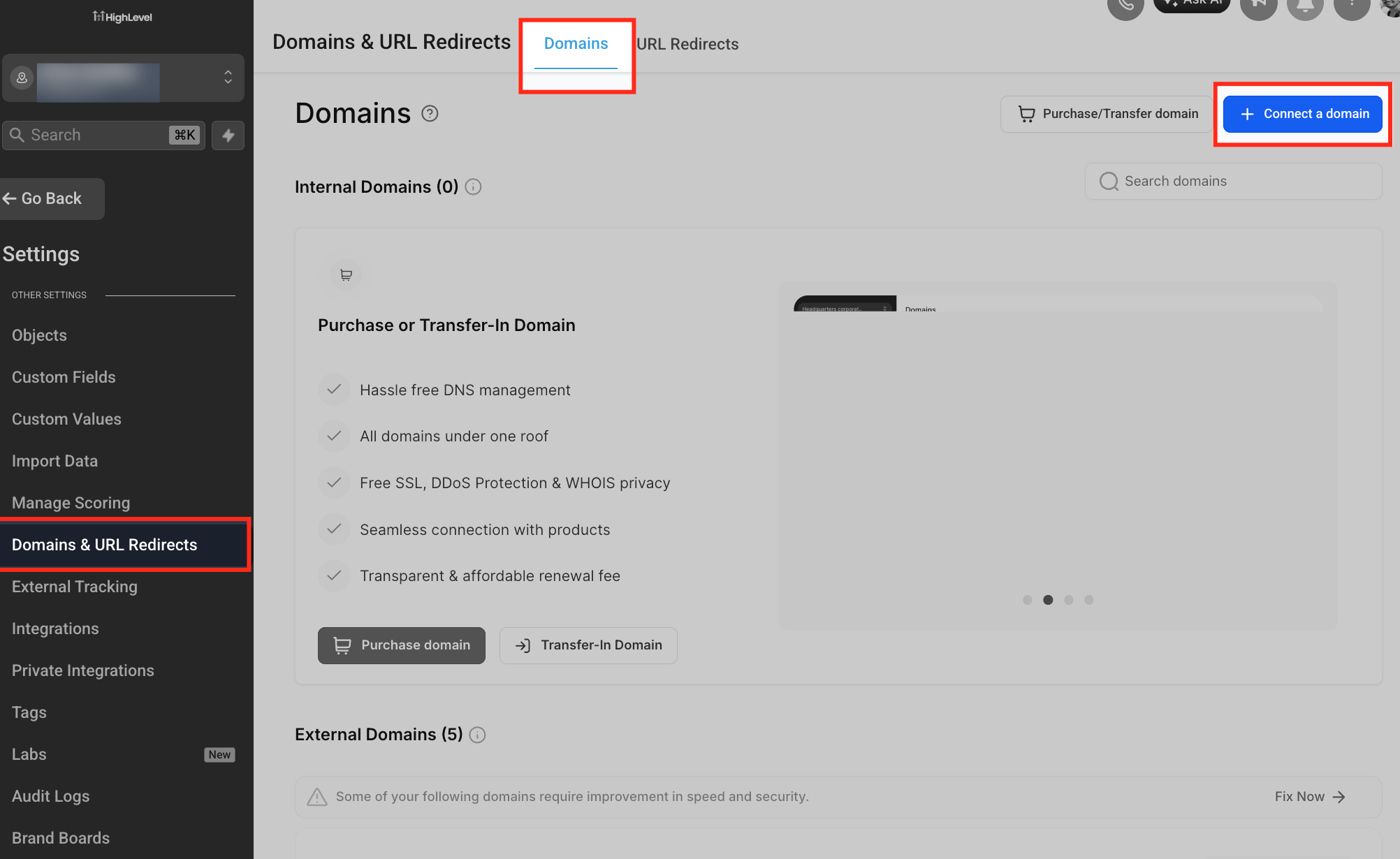
Navigate to the Sub-Account > Settings > Domains
For more information on how to add a domain to a website please visit How to Set Up a Root/Subdomain for Your Funnels/Websites
Email Sending Domain
To maximize email marketing impact, prioritize sender reputation and deliverability. A dedicated sending domain in the LC Email system gives you control over email communications, enhancing brand credibility and reducing spam filter risks. This setup is ideal for customized notification emails and targeting specific categories, ensuring efficient delivery. To avoid conflicts with existing email services, configure your dedicated domain using a subdomain. Dedicated sending domains are key to maintaining a positive sender reputation and achieving effective email marketing with LC Email.
A Dedicated Sending Domain authenticates the domain used to send email through LC Email. Using a dedicated sending domain separates email authentication from domains used for Websites, Funnels, Client Portal, or other HighLevel products. Configure a sending domain from: Settings → Email Services → Dedicated Domain and IP → Add Domain HighLevel generates the DNS records required for the sending domain. Add the displayed records at your DNS provider, then return to HighLevel to verify the configuration. Always use the DNS values generated for your domain rather than copying records from another domain or an older configuration.

For agency level email services navigate to the Agency View > Settings > Email Services > Dedicated domain
For sub-account level email services navigate to the Sub-Account > Settings > Email Services > Dedicated Domain
For more information the Dedicated Email Sending Domain setup process please visit How to Set Up a Dedicated Sending Domain
Client Portal Domain (Communities, Courses)
The client portal transforms client-business interactions by providing a secure, centralized platform in HighLevel for your Affiliates, Membership and Community management. The portal functions as a dynamic interface, centralizing affiliate manager commissions, community interactions, and membership course activity. It simplifies client engagement with custom domains and branding options, reinforcing brand-client relationships. Enhanced communication and client autonomy lead to greater satisfaction and loyalty.
This document guides you through setting up and customizing the portal to meet specific business needs, enabling clients to take autonomous actions.
Navigate to the Sub-Account > Sites > ClientPortal > Settings
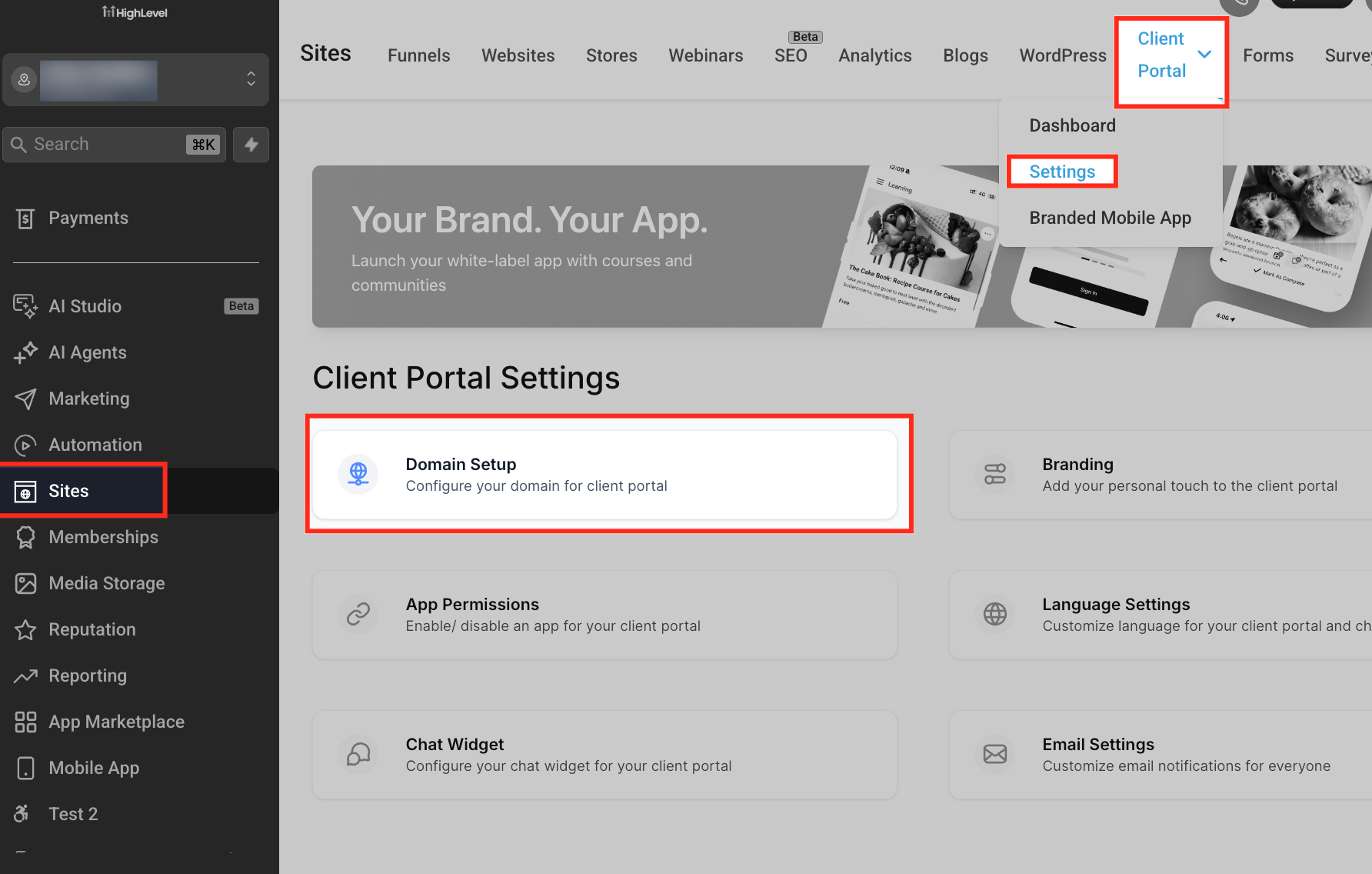
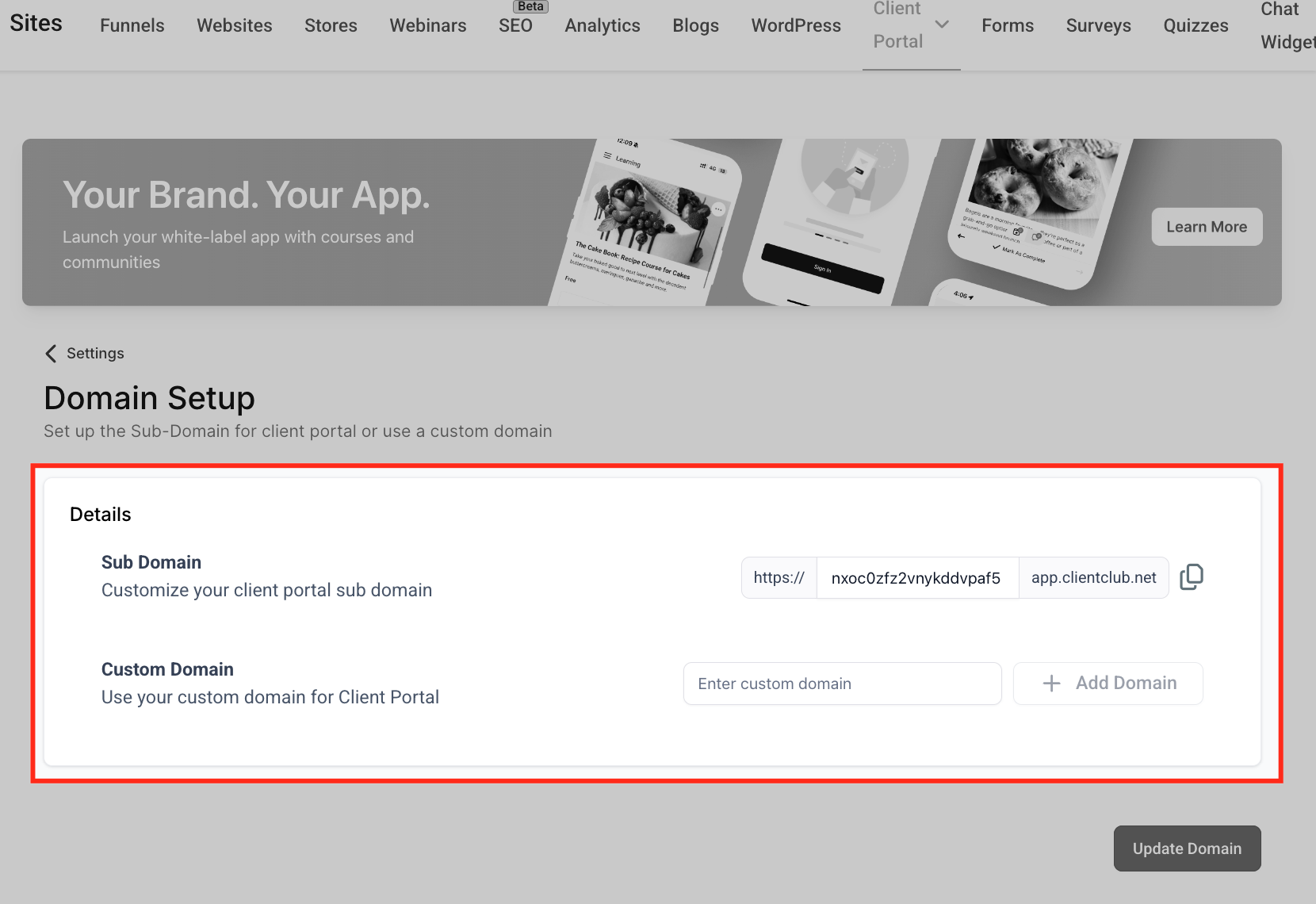
For more information on the Client Portal Setup please visit How to Set Up the Client Portal
WordPress
WordPress Hosting allows for the migration of an existing WordPress site, or for a new site to be created. After connecting the domain, users gain access to essential features like the WordPress Dashboard, User Management, Backup & Restore, and Advanced Settings.
Whether users are starting a new website or managing existing ones, this guide provides valuable instructions and insights to streamline the WordPress setup process effectively for your clients.
A WordPress Domain provides the public URL for a WordPress website hosted through HighLevel. WordPress domain routing is managed separately from standard Sites Domains. Go to: Sub-Account → Sites → WordPress Open the applicable WordPress site and use its domain-management options to connect the domain. Follow the DNS records generated for that specific WordPress configuration
For more information on Wordpress Domain setup please visit Getting Started With Wordpress Client Side Setup Guide

Domain Glossary - Key Words to Know
Example | Description | |
Domain | www.gohighlevel.com | The digital address for online services like websites, email hosting, and more |
Root Domain | gohighlevel.com | The primary address of your website, appearing after "www." in a URL (e.g., in "www.gohighlevel.com," the root domain is "gohighlevel.com"). It serves as the main entry point to your website. |
Subdomain | help.gohighlevel.com | Subdomains are extensions of your root domain, directing users to specific sections or areas within your online infrastructure (e.g., "help.domain.com" for support). |
Hostname |
| The name/value utilized in the record, typically the subdomain utilized. This is what allows subdomains such as “help.gohighlevel.com” to act independently from “www.highlevel.com” |
Data/Target/Value |
| The value which tells the URL to display intended website data. |
Nameservers | GoDaddy, Cloudflare, Google, etc. | The directory which organizes and controls the DNS records. This is what tells the internet which Domain Provider, e.g. Godaddy, Cloudflare, etc, is controlling the Domain |
DNS (Dedicated Name System) |
| The records that tell the internet when a certain URL is visited to populate a website, and allows email providers to send emails from the domain name. |
TXT |
| TXT records are used for sending emails to prevent spam, and for protecting the domain by creating a domain verification. |
MX |
| The Mail Exchange (MX) records tell emails where to be routed to. This is utilized to send and receive emails within HighLevel. |
CNAME |
| A Cname record points to another domain. These records are commonly utilized when creating sub-domains |
A Record |
| An A record points to an IP address that is hosting your website. These records are commonly utilized for your root domain to point to your primary website. |
DMARC |
| A DMARC record is a TXT record that prevents email spoofing protecting your email sending from scammers and unauthorized use of the domain. |


Troubleshooting Domain Connections
Domain connection issues are commonly caused by incorrect DNS records, conflicting records, incomplete DNS propagation, or records being added at a provider that is not currently managing the domain's nameservers.
If a domain is not connecting:
- Confirm which HighLevel product the domain is being connected to.
- Compare the records at your DNS provider with the DNS records currently displayed in HighLevel.
- Check for conflicting A or CNAME records using the same hostname.
- Confirm that you are editing DNS at the provider responsible for the domain's current nameservers.
- Allow applicable time for DNS changes to propagate.
- Return to HighLevel and retry the domain verification.
If the issue continues, follow the dedicated troubleshooting documentation for the applicable Website/Funnel, WordPress, Email, Client Portal, White Label, or other domain configuration.
FAQ
What If I do not have a domain?
You can purchase a domain directly through HighLevel or through a supported external domain registrar. After purchasing the domain, connect it to the applicable HighLevel product using that product's domain setup process.
Can I use an existing domain for my email?
You can set up a dedicated domain for an existing domain. It is advised to utilize a sub-domain when setting up your domain for email sending within HighLevel to prevent it from affecting your current email services.
Can I use WIX for my Dedicated Domain?
Wix does not allow for multiple MX records to be added of the same priority. In order to use a domain that is connected to Wix the nameservers will need to be changed to point to another domain host. For more information please see: LC Email / Mailgun replies not working when using WIX as the domain provider
My Cname record is not being recognized in Cloudflare.
Make sure the Cname record that is added into Cloudflare has the proxy toggled off in order to allow the record to propagate.

What if I have an existing domain?
Yes. If your existing root domain is already connected to a website or another service that you want to keep, use an appropriate subdomain for the HighLevel product when supported. This allows the existing service and the new HighLevel experience to operate independently.
Was this article helpful?
That’s Great!
Thank you for your feedback
Sorry! We couldn't be helpful
Thank you for your feedback
Feedback sent
We appreciate your effort and will try to fix the article