Computer for Managed Agents in HighLevel allows AI agents to browse websites, create and manage files, and execute scripts to complete tasks beyond traditional CRM automation.
Agents can research information, interact with web applications, generate business documents, and perform multi-step operations from a single conversation. Built-in approval controls, secure website sign-ins, and a shared workspace help you manage agent activity while keeping sensitive actions under your control.
TABLE OF CONTENTS
- What is Computer for Managed Agents?
- Browser, Files, and Terminal Capabilities
- Approval and Safety Controls
- Secure Website Sign-ins
- Computer Panel and Waiting on You
- Shared Computer Workspace and Availability
- How to Set Up Computer for Managed Agents
- Frequently Asked Questions
- Related Articles
What is Computer for Managed Agents?
Computer is a capability within HighLevel's Managed Agents that gives AI agents access to a computer environment for working with websites, files, and scripts. Rather than relying solely on built-in CRM actions and connected applications, agents can interact with browser interfaces and use workspace tools to complete tasks.
For example, a Managed Agent can browse competitor websites, collect product pricing, compare offerings, and create a report with its findings. It can also navigate web applications, fill out forms, and assist with operational tasks that require several steps.
Computer includes three primary tools:
Browser: Open websites, navigate pages, click buttons, fill out forms, and interact with web applications.
Files: Create, read, edit, and export files within the computer workspace.
Terminal: Execute commands and scripts for data processing, calculations, and other advanced tasks.
Computer also includes secure website sign-ins, configurable approval settings, and activity monitoring controls.
Important: Computer currently supports chat and manual runs only. Computer capabilities are not supported for trigger-based executions.
Browser, Files, and Terminal Capabilities
Computer provides three configurable tools that allow Managed Agents to perform different types of tasks. Understanding what each tool does helps you enable only the capabilities your agent needs.
1. Browser
The Browser tool allows Managed Agents to interact with websites through a browser interface. Agents can navigate pages, enter information, and complete web-based tasks that would otherwise require manual interaction.
Supported activities include:
Opening and navigating websites.
Reading and researching website content.
Clicking buttons and interacting with page elements.
Entering information and filling out forms.
Navigating authenticated websites after successful sign-in.
Completing multi-step tasks across web applications.
You can monitor browser activity and take control when manual interaction is required.
For example, you could ask: "Visit three competitor websites, compare their product prices, and summarize the differences."
The agent can navigate the websites, collect available information, and prepare a comparison.
2. Files
The Files tool allows Managed Agents to work with files in the sub-account's computer workspace. Agents can create new files, modify existing files, and produce downloadable outputs.
Supported activities include:
Creating reports and documents.
Generating spreadsheets and other business files.
Reading and modifying workspace files.
Exporting generated files.
Reusing workspace files across conversations.
For example, you could ask: "Create a spreadsheet comparing the pricing and features of the competitors you researched."
The agent can organize the collected information into a structured file.
Files stored in the Computer workspace are different from documents attached directly to an agent conversation. Chat attachments are documented separately in Managed Agents File Support.
3. Terminal
The Terminal tool allows Managed Agents to execute commands and scripts within the computer environment. This is useful when tasks require calculations, data transformations, or operations that are difficult to complete through browser interaction alone.
Supported activities include:
Running Python scripts.
Processing and analyzing datasets.
Executing terminal commands.
Installing packages required for supported tasks.
Preparing reports from processed data.
For example, you could ask:"Analyze this sales dataset, calculate monthly revenue growth, and create a summary report."
The agent can use available tools to process the information and generate an output.
Terminal is disabled by default in the provided configuration example and can be enabled when your agent requires code execution.
Approval and Safety Controls
Computer includes configurable approval controls that help prevent agents from performing sensitive actions without your knowledge. The Ask Before settings let you determine which activities require your permission before the agent can continue.
Configurable Ask Before Permissions
You can configure approval requirements for the following activities:
Submitting forms.
Making payments or purchases.
Sending emails or messages.
Publishing content or going live.
Deleting files or records.
Downloading files.
Visiting a new website.
These controls are configured for the individual Managed Agent.
Payments and deletions always require approval. Other actions can be configured to request confirmation or, where supported, receive permission for the current chat.
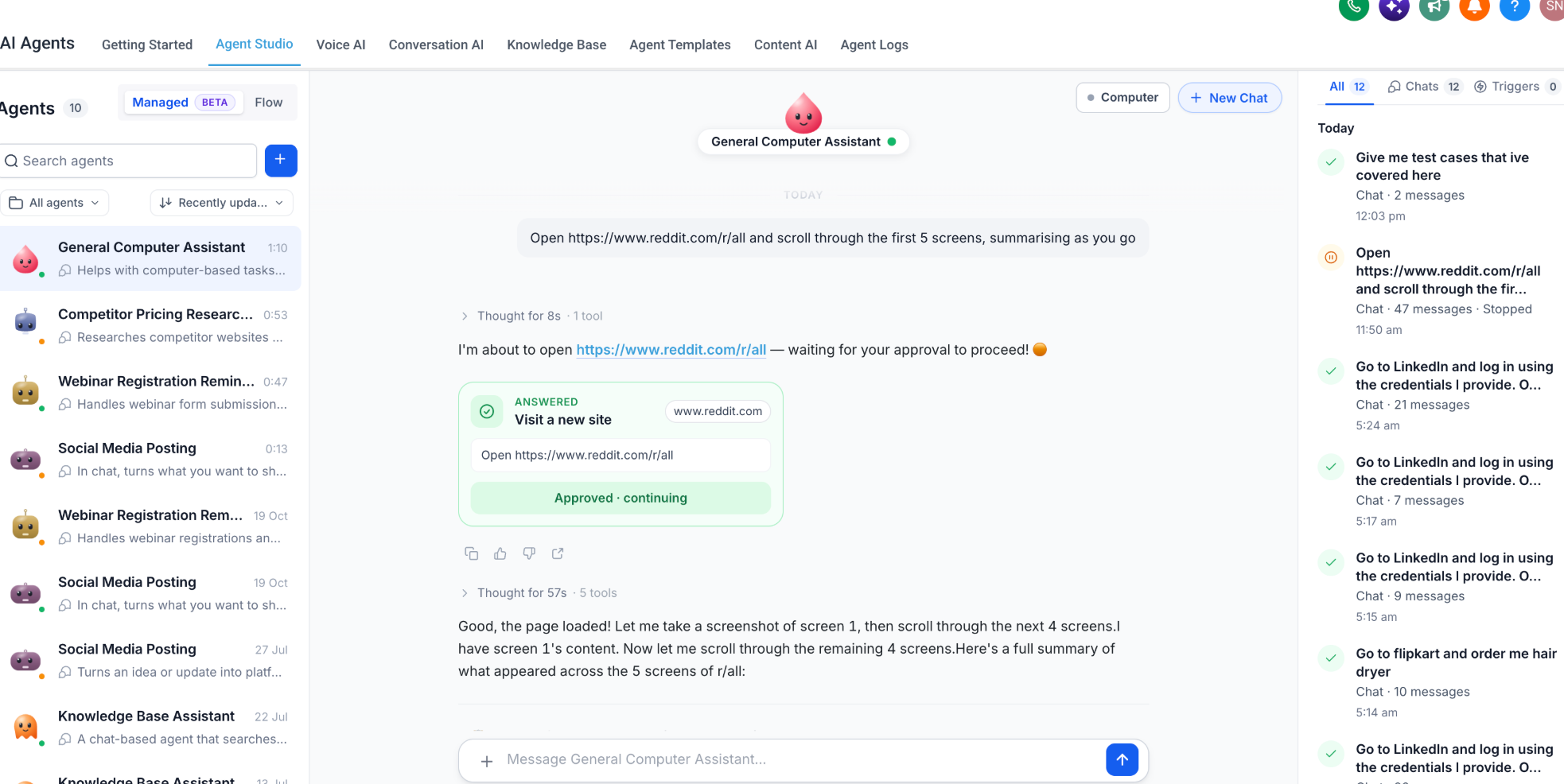
For example, when an agent needs to open a new website, it may display an approval request identifying the destination. You can review the request and decide whether the agent should proceed.
Approving Actions During a Conversation
When an agent encounters an activity that requires approval, it pauses and presents a request.
To respond:
Review the requested action and its destination or affected resource.
Confirm that the action matches the task you assigned.
Approve the action to allow the agent to continue, or decline it.
If an option to allow the action for the current chat is available, choose it only when you want that permission to apply within the stated scope.
For example, an agent researching a website might request permission before opening the destination.
Data Protection
Computer includes safeguards designed to protect information accessed within the workspace.
If an agent accesses workspace data and then attempts to transfer that information outside the computer environment, an additional approval may be required.
This helps ensure that potentially sensitive data is not shared externally without user authorization.
Important: Review the destination and content of sensitive actions before approving them, particularly when an agent is sending information to external websites or applications.
Secure Website Sign-ins
Some browser tasks require access to websites that are protected by a username and password. Computer supports secure website sign-ins so agents can continue authenticated tasks without requiring you to share passwords in the conversation.
When an agent encounters a login requirement, it can request credentials through a secure form.
How Secure Website Sign-ins Work
The agent navigates to a website requiring authentication.
The agent identifies that a login is needed.
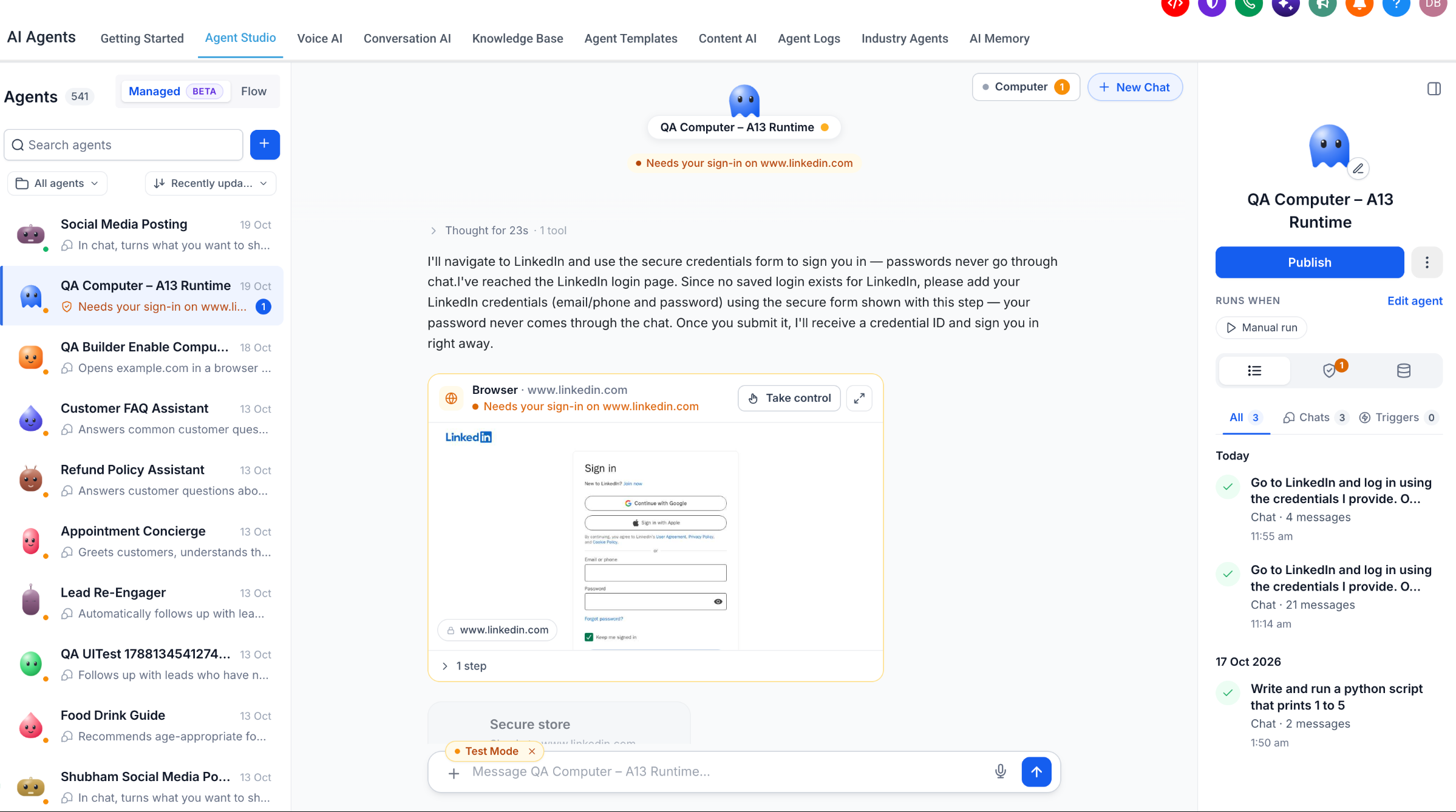
A sign-in request appears in the conversation or Computer Panel.
Select Add login to access the secure credentials form.
Enter the required website credentials through the secure form.
Submit the credentials.
Once authentication succeeds, the agent can continue the requested task.
Credentials are handled through the secure sign-in mechanism rather than being sent through chat. The release documentation states that passwords remain protected and are not exposed to the agent.
Saved sign-ins can be reused for subsequent tasks that require access to the same website.
Handling Invalid or Expired Credentials
If previously saved credentials no longer work, the agent may encounter a login error and request updated credentials.
To resolve the issue:
Open the relevant Managed Agent conversation.
Locate the sign-in request.
Select the available option to update or provide login credentials.
Enter the correct credentials through the secure form.
Submit the information and allow the agent to retry authentication.
Do not send website passwords directly in the conversation.
Computer Panel and Waiting on You
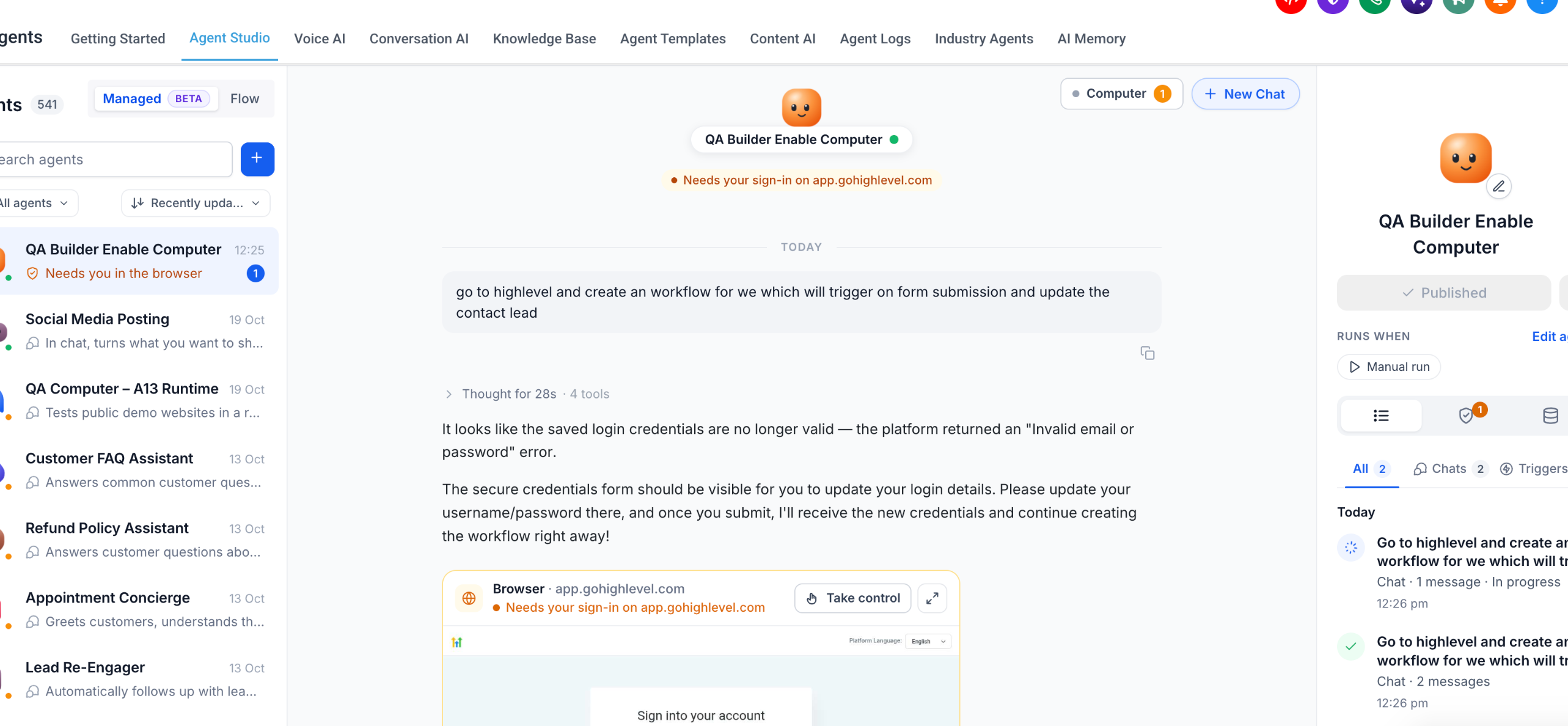
The Computer Panel provides visibility into computer activity, while Waiting on You makes it easier to identify requests that require user intervention. These controls help you monitor ongoing tasks and resolve blocked actions without searching through the entire conversation history.
Computer Panel
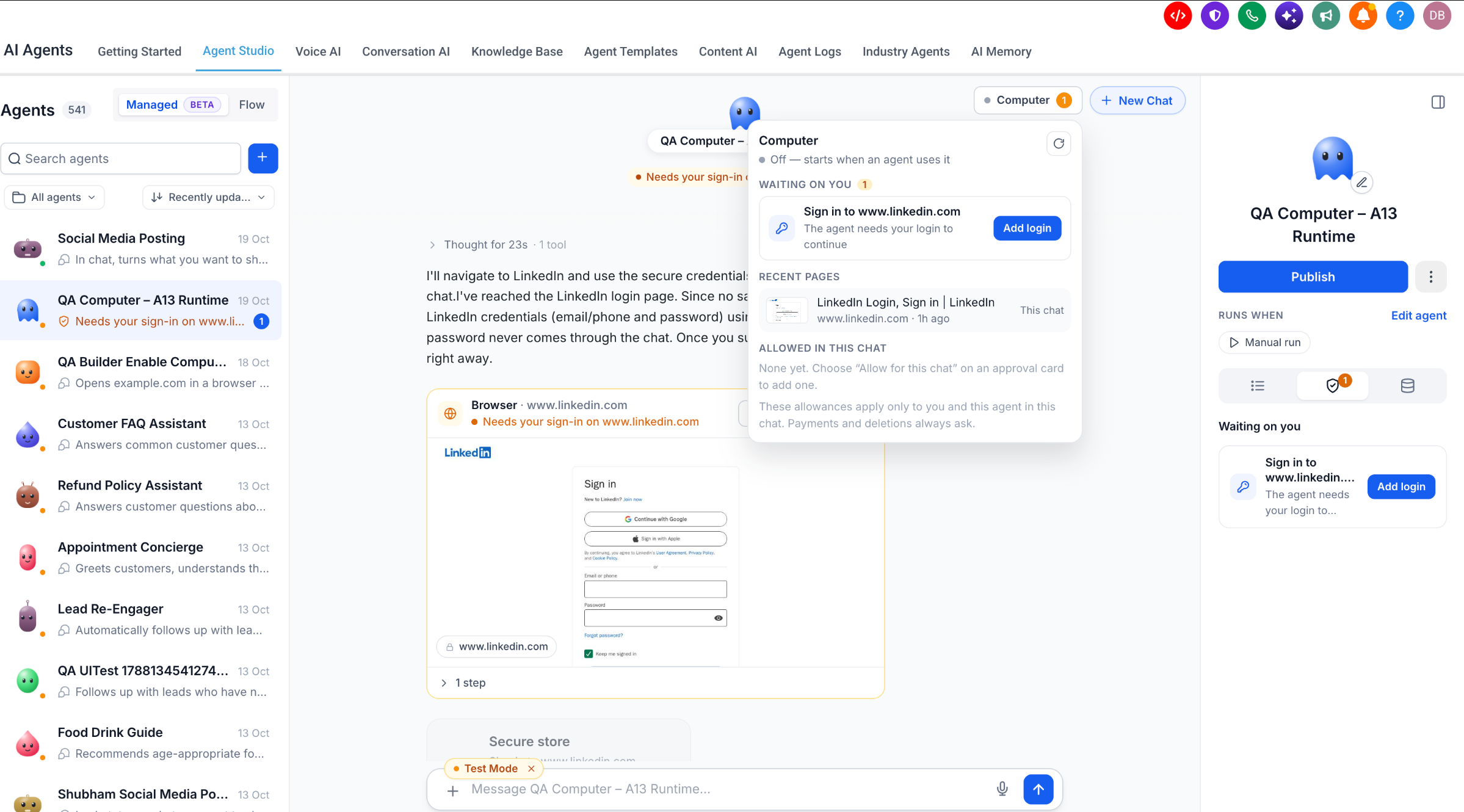
The Computer Panel can be accessed through the Computer control near the top of the Managed Agent conversation.
The panel provides information about:
Computer Status: Whether the computer is active or inactive.
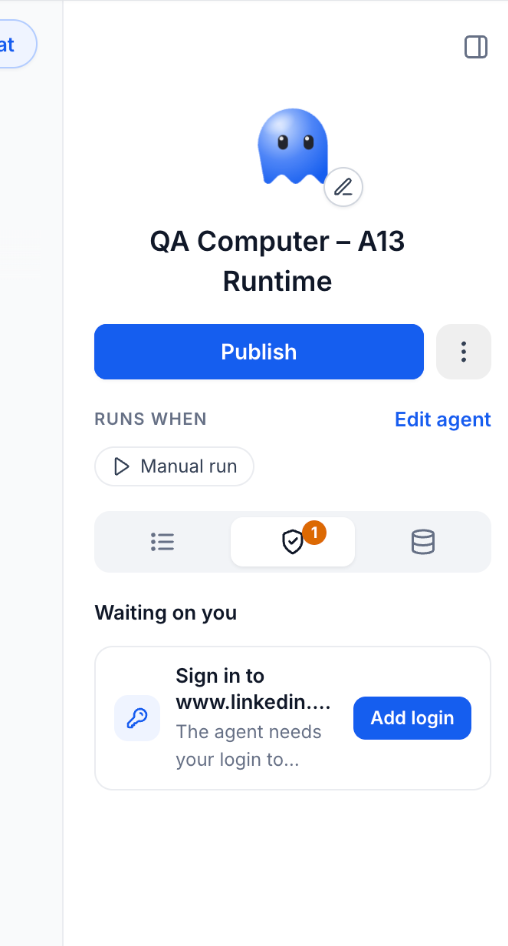
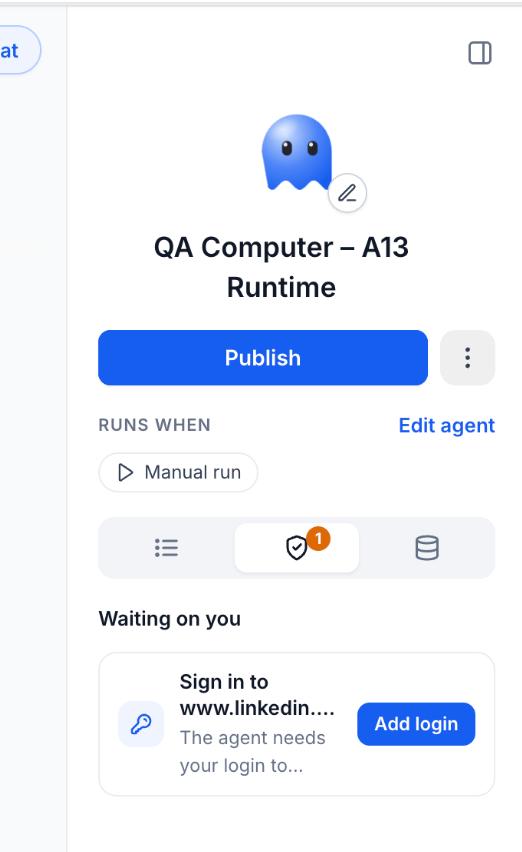
Waiting on You: Requests that need your approval or input.
Recent Pages: Websites recently accessed by the computer.
Allowed in This Chat: Website permissions granted for the current chat.
The panel also provides access to computer-related activities and controls.
Waiting on You
Waiting on You helps you locate agent requests that cannot proceed without your involvement.
Common requests include:
Approving a sensitive action.
Providing website login credentials.
Authorizing access to a website.
Responding to another required user confirmation.
You can access pending actions from the relevant agent's interface and the Computer Panel.
To handle a request:
Open the Managed Agent with the pending action.
Locate Waiting on You in the agent details panel or Computer Panel.
Select the request requiring your attention.
Review the action or information requested.
Provide the required input or approval.
Return to the conversation to monitor the agent's progress.
For example, when an agent requires LinkedIn authentication, Waiting on You displays a sign-in request with an Add login action.
Taking Control of the Browser
Computer allows you to take over browser interactions when a task requires manual input or intervention.
When browser activity is displayed in the conversation:
Locate the Browser activity card.
Select Take control.
Complete the required browser interaction.
Return control to the agent using the available interface controls so it can continue.
This is useful when a website requires direct user interaction or when you want to review the page before proceeding.
Shared Computer Workspace and Availability
Computer uses a shared environment at the sub-account level. Understanding how this workspace operates helps you manage files, agent access, and execution expectations.
Shared Sub-Account Computer
Each sub-account has one computer shared across its Managed Agents.
This means:
Managed Agents within the same sub-account use the same computer environment.
Workspace files can remain available between conversations.
The computer is isolated from other sub-accounts.
Access to the sub-account's Computer environment does not provide access to other sub-accounts' environments.
Individual agents retain their own configured capabilities and approval settings.
Persistent Workspace and Automatic Sleep
The computer automatically sleeps when inactive and resumes when needed.
Workspace files are preserved when the computer sleeps, allowing agents to continue working with previously created files in later conversations.
For example, an agent can create a competitor research document during one conversation and use that file again in a later task.
Supported Execution Types
Computer currently supports:
Direct Managed Agent chat conversations.
Manual agent runs.
Testing through the available agent testing interface.
Computer is not currently supported for trigger-based executions, including workflow-triggered runs.
Other Managed Agent capabilities may support automated triggers independently of Computer.
How to Set Up Computer for Managed Agents
Properly configuring Computer ensures that your Managed Agent has access to the tools it needs while maintaining appropriate approvals for sensitive operations. The following steps explain how to enable Computer, configure its tools, test a task, and handle requests that require attention.
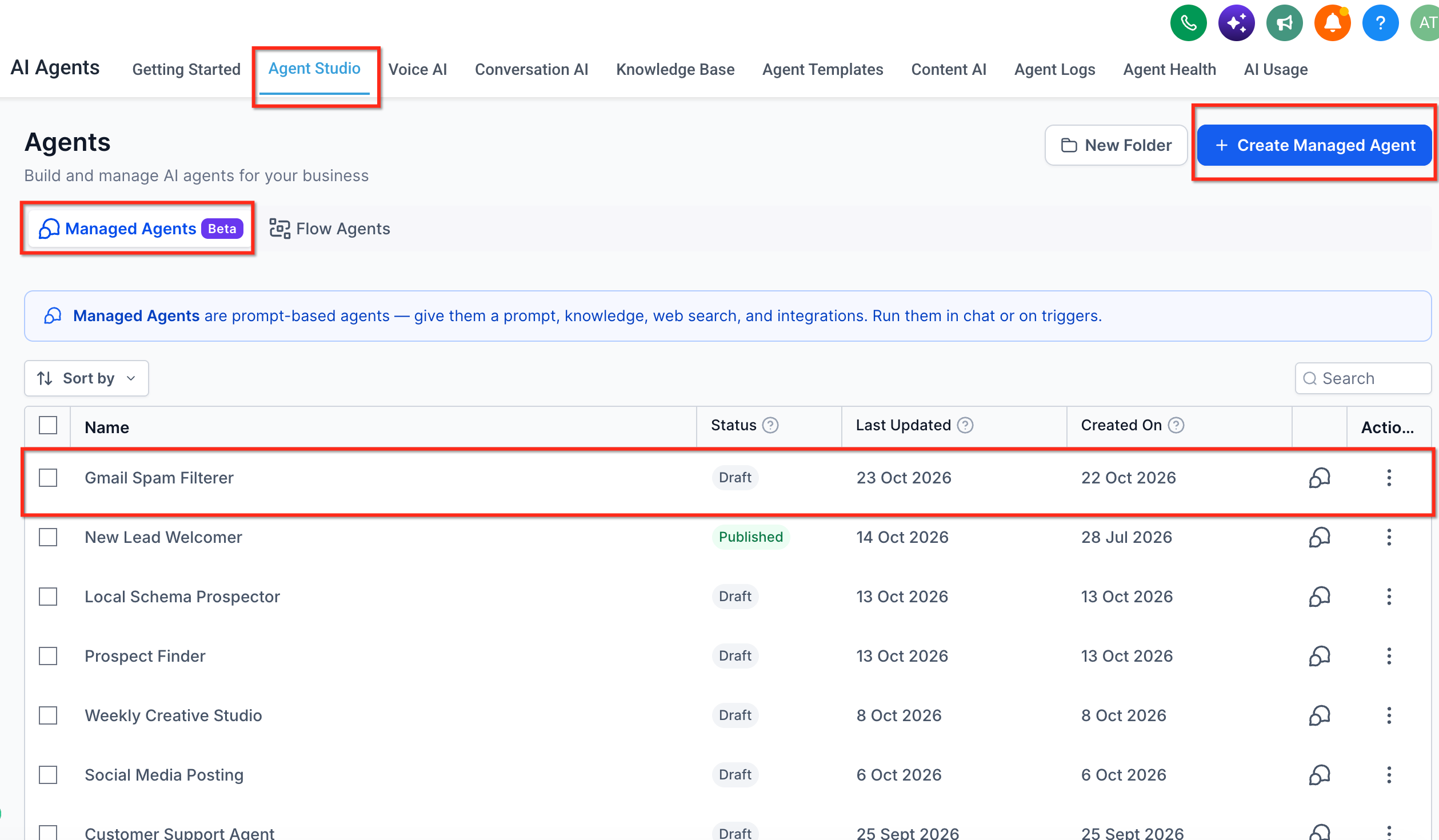
Step 1: Open Agent Studio
Log in to your HighLevel sub-account.
Navigate to AI Agents.
Select Agent Studio.
Open the Managed Agents tab.
Select an existing Managed Agent or create a new one.
If you need help creating an agent, see Setup and Use Managed Agents in Agent Studio.
Step 2: Enable Computer
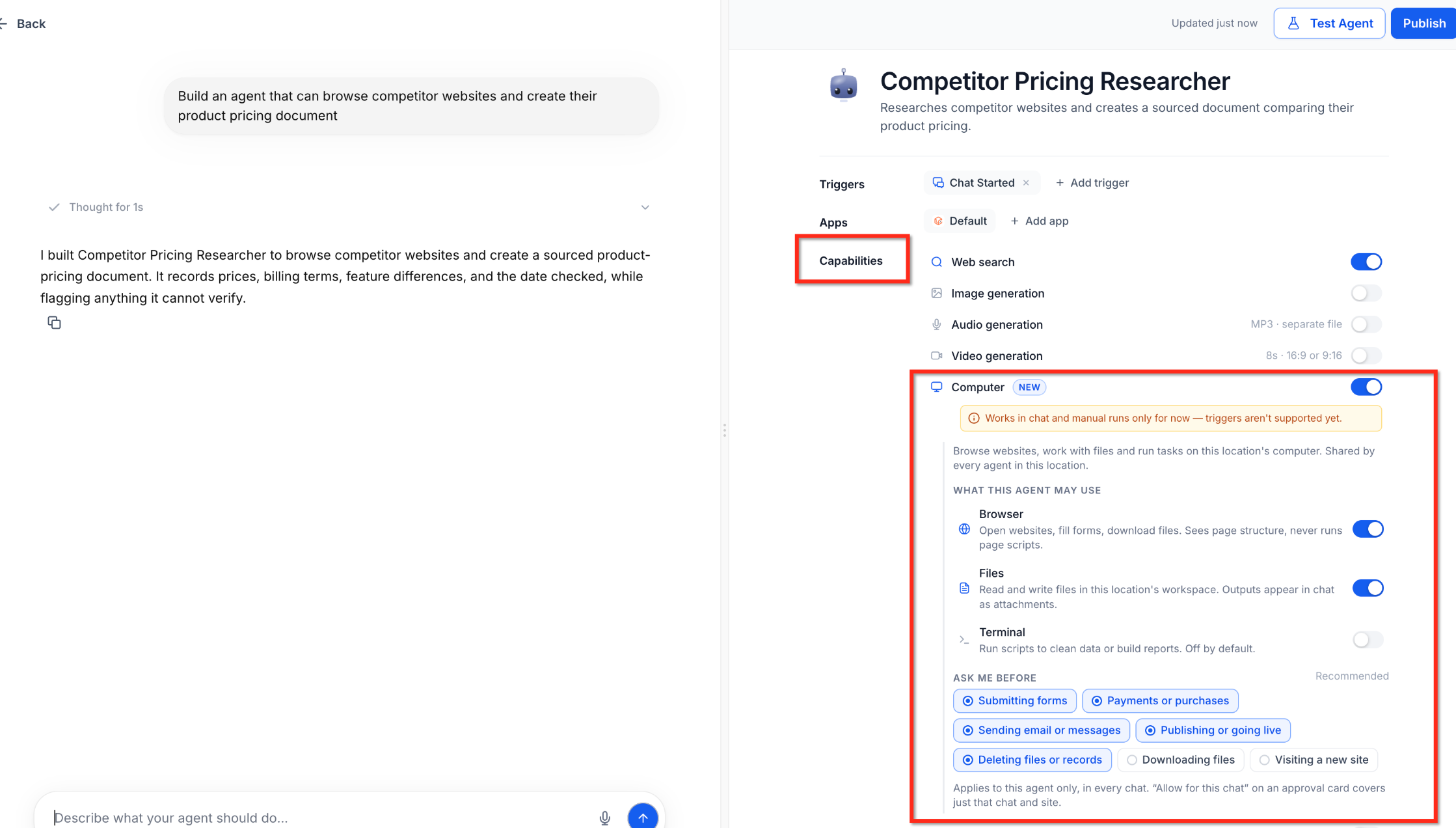
Open the Managed Agent you want to configure.
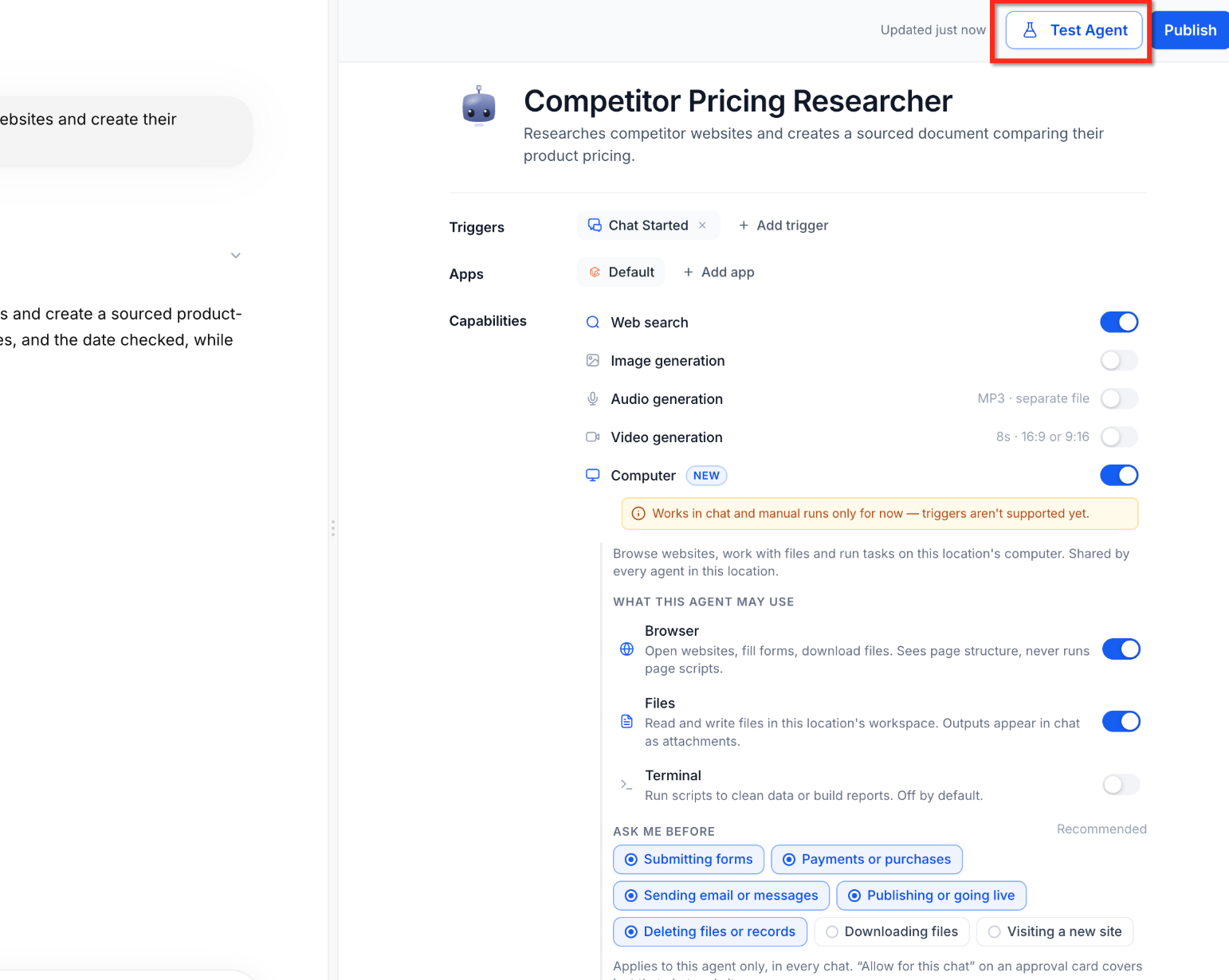
Locate Capabilities in the agent configuration panel.
Find Computer (NEW).
Enable the Computer toggle.
When Computer is enabled, additional configuration options appear beneath it.
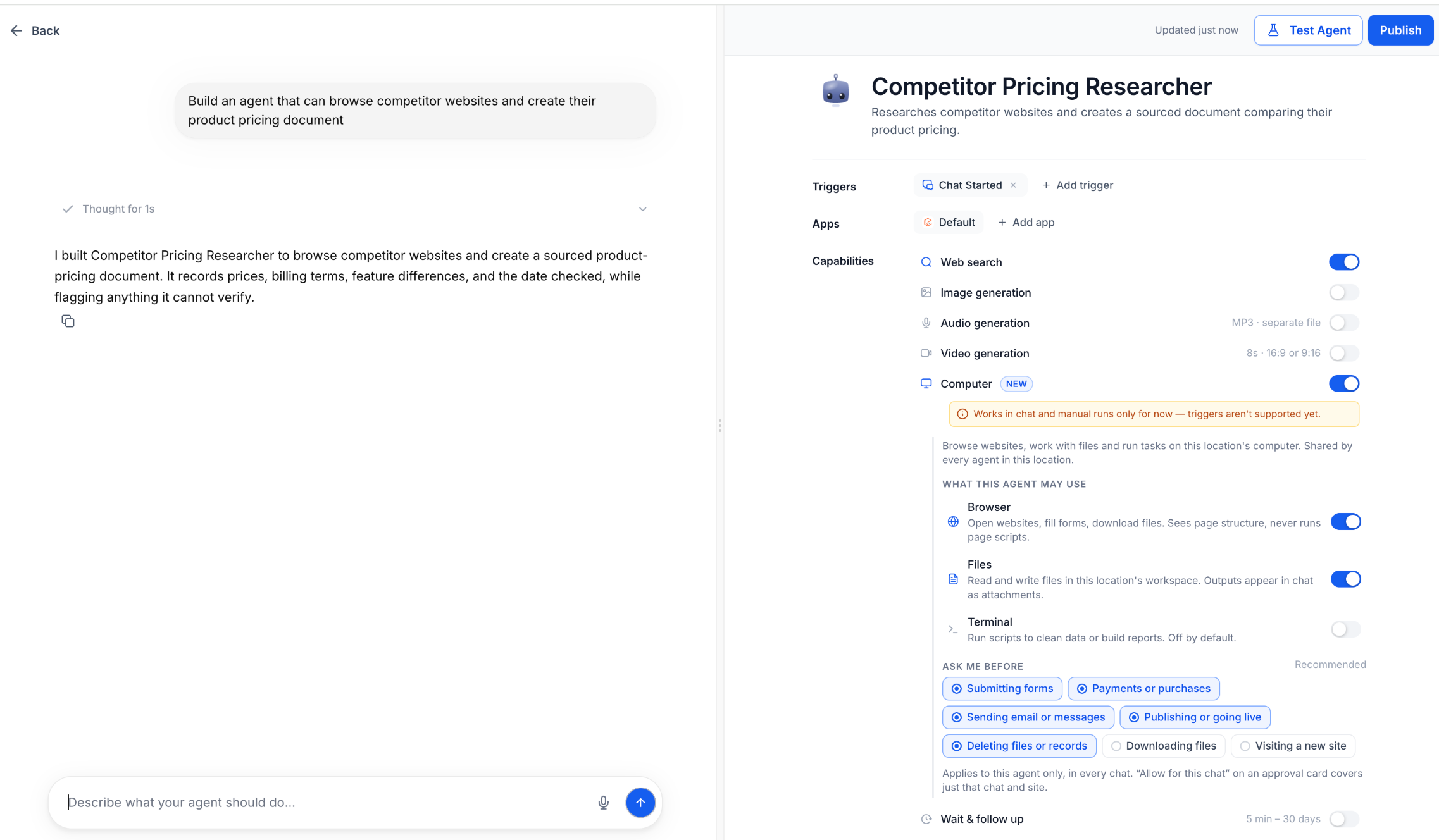
Step 3: Choose Computer Tools
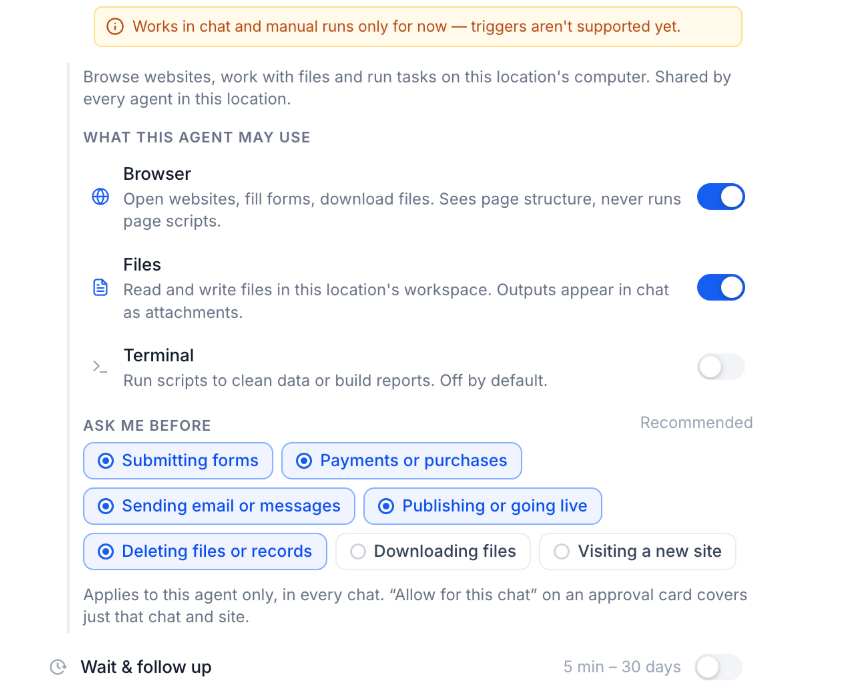
Under What This Agent May Use, configure which computer tools the agent can access.
Enable Browser if the agent needs to navigate websites, interact with pages, or fill out forms.
Enable Files if the agent needs to create, read, or modify workspace files.
Enable Terminal if the agent needs to execute scripts or terminal commands.
Only enable the tools required for the agent's tasks.
For example, an agent that researches competitor prices and creates comparison documents may need Browser and Files without requiring Terminal.
Step 4: Configure Ask Before Permissions
Locate the Ask Me Before settings under Computer.
Review the available actions requiring approval.
Configure the approval requirements based on your agent's responsibilities.
Keep additional approval requirements enabled for actions that should be reviewed before execution.
Available controls include:
Submitting forms.
Payments or purchases.
Sending emails or messages.
Publishing or going live.
Deleting files or records.
Downloading files.
Visiting a new website.
Payments and deletions always require approval.
Step 5: Test the Agent
After configuring Computer:
Select Test Agent, or open the agent's chat interface.
Enter a task that requires one or more enabled Computer tools.
Send the instruction.
Monitor the agent's activity in the conversation.
For example:
"Research the prices of three competing products, compare their features, and create a spreadsheet summarizing the results."
The agent may open websites, collect information, and generate a file, depending on its available tools and permissions.
Step 6: Review and Respond to Approval Requests
If the agent needs approval:
Review the request in the conversation.
Open Waiting on You if necessary.
Confirm the requested action is appropriate.
Approve or decline the request.
If authentication is required, select Add login and enter credentials using the secure form.
After the necessary approval or input is provided, the agent can continue.
Step 7: Review the Results and Publish the Agent
After the agent completes its task:
Review the agent's response.
Inspect any generated documents, spreadsheets, or reports.
Verify important information before using it in business decisions.
Review available Browser activity or task history if additional context is needed.
Provide follow-up instructions to refine the result.
Select Publish if the agent has not already been published.
For example:
"Update the comparison spreadsheet to include product ratings and highlight the lowest-priced option."
The agent can continue working with the available computer tools and workspace files.
Frequently Asked Questions
Q: Can Computer run automatically when a workflow trigger fires?
No. Computer currently supports chat and manual runs only. Although Managed Agents can support workflow and event-driven triggers for other capabilities, Computer is not available during trigger-based executions.
Q: Can multiple Managed Agents use Computer?
Yes. Each sub-account has one computer shared by its Managed Agents. The release does not specify how simultaneous computer operations are scheduled, so concurrent task behavior should not be assumed.
Q: What happens if an agent needs to sign in to a website?
The agent can request a secure sign-in. You can open the request, provide credentials through the protected form, and allow the agent to continue after authentication succeeds. Passwords should not be entered directly into chat.
Q: Can I take control of the browser while an agent is working?
Yes. When browser activity is displayed, select Take control to interact with the browser directly. This is useful for reviewing a website or completing a step that requires manual intervention.
Q: What happens if I don't approve a requested action?
The agent cannot complete the action that requires your approval. The request may remain pending until you respond, and the agent's progress on that part of the task may be blocked.
Q: Will my files disappear when the computer goes to sleep?
No. Computer preserves workspace files when it automatically sleeps, allowing them to remain available when the computer resumes.
Q: Can I enable Browser without enabling Terminal?
Yes. Browser, Files, and Terminal are configurable individually. You can enable only the tools needed for your agent's tasks.
Q: Why does my agent display Waiting on You?
Waiting on You indicates that the agent requires additional input, authentication, or approval before continuing an action. Open the pending request to review what is needed.
Q: Are Computer Files the same as files attached to a Managed Agent conversation?
No. Computer Files are used to create and manage files within the shared computer workspace. Chat file support allows users to attach supported documents and images to conversations for analysis. The two features have different purposes.
Q: Can Computer replace MCP connectors?
Not in every situation. Computer allows agents to interact with websites through a browser, while MCP connectors provide defined tools for integrating with supported external applications. The best option depends on the task and the available integration.
Related Articles
Was this article helpful?
That’s Great!
Thank you for your feedback
Sorry! We couldn't be helpful
Thank you for your feedback
Feedback sent
We appreciate your effort and will try to fix the article