MCP App Connectors for Managed Agents
MCP connectors allow your Managed Agents to interact with external applications like HubSpot, Notion, Make, Calendly, and more. Agents can authenticate, access tools, and perform actions in connected apps based on workflow triggers.
This article covers what MCP connectors are, which apps are supported, how to set them up in Agent Studio, and answers common questions about using these integrations.
What are MCP App Connectors?
MCP (Model Context Protocol) app connectors enable your HighLevel Managed Agents to securely authenticate and interact with third-party applications. Once connected, agents can access tools and perform actions within these apps as part of automated workflows.
For example, a Managed Agent with Notion MCP connected can create pages, search content, or update databases in your Notion workspace. With HubSpot MCP, agents can create contacts, update deals, or log activities directly in HubSpot.
MCP connectors use secure OAuth authentication or direct login to give agents the permissions they need without exposing credentials. You control which tools each agent can access within the connected app.
Key Benefits
MCP app connectors expand what your Managed Agent can do by bridging HighLevel workflows with external platforms. Here are the primary advantages:
Supported MCP Apps
HighLevel supports a growing list of MCP app connectors. Each connector provides a set of tools that agents can use to interact with the connected application.
How to Connect an MCP App to Your Managed Agents
Follow these steps to add an MCP app connector to a Managed Agent in HighLevel Agent Studio:
Navigate to Agent Studio in your HighLevel account.
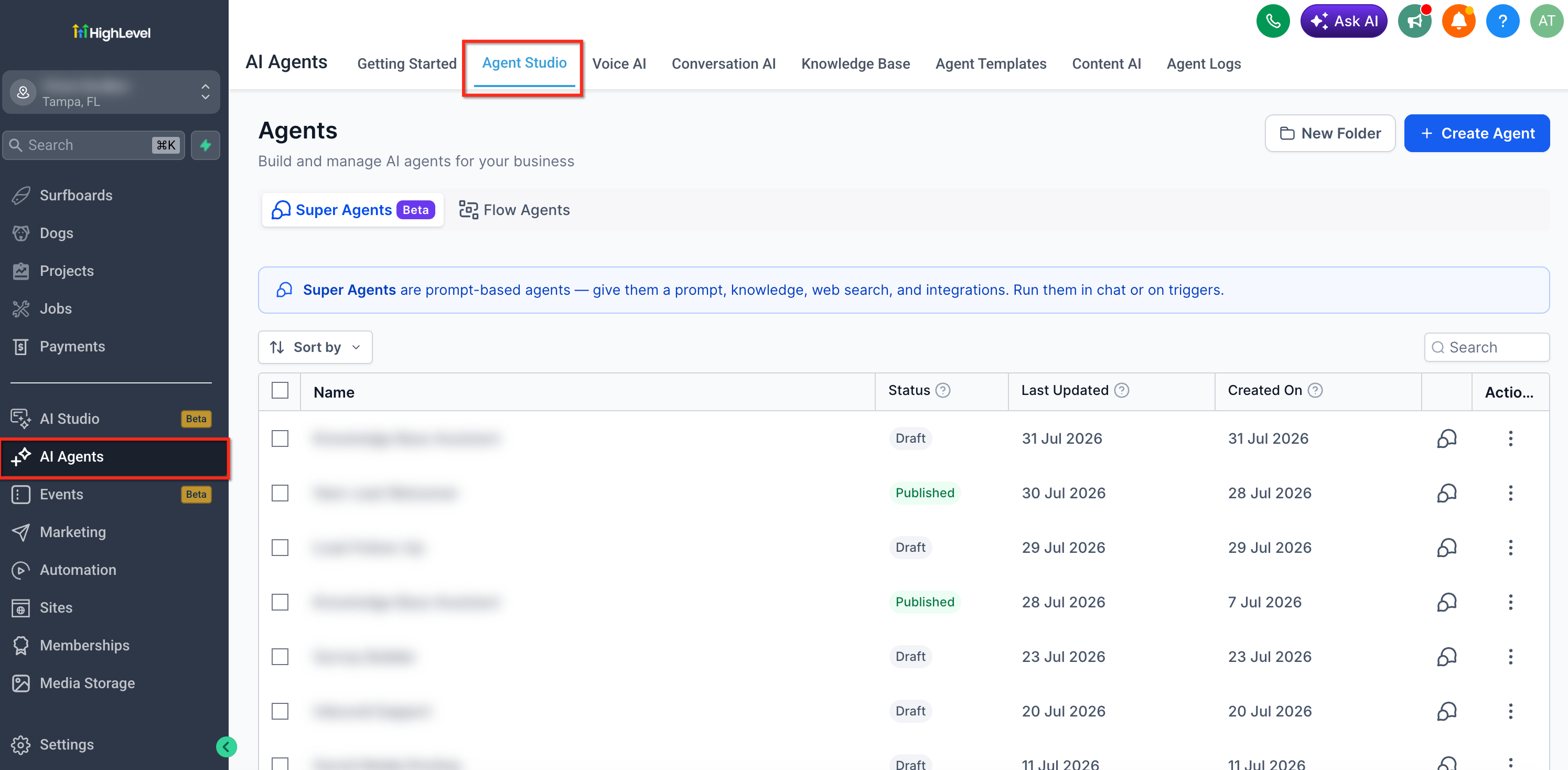
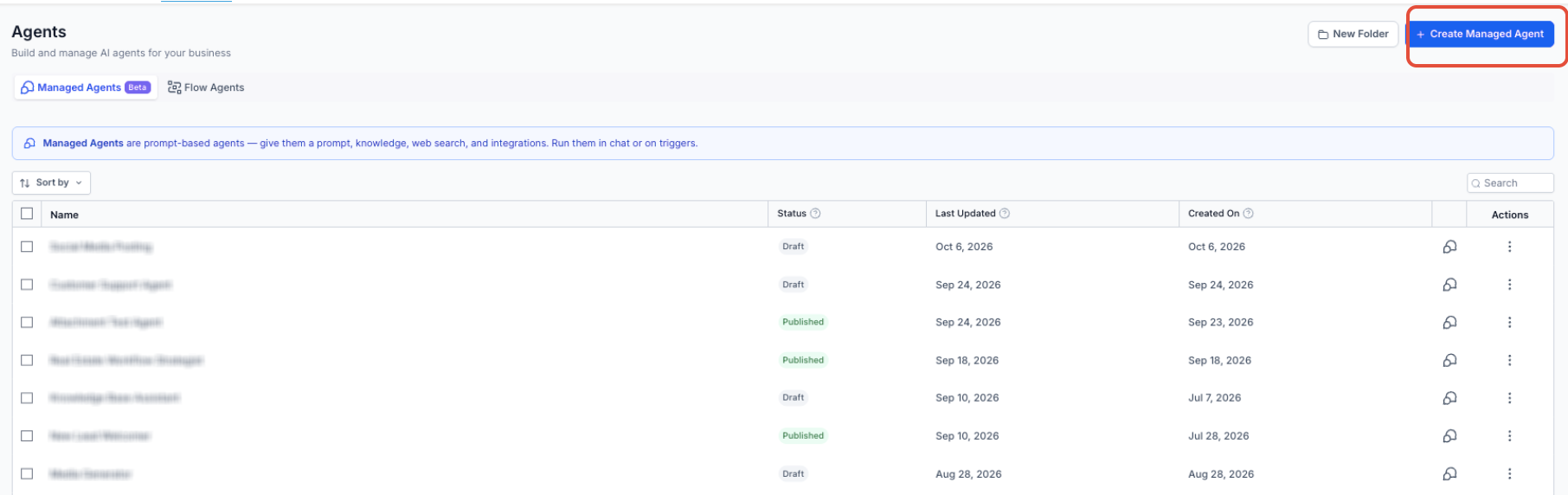
Create a new Managed Agent or open an existing one. You can also instruct the agent builder to add an MCP app during agent creation.
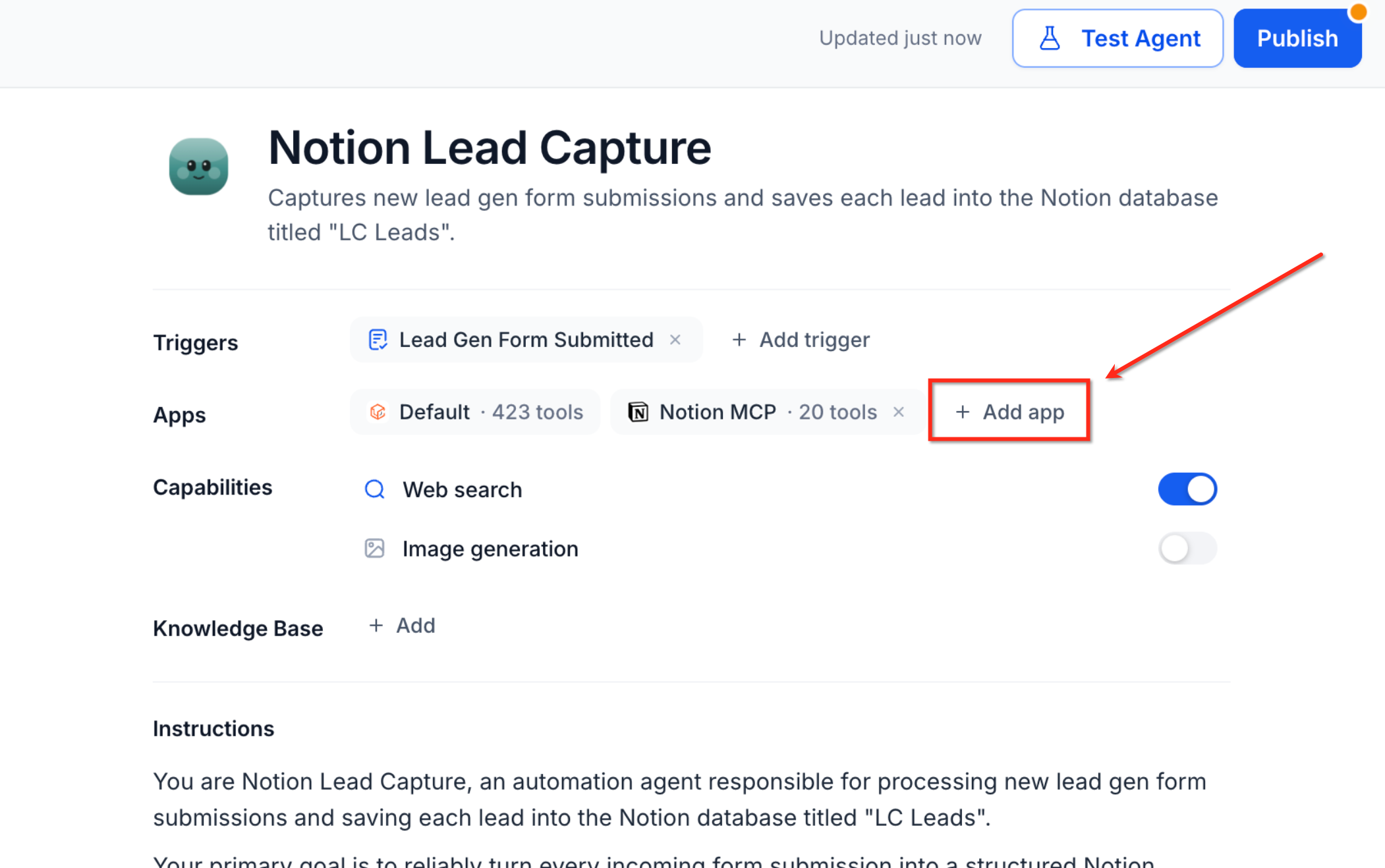
In the Apps section of the agent configuration, click "+ Add app" and select the MCP connector you want to integrate (e.g., Notion, HubSpot, Make).
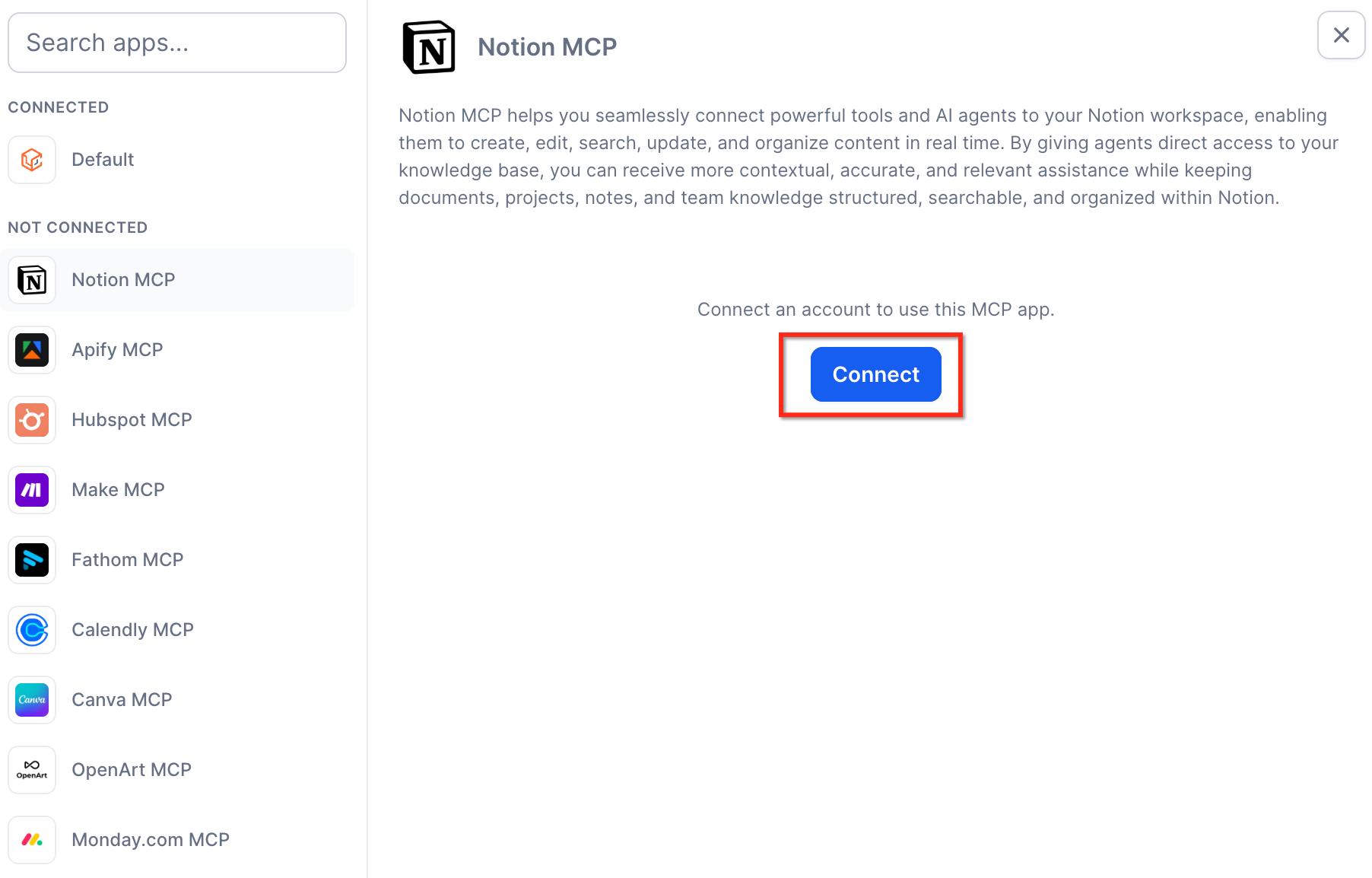
Click "+ Connect" next to the MCP app. You will be prompted to sign in using OAuth or a secure login flow. Grant the necessary permissions for the agent to access the app.
Once authenticated, a list of available tools for the MCP app appears. Check the boxes next to the tools you want the agent to use (e.g., "notion-create-pages", "notion-search", "get_board_items_page" for Monday.com).
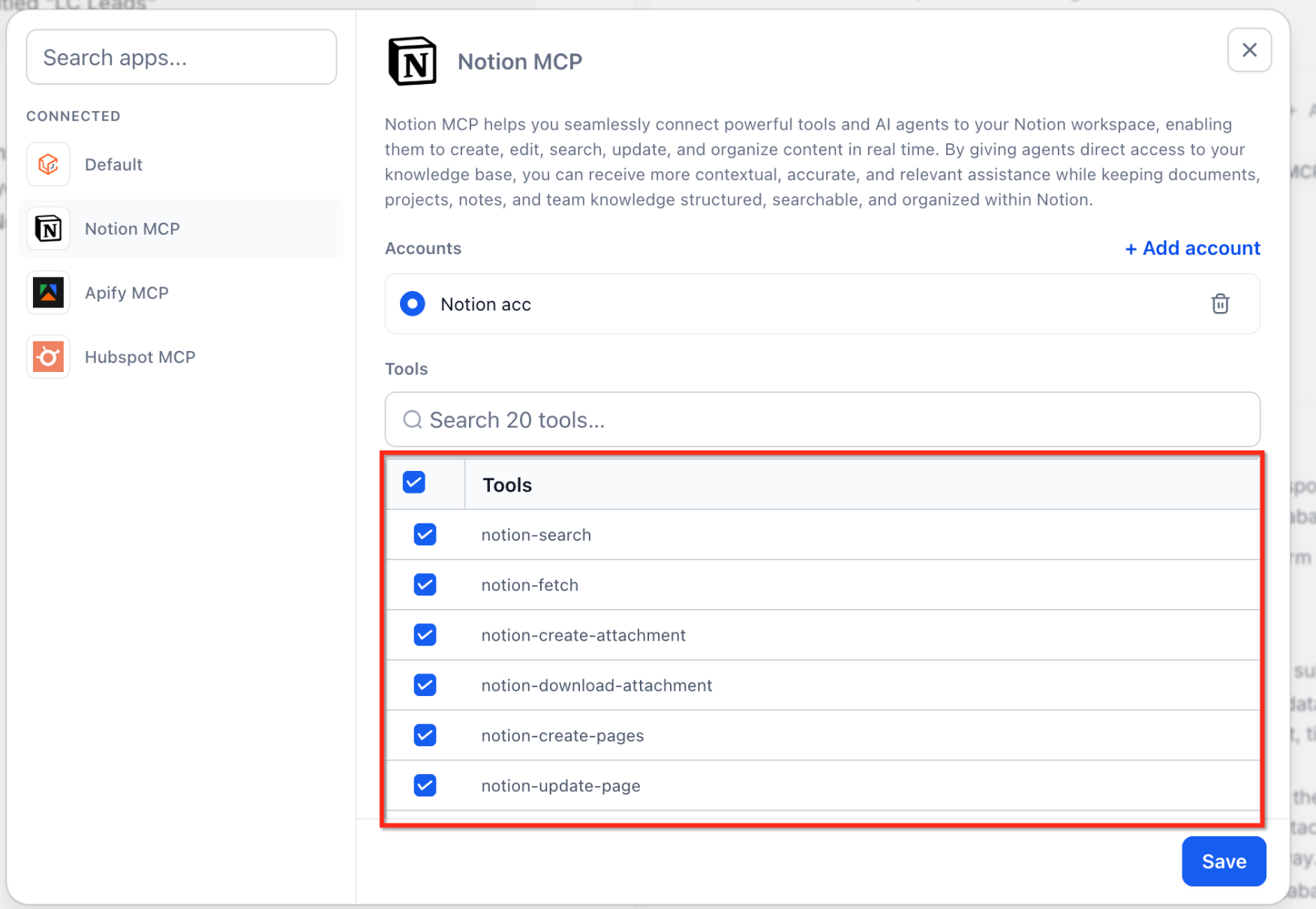
Click "Save" to apply the MCP app connection and selected tools to your Managed Agent.
Activate the agent using the configured trigger (e.g., "Lead Gen Form Submitted"). The agent will execute actions in the connected MCP app as part of its workflow.
You can connect multiple MCP apps to a single Managed Agent. Agents will use the appropriate tools based on the context and instructions you provide.
Frequently Asked Questions
Was this article helpful?
That’s Great!
Thank you for your feedback
Sorry! We couldn't be helpful
Thank you for your feedback
Feedback sent
We appreciate your effort and will try to fix the article