The Managed Agent Activity Feed gives you a unified view of live conversations and automated runs so you can monitor activity, review execution details, and troubleshoot agent behavior. When reviewing a conversation, you can also rate individual Managed Agent replies with thumbs up or thumbs down, keeping feedback connected to the exact response that worked well or needs improvement.
This guide explains how to use the Activity Feed, review execution data, debug Managed Agent runs, and provide feedback on individual agent replies.
TABLE OF CONTENTS
- What Is the Managed Agent Activity Feed?
- Key Benefits
- How to Use the Activity Feed
- Understanding Activity Feed Data
- Viewing Execution Logs
- Frequently Asked Questions
- Related Articles
What Is the Managed Agent Activity Feed?
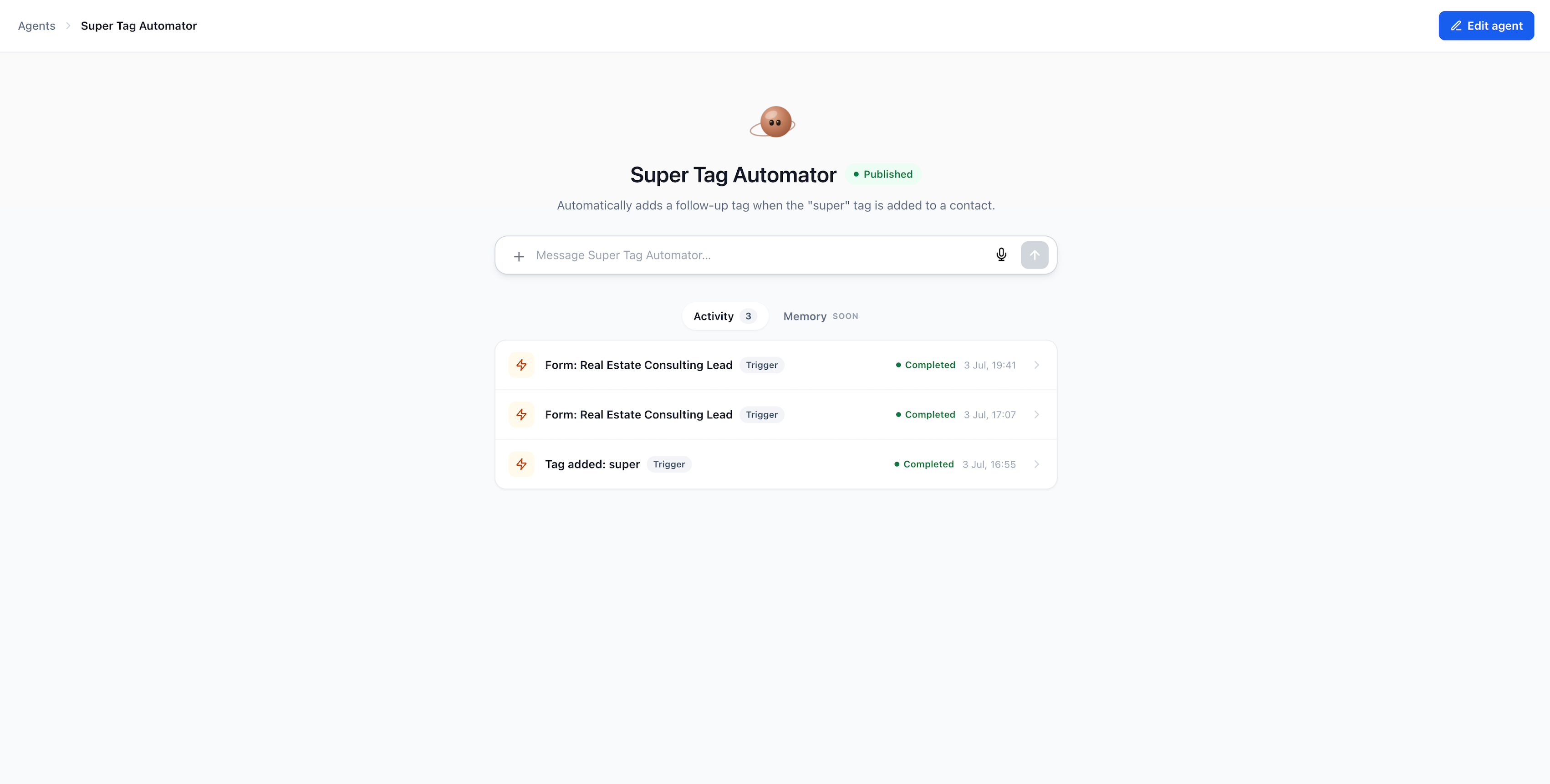
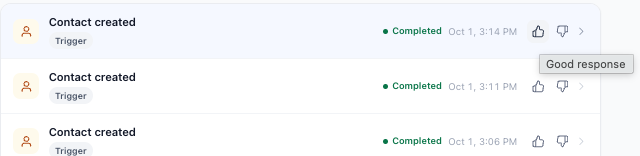
The Activity Feed is a unified timeline inside each supported Managed Agent that displays recent runs and activity in reverse chronological order, with the newest activity first.
It brings live chat conversations and automated trigger executions into one view. Automated runs can include form submissions, tag changes, Facebook lead form submissions, survey submissions, and other supported trigger events.
Facebook lead form runs appear as Facebook Lead Form Submitted, while survey-triggered runs appear as Survey Submitted. Each run includes status and timing information so you can confirm that the event successfully started the Managed Agent.
Each Activity Feed row can show:
- An icon representing the type of run
- Run status
- Timestamp
- Trigger type
- Context describing what started the agent
Open a run to review the execution log, including completed steps, skills and tools used, inputs and outputs, and the final response.
Key Benefits
The Activity Feed gives you visibility into what your Managed Agent did, why it ran, and how it responded.
- Full visibility: Review live conversations and automated runs in one chronological view.
- Faster debugging: Review execution steps, skills, and tool calls to identify issues more quickly.
- Trust and transparency: Verify what happened during an automated run using detailed execution data.
- Simplified monitoring: Review conversation and automation activity without switching between separate views.
- Performance tracking: Review timing and token-usage metrics to identify slow steps or high-usage runs.
- Feedback-driven improvement: Rate individual Managed Agent replies so successful responses and misses stay connected to real conversation examples.
How to Use the Activity Feed
Use the Activity Feed to review recent Managed Agent runs, inspect execution details, and rate individual replies.
Step 1: Open the Managed Agent
From the Sub-Account, go to AI Agents → Agent Studio → Managed Agents, then select the Managed Agent you want to review.
Step 2: Open the Activity Tab
Select Activity on the Managed Agent's page. The feed displays recent runs in reverse chronological order.
Each row can include the run status, timestamp, trigger type, and context describing what started the agent.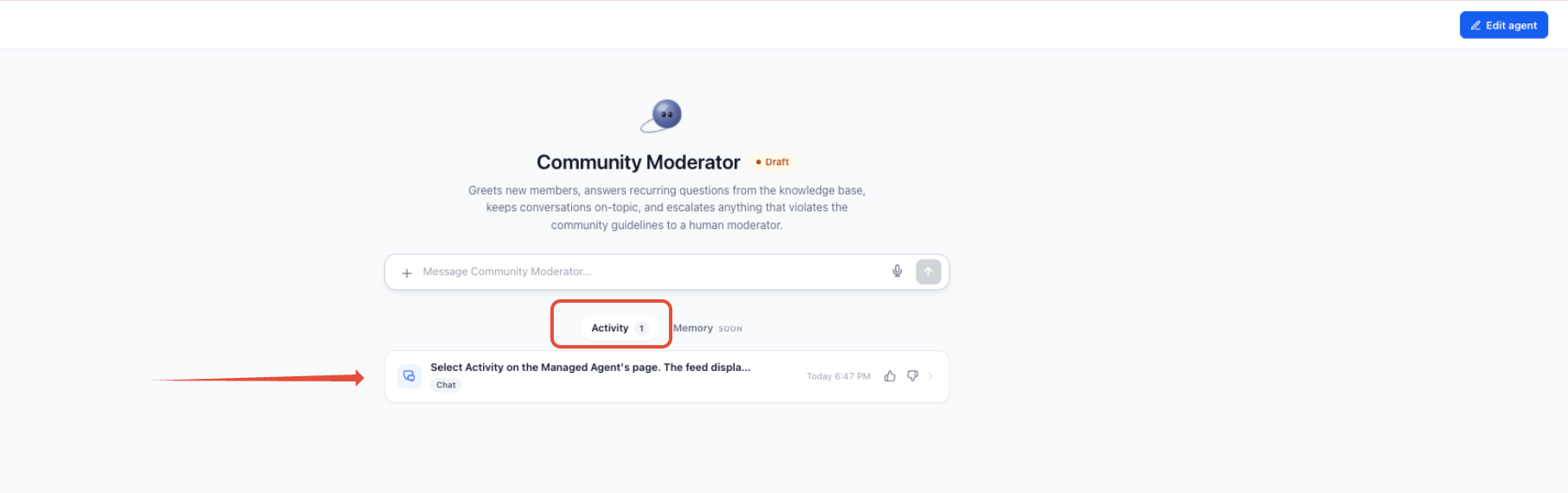
Step 3: Select a Run or Conversation
Browse the Activity Feed and open the applicable run or conversation.
The complete navigation path is:
Sub-Account → AI Agents → Agent Studio → Managed Agents → select the Managed Agent → Activity → open the applicable run or conversation
Step 4: Review the Execution Log
The execution log displays the Agent Conversation View and the execution timeline. Review the conversation, completed steps, tools, timing, and other execution details to understand what occurred during the run.
When reviewing a conversation, you can also rate individual Managed Agent replies using the available thumbs up or thumbs down controls.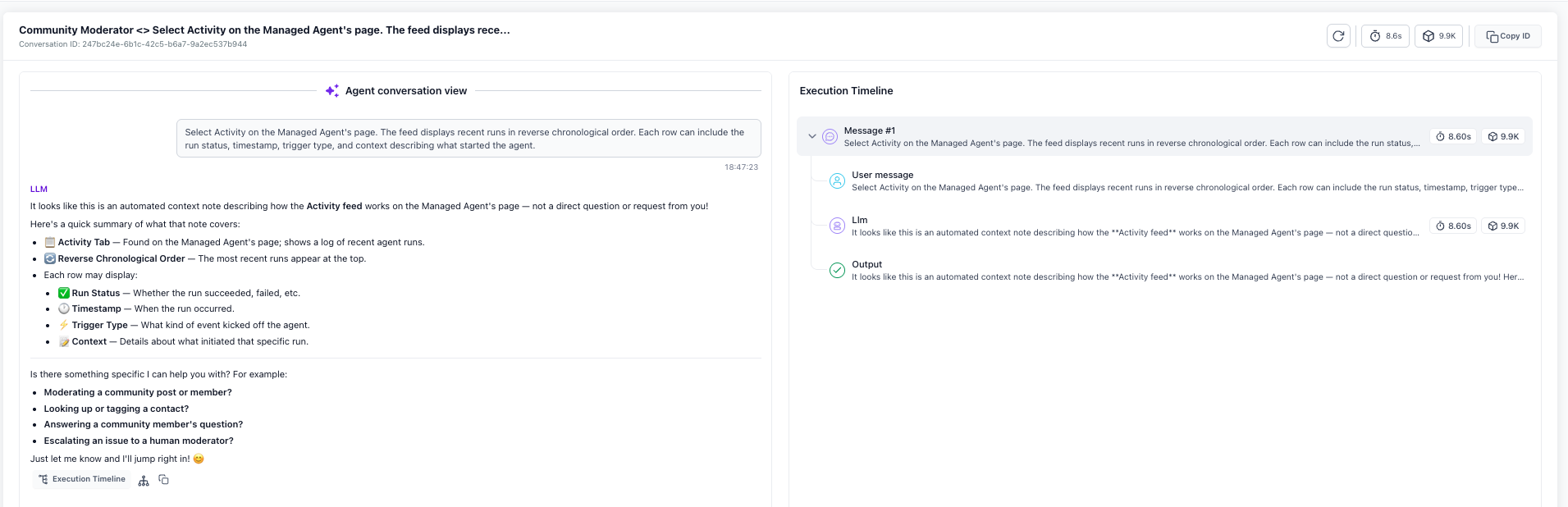
Tip: During testing, use the Activity Feed to verify that the Managed Agent's skills and triggers work as expected. When troubleshooting, review the execution timeline to identify where an issue occurred.
Understanding Activity Feed Data
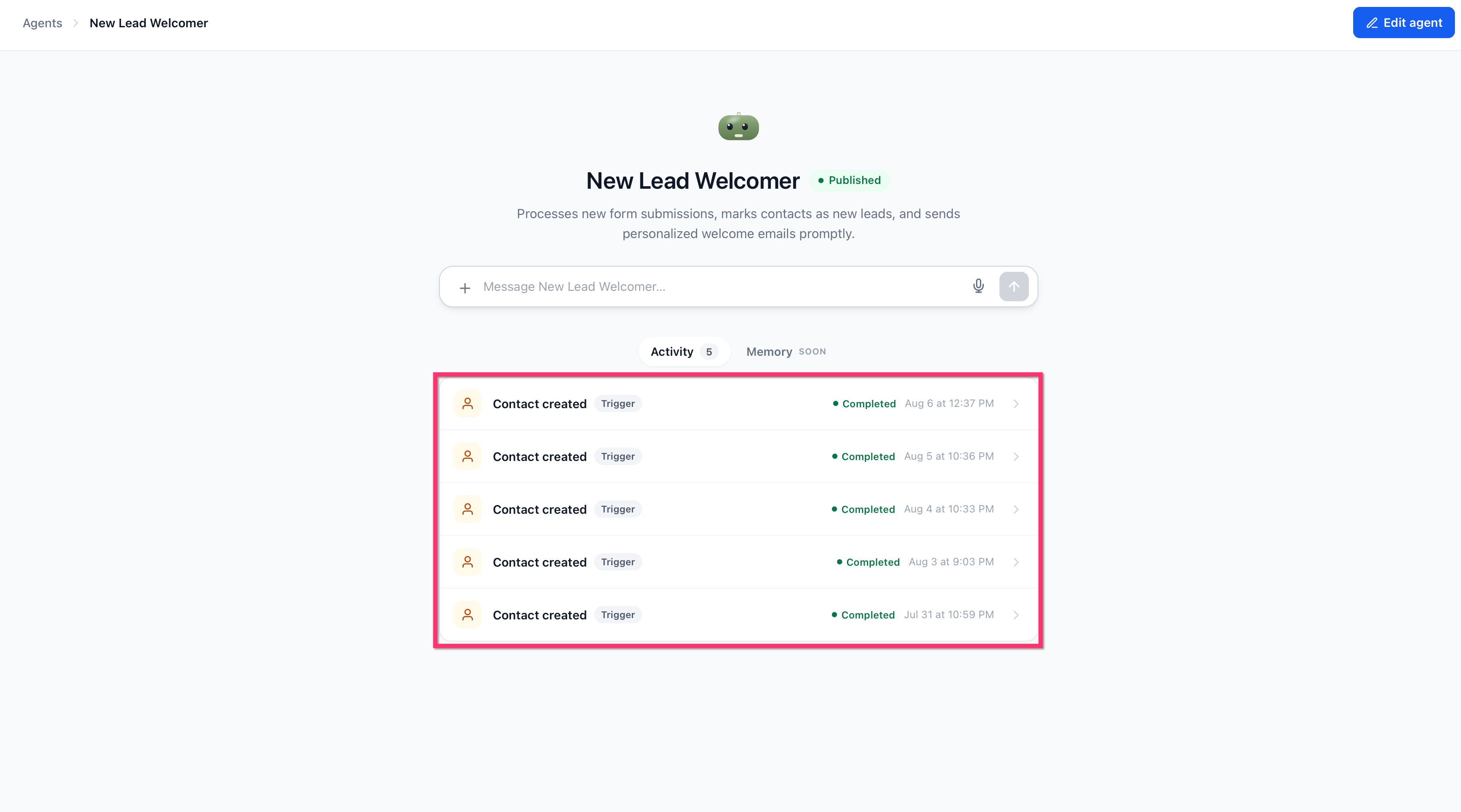
Each Activity Feed row provides information about a single Managed Agent run. These details help you identify how the run started and whether it completed successfully.
Run Icon
The icon identifies the type of activity. For example, automated trigger runs can use a lightning-bolt icon, while live conversations can use a chat icon.
Run Status
The status indicates whether the run completed successfully, failed, or is still in progress.
Timestamp
Each run displays when it started, helping you correlate Managed Agent activity with user actions, submissions, or automation events.
Trigger Type
The trigger label identifies whether the run was initiated through a trigger or conversation.
Context Description
For automated runs, the context can identify the form, tag event, survey, or other event that started the agent. For conversation runs, it can provide a preview of the user's message.
Facebook lead form and survey-triggered runs can also be identified by their Activity event names. Use the event name, status, and timestamp to verify that the submission started the Managed Agent.
Viewing Execution Logs
Opening a run from the Activity Feed displays its execution log. The log provides visibility into the Managed Agent's conversation, completed steps, tool usage, timing, and results.
Agent Conversation View
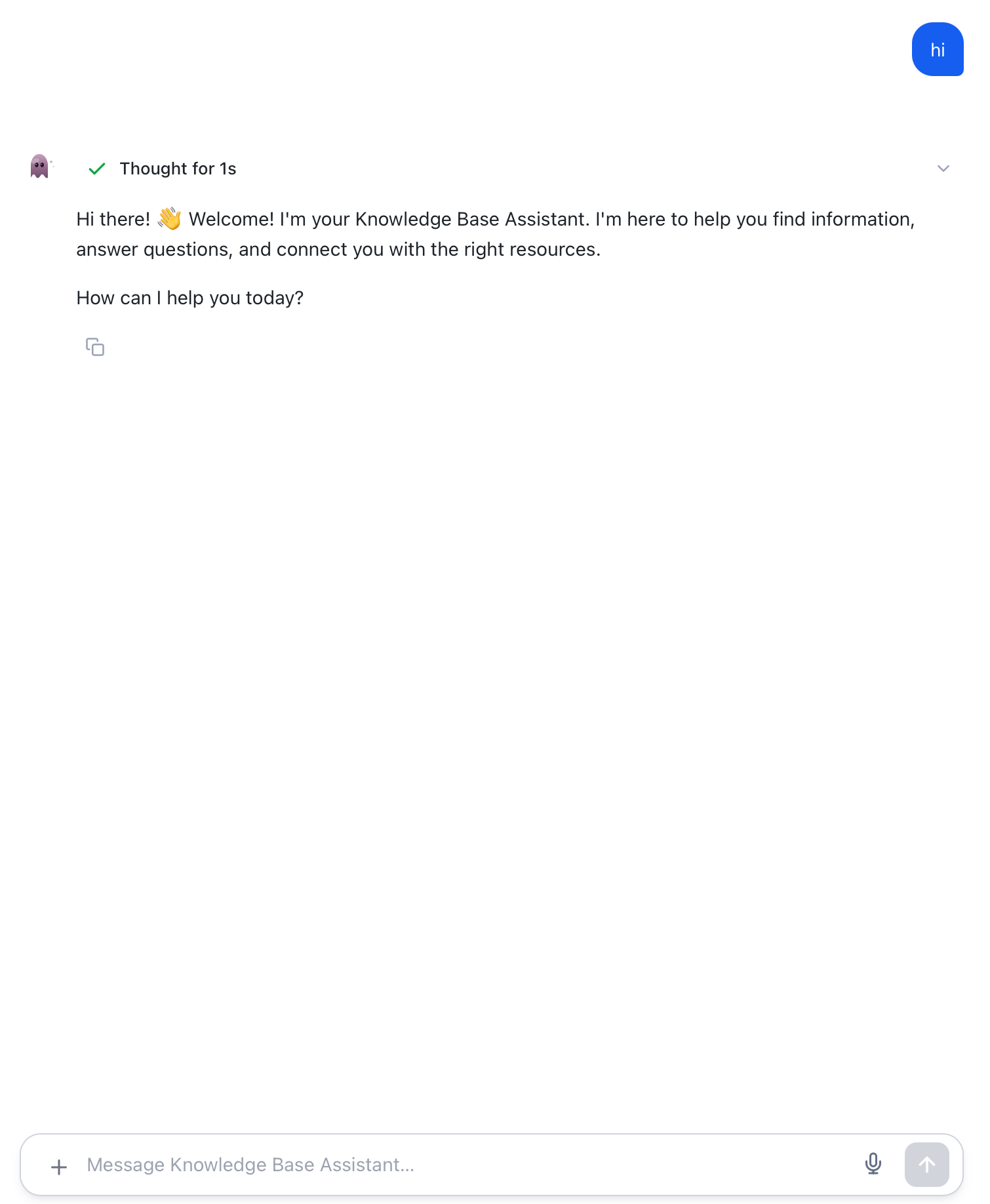
The Agent Conversation View displays the conversation and Managed Agent responses associated with the run. Use this view to understand the conversation context and review individual responses.
Rate Managed Agent Replies
When reviewing a Managed Agent conversation, you can rate individual agent replies directly from the Agent Conversation View.
- Thumbs up: Use a positive rating when the reply was useful, accurate, and appropriate for the conversation.
- Thumbs down: Use a negative rating when the reply included wrong information, missed important context, took an inappropriate action, or was otherwise off-base.
Selecting thumbs down opens a short follow-up where you can explain what went wrong. You can also add an optional note when additional context would help.
Feedback is attached to the specific Managed Agent reply that you rated, keeping the feedback connected to the exact conversation response being reviewed.
After a rating is submitted:
- The selected rating remains visible when you return to the conversation.
- Previously rated replies do not appear as unrated again.
- You can reopen a previous rating to review the feedback you submitted.
Positive ratings highlight replies that are working well, while negative ratings provide concrete examples of misses. Teams can use these examples when reviewing prompts, instructions, knowledge coverage, or overall agent behavior.
Execution Timeline
The execution timeline shows the steps the Managed Agent completed during the run in sequential order, including timing and token usage where available.
Use the timeline to inspect which skills or tools were used and identify where a run behaved differently than expected.
Execution Controls and Metadata
The top of the execution log can include the conversation title and available actions such as refresh, timing metrics, token usage, Copy ID, and View in Agent Logs.
Frequently Asked Questions
Q: Where can I find the Managed Agent Activity Feed?
Go to Sub-Account → AI Agents → Agent Studio → Managed Agents, select the Managed Agent, then open the Activity tab.
Q: What types of runs appear in the Activity Feed?
The Activity Feed can display live conversations and automated trigger runs, including supported form submissions, tag events, Facebook lead form submissions, survey submissions, and other Managed Agent trigger events.
Q: How do I debug a failed Managed Agent run?
Open the failed run from the Activity Feed and review the Agent Conversation View and execution timeline to identify where the issue occurred.
Q: Can I see activity for multiple Managed Agents in one Activity Feed?
The Activity Feed is specific to each Managed Agent. Open each agent's Activity tab to review its runs.
Q: What do the timing and token metrics show?
Timing metrics show how long a step or run took to execute. Token-usage metrics show the number of tokens consumed during supported execution steps or the overall run.
Related Articles
- Agent Studio Overview & Beginner Guide
- How to Build Managed Agents with Natural Language
- Agent Logs in HighLevel: Overview, Benefits, and Setup
- How to Test and Debug AI Conversations in Agent Studio
- Skills Platform for AI Agents
Was this article helpful?
That’s Great!
Thank you for your feedback
Sorry! We couldn't be helpful
Thank you for your feedback
Feedback sent
We appreciate your effort and will try to fix the article