Agent Health helps you monitor the performance of Voice AI and Conversations AI agents, identify issues, and generate tested prompt improvements through Self Healing. This article explains how to enable monitoring, configure scheduled checks, review agent performance, and apply recommended improvements.
TABLE OF CONTENTS
- What is Agent Health & Self Healing?
- How to Access and Enable Agent Health
- How to Configure Agent Health Settings
- How to Monitor Agent Health
- How to Review and Apply Self Healing Recommendations
- Frequently Asked Questions
- Related Articles
What is Agent Health & Self Healing?
Agent Health is a monitoring feature that helps you track AI agent performance from a single dashboard.
Monitoring periodically evaluates agents using recent completed calls or chats, records their health status, and tracks accuracy over time.
Self Healing uses Prompt Optimizer to automatically generate and test improved prompts when monitoring detects an issue. You can compare the results and review the proposed changes before applying them to the live agent.
Important: Self Healing never automatically modifies a live agent. All recommended prompt changes require manual approval.How to Access and Enable Agent Health
Monitoring and Self Healing can be enabled individually for each supported agent.
Navigate to AI Agents → Agent Health.
Find the agent you want to monitor using the agent list, search bar, or filters.
Under Automation, turn on Monitoring.
Turn on Self Healing if you want Prompt Optimizer to automatically prepare tested improvements when an agent needs attention.
Note:

• Agent Health supports Voice AI and Conversations AI agents as of now.

• Monitoring must remain enabled for Self Healing to work. To disable Monitoring, first turn off Self Healing.

• Only users with permission to manage an agent can control its Monitoring and Self Healing settings.

How to Configure Agent Health Settings
Agent Health uses shared settings to determine when agents are checked, which conversations are evaluated, and how usage is managed. These settings apply to all agents in the sub-account that have Monitoring enabled.
Important: Shared settings do not automatically enable Monitoring or Self Healing for individual agents.Open AI Agents → Agent Health.
Click Edit Agent Health settings.
Configure the following settings:
Check every: Choose how frequently agents are monitored, from 1 to 30 days.
Preferred run hour: Select the UTC hour during which scheduled checks should start. The most-used agents are checked first.
Conversations to use: Choose which completed conversations are included in the evaluation sample.
Number of conversations: Select between 2 and 10 conversations per evaluation. At least two usable transcripts are required; conversations without transcripts are skipped.
Monthly Agent Health budget: Review the monthly budget, usage, reserved amounts, and remaining allowance displayed in the settings panel.
Click Save for all agents.

Note: Agent Health runs are also subject to existing paid AI usage limits. Runs covered by the plan are labeled Covered by plan. If the applicable AI usage limits do not permit a new run, it will not start.How to Monitor Agent Health
The Agent Health dashboard provides a consolidated view of agent performance, including conversation volume, health status, accuracy trends, recommendations, and scheduled checks.
View Agent Health Status
Each agent displays one of the following statuses based on its monitoring results:
Good: The latest evaluation indicates acceptable performance.
Needs attention: Monitoring identified a performance issue.
Unknown: A health verdict is unavailable.
Not checked yet: The agent has not completed a health evaluation.
You can also view the agent's accuracy trend, most recent check, and next scheduled check directly from the dashboard.

View Detailed Results or Run a Manual Check
Open AI Agents → Agent Health.
Click an agent's name to open its details.
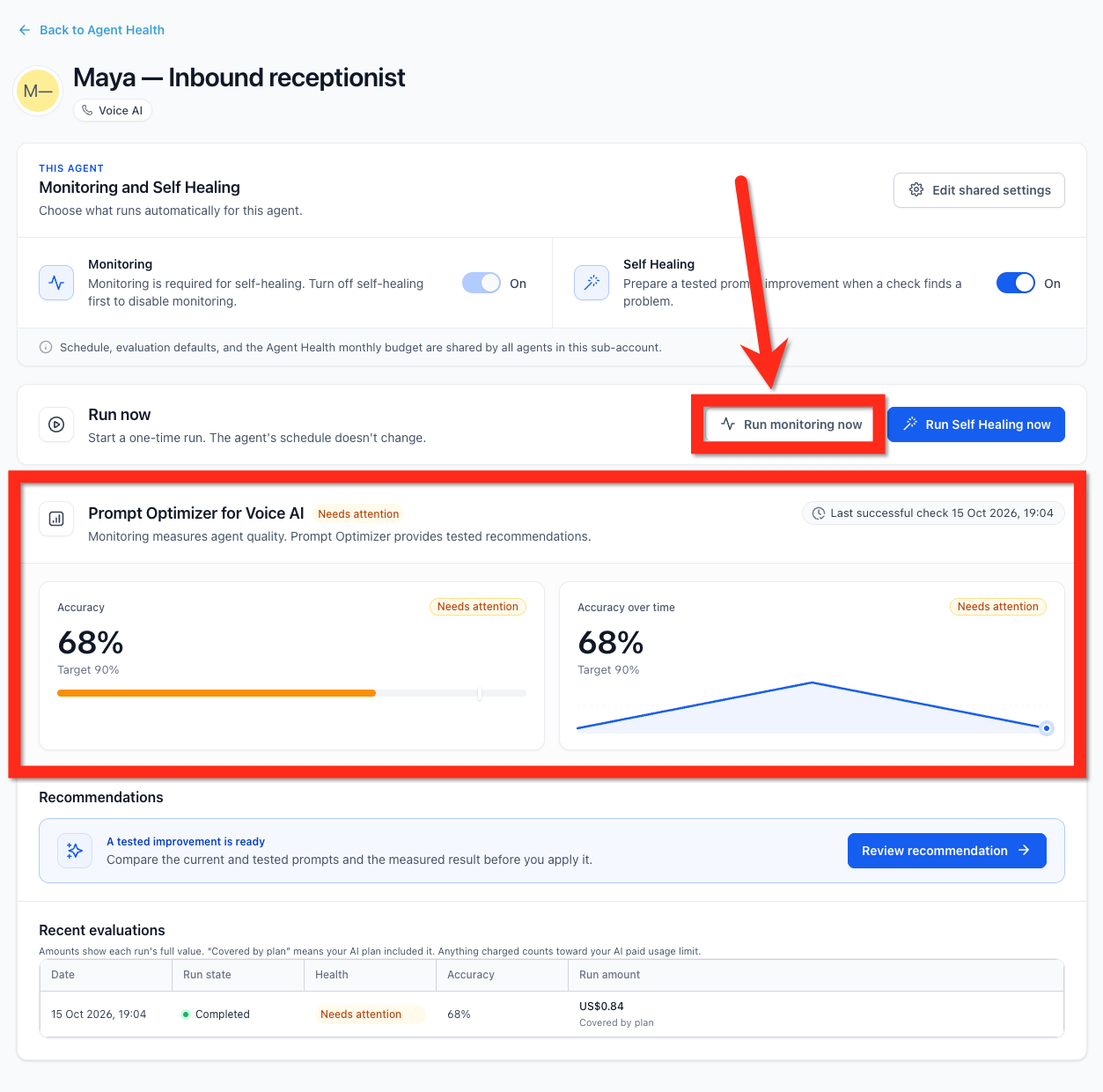
Review the Prompt Optimizer panel, which displays the latest accuracy score, target accuracy, accuracy trend, and recent evaluations.
Click Run monitoring now to start a one-time evaluation without changing the agent's scheduled monitoring frequency.
How to Review and Apply Self Healing Recommendations
When an agent needs attention and Self Healing is enabled, Prompt Optimizer can automatically generate and test an improved prompt. Agent editors receive an in-app notification and email alert when a recommendation is ready.
Review a Recommendation
Open AI Agents → Agent Health.
Locate the agent marked Needs attention.
Click Review & apply in the dashboard, or open the agent and select Review recommendation.

Review the Prompt Optimizer recommendation, including:
Previous and recommended accuracy scores.
Number of calls tested, passed, and failed.
Available optimization variations and the best-performing variation.
Use Prompt Diff to see the changes between the existing and recommended prompt.
Select AI Reasoning to understand the suggested improvement.
Select View full prompt to inspect the complete recommended prompt before applying it.

Apply the Recommended Prompt
Important: Tested improvements reflect the conversations included in that evaluation. A higher tested accuracy score does not guarantee the same results in every live customer interaction.After reviewing the recommendation:
Confirm that the proposed instructions match your agent's intended behavior.
Click Apply to live agent to apply the tested prompt.
Use the next monitoring check to evaluate the agent's performance after the update.

You can also click Run Self Healing now from the individual agent page to start a one-time Self Healing run.

Frequently Asked Questions
Q: Why does an agent show an Unknown health status?
An Unknown status means a health verdict is unavailable. Check the latest run status for errors or failed evaluations before attempting another check.
Q: Why is an agent's next check marked Not scheduled?
Monitoring may be disabled or blocked. Check the Monitoring toggle and the Last check column for more details.
Q: What happens if there are not enough conversation transcripts?
Agent Health requires at least two usable transcripts for an evaluation. Conversations without transcripts are skipped, so a check may not have enough data to complete.
Q: What happens if the AI usage limit prevents a check?
The run will not start. Review the usage information displayed in Agent Health and the sub-account's AI usage limits to identify the restriction.
Related Articles
Was this article helpful?
That’s Great!
Thank you for your feedback
Sorry! We couldn't be helpful
Thank you for your feedback
Feedback sent
We appreciate your effort and will try to fix the article