Voice AI test call logs help you review how an agent performed during testing without affecting live analytics. Test calls can be reviewed alongside live call activity in Dashboard & Logs using the Live/Test filter. This article explains how to find test calls, review recordings and transcripts, and understand why test calls are excluded from dashboard performance metrics.
TABLE OF CONTENTS
- What are Test Call Logs in Voice AI?
- Key Benefits of Test Call Logs in the Voice AI Dashboard
- Test Calls vs. Live Calls
- When to Review Test Call Logs
- How To View Test Call Logs in the Voice AI Dashboard
- What You Can Review in a Test Call Log
- Why Test Calls Are Excluded from Analytics
- All Agents vs. Agent-Specific Logs
- Frequently Asked Questions
What are Test Call Logs in Voice AI?
Test call logs are records created when a Voice AI agent is tested before or after launch. These logs help you review the agent’s responses, confirm expected behavior, and identify improvements before sending live customer calls to the agent.
Test call logs can include details such as call recordings, transcripts, call timing, agent information, and other available call details. They are useful for quality assurance and troubleshooting, but they do not count toward dashboard analytics or performance metrics.
Key Benefits of Test Call Logs in the Voice AI Dashboard
Test call logs make it easier to validate Voice AI behavior before relying on the agent for live calls. By reviewing test activity separately from live calls, teams can improve prompts, call settings, and actions without affecting production reporting.
- Review test conversations: Listen to recordings and read transcripts from test calls.
- Validate agent behavior: Confirm the agent responds correctly before going live.
- Troubleshoot safely: Investigate issues without impacting live call analytics.
- Compare live and test activity: Use the Live/Test filter to switch between call types.
- Protect reporting accuracy: Keep test activity out of dashboard performance metrics.
Test Calls vs. Live Calls
Understanding the difference between test calls and live calls helps you use logs correctly. Test calls are designed for validation and troubleshooting, while live calls represent real customer interactions that contribute to production performance analysis.
- Test Calls: Calls made while testing a Voice AI agent.
- Live Calls: Real customer calls handled by the Voice AI agent.
Test calls appear in logs so you can review them, but they are excluded from dashboard analytics and performance metrics.
When to Review Test Call Logs
Test call logs are most useful when making changes to an agent or validating behavior before live deployment. Reviewing logs after each major update helps catch issues early and gives teams a reliable way to confirm the agent is ready.
Use test call logs when:
- Testing a new Voice AI agent.
- Updating prompts, call settings, custom values, or actions.
- Checking Web Call or Phone Call test results.
- Reviewing recordings and transcripts for quality assurance.
- Confirming whether a test call was logged successfully.
- Validating behavior before assigning numbers or sending live calls to the agent.
How To View Test Call Logs in the Voice AI Dashboard
Test call logs are available from the Dashboard & Logs area in Voice AI. Use the logs table and Live/Test filter to focus on test activity, live activity, or both.
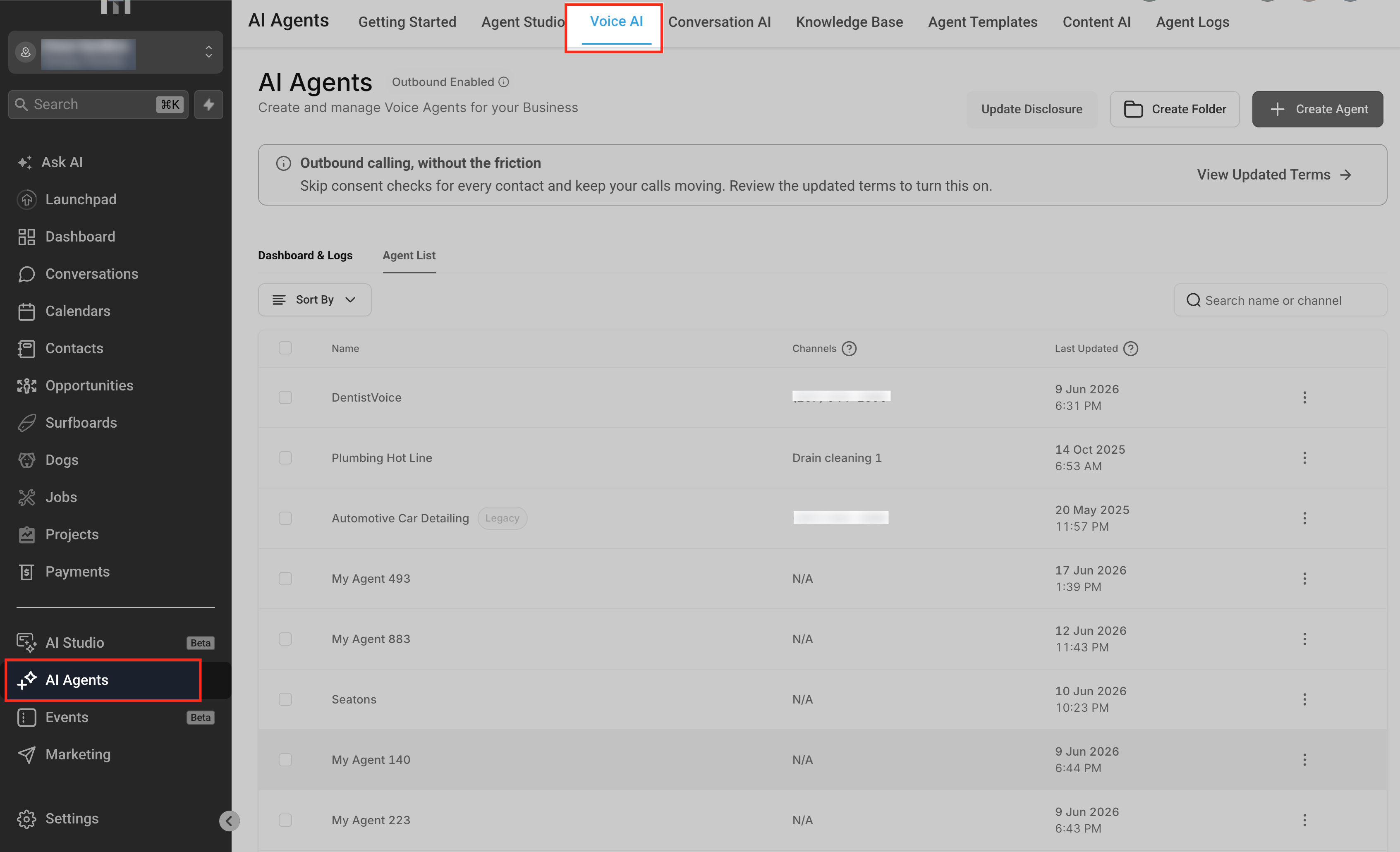
Go to AI Agents > Voice AI
Open AI Agents, then select Voice AI. This area contains Voice AI agents, dashboard analytics, and call logs.
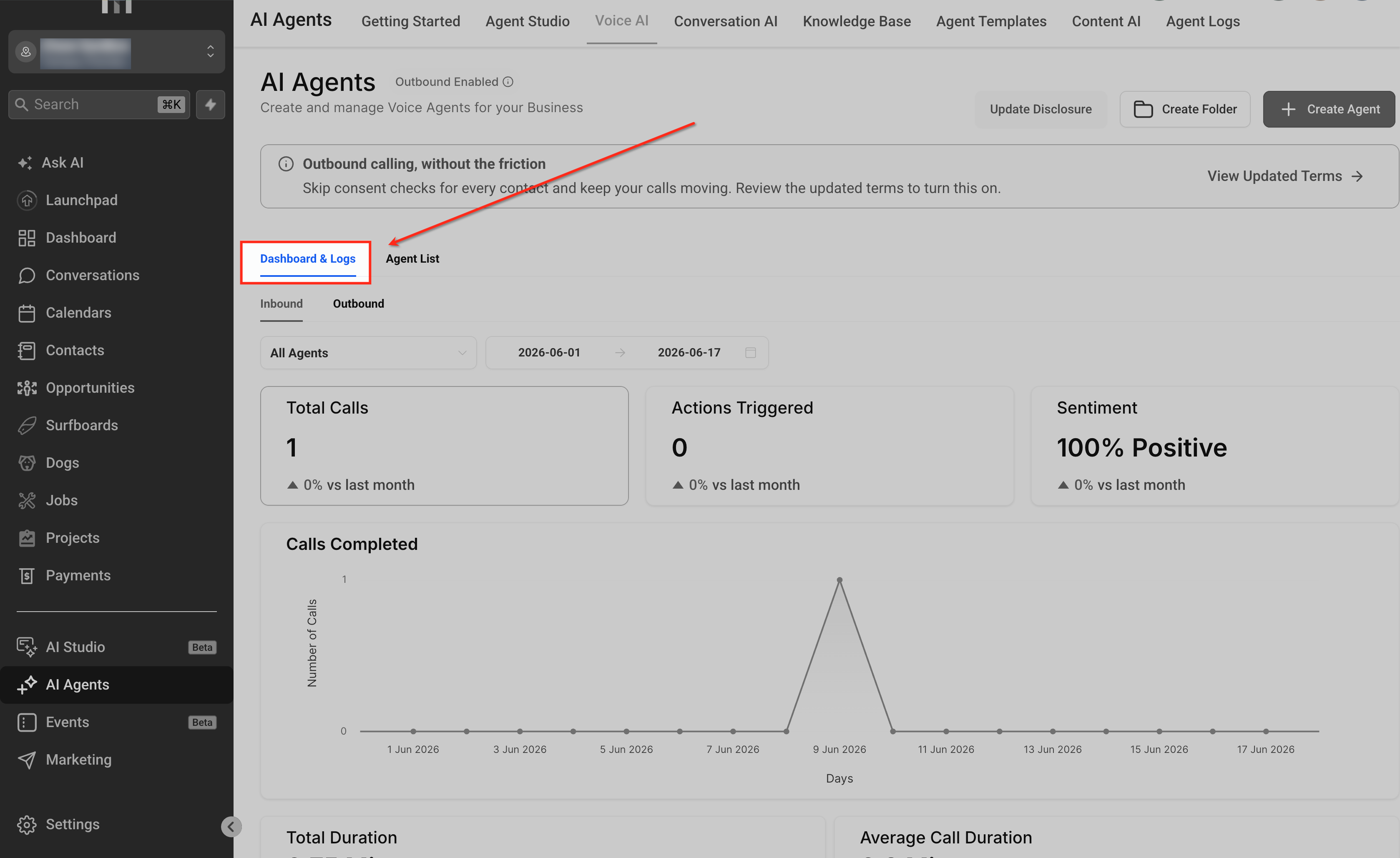
Open Dashboard & Logs
Select Dashboard & Logs to view Voice AI performance information and call activity. The dashboard includes analytics cards, charts, filters, and the logs table.
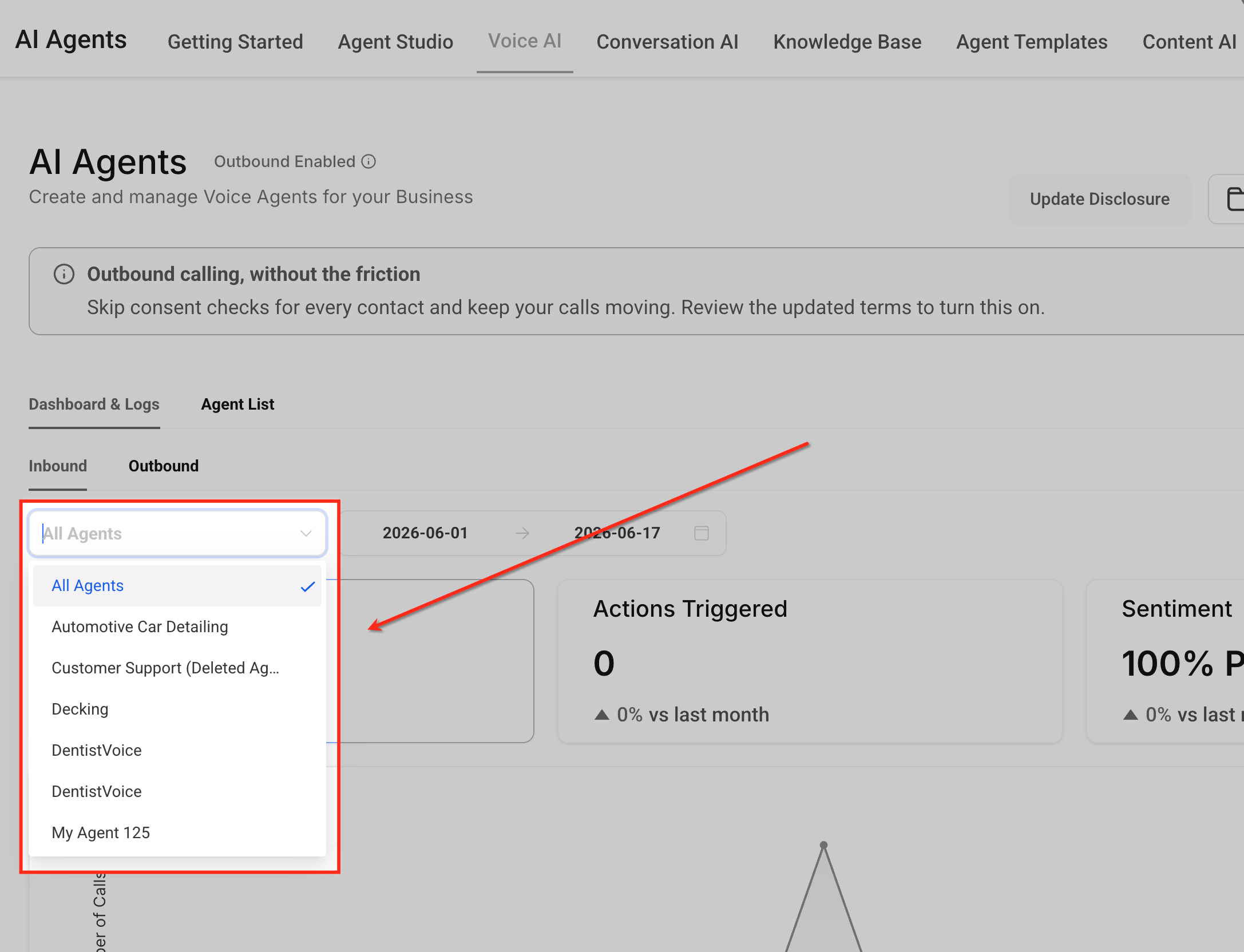
Choose All Agents or a specific agent
Use the agent filter to view call activity for all agents or narrow the logs to one specific Voice AI agent. This helps you find test calls faster when multiple agents are being tested.
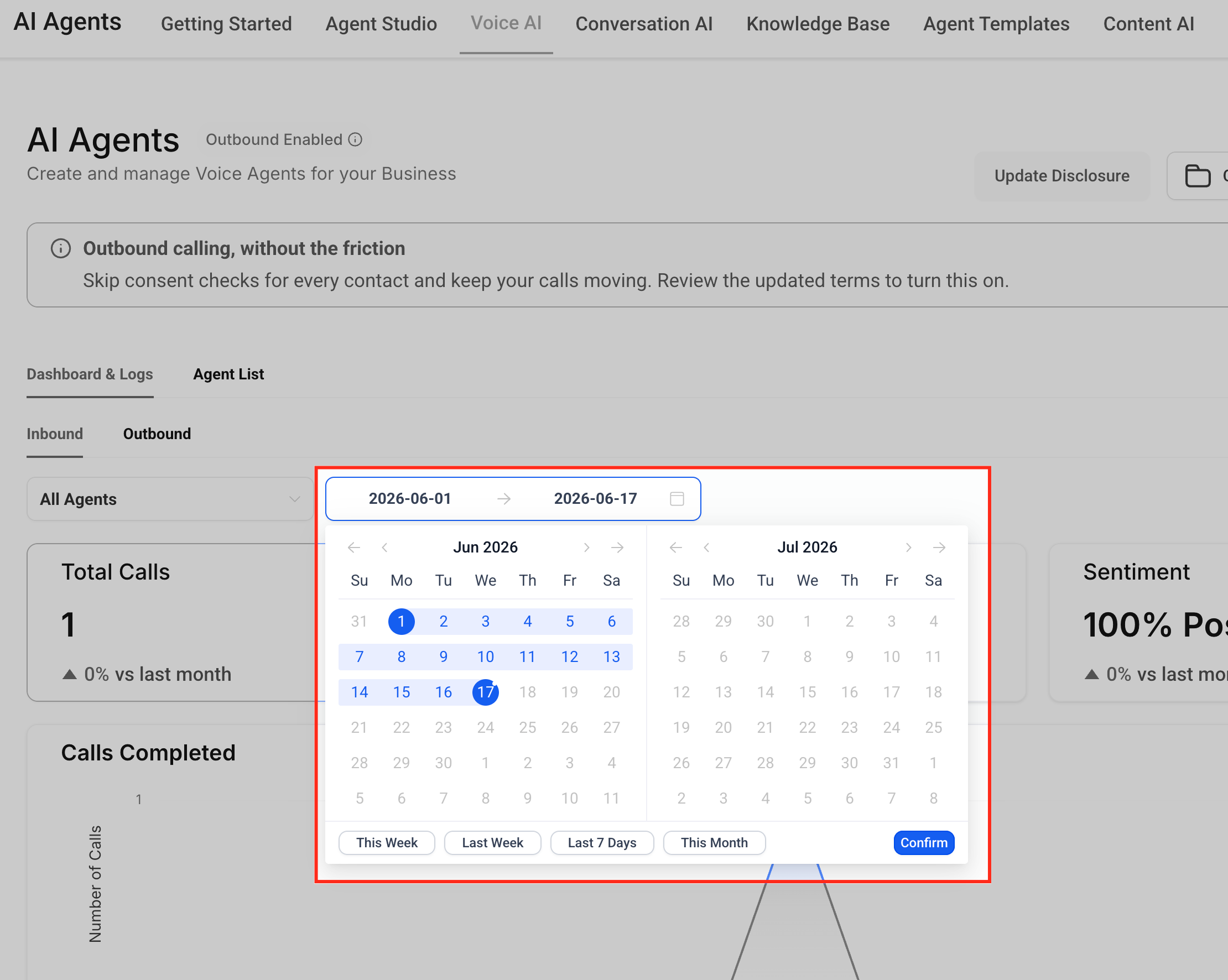
Check the date range
Use the date range picker to make sure the expected test call date is included. If a test call is missing, the selected date range is one of the first settings to review.
Locate the logs table
Scroll to the logs table below the dashboard analytics area. Test calls are reviewed in the logs table, not in the dashboard metric cards.
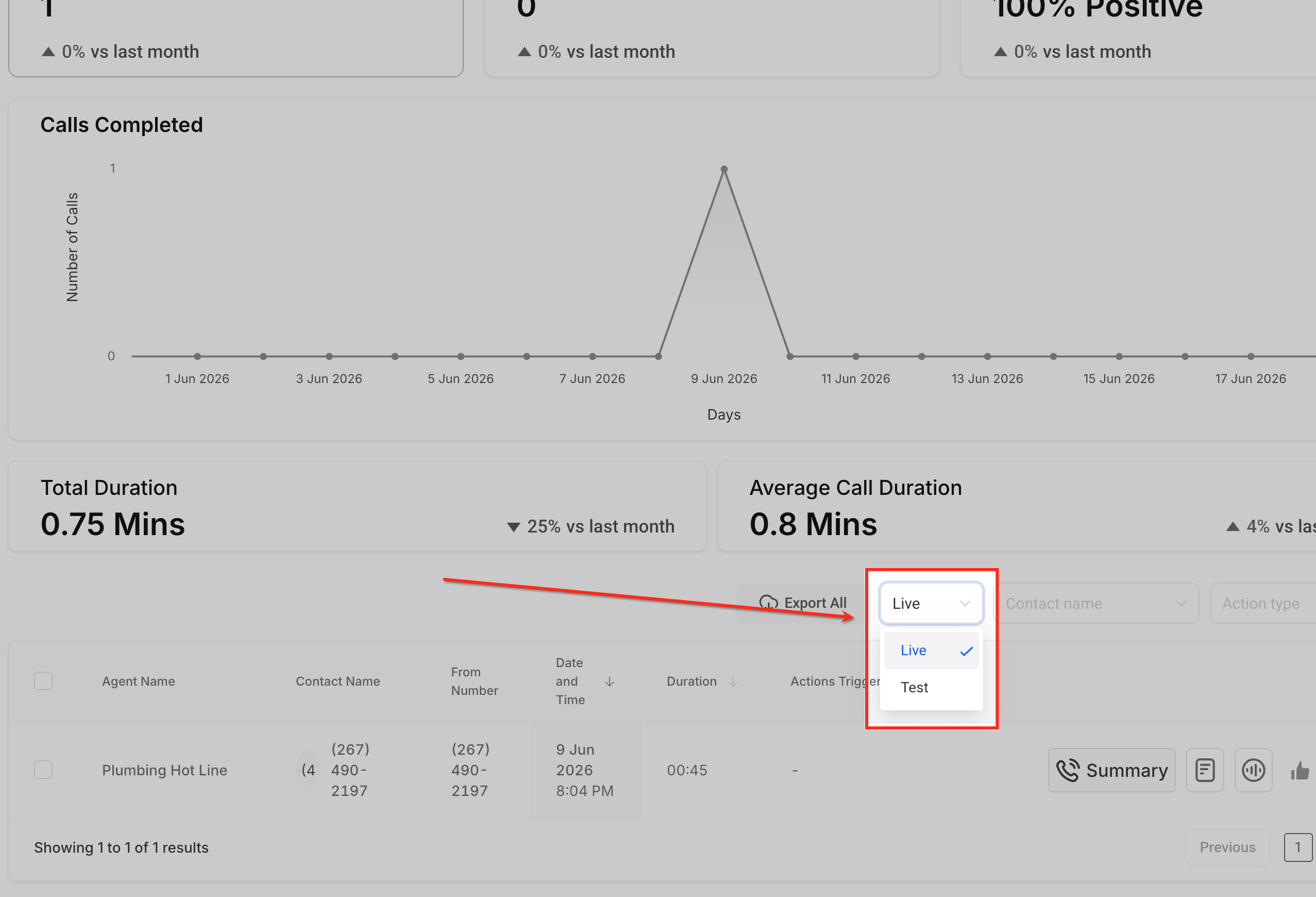
Open the Live/Test filter in the logs table. Select the option that matches the type of calls you want to review.
Open a test call entry
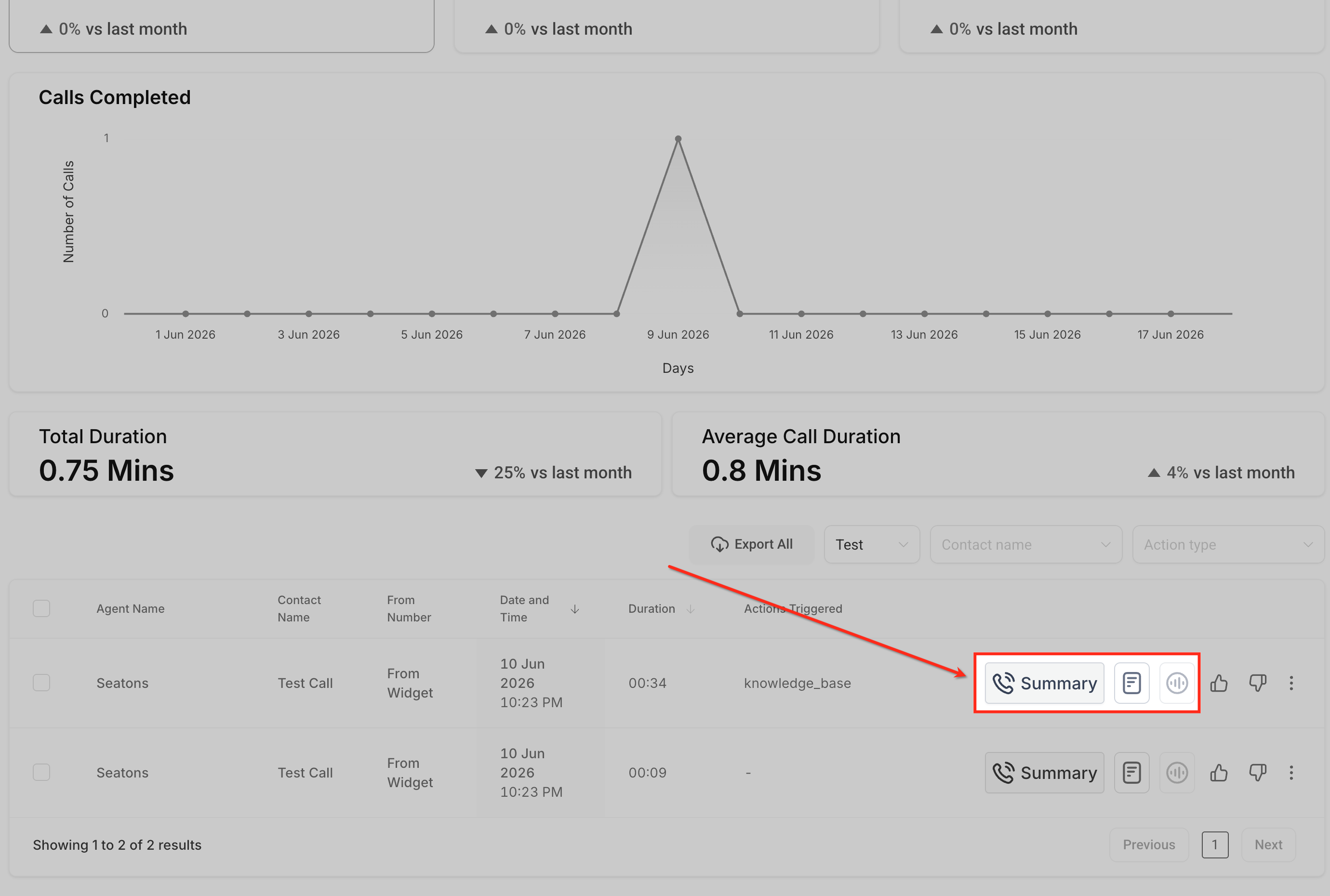
Select a test call entry to review available call details. Depending on the call, you may be able to review the recording, transcript, contact or caller details, agent name, date and time, call outcome, and other logged activity.
Clear or change the filter
When you are finished reviewing test calls, clear or change the Live/Test filter to return to live calls or the combined logs view.
What You Can Review in a Test Call Log
Test call logs provide useful context for understanding how a Voice AI agent handled a test conversation. Reviewing these details can help you identify gaps in instructions, routing behavior, action triggers, or caller experience.
Depending on the call data available, a test call log may include:
- Call recording
- Call transcript
- Agent name
- Contact or caller details
- Date and time
- Call status or outcome
- Actions triggered during the call
- Conversation details useful for troubleshooting
Use the transcript and recording together when possible. The transcript helps you scan the conversation quickly, while the recording helps confirm tone, timing, silence, interruptions, and caller experience.
Why Test Calls Are Excluded from Analytics
Test calls are meant for internal review, troubleshooting, and quality assurance. Excluding them from dashboard analytics keeps reporting focused on real customer interactions and prevents testing activity from changing production performance metrics.
Test calls can appear in logs with recordings and transcripts, but they do not affect metrics such as live call totals, call outcomes, sentiment, completed calls, actions triggered, or other dashboard performance reporting.
All Agents vs. Agent-Specific Logs
Dashboard & Logs can be used to review activity across all Voice AI agents or for one selected agent. Choosing the right view helps you find the correct test call faster and prevents confusion when multiple agents are being tested.
Use All Agents when you want to review test activity across every Voice AI agent in the sub-account.
Use an agent-specific view when you only want to review calls for one selected Voice AI agent.
If the wrong calls are showing, check the selected agent filter, date range, and Live/Test filter.
Frequently Asked Questions
Q: Where can I see Voice AI test calls?
Go to AI Agents > Voice AI > Dashboard & Logs, then use the logs table and Live/Test filter to view test calls.
Q: What is the Live/Test filter?
The Live/Test filter lets you control whether the logs table shows live calls, test calls, or both.
Q: Are test calls counted in Voice AI dashboard metrics?
No. Test calls appear in logs for review, but they are excluded from dashboard analytics and performance metrics.
Q: Can I view recordings and transcripts for test calls?
Yes, test call logs can include recordings and transcripts when those details are available and processing is complete.
Q: What is the difference between test calls and live calls?
Test calls are used to validate or troubleshoot a Voice AI agent. Live calls are real customer calls handled by the agent.
Q: Can I filter test calls for a specific agent?
Yes. Select the specific agent in Dashboard & Logs, then use the Live/Test filter to view test call activity for that agent.
Q: Why can’t I find my test call?
Check the selected date range, agent filter, and Live/Test filter. Also confirm the test call completed successfully.
Q: Do Web Call tests appear in logs?
Web Call tests may appear in logs after completion. Use the Live/Test filter, correct agent selection, and date range to find them.
Q: Should I review test call logs before deploying an agent live?
Yes. Reviewing test call logs helps confirm the agent responds correctly before live callers interact with it.
Related Articles
Was this article helpful?
That’s Great!
Thank you for your feedback
Sorry! We couldn't be helpful
Thank you for your feedback
Feedback sent
We appreciate your effort and will try to fix the article