Managing feature access across multiple HighLevel sub-accounts is easy with the Update features bulk action. Agencies can enable or disable features for multiple sub-accounts at once without updating each account individually. This helps streamline client onboarding, manage feature rollouts, and maintain consistent feature access across sub-accounts.
TABLE OF CONTENTS
- What Is Bulk Feature Management for Sub-Accounts?
- How to Bulk Enable or Disable Features for Sub-Accounts
- Related Articles
What Is Bulk Feature Management for Sub-Accounts?
Bulk feature management allows agencies to enable or disable features across multiple sub-accounts directly from the Agency View's Sub-Accounts listing. Agencies can select multiple sub-accounts, choose the features they want to modify, and apply access changes in a single bulk operation.
Features are organized into categories and subgroups, making it easy to select individual features or entire groups. Only the selected features are updated, while unselected features retain their existing settings.
How to Bulk Enable or Disable Features for Sub-Accounts
The Update features bulk action makes it easy to manage feature access across multiple sub-accounts from one place. Simply select the sub-accounts, choose which features to update, and apply the desired access settings.
From Agency View, navigate to the Sub-Accounts tab.
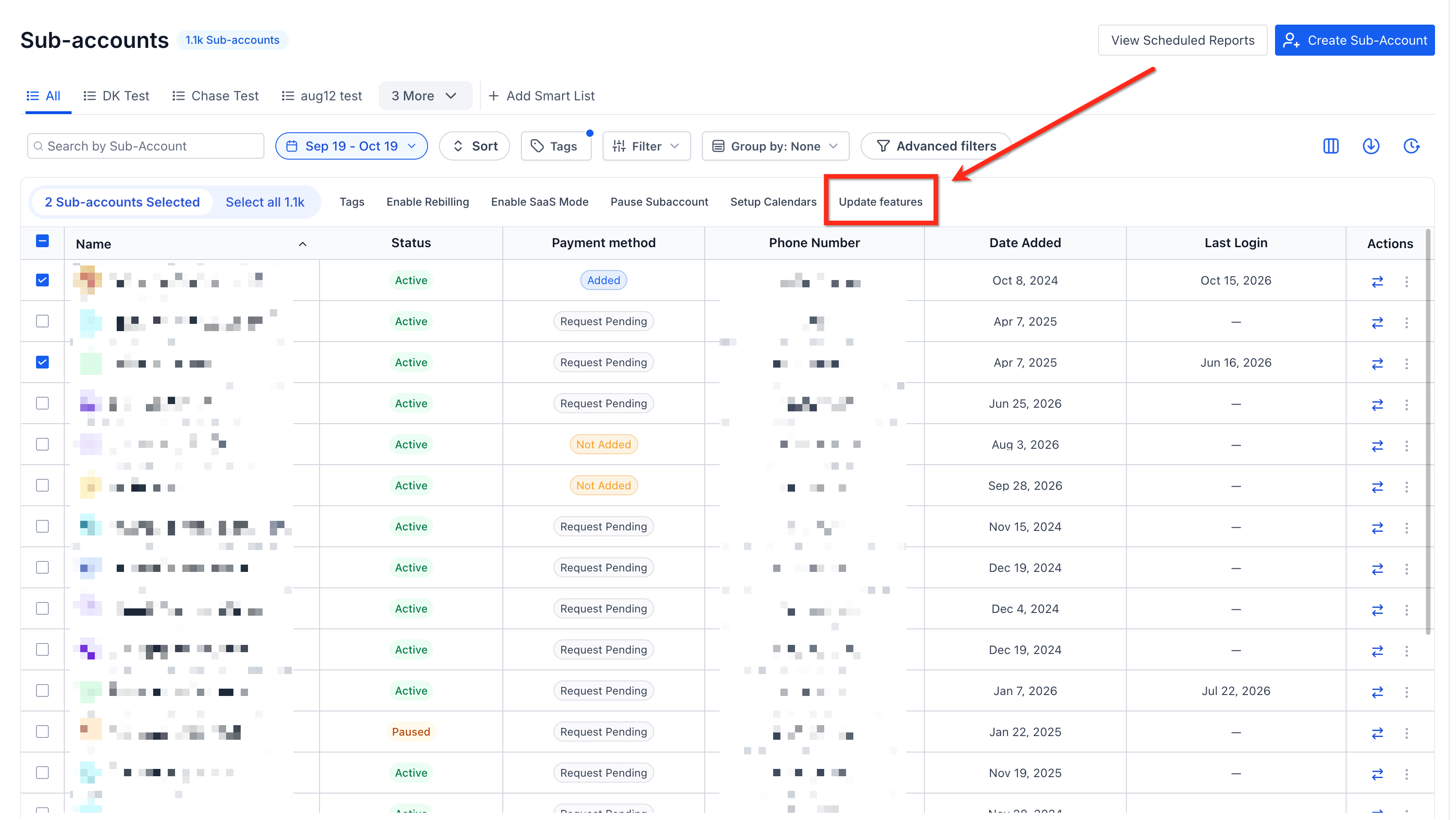
Select the checkboxes beside the sub-accounts you want to update, then click Update features in the bulk-action toolbar.
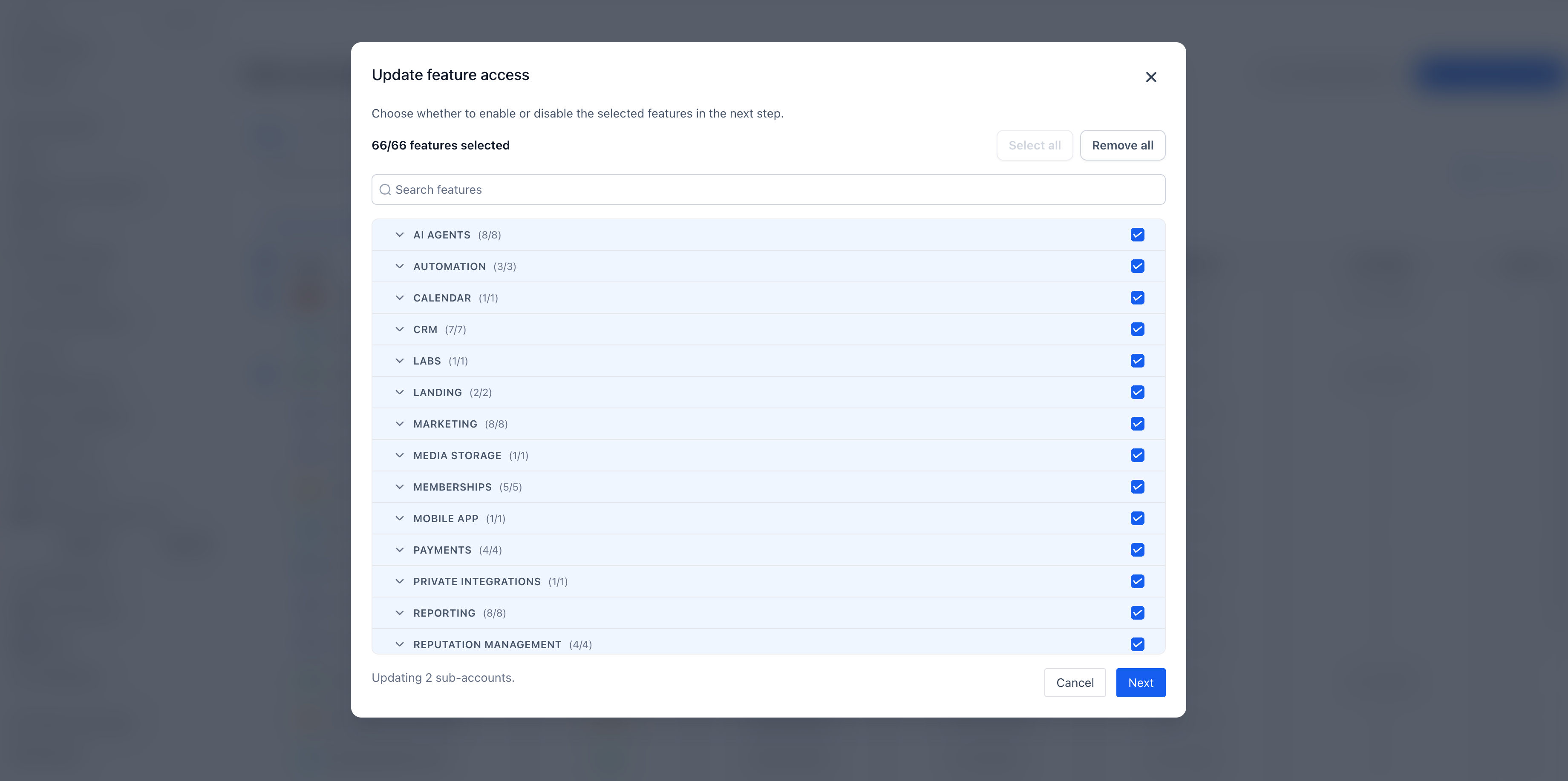
In the Update feature access window, select the features you want to modify. You can search for specific features, select individual features or groups, or use Select all and Remove all to manage your selection.
Click Next to continue.
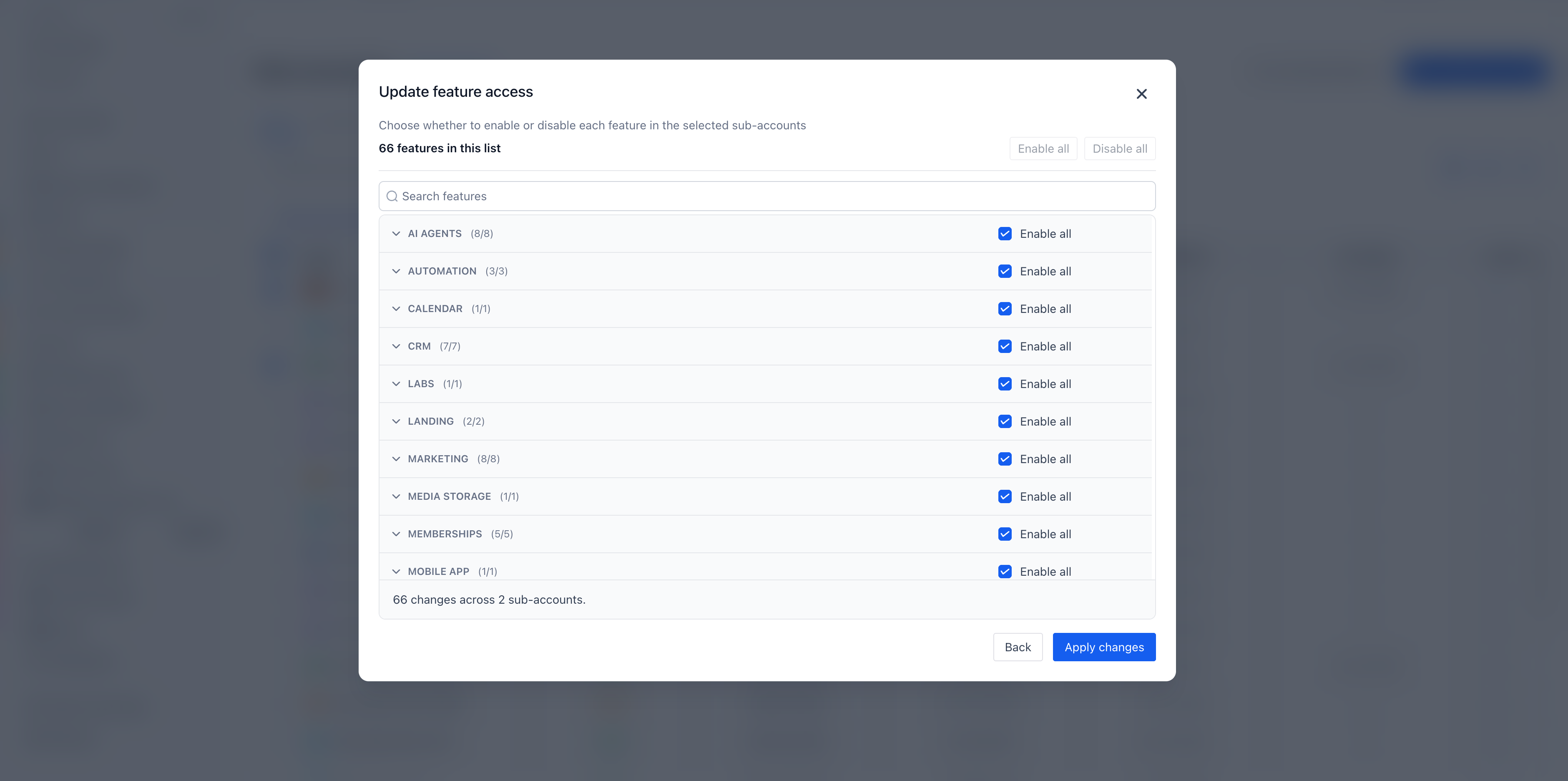
Choose Enable or Disable for each selected feature. You can also use Enable all or Disable all to apply the same setting to multiple features at once.
Click Apply changes to submit the bulk update.
Once the changes are submitted, a confirmation message will appear. Updates typically take 2–5 minutes to take effect. Click View bulk action history to track their progress.
Related Articles
Was this article helpful?
That’s Great!
Thank you for your feedback
Sorry! We couldn't be helpful
Thank you for your feedback
Feedback sent
We appreciate your effort and will try to fix the article