Unified Reselling Experience in HighLevel
This article explains how the unified reselling interface consolidates subscription-based products, usage-based products, and Marketplace reselling into a single location, eliminating the need to navigate between separate pages.
You will learn how to configure global markup settings, manage products at the sub-account level, use bulk actions for efficient updates, and understand how existing configurations carry over automatically.
The unified reselling experience is currently available in Labs. Enable it from your Agency dashboard to explore the functionality and provide feedback as you test the interface.
What is the Unified Reselling Experience?
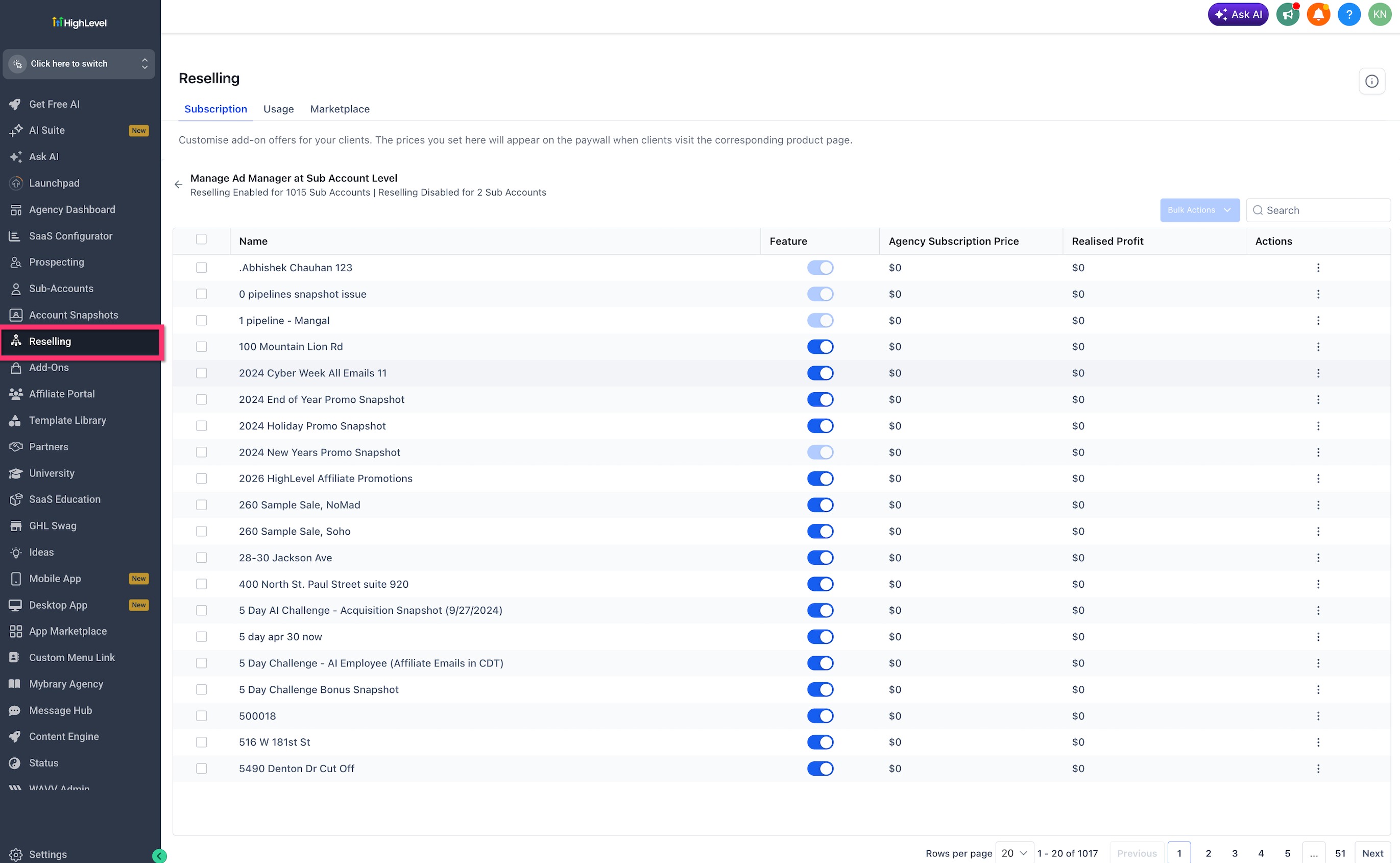
The unified reselling experience is the updated Reselling page in HighLevel where agencies can manage the products and services they resell to clients. Instead of separating subscription reselling and usage-based rebilling into different areas, HighLevel now organizes resellable products under one page with clearer tabs, product groupings, and configuration options.
The experience includes three primary areas:
- Subscription: Manage subscription-based products and set client-facing subscription pricing.
- Usage: Manage usage-based products and configure usage markups.
- Marketplace: Manage Marketplace app reselling where applicable.
The term "Rebilling" has been renamed to "Usage-based Reselling" to better describe how agencies charge clients for usage-based products. This is a terminology change only and does not affect how existing products are billed or how previously configured products continue to work.
Key Benefits
A single Reselling page helps agencies reduce setup time, avoid confusion, and manage revenue opportunities more consistently. This is especially helpful for agencies selling multiple HighLevel products across many sub-accounts.
Reselling Page Tabs
The Reselling page is organized into tabs so agencies can quickly understand which type of product they are configuring. Each tab supports a different reselling model and helps separate subscription pricing from usage-based markups.
The Reselling page includes:
- Subscription: Configure subscription-based add-ons and client-facing prices.
- Usage: Configure usage-based products, global markups, and sub-account usage reselling.
- Marketplace: Manage reselling options for supported Marketplace products.
Use the tabs at the top of the Reselling page to move between product types without leaving the Reselling experience.
Subscription-Based Reselling
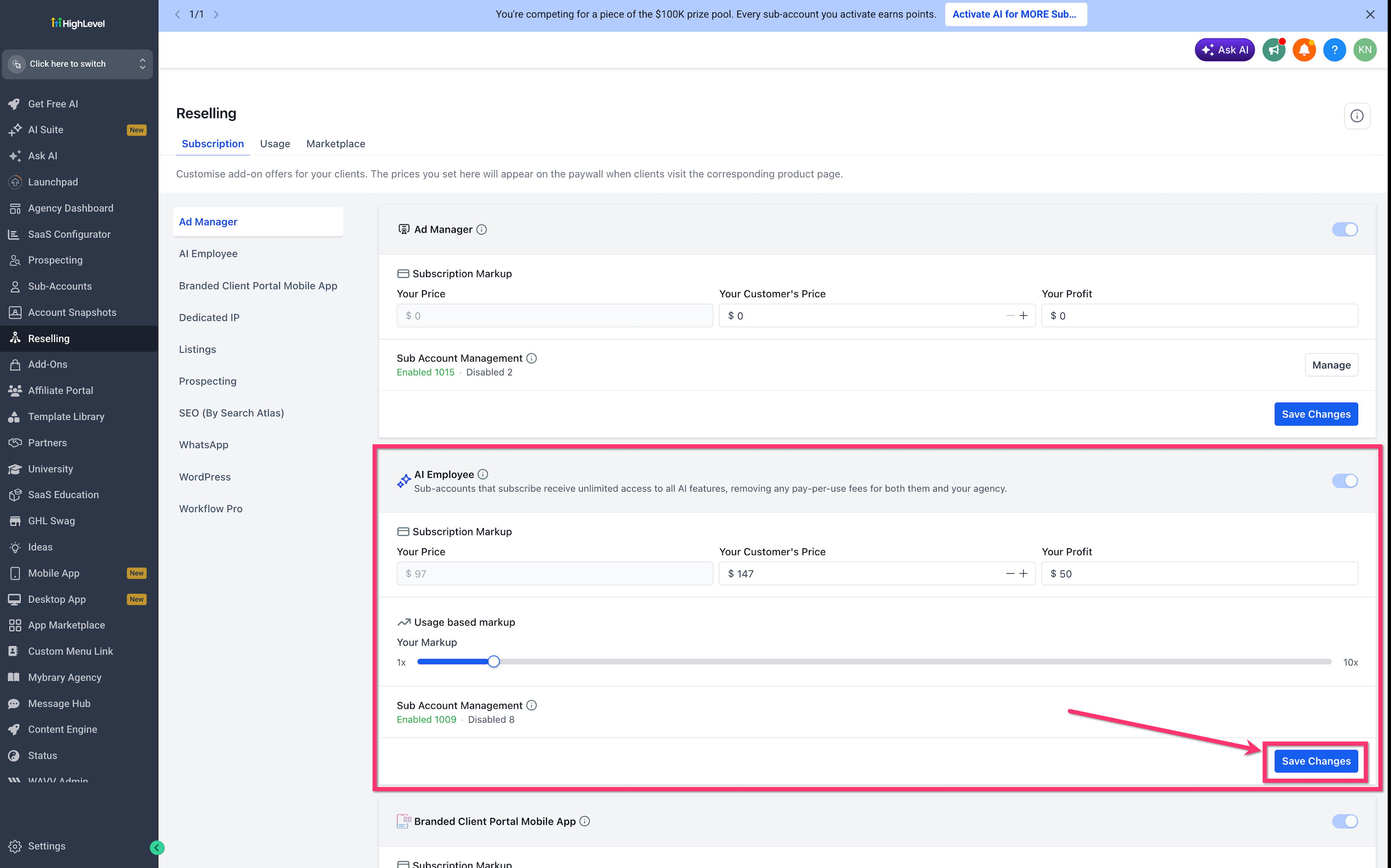
Subscription-based reselling lets agencies offer supported products to clients at a recurring subscription price. Agencies can define the customer-facing price, review agency cost, and understand realized profit before enabling products for sub-accounts.
Subscription-based product configuration may include:
- Agency subscription price
- Customer-facing price
- Realized profit
- Feature enablement
- Sub-account-level management
- Product-specific actions
From the Subscription tab, select the product you want to configure, set your customer's price, and use the Manage option to control which sub-accounts have access to the product.
Usage-Based Reselling
Usage-based Reselling is the updated name for rebilling. It applies to products where clients are charged based on actual usage, such as supported wallet-billed services. Agencies can configure usage markups so client charges include the agency's desired margin above the base cost.
Usage-based products may include settings such as:
- Usage-based markup
- Base rates charged to the agency
- Global markup controls
- Sub-account management
- Usage reselling enablement
- Product-specific markup ranges
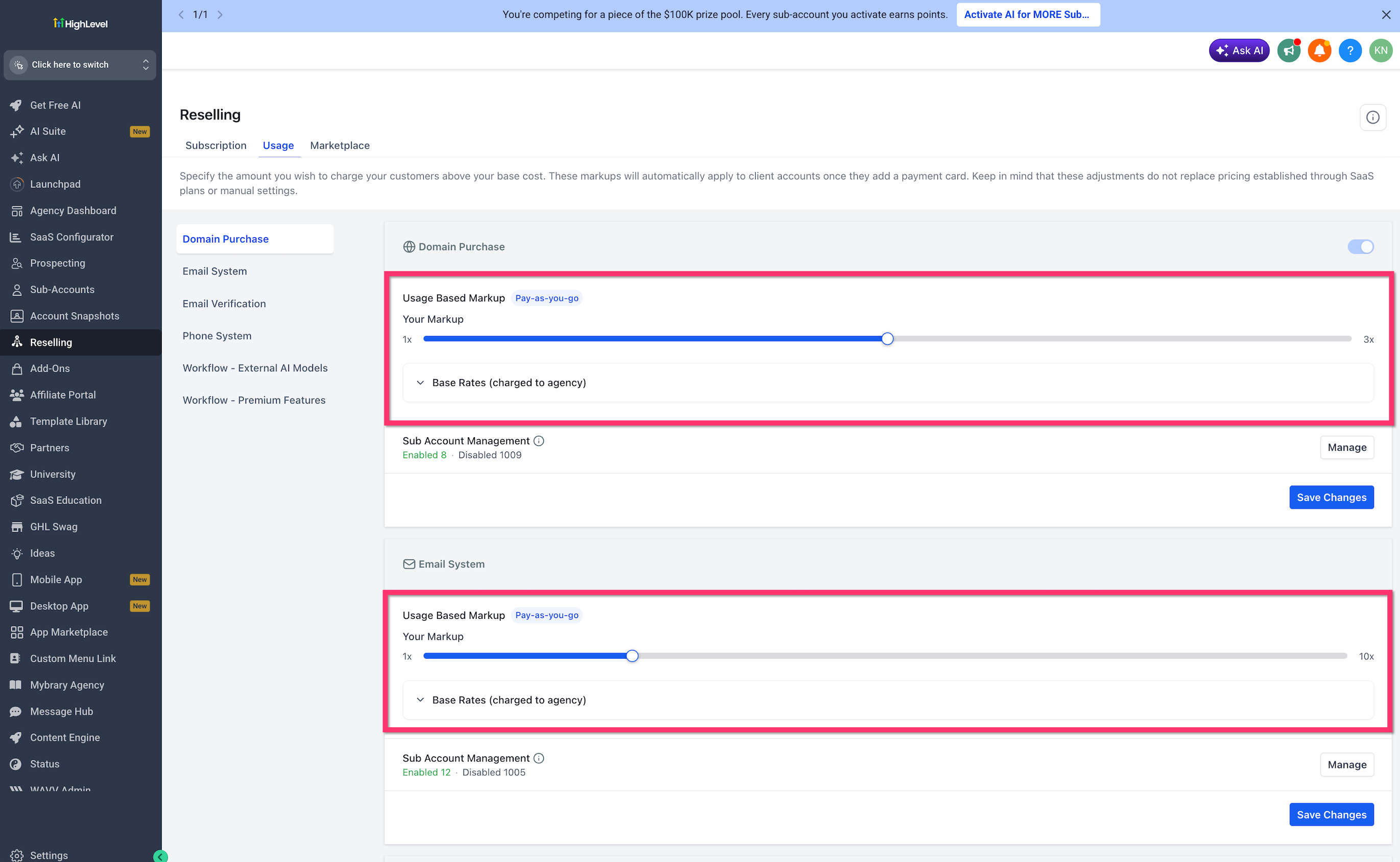
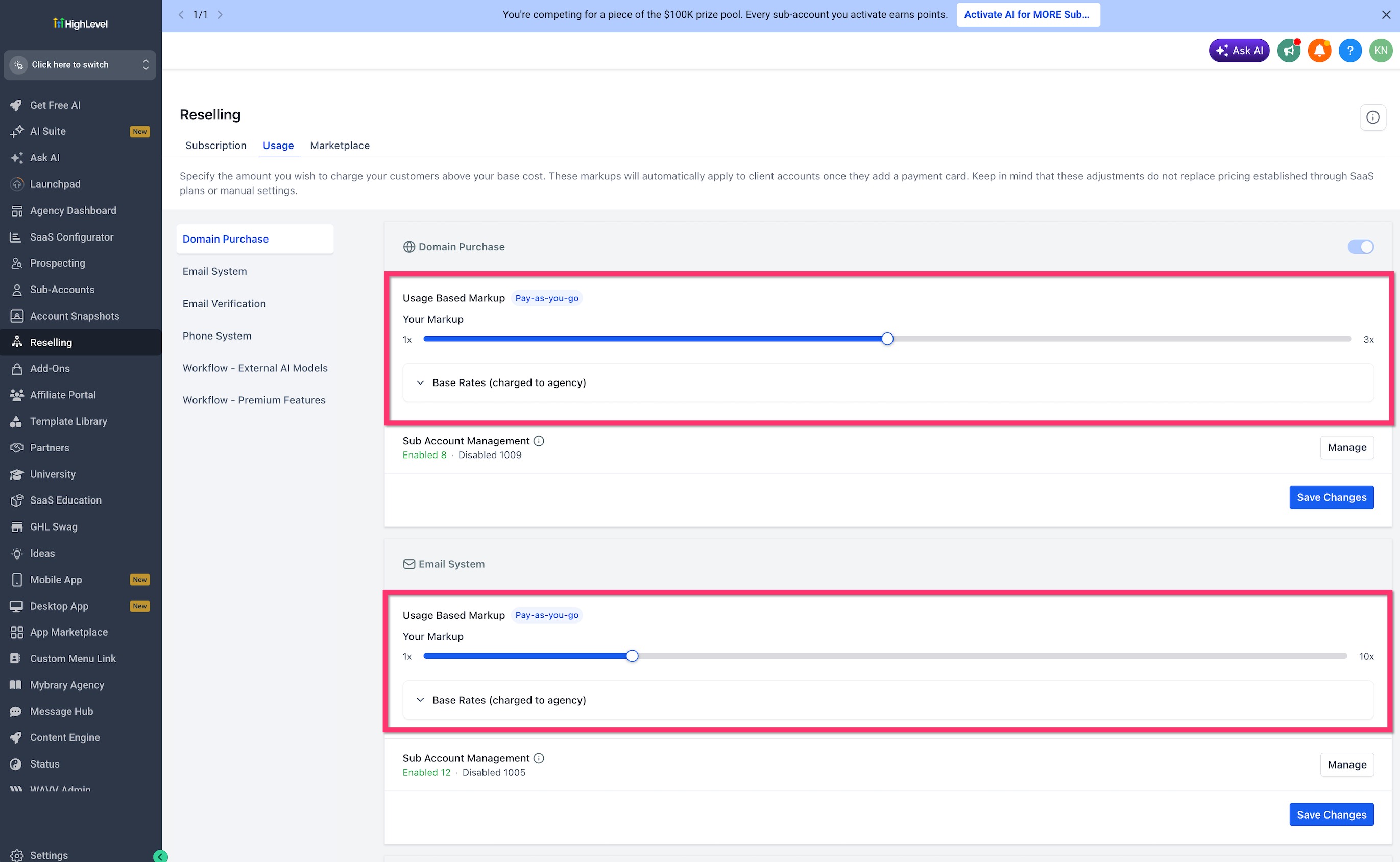
From the Usage tab, you can configure markups for products such as domain purchase, email systems, phone systems, and other usage-based services. Each product displays its base rate and allows you to set a markup percentage that determines the final client charge.
Global Usage-Based Markup
Global usage-based markup allows agencies to define a default markup for usage-based products at the agency level. This reduces manual work by applying a default markup to newly created SaaS locations and to existing locations when SaaS Mode is enabled.
Global markups help agencies standardize usage-based pricing across locations while still supporting sub-account-level management where needed. This is useful when agencies want consistent margins across products such as phone, email, domain, or other usage-based services.
Reselling page adjustments do not replace pricing established through SaaS plans or manual settings. If pricing is already controlled through a SaaS plan or manual configuration, review those settings before making changes.
When you set a global markup, HighLevel uses that percentage as the baseline for all usage-based products unless you override it at the location level. This approach ensures consistent pricing across your agency while preserving flexibility to adjust markups for specific clients when needed.
Sub-Account-Level Product Management
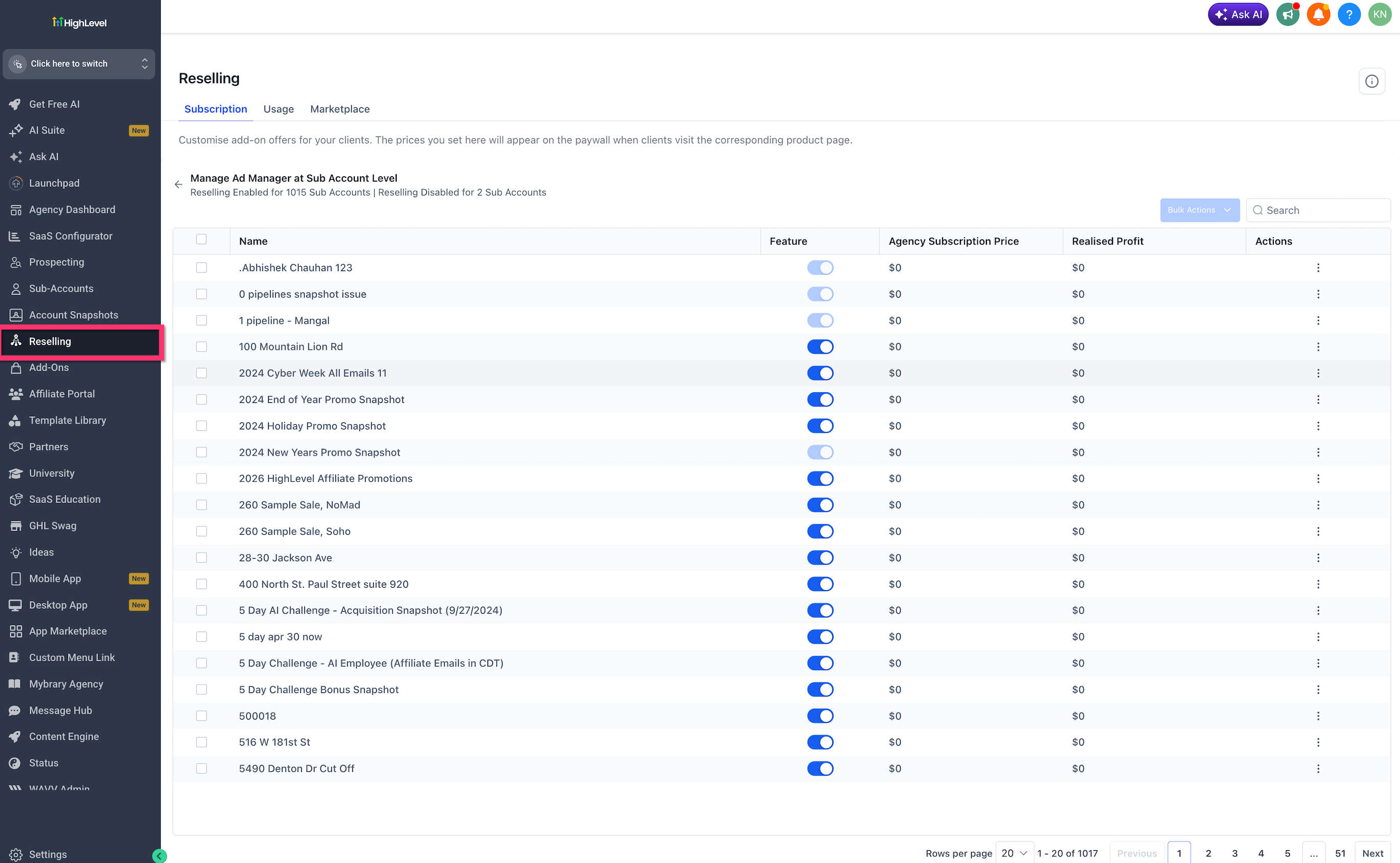
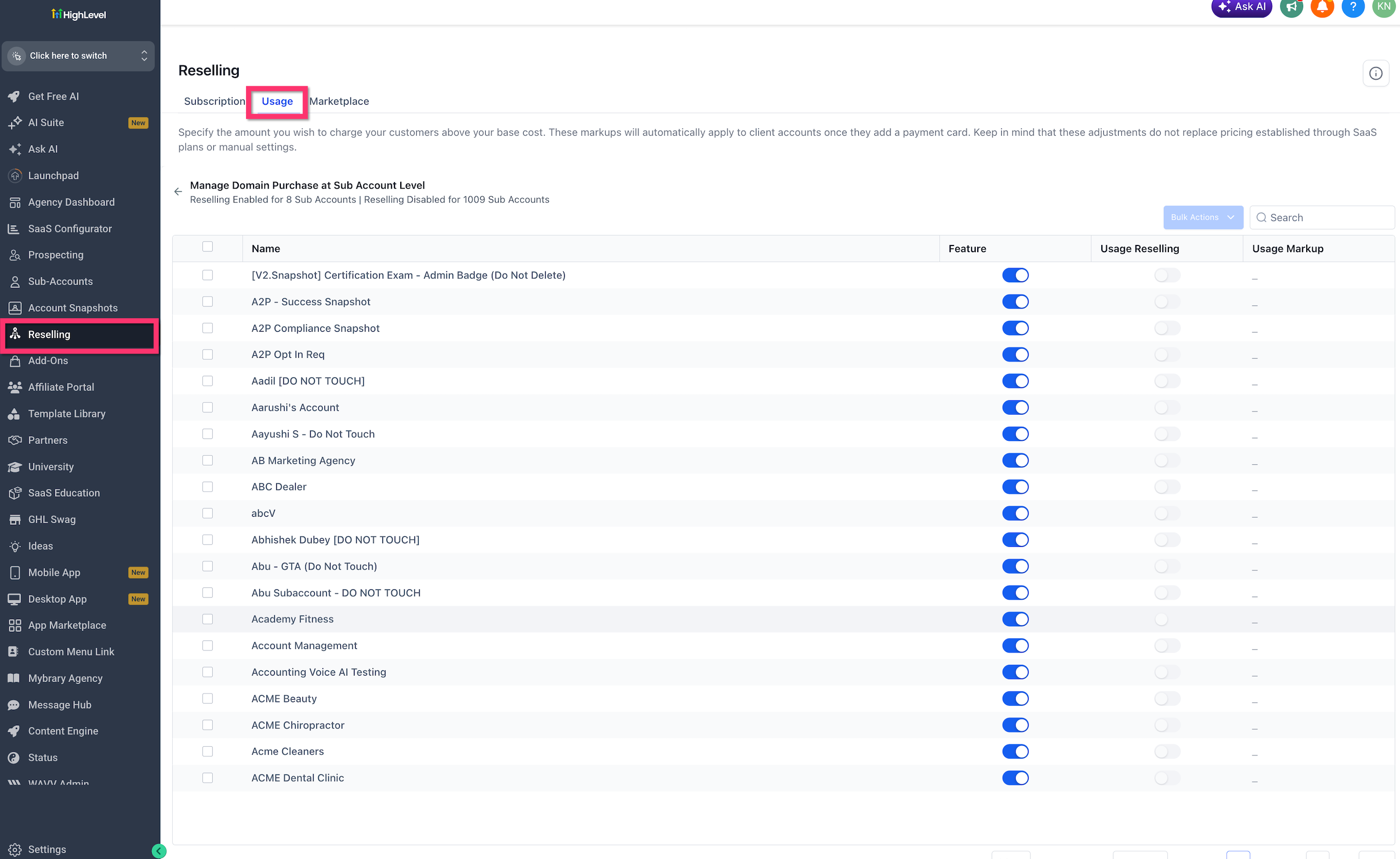
Sub-account-level management gives agencies control over which clients can access specific resellable products and whether usage reselling is enabled for each location. This is helpful when different clients need different products, pricing, or markup rules.
From the product management view, agencies can:
- Search for a specific sub-account
- Enable or disable the product feature
- Enable or disable usage reselling
- View or update usage markup
- Use pagination to review large account lists
- Apply bulk actions to selected sub-accounts
To access sub-account-level management, click the Manage button next to any product in the Subscription or Usage tabs. This opens the sub-account management interface where you can configure product availability and settings for individual locations.
Bulk Actions for Reselling Products
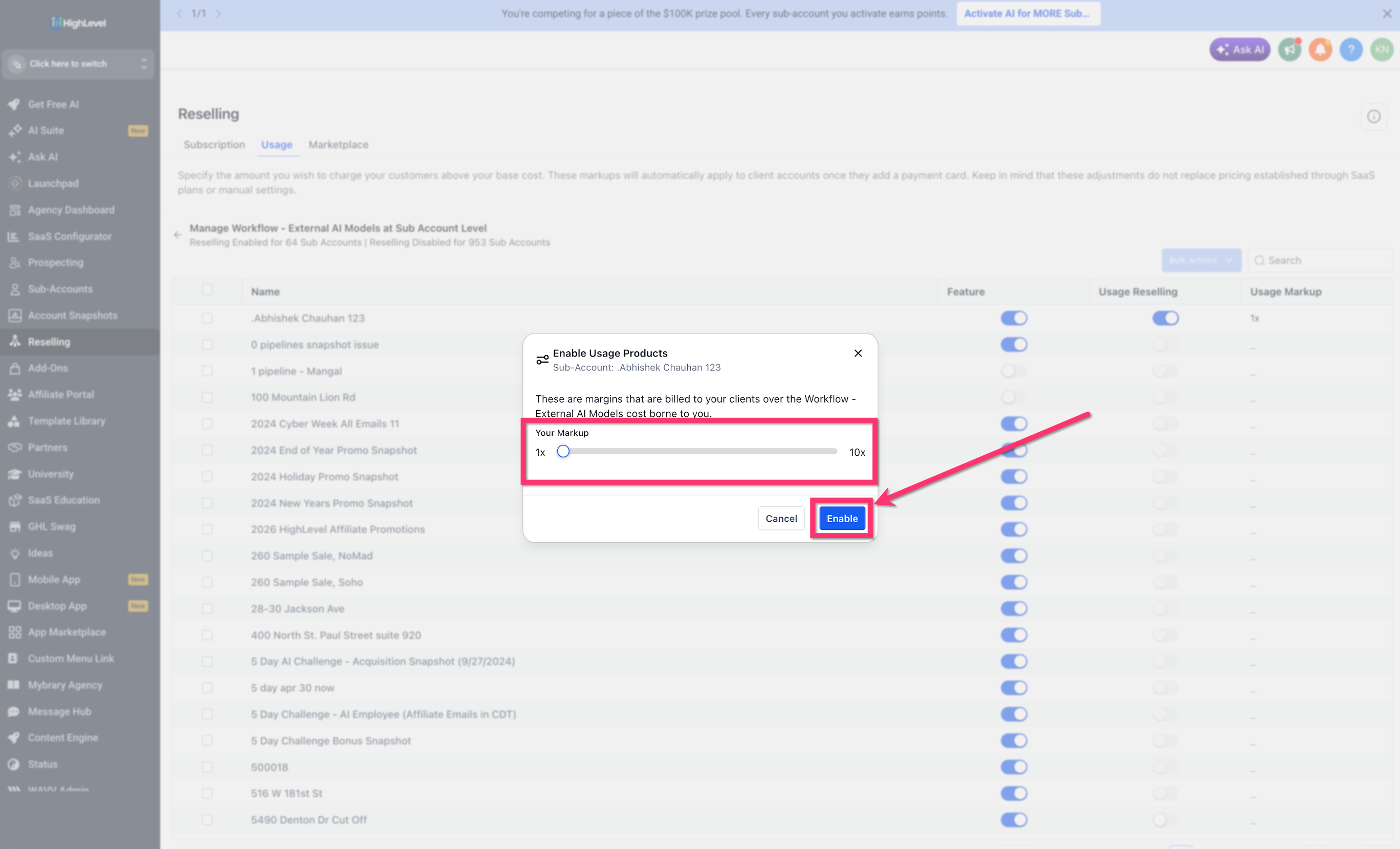
Bulk actions help agencies apply product and markup changes across multiple sub-accounts at once. This is useful when rolling out a usage-based product to many SaaS locations or standardizing markup settings across selected accounts.
When using bulk actions, review the confirmation modal carefully before applying changes. Bulk updates can affect feature configuration and current activity for selected sub-accounts. When applying changes to many sub-accounts, updates may take several minutes to reflect.
Always review the bulk action confirmation modal before proceeding. Bulk changes apply to all selected sub-accounts and may take time to process depending on the number of locations affected.
To use bulk actions, select multiple sub-accounts from the management table, click the Bulk Actions button, configure the desired settings in the modal, and confirm your changes.
Existing Reselling and Rebilling Configurations
Existing configurations are carried over automatically into the unified Reselling experience. Agencies do not need to rebuild existing subscription reselling or usage-based rebilling settings because of this update.
The rename from "Rebilling" to "Usage-based Reselling" is a terminology change only. It does not change how existing products are billed, how existing markups behave, or how previously configured products continue to work.
How to Set Up Unified Reselling
Proper setup helps agencies manage resellable products from one centralized page and apply pricing or markup settings consistently. Before making changes, review any existing SaaS plan pricing, manual settings, and product-specific configurations.
To get started:
Navigate to Agency View in HighLevel.
If the unified reselling experience is not yet enabled by default, open the Labs section and enable the feature. The feature activates immediately.
Open the Reselling page from the left menu in Agency View. You will see the Subscription, Usage, and Marketplace tabs at the top of the page.
Click the Subscription tab for subscription-based products, the Usage tab for usage-based products and markups, or the Marketplace tab for supported Marketplace products.
Choose the product you want to configure from the available products list.
For subscription-based products, set the customer-facing price. For usage-based products, set the usage-based markup percentage.
Click the Manage button next to a product to configure sub-account-level availability. Enable or disable the product for selected sub-accounts.
If you need to update multiple sub-accounts at once, select them from the management table and use the Bulk Actions option to apply changes efficiently.
Click Save Changes after reviewing your configuration. Your reselling settings are now active and apply to the configured sub-accounts.
All existing reselling and rebilling configurations carry over automatically when you enable the unified experience. The rename from Rebilling to Usage-based Reselling is a terminology change only and does not affect how products are billed or how existing setups behave.
After completing these steps, your reselling operation runs through a single unified interface with consistent controls and automatic markup application for new locations.
Frequently Asked Questions
Was this article helpful?
That’s Great!
Thank you for your feedback
Sorry! We couldn't be helpful
Thank you for your feedback
Feedback sent
We appreciate your effort and will try to fix the article