Agency Sub-Accounts help agencies separate their own internal business workspace from client accounts. Depending on your plan, an Agency Sub-Account can be used to manage your own business operations, SaaS plans, subscriptions, rebilling configurations, and payment provider connections. This article explains what Agency Sub-Accounts are, how they differ from client sub-accounts, and what restrictions apply.
TABLE OF CONTENTS
- What is an Agency Sub-Account?
- Key Benefits of Agency Sub-Accounts
- Agency Sub-Account vs. Client Sub-Account
- Choosing an Account Type During Sub-Account Creation
- How Agency Sub-Accounts Support SaaS Mode
- How Agency Sub-Accounts Support Rebilling
- Plan Eligibility and Permissions
- How to Identify Agency Sub-Accounts
- Transfer Restrictions for Agency Sub-Accounts
- Removing the Agency Sub-Account Designation
- How To Use Agency Sub-Accounts
- Frequently Asked Questions
- Related Articles
What is an Agency Sub-Account?
An Agency Sub-Account is a regular HighLevel sub-account that has been designated as your agency’s own internal business account. Instead of representing a client’s business, it represents your agency’s workspace for managing your own operations or SaaS and rebilling setup.
All sub-accounts still function as locations in HighLevel. The Agency Sub-Account designation simply tells HighLevel that this location belongs to your agency rather than to one of your clients.
Agency Sub-Accounts are especially important for agencies using SaaS Mode or rebilling because SaaS plans, subscriptions, and billing configurations may be managed from the selected Agency Sub-Account.
Key Benefits of Agency Sub-Accounts
Agency Sub-Accounts help agencies keep internal operations and client operations clearly separated. They also provide the account structure needed for SaaS and rebilling workflows on supported plans.
Separate Agency and Client Workspaces: Use an Agency Sub-Account for your own business instead of mixing agency operations with a client account.
Support SaaS Operations: Manage SaaS plans and subscriptions from the selected Agency Sub-Account’s Payments module on SaaS-enabled plans.
Centralize Rebilling Configuration: Use the Agency Sub-Account as the source for rebilling settings and supported payment provider connections.
Improve Account Organization: Identify agency-owned accounts using the Agency sub-account badge and filter.
Protect Critical Billing Setup: Transfer and removal restrictions help prevent accidental disruption to SaaS or rebilling workflows.
Support Multiple Business Setups: Agencies may use different Agency Sub-Accounts for different SaaS or payment processor configurations where supported.
Agency Sub-Account vs. Client Sub-Account
Agency Sub-Accounts and client sub-accounts are both regular sub-accounts, but they serve different purposes. Choosing the correct account type helps keep agency operations, client work, billing, and SaaS setup organized.
| Feature | Client Sub-Account | Agency Sub-Account |
|---|---|---|
| Purpose | Managing a client’s business | Managing your own business or SaaS operations |
| Account type selection | This is my client’s account | This is my own account |
| SaaS plan creation | Uses SaaS products sold to clients | Creates and manages SaaS plans from this account where supported |
| Rebilling configuration | Reads configuration from the Agency Sub-Account | Hosts rebilling configuration and supported payment provider setup |
| Transfer support | Can be transferred when eligible | Cannot be transferred to another agency |
| Removal behavior | Follows standard sub-account checks | Can only be removed as an Agency Sub-Account after dependent SaaS plans and client links are removed |
| Payment provider role | May use the agency’s configured billing setup | Connects supported payment providers for SaaS/rebilling workflows where supported |
| UI indicator | No Agency Sub-Account badge | Blue Agency sub-account badge |
Choosing an Account Type During Sub-Account Creation
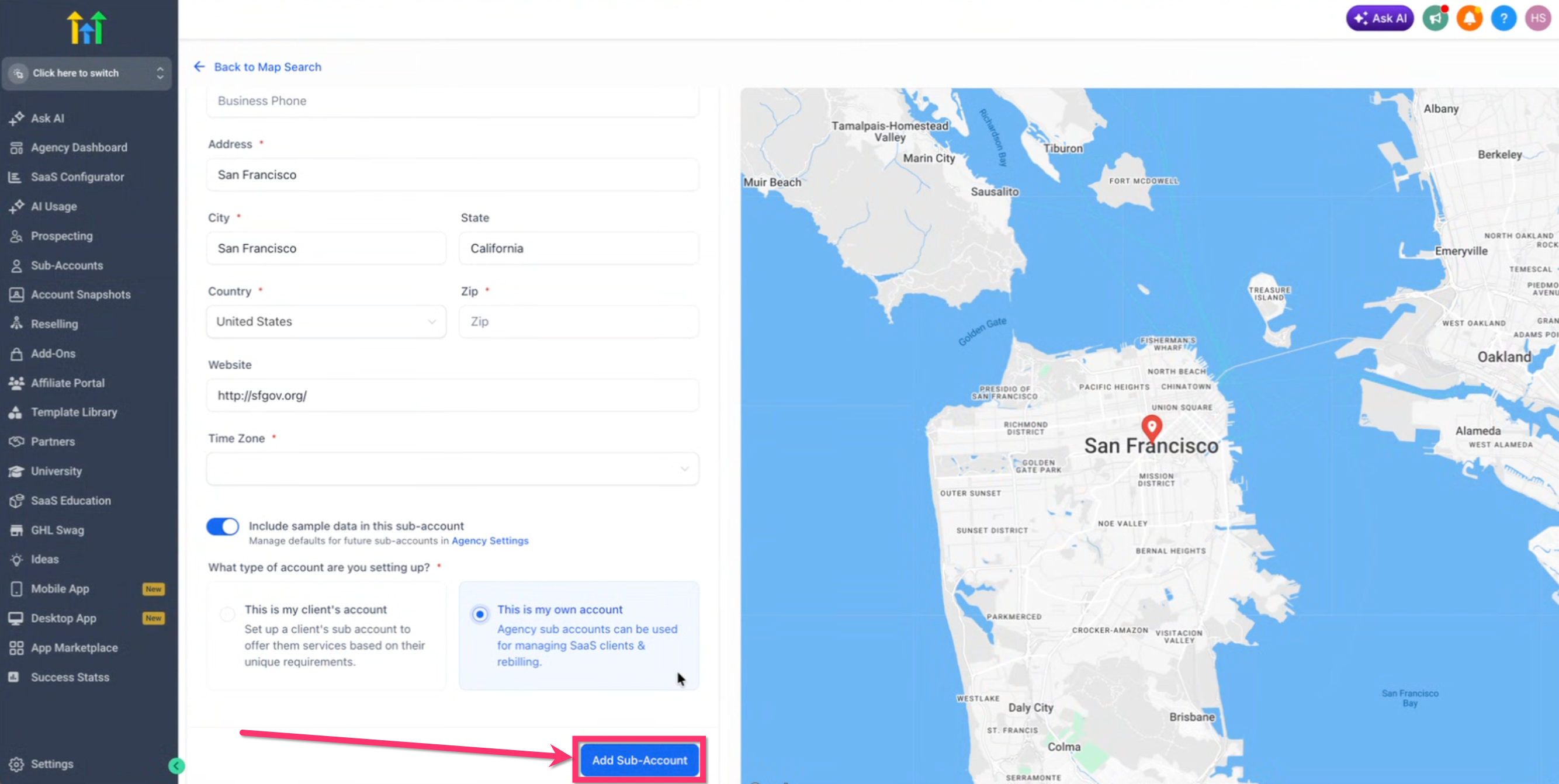
When creating a new sub-account on supported plans, HighLevel may ask what type of account you are setting up. This selection helps HighLevel understand whether the account belongs to your agency or to a client.
Available options include:
This is my client’s account: Use this option when creating a sub-account for a client’s business.
This is my own account: Use this option when creating an account for your agency’s internal workspace, SaaS operations, or rebilling setup.
The description for This is my own account may vary by plan. On base plans, it may describe your agency workspace for running your own business. On SaaS or higher plans, it may reference SaaS clients, subscriptions, or rebilling configuration.
How Agency Sub-Accounts Support SaaS Mode
Agency Sub-Accounts are important for SaaS-enabled agencies because they can act as the operational hub for SaaS products and subscriptions. Selecting the correct Agency Sub-Account helps ensure SaaS billing and plan management are connected to the right account.
For SaaS-enabled plans:
SaaS products and subscriptions are created and managed from the Payments module inside the selected Agency Sub-Account.
When a customer purchases a SaaS plan, the subscription is created through the linked Agency Sub-Account.
Client sub-accounts created through SaaS can be linked back to the Agency Sub-Account used to provision them.
Agencies may use different Agency Sub-Accounts for different SaaS or payment provider setups where supported.
When selecting an Agency Sub-Account for SaaS, choose your own agency account, not a client account. Selecting the wrong account may cause SaaS plans, subscriptions, or billing settings to be managed from the wrong place.
Learn more about SaaS with agency sub-accounts
How Agency Sub-Accounts Support Rebilling
Agency Sub-Accounts can also act as the rebilling configuration hub on supported plans. This means the account may hold the payment provider connection and billing setup used for charging sub-accounts or clients.
Supported payment providers may include:
Stripe
NMI
Authorize.net
Square
Adyen
Mercado Pago
Custom payment integrations (marketplace)*
The selected Agency Sub-Account should be the account where the correct payment provider and rebilling configuration are managed. This helps HighLevel read the proper billing settings when SaaS or rebilling activity occurs.
Plan Eligibility and Permissions
Agency Sub-Accounts are available only on supported plans and to users with the correct permissions. If you do not see Agency Sub-Account options, check both your agency plan and your user access.
Agency Sub-Accounts may be available on:
$497/mo Pro plan
$297/mo Freelancer plan
$97/mo Starter plan
Feature behavior can vary by plan:
On $97 plans, the Agency Sub-Account is mainly used as your agency’s own workspace.
On $497 and $297+ plans, the Agency Sub-Account may support SaaS plans, subscriptions, rebilling, and payment provider configuration.
Users who may manage Agency Sub-Accounts include:
Agency Owners
Agency Admins
Agency Users with the required Agency Sub-Account management permission
How to Identify Agency Sub-Accounts
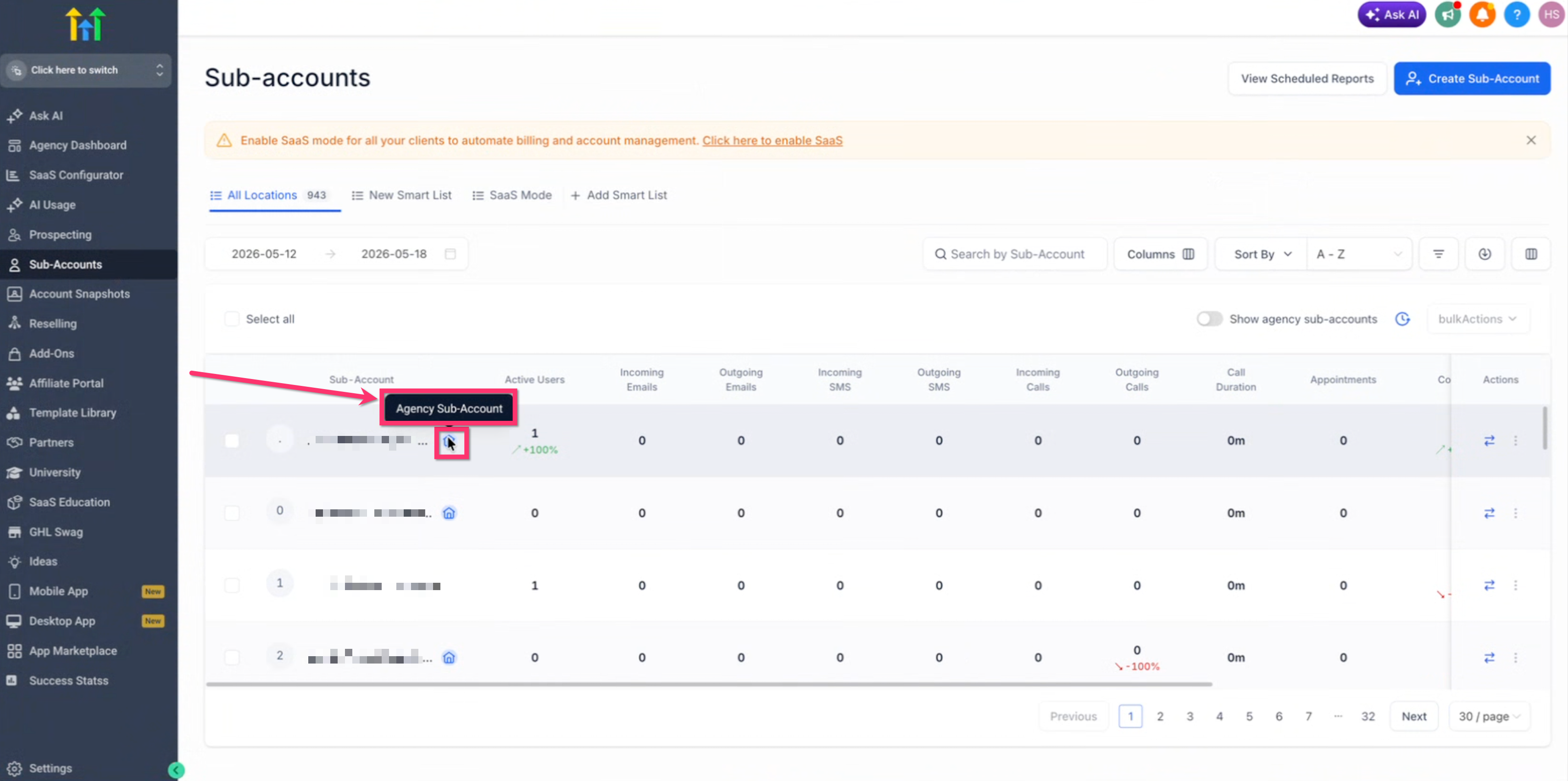
Agency Sub-Accounts are visually marked in the sub-account list so agencies can quickly distinguish internal accounts from client accounts. This is especially useful for agencies managing many client locations.
You can identify Agency Sub-Accounts by:
A blue Agency sub-account badge in the sub-account list.
A filter option to Show agency sub-accounts only.
Use these indicators before making SaaS, rebilling, or account management changes to confirm you are working in the correct account.
Transfer Restrictions for Agency Sub-Accounts
Agency Sub-Accounts cannot be transferred to another agency. This restriction helps protect agency-owned billing, SaaS, and rebilling configurations from being moved accidentally.
If you attempt to transfer an Agency Sub-Account, HighLevel blocks the action and instructs you to manage your Agency Sub-Accounts separately. In bulk transfer workflows, Agency Sub-Accounts may be listed separately as blocked from transfer.
If you need to transfer client accounts, select only eligible client sub-accounts and exclude Agency Sub-Accounts from the transfer request.
Removing the Agency Sub-Account Designation
Removing the Agency Sub-Account designation may be blocked if the account is still being used for SaaS or billing-related dependencies. This prevents active SaaS customers or billing workflows from losing their linked configuration.
Removal may be blocked when:
Active SaaS subscription plans use the Agency Sub-Account as their billing source.
Client sub-accounts are linked to the Agency Sub-Account through SaaS settings.
Active SaaS products, contacts, or related dependencies still exist in the Agency Sub-Account.
If removal is blocked, de-link SaaS client sub-accounts and remove active SaaS plans or related dependencies first. After those dependencies are cleared, you can try removing the Agency Sub-Account designation again.
Before removing the designation, review the impact carefully. Customers linked to that sub-account may not be able to make payments seamlessly if the billing setup is disrupted.
How To Use Agency Sub-Accounts
Setting up and managing Agency Sub-Accounts correctly helps protect SaaS, billing, and agency workspace workflows. Use the steps below when creating or identifying an Agency Sub-Account.
Go to your agency view.
Start creating a new sub-account.
When asked what type of account you are setting up, choose one of the following:
This is my client’s account for a client business.
This is my own account for your agency’s internal workspace or SaaS/rebilling setup.
Complete the sub-account creation process.
If using SaaS or rebilling, connect the supported payment provider inside the correct Agency Sub-Account.
Create or manage SaaS plans and subscriptions from the Agency Sub-Account’s Payments module where supported.
Use the Agency sub-account badge or filter to confirm you are working with the correct account.
Avoid transferring Agency Sub-Accounts to another agency because transfers are blocked.
Before removing the designation, clear any active SaaS plans, linked client sub-accounts, or dependent billing items.
Frequently Asked Questions
Q: Is an Agency Sub-Account different from a normal sub-account?
A: It is still a regular sub-account, but it is designated as your agency’s own account instead of a client account.
Q: When should I choose “This is my own account”?
A: Choose this option when the account is for your agency’s internal business operations, SaaS setup, or rebilling configuration.
Q: When should I choose “This is my client’s account”?
A: Choose this option when the sub-account belongs to a client and is used to manage that client’s business.
Q: Which plans support Agency Sub-Accounts?
A: Agency Sub-Accounts may be available on SaaS plans, $297 plans, and $97 monthly or annual plans.
Q: Who can manage Agency Sub-Accounts?
A: Agency Owners, Agency Admins, and Agency Users with the required Agency Sub-Account management permission can manage them.
Q: Can I transfer an Agency Sub-Account to another agency?
A: No. Agency Sub-Accounts cannot be transferred to another agency.
Q: Why can’t I remove the Agency Sub-Account designation?
A: Removal may be blocked if active SaaS plans, SaaS products, contacts, or linked client sub-accounts still depend on that Agency Sub-Account.
Q: What should I do before removing an Agency Sub-Account designation?
A: Remove or de-link dependent SaaS plans, subscriptions, client sub-accounts, and related billing items first.
Q: Where are SaaS plans and subscriptions managed?
A: On supported plans, SaaS plans and subscriptions are managed from the selected Agency Sub-Account’s Payments module.
Q: How do I find Agency Sub-Accounts in my account list?
A: Look for the blue Agency sub-account badge or use the Show agency sub-accounts only filter.
Related Articles
Was this article helpful?
That’s Great!
Thank you for your feedback
Sorry! We couldn't be helpful
Thank you for your feedback
Feedback sent
We appreciate your effort and will try to fix the article