AI Agents in HighLevel Workflows can now connect to external services using the Model Context Protocol (MCP). This allows your AI Agent to access real-time information from compatible tools such as web search providers, browser automation platforms, databases, and custom APIs. By extending your AI Agent beyond CRM data, you can automate research, enrich records, and perform more intelligent workflow actions.
TABLE OF CONTENTS
- What are MCP Connections for AI Agents?
- Key Benefits of MCP Connections
- Supported MCP Servers
- Authentication Options
- Supported Transport Types
- How Tool Discovery Works
- Configure an MCP Connection
- Managing Tool Permissions
- Best Practices
- Frequently Asked Questions
- Related Articles
What are MCP Connections for AI Agents?
Model Context Protocol (MCP) is an open standard that enables AI applications to securely communicate with external tools and services. With MCP Connections in HighLevel Workflows, AI Agents can connect to compatible MCP servers and use their available tools while executing workflow actions.
Unlike standard AI Agent capabilities that rely primarily on information available within HighLevel, MCP Connections allow agents to retrieve live information, automate browser tasks, perform searches, and interact with external systems in real time.
Key Benefits of MCP Connections
Connecting external MCP servers expands what your AI Agent can accomplish during workflow execution.
- Real-Time Data Access: Retrieve current information from external services while the workflow is running.
- Extensible AI Capabilities: Connect to any compatible MCP server instead of being limited to built-in tools.
- Automatic Tool Discovery: Detect available tools automatically after testing a connection.
- Granular Tool Permissions: Choose exactly which tools each AI Agent is allowed to use.
- Workflow Automation: Eliminate manual research and repetitive tasks by allowing AI Agents to interact with external services.
- Flexible Authentication: Support multiple authentication methods depending on the MCP provider.
Supported MCP Servers
HighLevel supports connections to any MCP-compatible server.
Common examples include:
- Exa – AI-powered web search across companies, people, and news.
- Tavily – Real-time web search and webpage extraction.
- Browserbase – Browser automation for navigation, clicks, screenshots, and data extraction.
- Custom MCP Servers – Self-hosted or internally developed MCP servers that follow the MCP specification.
Note: HighLevel does not host or manage third-party MCP servers. Availability, pricing, authentication requirements, and supported tools are determined by the provider.Authentication Options
Different MCP providers require different authentication methods. HighLevel supports multiple authentication types to accommodate a variety of services.
Supported authentication methods include:
- None
- API Key
- Bearer Token
- OAuth2
- Custom Header
Some providers allow API keys to be passed through HTTP headers, while others require them as query parameters. Refer to your MCP provider's documentation for the correct configuration.
Supported Transport Types
Transport types determine how HighLevel communicates with the MCP server.
Supported transport options include:
- HTTP Streamable (default)
- Server-Sent Events (SSE)
Unless your provider specifies otherwise, use HTTP Streamable, which is the recommended default option.
How Tool Discovery Works
After entering your connection information, HighLevel can validate the connection and retrieve the tools made available by the MCP server.
Selecting Test Connection will:
- Verify communication with the server.
- Validate authentication credentials.
- Discover available tools automatically.
- Display every tool returned by the MCP server.
After discovery, choose which tools your AI Agent can access.
Configure an MCP Connection
Proper configuration ensures your AI Agent can securely communicate with external services during workflow execution.
- Open the desired Workflow.
- Add or edit an AI Agent action.
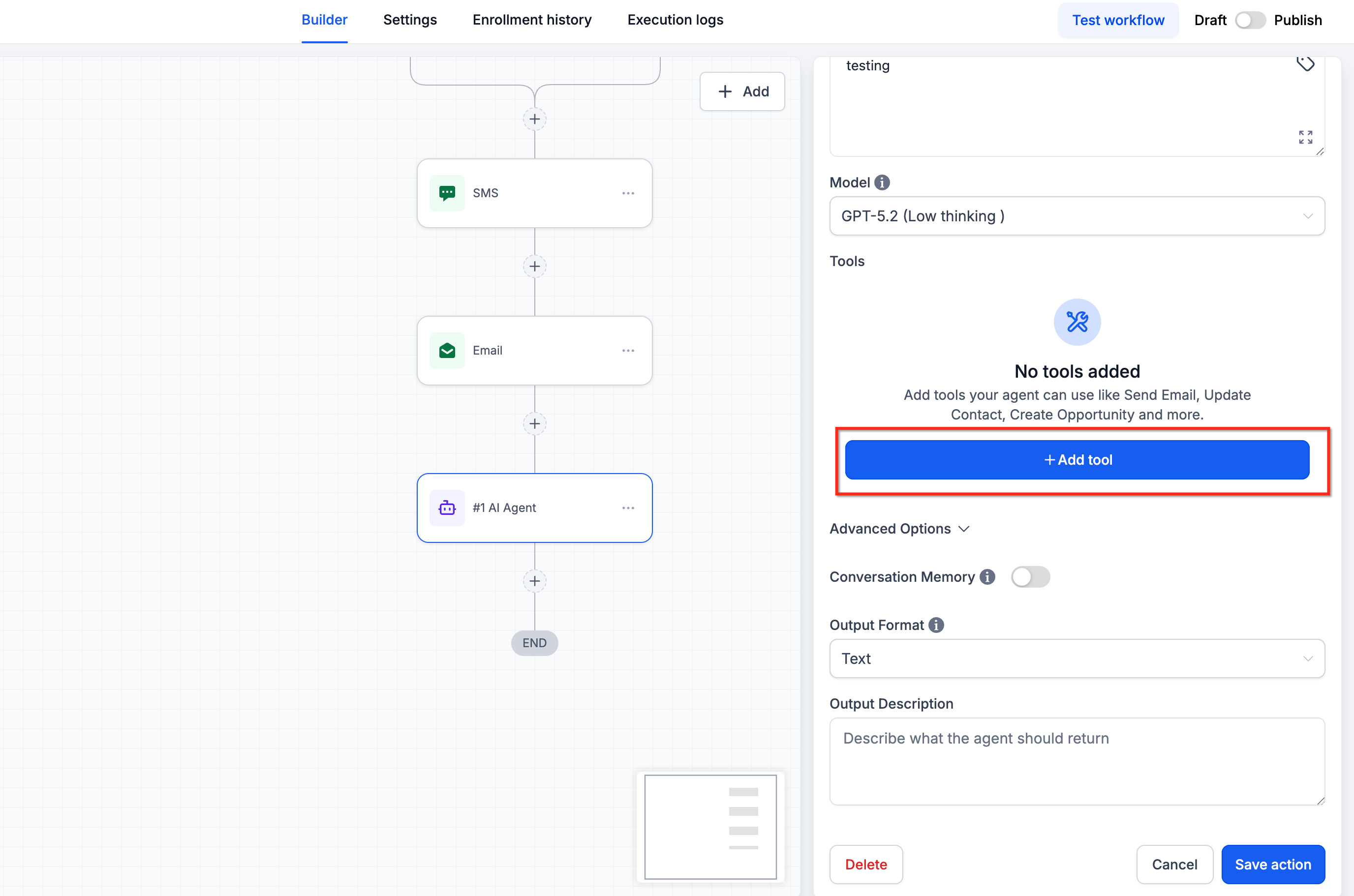
- Select Add Tools.
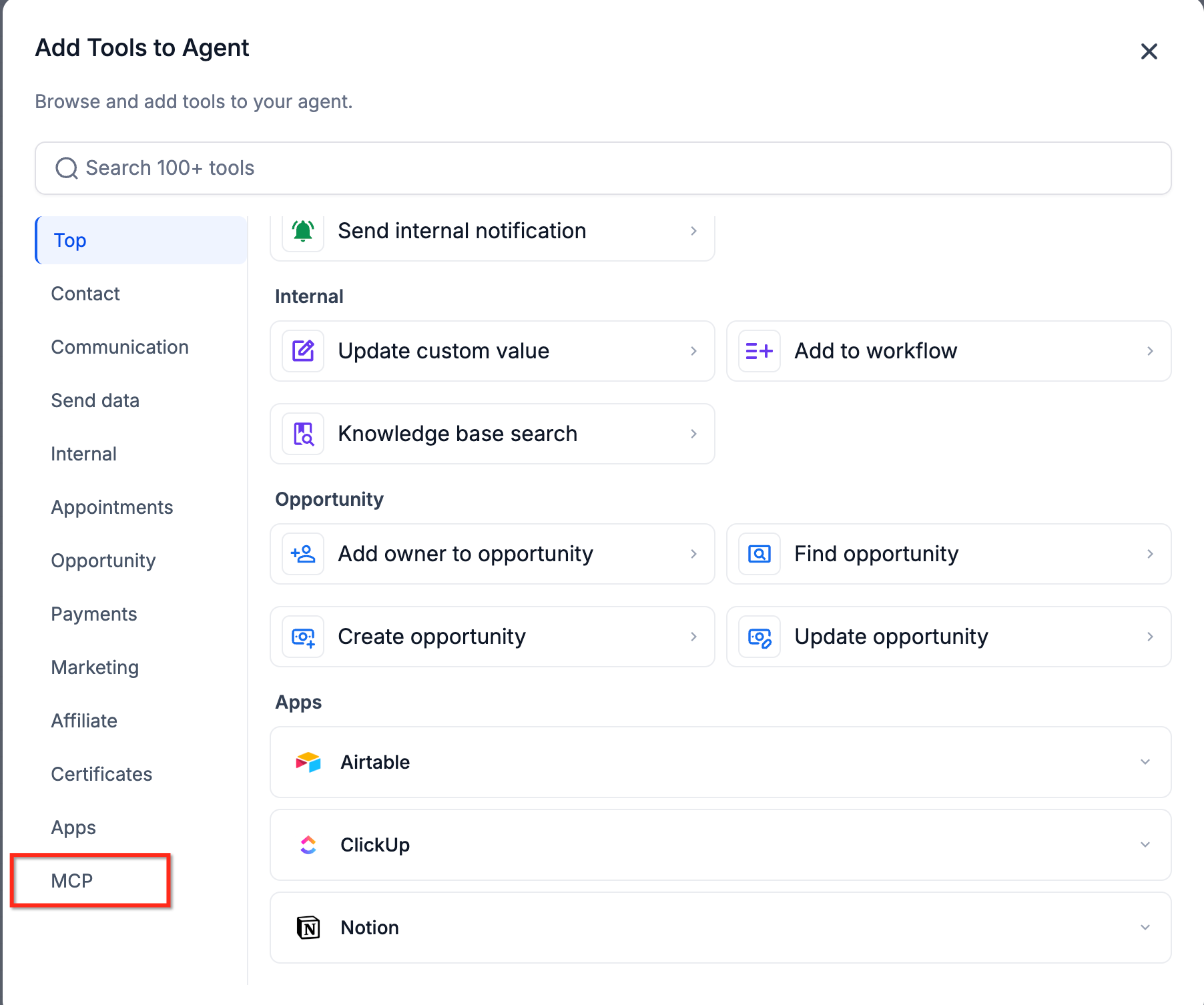
- Open the MCP tab.
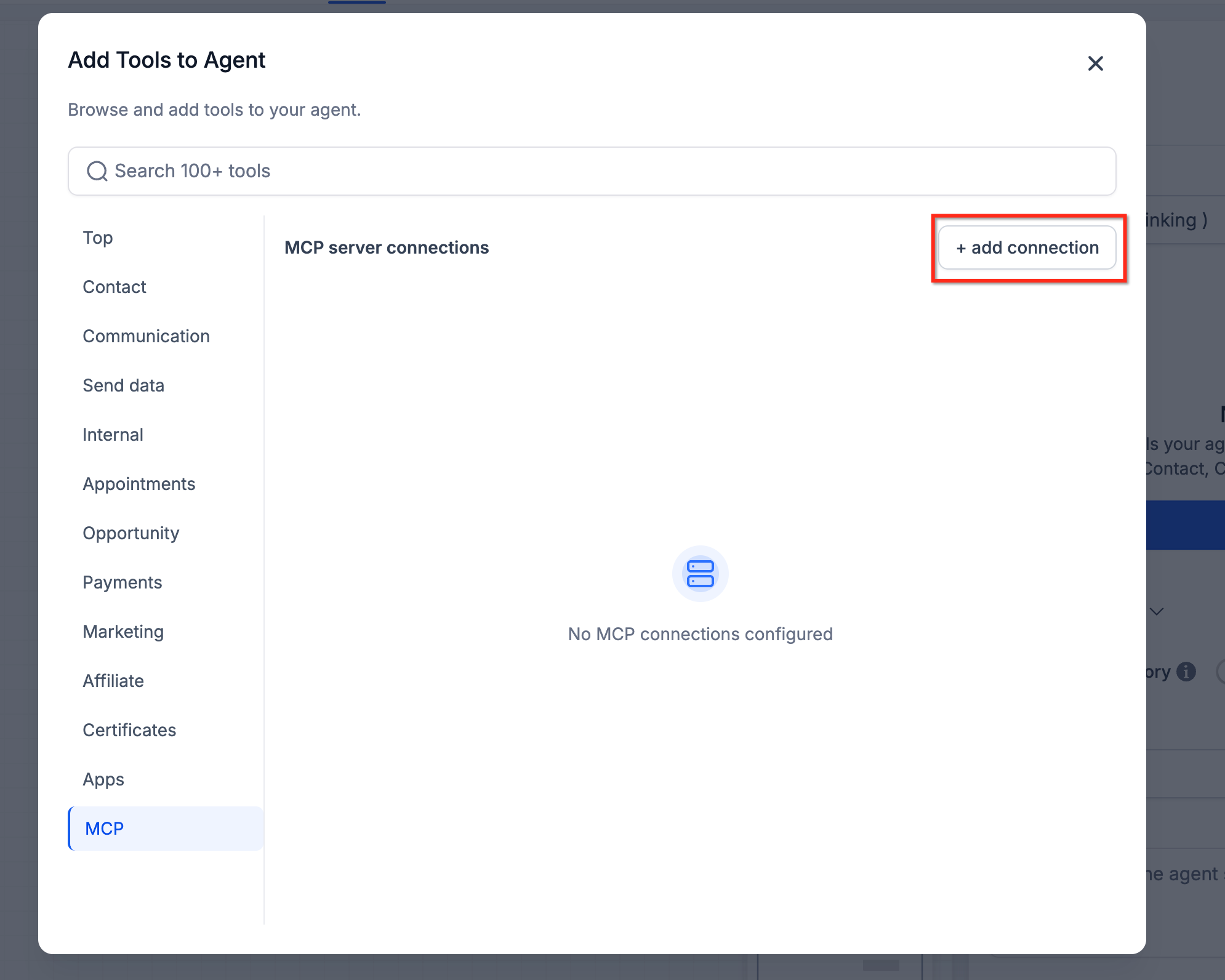
- Click Add Connection.
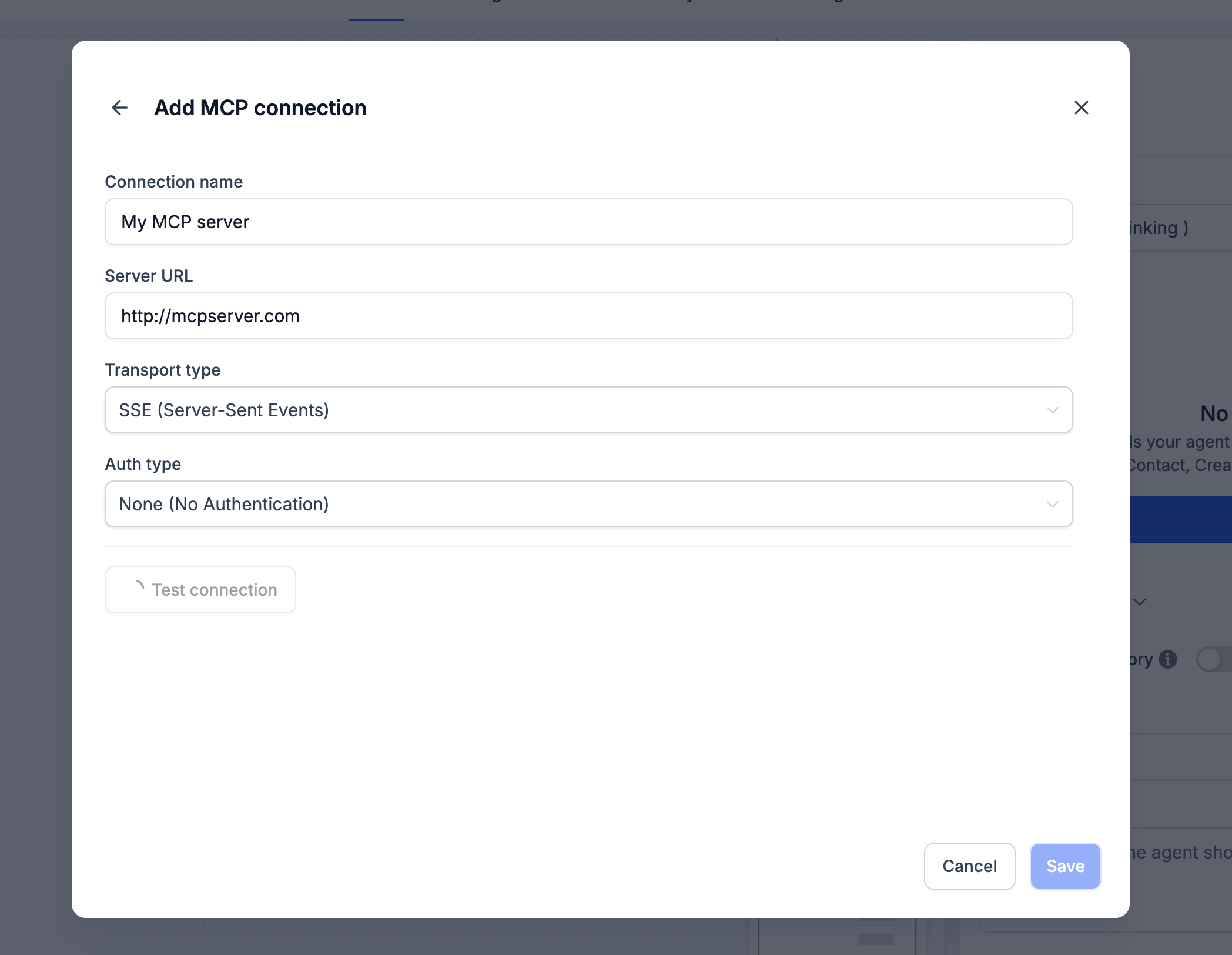
- Enter a descriptive Connection Name. Enter the Server URL supplied by your MCP provider. Select the appropriate Transport Type. Choose the required Authentication Type. Enter any required credentials.
- Click Test Connection.
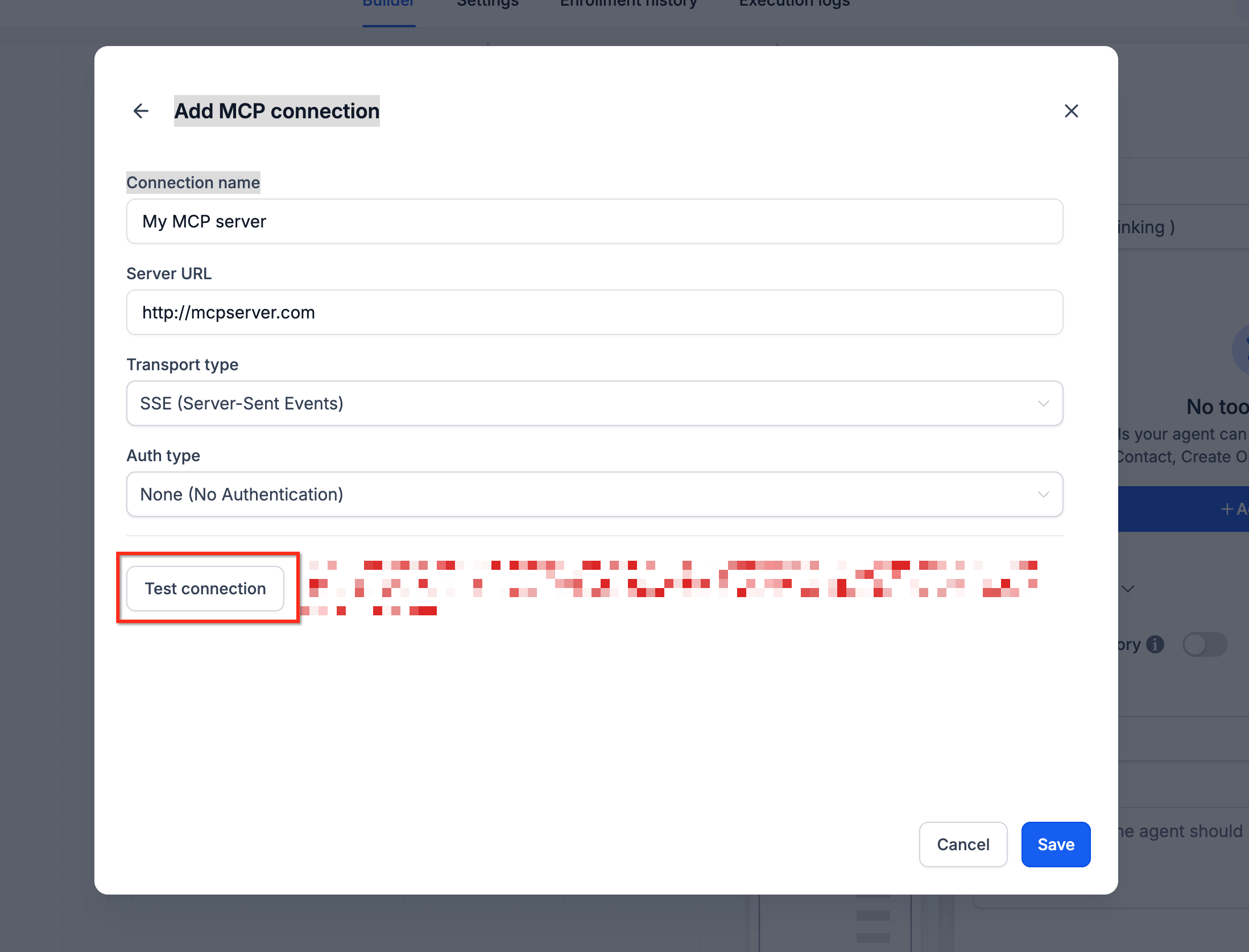
- Review the discovered tools.
- Enable only the tools the AI Agent should be allowed to use.
- Save the connection.
Managing Tool Permissions
Each MCP server may expose multiple tools. Not every workflow requires access to every available capability.
Limiting tool access helps improve security, simplifies AI decision-making, and ensures the agent only performs approved actions.
After testing the connection:
- Review the discovered tools.
- Enable only the required tools.
- Disable tools that are unnecessary for the workflow.
- Save your selections.
These permissions apply at the AI Agent level, allowing different agents to use different tool sets even when connecting to the same server.
Best Practices
Following these recommendations helps improve reliability and security when using external MCP services.
- Connect only trusted MCP providers.
- Use descriptive names for each connection.
- Enable only the tools required by the workflow.
- Test every connection before activating production workflows.
- Rotate API credentials according to your organization's security policies.
- Monitor third-party service availability.
- Review tool permissions periodically as workflows evolve.
Frequently Asked Questions
Q: What is an MCP server?
A: An MCP server exposes tools that AI applications can use through the Model Context Protocol.
Q: Can I connect more than one MCP server to an AI Agent?
A: If supported by the AI Agent configuration, multiple MCP connections can be added, allowing the agent to use tools from different providers.
Q: Does HighLevel provide MCP servers?
A: No. HighLevel provides the ability to connect to compatible MCP servers. Third-party providers or your organization are responsible for hosting and managing those servers.
Q: What happens if the Test Connection fails?
A: Verify the server URL, authentication settings, API credentials, transport type, and that the MCP server is online and reachable.
Q: Can I restrict which tools an AI Agent uses?
A: Yes. After tool discovery, you can enable or disable individual tools before saving the connection.
Q: Are third-party MCP services included with my HighLevel subscription?
A: No. Third-party providers may require their own accounts, subscriptions, or API usage fees.
Related Articles
Was this article helpful?
That’s Great!
Thank you for your feedback
Sorry! We couldn't be helpful
Thank you for your feedback
Feedback sent
We appreciate your effort and will try to fix the article