The record side panel brings a Company or Custom Object record’s details, relationships, and activity into one workspace. Review fields and associated records, start conversations, book or link appointments, and add tasks or notes without leaving the record list.
Private Beta: The redesigned side panel is available to locations included in the private beta. Locations are added through the beta access form.
TLDR: Open a Company or a Custom Object record, then use the icons on the right to switch between Details, Appointments, Associations, Tasks, Notes, and Conversations. Start the next action from the relevant tab, or use the arrows at the top to move through records without closing the panel.
TABLE OF CONTENTS
- What Is the Record Side Panel?
- Key Benefits of the Record Side Panel
- Record Side Panel Tabs
- How To Open the Record Side Panel
- Review Fields and Manage Associations
- View and Start Conversations
- Book or Link Appointments
- Add Tasks and Notes
- Navigate Between Records and Use Record Actions
- Frequently Asked Questions
- Related Articles
What Is the Record Side Panel?
The record side panel is a workspace that opens beside the list when you select a Company or Custom Object record. It keeps the selected record’s information and related activity accessible while the list remains in view.
Companies organize business-level information, while Custom Objects are objects you create to represent other entities your business tracks, such as Properties, Insurance Policies, or Vehicles. Both use the redesigned panel to bring record details and related work together.
For example, an account manager can open a Company to review its linked contacts and arrange a review meeting. A real estate agent can open a Property to review potential buyers, respond to an inquiry, and book a viewing. An insurance agent can open a Policy to review renewal conversations and create a follow-up task.
Key Benefits of the Record Side Panel
The side panel helps teams review information and take action from the same record.
Keep context together: Access fields, relationships, conversations, appointments, tasks, and notes from one panel.
Take action without leaving the record: Start a conversation, book or link an appointment, add a task or note, or link an existing record.
Find information faster: Search fields and folders, hide empty fields, and review associated records alongside the record’s details.
Work through lists efficiently: Use the previous and next arrows to move between records in a consistent layout.
Record Side Panel Tabs
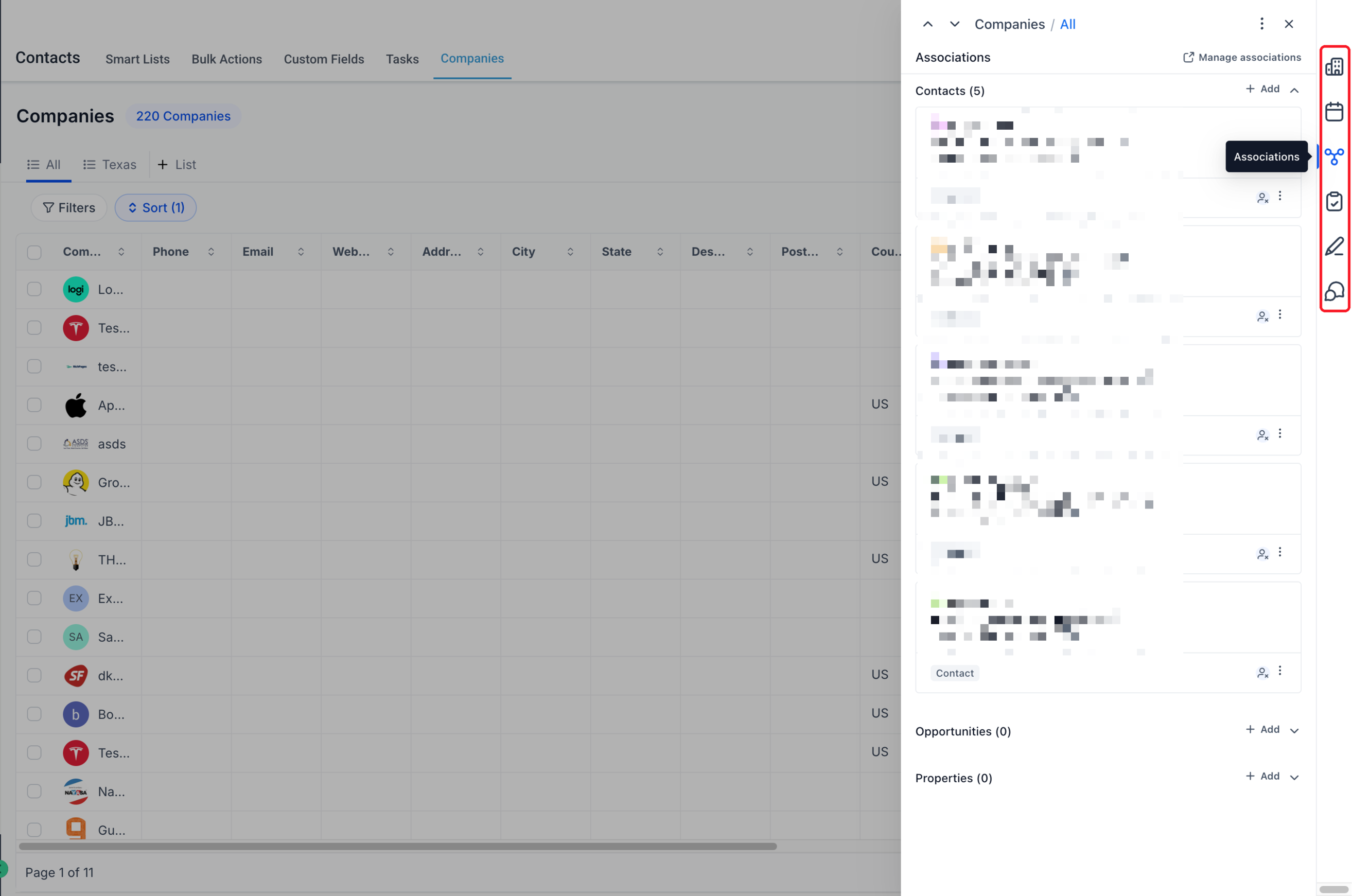
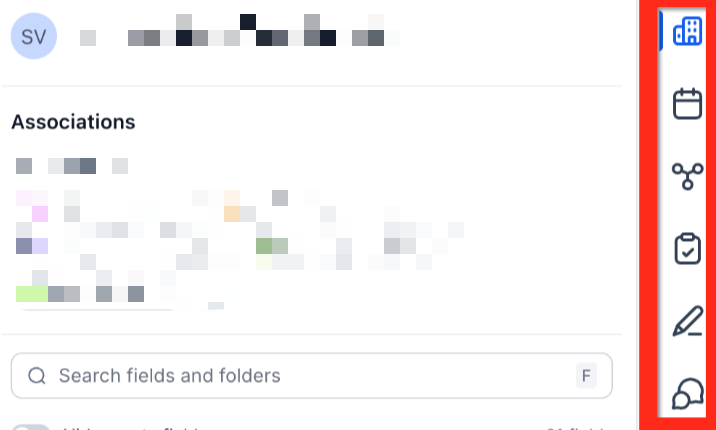
Use the vertical row of icons on the right side of the panel to switch between tabs.
| Tab | Icon | What You Can Do |
|---|---|---|
| Details | Object-specific icon, such as a building or house | Review record fields and quickly view or add associations. |
| Appointments | Calendar | Review upcoming and past appointments, book meetings or services, and link existing appointments. |
| Associations | Connected nodes | Review related records grouped by object type, add links, and access association management. |
| Tasks | Clipboard with a check mark | Review tasks and create follow-up actions. |
| Notes | Pencil | Review and add notes for the record. |
| Conversations | Speech bubbles | Review messages associated with the record and start a conversation with a selected Contact. |
How To Open the Record Side Panel
Start from the list of records you want to work with.
Open the relevant record list:
Companies: Go to CRM > Companies.
Custom Objects: Go to CRM > [name of custom object], such as Properties or Insurance Policies.
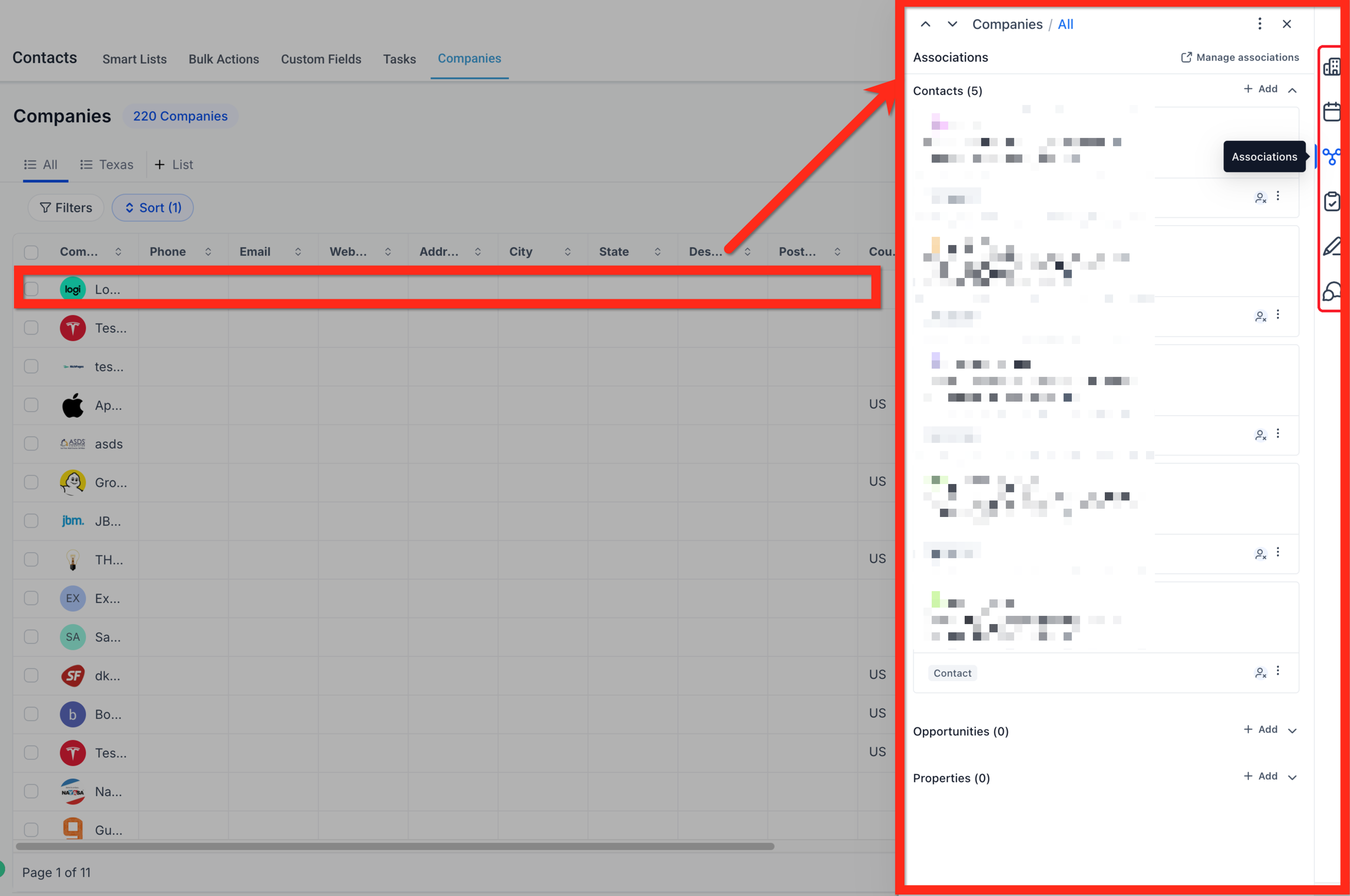
Click the record’s name to open its side panel.
The selected record opens on the right, with the list still visible behind it.
Review Fields and Manage Associations
The Details tab brings record information and quick association controls together. Use it to find specific fields, check related records, and add an existing relationship.
Find Fields and Folders
Use Search fields and folders to locate the information you need. Expand a folder to review its fields; field counts appear beside folder names.
Turn on Hide empty fields to focus on fields that already contain values. Turn it off when you need to review fields that have not been populated.
Add an Association from Details
The quick association section displays linked records under their relationship labels.
Find the relevant relationship label in the Associations section.
Click + beside the label.
Search for and select the existing record you want to link.
You can also open a linked record from this section. Select View all to open the full Associations tab.
Important: This quick-add flow links an existing record. It is separate from creating a new Company or Custom Object record.
Review the Full Associations List
Open Associations from the right-side icons to see related records grouped by object type, with a count for each group. For example, a Company may have groups for Contacts, Opportunities, and Properties.
Click Add beside a group to link another existing record. Use Manage associations to access association management.
For information about configuring relationships and labels between object types, see Associations Between Opportunities, Companies & Custom Objects.
View and Start Conversations
The Conversations tab displays messages associated with the current record. This gives you access to relevant communication while reviewing a Company, Property, Policy, or other Custom Object record.
Review Existing Messages
Open Conversations from the right-side icons to review the record’s associated messages. Use Reply on a message to respond.
Start a Conversation
Open the Conversations tab.
Click Create a conversation, shown as the blue message button with a plus sign.
Select the Contact you want to communicate with.
Continue composing and sending the message with the current record already linked.
Important: The Contact is the recipient. The Company or Custom Object record provides the linked context for the conversation.
For example, when you start a conversation from a Property record, select the buyer you want to contact. The Property is already linked, so the communication stays connected to the listing you are discussing.
Book or Link Appointments
The Appointments tab lets you review scheduled activity and arrange the next meeting or service from the record.
Review Appointments
Open Appointments, then select Upcoming or Past to review the relevant appointments. Use Search by Calendar Name to narrow the list.
Add an Appointment
Click Add and select the option that matches your task.
| Option | When To Use It |
|---|---|
| Meetings | Book a meeting from the record. |
| Services | Book a service appointment from the record. |
| Link existing appointment | Associate an appointment that has already been scheduled. |
Complete the selected booking or linking flow.
Tip: When the appointment already exists, use Link existing appointment instead of creating a second booking.
Add Tasks and Notes
Use Tasks for work that needs to be completed and Notes for information that helps your team understand the record.
Add a Task
Open the Tasks tab and click Add Task. Complete the task details, such as its title, assignee, and due date. Review the Associate To field to confirm the relevant record associations, then click Save.
Tasks can be associated with Companies, Custom Objects, Contacts, and Opportunities, allowing the same follow-up to remain connected to the records it concerns.
For example, add a task to follow up on a policy renewal or prepare for a Company’s next account review.
Add a Note
Open the Notes tab and click Add Note. Enter the information you want to retain, then click Save. Notes provide a place to capture record-related updates and context for your team.
For example, record a buyer’s feedback after a property viewing or document the outcome of a renewal discussion.
Navigate Between Records and Use Record Actions
The controls at the top of the panel help you continue through the list and access record-level actions.
Move Between Records
Use the previous and next arrows at the top-left of the panel to move through records without closing and reopening the side panel.
Open the Record Actions Menu
Click the three-dot menu at the top-right of the panel to access:
Copy record ID: Copy the selected record’s identifier.
View audit logs: Open the record’s audit history.
Delete: Delete the selected record.
Important: Delete is a record-level action. Do not use it when your intention is only to change a relationship between records.
Frequently Asked Questions
Q: Why don’t I see the redesigned side panel?
The redesigned experience is in private beta. Your location must be included in the beta to use the interface described in this article. Locations are added through the beta access form.
Q: Do I send messages directly to a Company or Custom Object?
When starting a conversation from the panel, you select a Contact as the recipient. The current Company or Custom Object record is already linked to provide context.
Q: Which messages appear in the Conversations tab?
The tab displays messages associated with the current record. Use it to review communication linked to that Company, Property, Policy, or other Custom Object record.
Q: Can I link an appointment that was booked earlier?
Yes. Open Appointments > Add > Link existing appointment and complete the linking flow. You do not need to create another booking.
Q: Why can’t I find a field in Details?
Check the search text, expand the relevant folder, and review whether Hide empty fields is enabled. An empty field may be hidden while that toggle is on.
Q: What is the difference between the quick associations section and the Associations tab?
The quick associations section appears in Details and shows linked records under their relationship labels. It lets you check relationships and add an existing record while reviewing fields.
The Associations tab provides the full list, grouped by object type with counts, along with Add and Manage associations controls.
Related Articles
Getting Started with Companies — Learn how Company records organize business information.
Getting Started with Custom Objects — Understand when to use Custom Objects and how they fit your CRM.
Associations Between Opportunities, Companies & Custom Objects — Configure relationships and link records across object types.
Tasks Across Multiple Objects — Associate follow-up tasks with the records they concern.
Using Notes in Custom Objects — Add notes and associate note context with related records.
HighLevel Notes for Managing Contacts, Opportunities and Company Records — Review note creation and management across CRM records.
Was this article helpful?
That’s Great!
Thank you for your feedback
Sorry! We couldn't be helpful
Thank you for your feedback
Feedback sent
We appreciate your effort and will try to fix the article