Statuses describe the stages your work moves through, and they become the columns on your Kanban board. They are configured per Space and organised under three fixed groups, which is the part most people need explaining. This article covers how the grouping works, how to add your own statuses, and how to plan a status set that fits your process.
TABLE OF CONTENTS
- What is a status
- The three status groups
- Why statuses belong to the space
- Steps for viewing your statuses
- Steps for adding a status
- Steps for changing a task's status
- Designing a good status set
- Frequently Asked Questions
What is a status
A status is the stage a task is at - for example To do, In progress, or completed. Every task has exactly one status at a time.
Statuses do more than label a task. In Kanban view each status becomes a column, and dragging a card between columns is how you change a task's status. The order and grouping of your statuses therefore shapes how your board reads.
The three status groups
Statuses are not a flat list. Each one belongs to one of three groups, and the groups are fixed - you cannot rename, add, or remove them.
To do: Work that has not started.
Doing: Work that is underway.
Done: Work that is finished.
Inside each group you can create as many of your own statuses as you need. The Status options panel shows each group with a count of the statuses it contains, and lists those statuses underneath.
So a Space might have To Do containing "Backlog" and "Ready", Doing containing "In Progress" and "In Review", and Done containing "Completed". That is five statuses across three groups, and it produces five columns on the board.
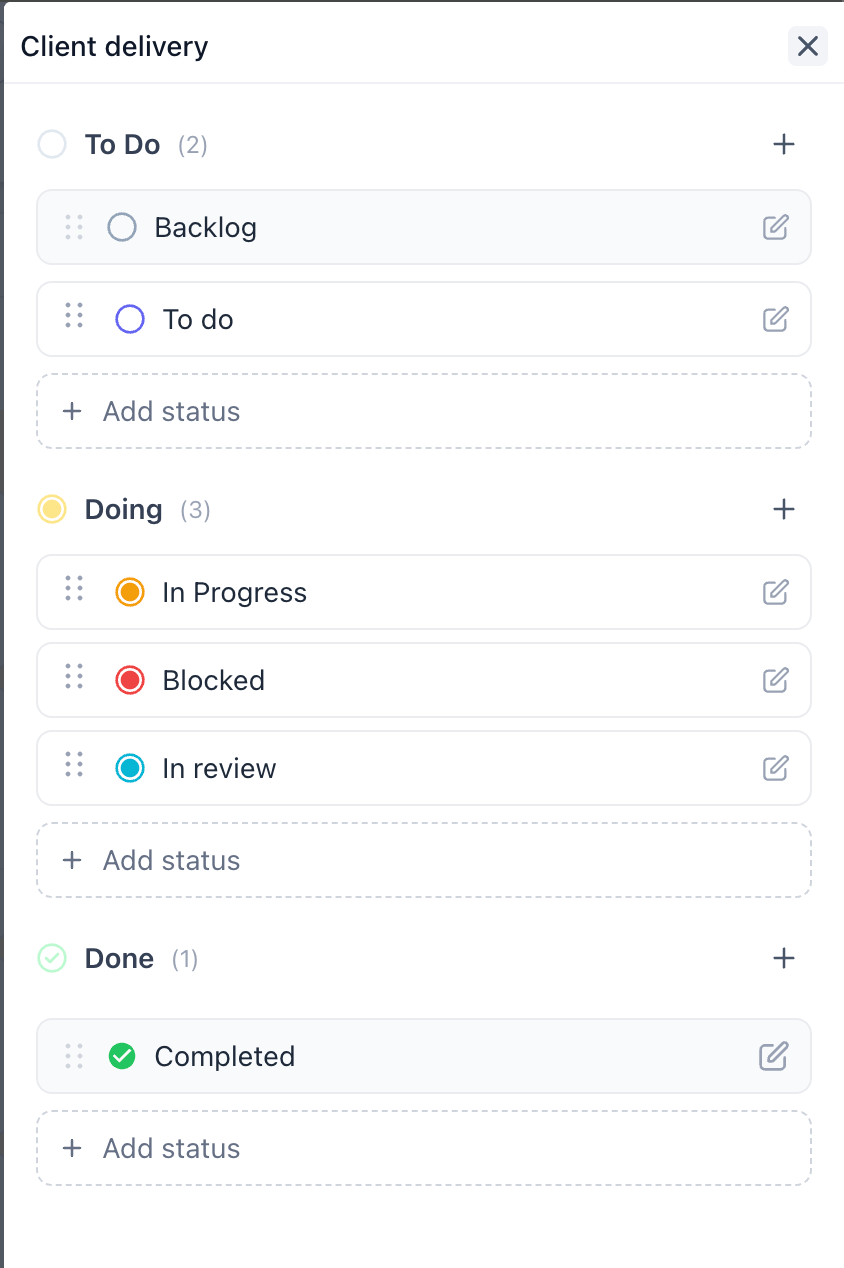
The groups matter because they tell the system what a status means. A status in the Done group represents finished work regardless of what you have called it, which keeps board ordering sensible even when teams use their own vocabulary.
Why statuses belong to the space
Statuses are configured on the Space, not on individual Lists or Folders. Every List inside a Space shares the same statuses.
This is worth knowing before you build your structure. If two workstreams genuinely need different stages - say a content pipeline with six stages and a support queue with three - they should live in separate Spaces rather than as two Lists in one Space.
Steps for viewing your statuses
Open the Tasks page
Go to "Contacts" in the left navigation menu, then select the "Tasks" tab.
Find the Space in the left panel
Hover over the Space whose statuses you want to review.
Open the Space options menu
Click the options control on the Space row. The menu contains Rename, Settings, Create list, Create folder, Custom fields, Status options, and Delete.
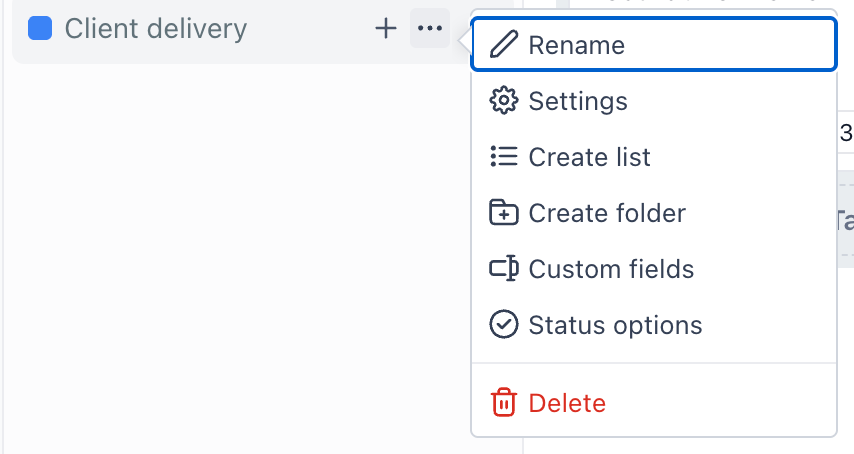
Choose "Status options"
A panel opens showing the Space name and the three groups with their statuses.
Steps for adding a status
Open Status options for the Space
Follow the steps above.
Decide which group the status belongs to
Ask whether the stage means not started, underway, or finished. A review stage that still needs someone to act belongs in Doing, not Done.
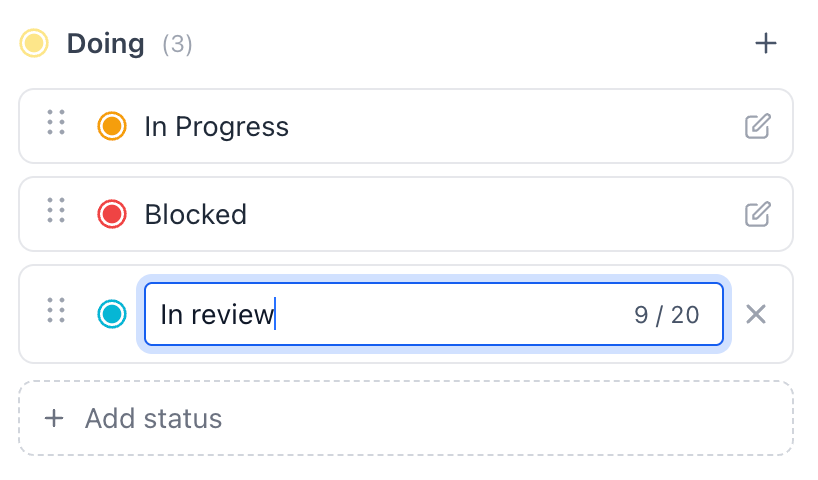
Click "Add status" in that group
Each of the three groups has its own "Add status" control, so the group you add from determines the group the status lands in.
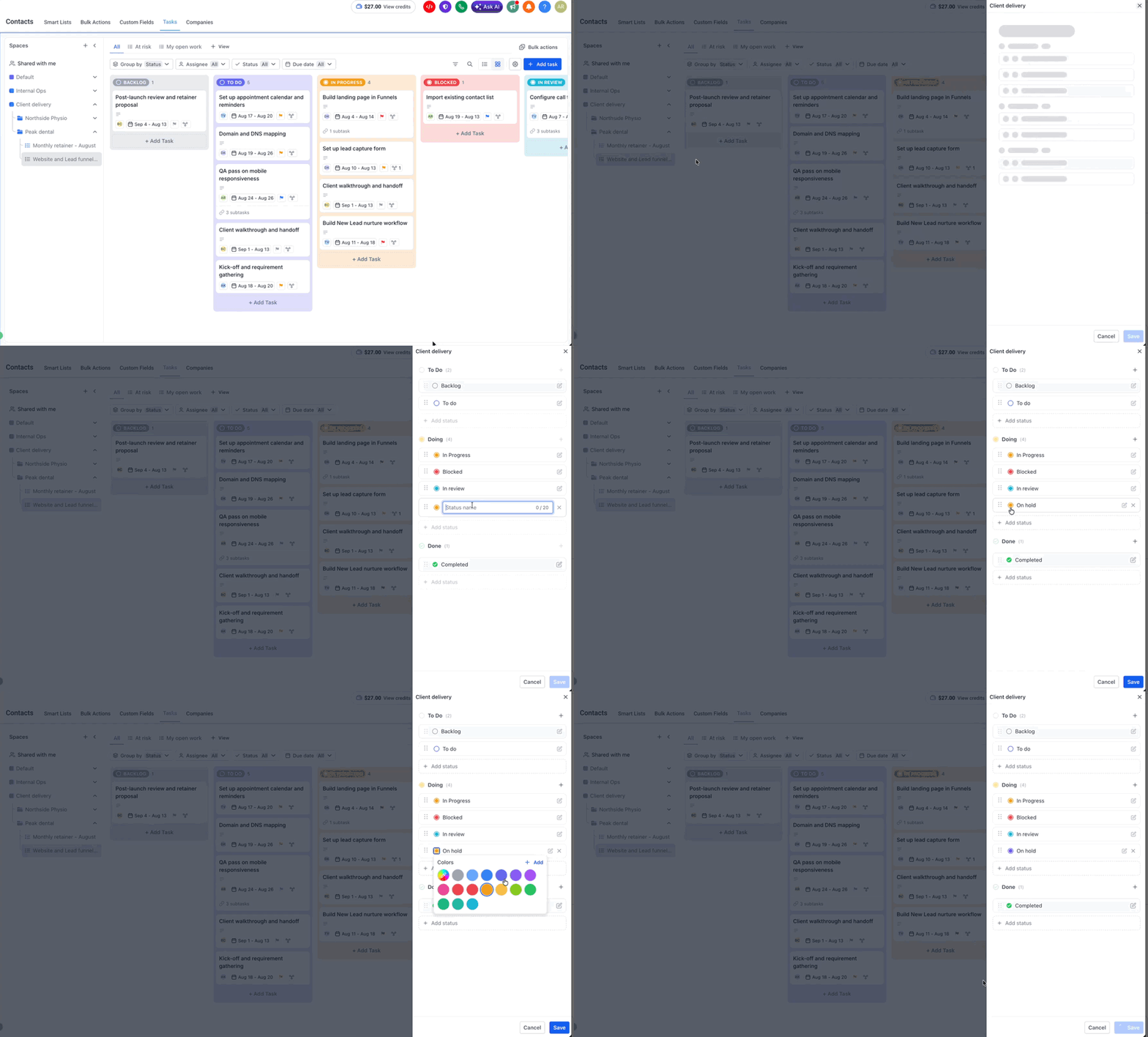
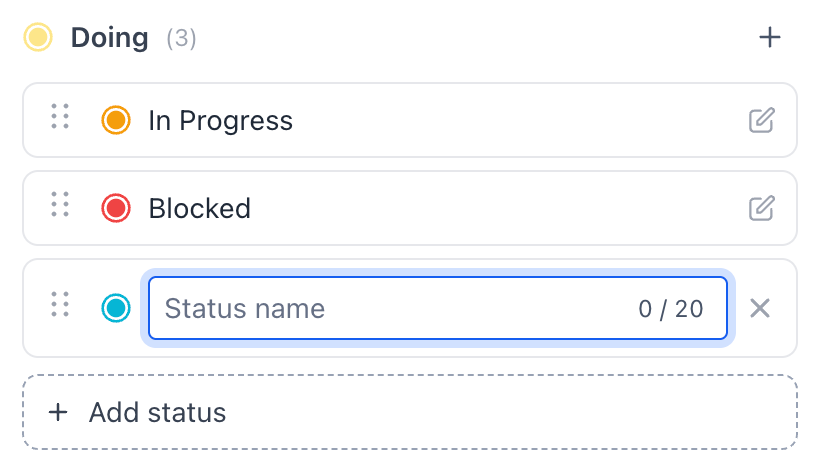
Name the status
Use the words your team already says out loud. A status called Waiting on client is more useful than one called Blocked if that is the actual situation you keep hitting.
Save
Click "Save" to apply your changes, or "Cancel" to discard them. Once saved, the new status appears as a column in Kanban view for every List in that Space.
Steps for changing a task's status
There are two ways, and both do the same thing.
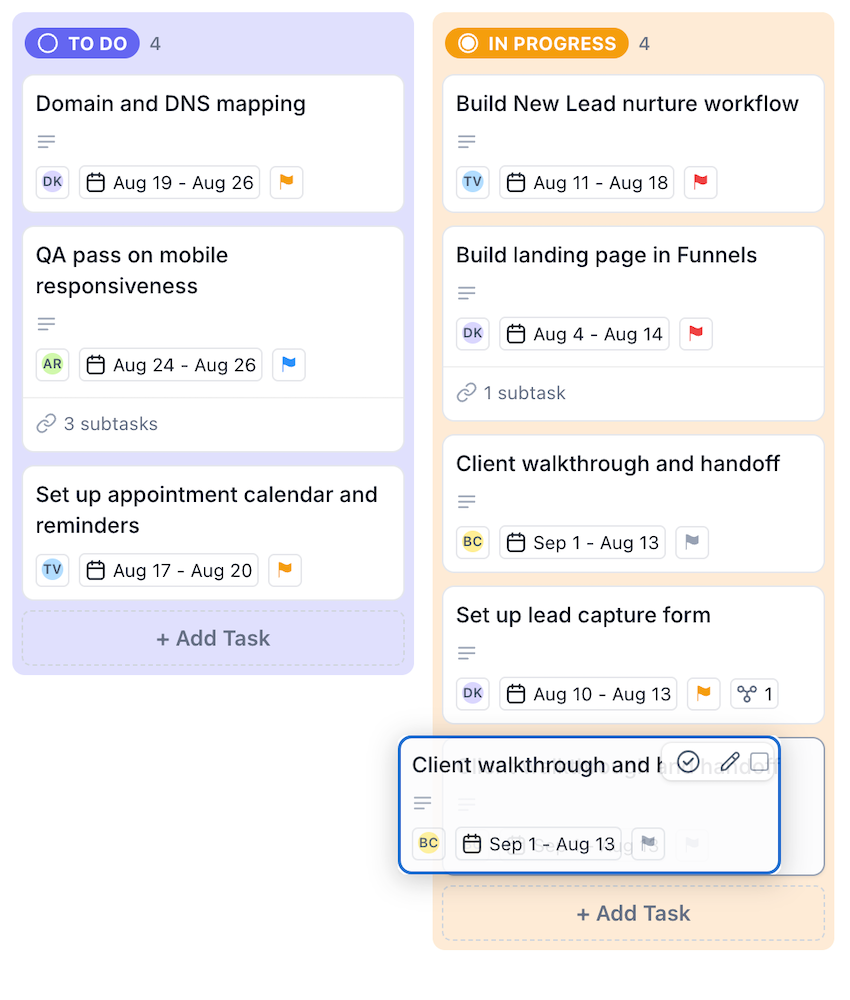
Option 1 - Drag the card
In Kanban view, drag the task card from its current column to the column you want. This is the quickest route when you are working through a board.
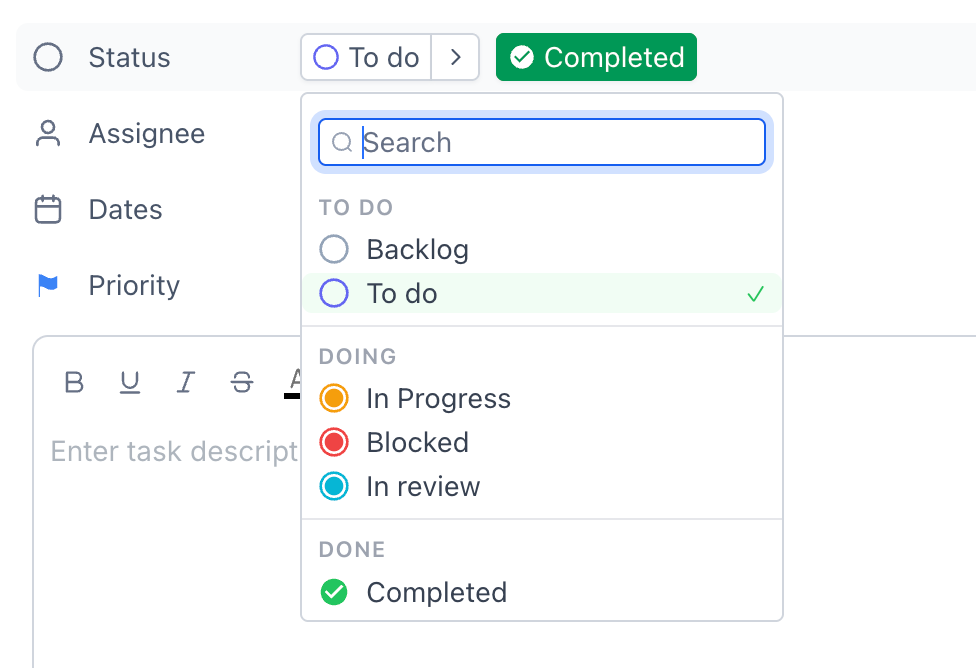
Option 2 - Edit the task
Open the task and change the Status property in the detail panel. Useful when you are already in the task adding detail.
Designing a good status set
Fewer statuses are usually better: Each one is a column, and a board with a dozen columns is harder to read than one with five.
Every status should describe a real stage: If nothing different happens to a task while it is in a status, it probably does not need to exist.
Put the group right: A status in Done tells the system the work is finished, so avoid putting a stage there if someone still has to act.
Plan before you add tasks: Reviewing statuses on a Space before your team starts filling it is much less disruptive than rearranging a busy board later.
Watch for near-duplicates: Two statuses with similar names in the same group tend to be a sign that the process was never quite agreed.
Frequently Asked Questions
Q: Can I add my own status groups?
No. The three groups - To Do, Doing, and Done - are fixed. You can add your own statuses inside them.
Q: How many statuses can one group hold?
You can add as many statuses to any group. There is no limit.
Q: Where are statuses configured?
On the Space, through Status options in the Space options menu. They apply to every List inside that Space.
Q: Can two lists in the same space use different statuses?
No. Statuses belong to the Space. You can use separate Spaces if you need different stages.
Q: Can I rename or delete a status?
You can rename a status but cannot delete one.
Q: Can I reorder the statuses within a group?
Statuses can be reordered, and that reordering changes the column order on the board
Q: Can I set a colour on a status?
Yes, you can set a color on a status
Q: Why does an empty column still appear on my board?
Because the status exists on the Space. Empty columns are normal and let you drag work into that stage.
Q: Does changing a status set affect existing tasks?
Adding a new status does not move any existing task. Tasks stay in the status they were already in until someone changes them.
Next: Assign tasks, set priority and set dates
Was this article helpful?
That’s Great!
Thank you for your feedback
Sorry! We couldn't be helpful
Thank you for your feedback
Feedback sent
We appreciate your effort and will try to fix the article