Three properties turn a list of tasks into something a team can actually work from - who owns it, how urgent it is, and when it is due. This article covers all three, including how assignment works when several people are involved in the same piece of work.
Note: Project Management is currently in Private Beta and may not be visible to all customers. Access is being rolled out gradually to selected customers.
It will soon be available through Labs, allowing all customers to enable it and explore the new and enhanced experience
TABLE OF CONTENTS
- Why These Three Properties Matter
- Assigning a Task
- Steps for Assigning a Task
- Splitting Work Across Several People
- Setting Priority
- Setting Dates
- Frequently Asked Questions
Why these three properties matter
A task with a name and nothing else tells you that something needs doing, but not who is doing it, whether it matters, or when it is needed. Assignee, priority, and dates are what make a board reviewable at a glance. All three can be set the moment you create a task, or added later.
Assigning a task
The Assignee property records the person responsible for a task. It is a single selection - a task has one assignee. The picker also has an option to clear the assignee and leave the task unowned.
Assignee picker open on a task, showing the list of members
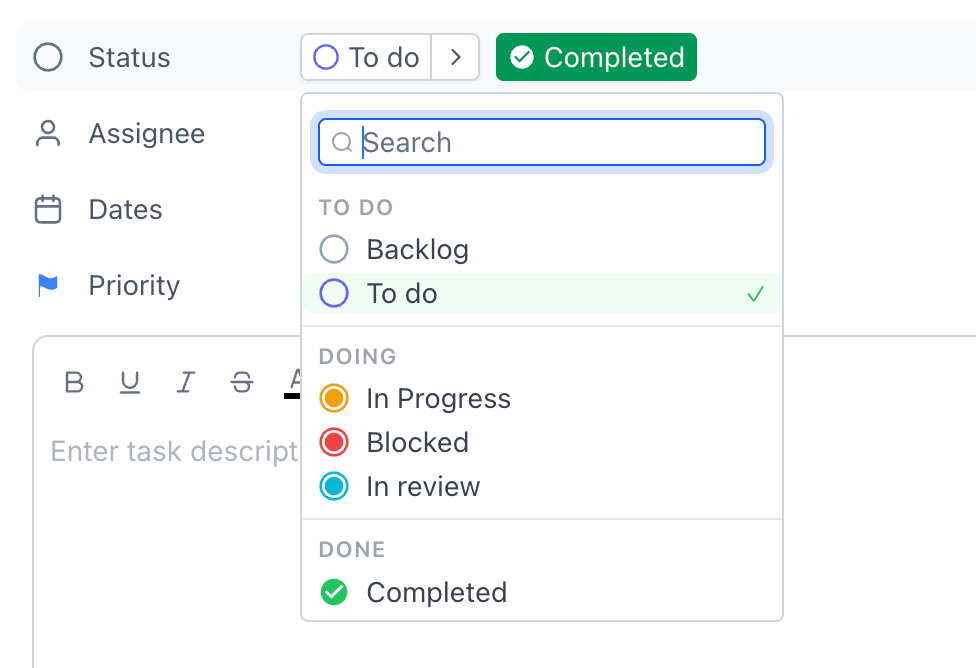
The people available in the picker are those with access to the Space. If someone you expect is missing, check that they have been shared into the Space.
Steps for assigning a task
Option 1 - While creating the task
The inline task composer includes an "Add assignee" control. Setting the owner at creation is the best habit, because an unassigned task has nobody watching it.
Option 2 - On an existing task
Click the task card to open its detail panel.
Find the "Assignee" property.
Click it and choose a person from the list.
Save your change.
Splitting work across several people
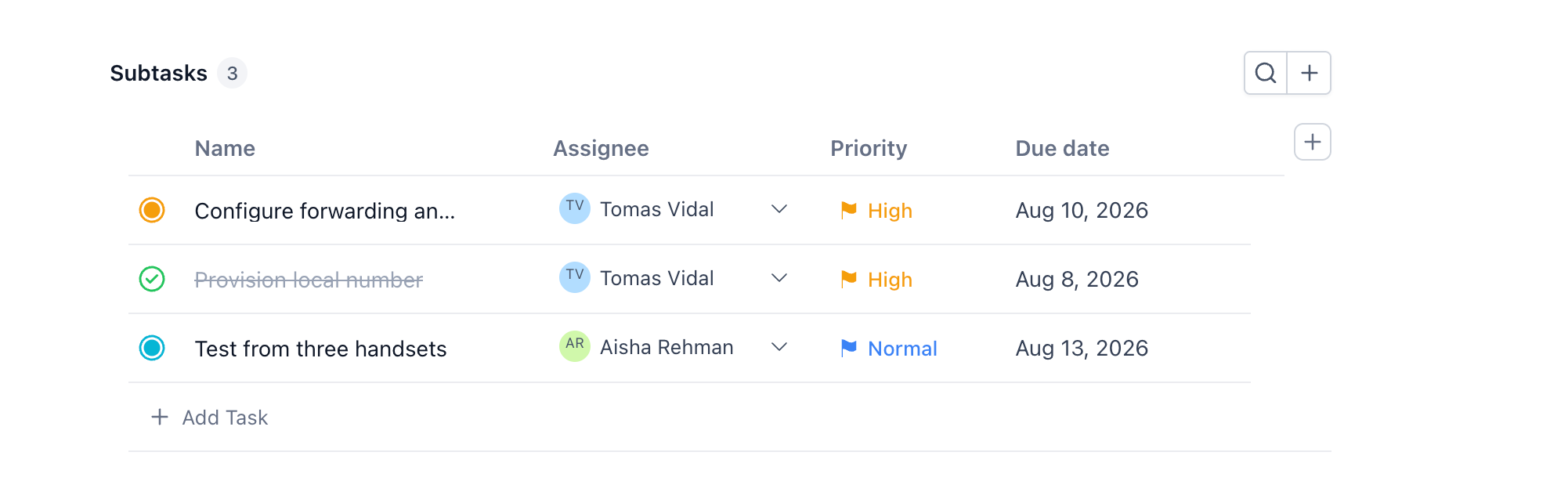
Because a task takes one assignee, subtasks are how you divide a piece of work between people. Keep the parent task as the overall outcome, then add a subtask per person for their part of it.
For example, a task called Launch September newsletter might have subtasks for drafting copy, designing the header, and scheduling the send, each assigned to a different person. The parent stays as the single thing you are tracking, while ownership of each step is clear.
A task with several subtasks, each showing a different assignee
Setting priority
Priority records how urgent a task is. Four levels are available:
Urgent: Needs attention now, ahead of other work.
High: Important and should be picked up soon.
Normal: Standard work in the usual order.
Low: Can wait, or is worth doing only when there is space.
Priority can also be left unset, which is fine for routine work.
Priority only helps if it is used sparingly. If most tasks on a board are marked Urgent, the field has stopped telling anyone anything.Priority picker
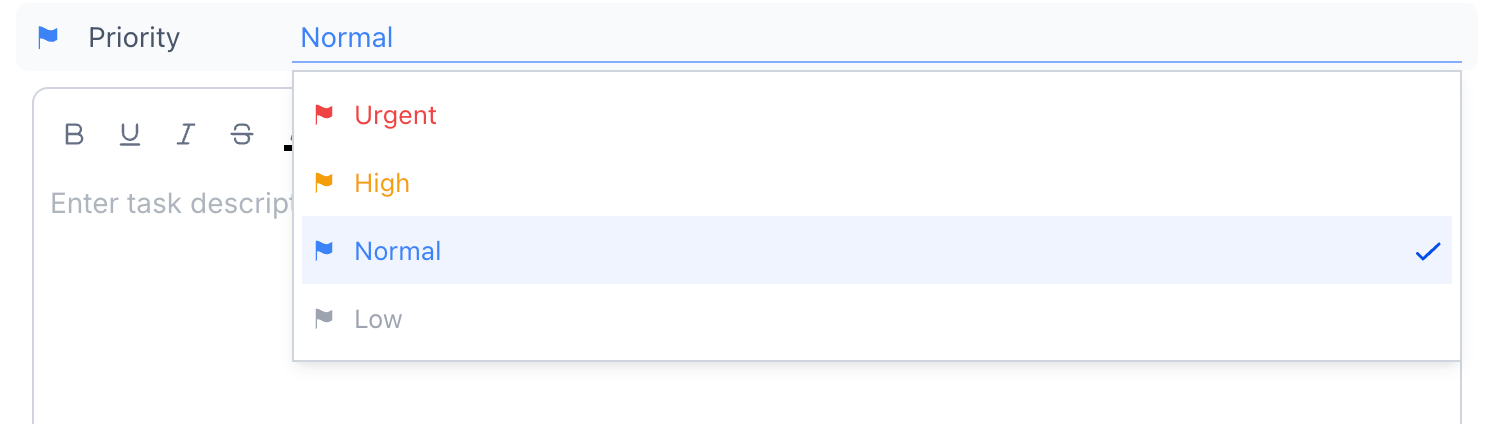
To set it while creating a task, use the "Priority" control in the inline composer. To set it later, open the task, find the "Priority" property, choose a level, and save.
Setting dates
The Dates property accepts either a single date or a date range, so you can record just a due date or a full start-to-finish window. The timezone the dates are being displayed in is shown alongside them, which matters when your team works across regions.
Use a single date for work that happens on or by a particular day. Use a range for work that occupies a period, such as a two-week build. On the board, a card displays whichever you have set.
Dates control open on a task, showing a range selected and the timezone label
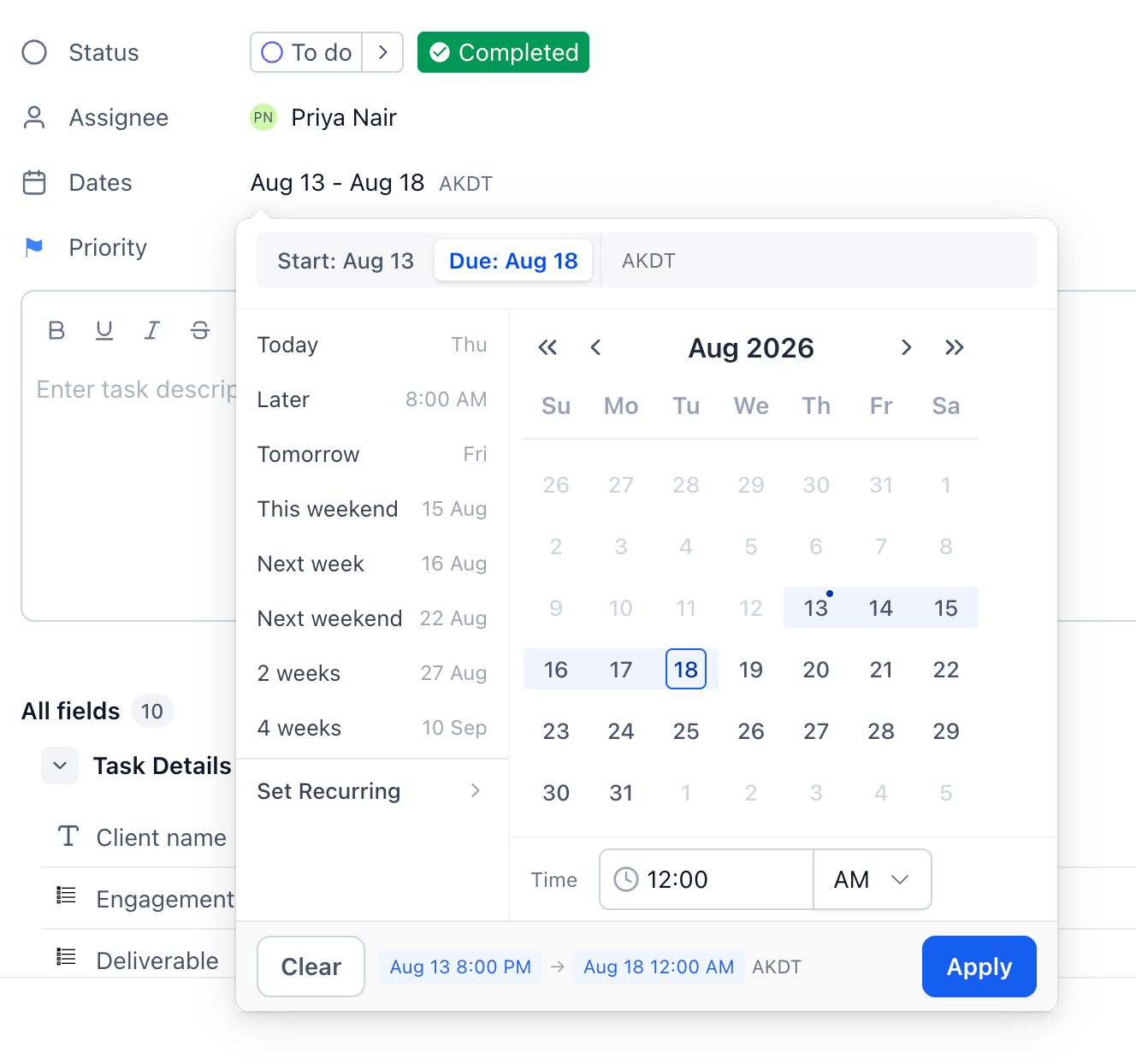
To set dates while creating a task, use the "Select date" control in the inline composer. To set them later:
Open the task.
Click the "Dates" property.
Pick a single date, or pick a start and an end date for a range.
Check the timezone shown beside the dates.
Save your change.
Frequently Asked Questions
Q: Can I assign a task to more than one person?
Not in this release. A task has a single assignee. Use subtasks to split work between people.
Q: Can I leave a task unassigned?
Yes. The picker includes an option to clear the assignee. It is worth doing this only temporarily, since an unassigned task has no owner.
Q: Why can I not find a colleague in the assignee list?
The picker shows people with access to the Space. Check the Space has been shared with them.
Q: Does assigning a task notify the person?
Yes, assigning a task notifies the person
Q: What are the priority levels?
Low, Normal, High, and Urgent. Priority can also be left unset.
Q: Can I create my own priority levels?
No. The four levels are fixed. If you need another dimension of urgency, a custom field on the Space is the better route.
Q: Can I set a start date and a due date on the same task?
Yes. The Dates control accepts a range.
Q: Which timezone are the dates shown in?
The timezone displayed beside the dates on the task follows sub-account’s timezones.
Next: Make a space, folder or list private
Was this article helpful?
That’s Great!
Thank you for your feedback
Sorry! We couldn't be helpful
Thank you for your feedback
Feedback sent
We appreciate your effort and will try to fix the article