Default values help keep personalized emails complete when contact information is missing. Learn how default values work, where they can be used, how to recognize them in the editor, and how to add fallback text to custom values in HighLevel emails.
TABLE OF CONTENTS
- What are Default Values for Custom Values in Emails?
- Key Benefits of Default Values for Custom Values
- How Default Values Work
- Visual Indicators for Default Values
- How To Set Default Values for Custom Values in Emails
- How to set defaults using syntax?
- Frequently Asked Questions
- Related Articles
What are Default Values for Custom Values in Emails?
Personalizing emails with custom values is a powerful way to make messages feel more relevant, but missing contact data can create awkward blanks. For example, an email may display “Hi ,” instead of “Hi Sarah,” when the contact’s first name is not saved.
When the related contact field is empty, HighLevel displays the default value you configured for that specific custom value usage instead of leaving the space blank.
You can add default values to custom values, also commonly used as merge tags, in subject lines, preview text, and email body content across email campaigns, workflow emails, bulk emails, and email templates.
Key Benefits of Default Values for Custom Values
Cleaner Personalization: Prevents blank spaces when contact fields such as first name, company name, or appointment details are missing.
More Professional Emails: Keeps subject lines, preview text, and email content polished before they reach the recipient.
Flexible Messaging: Allows different default values for the same custom value in different email contexts.
Works with Incomplete CRM Data: Helps you personalize emails even when some contact records are incomplete.
Better Email Readability: Keeps messages natural and complete, so recipients do not see awkward gaps or broken sentences.
How Default Values Work
Default values only display when the contact field is missing or empty. They do not update, replace, or overwrite the contact’s saved CRM data. You can even use a different default value each time the same custom value appears, even within the same email.
For example, if {{contact.first_name}} appears twice in one email, one instance can use "there" as the fallback while another instance can use "friend".
Example 1: Missing First Name
Hey {{contact.first_name}}, we are so glad that you signed up!
Default Value: "there"
Results:
- If first name exists: "Hey Sarah, we are so glad that you signed up!"
- If first name doesn't exist: "Hey there, we are so glad that you signed up!"
Example 2: Subject Line Personalization
"Hi {{contact.first_name}}, your appointment is confirmed"
Default Value: "friend"
Results:
- If first name exists: "Hi John, your appointment is confirmed"
- If first name doesn't exist: "Hi friend, your appointment is confirmed"
Visual Indicators for Default Values
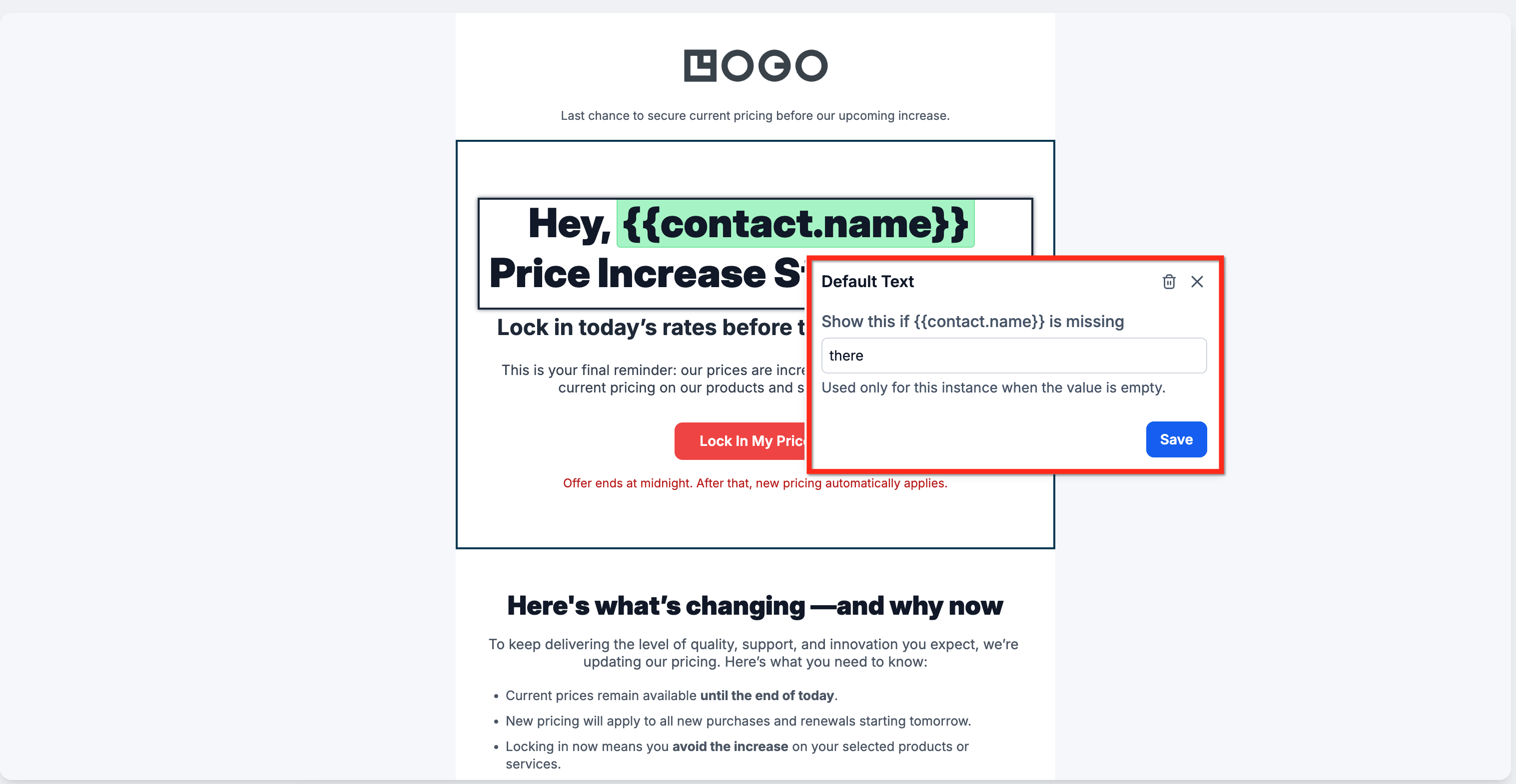
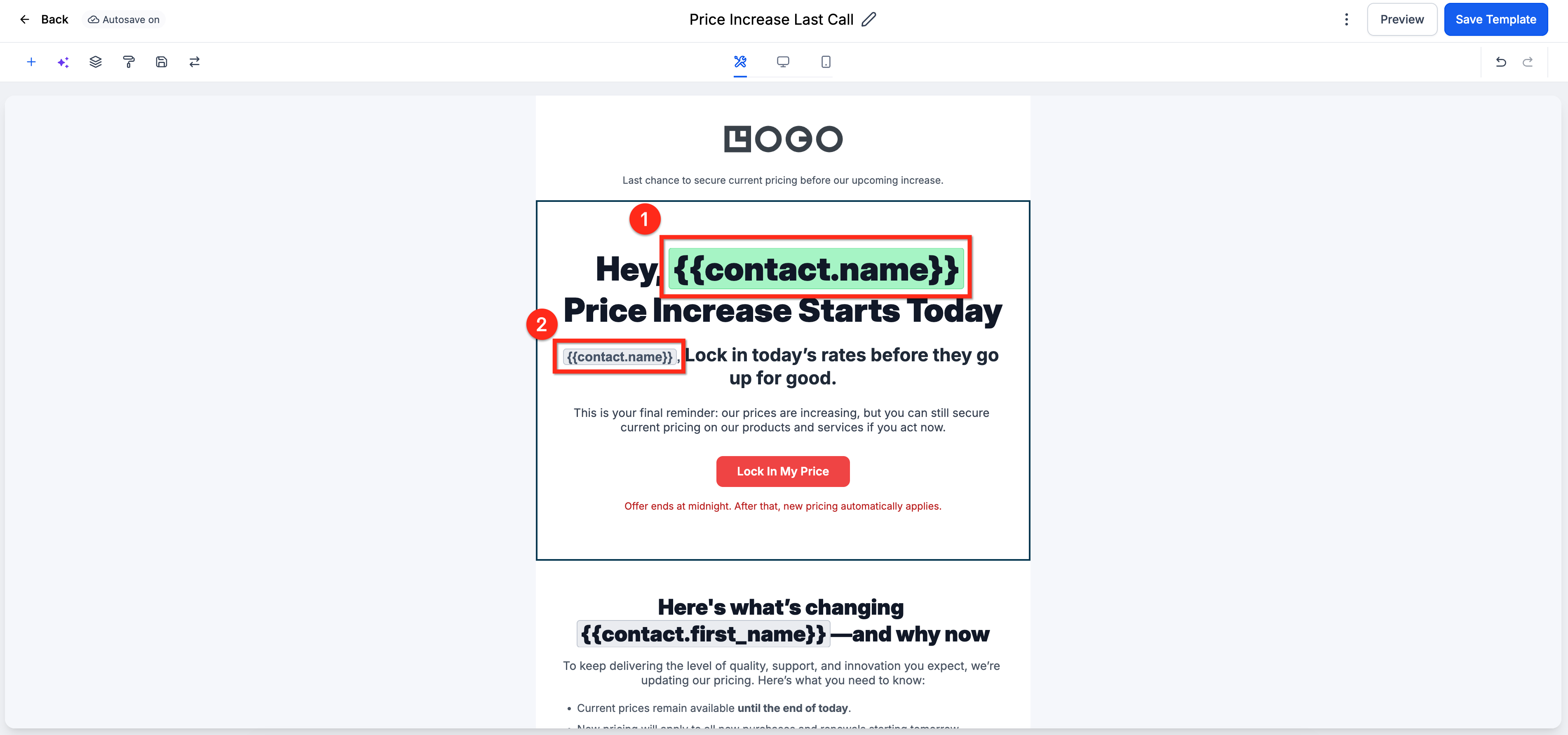
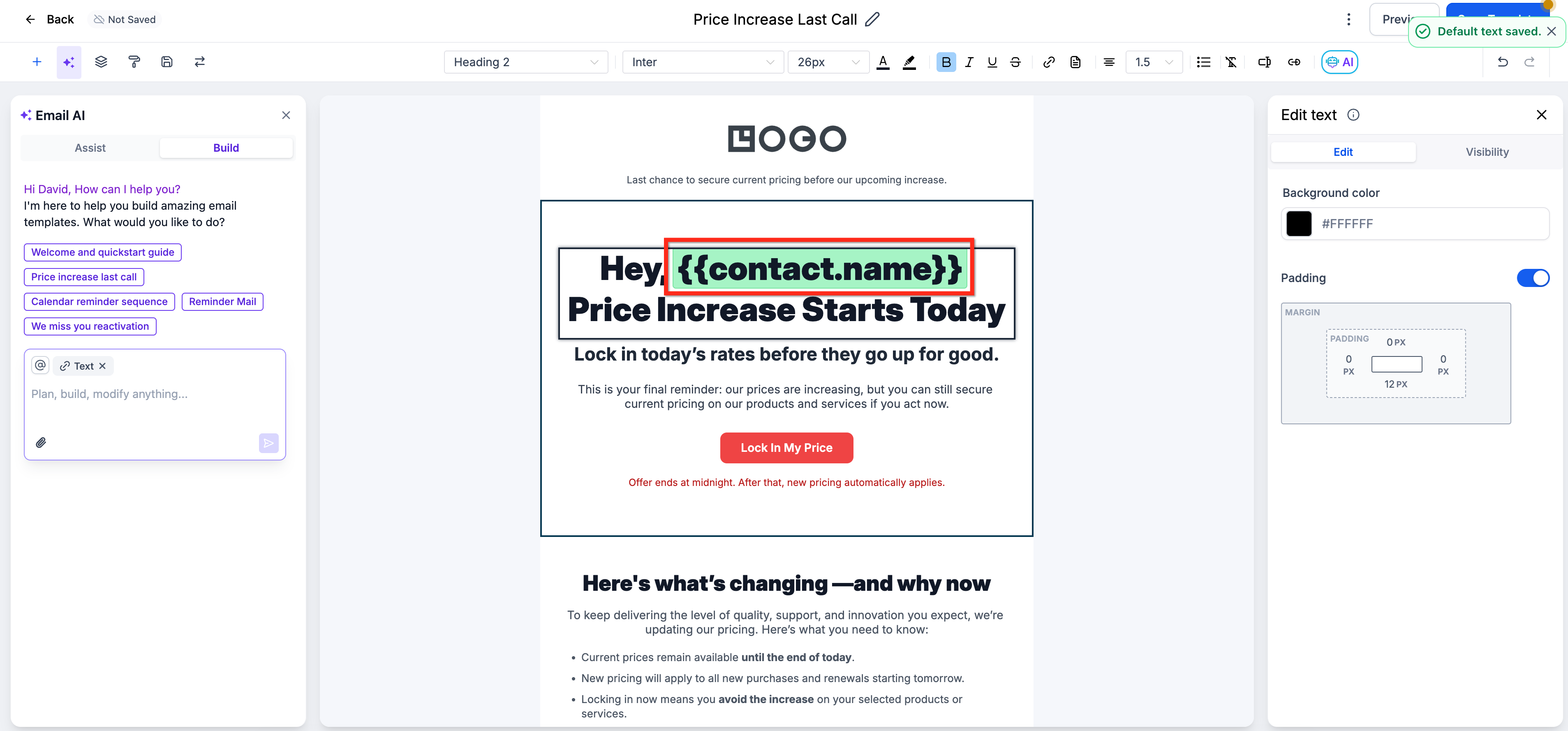
Custom value tags use visual indicators to help you identify whether a default value has been configured. These indicators make it easier to review an email before sending and confirm which personalization values have fallback text. Hovering over a configured custom value shows the default value tooltip.
Green highlighted custom value: A default value has been set.
Standard/Grey custom value: No default value has been set.
How To Set Default Values for Custom Values in Emails
- Create or edit an email, template, workflow email, bulk email action or campaign email. Add or locate the custom value you want to personalize, such as {{contact.first_name}}.
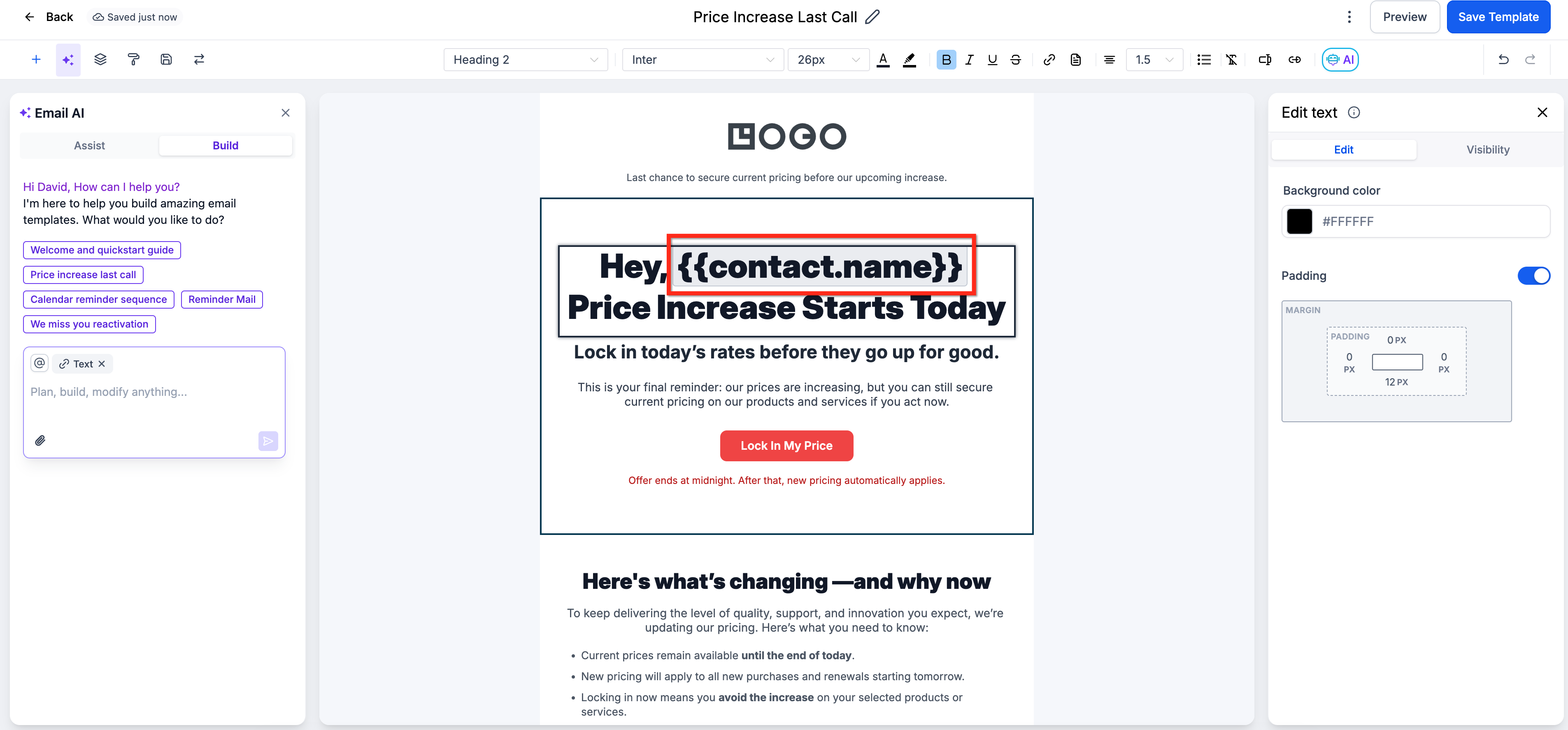
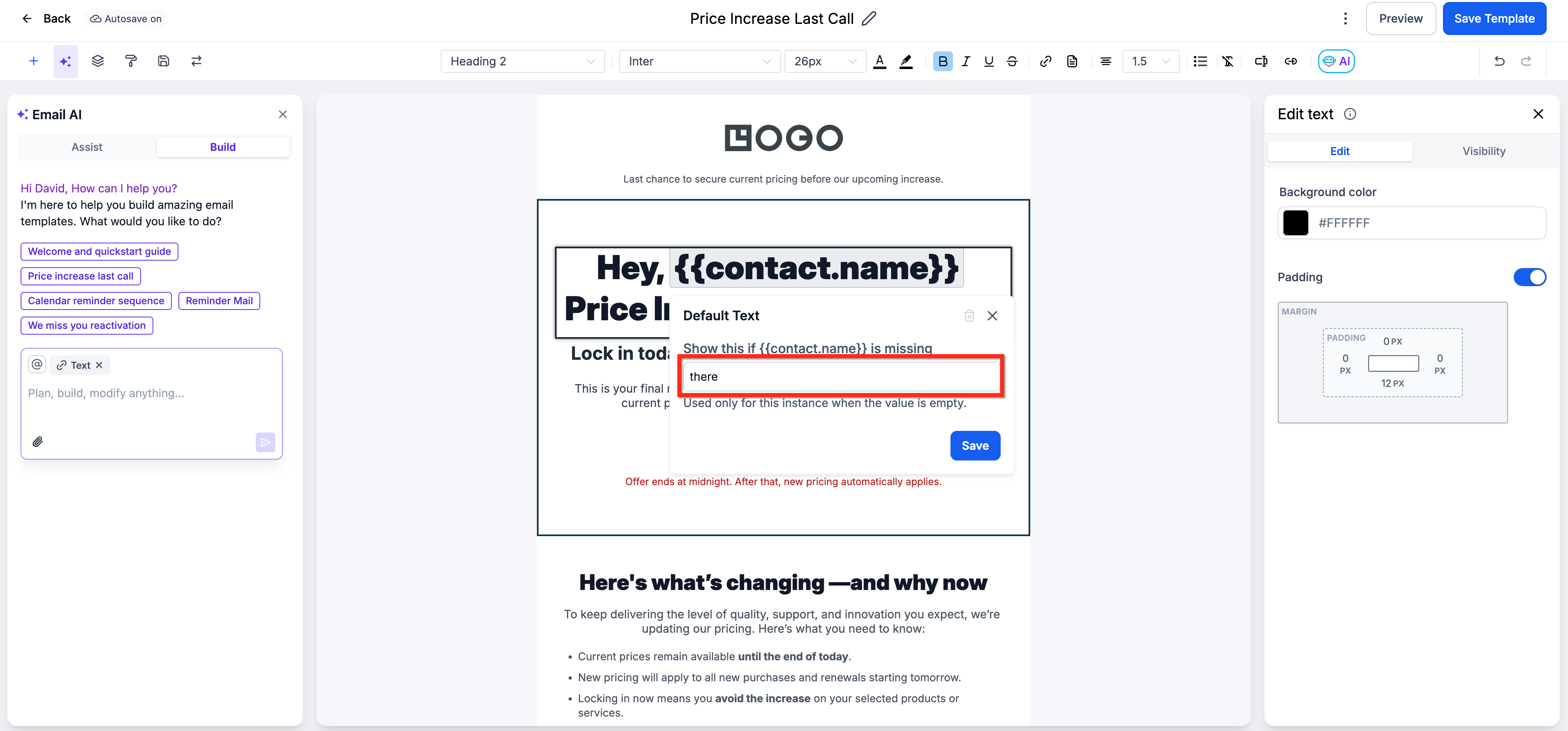
- Click on the custom value to open the Default Text Editor.
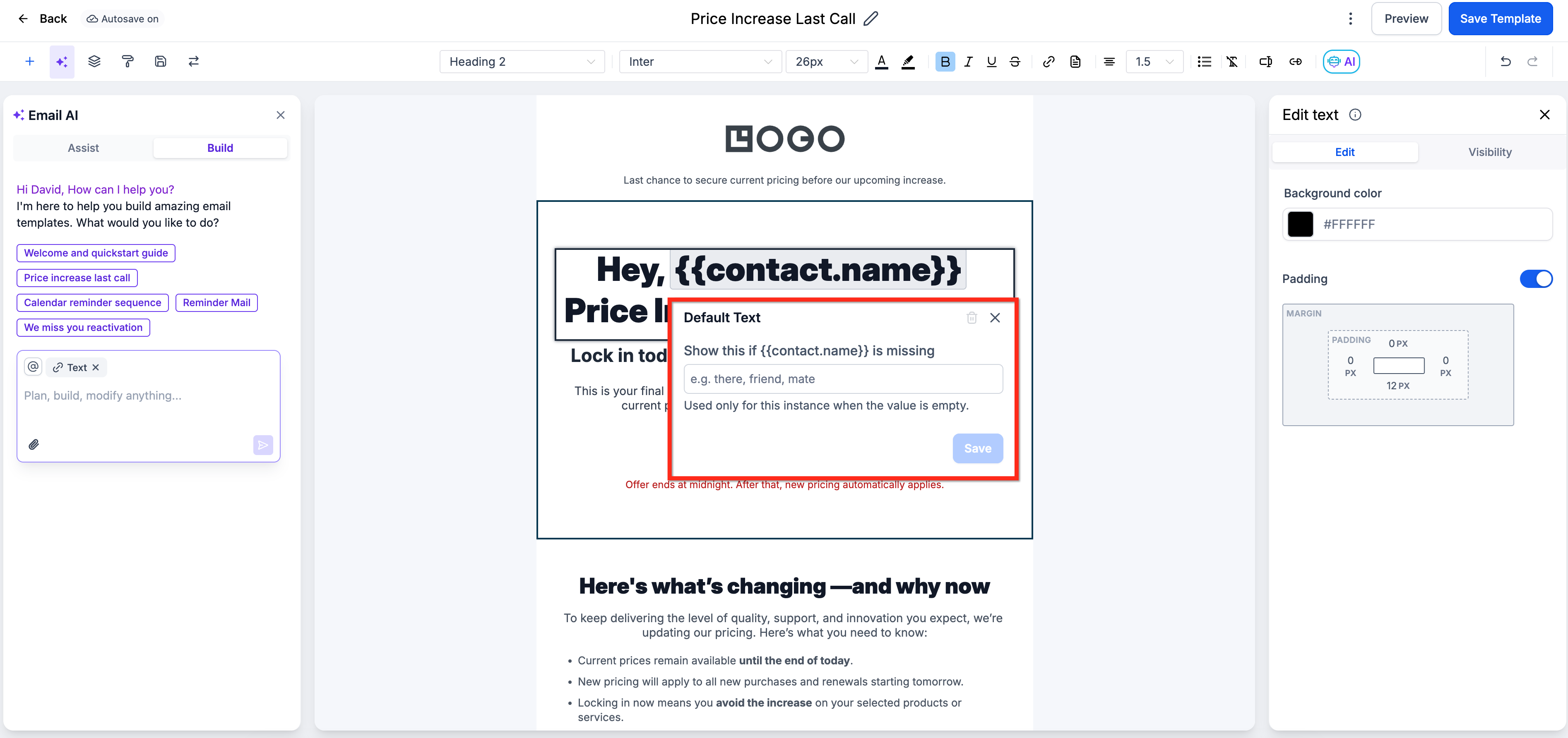
In the Default Text Editor, enter the fallback text you want to display when the value is missing. Click Save.
Confirm the custom value is highlighted in green, indicating that a default value has been set.
Was this article helpful?
That’s Great!
Thank you for your feedback
Sorry! We couldn't be helpful
Thank you for your feedback
Feedback sent
We appreciate your effort and will try to fix the article