This article explains how to use the AI Extract Data action in workflows to pull structured data from unstructured text. You’ll find step-by-step configuration instructions, details on available templates and data types, practical use cases, and answers to common questions.
TABLE OF CONTENTS
What is the AI Extract Data Workflow Action?
The AI Extract Data Workflow Action is a Workflow AI action in HighLevel that converts unstructured text into structured fields you can use later in the same workflow. It is designed for situations where important details are buried inside an sms message, email body, webhook payload, AI output, or other text-based data.
You define the fields you want to extract, such as name, email, phone, or order ID, and the AI parses the selected input and returns those values as structured workflow variables. These extracted variables are then available in downstream actions through the custom value picker, making it easier to automate follow-up, routing, record updates, and other workflow decisions. This eliminates the need to manually parse unstructured data or build complex conditional logic to extract information from free-form text.
Example: An email comes in from a lead source, the action extracts the contact details, and those values can then used to create a new contact and opportunity.
Important: This is a premium action. Using this action will incur additional charges per execution. For more information about premium workflow action usage and billing, see AI Product Pricing.
Key Benefits of the AI Extract Data Workflow Action
- Unstructured Input to Structured Output: Extract clean fields from emails, SMS messages, webhook payloads, form response text, AI/GPT outputs, and previous workflow values.
- No External Parsing Tools Required: Keep extraction inside HighLevel workflows instead of relying on manual review, custom code, or third-party tools.
- Flexible Data Schema: Define exactly the fields you need to extract, with support for multiple data types (Text, Email, Phone, Number, Date).
- Optional Context for Better Accuracy: Add background details so the AI understands what the input represents and how to interpret ambiguous values.
- Pre-Built Templates: Use templates for common extraction patterns such as contact information, opportunity information, order information, and appointment information.
- Downstream Workflow Variables: Use extracted fields in later actions, including Update Contact Field, If/Else, notifications, messages, opportunities, or outbound webhooks.
Action Details
Understanding each part of the AI Extract Data Workflow Action helps you configure the action more accurately and improve the quality of the extracted output.
| Field | Description |
|---|---|
| Action Name | A custom name for the action. Defaults to “AI extract data.” |
| Extract From * | The unstructured text input from which data will be extracted. Select a custom value (e.g., an email body, webhook payload, SMS content, or output from a previous action). This is a required field. |
| Additional Context | Optional supplementary context to help the AI extract data more accurately. For example: “The content is a Zillow lead notification email. Phone numbers may appear in different formats.” |
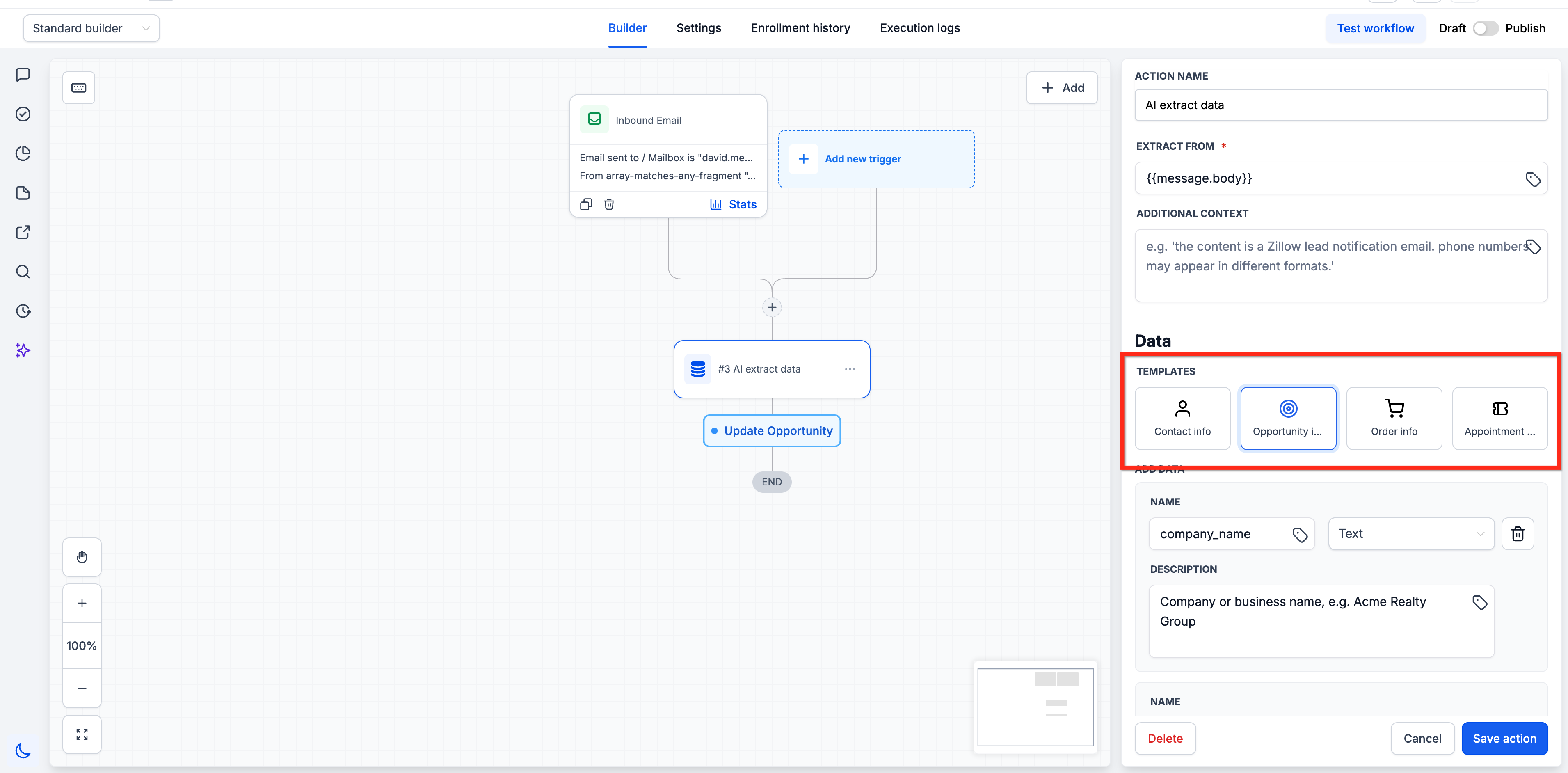
| Templates | Pre-built extraction templates for common use cases: Contact info, Opportunity info, Order info, and Appointment info. Selecting a template auto-populates the data fields. You can modify, add, or remove fields after applying. |
| Data Fields | The structured fields to extract from the input. Each field has a Name (variable key), Type (Text, Email, Phone, Number, or Date), and an optional Description to guide the AI. |
Templates
Templates help you start faster by preloading common extraction fields for frequent workflow use cases. They reduce setup time and give you a practical starting point, especially when you want to extract standard contact, sales, order, or scheduling details.
You can use a template as-is, edit the fields after selecting it, or build your own custom field set from scratch.
Available template examples include:
Contact info: Pre-populates fields for
full_name(Text),email(Email), andphone(Phone). These are designed to extract standard contact details such as the person’s full name, email address, and phone number.Opportunity info: Pre-populates fields for
company_name,job_title,budget, andtimeline. These fields are designed to capture common sales details from lead or opportunity-related messages.Order info: Pre-populates fields for
order_id(Text),items(Text),total_amount(Number), andorder_date(Date). These are designed to extract order and transaction details such as the order ID, items or services ordered, total amount, and order date.Appointment info: Pre-populates appointment-related fields for common scheduling details such as appointment date, time, location, and appointment type.
Using Extracted Data in Downstream Actions
After the AI Extract Data Workflow Action runs, the extracted fields become available as custom values in subsequent workflow actions. This makes it possible to pass the extracted data directly into actions such as Create/Update Contact, opportunity actions, If/Else branches, notifications, or other downstream steps.
For example, if you defined a field named full_name with type Text, you can use it in a subsequent Update Contact action to set the contact’s name, or in a Send Email action to personalize the message.
To access the extracted values in a downstream action:
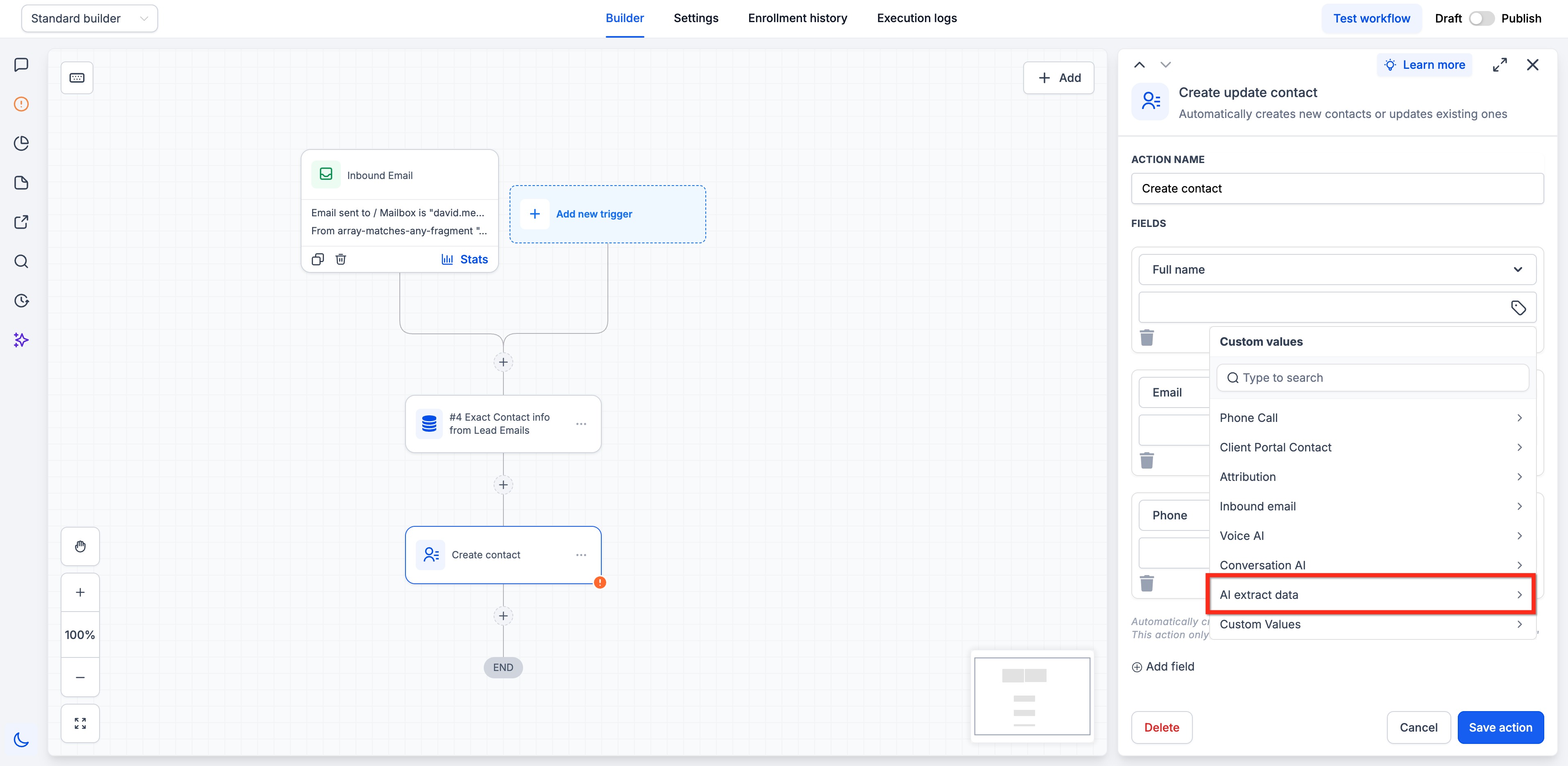
- Open the downstream action where you want to use the extracted data then click into the field you want to populate. Open the custom value picker and select AI extract data.
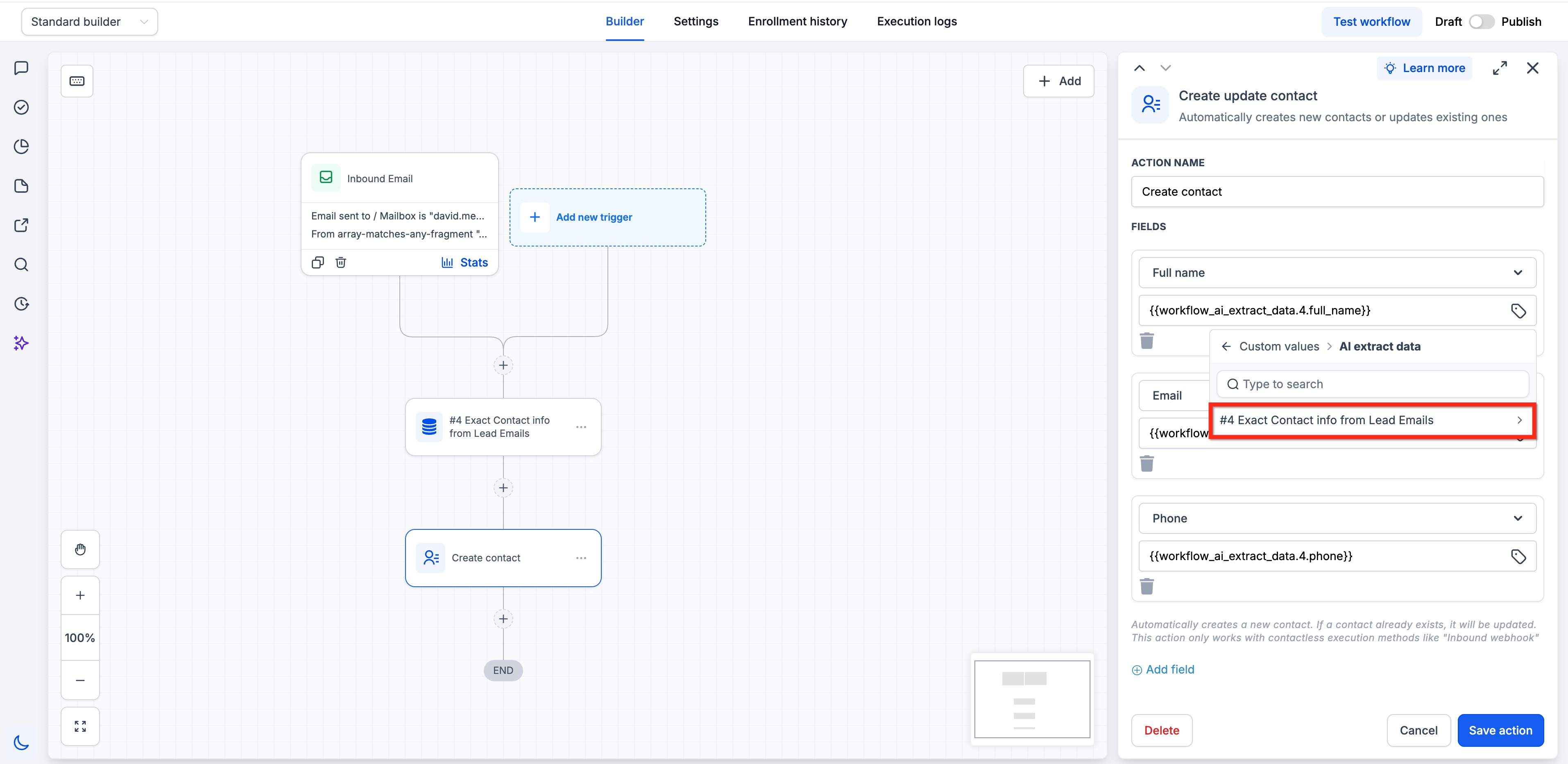
- Choose the specific AI Extract Data action you want to reference. This is labeled using the name you gave that action in the workflow. From there, select the field you want to insert. The available options are based on the fields defined in that AI Extract Data action.
How to Configure the AI Extract Data Workflow Action
Follow the steps below to configure the action and make the extracted fields available for downstream workflow actions.
Step 1: Add the Action
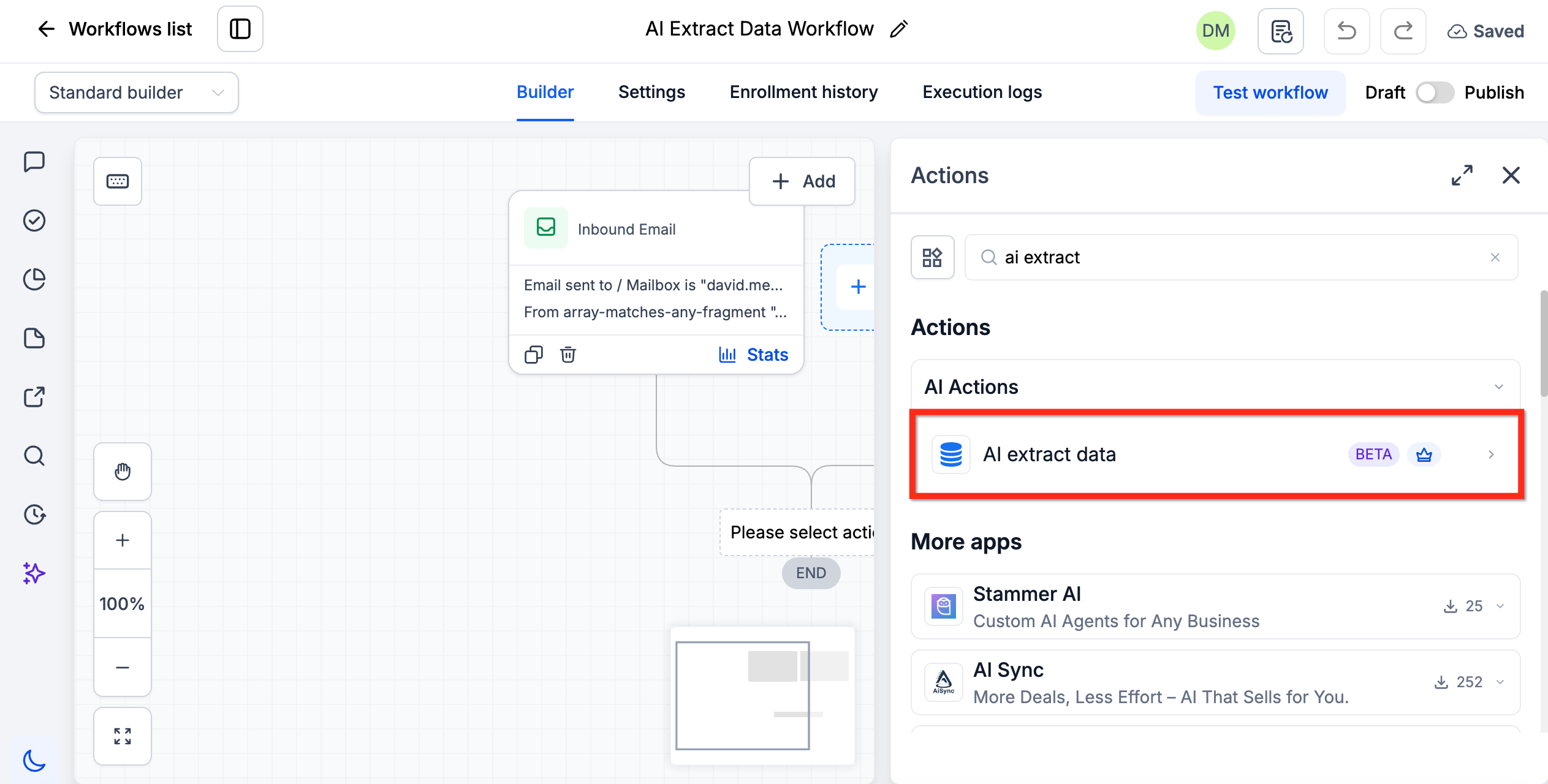
In your workflow, click the Plus (+) icon to add a new action, then search for the AI extract data action and select it.
Step 2: Set the Input Source
In the Extract From field, use the custom value picker to select the input you want to parse.
This can be any text-based value from an earlier workflow action or trigger, such as an email body, a webhook payload field, an SMS message, or the output from a previous AI action.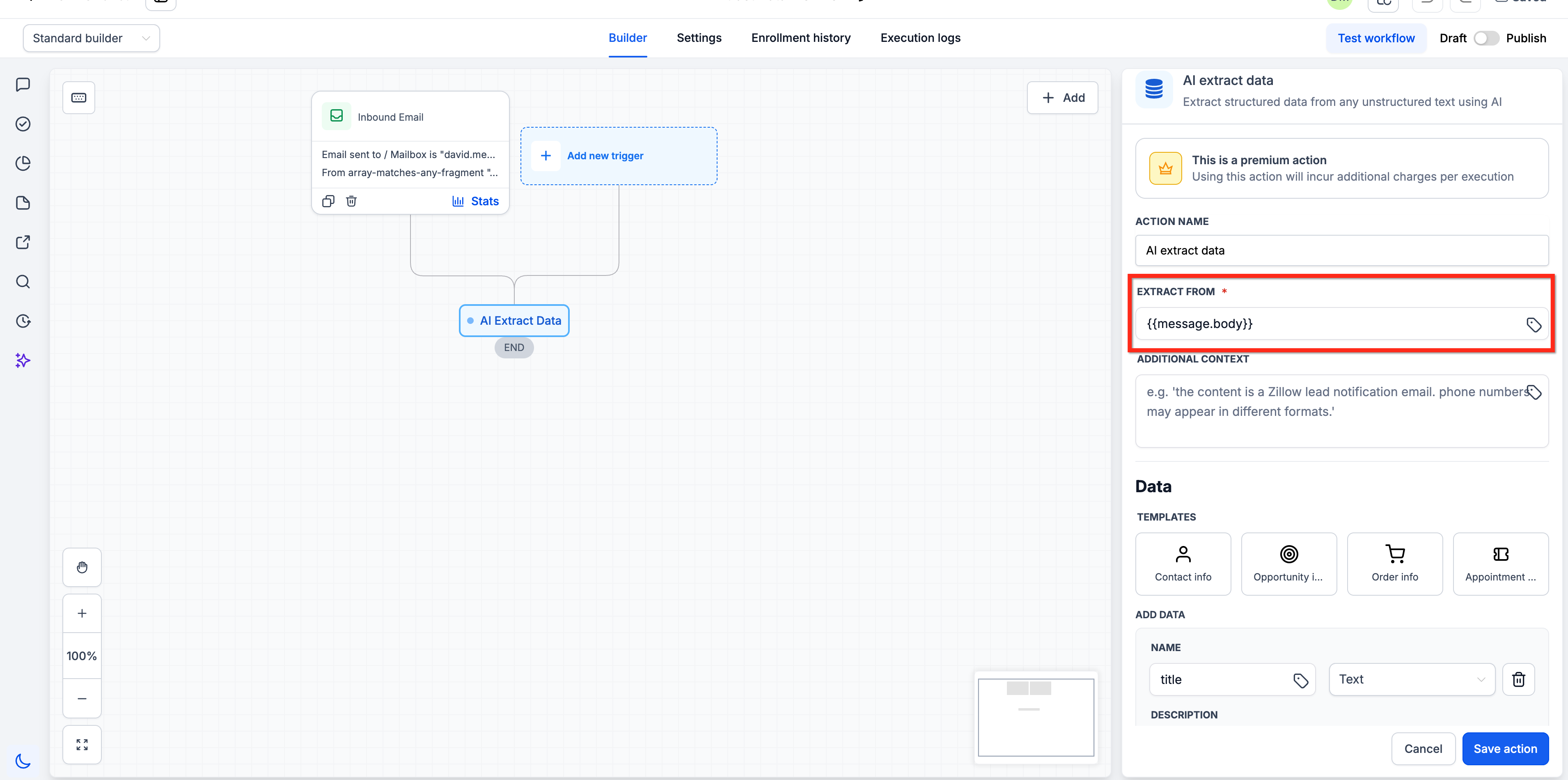
Step 3: Add Context (Optional)
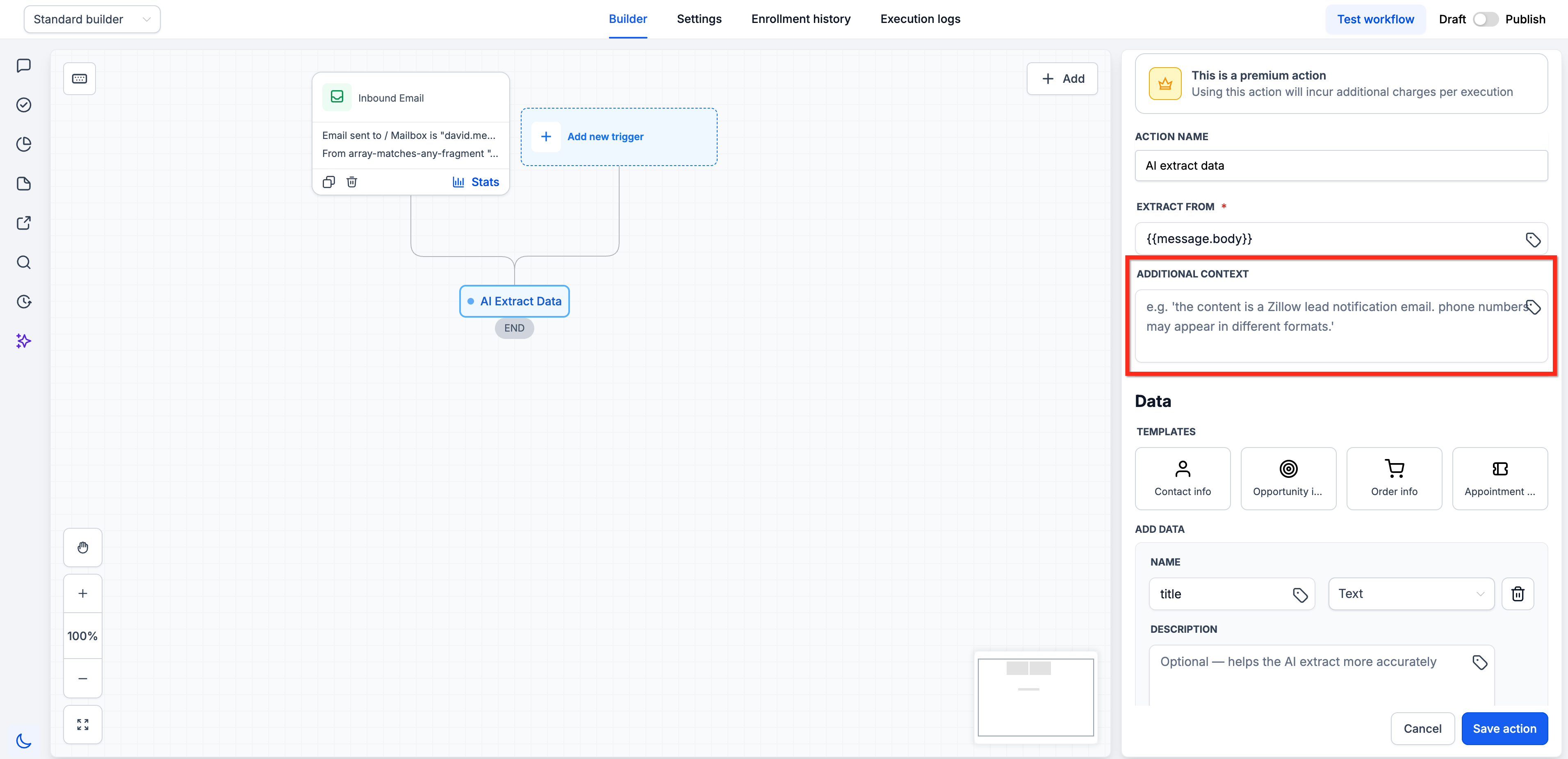
In the Additional Context field, provide any supplementary information that might help the AI extract data more accurately. This field supports custom values.
For example, you might specify the format of the source (e.g., “This is a new lead notification email. Phone numbers may appear in different formats.”).
Step 4: Define Data Fields
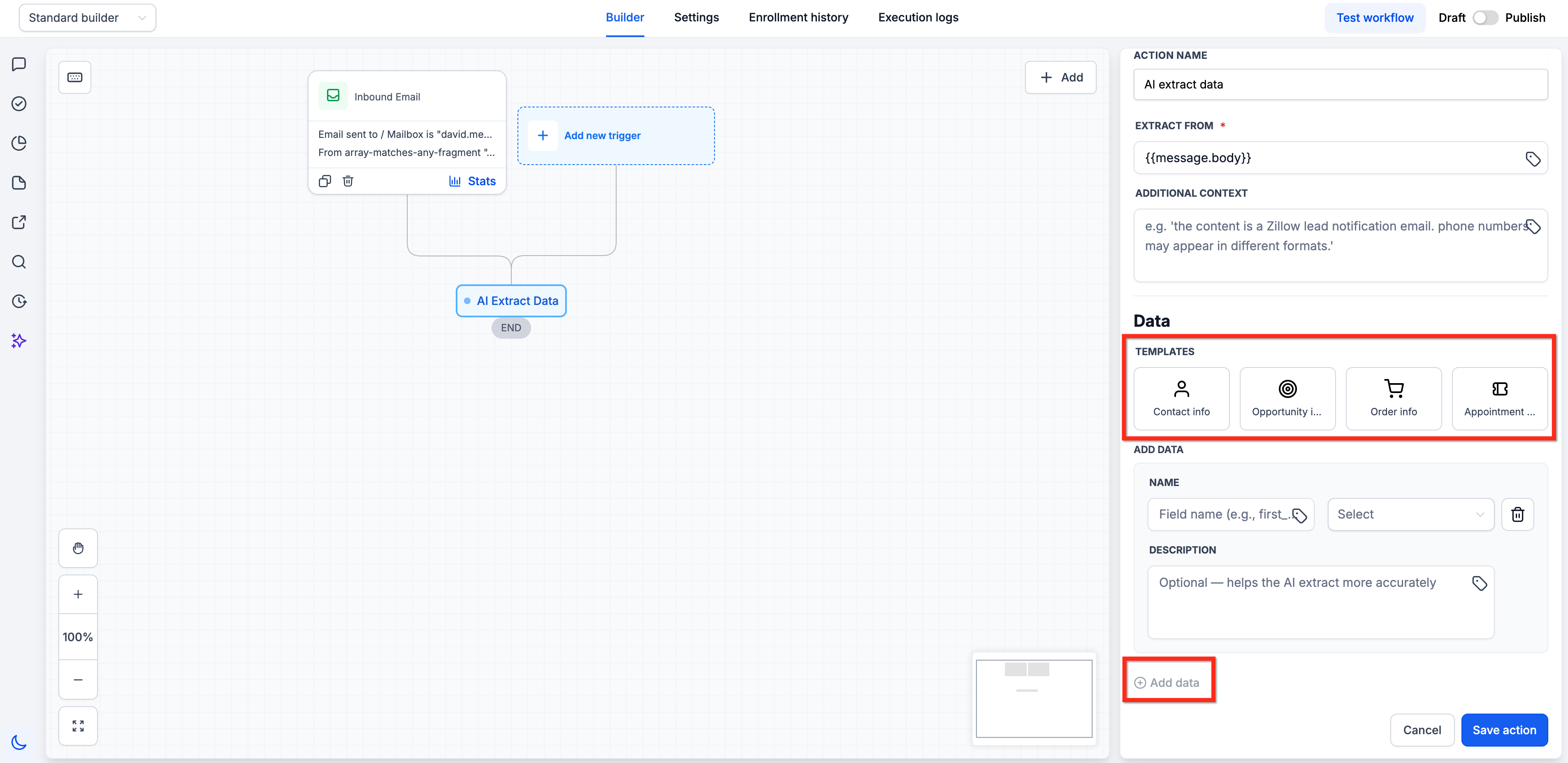
In the Data section, define the fields you want the AI to extract. You have two options:
Option A – Use a Template
Click one of the pre-built templates, such as Contact info, Opportunity info, Order info, or Appointment info, to auto-populate a set of commonly used fields. You can then modify, add, or remove fields as needed.
Option B – Define Custom Fields
Click + Add data to manually create each field. For each field, provide:
Name: The variable key for this field, such as
full_name,order_id, ortotal_amount. This becomes the variable name in downstream actions.Type: The data type, such as Text, Email, Phone, Number, or Date. This helps the AI identify and format the extracted value correctly.
Description (Optional): A hint to guide the AI on what to look for, such as “Phone number with area code, e.g. +1 (555) 234-5678.” Adding a description can improve extraction accuracy.
Step 5: Save the Action
Click Save action to save the configuration. The extracted data fields will be available as variables in all subsequent actions in the workflow.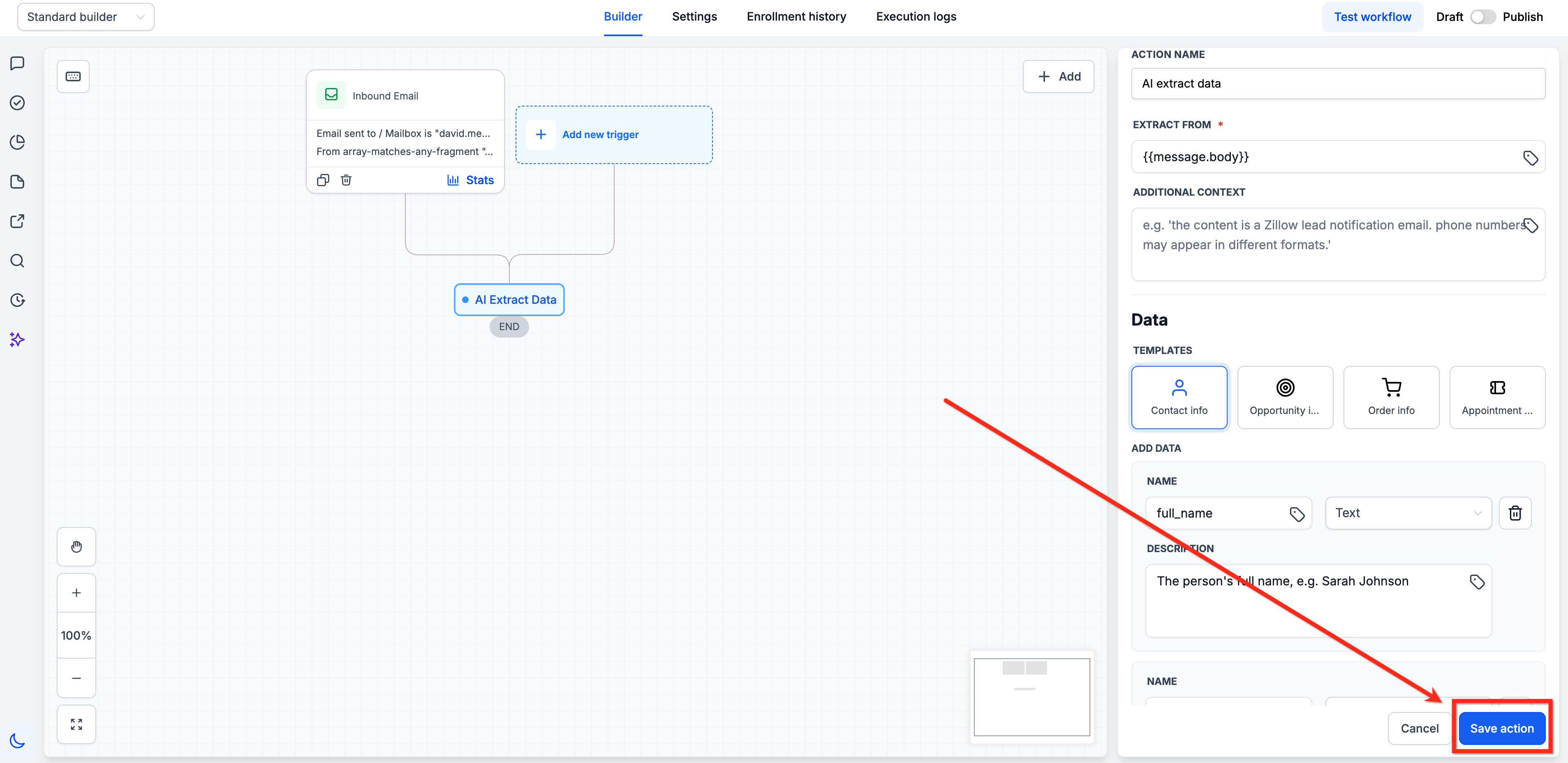
Step 6: Add Downstream Actions
Add the downstream actions that should use the extracted values. For example, you can create or update a contact, create an opportunity, route the workflow with If/Else, send an internal notification, or populate another action using the extracted variables.
Common Use Cases
AI Extract Data is useful when important details are available in plain text but need to become structured fields before the workflow can act on them. These examples show just a few of the ways that this action can support your team.
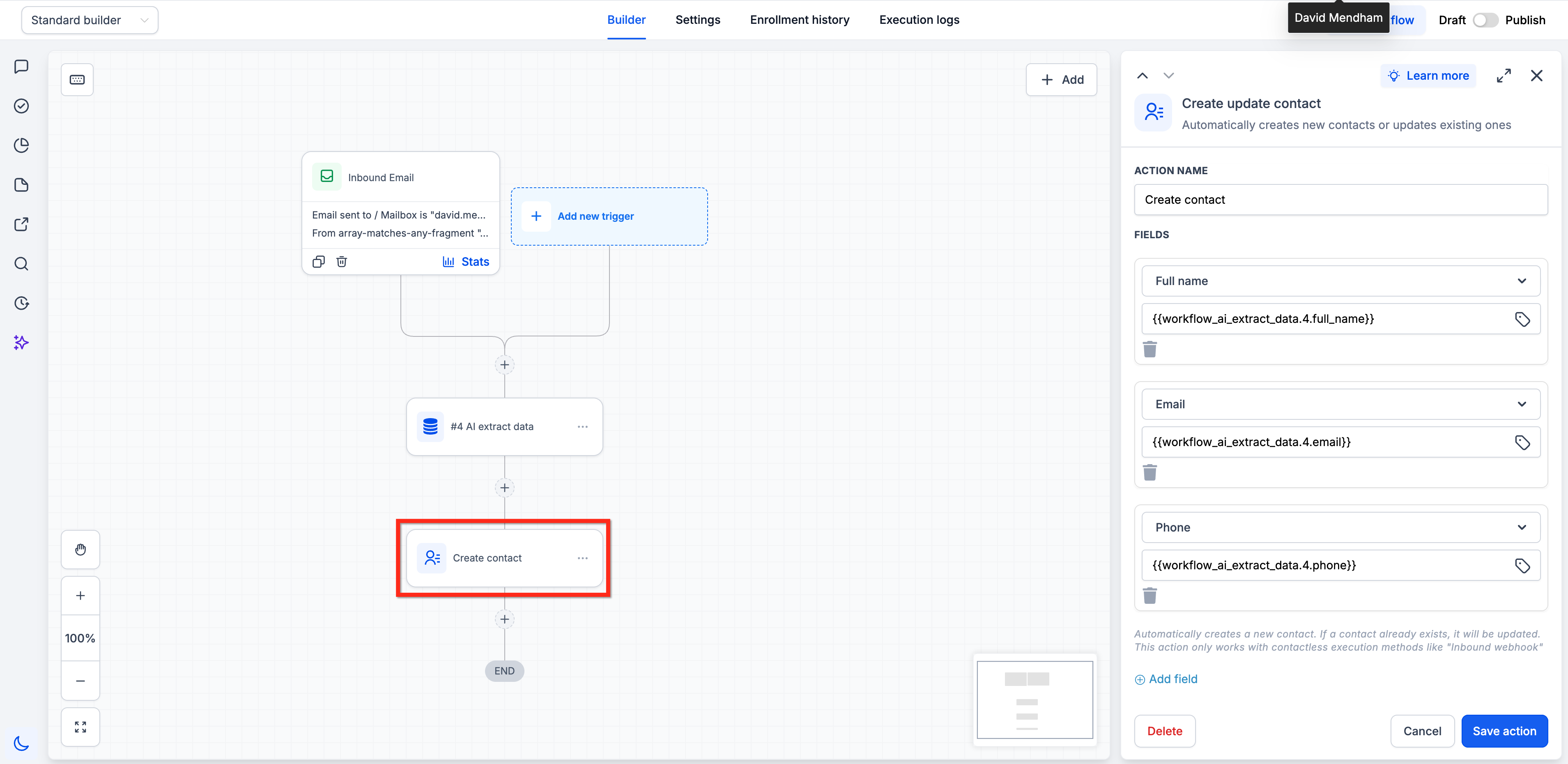
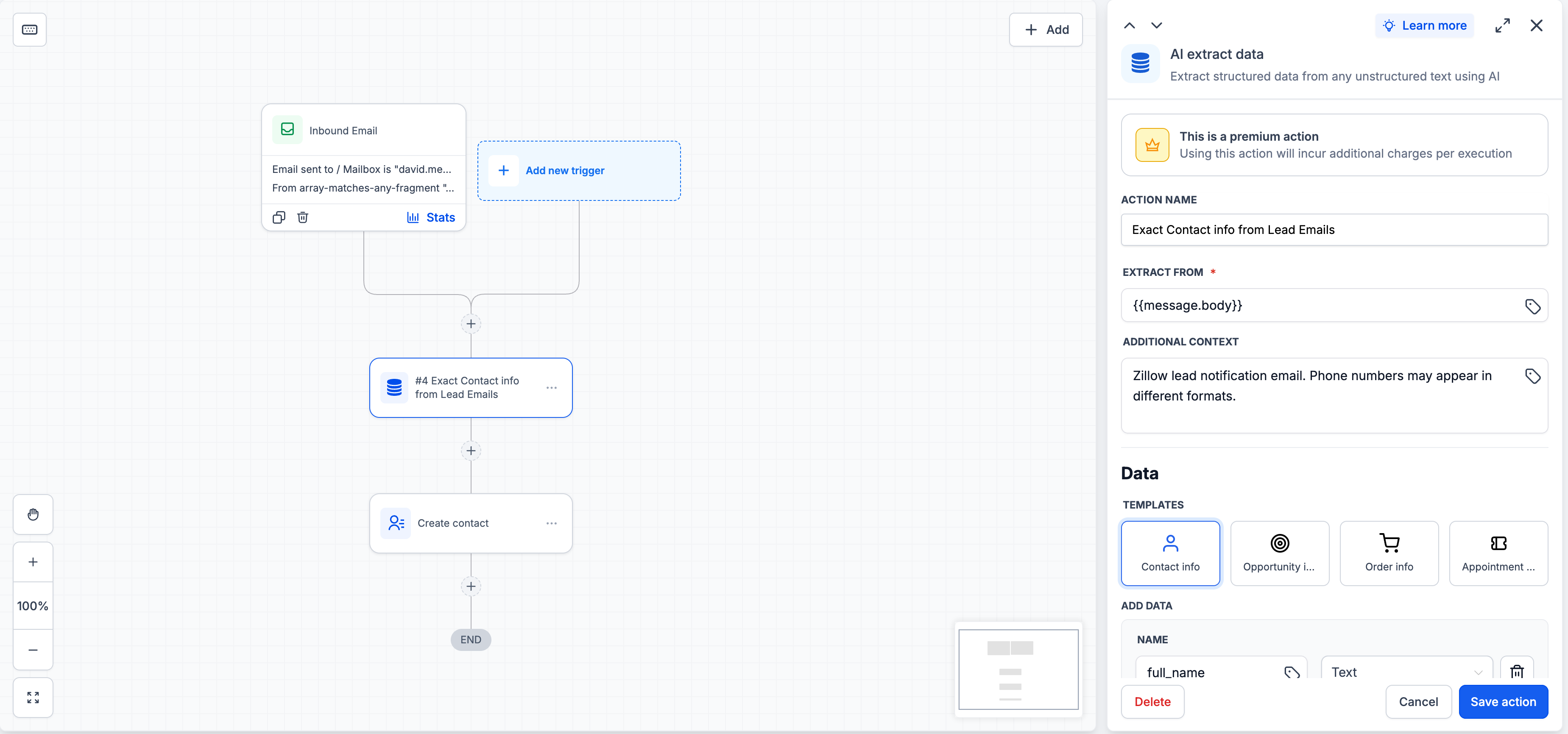
Parsing Lead Notification Emails
Scenario: You receive lead notification emails from a third-party platform (e.g., Zillow, Realtor.com) in your inbox. Each email contains the lead’s name, phone number, and property interest, but in unstructured text. You want to automatically extract and save this information to the contact record.
Setup:
- Trigger: Inbound Email
- Action 1: AI Extract Data
- Extract From: email body
- Context: “Zillow lead notification email. Phone numbers may appear in different formats.”
- Template: Contact info.
- Action 2: Update Contact
- Map extracted full_name, email, and phone to contact fields.
Extracting Order Data from Webhook Payloads
Scenario: An external system sends order confirmation data via webhook, but the payload is a raw text block rather than structured JSON. You need to extract the order ID, items, and total amount to create an opportunity or update a custom field.
Setup:
- Trigger: Inbound Webhook
- Action 1: AI Extract Data
- Extract From: webhook body.
- Template: Order info.
- Action 2: Create Opportunity
- Use extracted order_id as name, total_amount as monetary value.
Frequently Asked Questions
Q: What types of input can I extract data from?
Any text-based input available in the workflow – email bodies, webhook payloads, SMS messages, GPT/AI outputs, form response text, or any custom value from a previous action.
Q: Do I have to use a template, or can I define my own fields?
Templates are optional. You can use a template as a starting point and modify it, or skip templates entirely and define your own custom fields from scratch using the + Add data button.
Q: What data types are supported?
Five data types are supported: Text (general string), Email (email address), Phone (phone number), Number (numeric value), and Date (date value). Choosing the correct type helps the AI identify and format the extracted value accurately.
Q: What does the Description field do?
The Description is an optional hint that guides the AI on what to look for. For example, adding “Phone number with area code, e.g. +1 (555) 234-5678” helps the AI correctly identify and format phone numbers. More specific descriptions lead to more accurate extractions.
Q: How do I use the extracted data in the next step?
Each extracted field becomes a variable available in the custom value picker of all subsequent actions. For example, if you defined a field named “full_name,” you can reference it in an Update Contact, Send Email, or any other action downstream.
Q: What happens if the AI can’t find a field in the input?
If the AI cannot find a matching value for a defined field, that field’s variable will be empty. Your workflow should account for this by using If/Else branches or by checking for empty values before using them in critical actions.
Q: Does the Additional Context field improve results?
Yes. Providing context about the input format (e.g., “This is a new lead notification email” or “The payload contains order data from the order”) helps the AI understand the structure and extract more accurately. It’s optional but recommended for non-standard or complex inputs.
Q: Is this a premium action?
Yes. The AI Extract Data action incurs additional charges per execution. The premium badge is visible at the top of the action panel when configuring it.
Related Articles
Was this article helpful?
That’s Great!
Thank you for your feedback
Sorry! We couldn't be helpful
Thank you for your feedback
Feedback sent
We appreciate your effort and will try to fix the article