Email templates in HighLevel help you create consistent, professional emails without rebuilding the same design every time. You can edit existing email templates to update messaging, change images, adjust layouts, and maintain your brand's appearance. HighLevel's Email Builder provides tools to customize templates for different campaigns and audiences. This guide explains how to edit an email template, save your changes, and preview and test your email before using it.
TABLE OF CONTENTS
- What is Email Template Editing in HighLevel?
- Key Benefits of Editing Email Templates
- Email Template Editing Options
- How to Edit an Email Template
- Frequently Asked Questions
- Related Articles
What is Email Template Editing in HighLevel?
Email template editing allows you to modify the content, appearance, and layout of an existing email template without starting from scratch. Templates can contain reusable elements such as headers, footers, text, images, buttons, and branding. By updating an existing template, you can keep your email communications consistent while adapting the content to different campaigns or business needs.
HighLevel's Email Builder supports visual editing through the Design Editor, allowing you to customize individual elements and arrange your email layout without writing code.
Key Benefits of Editing Email Templates
Editing existing email templates helps you maintain brand consistency while reducing the time spent creating new emails. Reusing and updating templates also makes it easier to keep messaging relevant and maintain a consistent experience for recipients.
Save Time: Update an existing email template instead of designing a new email from scratch.
Maintain Brand Consistency: Keep your logos, colors, fonts, and layouts consistent across email communications.
Customize Content: Update text, images, buttons, and other elements to match different campaigns or audiences.
Improve Email Design: Adjust spacing, alignment, and layout to create professional-looking emails.
Reuse Existing Designs: Create reusable email layouts that can be adapted for future campaigns.
Reduce Errors: Preview and test updated templates to identify formatting issues, incorrect links, or missing content before sending.
Email Template Editing Options
HighLevel's Email Builder provides several tools for modifying email templates. Understanding the available editing options helps you choose the appropriate controls when updating the content, appearance, or structure of an email.
The following options are available when editing templates using the Design Editor.
Editing Text and Content
Text elements let you update written content, including headings, descriptions, promotional messages, and calls to action.
You can:
Edit existing text directly in the email layout.
Adjust font styles, text alignment, and formatting.
Add new text elements when additional content is needed.
Insert supported custom values to personalize email content.
Editing Images and Branding
Image and Logo elements help maintain the visual identity of your business across emails.
You can:
Replace existing images with updated visuals.
Add logos, banners, or promotional images.
Adjust supported image settings and alignment.
Update branding to match your business's current style.
Editing Buttons and Links
Buttons help direct recipients toward actions such as booking an appointment, visiting a website, or viewing an offer.
You can:
Update button labels.
Modify the destination URLs.
Adjust button appearance and alignment.
Add buttons to different parts of the email.
Editing Layout and Appearance
Layout and appearance controls help organize email content and create a consistent reading experience.
You can:
Add or rearrange email elements.
Adjust spacing between content blocks.
Add Dividers or Spacers.
Modify supported layout and appearance settings.
Review how the email appears on different screen sizes.
Tip: The available controls depend on the element you select and the editor used to create the email. For a complete explanation of supported elements, refer to Different Elements in Email Builder.
How to Edit an Email Template
Editing an existing email template allows you to update its content and design while preserving its reusable structure. Following the correct editing and saving process helps ensure your changes are available when you use the template in future email campaigns.
From the left navigation menu, click Marketing. Navigate to Emails.
Select the Templates tab. Locate the template you want to edit.
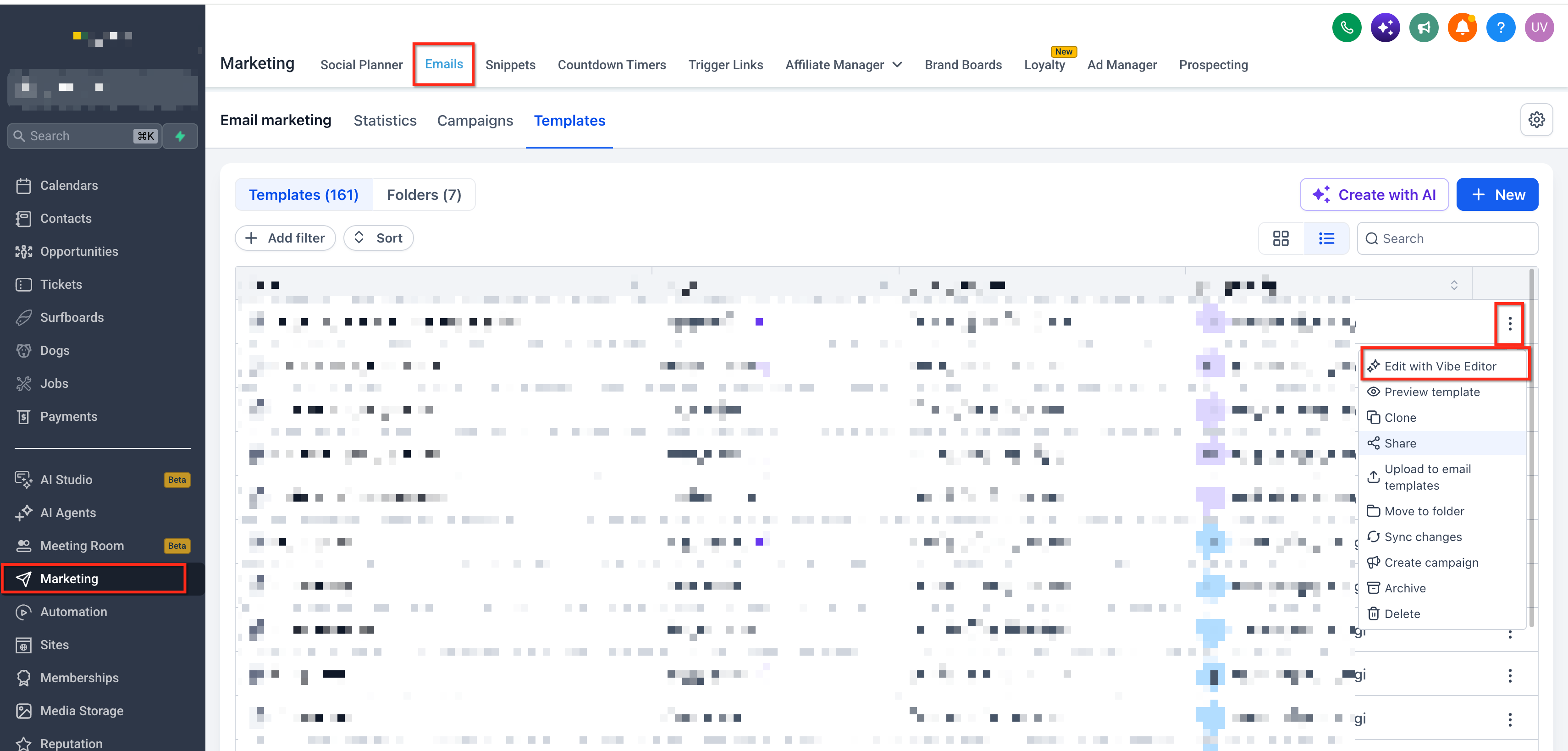
Browse the existing templates or use the available search functionality to find a specific template.
Once the template opens in the Email Builder, select the elements you want to modify.
Click the template to open it in the Email Builder.
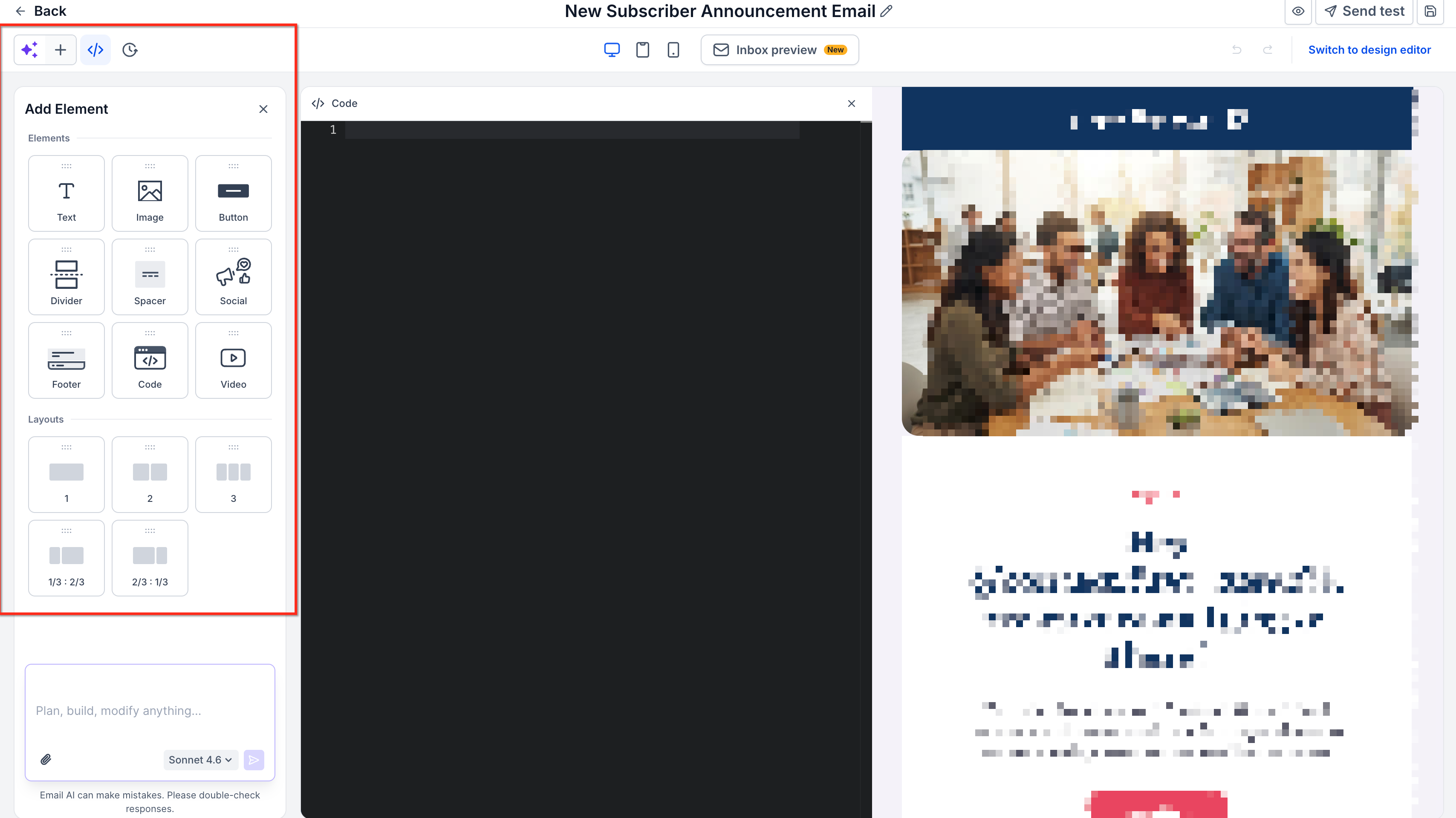
Click an existing Text element to edit its content and formatting.
Select an Image element to update its image or available display settings.
Click a Button element to modify its label, link, or appearance.
Make any additional content changes needed for your email.
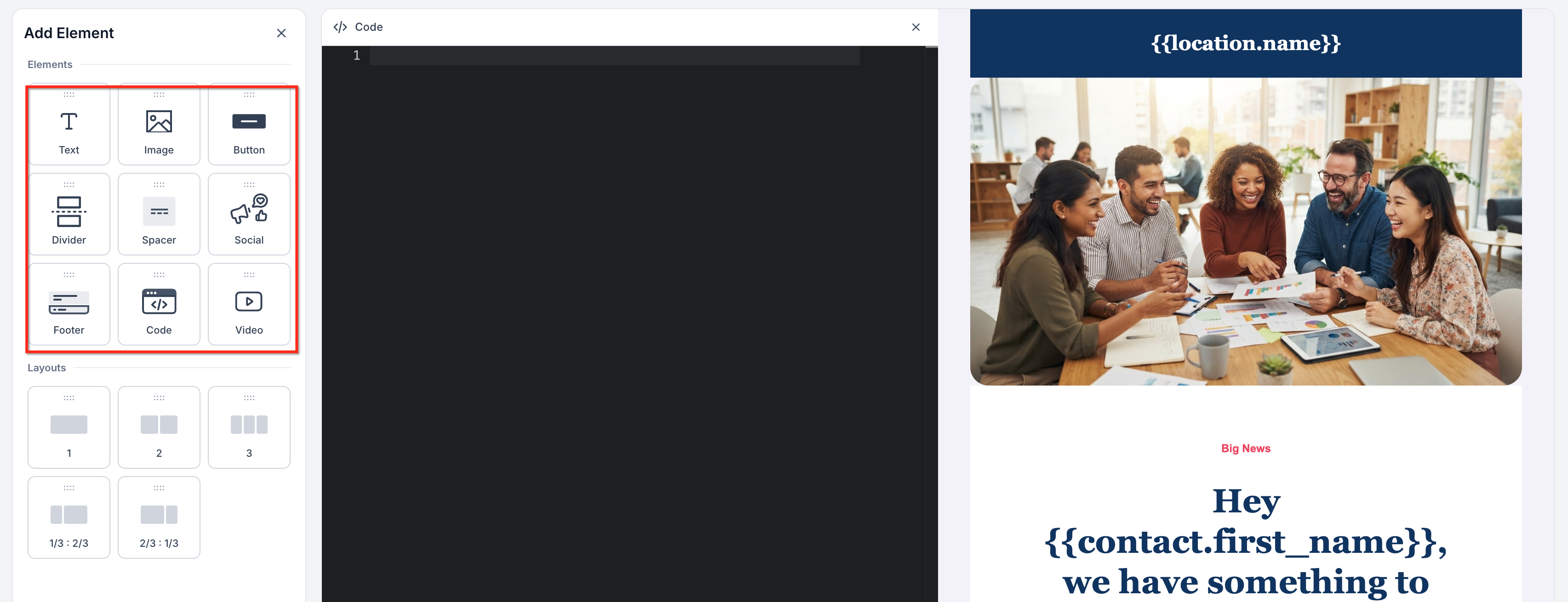
Open the Add Elements panel to access available content elements.
Drag the desired element into the email canvas.
Click the added element to customize its content, style, and settings.
Rearrange existing elements by dragging them to the desired position.
Use the Appearance settings, where applicable, to adjust the overall styling.
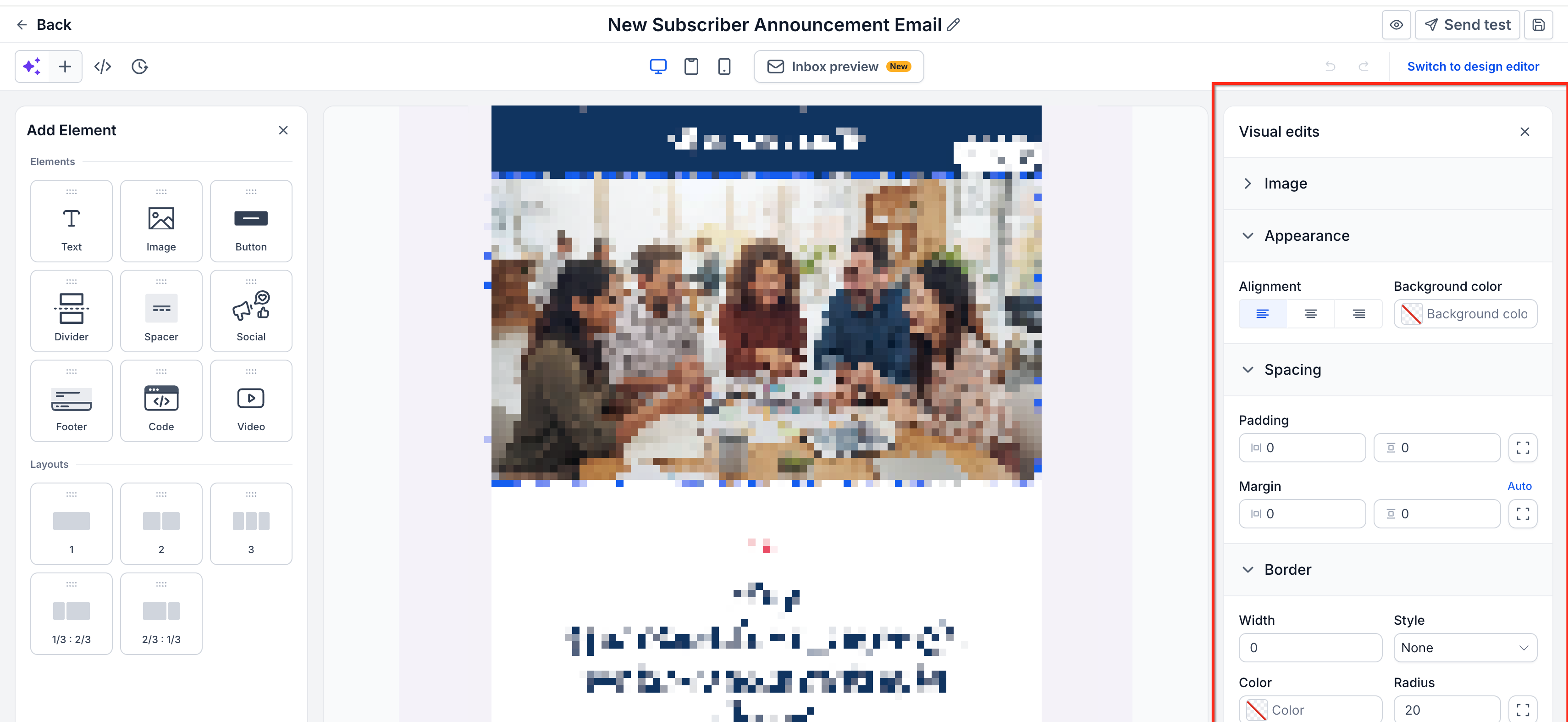
Review the changes made to the template.
Click Save Template to save the updated template when the manual save option is available.
Frequently Asked Questions
Q: Can I duplicate an email template before making changes?
Duplicating a template can be useful when you want to preserve an existing design while creating a different version. Check the options available in the template's action menu. If a duplicate option is available, create a copy before editing so you can retain the original template.
Q: Can I recover a previous version of an email template?
Yes. HighLevel's Email Builder supports Version History for reviewing and restoring saved versions when the feature is available. Open the email editor and access Version History to review available versions.
Q: Can multiple team members edit the same email template?
Team members with the necessary account permissions may have access to the same template. To reduce the risk of overwriting changes, coordinate edits and review the latest saved version before making significant updates.
Q: Does editing an email template automatically send an email to my contacts?
No. Editing and saving a template does not itself send an email campaign. Sending requires a separate campaign or an appropriately configured workflow.
Q: Can I edit a template without changing its original version?
You can preserve the original by creating a separate version where the relevant duplicate or save-as-new option is available. When editing a template inside a workflow, keeping continuous synchronization disabled helps prevent workflow-specific changes from automatically updating the source template.
Related Articles
Was this article helpful?
That’s Great!
Thank you for your feedback
Sorry! We couldn't be helpful
Thank you for your feedback
Feedback sent
We appreciate your effort and will try to fix the article