Nested folders for Campaigns, Templates, and Sequences help you keep large email programs tidy and scalable. This guide shows how to structure your assets into hierarchies so teams can find the right campaign or template in seconds.
TABLE OF CONTENTS
- What is Nested Folders for Campaigns, Templates & Sequences?
- Key Benefits of Nested Folders for Campaigns, Templates & Sequences
- Folder Hierarchy & Navigation
- Nested Folders in Campaigns
- Nested Folders in Email Templates
- Nested Folders in Sequences
- Best Practices for Structuring Nested Folders
- How To Setup Nested Folders for Campaigns, Templates & Sequences
- Frequently Asked Questions
- Related Articles
What is Nested Folders for Campaigns, Templates & Sequences?
Nested folders for Campaigns, Templates, and Sequences let you create a hierarchical structure folders within folders inside the Email Marketing area. Instead of managing a long flat list of assets, you can organize work by client, brand, product line, lifecycle stage, or any structure that fits your workflow.
In practice, you can:
- Create top-level folders for broad groupings (e.g., “Client A” or “Newsletters”)
- Add subfolders for more specific categories (e.g., “Promos”, “Onboarding”, “Q1 2026”)
- Move existing campaigns, templates, and sequences into the appropriate folders
- Use the folder path (breadcrumb) to track your location within the structure
This folder system is available across Campaigns, Templates, and Sequences within the Email Builder, providing a consistent way to organize all email-related assets.
Key Benefits of Nested Folders for Campaigns, Templates & Sequences
Organizing assets with nested folders creates a scalable structure that grows with your agency or brand.
- Improved organization: Group related assets into logical folder trees so nothing gets lost in a flat list
- Faster navigation: Access specific folders directly instead of scrolling through large mixed lists
- Scalable structure: Support complex setups with multiple levels of nesting
- Consistent workflow: Use the same structure across Campaigns, Templates, and Sequences
- Cleaner collaboration: Reduce duplicates and confusion by clearly defining where assets belong
- Future-ready organization: Start simple and expand your structure as needed
Folder Hierarchy & Navigation
Nested folders follow a simple hierarchy similar to a file system. Each folder can contain both assets and additional subfolders, allowing you to build structured layers as needed.
Root level (Home)
The starting point that shows all top-level folders and any unfiled assets. This level is best used for broad categories such as clients, brands, or lifecycle stages.
Subfolders
Folders created inside another folder to represent more specific groupings (e.g., Client A → Campaigns → Product Launches → 2026 Q1).
Folder path (breadcrumb)
Displays your current location (e.g., Home / Client A / Campaigns / 2026) and allows quick navigation back to any parent folder.
Nested Folders in Campaigns
Using nested folders for Campaigns helps organize one-time sends, recurring newsletters, and promotional campaigns in a structured way.
Common use cases:
- Managing campaigns for multiple clients or brands
- Organizing recurring email series such as newsletters
- Maintaining a clear archive for reporting and compliance
Example structures:
By client and funnel stage
- Client A / Newsletters
- Client A / Promotions / Product Line A
- Client A / Lifecycle / Onboarding
By audience segment
- B2B / Prospects
- B2B / Customers / Enterprise
- B2C / VIP
Nested Folders in Email Templates
Nested folders for Templates create a centralized, organized library of reusable email designs and layouts.
Organizational ideas:
- By use case – Newsletters, Promotions, Onboarding, Transactional
- By client or brand – Client A / Newsletters / 2026
- By function – Contracts, Review Requests, Notifications
Benefits:
- Quickly locate the correct template when building emails
- Maintain consistent design standards across teams
- Separate system templates from marketing templates
Nested Folders in Sequences
Sequences represent multi-step email journeys such as onboarding, nurturing, or re-engagement. Nested folders help keep these journeys structured and easy to manage.
Example structures:
By lifecycle stage
- Lifecycle / Onboarding / SaaS Trial
- Lifecycle / Post-Purchase / Upsell
- Lifecycle / Re-engagement
By funnel or offer
- Webinar Funnels / Reminders
- Lead Magnets / Follow-Up
- Course Launch / Cart Abandonment
Best Practices for Structuring Nested Folders
A well-planned structure keeps your workspace clean and easy to navigate as it grows.
- Start simple – Begin with 1–2 levels and expand only when necessary
- Use consistent naming – Follow a clear format such as Client / Lifecycle / Campaign Name
- Mirror structures across assets – Keep similar patterns across Campaigns, Templates, and Sequences
- Avoid unnecessary depth – Don’t create folders that hold very few items
- Review regularly – Archive old assets and refine folder structures over time
Note: Nested folders are designed for organization only. Access and permissions are managed separately.
How To Setup Nested Folders for Campaigns, Templates & Sequences
Step 1: Plan your folder structure
Decide how you want to organize your assets:
- By client or brand
- By lifecycle stage
- By product or offer
Start with a simple structure of 2–4 levels.
Step 2: Create top-level folders
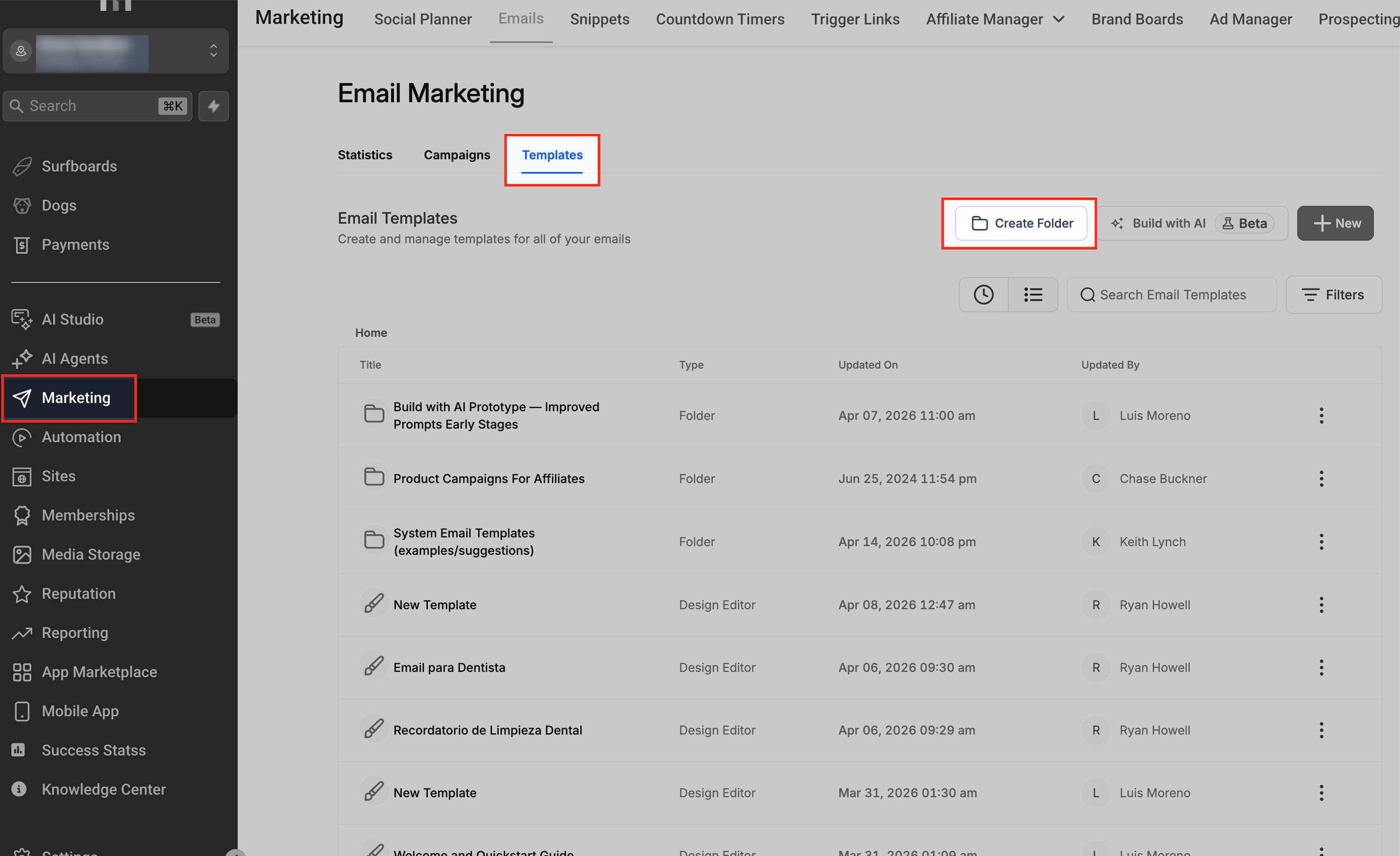
- Open Email Marketing
- Navigate to Campaigns, Templates, or Sequences
- At the root level (Home), click New Folder
- Enter a name and save
Step 3: Create subfolders
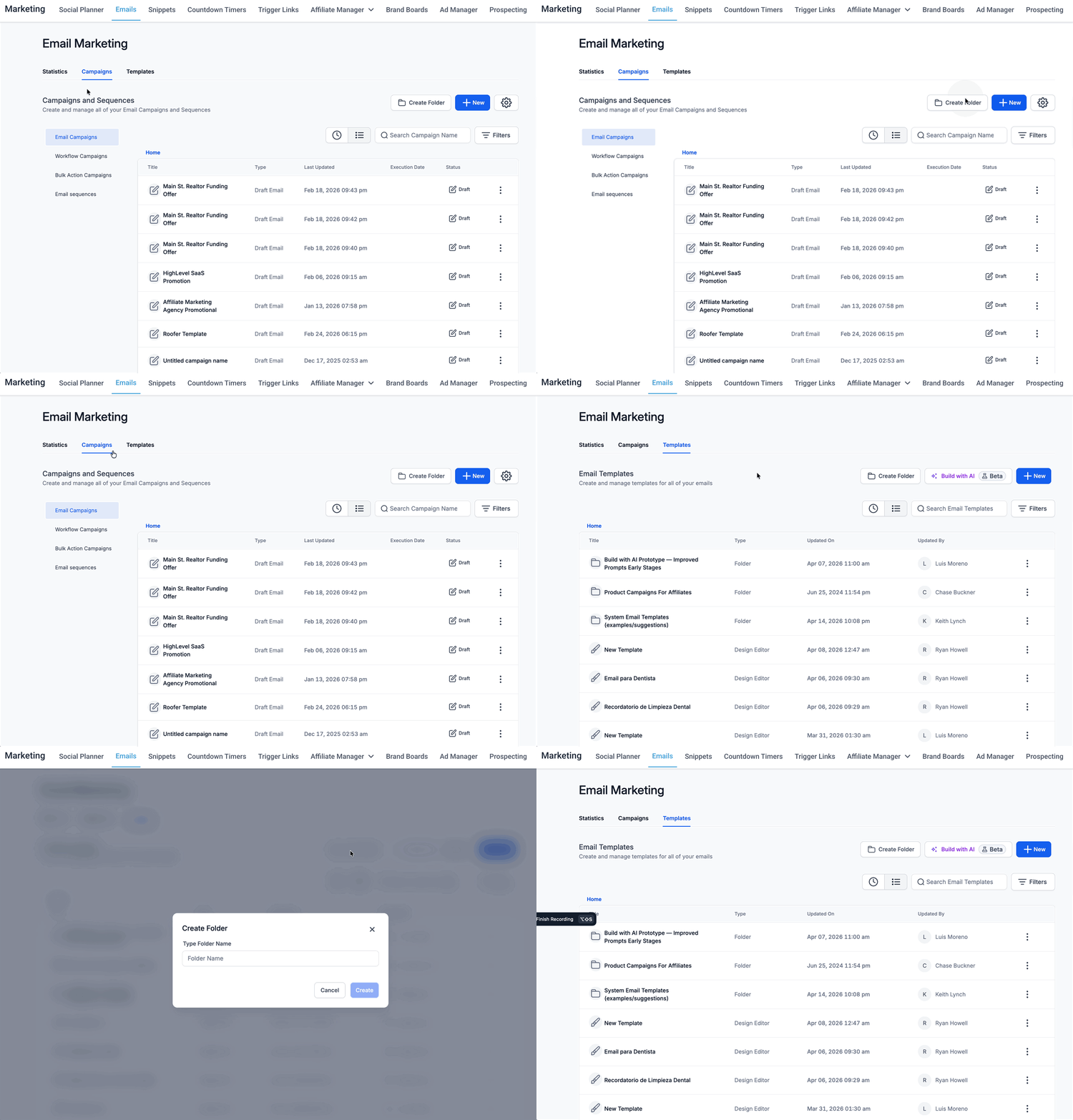
- Open an existing folder
- Click New Folder
- Enter a name and save
- Repeat as needed to build your structure
Step 4: Organize existing assets
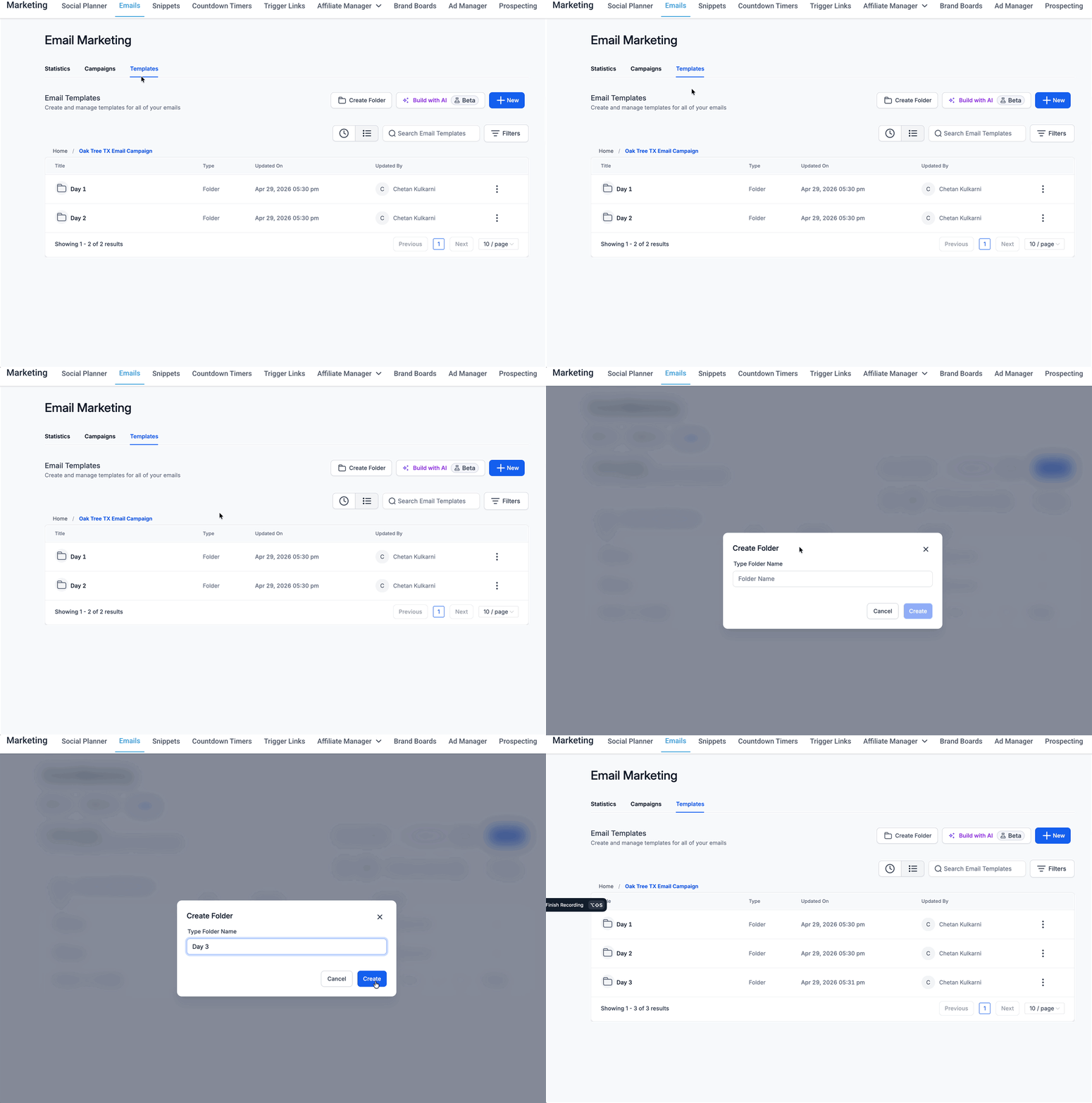
- Locate an asset (campaign, template, or sequence)
- Open the actions menu (three dots)
- Select Move to Folder
- Choose the destination folder and confirm
Step 5: Reorganize folders
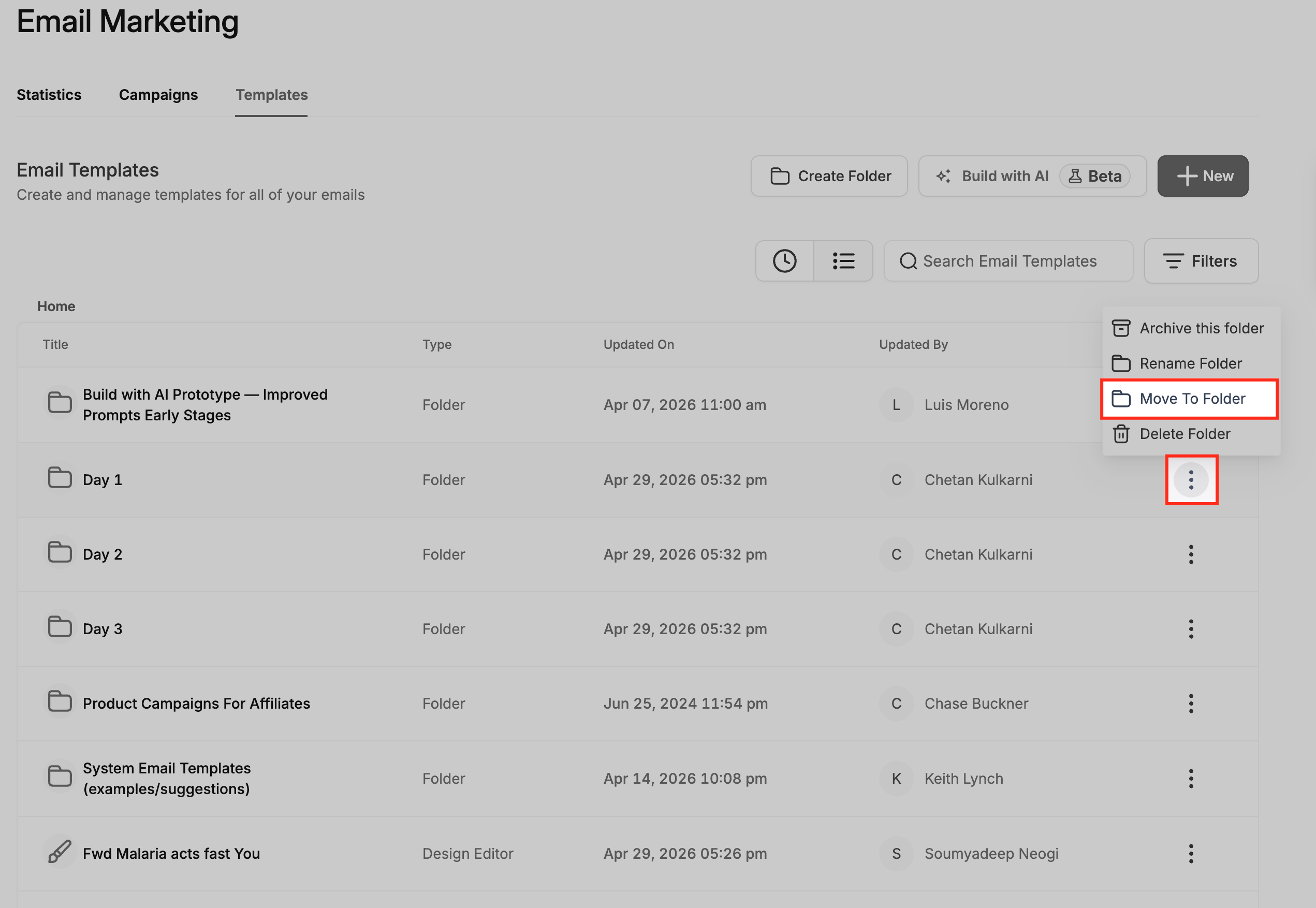
- Open the folder actions menu
- Select Move Folder
- Choose a new parent folder
- Confirm the move and verify the folder path
Step 6: Use the folder path
- Check the breadcrumb at the top of the page
- Click any segment to navigate between folders
- Use this to ensure assets are saved in the correct location
Frequently Asked Questions
Q: Does this change how emails send or behave?
No. Nested folders only affect how assets are organized.
Q: Is there a limit to folder depth?
More than 5 levels are supported, but shorter paths are easier to manage.
Q: Do folders control permissions?
No. Access is managed through user roles and permissions.
Q: Can I search across folders?
Yes. Search works across all folders.
Q: What happens if I delete a folder?
Assets are not deleted. They move to the parent or root level.
Q: Does this affect analytics?
No. Reporting and analytics remain unchanged.
Related Articles
Was this article helpful?
That’s Great!
Thank you for your feedback
Sorry! We couldn't be helpful
Thank you for your feedback
Feedback sent
We appreciate your effort and will try to fix the article