Regular email campaigns let you send one‑time broadcasts to targeted contacts without automation. This guide shows how to send campaigns immediately or schedule delivery for a future time.
TABLE OF CONTENTS
- What is a Regular Email Campaign?
- Key Benefits of Regular Email Campaigns
- How To Send or Schedule a Regular Email Campaign
- Frequently Asked Questions
- Related Articles
What is a Regular Email Campaign?
Regular email campaigns are one‑time broadcast emails you design and send to a selected audience from the Email Marketing area. They’re ideal for time‑bound announcements, promotions, or newsletters that don’t require workflow automation.
Note: To send an email, make sure that you have a verified domain to send email.Key Benefits of Regular Email Campaigns
- Speed: Send updates to a segment instantly without building automations.
- Control: Choose exact send time or pacing with Simple Schedule or Batch.
- Targeting: Use segments/smart lists to reach the right audience.
- Deliverability: Throttle large sends with Batch (Drip) to reduce traffic spikes.
- Flexibility: Pair with RSS or Smart Send/AI Schedule for timing intelligence.
How To Send or Schedule an Email Campaign
Proper setup reduces errors and improves deliverability. Follow these steps to prepare, send, and manage your campaign confidently.
Check out this guide if you want to send automatic email followups.
Step 1: Create an Email campaign
Go to Marketing > Email > Campaigns.
Create a New Campaign or Edit an Existing one.

Step 2: Design the email
Note: Read this article to learn more about How to use the Email Builder and its Inline Editor.
Build or select a template.
Add content, images, and links.
Use Preview and Test Email to verify layout on desktop and mobile.

Step 3: Select a delivery option (Send Now or Schedule)
Click on the Send or Schedule button.

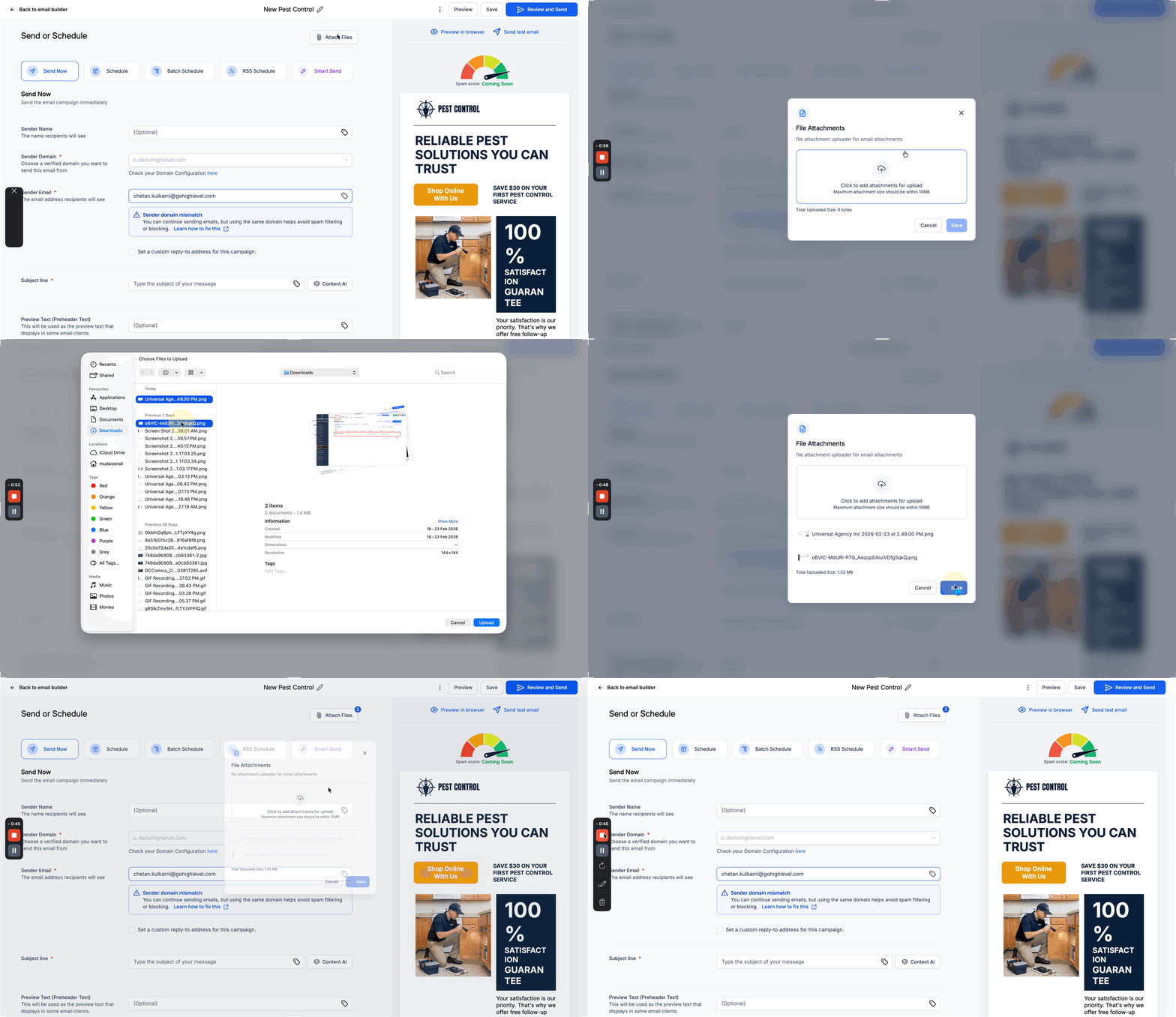
Optional: Attach files to an Email
On the Send or Schedule screen, click Attach Files.
- Select the file(s) you want to include. (Maximum attachment size should be within 10MB)
Confirm the attachment(s) are listed before you send or schedule the campaign.
Send Now for immediate delivery.
Add Sender Name.
Review Sender domain or check your domain configuration.
Add Sender Email.
Add Subject Line.
Add Recipients.
Configure Additional Settings like Link Tracking, UTM Tracking, Tags as needed.
Click on the Send button.

Schedule to set a future date/time.
- Set Schedule at Date and Time. (The email will be sent according to the Location timezone and it will be shown under the schedule at option)
- Add Sender Name.
- Review Sender domain or check your domain configuration.
- Add Sender Email.
- Add SubjectLine.
- Add Recipients.
- Configure AdditionalSettings like LinkTracking, UTMTracking, Tags as needed.
- Click on the Schedule button.

- Set Schedule at Date and Time. (The email will be sent according to the Location timezone and it will be shown under the schedule at option)
Frequently Asked Questions
Q: Can I reschedule the Email Campaign?
Yes, you can reschedule the Email Campaign for Schedule before one hour of the execution date/time.
Q: What’s the difference between Campaigns and Workflows for sending emails?
Campaigns are one‑time broadcasts. Workflows automate multi‑step journeys and can send emails based on triggers/conditions.
Q: Can I test before committing to a send?
Yes. Use Preview and Test Email from the editor, then confirm details on the Review step.
Q: Can I send the campaign via URL and email?
Yes, there will be a preview available in the Statistics and the user can send the test email to check the preview. [Note: User will not be able to unsubscribe in test or preview email]
Q: I want to restore the older version as I have deleted or processed wrong way?
Yes. In the campaign editor, open the three-dot menu and select See Version History to restore an earlier version.
You can also open Email AI and ask it to restore the previous version, a numbered version, or a version associated with an earlier change. Review the restored version on the canvas before continuing.
Q: Can I attach a file to an email campaign?
Yes. On the Send or Schedule screen, click the Attach Files button at the top of the page to upload and add attachments to your email campaign.
Related Articles
Was this article helpful?
That’s Great!
Thank you for your feedback
Sorry! We couldn't be helpful
Thank you for your feedback
Feedback sent
We appreciate your effort and will try to fix the article