You can speed up edits in complex automations with Workflow Find & Replace in HighLevel. This guide shows how to search inside a single workflow by custom values, tags, or text, then safely replace supported matches in just a few clicks.
TABLE OF CONTENTS
- What is Workflow Find & Replace?
- Key Benefits of Workflow Find & Replace
- Search Modes: Custom Values, Tags, and Text
- Using the Find Panel and Navigating Results
- Replace and Replace All Behavior
- How Replace works:
- Scope, Builders, and Limitations
- Working Safely with Undo & Version History
- In-App Tutorial and Guided Onboarding
- Frequently Asked Questions
- Related Articles
What is Workflow Find & Replace?
Workflow Find & Replace is a built-in search and bulk-edit tool inside the Workflow Builder that lets you quickly locate where a specific custom value, tag, or text string is used in a single workflow, then optionally replace supported items. Instead of opening actions one by one, you use a dedicated Find panel to jump between matches and, when needed, update custom values or tags across the workflow from one place.
Key Benefits of Workflow Find & Replace
Understanding the main advantages helps you decide when to rely on Find & Replace instead of manual scanning, especially as workflows grow more complex.
- Faster updates to large workflows: Quickly locate every place a tag, custom value, or phrase is used without clicking through each node manually.
- Consistent changes across the canvas: Replace supported custom values or tags everywhere they appear in a workflow so logic and messaging stay aligned.
- Less error-prone editing: Reduce the risk of missing a step by using a centralized results list that jumps your view directly to each matching node.
- Better visibility into dependencies: Instantly see where important items (like “HighPriority” tags or key email custom values) are referenced before making changes.
- Works in both Standard and Advanced Builder: Use the same Find & Replace workflow whether you prefer the list-style Standard Builder or the drag‑and‑drop Advanced Builder.
Search Modes: Custom Values, Tags, and Text
Choosing the right search mode helps you focus on exactly what you want to change—whether that’s data-driven placeholders, tagging logic, or written content in your steps.
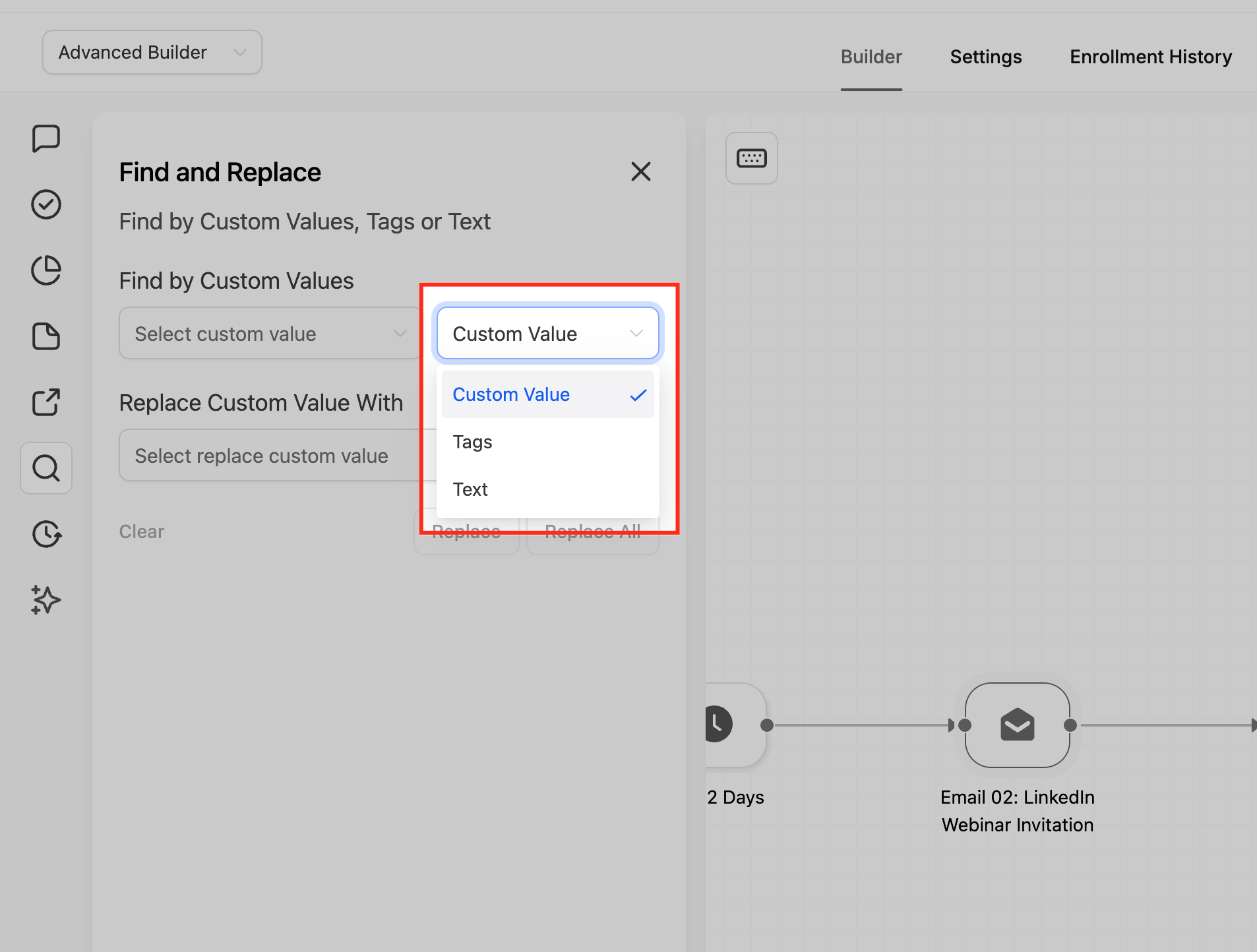
When you open the Find panel, you can choose one of three search modes before entering a query:
- Custom values
- Targets usages of HighLevel custom values (e.g.,
,, or agency-level values) inside workflow actions such as email, SMS, conditions, and other steps that support custom values. - Ideal when you’ve updated a global value (like “Agency Email”) and want to ensure all steps now use a new value (like “Support Email”).
- Targets usages of HighLevel custom values (e.g.,
- Tags
- Finds where specific contact tags are referenced in the workflow, including actions that add/remove tags or conditions that branch based on tags.
- Great for retagging strategies (e.g., swapping
HighPriorityforUrgentacross your workflow).
- Text
- Searches for text strings in step content and configuration, including message bodies and many field labels.
- Step names and trigger names are discoverable via text search, so you can quickly see where those labels appear, though they cannot be changed via Replace in this release.
Search is case-insensitive and supports partial matches, so you can type part of a word or phrase and still see relevant results across the workflow.
Using the Find Panel and Navigating Results
Learning how the Find panel behaves on the canvas helps you move confidently through large workflows without losing your place.
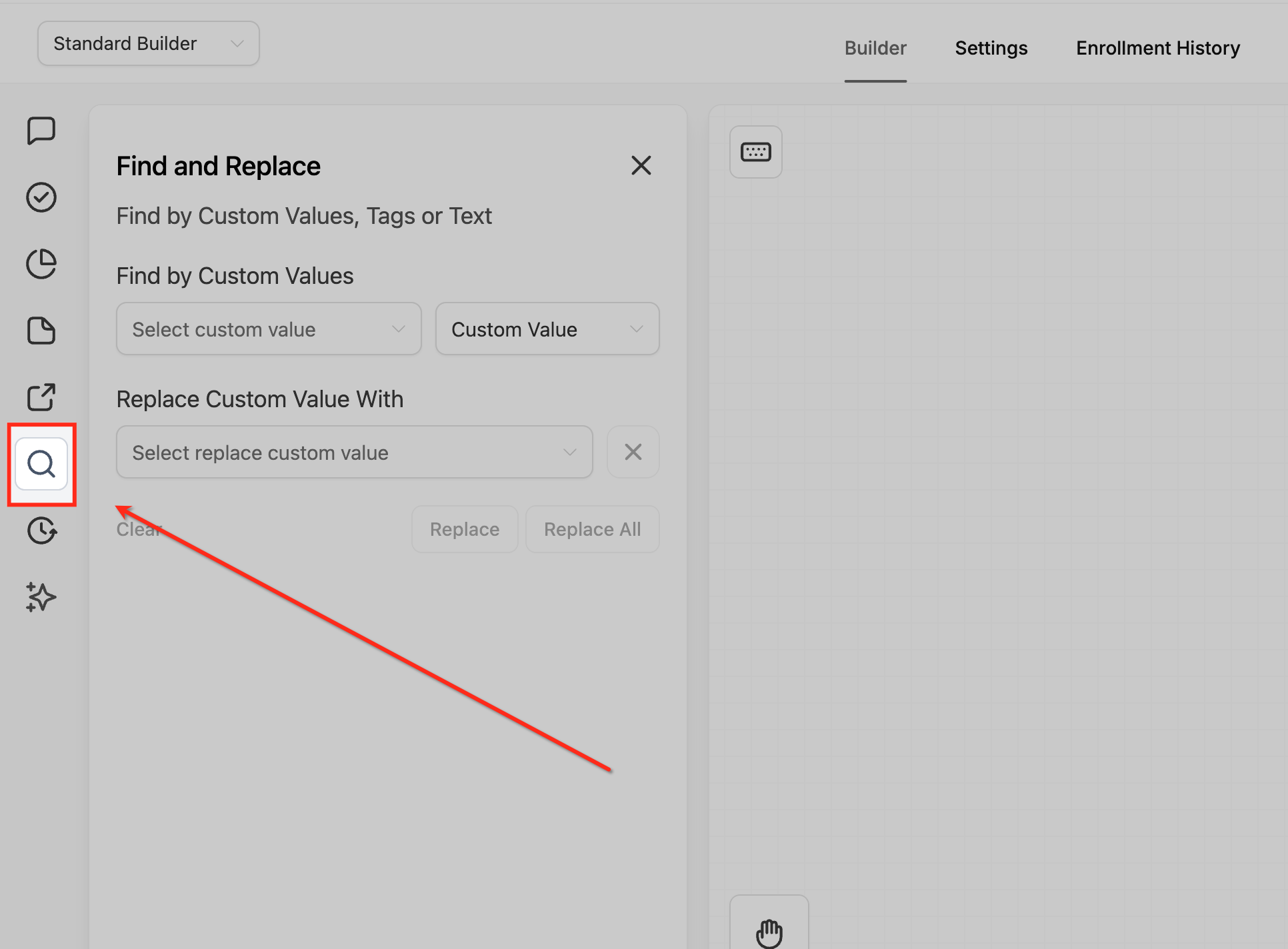
- Open any workflow from Automation → Workflows, then switch to either Standard or Advanced Builder, depending on your default and permissions.
- Click the search icon in the workflow toolbar, or use the keyboard shortcut:
- Windows/Linux:
Alt + F - macOS:
Option + F
- Windows/Linux:
- The Find panel opens, allowing you to:
- Choose Custom values, Tags, or Text.
- Enter your search term.
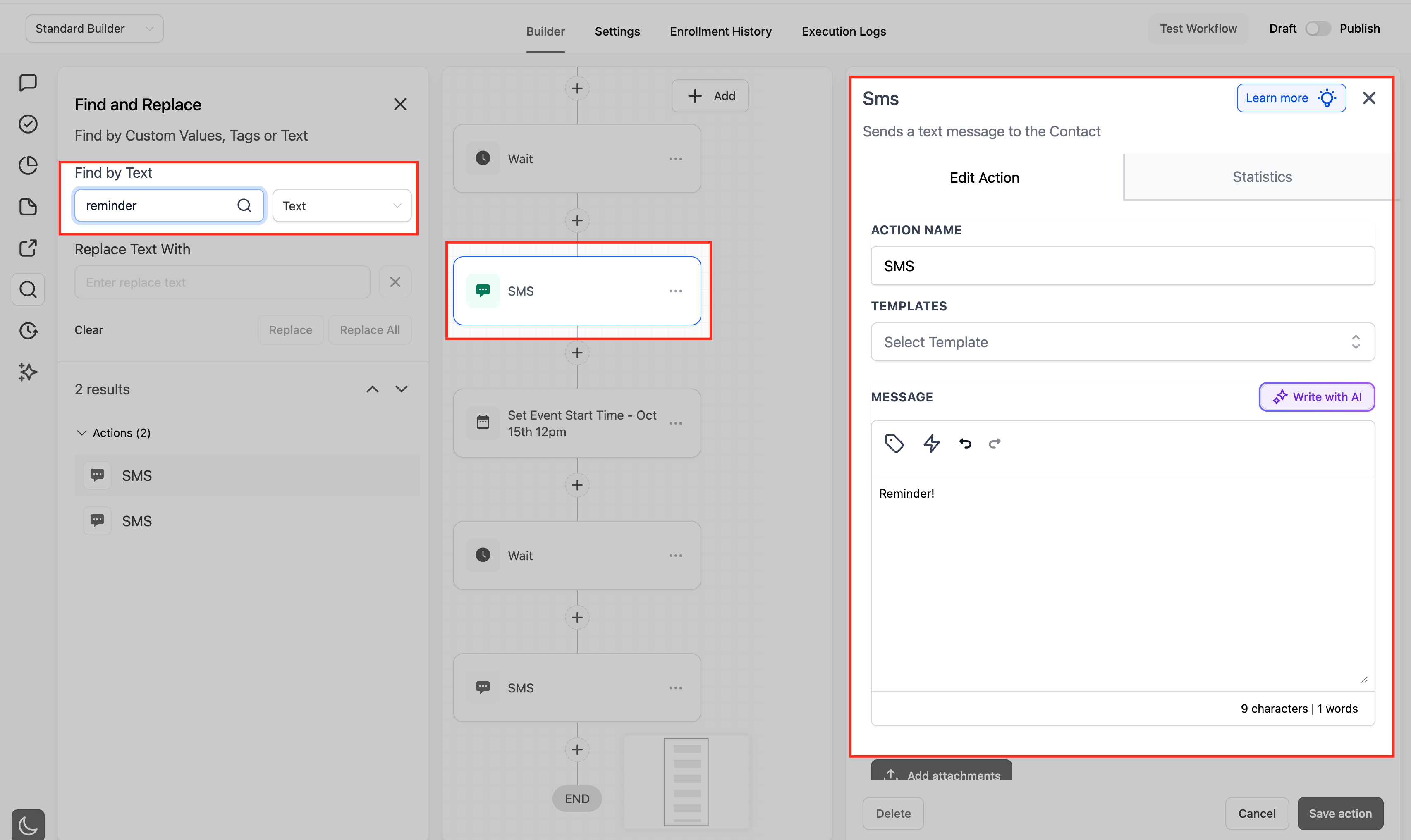
As soon as you search:
- Matching results appear instantly in a list.
- The first result opens automatically, and the builder pans/zooms to that node on the canvas so you can review it in context.
You can then:
- Use the navigation controls (for example, Next/Previous) in the Find panel to move between matches.
- Watch the builder automatically jump to each selected step, keeping the relevant step centered while you review or edit it.
Replace and Replace All Behavior
Understanding what can be replaced—and how Replace All behaves—ensures you make accurate, intentional changes across your automation.
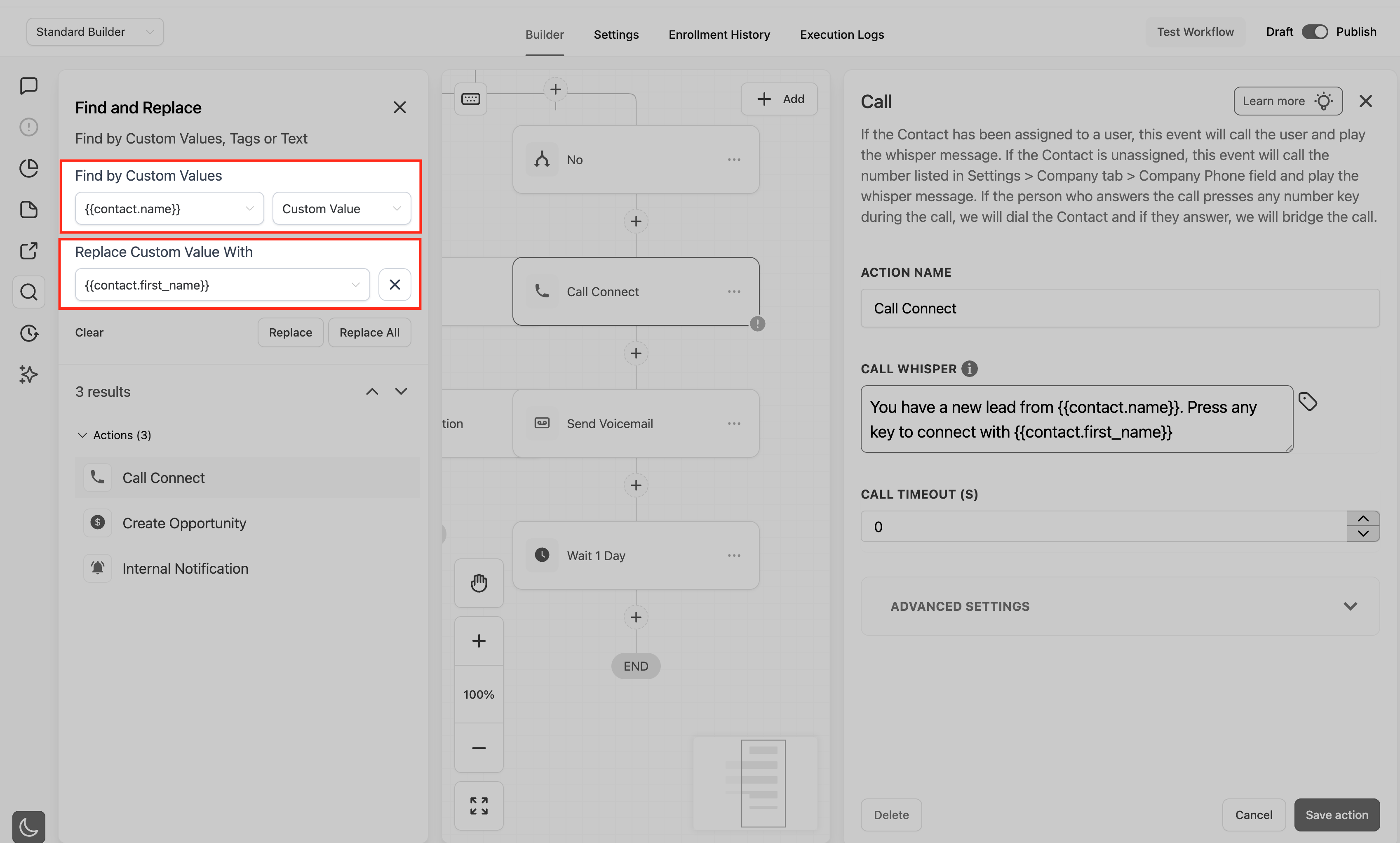
When you enable Replace in the Find panel, you unlock bulk-editing for supported match types:
- Supported for Replace/Replace All
- Custom values (e.g., replacing
with). - Tags (e.g., replacing
HighPrioritywithUrgent).
- Custom values (e.g., replacing
- Not supported for Replace in this version
- Step names and trigger names — they can be found via text search but cannot be replaced using the Replace controls.
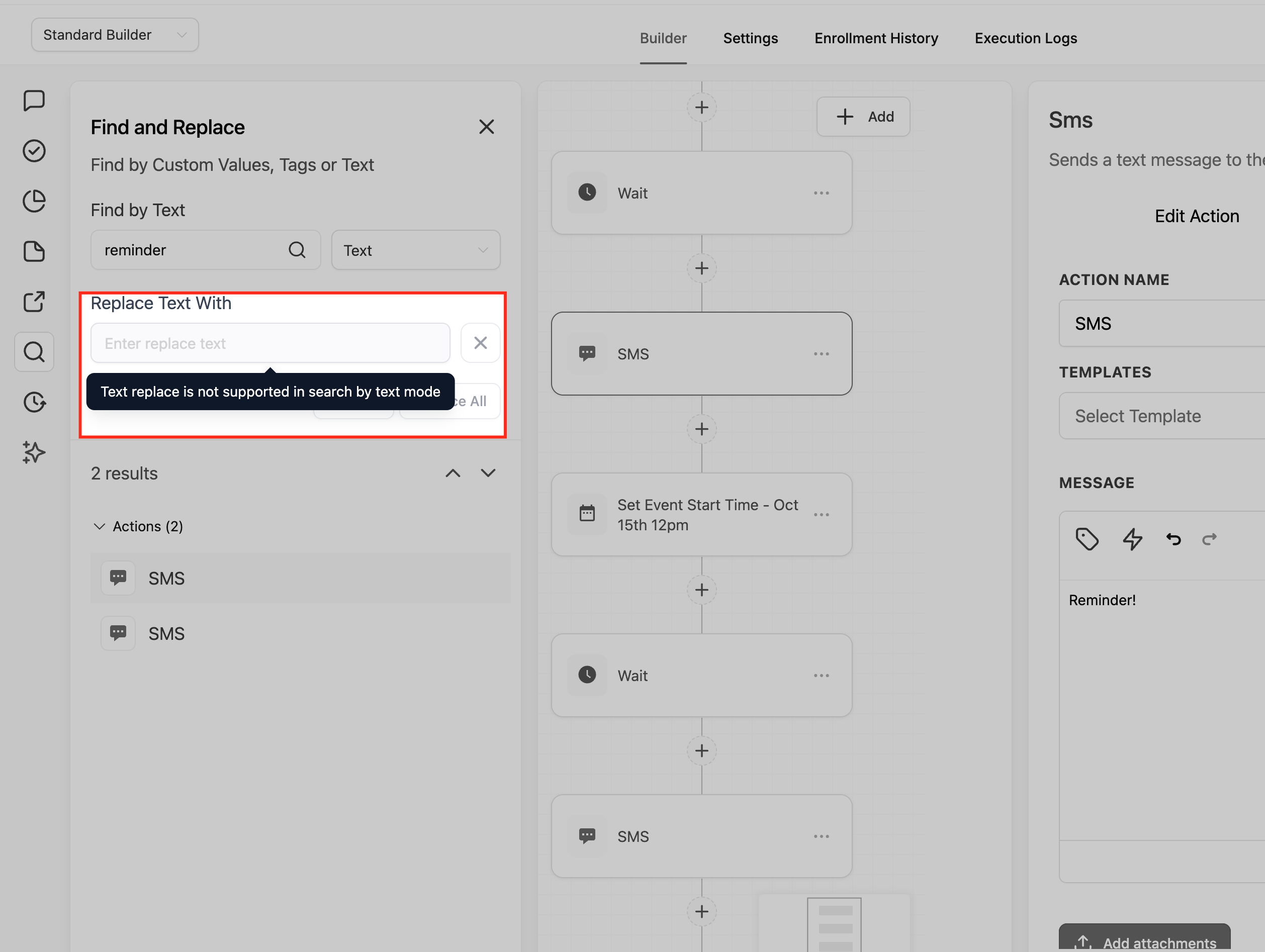
How Replace works:
- Enter what you want to Find (custom value, tag, or text, depending on mode).
- Choose the replacement:
- For custom values, use the custom value picker to select the new value.
- For tags, choose or type the new tag name, following your normal tagging conventions.
- Apply your change:
- Replace (or similar control) updates only the current match in focus.
- Replace All updates all supported matches in the current workflow that meet the search criteria.
Scope, Builders, and Limitations
Knowing where Find & Replace operates and its boundaries helps you avoid unintended changes and understand when other tools (like Workflow Switcher or copy/paste) are more appropriate.
- Scope is per workflow:
- Find & Replace runs only within the currently open workflow. It does not search or replace across multiple workflows or folders at once.
- Available in both builders:
- Works in Standard Builder (list-style layout) and Advanced Builder (drag-and-drop canvas). Your agency’s Global Workflow Settings determine which builder opens by default, and permissions control who can switch views.
- Replace All is workflow‑bound:
- Replace All affects only supported matches inside the current workflow, even if similar values or tags exist in other workflows.
- Search behavior:
- Case-insensitive, supports partial matches, and returns results as soon as you type—ideal for quickly exploring how a value or tag is used across branches.
- Limitations to keep in mind:
- Replace works only for custom values and tags in this release.
- Some structural elements (like certain system fields or trigger types) may be discoverable but not replaceable via the panel.
- For changes spanning multiple workflows, combine Find & Replace with tools like Workflow Switcher and Copy Workflow Actions Across Workflows to move and align logic.
Working Safely with Undo & Version History
Combining Find & Replace with Undo/Redo and Version History gives you a safety net when making broad changes.
- Undo/Redo within the current session
- Any Replace or Replace All operation can be reverted using Undo from the toolbar or via keyboard shortcuts, in line with other workflow edits.
- Use Redo if you undo something by mistake and want to reapply the change.
- Change History awareness
- HighLevel tracks a session-based change history in the Workflow Builder, allowing you to review recent edits and step backward through them.
- Version History for deeper rollbacks
- For major refactors using Find & Replace, you can rely on Workflow Version History to roll back the entire workflow to an earlier saved state if needed.
- Each version captures who edited, when, and whether it was a draft or published state, so you can restore confidently after bulk changes.
Tip: Before running a large Replace All on a mission‑critical workflow, confirm you have a recent, known‑good version in Version History and test results on a cloned workflow or draft when feasible.
In-App Tutorial and Guided Onboarding
The in-app tutorial helps teams get comfortable with Find & Replace quickly, without leaving the builder.
HighLevel includes a quick in-app tutorial for Workflow Find & Replace that introduces the panel, search modes, and basic Replace behavior:
- Look for a guided walkthrough, tooltip, or “?” helper inside the Workflow Builder when the feature is available in your account.
- Follow the prompts to:
- Open the Find panel.
- Run a sample search for tags, custom values, or text.
- Safely try Replace on a test workflow.
This is a great way to introduce new team members to the feature as part of broader Workflow Builder training.
Frequently Asked Questions
Q: Does Workflow Find & Replace work in both Standard and Advanced Builder?
Yes. Find & Replace is available in both the Standard and Advanced Workflow Builders, so you can use the same search and replace tools regardless of your preferred layout.
Q: Can I search across multiple workflows at once?
No. Find & Replace is scoped to the currently open workflow only. To review or update another workflow, open it separately (optionally using tools like Workflow Switcher) and run a new search there.
Q: What can I replace, and what is find‑only?
Replace and Replace All support custom values and tags. Step names and trigger names can be found through text search but cannot be changed via Replace in this version.
Q: Is search case-sensitive?
No. Search is case‑insensitive and supports partial matches, so searches for “priority,” “Priority,” or “PRIORITY” will all return the same relevant results.
Q: Does Replace All affect other workflows or sub‑accounts?
No. Replace All only affects supported matches in the current workflow. Other workflows, folders, and sub‑accounts remain unchanged.
Q: What happens if I make a mistake with Replace All?
You can use Undo (and, if necessary, Version History) in the Workflow Builder to revert changes made during your editing session, including those from Replace All.
Q: Do I need special permissions to use Find & Replace?
You need permission to edit the workflow where you’re using Find & Replace. Folder and workflow permissions determine who can open and modify workflows in the first place.
Q: Will Find & Replace change my live published workflow immediately?
Edits in the builder follow the same save/publish model as other workflow changes. Use Draft/Publish controls and Version History to manage when updates go live and to roll back if needed.
Related Articles
Was this article helpful?
That’s Great!
Thank you for your feedback
Sorry! We couldn't be helpful
Thank you for your feedback
Feedback sent
We appreciate your effort and will try to fix the article