Give every team a head start by choosing which workflow builder opens by default Standard or Advanced and by defining who can switch views. This article walks agency admins through HighLevel’s Default Workflow Builder Settings, including setup steps, role permissions, and safeguards when moving between builders. Use this to standardize your team’s experience and safely roll out Advanced Builder at your own pace.
TABLE OF CONTENTS
- What is Default Workflow Builder Settings?
- Key Benefits of Default Workflow Builder Settings
- Default Builder Option
- Builder Switch Permissions
- Workflow‑Level View Override
- How To Setup Default Workflow Builder Settings
- Frequently Asked Questions
What is Default Workflow Builder Settings?
Default Workflow Builder Settings determine which builder opens when users create new workflows.
For an individual sub-account, the default builder can be configured from Automation → Global Workflow Settings.
Agencies can also manage default builder settings centrally from Agency Settings → Workflow Settings. The agency can apply its default to owned sub-accounts and configure different defaults for individual sub-accounts.
New sub-accounts inherit the agency default when they are created. Changing a default does not change workflows that already exist.
Key Benefits of Default Workflow Builder Settings
Understanding the core advantages helps you decide when to keep teams in Standard for simplicity and when to enable Advanced for visual logic and complex paths.
- Consistent experience: Every new workflow opens in the builder your team expects.
- Gradual adoption: Roll out Advanced Builder to power users first, then expand access over time.
- Fewer support requests: Permitted users can change views on their own without admin intervention.
- Protected builds: Prevent accidental removal of Advanced‑only features by limiting who can switch to Standard.
- Centralized default management: Agencies can manage the default workflow builder from Agency Settings instead of configuring every owned sub-account individually.
Default Builder Option
The default builder defines the first view people see when they create a workflow. Choosing the right default streamlines onboarding and reduces context switching for everyday tasks.
- Location: Automations → Global Workflow Settings (also accessible from the Settings tab inside any workflow).
- Choices: Standard Builder or Advanced Builder.
- Scope: Applies only to workflows created after the setting is saved; existing workflows retain their last‑saved view.
- Visibility note: The Global Workflow Settings panel is only visible to agency admins and agency users.
Builder Switch Permissions
Permissions ensure the right people can switch a workflow’s view when needed, while preventing unintended changes that could remove Advanced-only logic.
- Control: Choose which roles can change a workflow’s view between Standard and Advanced.
- Role options: Common selections include Sub‑account admins and Sub‑account users; agency users are enabled by default.
- Hidden toggle: If a user doesn’t have permission, the Switch View control is hidden in the workflow editor.
- Governance tip: Keep switching limited to advanced builders and reviewers in sub‑accounts where complex logic is common.
Workflow‑Level View Override
The configured default determines which builder opens for a new workflow. Each existing workflow continues to use its last-saved builder view.
- How it works: If a permitted user switches a workflow’s view and saves, that workflow will open in the most recently saved view until changed again.
- Important constraint: When a workflow contains Advanced‑only items, switching to Standard may be blocked until those elements are removed. Learn more in Advanced Builder for Workflows and Delinked Nodes (Independent Branches) (links in Related Articles below).
How To Setup Default Workflow Builder Settings
Proper configuration ensures new automations launch in the right builder and that only authorized users can switch views as needed.
1. Set the Default Builder for an Individual Sub-Account
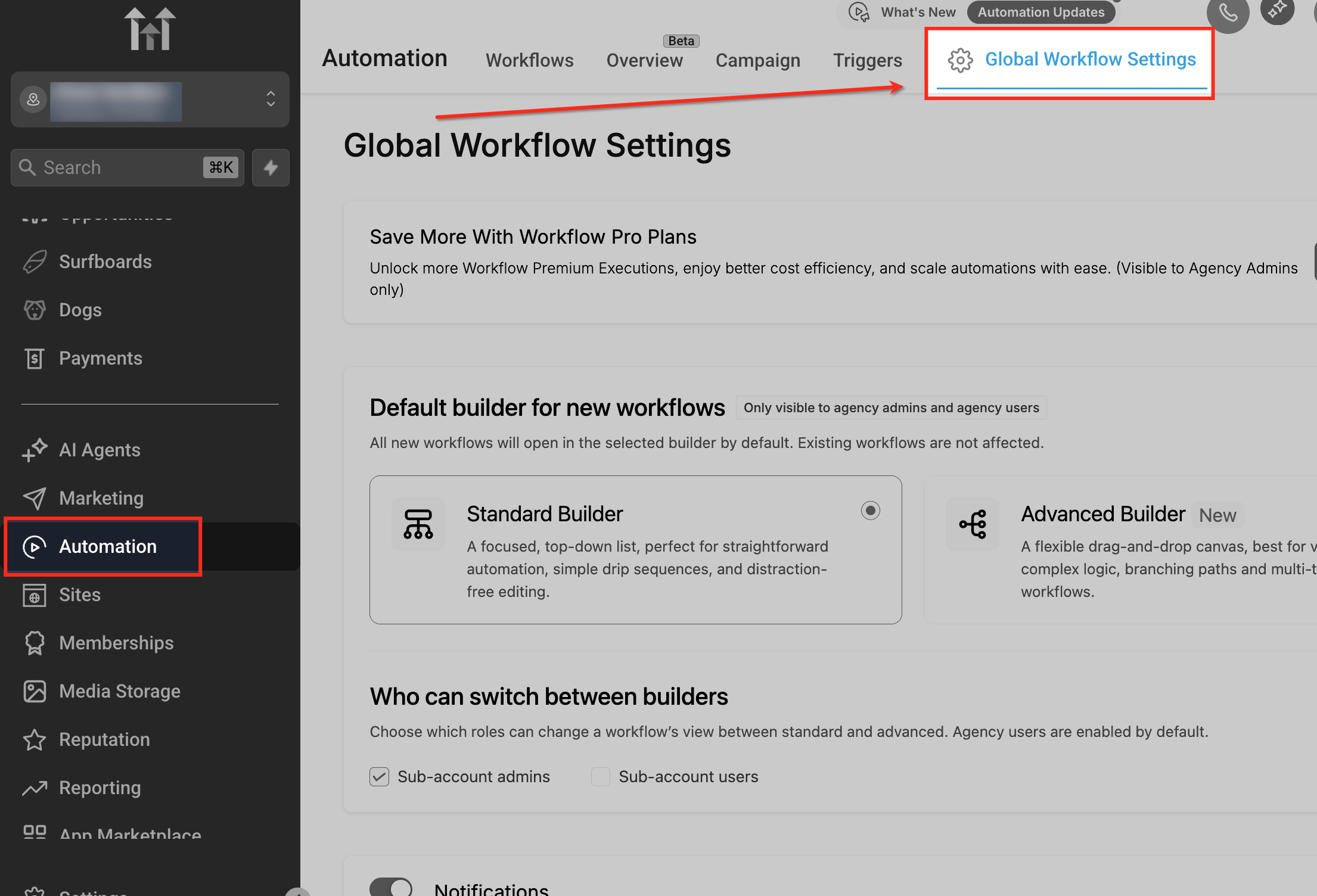
Open Global Settings
From the left sidebar, click Automation, then select Global Workflow Settings in the top navigation. This opens the agency-only settings page where you’ll configure the default builder and who can switch views.
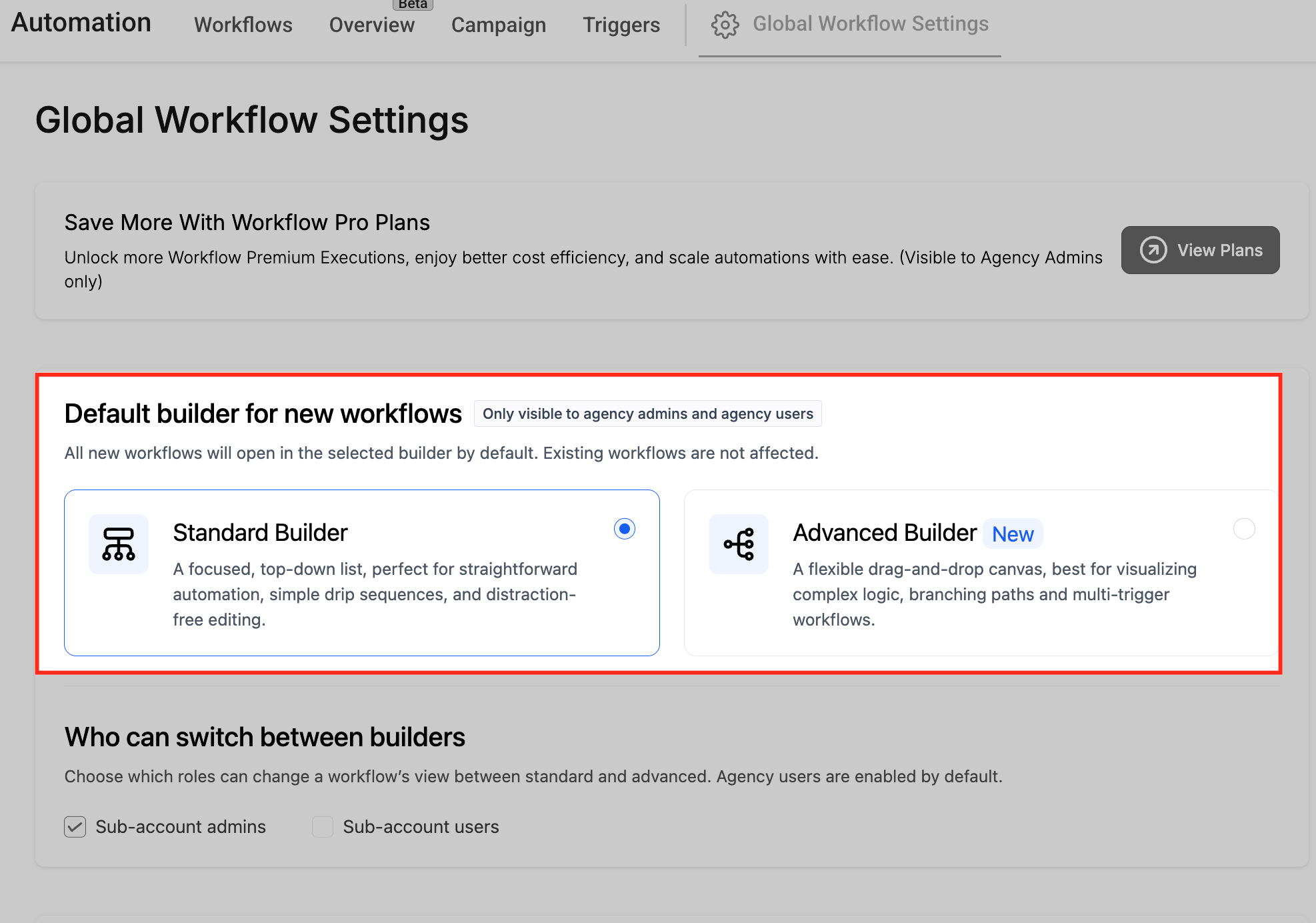
Choose Default Builder
In Default builder for new workflows, pick Standard Builder or Advanced Builder. Your selection applies to new workflows only—existing workflows are not affected.
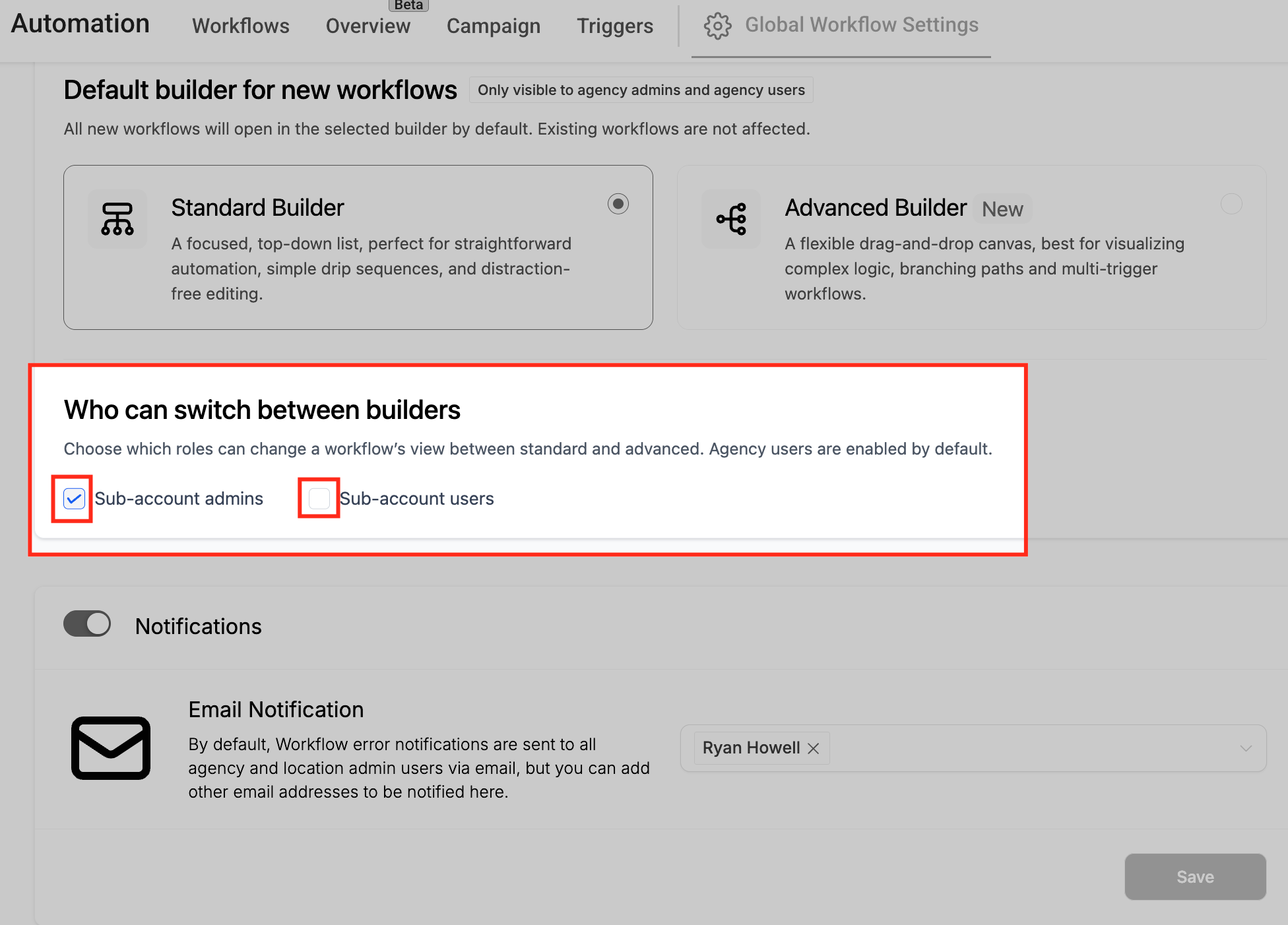
Set Switch Access
Under Who can switch between builders, check the roles allowed to change a workflow’s view (e.g., Sub-account admins, Sub-account users); agency users are enabled by default. Users without permission won’t see the Switch View control.
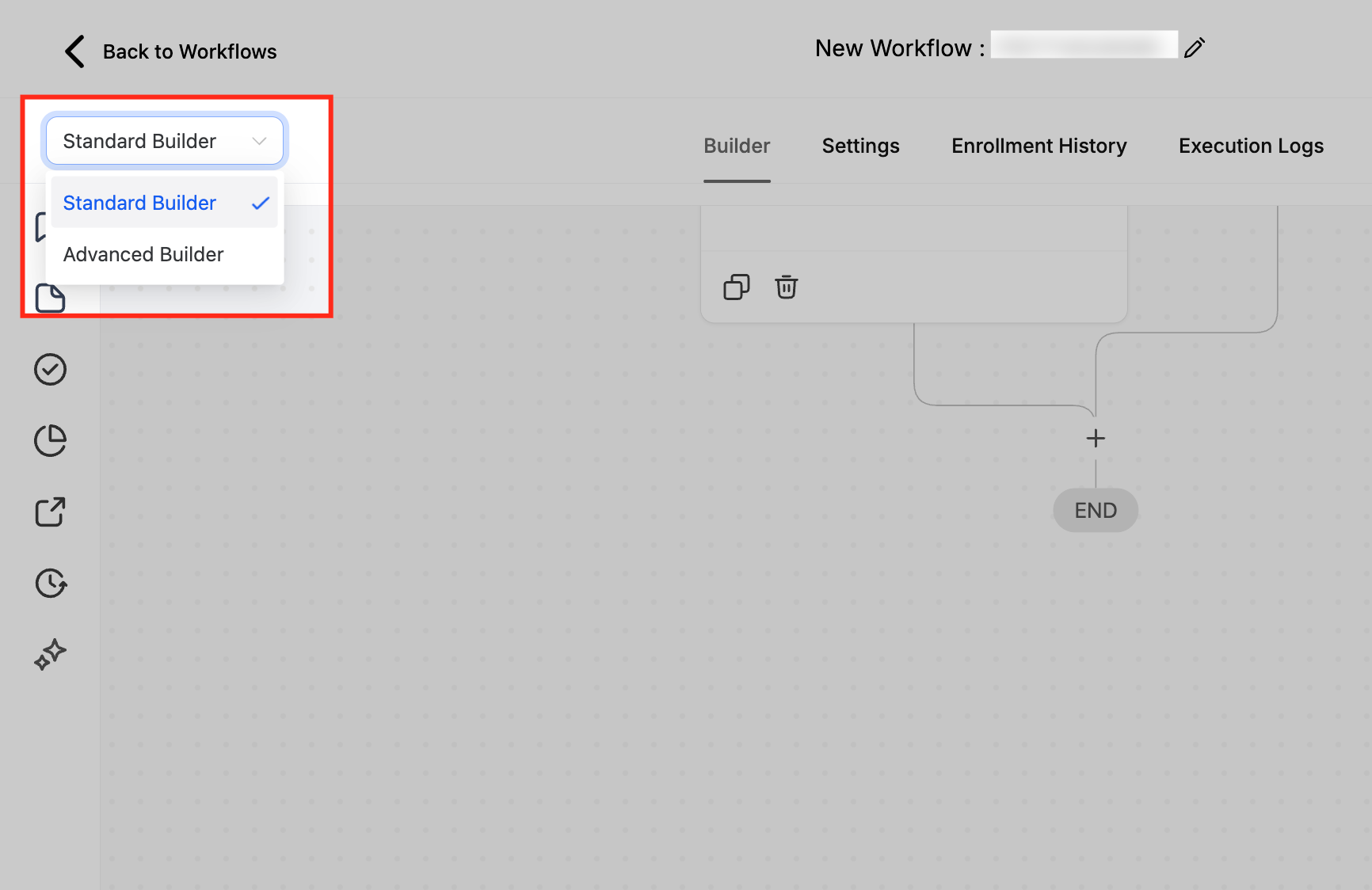
Toggle in Editor
Inside any workflow, use the top-left builder selector to switch between Standard Builder and Advanced Builder. This step verifies your Global Workflow Settings only permitted users will see the toggle, and the workflow will open in the last-saved view, confirming that the default and switch permissions are working.
2. Set the Default Builder at the Agency Level
Go to Agency Settings.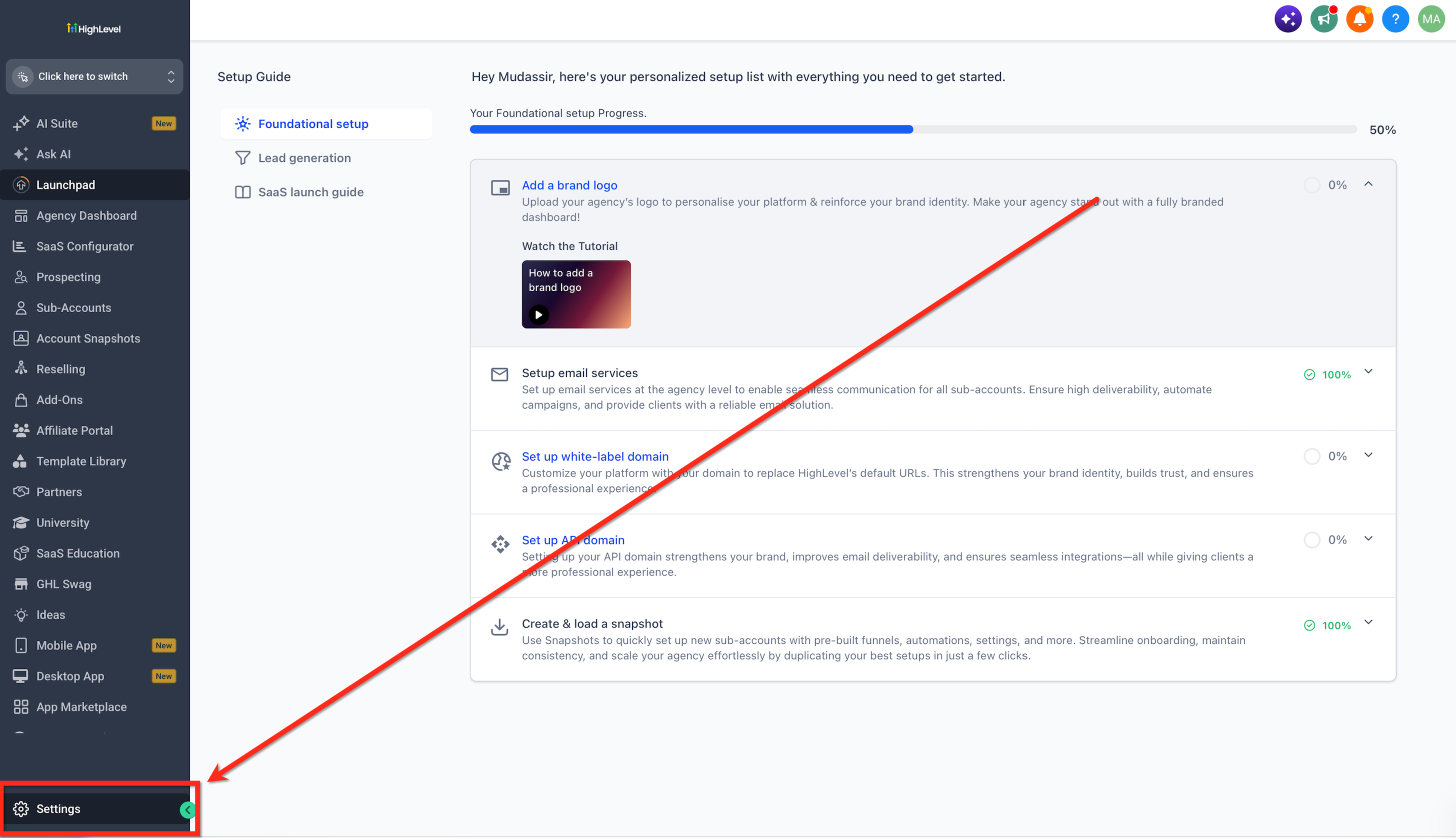
Open Workflow Settings. Under the default builder settings, select Standard or Advanced.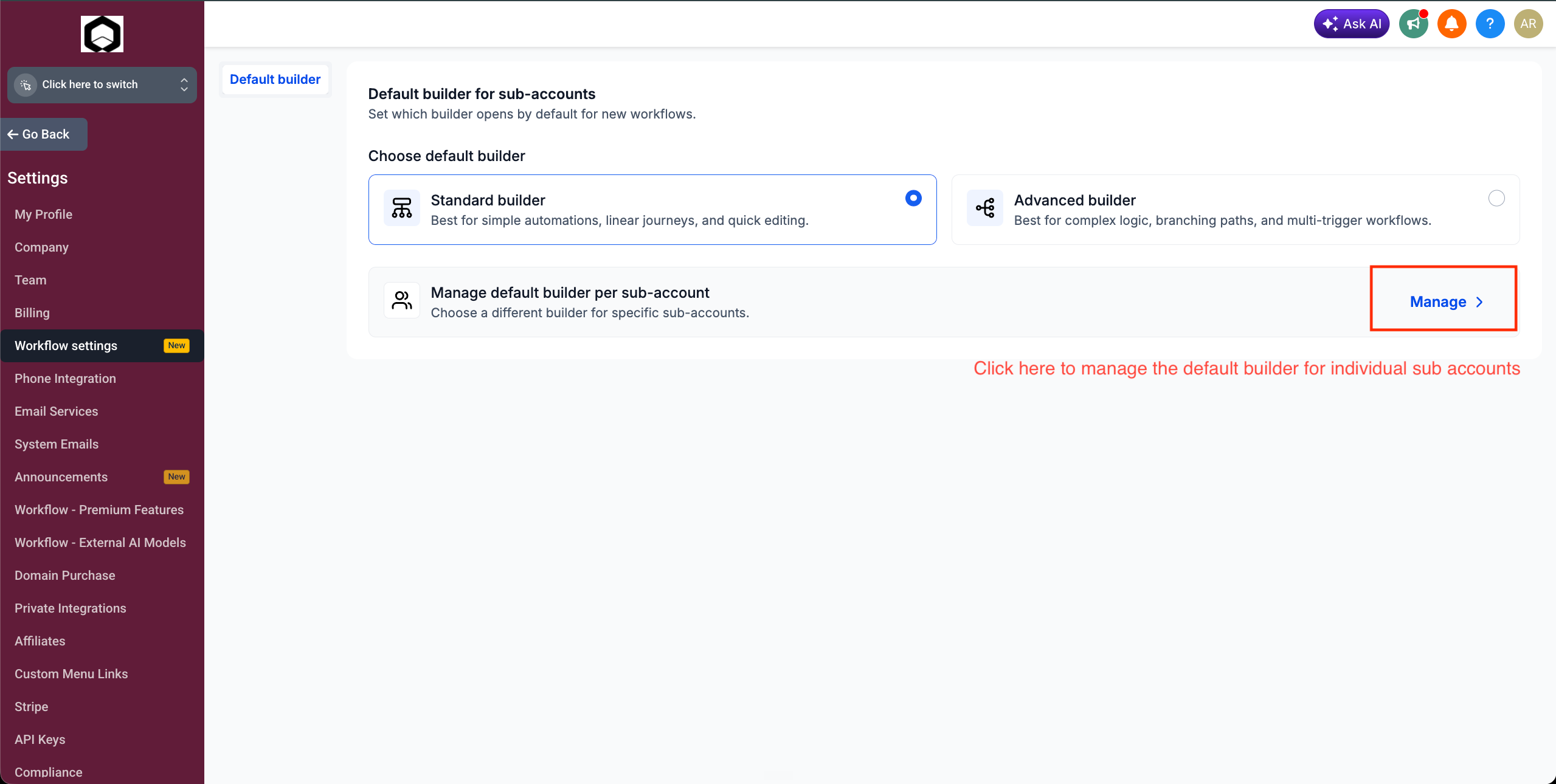
Apply the Agency Default to All/Individual Sub-Accounts: The agency default can be applied across the sub-accounts owned by the agency. When applied, the selected Standard or Advanced default is pushed to those sub-accounts. Sub-accounts created later inherit the agency default when they are created.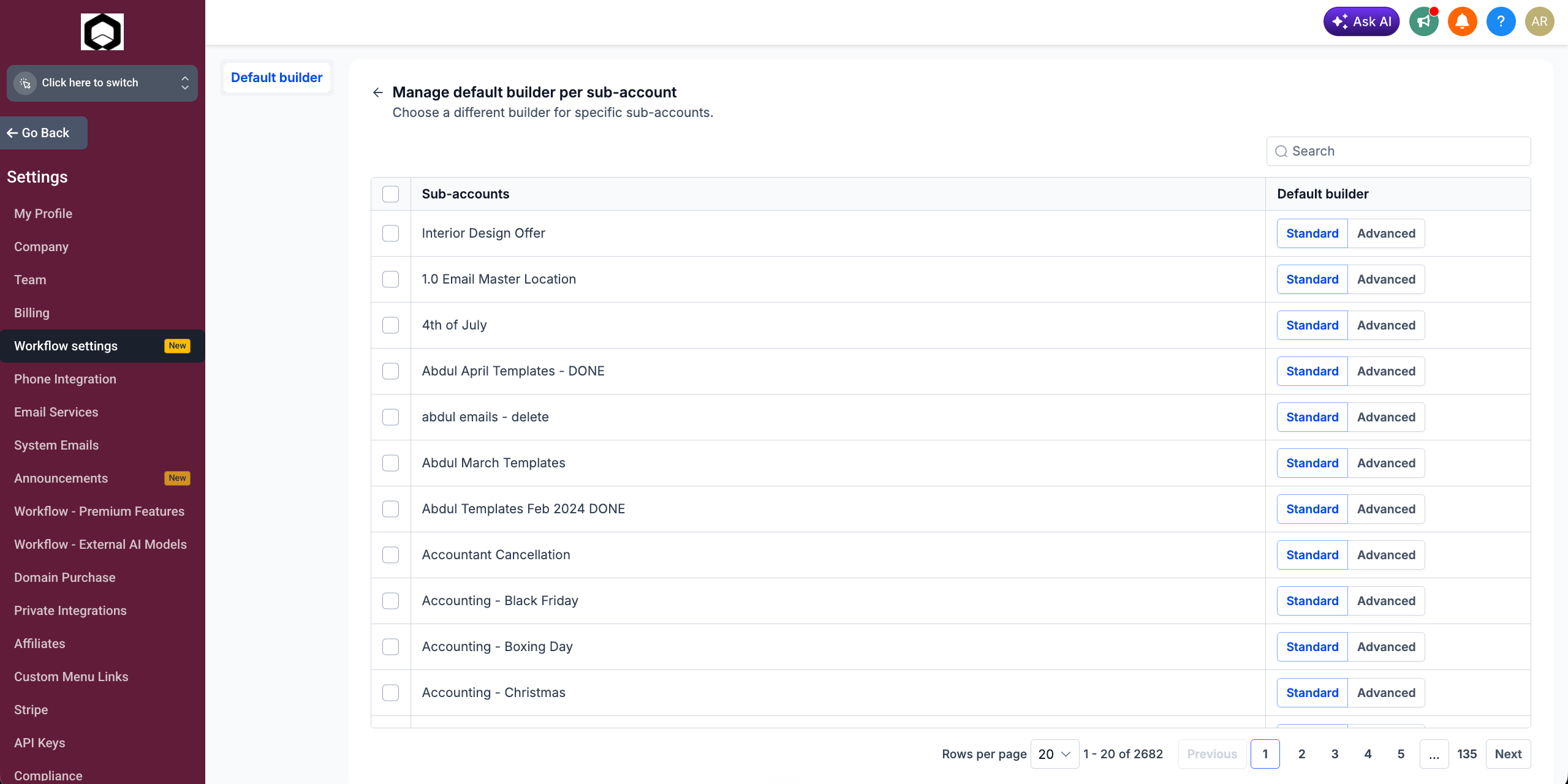
Frequently Asked Questions
Q: Does changing the default affect workflows I’ve already built?
No. The default applies only to newly created workflows; existing ones keep their current, last‑saved view.
Q: Can I completely block a user from accessing Advanced Builder?
Yes. Remove that user’s role from Who can switch between builders. They’ll only see the default builder and won’t have the Switch View control.
Q: What happens if a workflow contains Advanced‑only features and someone tries to switch to Standard?
HighLevel requires removing unsupported Advanced‑only items before saving in Standard to prevent accidental data loss.
Q: Where do permitted users find the Switch View control?
In the top‑left area of the workflow editor. If a user doesn’t have permission, it won’t appear.
Q: Can I set different defaults per sub‑account?
Yes. Go to Agency Settings → Workflow Settings and select Manage under Manage default builder per sub-account. Find the sub-account, then select Standard or Advanced as its default builder.
Q: Who can access Global Workflow Settings?
Agency admins and agency users with the appropriate access. The panel isn’t visible to sub‑account‑only users.
Q: Do Draft and Published states affect the default or view?
No. Draft/Published status is independent of which builder view a workflow opens in.
Q: Is there an API to read or update these settings?
There is no public API documented for these settings at this time; configuration is done in the UI.
Was this article helpful?
That’s Great!
Thank you for your feedback
Sorry! We couldn't be helpful
Thank you for your feedback
Feedback sent
We appreciate your effort and will try to fix the article