Speak your ideas and let HighLevel do the typing. Voice Dictation in AI Builder and AI Assistant allows you to create and modify workflows using natural speech instead of manual text entry. This feature helps you build automations faster, improve accessibility, and streamline workflow creation across languages.
TABLE OF CONTENTS
- What is Voice Dictation in AI Builder & Assistant?
- Key Benefits of Voice Dictation
- Voice-to-Workflow Creation (AI Builder)
- Using Voice with AI Assistant
- Multi-Language Support
- How To Use Voice Dictation
- Frequently Asked Questions
- Related Articles
What is Voice Dictation in AI Builder & Assistant?
Voice Dictation adds speech-to-text functionality to both the Workflow AI Builder and the in-builder AI Assistant. Instead of typing prompts, you can click the microphone icon and describe what you want to build or modify. HighLevel transcribes your speech and processes it the same way as a typed AI prompt, generating workflows or applying edits accordingly.
Key Benefits of Voice Dictation
Voice input removes friction from workflow creation, making automation faster and more inclusive for teams of all sizes.
Hands-Free Ideation: Capture automation ideas while multitasking without needing to type.
Faster Workflow Creation: Move from concept to structured workflow in seconds.
Improved Accessibility: Enables users with limited mobility or typing challenges to build workflows more easily.
Multi-Language Support: Dictate in any language supported by HighLevel AI tools.
Seamless Editing: Generated workflows appear in the standard builder for review and refinement.
Voice-to-Workflow Creation (AI Builder)
AI Builder allows you to generate complete workflows using natural language. With Voice Dictation enabled, you can describe triggers, conditions, and actions verbally, and HighLevel will structure them into an automation draft inside the workflow canvas.
This is ideal when creating new workflows from scratch or rapidly prototyping automation logic.
(Screenshot: AI Builder prompt box with microphone icon highlighted above the “Add Trigger” button.)
After transcription:
The workflow appears in the builder.
You can edit triggers, actions, delays, and conditions as needed.
You can continue refining using either voice or typed prompts
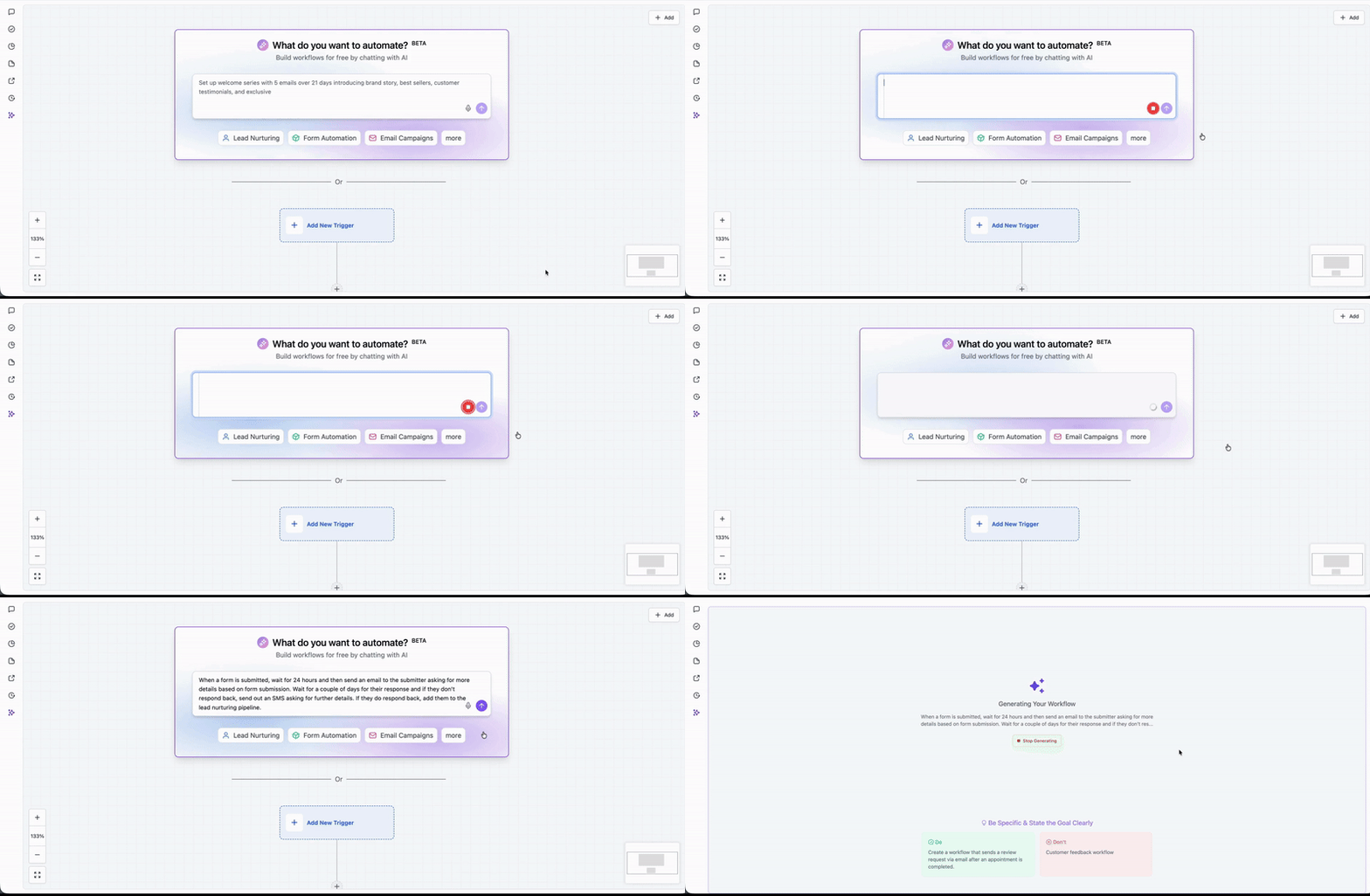
Learn more about AI workflow generation: Workflow AI Builder: Generate and Edit Workflows with AI
Using Voice with AI Assistant
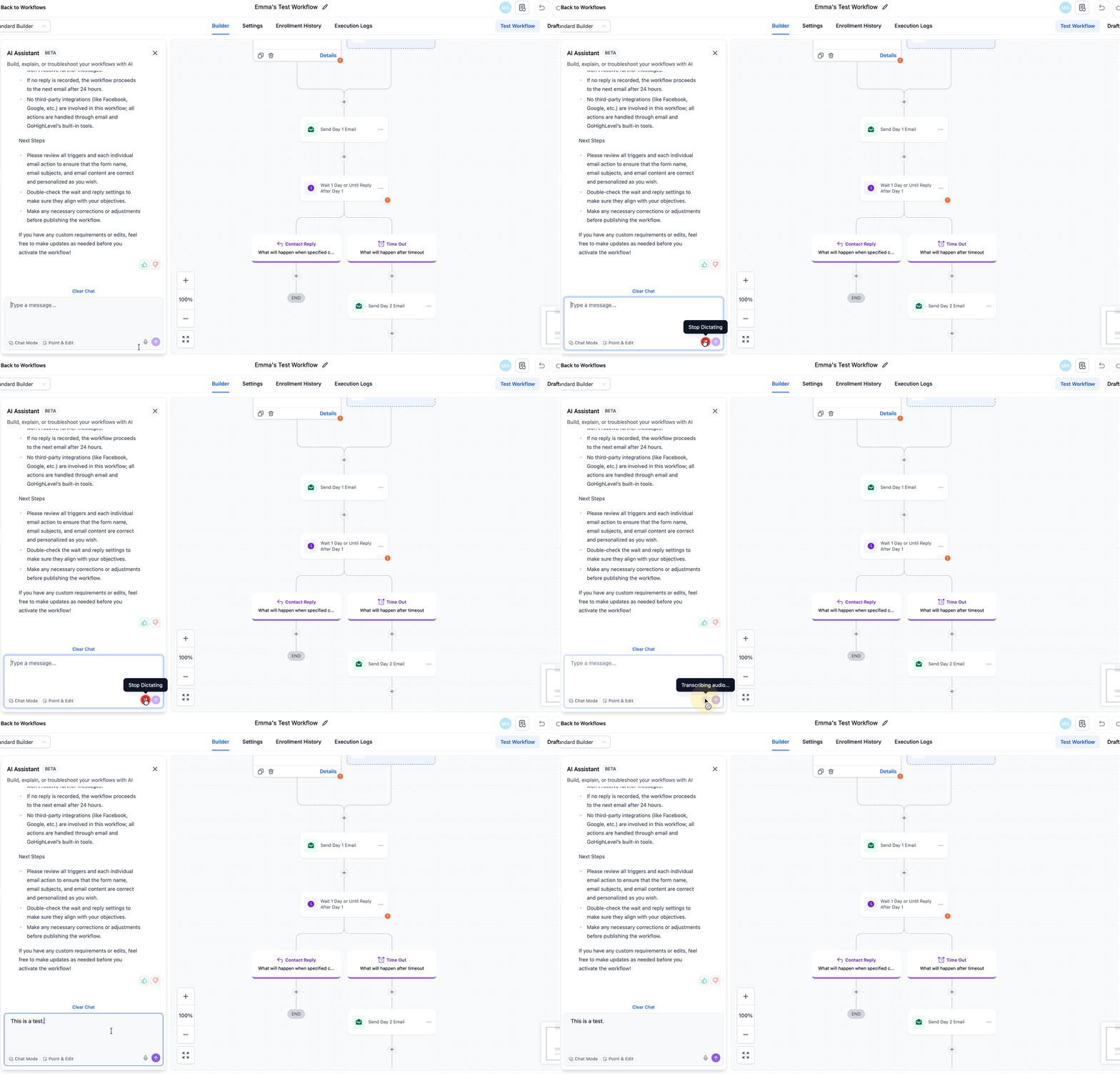
The AI Assistant inside the workflow canvas supports conversational edits and guidance. Voice Dictation allows you to speak your requests directly into the Assistant chat instead of typing.
This is best for:
Modifying an existing workflow
Asking configuration questions
Adding or adjusting steps incrementally
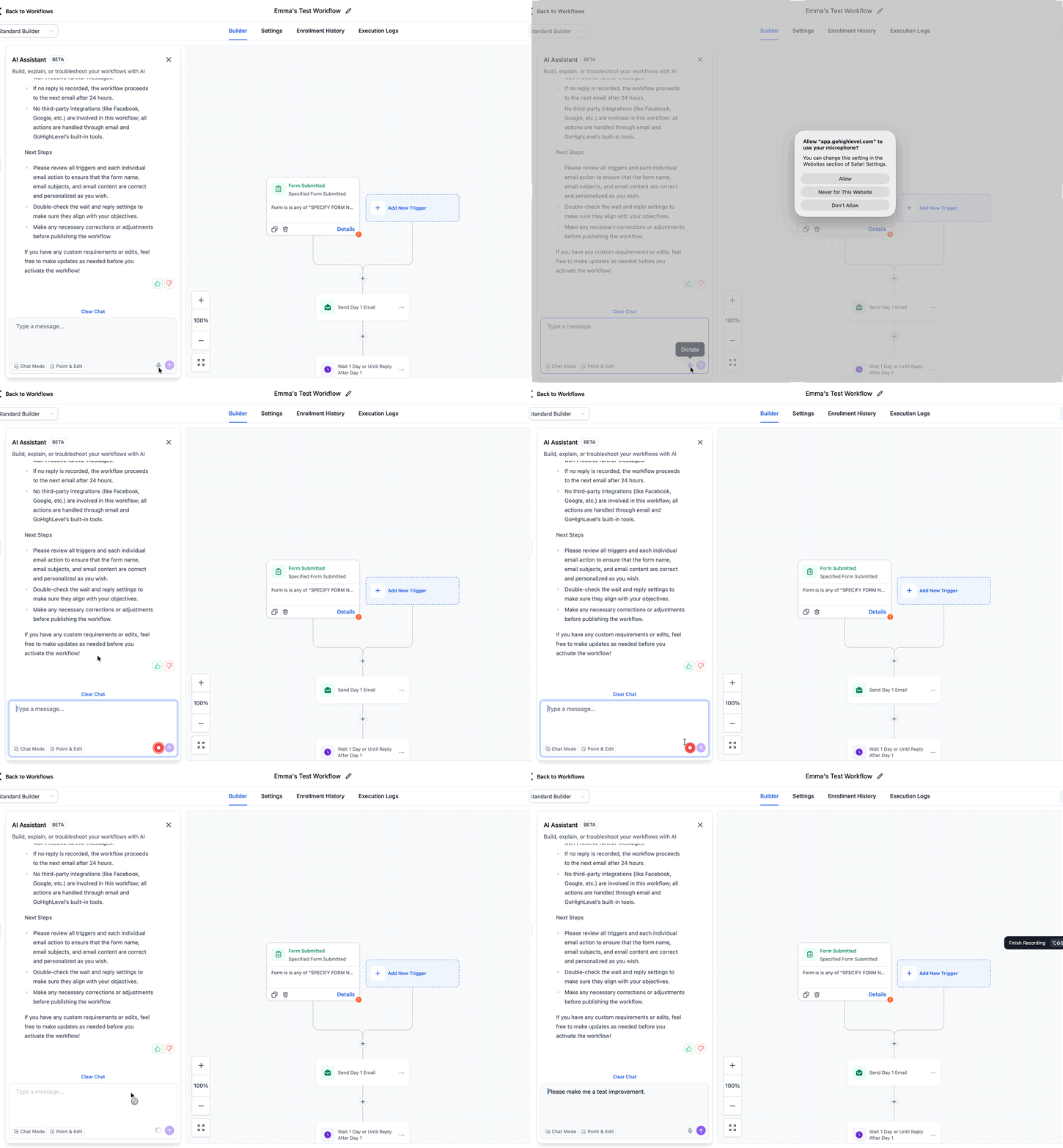
Examples:
“Add a 2-hour delay after the form submission trigger.”
“Insert an SMS reminder before the appointment.”
“How do I apply a tag when a contact replies?”
Multi-Language Support
Voice Dictation works in any language supported by HighLevel AI prompts. This enables global teams to create workflows using their preferred language without needing to translate instructions manually.
The AI will:
Transcribe your spoken language
Interpret intent
Generate the workflow in the builder interface
How To Use Voice Dictation
Proper setup ensures your browser can capture audio and that AI Builder processes your voice instructions correctly.
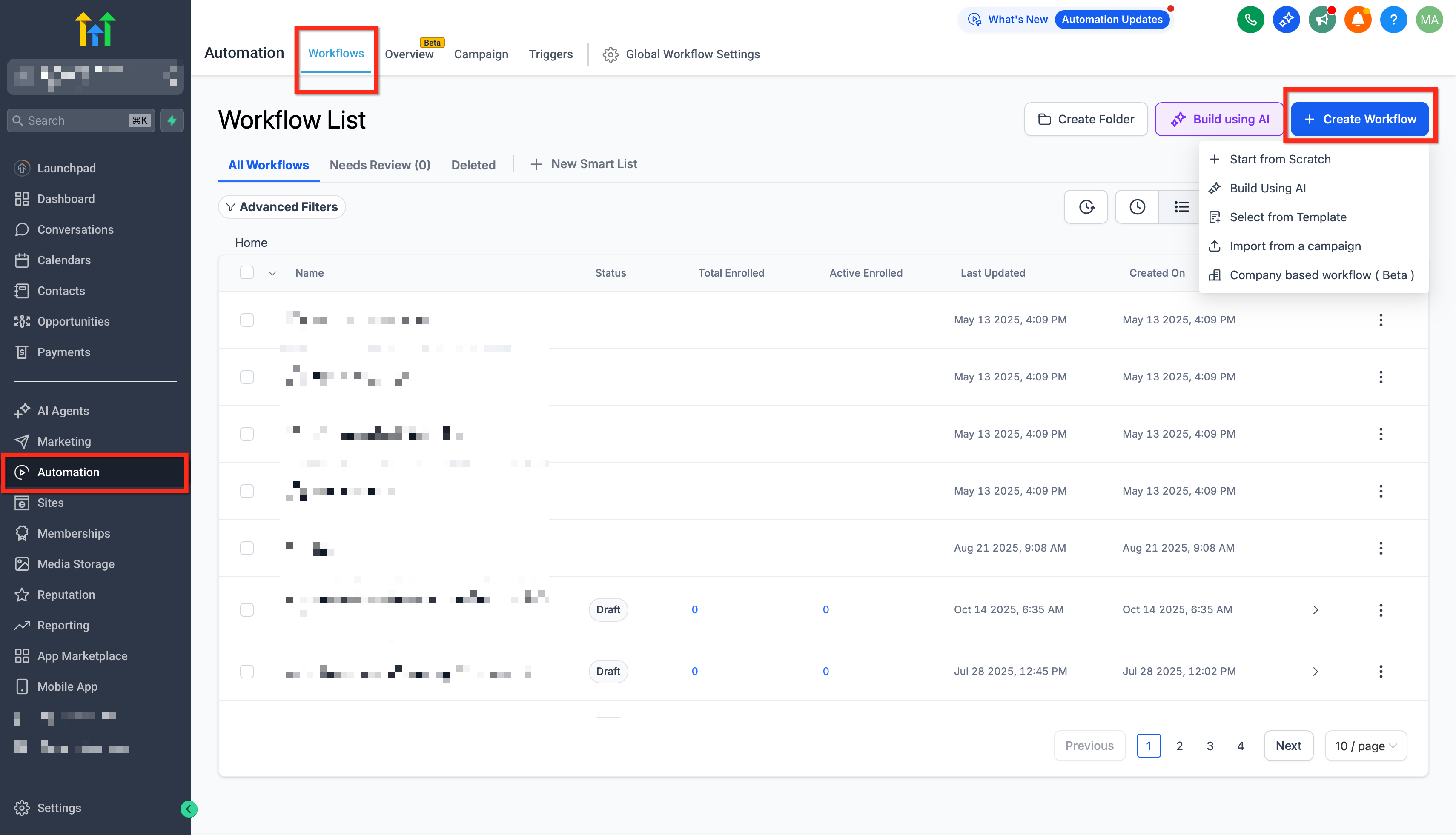
Navigate to Automation → Workflows. Create a new workflow or open an existing one.
Locate the AI Builder prompt box above the “Add Trigger” button.
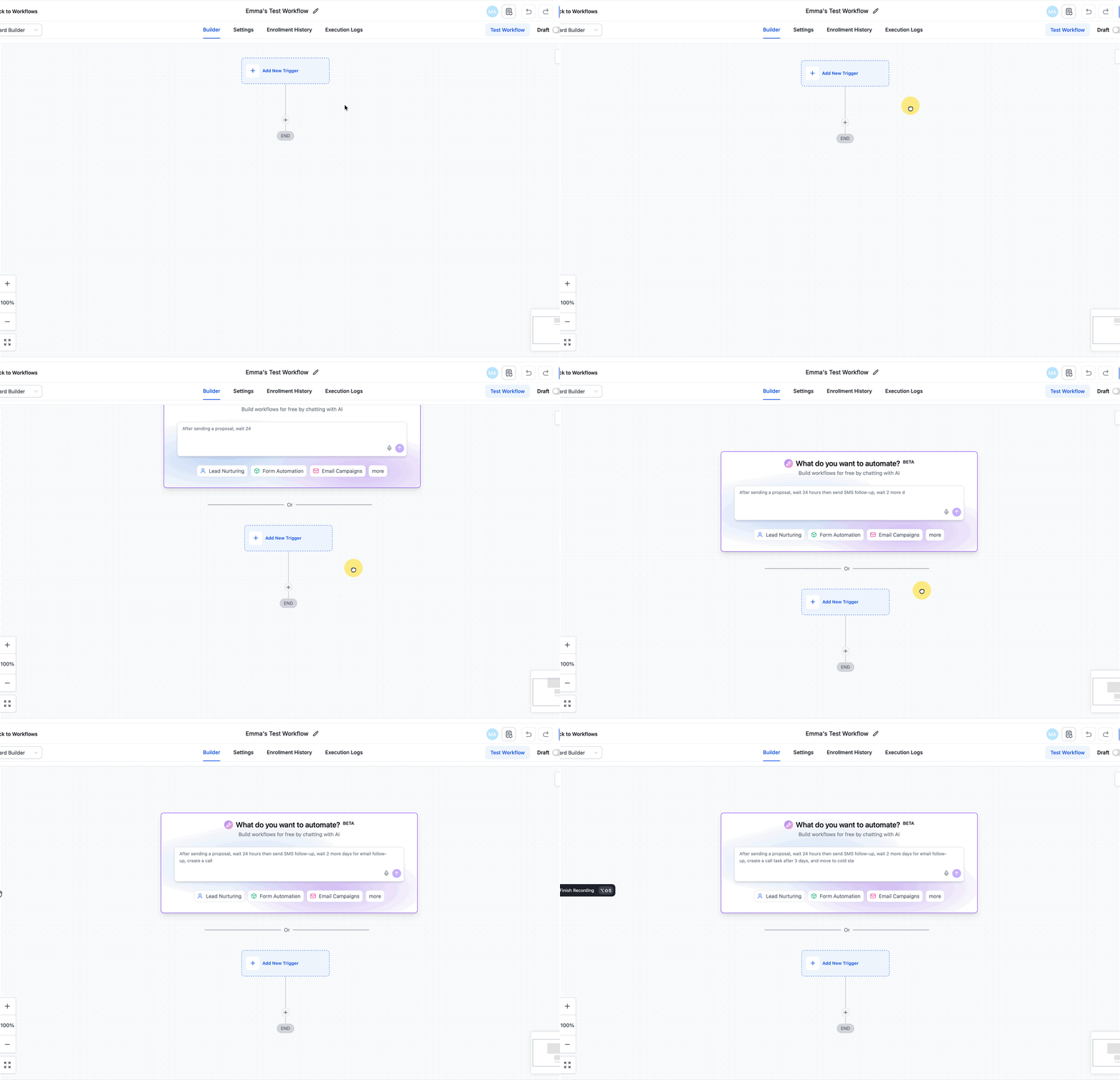
Click the microphone icon. (Grant browser microphone permissions if prompted). Speak your workflow idea naturally, including triggers and actions. Click Stop (or wait for auto-stop).
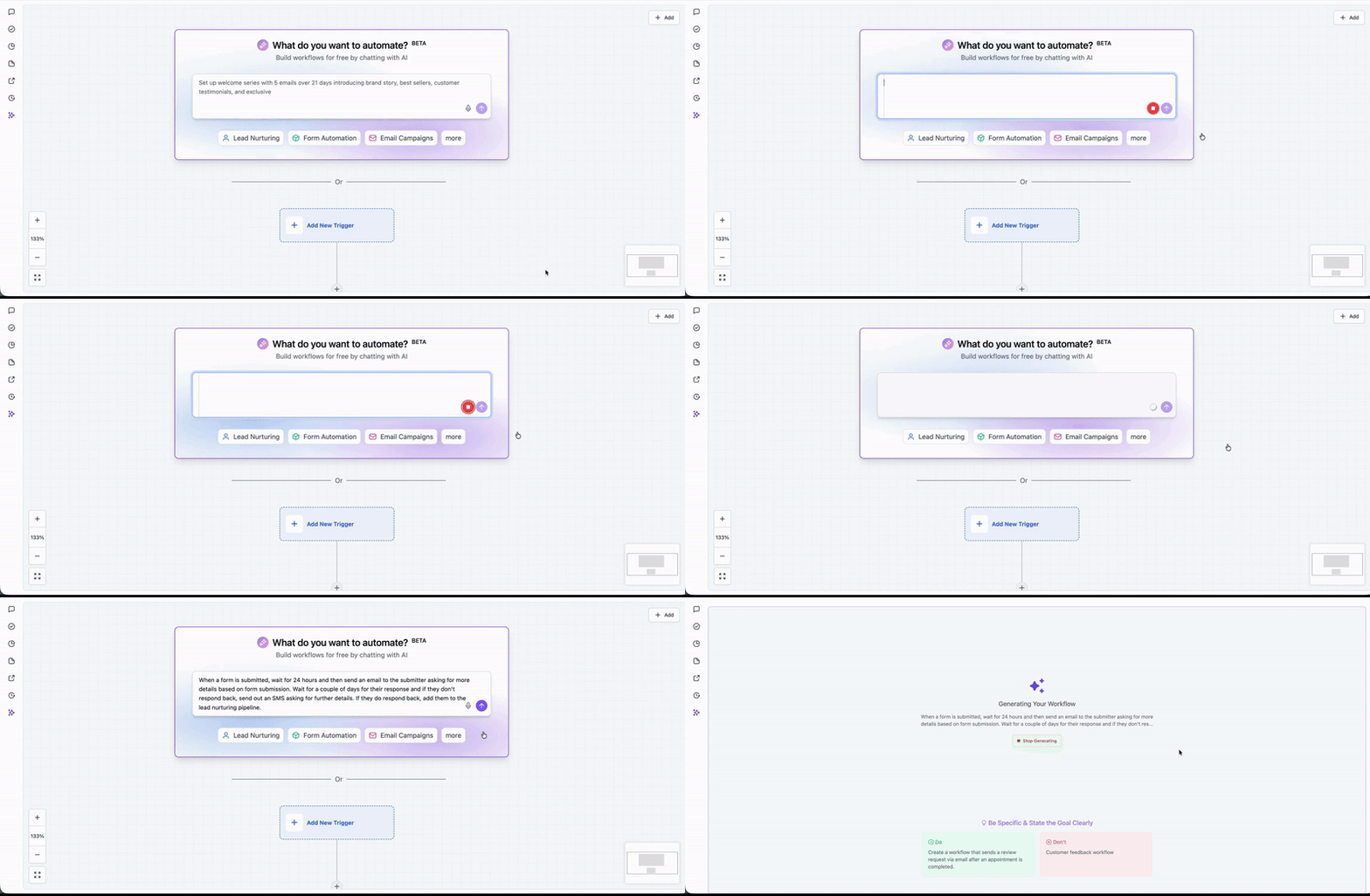
Review the generated workflow and make edits as needed. You can use the Voice Dictation to further edit the workflow.
Click Save and Publish.
Frequently Asked Questions
Q: Does Voice Dictation require a separate subscription?
Voice Dictation is available wherever Workflow AI Builder or AI Assistant is enabled within your plan.
Q: Which languages are supported?
Any language supported by HighLevel AI prompts can be used with Voice Dictation.
Q: Can I use Voice Dictation in existing workflows?
Yes. You can use voice input to modify existing workflows via AI Assistant or generate new logic within AI Builder.
Q: My microphone isn’t working. What should I check?
Confirm microphone permissions are enabled in your browser and operating system settings. Refresh the page after granting access.
Related Articles
Was this article helpful?
That’s Great!
Thank you for your feedback
Sorry! We couldn't be helpful
Thank you for your feedback
Feedback sent
We appreciate your effort and will try to fix the article