Daily Scheduled Sync for Google Drive Knowledge Base Files
Daily Scheduled Sync helps keep Google Drive–imported Knowledge Base files current without requiring repeated manual re-syncs. When enabled for an eligible file, HighLevel checks its Google Drive source every 24 hours and refreshes the Knowledge Base when a change is detected. Syncing is controlled per file, giving you flexibility to automatically monitor frequently updated documents while leaving static content unchanged. This guide explains how Daily Scheduled Sync works and how to enable it in HighLevel.
Daily Scheduled Sync is an optional Knowledge Base feature that monitors supported files imported from Google Drive for source changes. It is designed for documents that are updated regularly, such as pricing sheets, service information, policies, procedures, and FAQs, so the Knowledge Base can remain aligned with the latest source content.
The feature must first be activated in Labs while it is available there, and Daily Scheduled Sync must then be enabled individually for each eligible Google Drive file you want HighLevel to monitor.
- What is Daily Scheduled Sync for Google Drive Knowledge Base Files?
- Key Benefits of Daily Scheduled Sync
- Supported Files and Eligibility
- How Daily Scheduled Sync Works
- Daily Scheduled Sync vs. Google Sheets Auto-Sync
- How To Setup Daily Scheduled Sync for Google Drive Knowledge Base Files
- Frequently Asked Questions
- Related Articles
What is Daily Scheduled Sync for Google Drive Knowledge Base Files?
Daily Scheduled Sync is an optional Knowledge Base feature that monitors supported files imported from Google Drive for source changes. It is designed for documents that are updated regularly, such as pricing sheets, service information, policies, procedures, and FAQs, so the Knowledge Base can remain aligned with the latest source content.
After Daily Scheduled Sync is enabled for a Google Drive–imported file, HighLevel checks the source once every 24 hours.
- If the source has not changed, HighLevel records the check and stops. The file is not downloaded, reprocessed, re-chunked, or re-embedded.
- If the source has changed, HighLevel automatically uses the existing Google Drive re-sync process to update the Knowledge Base file.
- Daily Scheduled Sync is enabled per file, so you can choose which documents need recurring monitoring.
HighLevel's Google Drive Knowledge Base integration already supports importing eligible documents and manually re-syncing them when needed. Daily Scheduled Sync adds an automatic option for files that need ongoing updates. Learn more about importing files from Google Drive.
Key Benefits of Daily Scheduled Sync
Daily Scheduled Sync reduces repetitive Knowledge Base maintenance while helping AI tools reference fresher source content. Because synchronization is controlled at the file level, you can automate updates where freshness matters without continuously reprocessing files that rarely change.
Supported Files and Eligibility
Daily Scheduled Sync is intended specifically for eligible documents imported through the Google Drive Knowledge Base integration. Understanding which sources qualify helps prevent confusion between Google Drive files and files uploaded directly from a computer.
Daily Scheduled Sync supports Google Drive–imported:
- PDF files
- Google Docs
- Microsoft Word
.docfiles - Microsoft Word
.docxfiles
A file must be imported from Google Drive to use this scheduled sync capability. Files uploaded directly from your computer are separate static file sources and do not use Google Drive scheduled synchronization.
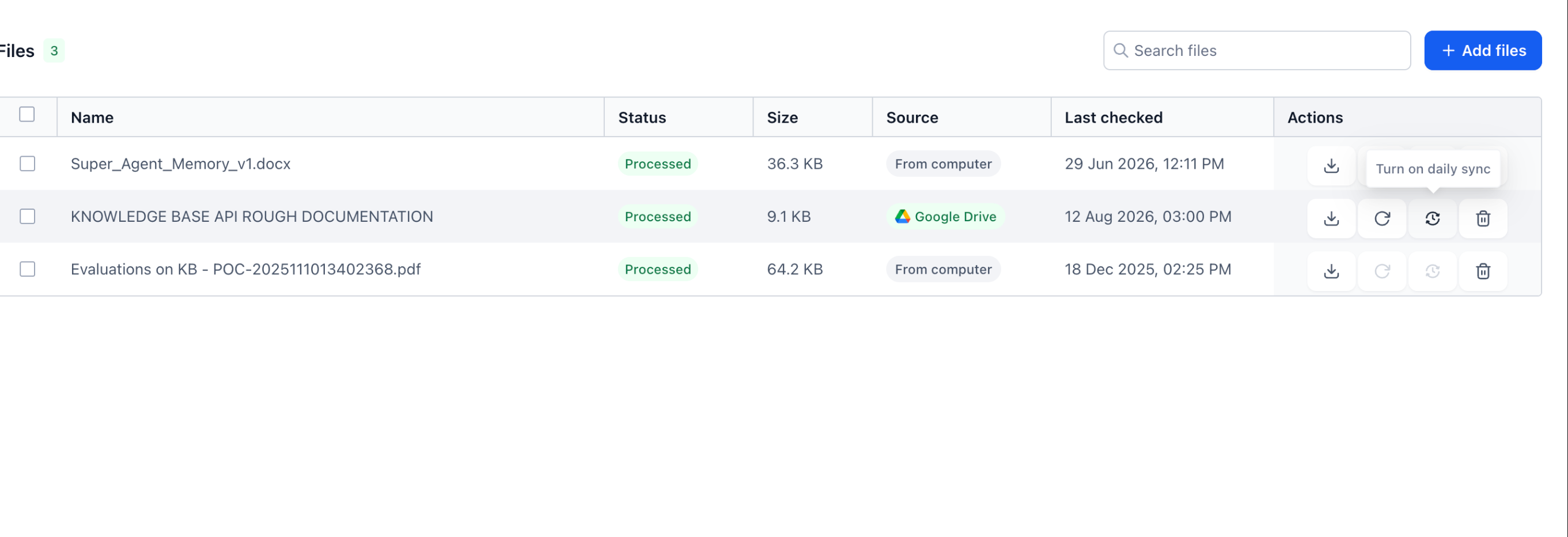
In the Knowledge Base Files list, eligible imported files can be identified by the Google Drive label in the Source column. HighLevel's existing Google Drive integration supports these same document types and provides manual Re-sync for imported sources.
How Daily Scheduled Sync Works
Daily Scheduled Sync checks whether the original Google Drive file has changed before deciding whether additional processing is required. This change-detection approach helps keep dynamic documents current while avoiding unnecessary processing for files that remain unchanged.
When the source file has not changed
HighLevel records that the scheduled check occurred and takes no further action.
The file is not:
- Downloaded again
- Updated in storage
- Re-chunked
- Re-embedded
When the source file has changed
HighLevel automatically sends the file through the existing Google Drive import re-sync flow. Once processing is complete, the Knowledge Base can use the updated content.
When the source file becomes unavailable
If the source file is deleted from Google Drive or HighLevel loses access to it, scheduled synchronization stops and the issue is surfaced rather than continuing to sync an unavailable source.
Daily Scheduled Sync does not replace the existing manual Re-sync option. Manual Re-sync remains useful when you want to pull an update on demand instead of waiting for the next scheduled source check. The existing Google Drive integration documents the manual Re-sync workflow.
Daily Scheduled Sync vs. Google Sheets Auto-Sync
Google Drive document synchronization and Google Sheets synchronization are separate Knowledge Base capabilities with different update behaviors. Knowing the difference helps you choose the appropriate source type when your information changes frequently.
Google Drive Daily Scheduled Sync
- Applies to eligible PDFs, Google Docs, DOC, and DOCX files imported from Google Drive.
- Checks the source every 24 hours when Daily Scheduled Sync is enabled.
- Uses per-file scheduled sync controls.
- Re-syncs the document when a source change is detected.
Google Sheets synchronization
- Applies to Google Sheets connected as structured table sources.
- Supports more frequent automatic synchronization.
- Is designed for structured spreadsheet data rather than document files.
Google Sheets Knowledge Base sources can automatically refresh approximately every 15 minutes, making them better suited to structured data that needs more frequent updates. Learn more about Google Sheets Integration for Knowledge Base.
How To Setup Daily Scheduled Sync for Google Drive Knowledge Base Files
Proper setup ensures HighLevel can monitor the intended Google Drive source and update the correct Knowledge Base file. The feature must first be activated in Labs while it is available there, and Daily Scheduled Sync must then be enabled individually for each eligible Google Drive file you want HighLevel to monitor.
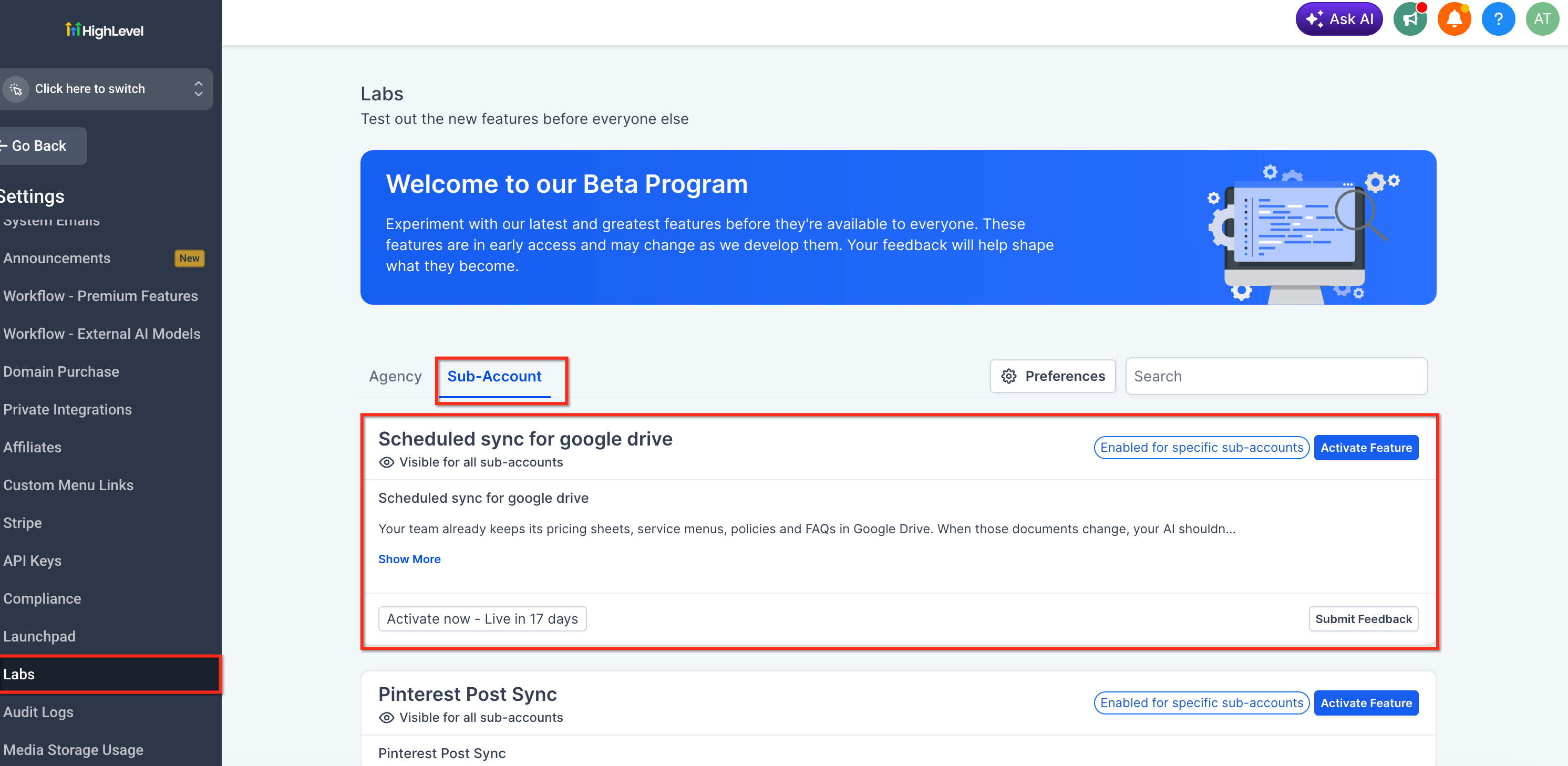
Activate Daily Scheduled Sync in Labs
- Go to Settings in your HighLevel sub-account.
- Select Labs.
- Open the Sub-Account tab.
- Locate Scheduled sync for google drive.
- Click Activate Feature.
Open the Knowledge Base
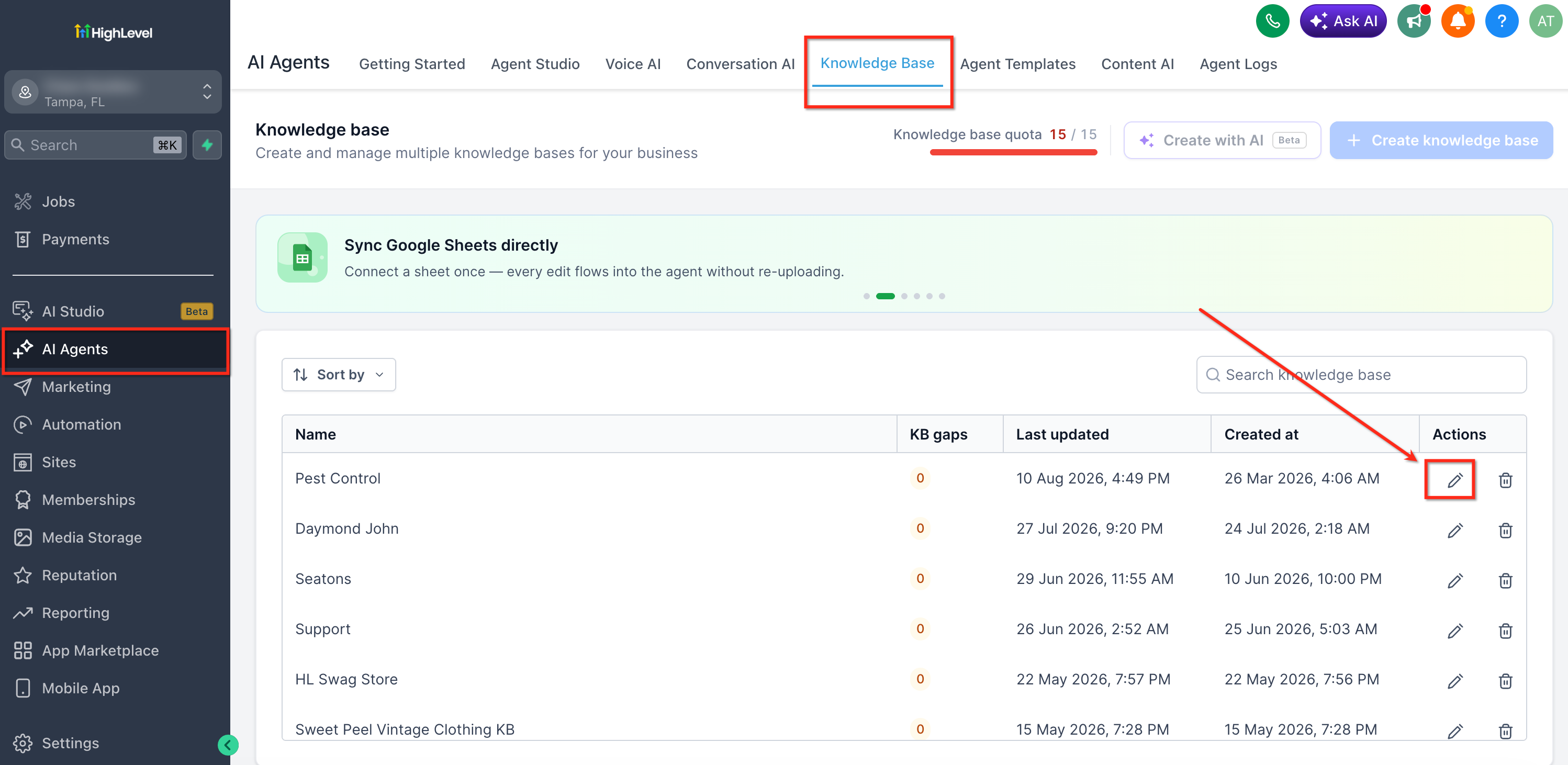
- From your sub-account, go to AI Agents.
- Select Knowledge Base.
- Locate the Knowledge Base containing the Google Drive file you want to monitor.
- Click the edit icon or open the Knowledge Base.
HighLevel currently uses AI Agents → Knowledge Base as the main navigation path for creating and managing Knowledge Bases.
Open the Files tab
- Inside the Knowledge Base, select Files.
- Review the files already added to the Knowledge Base.
- Look for the Google Drive label in the Source column.
If you have not imported the document yet:
- Click Add files or Import from Google Drive, depending on the available view.
- Connect and authorize your Google account if needed.
- Select the supported document from Google Drive.
- Import the file.
- Wait until its status shows Processed.
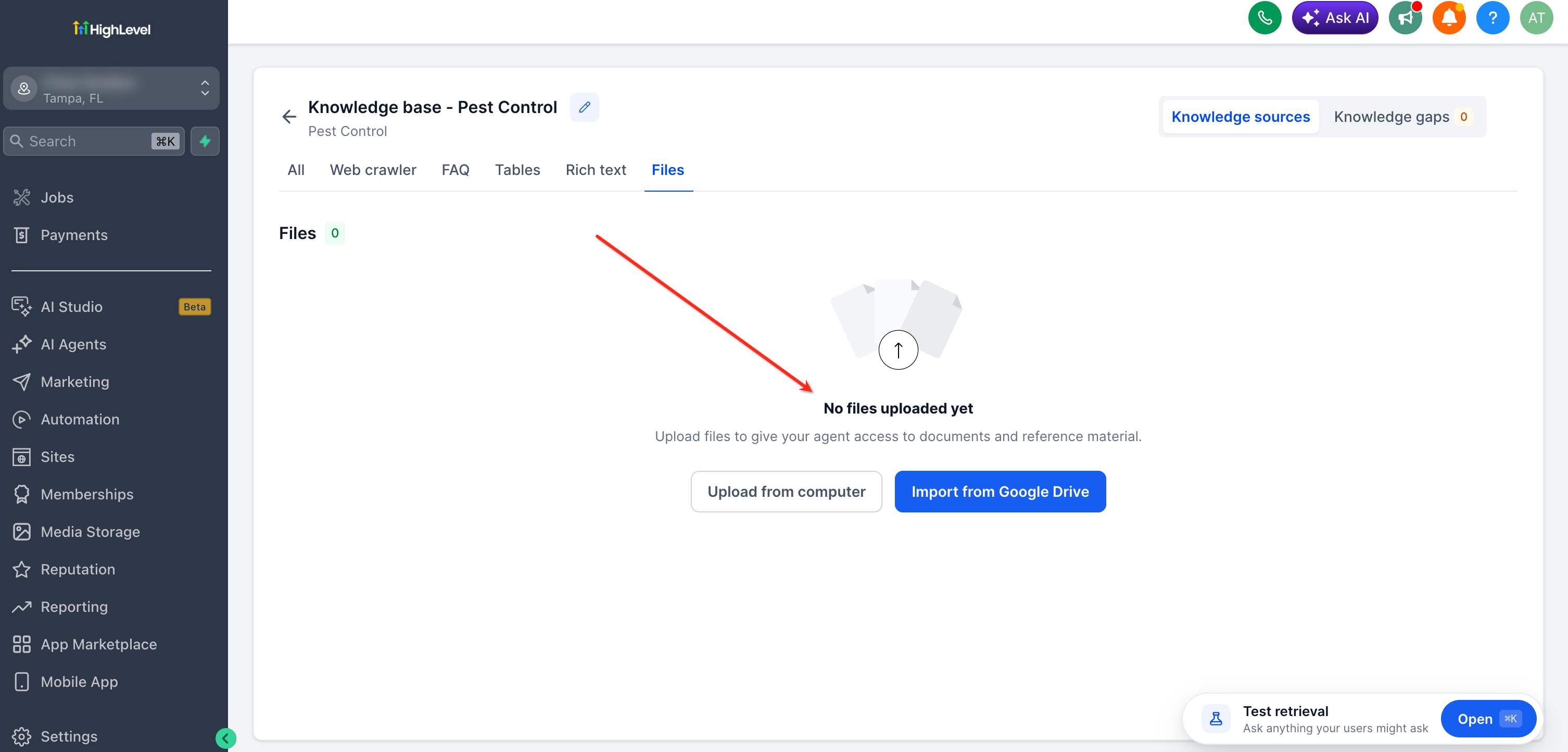
For detailed Google Drive import instructions, see Knowledge Base - Google Drive Integration.
Turn on Daily Scheduled Sync
- Locate the Google Drive–imported file in the Files table.
- Go to the Actions column.
- Hover over the scheduled sync control to confirm Turn on daily sync.
- Click the control to enable Daily Scheduled Sync for that file.
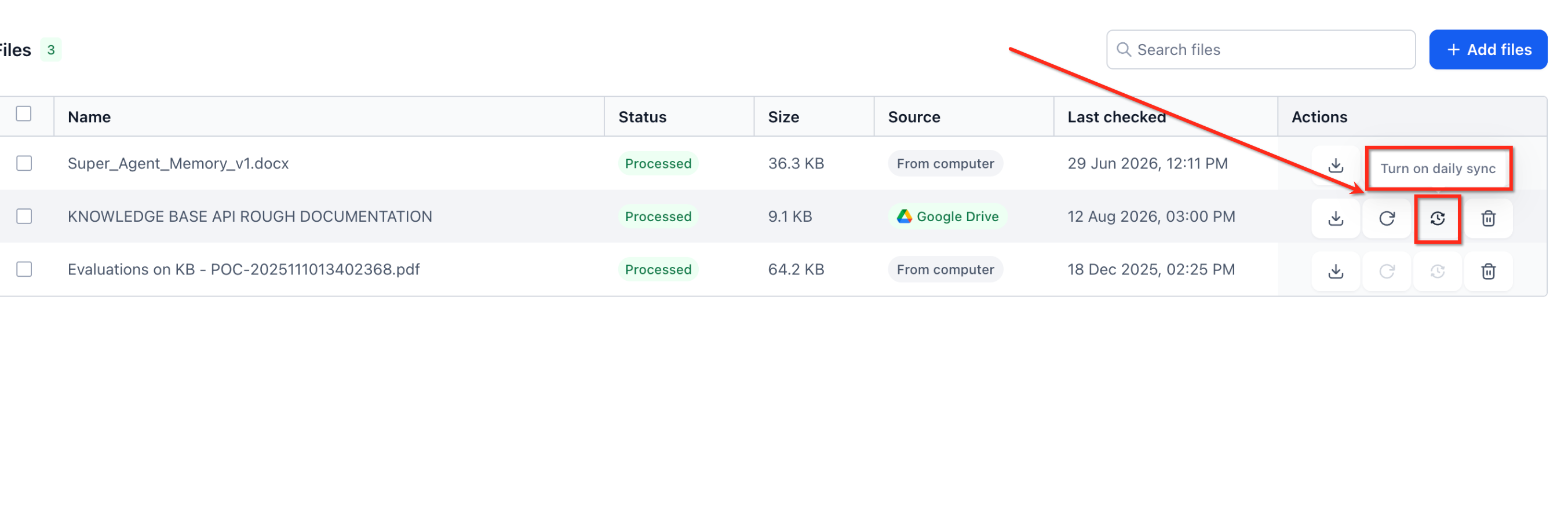
HighLevel will now check that file's Google Drive source once every 24 hours.
Enable sync for additional files as needed
Repeat the process for each Google Drive file that requires automatic monitoring.
Because Daily Scheduled Sync is configured per file, you can use it selectively. For example, you may enable it for a pricing document that changes every month while leaving an older reference document without scheduled synchronization.
Validate important Knowledge Base updates
After an important source change has been synchronized and processing is complete, you can optionally use the Knowledge Base Retrieval Tester to confirm that the updated information can be retrieved.
The Retrieval Tester lets you ask realistic questions, inspect the returned Knowledge Base sources, and retest after content updates. Learn more about the Knowledge Base Retrieval Tester.
Frequently Asked Questions
Can I choose what time Daily Scheduled Sync runs?
No custom synchronization time is currently described for this feature. Once enabled, HighLevel checks the eligible source file once every 24 hours.
Does Daily Scheduled Sync work for files uploaded from my computer?
No. Daily Scheduled Sync is designed for supported files imported from Google Drive. Files uploaded directly from a computer are separate Knowledge Base sources.
What happens if HighLevel checks the file and nothing has changed?
HighLevel records the check and stops. It does not download the file again or perform unnecessary storage updates, re-chunking, or re-embedding.
Can I still manually re-sync a Google Drive file?
Yes. Manual Re-sync remains available for Google Drive–imported files and can be used when you want to pull the latest source version on demand.
Is Daily Scheduled Sync enabled for every Google Drive file automatically?
No. The feature is opt-in and configured per file. You decide which eligible Google Drive files should receive recurring source checks.
What happens if the original Google Drive file is deleted or becomes inaccessible?
Scheduled synchronization stops when the source is no longer available or accessible, and HighLevel surfaces the condition rather than continuing to synchronize an unavailable file.
Is Google Sheets auto-sync the same as Daily Scheduled Sync?
No. Google Sheets uses a separate Knowledge Base integration for structured spreadsheet data and supports a more frequent automatic refresh cycle. Daily Scheduled Sync applies to eligible Google Drive document files and checks their sources every 24 hours.
How can I confirm that updated content is available to my AI tools?
Wait for the updated file to finish processing, then use the Knowledge Base Retrieval Tester to ask a question related to the changed content and review the retrieved source.
Was this article helpful?
That’s Great!
Thank you for your feedback
Sorry! We couldn't be helpful
Thank you for your feedback
Feedback sent
We appreciate your effort and will try to fix the article