Conversation AI answers customer questions more reliably when it can retrieve clear, current business information. HighLevel Knowledge Bases can combine website pages, FAQs, documents, tables, rich text, and other supported sources. This guide explains how to add and maintain training content, connect it to a bot, and test responses before launch.
TABLE OF CONTENTS
- What Is Conversation AI Bot Training?
- Key Benefits of Training Your Bot
- Choose the Right Knowledge Source
- How To Train a Conversation AI Bot
- Best Practices for Better Bot Answers
- Frequently Asked Questions
- Related Articles
What Is Conversation AI Bot Training?
Conversation AI bot training gives an agent access to approved business information it can retrieve when answering customer questions. Instead of relying only on general AI knowledge, the bot searches its connected Knowledge Base for relevant content and uses that information to generate a response.
Training content can include:
- Website and help-center pages
- Frequently asked questions
- Policies and written instructions
- Product, service, or pricing tables
- Uploaded documents
- Google Drive files
- Approved web-based sources
Interface note: Some accounts display Web Crawler and Custom Bot Responses directly in the bot's Bot Training tab. In the refreshed experience, sources are managed under AI Agents → Knowledge Base, then the Knowledge Base is selected inside the bot.
Key Benefits of Training Your Bot
Clear, well-organized source content helps the bot provide useful answers while making updates and troubleshooting easier.
- More accurate answers: Ground responses in approved business information.
- Broader source support: Combine websites, FAQs, files, tables, and written content.
- Consistent information: Give customers the same policies, pricing, and service details.
- Easier maintenance: Refresh, replace, or remove sources without rebuilding the bot.
- Better testing: Confirm that the correct information is retrieved before launch.
Choose the Right Knowledge Source
Selecting a source type that matches the content structure makes information easier for Conversation AI to retrieve.
| Source | Best Used For |
|---|---|
| Web Crawler | Public service pages, help articles, pricing pages, policies, and other website content |
| FAQ | Direct, approved answers to common customer questions |
| Rich Text | Policies, instructions, business details, and notes written directly in HighLevel |
| File Upload | Supported documents containing searchable text |
| Tables | Structured information such as pricing grids, product catalogs, or service lists |
| Web Search | Supported external web information that is not stored in your uploaded business content |
| Google Drive | Importing supported Google Docs, PDF, DOC, and DOCX files |
A Knowledge Base can combine multiple source types. Use the smallest set of clear, relevant sources that covers the questions the bot should answer.
How To Train a Conversation AI Bot
A reliable setup adds approved source content, confirms processing is complete, and tests both retrieval and the full bot response.
Step 1: Open Bot Training
The Bot Training area connects the Conversation AI bot to the information it should use when responding to customers.
- Go to AI Agents → Conversation AI.
- Open Agent List.
- Select an existing bot or create a new one.
- Open the Bot Training tab.
- Select an existing Knowledge Base when the Knowledge Base selector is available.
To create or manage a centralized Knowledge Base, go to AI Agents → Knowledge Base.

Step 2: Review Existing Website Sources
Reviewing trained URLs before adding more content helps prevent duplicates, outdated information, and conflicting answers.
Expand Uploaded Links and confirm:
- The correct pages were trained
- Each source has a successful status
- The refresh timestamp is current
- The content is still relevant

Step 3: Add Website Content
Use the Web Crawler when approved customer-facing information already exists on a public website.
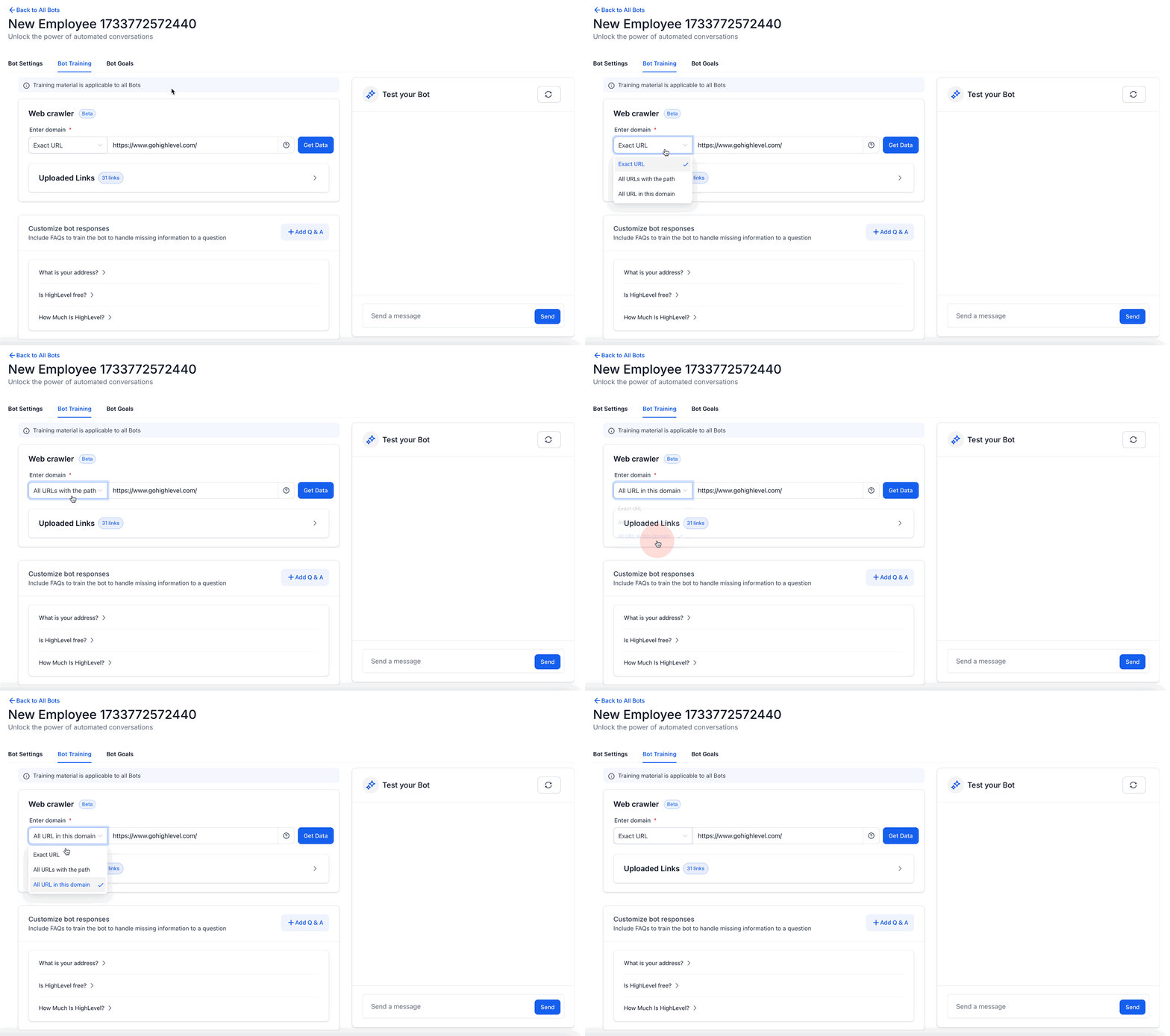
- Select a crawling mode:
- Exact URL: Crawls one specific page.
- All URLs with this Path: Finds pages that share a URL path.
- All URLs in this Domain: Finds pages across the domain.
- Exact URL: Crawls one specific page.
- Enter the full URL, including
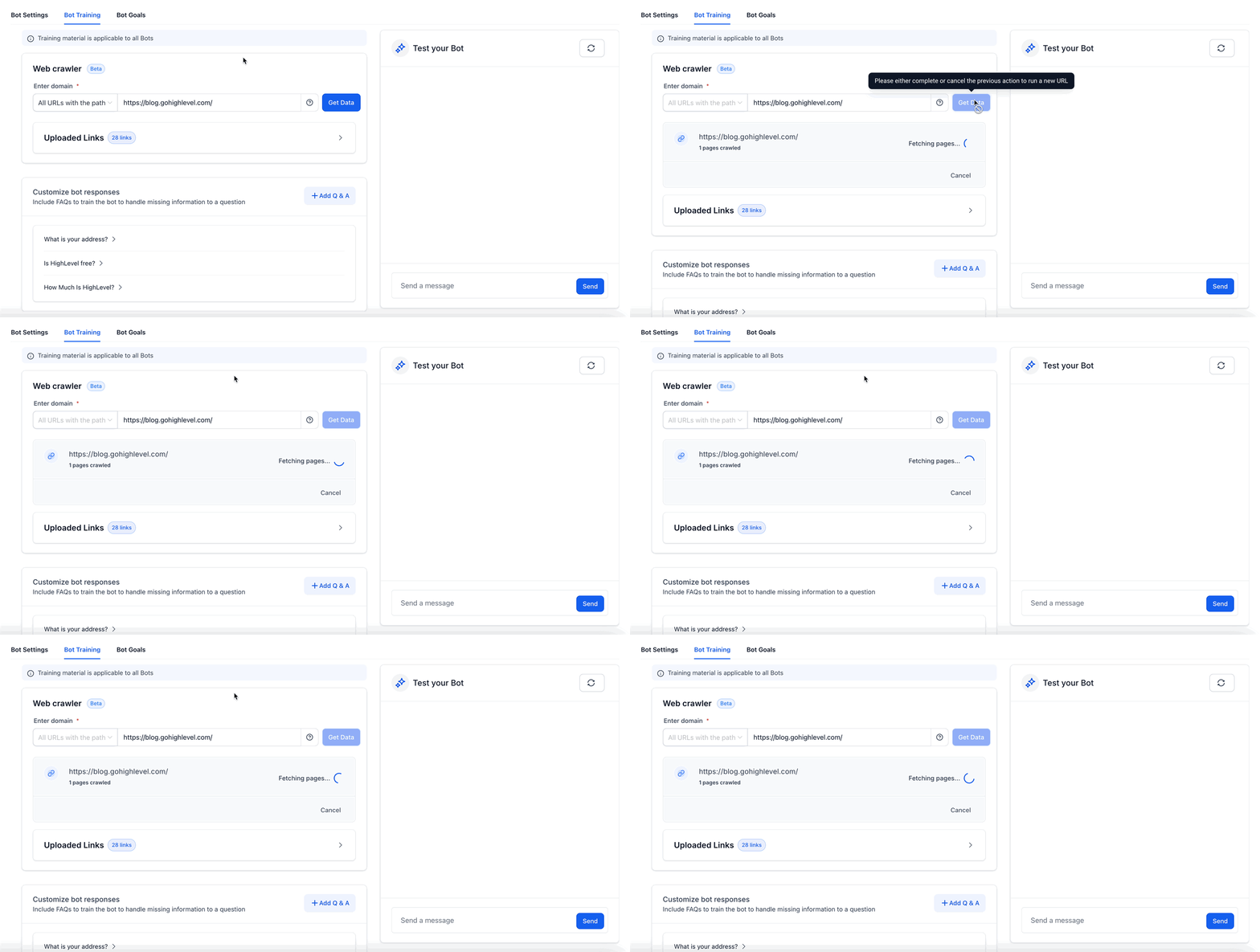
https://. - Click Get Data.
- Review the pages HighLevel finds.
- Select only the pages relevant to customer questions.
- Click Train Bot.
- Wait for each selected URL to show Trained.
Best practice: Do not automatically train every page on a website. Exclude outdated, duplicated, navigation-only, legal boilerplate, and unrelated pages that may weaken retrieval quality.
Step 4: Add Documents, Tables, Rich Text, or Google Drive Files
Use non-website sources when important information is stored in documents, spreadsheets, internal instructions, or structured lists.
- Go to AI Agents → Knowledge Base.
- Create or open a Knowledge Base.
- Click Add Source.
- Select the source type you need.
- Add the content and wait for processing to complete.
- Return to the Conversation AI bot and select the updated Knowledge Base.
Use:
- File Upload for supported documents containing searchable text.
- Tables for structured pricing, product, inventory, or service data.
- Rich Text for information maintained directly in HighLevel.
- Google Drive to import supported files and manually re-sync them after changes.
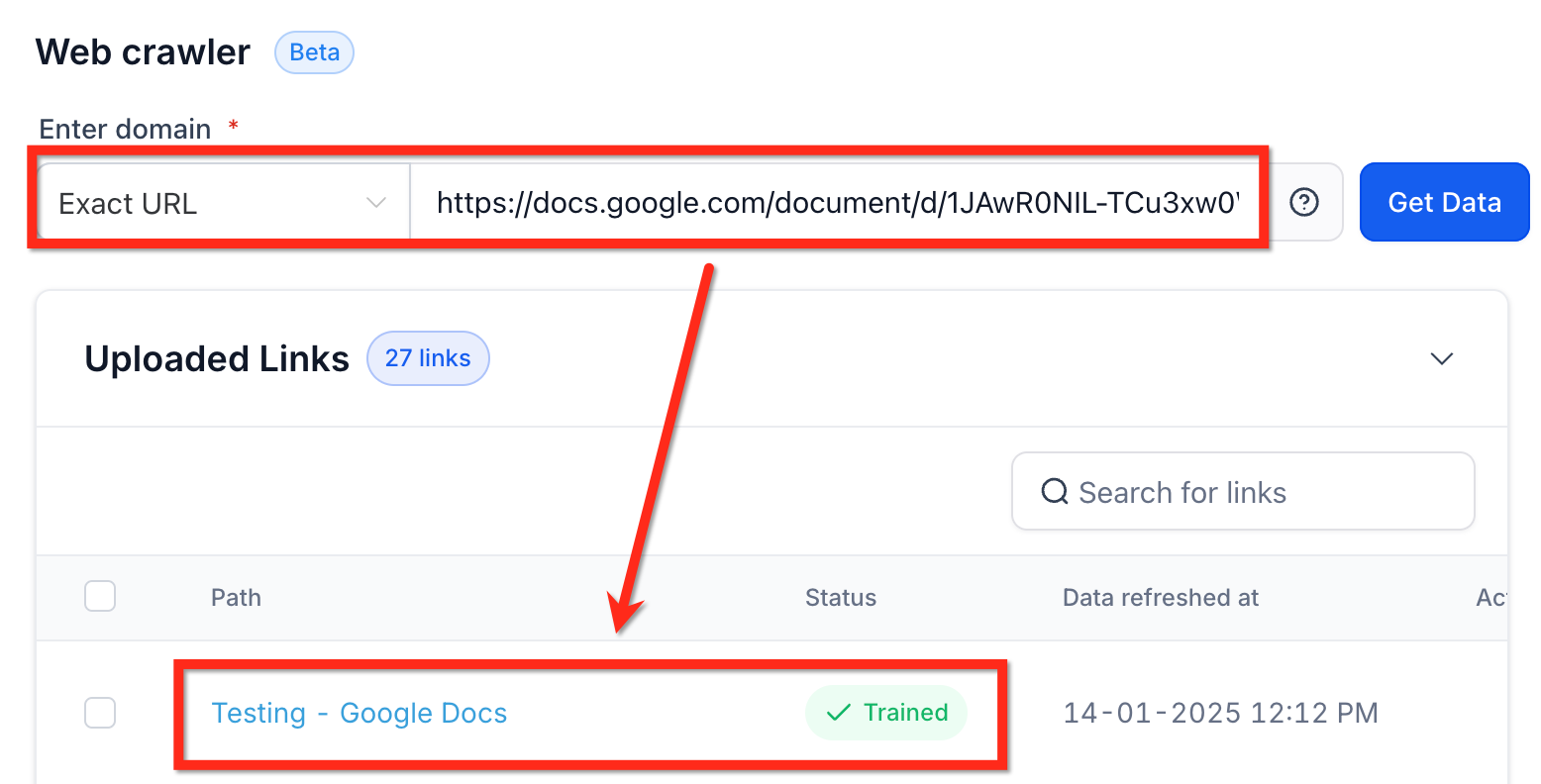
When using a Google Doc through the direct Web Crawler interface, set its sharing permission to Anyone with the link, select Exact URL, paste the document URL, and click Get Data.
Step 5: Add Custom Bot Responses or FAQs
FAQs provide concise, approved answers to common questions that may not be clearly covered by other sources.
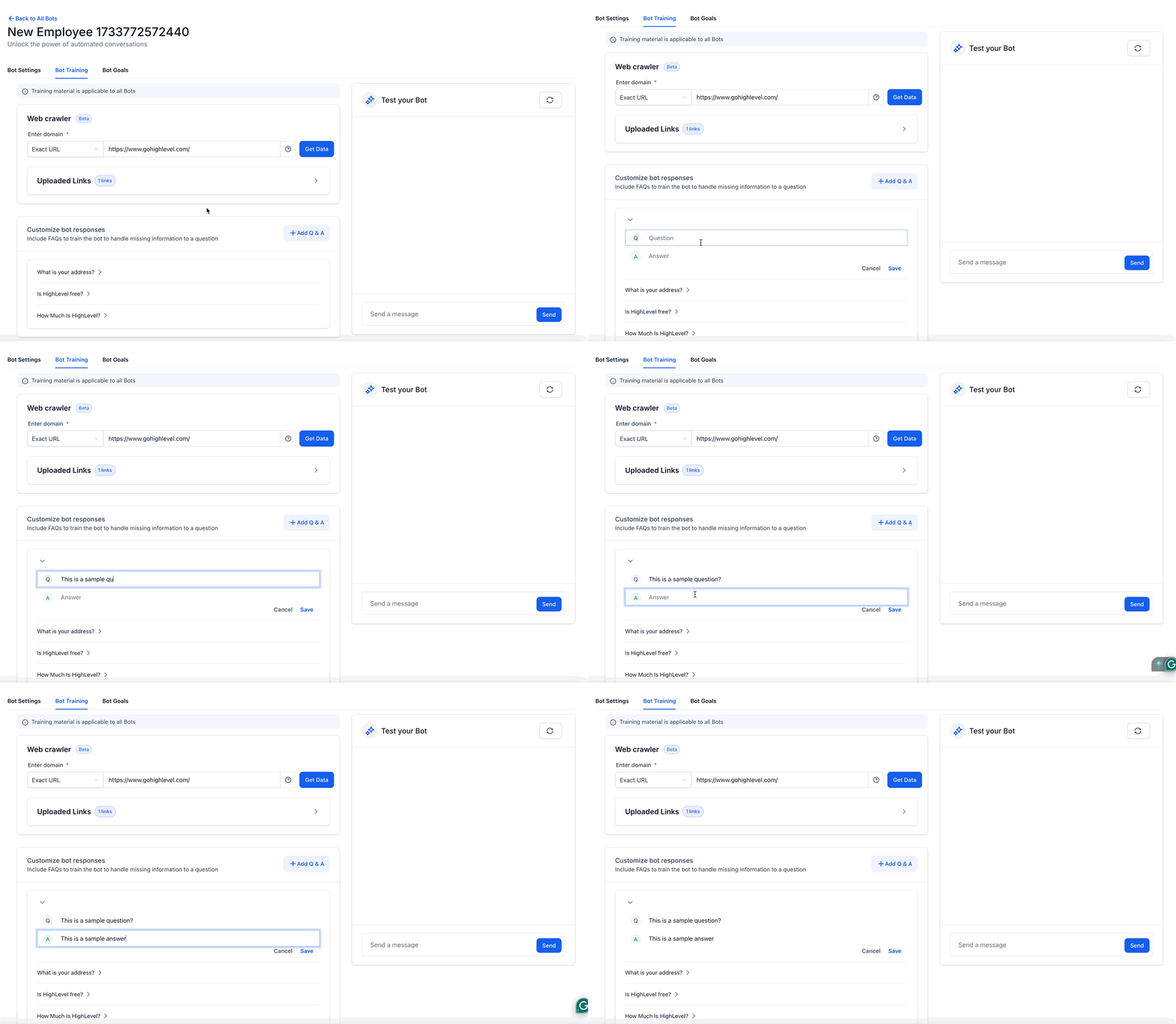
- Click + Add Q & A.
- Enter a clear customer-style question.
- Enter a concise, complete answer.
- Save the Q&A.
- Test several natural variations of the question.
In the centralized Knowledge Base, open the FAQ source tab to add or manage question-and-answer entries.
FAQs work well for:
- Business hours
- Pricing rules
- Refund or cancellation policies
- Service areas
- Contact details
- Common setup instructions
Step 6: Keep Sources Current
Maintaining source content prevents outdated prices, policies, services, and instructions from appearing in customer conversations.
Use the available source controls to:
- Search trained URLs by title or address.
- Refresh changed website pages.
- Remove outdated or irrelevant sources.
- Bulk refresh or delete URLs when available.
- Re-sync imported Google Drive files after updates.
- Replace revised uploaded documents.
- Remove duplicate or conflicting information.
For web URL sources, Auto Refresh can re-crawl content on a daily, weekly, or monthly schedule. Use a cadence that matches how often the page changes.
Step 7: Test Retrieval and Bot Responses
Testing confirms that HighLevel can find the correct source and that the bot turns it into an accurate, useful response.
Test the Knowledge Base first:
- Go to AI Agents → Knowledge Base.
- Open the Knowledge Base connected to the bot.
- Wait for new or updated sources to finish processing.
- Open the Knowledge Base Retrieval Tester.
- Enter a realistic customer question.
- Review the answer and retrieved sources.
- Update unclear, missing, or outdated content.
- Retest the same question.
Then test the full bot:
- Return to the Conversation AI bot.
- Open Bot Training.
- Enter a question in Test your Bot.
- Test a common question, a paraphrased version, an FAQ, and an out-of-scope question.
- Use the reset icon before beginning a separate test scenario.
- Confirm that the response matches the approved source content.

After the bot is live, use Response Info beside supported AI messages in Conversations to review which Knowledge Base sources contributed to the response.
Best Practices for Better Bot Answers
Focused, clearly written content is more useful than a large collection of loosely related information.
- Prioritize customer-facing content: Train information customers are likely to request.
- Use clear headings: Organize documents and rich text around specific topics.
- Write direct answers: State policies, prices, limits, and instructions explicitly.
- Remove duplication: Conflicting versions of the same information can reduce answer quality.
- Match the source to the data: Use tables for structured information and FAQs for direct answers.
- Test after major updates: Confirm retrieval before relying on a source in live conversations.
Frequently Asked Questions
Q: Which source type should I use?
Use Web Crawler for public website content, FAQ for direct answers, Rich Text for manually maintained information, File Upload for documents, and Tables for structured data.
Q: Can one Knowledge Base contain multiple source types?
Yes. A Knowledge Base can combine websites, FAQs, rich text, files, tables, and other supported sources.
Q: Should I train the bot on my entire website?
Only when most pages are relevant to customer conversations. Focused pages usually produce cleaner results than unrelated sections of a large site.
Q: Can I use Google Docs?
Yes. Import supported files through the Google Drive integration, or use a publicly viewable Google Doc URL in the direct Web Crawler interface.
Q: Why is the bot not using a newly added source?
Confirm that processing is complete, the source has a successful status, and the correct Knowledge Base is attached to the bot. Use the Retrieval Tester to confirm the information can be found.
Q: How often should I update training sources?
Update them whenever business information changes. Use scheduled Auto Refresh for web pages that change regularly and manually re-sync Google Drive files when needed.
Q: Why is the bot giving conflicting or outdated answers?
Look for duplicated, overlapping, or outdated sources. Remove or update the incorrect version, then retest the Knowledge Base and bot.
Q: Is Knowledge Base testing the same as testing the bot?
No. The Retrieval Tester checks whether source content can be found. Bot testing checks the complete conversation experience, including instructions, goals, actions, and response behavior.
Related Articles
Was this article helpful?
That’s Great!
Thank you for your feedback
Sorry! We couldn't be helpful
Thank you for your feedback
Feedback sent
We appreciate your effort and will try to fix the article