This article describes the standard procedure for registering a Rich Communication Services (RCS) Sender ID using the Twilio platform: creating the sender, configuring its webhooks, attaching it to a Messaging Service, and sharing the resulting IDs with our team to complete onboarding.
Prerequisites
Before proceeding, ensure the following conditions are met:
RCS Sender IDs require approval from carriers and Google. This carrier/Google onboarding and approval process is outside the scope of this article.
Creating the RCS Sender ID
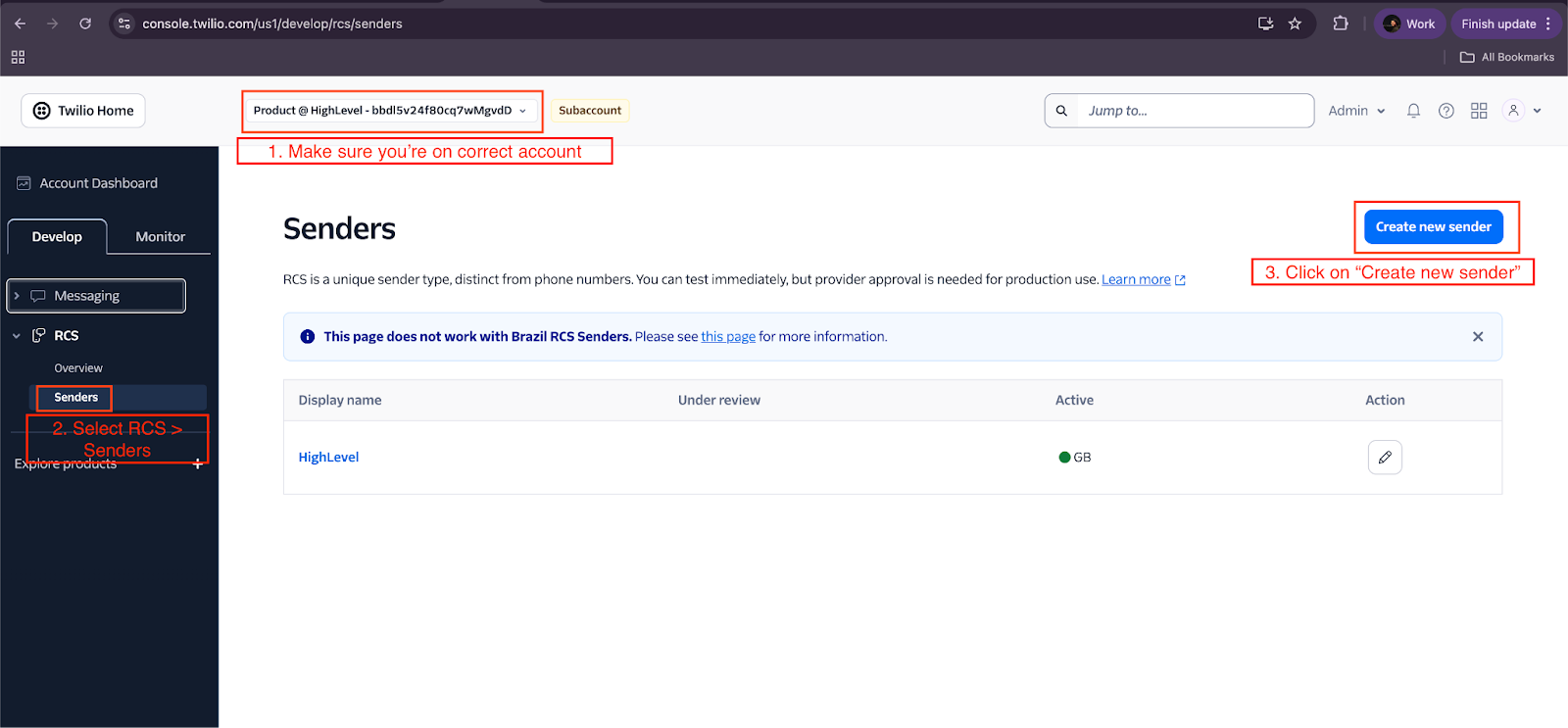
- Navigate to the Twilio Console.
- Log in to the sub-account for which you want to set up the RCS Sender ID.
Ensure you are operating within the correct sub-account before proceeding, as Sender IDs are account-specific.
- In the left-hand navigation, go to Develop → RCS → Senders.
- Click Create RCS Sender and complete the following required fields:
| Field | Description |
|---|---|
| Sender Display Name | The name that will be visible to message recipients |
| Description | A brief description of the sender / use case |
| Logo Image | Your brand logo (displayed in the messaging thread) |
| Banner Image | A banner image for your sender profile |
| Accent Color | Brand color used in the RCS message UI |
- Fill in any additional fields presented by Twilio as part of the registration flow.
- Make sure to also share this information with our team.
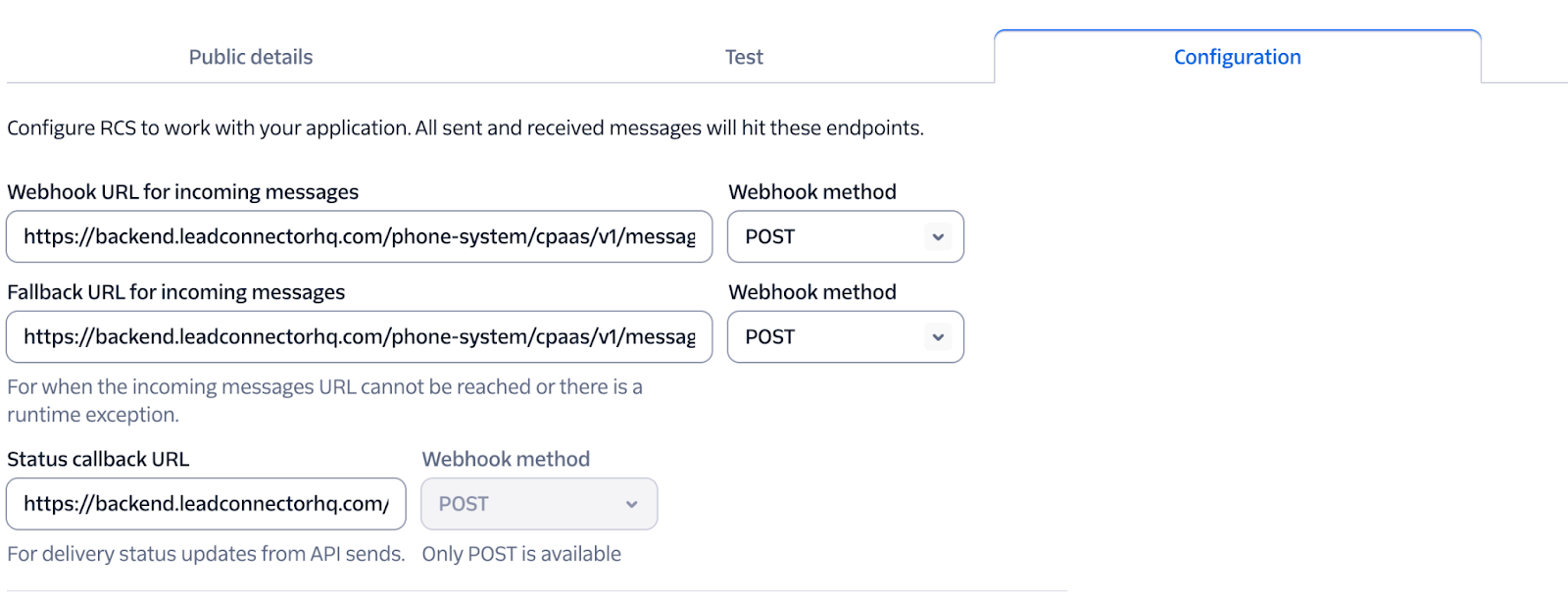
Once the Sender ID is created, navigate to the Configuration tab and set the following URLs:
| Webhook | URL | Method |
|---|---|---|
| Incoming Messages URL | https://backend.leadconnectorhq.com/phone-system/cpaas/v1/messages/incoming | POST |
| Fallback URL | https://backend.leadconnectorhq.com/phone-system/cpaas/v1/messages/incoming | POST |
| Status Callback URL | https://backend.leadconnectorhq.com/phone-system/cpaas/v1/messages/status | POST |
All webhook methods must be set to POST.
Creating a Messaging Service
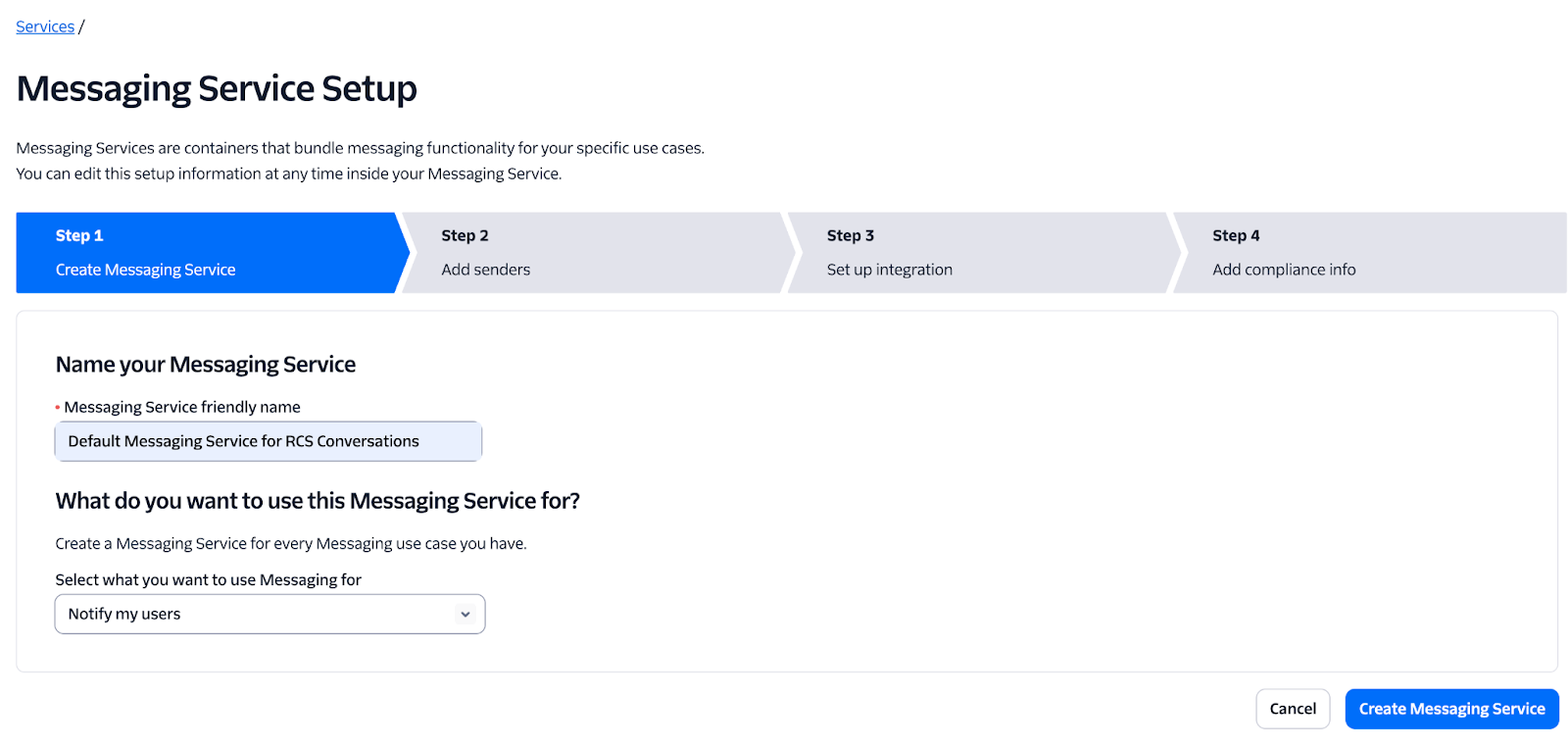
- Go to Develop → Messaging → Services.
- Click Create Messaging Service, enter a name, and select the appropriate option for "Select what you want to use Messaging for".
If Messaging is not visible in the navigation, click Explore Products and add it first.
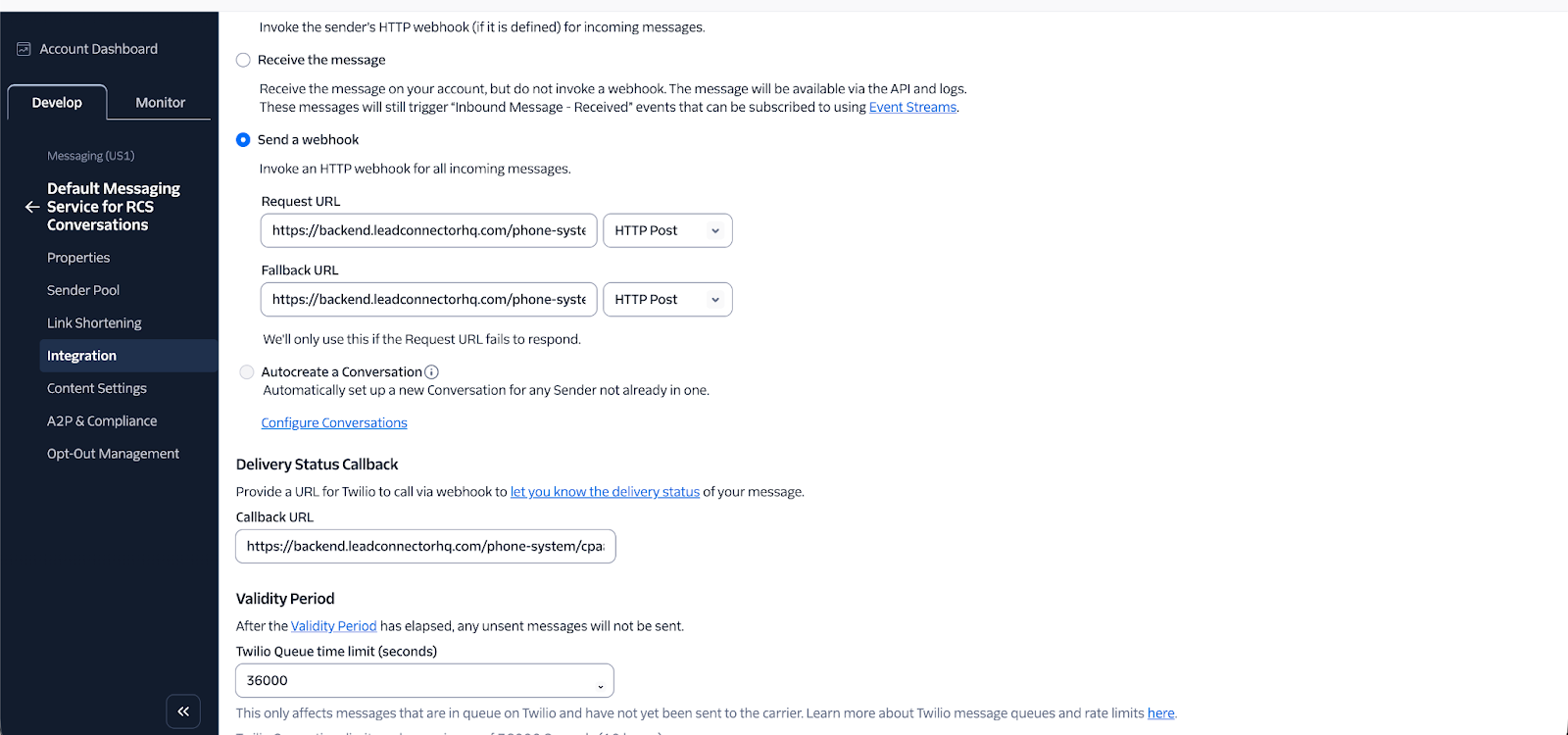
Under the Integration step of the Messaging Service setup (Step 3 in Twilio's flow), configure the following:
Incoming Messages
| Field | Value | Method |
|---|---|---|
| Request URL | https://backend.leadconnectorhq.com/phone-system/cpaas/v1/messages/incoming | HTTP POST |
| Fallback URL | https://backend.leadconnectorhq.com/phone-system/cpaas/v1/messages/incoming | HTTP POST |
Delivery Status Callback
| Field | Value |
|---|---|
| Callback URL | https://backend.leadconnectorhq.com/phone-system/cpaas/v1/messages/status |
Click Save once done.
Attaching the RCS Sender ID to the Messaging Service
- Open the Messaging Service you just created.
- Navigate to the Sender Pool tab and click Add Senders.
- Under Sender Type, select RCS Sender and click Continue.
- Select your RCS Sender from the list and click Add RCS Senders.
Your RCS Sender is now linked to the Messaging Service. The last step is sharing the details below with our team.
Sharing Details with Our Team for Onboarding
To complete onboarding, share the following information with our team.
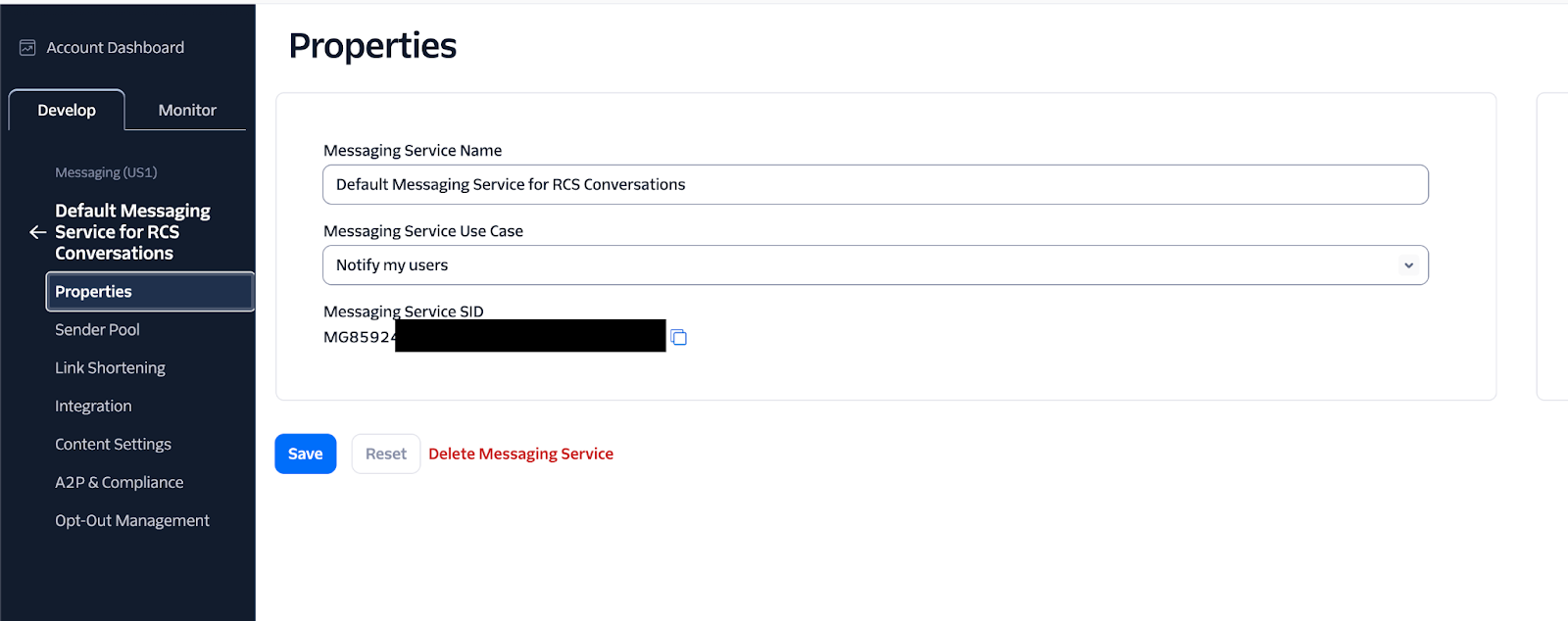
- Messaging Service SID — Go to Messaging → Services, open your service, and navigate to Properties. The SID starts with MG….
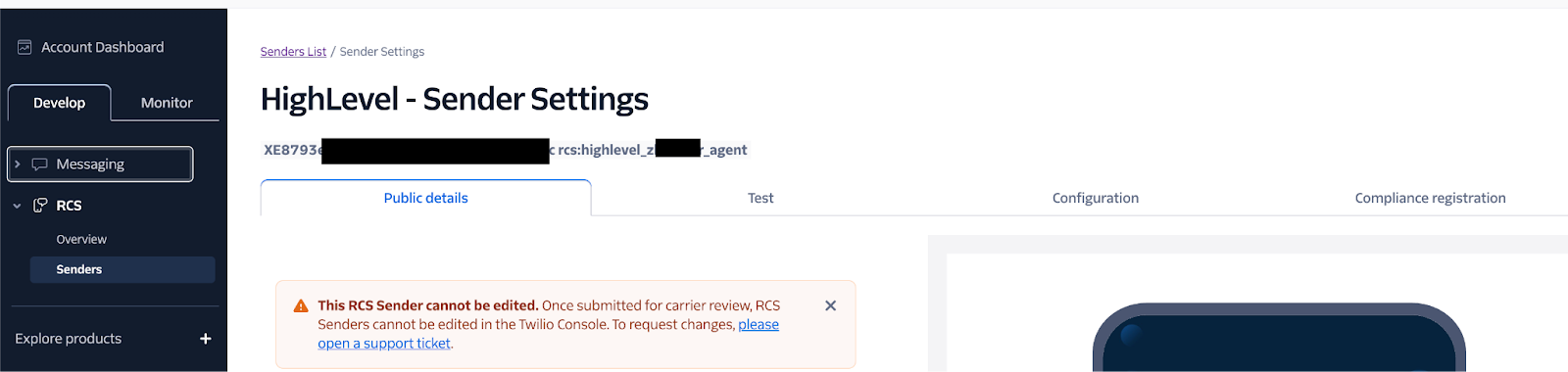
- RCS Sender SID — Go to RCS → Senders and open your Sender. The SID starts with XE….
- RCS Sender ID — Same page as above. The ID starts with rcs:….
- Account SID — Found on your Twilio sub-account dashboard.
- Logo / Banner Image URLs — Go to RCS → Senders → [Your Sender] → Public Details.
Required Information Summary
| Required Information | Where to Find It | Example Format |
|---|---|---|
| Account SID | Twilio sub-account dashboard | ACxxxxxxxx... |
| Messaging Service SID | Messaging → Services → Properties | MGxxxxxxxx... |
| RCS Sender SID | RCS → Senders | XExxxxxxxx... |
| RCS Sender ID | RCS → Senders | rcs:xxxxxxx... |
| Sender Display Name | RCS → Senders → [Sender ID] → Public Details | "Our RCS Sender" |
| Description | RCS → Senders → [Sender ID] → Public Details | "Description of the RCS Sender ID…" |
| Logo Image URL | RCS → Senders → [Sender ID] → Public Details | https://… |
| Banner Image URL | RCS → Senders → [Sender ID] → Public Details | https://… |
| Friendly Name | User-defined (for display within the platform only) | "Our RCS Sender" |
Frequently Asked Questions
Was this article helpful?
That’s Great!
Thank you for your feedback
Sorry! We couldn't be helpful
Thank you for your feedback
Feedback sent
We appreciate your effort and will try to fix the article