This article explains how to use the new RCS Workflow actions to automate rich messaging experiences. You'll learn how to add RCS actions to your Workflows, create interactive customer journeys, and leverage rich cards and buttons to drive engagement.
Whether you're building onboarding sequences, promotional campaigns, or customer support automations, RCS Workflow actions help you deliver next-generation messaging experiences at scale.
Before You Begin
This guide assumes RCS is already enabled on your account and your Sender ID has been approved. If you haven't completed setup yet, start with the overview article — RCS in the Platform — which walks through the full setup process.
Once you're live, there are two things you need to do: create an RCS Snippet (your message template), and then send it to your contacts via Bulk Actions. This guide covers both, in that order.
RCS Snippets are the templates that power your campaigns. You build them once, then reuse them across as many sends as you need. You can't send a rich RCS campaign without one — so creating your Snippet is always the first step.
Part 1: Creating an RCS Snippet
Snippets live inside Conversations. To get there, go to the Conversations page and select Snippets from the left panel. Then click Add RCS Snippet to open the template builder.
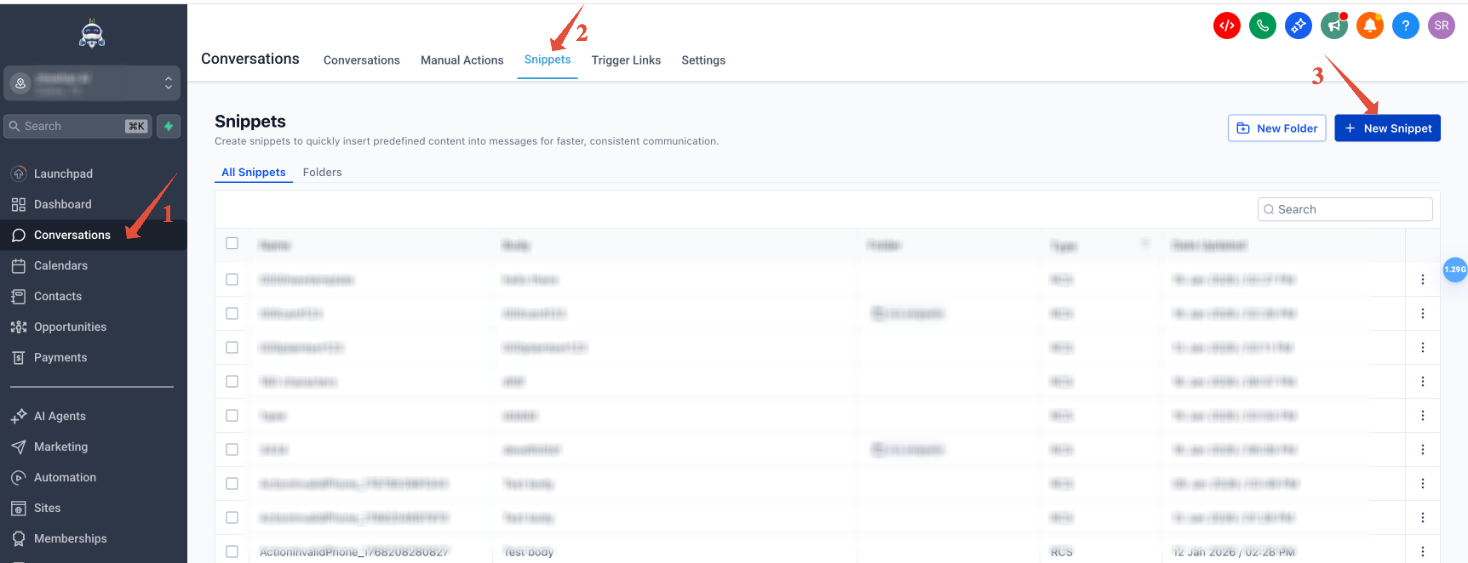
You'll see three template formats. Each one is suited to a different type of message — choosing the right format before you start saves time and makes the rest of the process straightforward.
The Three Snippet Formats
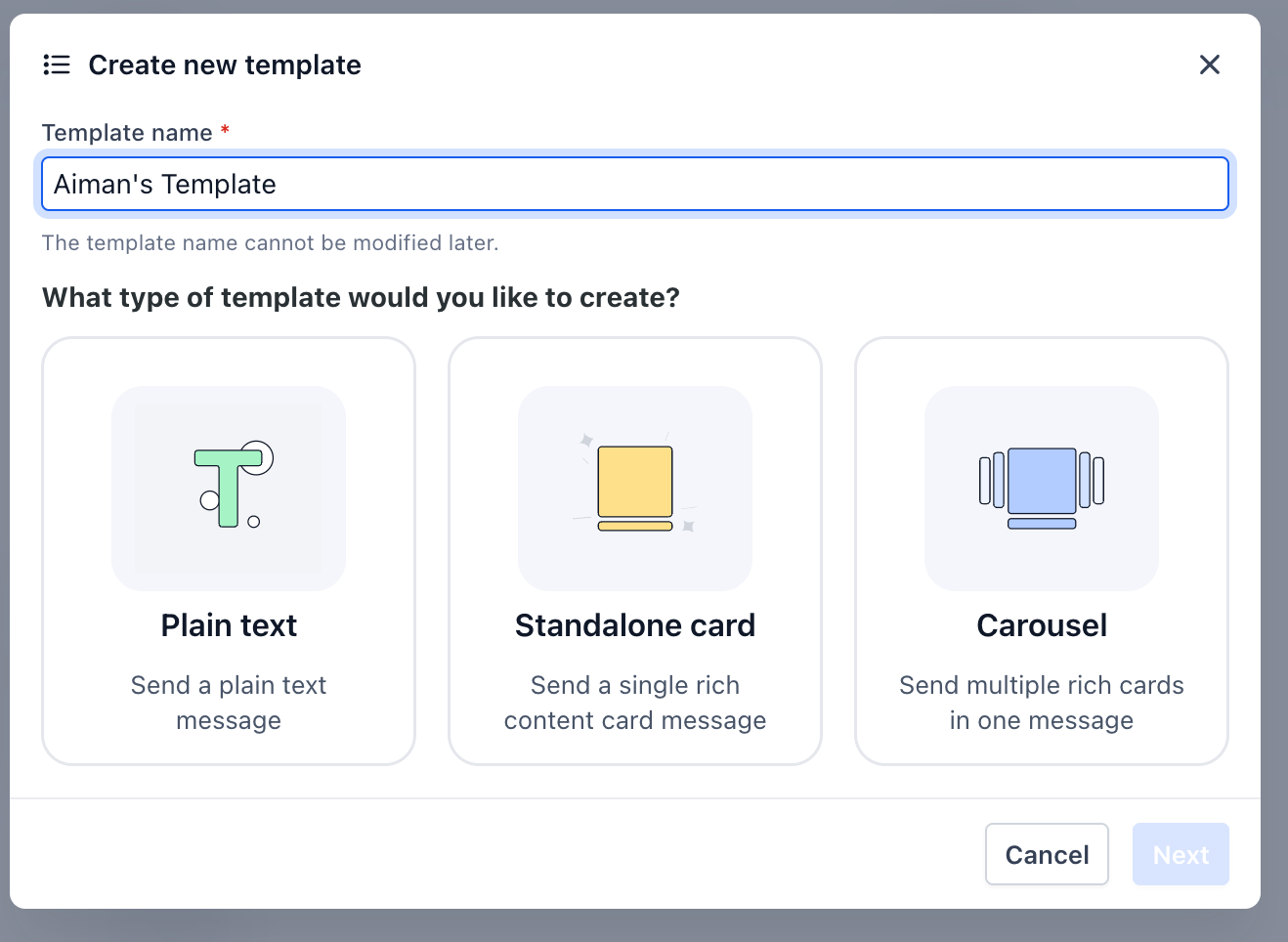
Plain Text is exactly what it sounds like — a simple text message with no images, no media, and no action buttons. As you type, a live preview shows you exactly how the message will appear on the recipient's device.
Use this format when the words alone do the job — confirmations, reminders, short updates. It's the lightest format and the one closest to a standard SMS in feel, but it still benefits from RCS branding (your business name in the inbox instead of a number).
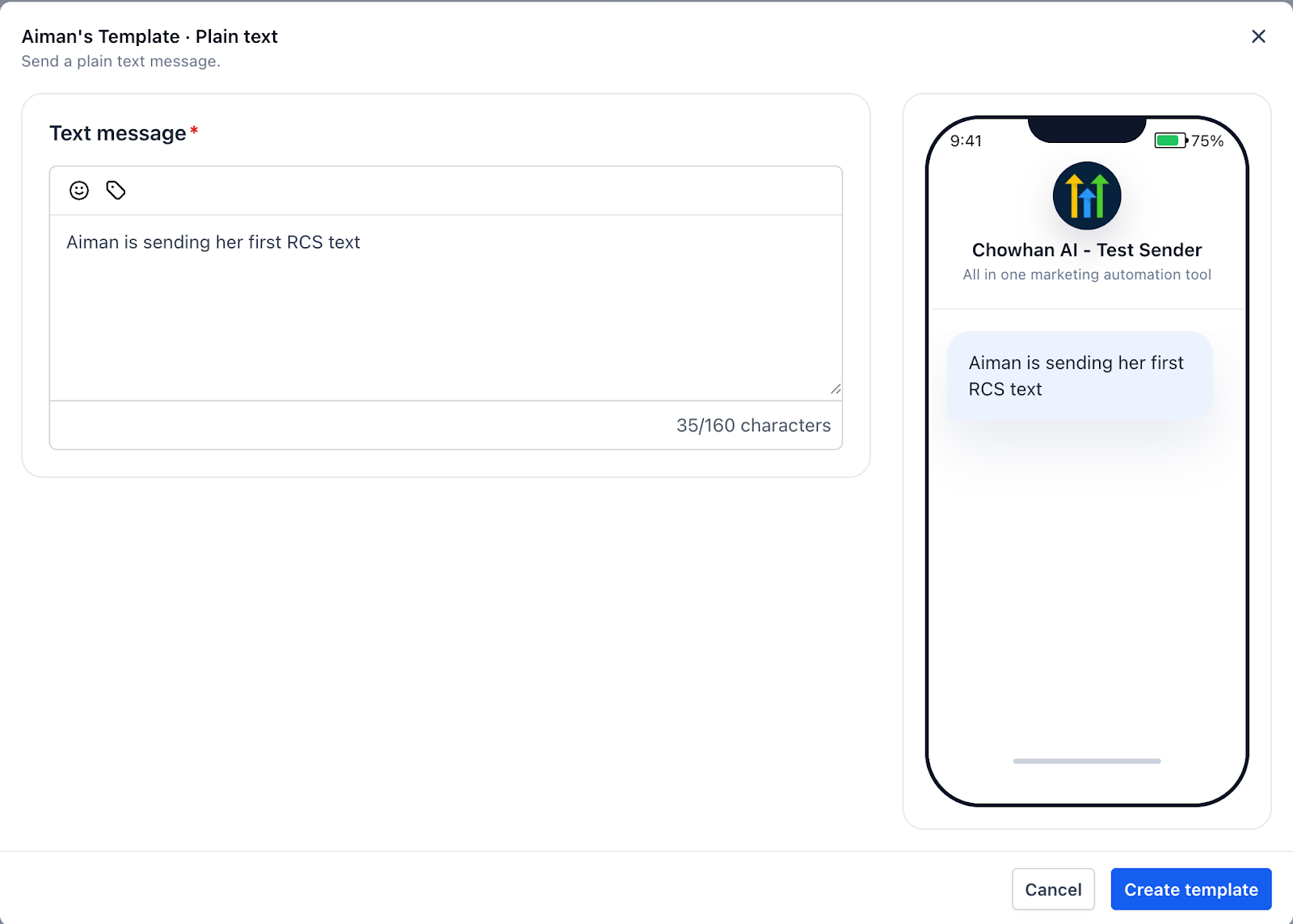
If your message doesn't need a button or an image to be effective, Plain Text is the right call. Simpler templates also have a lower chance of triggering fallback issues on edge-case devices.
A Standalone Card is a single rich message — one card with a title, a description, an image or media file, and up to three action buttons. This is the format to reach for when you want the experience to feel premium: a promotional offer, a service announcement, an appointment reminder with a "Book Now" button.
Action buttons can be set to call a phone number, open a URL, or insert a suggested reply. You can add up to three buttons per card, and you can use emoji and custom tags inside the title and description fields.
A fallback SMS message is required for every Standalone Card. This is the plain text version of your message that gets delivered to contacts who can't receive RCS. The platform enforces this — you won't be able to save the template without it.
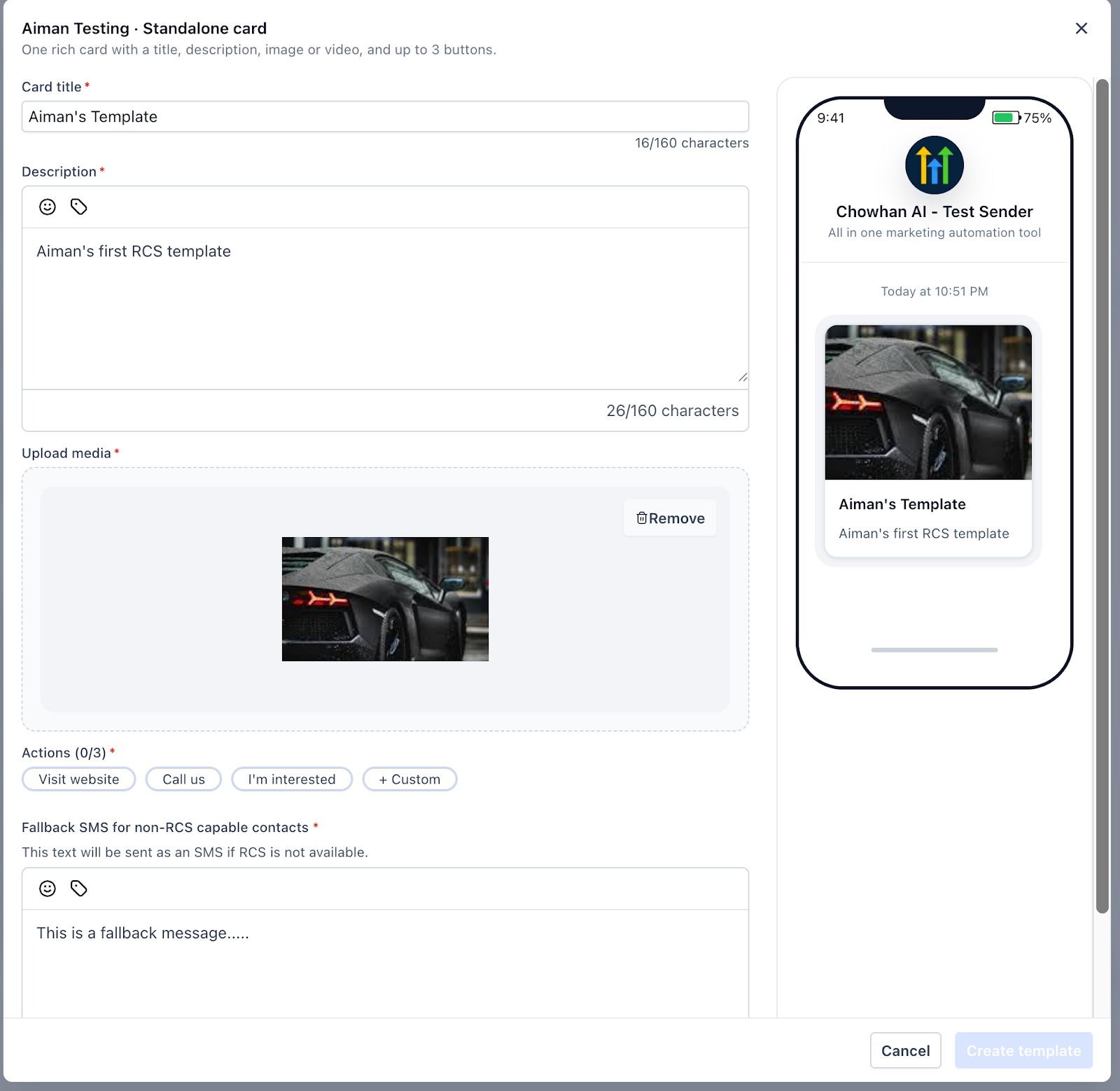
Before designing the card, write your fallback SMS. If the plain text version doesn't communicate the core message clearly on its own, the card isn't ready either. Strong fallback copy makes the whole template stronger.
A Carousel lets you build multiple rich cards that appear in a swipeable row inside the message — a minimum of 2 cards and a maximum of 10. Each card has its own title, description, media, and up to two action buttons.
Use a Carousel when you're presenting a set of options or items side by side — a product line, multiple service packages, a set of team members, different property listings. It gives the recipient context and comparison in a single message without requiring them to tap out to a website first.
Like the Standalone Card, a Carousel requires a fallback SMS message. Contacts who can't receive RCS will get the fallback text instead of the swipeable cards.
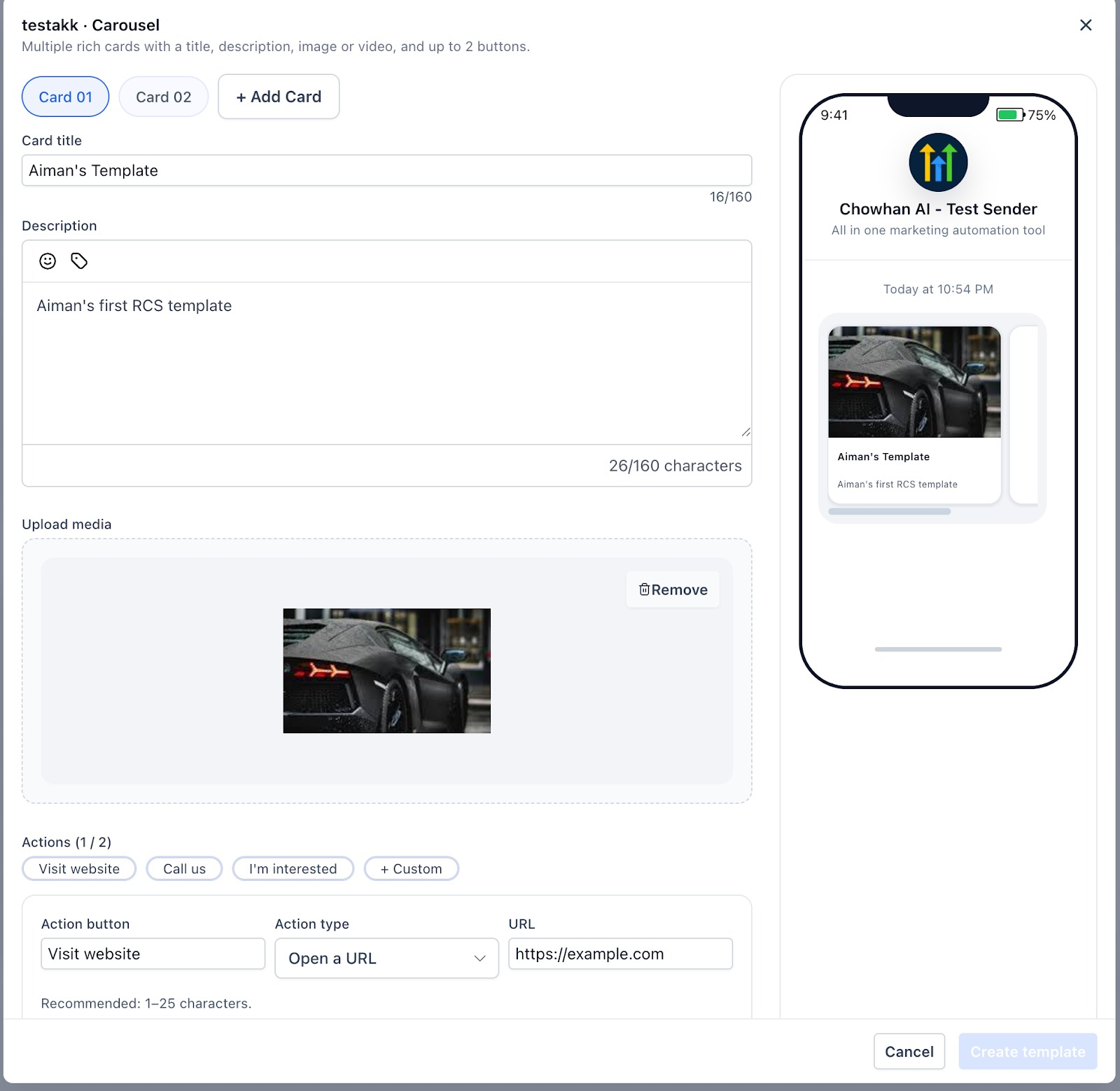
Minimum 2 cards, maximum 10. Each card supports up to 2 action buttons (one fewer than a Standalone Card). Keep card titles and descriptions concise — they need to read clearly on a phone screen.
Building a Snippet — Step by Step
The walkthrough below uses a Standalone Card as the example, but the process follows the same structure for all three formats.
Select your template format from the three options. For a rich card with media and buttons, choose Standalone Card.
Give the template a clear, unique name — you'll be selecting it from a dropdown later when setting up your campaign. A descriptive name like "Spring Furniture Promo Card" is easier to find than something generic.
Add your card title, description, and any promo codes or custom tags. You can use emoji in these fields. Keep the description focused — this is the copy the recipient reads first.
Add an image or media file to the card. Use a high-quality image that represents the offer or message clearly — this is the visual anchor of the card.
Add up to three action buttons (two for Carousel cards). Set each button to call a number, open a URL, or insert a suggested reply. Save each action before moving to the next.
Type the plain text version of your message in the fallback field. This is what contacts receive if their device can't support RCS. It should communicate the same core information as the card — no buttons or images, just clear copy.
Click Create Template to save. Your Snippet is now in your library and ready to use in a campaign.
Once saved, your template appears in the Snippets library. You can reuse it across as many campaigns as you need — no rebuilding required.
Part 2: Sending RCS Messages to Your Contacts
With your Snippet ready, the next step is sending it. RCS Snippets are sent via Bulk Actions — this is currently the only way to send rich RCS templates at scale. Here's the full process.
Selecting Your Contacts
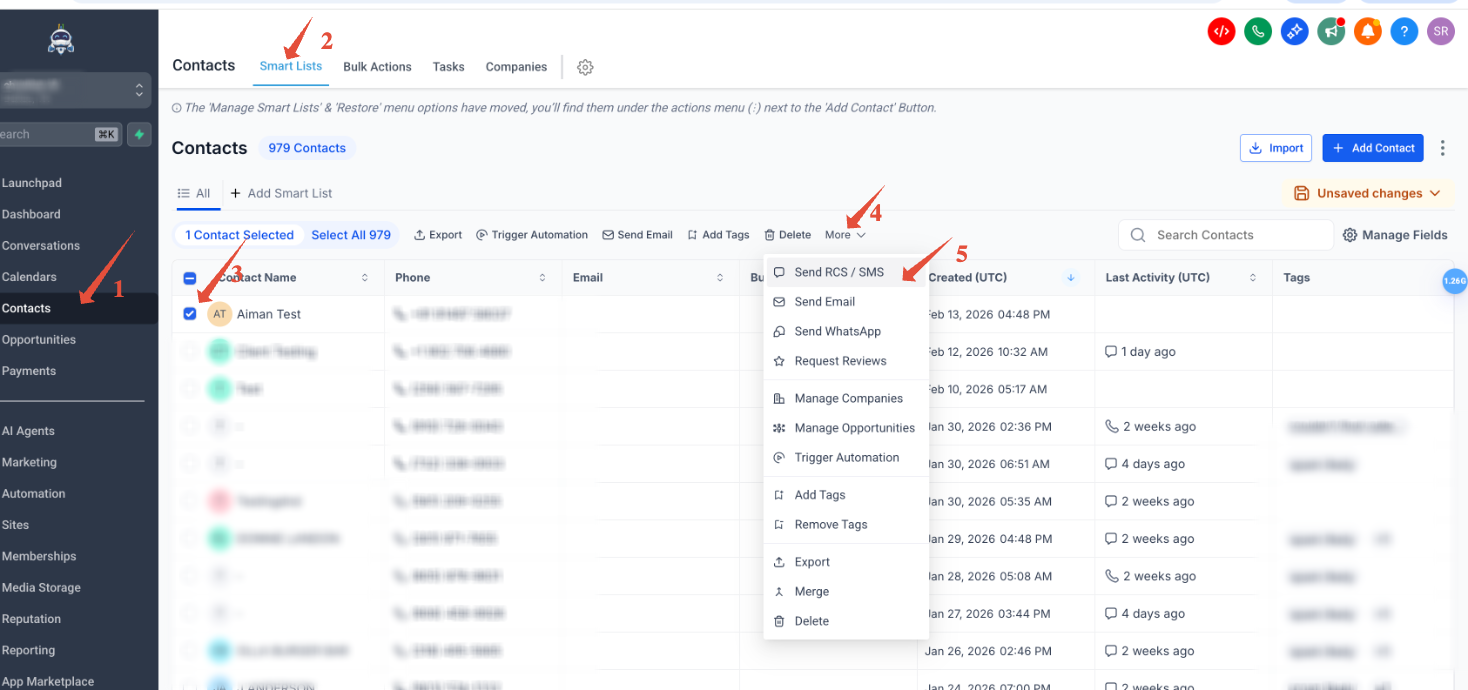
Go to Contacts and open Smart Lists. Select the contacts you want to reach — you can select individual contacts or an entire Smart List. Once selected, click More → Send SMS & RCS to open the campaign configuration screen.
Configuring Your Campaign
The configuration screen has a few required fields — filling these correctly before you send saves having to troubleshoot later:
| Field | What to Do |
|---|---|
| Action Name | Give your campaign a name you'll recognize on the Bulk Actions tracking page. |
| From (Sender ID) | Select your approved RCS Sender ID from the dropdown. Only registered, approved IDs appear here — if yours isn't showing, check with Support. |
| RCS Template | Select the Snippet you just created. Only saved Snippets appear in this list. |
| Send Mode | Choose Send All at Once, Send at Scheduled Time, or Send in Drip Mode depending on your campaign needs. |
| Consent Checkbox | Check this to confirm your contacts have opted in. This is required — the Send button won't activate without it. |
Previewing and Sending
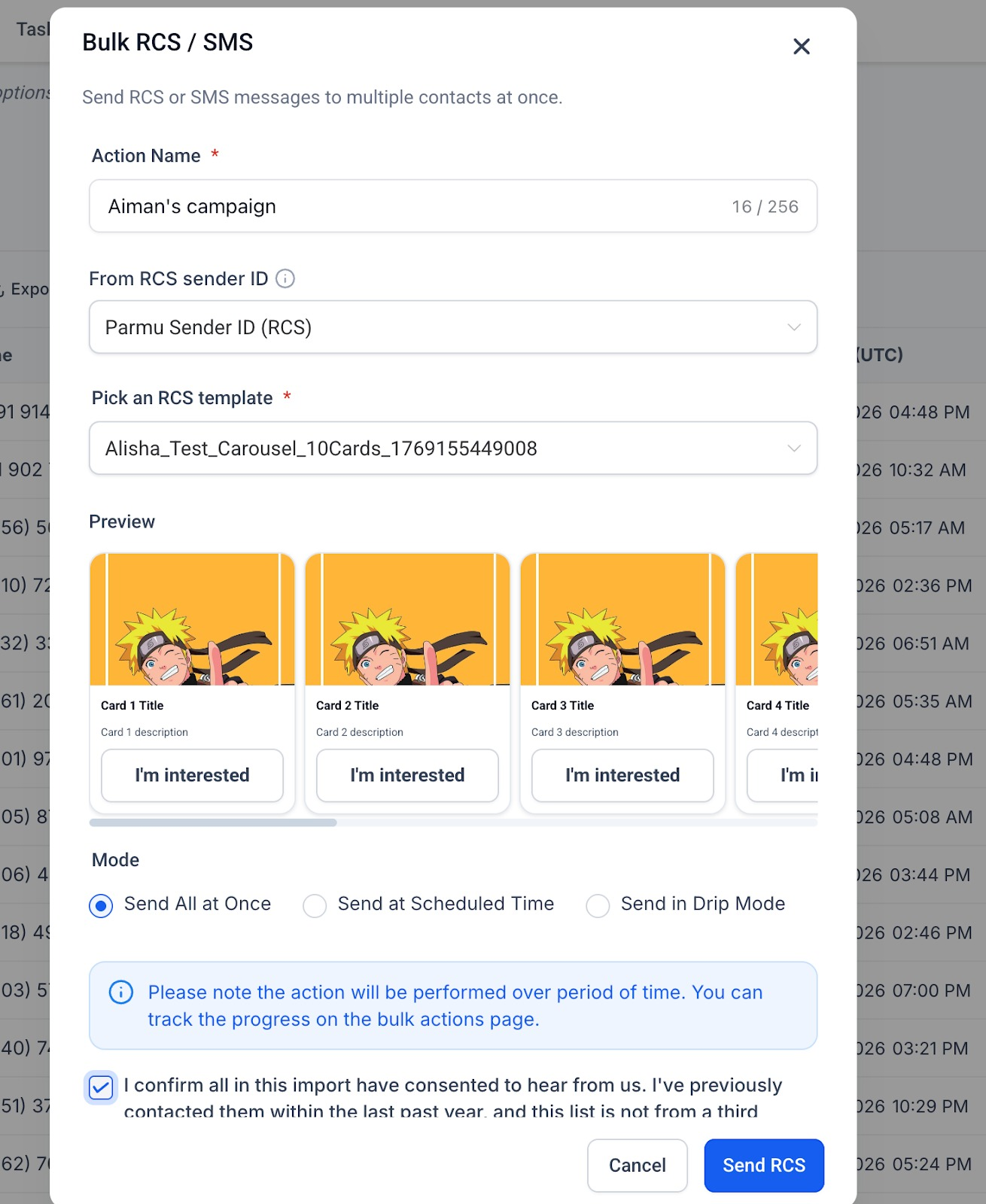
Before you send, review the template preview — this shows exactly how the message will appear to recipients who can receive RCS. Confirm the card title, description, buttons, and media all look correct.
When you're ready, click Send RCS. The campaign fires and you can track its progress on the Bulk Actions page by clicking Check Progress.
Head to the Bulk Actions page after sending to monitor delivery progress. The page shows how many messages were sent, delivered, and whether any fell back to SMS.

Bulk Actions is currently the only method for sending RCS Snippets.
What the Message Looks Like After It's Sent
Once the campaign has gone out, you can view the conversation in the contact's thread under Conversations. The message appears with an RCS label and shows the Sender ID it was sent from so you can confirm it went out on the right profile.
Delivery status updates (Sent, Delivered, Opened) appear in the conversation view as the message moves through to the recipient. If the message fell back to SMS, the conversation will reflect the SMS delivery instead.
An Opened status means the recipient viewed the message on a device that supports read receipts. Not all devices support this — and recipients can disable it. It's a positive signal when it appears, but not a metric to depend on across your full audience.
Sending RCS from Conversations (1:1 Messages)
If you want to send a single RCS message to one contact directly — without a Snippet or a campaign — you can do that from the Conversations page.
Open the contact's thread, compose your message, select your approved RCS Sender ID from the sender selector, and send. The message goes out as RCS if the contact's device supports it, and falls back to SMS automatically if not.
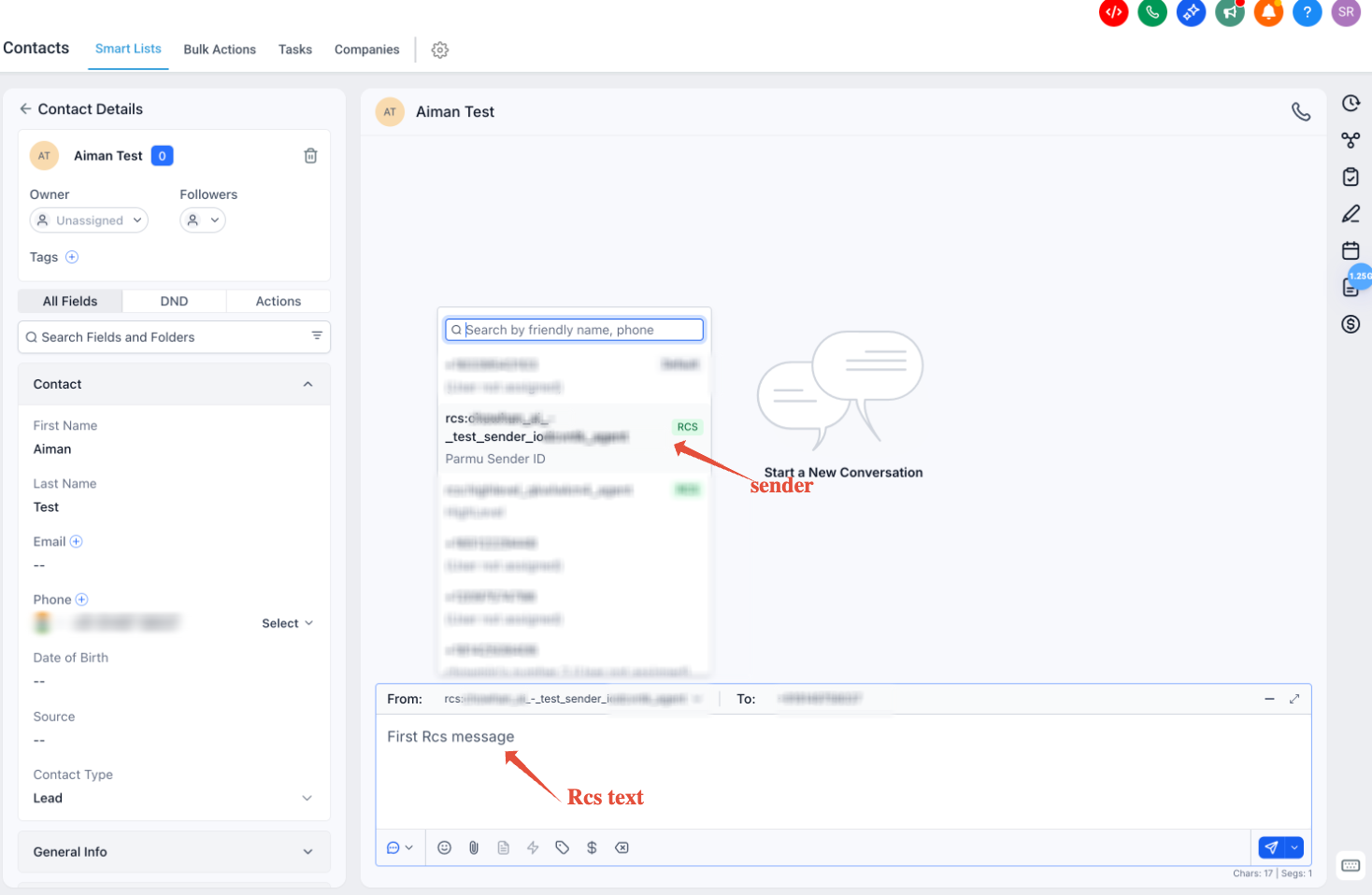
Send RCS Snippets in Conversations (1:1)
Select and send pre-built RCS snippets directly from a one-to-one conversation without leaving the Conversations page. This streamlines your messaging workflow by allowing you to choose an existing snippet, preview how it will appear to the recipient, and send it from the conversation composer.
Note: Sending RCS snippets from the Conversations composer is currently available as part of the RCS Private Beta and may not be available in all accounts.
How to Send an RCS Snippet
- Navigate to Conversations and open the conversation with the desired contact.
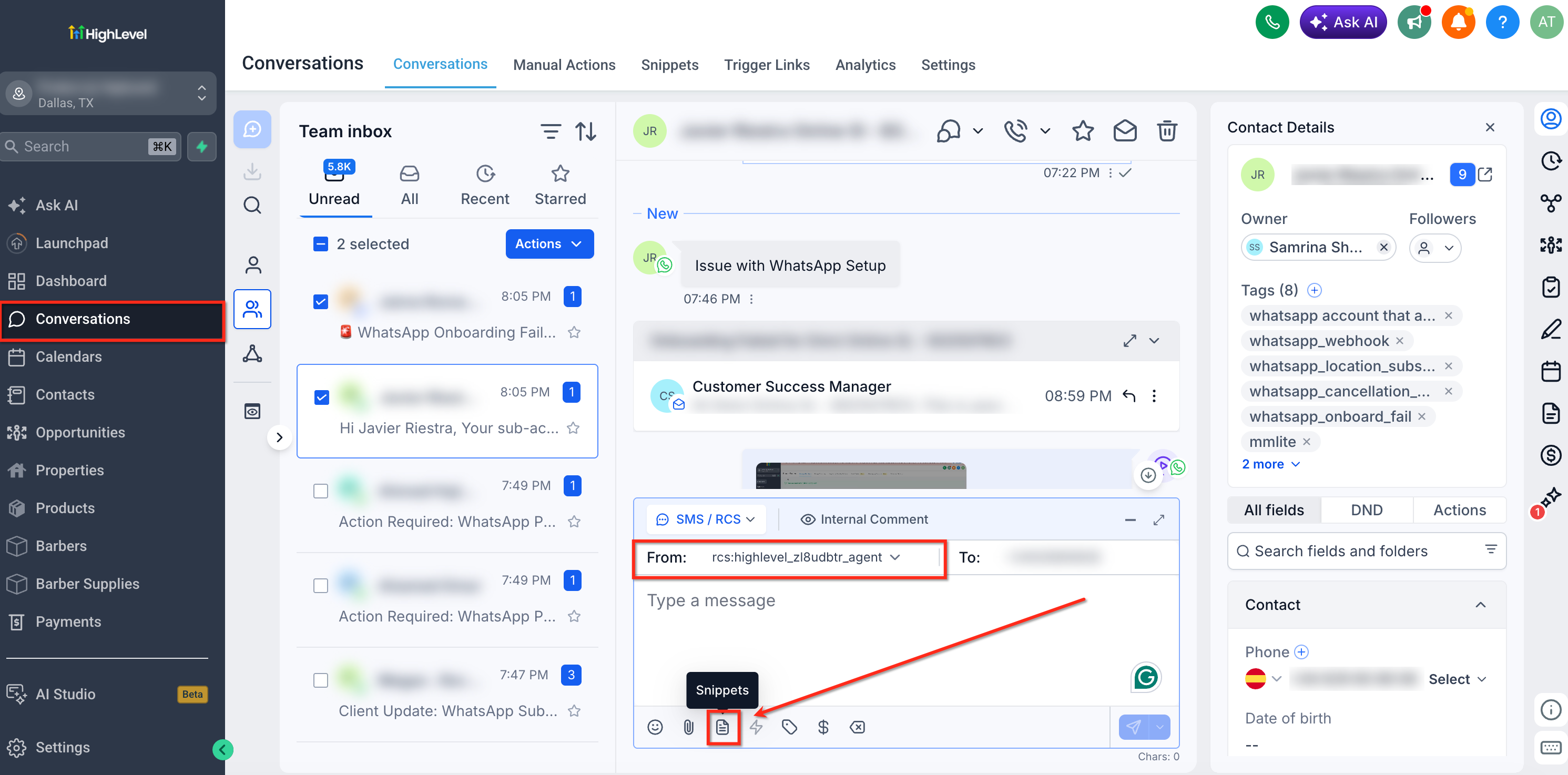
In the message composer, click the RCS Snippet option to open the Choose RCS message window. Also, the "FROM " number should be rcs sender id.
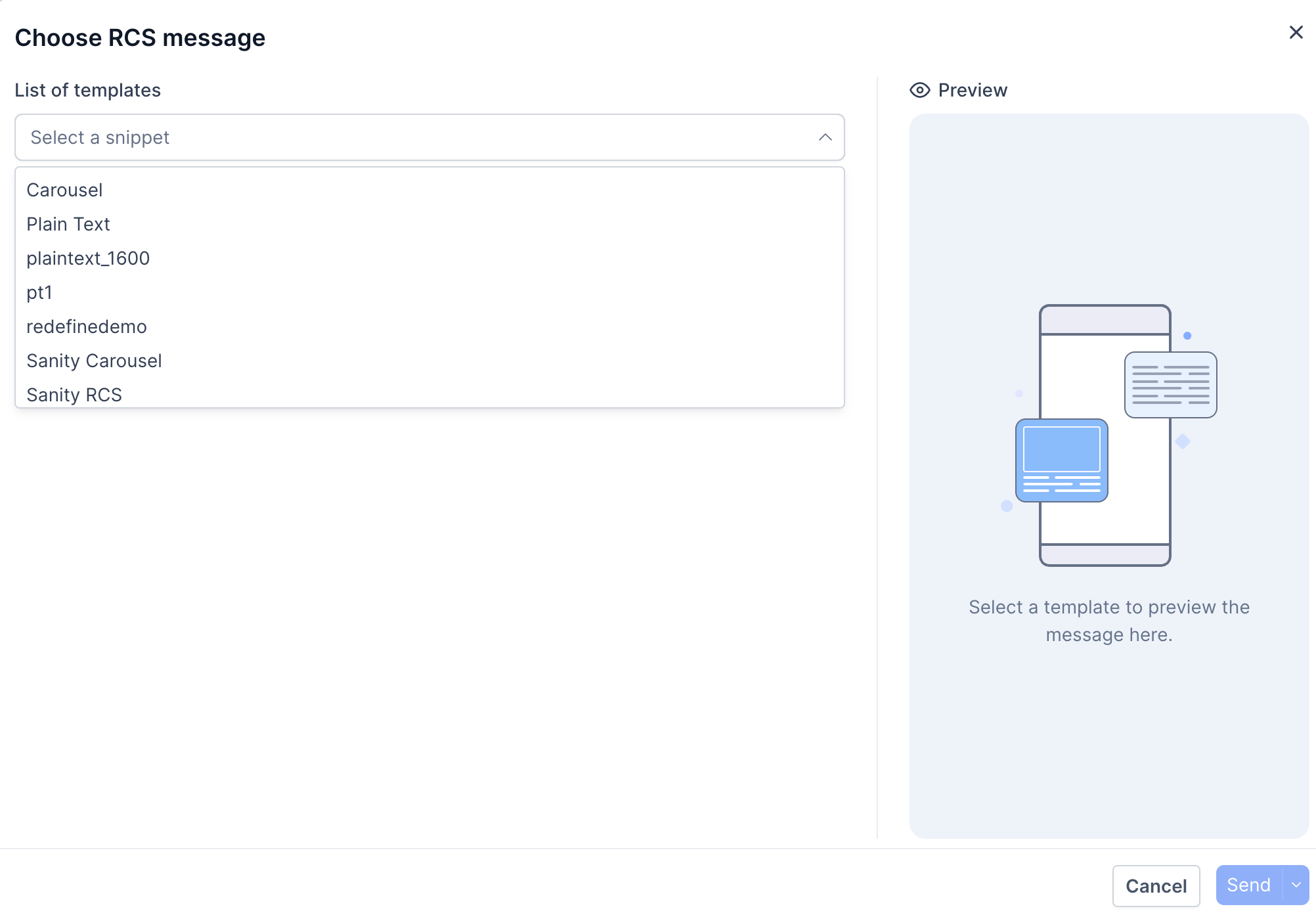
- Select an existing RCS snippet from the List of templates dropdown.
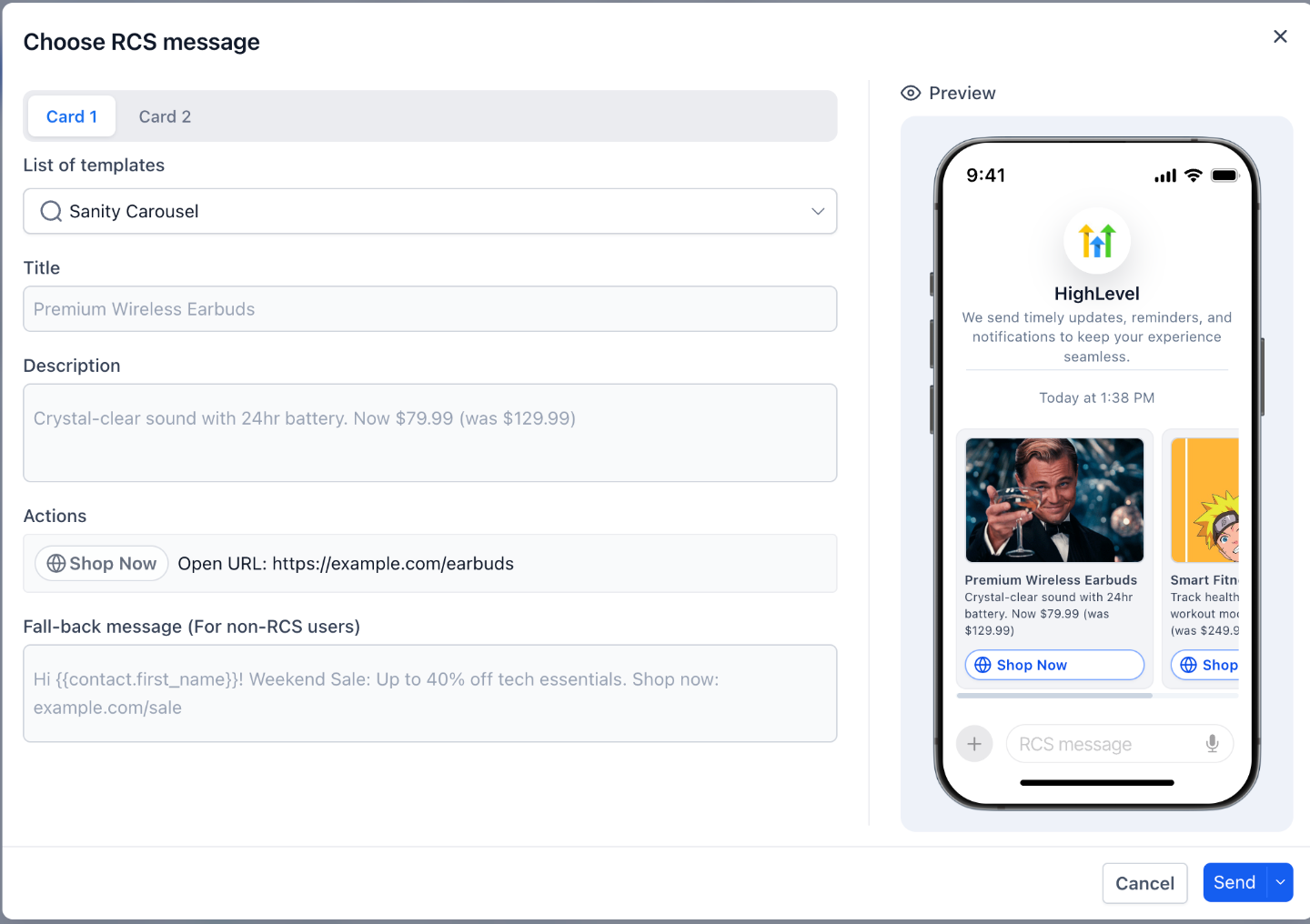
Review the snippet details and preview to verify the content before sending.
- Confirm the title, description, and action buttons.
- If the snippet contains multiple cards, browse through each card to ensure the content is correct.
- Review the fallback message that will be delivered to recipients who do not support RCS.
- Click Send to deliver the RCS snippet to the contact.
Important: Only previously created RCS snippets are available for selection. If you need a new snippet, create it first before returning to the conversation.
RCS Through Workflows
You can now create richer, more engaging customer journeys with RCS messaging directly inside Workflows. The new Send RCS and RCS Interactive Message workflow actions let you automate conversations using the next generation of business messaging.
What You Can Do
With the new Workflow actions, you can:
- Send standard RCS messages from Workflows.
- Build interactive RCS experiences with rich cards and buttons.
- Trigger different workflow paths based on customer interactions.
- Automate reminders, promotions, follow-ups, and customer engagement using RCS.
How to Use This Feature
- Navigate to Automation → Workflows.
- Create a new Workflow or edit an existing one.
- Add either the Send RCS or RCS Interactive Message action.
- Configure your message or interactive experience.
- Publish your Workflow.
Why It Matters
Using RCS in Workflows allows you to:
- Automate rich, conversational customer experiences.
- Increase engagement with interactive RCS messages.
- Route contacts based on button selections and responses.
- Deliver a more modern messaging experience directly from your Workflow automations.
You're Ready to Send
Creating an RCS Snippet takes a few minutes once you've got your content ready. Sending it to your contacts takes a few clicks. The experience your contacts receive — a branded, interactive card inside their native messaging app — is worth both.
Start with one Snippet. Send it to a small list. Check the conversation view to see how it lands. Then scale from there.
For questions about enabling RCS, setting up your Sender ID, or understanding pricing and compliance, see the companion article: RCS in the Platform.
Frequently Asked Questions
Was this article helpful?
That’s Great!
Thank you for your feedback
Sorry! We couldn't be helpful
Thank you for your feedback
Feedback sent
We appreciate your effort and will try to fix the article