IMPORTANT:

This feature is currently available as part of the RCS Private Beta.If you're interested in early access, please reach out to your Customer Success Manager or submit the RCS Private Beta interest form - https://api.leadconnectorhq.com/widget/form/gBhAwqgT5SdbKSmCRszF
Rich Communication Services (RCS) is a modern messaging standard that allows businesses to send richer, more interactive messages than traditional SMS.
With RCS, you can send:
Branded messages (business name displayed in supported inboxes)
Images and rich layouts
Tappable buttons (Call, Open URL, Suggested replies)
Interactive cards and carousels (if enabled)
When a recipient cannot receive RCS, HighLevel automatically falls back to SMS (if enabled).
Why Use RCS Instead of SMS?
RCS helps you:
Present a more branded experience
Increase engagement with tappable actions
Share richer content (images, structured cards)
Improve clarity with interactive message flows
Track delivery and read signals (when supported)
RCS vs SMS/MMS
| Feature | RCS | SMS | MMS |
|---|---|---|---|
| Reach | Compatible devices only | Nearly universal | Nearly universal |
| Branding | Business identity visible | Phone number | Phone number |
| Media | Native rich media & cards | Text only | Media (less consistent) |
| Buttons | Yes | No | No |
| Read receipts | Often available | No | No |
| Fallback | Falls back to SMS | N/A | N/A |
Best Practice: Always design messages so they still work as SMS.
What you can do with RCS in HighLevel
Depending on your plan and launch scope, you can typically:
Send 1:1 RCS messages from Conversations
Send RCS campaigns using Bulk Actions
Use media (images) and actions/buttons (where enabled)
Track delivery signals (and “read” where available)
Use SMS fallback when a recipient can’t receive RCS
RCS Availability & Requirements (US Launch)
Who Can Receive RCS?
RCS can be delivered to recipients who:
Have an RCS-supported device
Use an RCS-capable messaging app
Have RCS enabled
Are on a supported carrier/network
Some recipients will receive RCS, others will receive SMS fallback.
1. Device & App Support
RCS is commonly supported on:
Many Android devices using an RCS-capable messaging app (often Google Messages or carrier-supported apps)
Recipient-side settings must allow RCS features (users can disable RCS)
2. IPhone Support
RCS can be supported on both Android and iOS devices, depending on the recipient’s device, operating system, messaging app, carrier, and RCS settings. If RCS is unavailable for a recipient, HighLevel can use SMS fallback when fallback is enabled.
Note- 1. Always design your messaging so it still works when delivered as SMS.
3. Carrier/network factors (why results vary)
Even within the U.S.,
Results may vary based on carrier and network conditions.
Some carriers or device configurations may limit RCS support, affecting available features.
Temporary network issues can trigger fallback from RCS to SMS/MMS.
App-level settings, such as “Chat features” or read receipts, can also change the messaging experience.
4. Media & Feature Variability
RCS features can vary across recipient apps. When building rich messages:
1. Keep copy clear even without rich components
2. Avoid relying on a single button or image for critical info
3. Always include a plain-text fallback message
RCS Compliance & Consent (US)
1. Opt-In Requirements
You should send RCS only to recipients who have explicitly opted in.
Your opt-in must clearly state:
Message type (promotions, reminders, updates, etc.)
Expected frequency (“up to X per week/month”)
How to opt out
How to get support
2. Opt-Out Handling
Recipients must be able to opt out easily.
Treat common keywords like STOP, UNSUBSCRIBE, CANCEL, END, QUIT as opt-out signals.
Once a contact opts out, they should not receive further messages unless they opt back in.
3. Content guidelines (restricted/prohibited content)
To protect deliverability and compliance, avoid sending:
Deceptive or misleading content
Spammy/repetitive content without consent
Content that violates Twilio policies or applicable laws/regulations
For regulated industries, ensure your content aligns with your legal obligations.
4. Brand identification & user trust
RCS is a more branded channel; keep your sender identity consistent:
Use a sender name that matches your business or website
Ensure your website and sender profile describe the same business
Provide valid contact/support information
5. Quiet hours and frequency best practices
Send during reasonable local hours to respect recipients’ time and avoid disruptions.
Keep frequency aligned with what was promised at opt-in to maintain trust and prevent message fatigue.
Provide value first reminders, confirmations, and helpful updates typically perform best and drive stronger engagement.
Set Up RCS in HighLevel
Before You Start
Make sure you have the following:
RCS enabled on your HighLevel account
A connected Twilio account
Your business identity details:
Brand name
Website (recommended)
Support email and/or phone number
Business address (recommended)
Logo (if supported)
A clear opt-in process for messaging
Step 1: Enable RCS
Please contact HighLevel Support to enable RCS for your account.
Step 2: Create Your RCS Sender Profile
ISV locations: Reach out to HighLevel Support to create your sender profile.
Non-ISV locations: Create the RCS Sender ID from the appropriate Twilio sub-account. In Twilio, go to Develop → RCS → Senders and complete the sender setup. Carrier and Google approval are still required.
For guidance, refer to this article: How to Onboard an RCS Sender ID in HighLevel (Non-ISV)
Sender details typically include your brand information and business identity listed above.
Step 3: Submit for Approval
RCS Sender IDs must be approved before they can be used. The approval process can involve Twilio, carriers, and Google, and the setup path differs between ISV and Non-ISV accounts.
Approval is required before you can begin sending RCS messages.
Step 4: Configure SMS Fallback
To ensure message delivery when RCS is unavailable:
Go to Settings → Messaging → RCS → Fallback
Enable:
Fallback to SMS
This ensures:
RCS messages are sent to compatible recipients
SMS is automatically used when RCS is not available
Step 5: Send a Test Message
Go to Conversations
Select a test contact using an RCS-capable device and supported carrier. Where possible, test both RCS delivery and SMS fallback behavior.
Send a text-only message first
Then test rich content (if enabled)
Note: Some recipients may receive an SMS fallback instead of RCS , this is expected behavior.
RCS UI Interface Walkthrough
1. Sending RCS Messages
1:1 RCS (Conversation UI)
You can send RCS directly from Conversations.
Steps:
Open a contact thread
Compose your message
Select the approved RCS Sender ID
Send
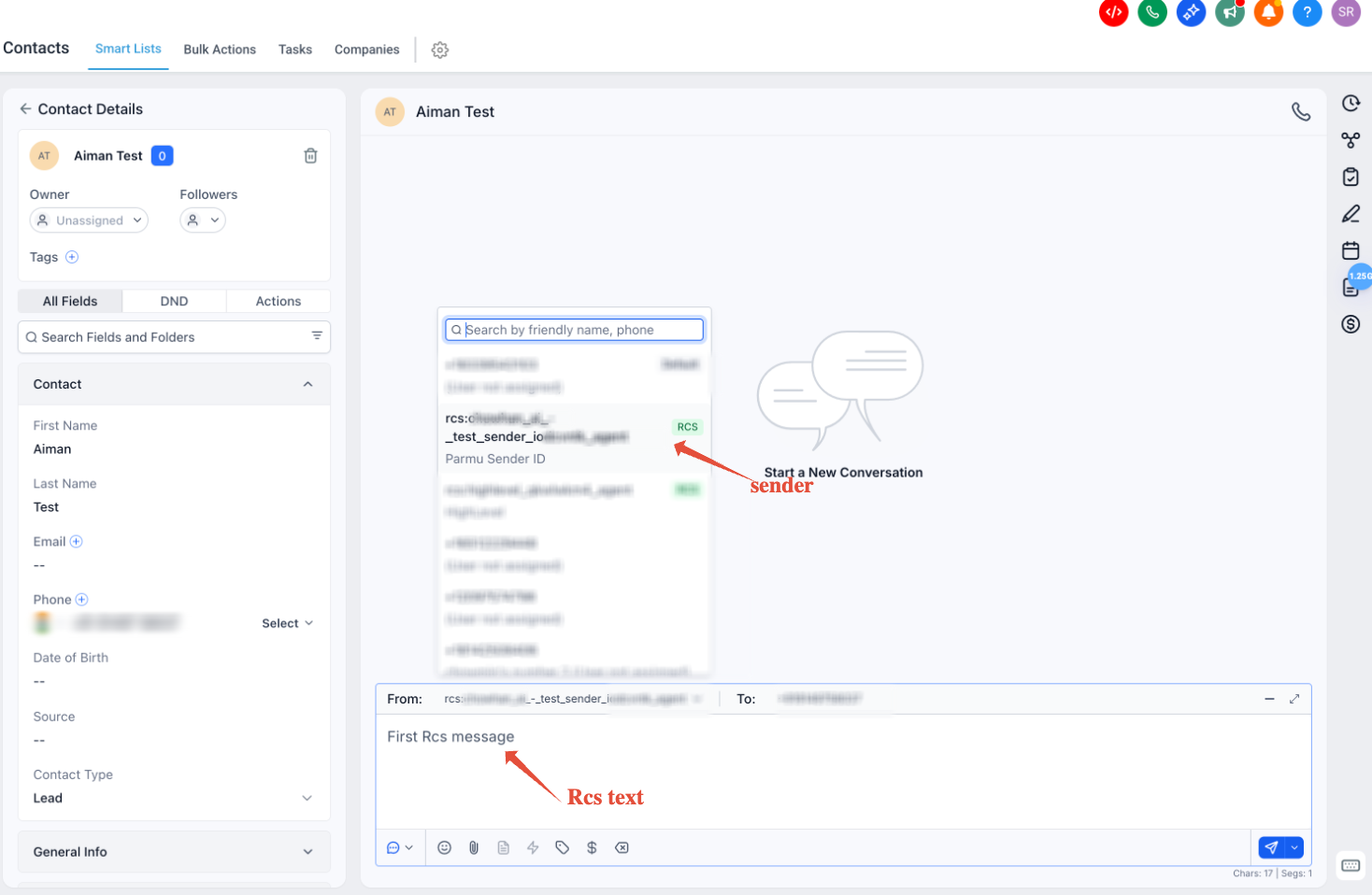
Important Notes
RCS messages send only to RCS-capable recipients
RCS snippets can be sent directly from supported 1:1 Conversations. Open the contact conversation, select the RCS Snippet option, choose a saved snippet, review the preview and fallback content, then send.
Fallback occurs automatically if enabled
2. Sending RCS via Bulk Actions (Snippets)
Bulk Actions can be used to send RCS snippets to multiple contacts. Supported accounts can also send RCS snippets from 1:1 Conversations, and RCS messages can be automated through dedicated Workflow actions.
Steps
Go to Contacts
Open Smart Lists
Select contacts
Click More
Choose Send SMS & RCS
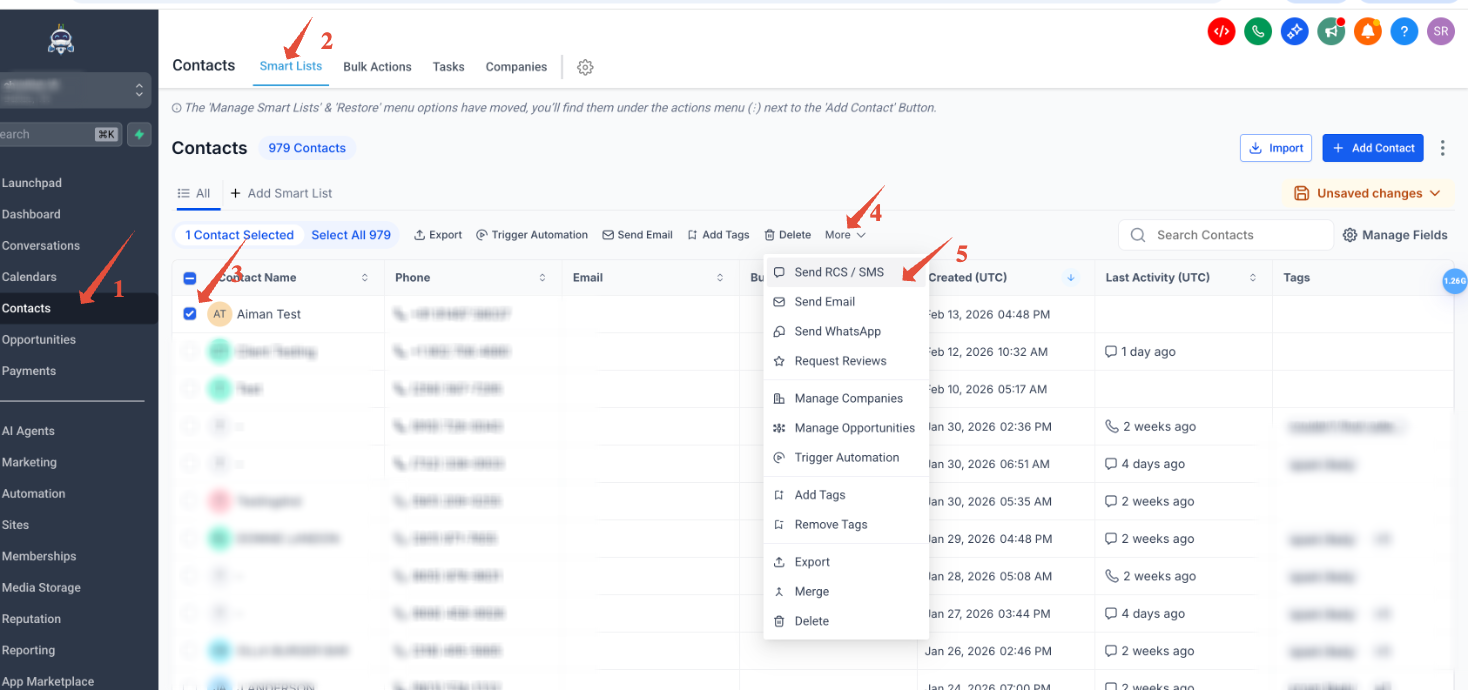
After selecting Send SMS & RCS, the following configuration screen appears:
Bulk RCS / SMS Configuration Screen
The configuration window includes the following fields:
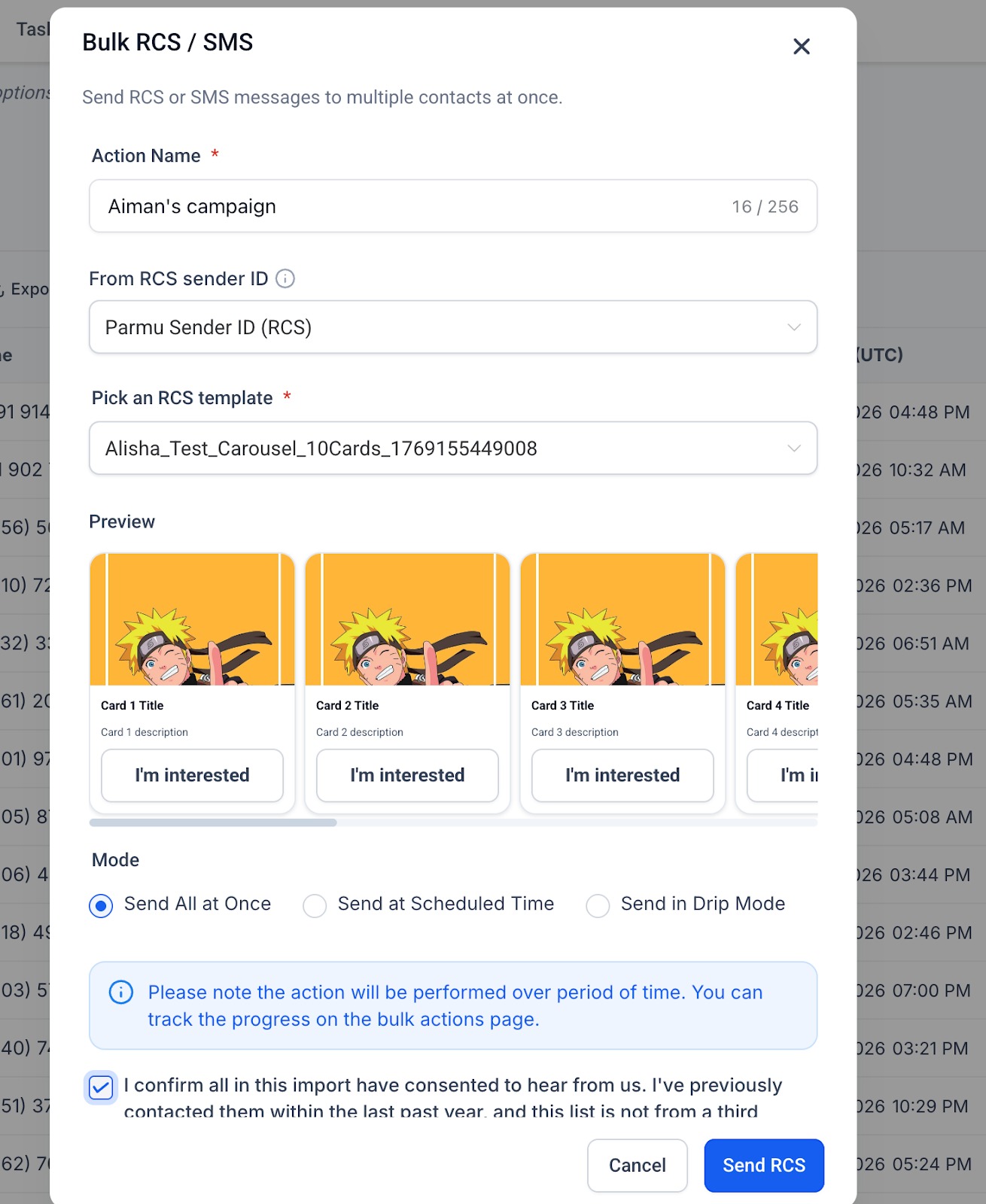
A) Action Name (Required)
- Name your campaign.
- This field is mandatory.
B) From RCS Sender ID
- Select an approved Sender ID from the drop down
- Only registered and approved Sender IDs will appear here.
C) Pick an RCS Template (Required)
- Choose a previously created RCS snippet.
- Only previously created RCS snippets will appear in this dropdown.
D) Mode Selection
Choose how the RCS message will be delivered:
Send All at Once - Sends the message immediately to all selected contacts.
Send at Scheduled Time - Sends the message at a specified future date and time.
Send in Drip Mode - Sends messages gradually over a defined time period.
A note appears indicating: The action will be performed over a period of time, and progress can be tracked on the Bulk Actions page.
Consent Confirmation Checkbox- This checkbox must be selected before proceeding.
E) Final Action
- Click Send RCS to execute the campaign.
- If Check Progress is selected. You are taken to the Bulk Actions page

Note- Bulk Actions is currently the only method for sending RCS snippets.
Sending RCS Through Workflows
HighLevel supports dedicated RCS Workflow actions for automated messaging:
- Send RCS — sends a standard RCS message from a Workflow.
- RCS Interactive Message — sends interactive RCS content using rich cards, buttons, and customer interactions.
To configure RCS in a Workflow:
- Go to Automation → Workflows.
- Open an existing Workflow or create a new one.
- Add Send RCS or RCS Interactive Message.
- Configure the message and Sender ID.
- Publish the Workflow.
3. Creating RCS Snippets
RCS Snippets are pre-designed RCS message templates that allow you to send structured, rich messages instead of typing messages manually each time.
They are reusable message formats created inside the platform and can include interactive and visual elements supported by RCS.
RCS snippets can be created under:
Conversations → Snippets
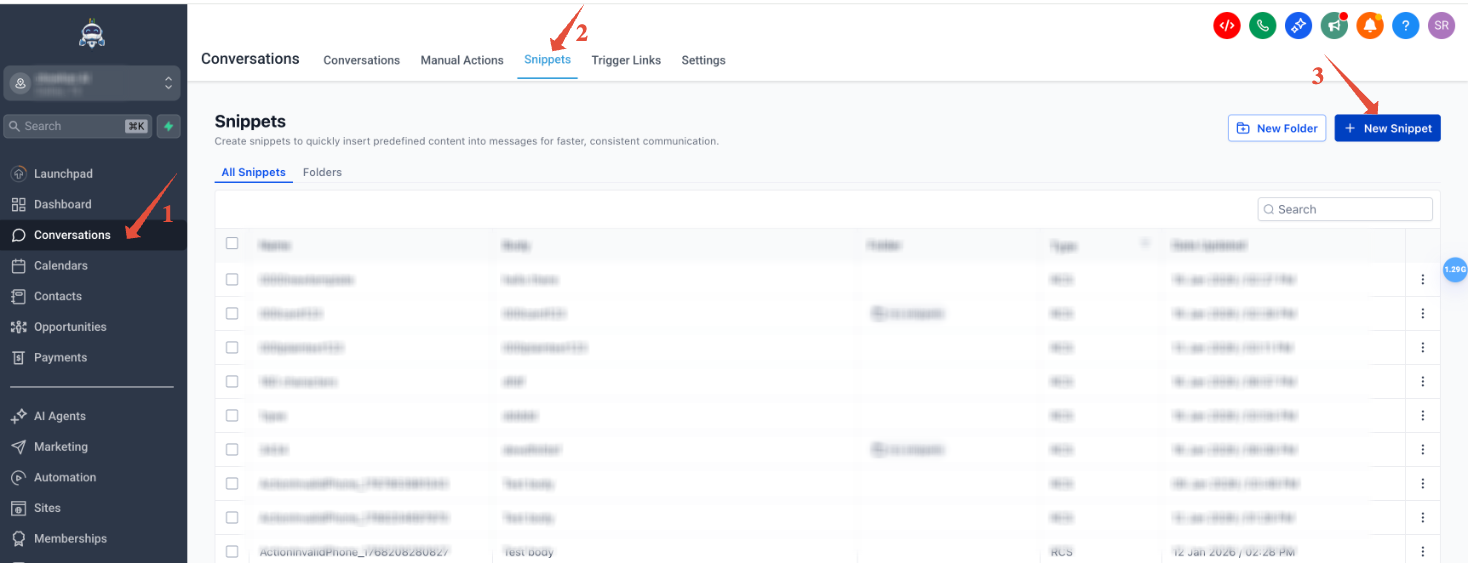
Available formats:
Plain Text
Standalone Card
Carousel
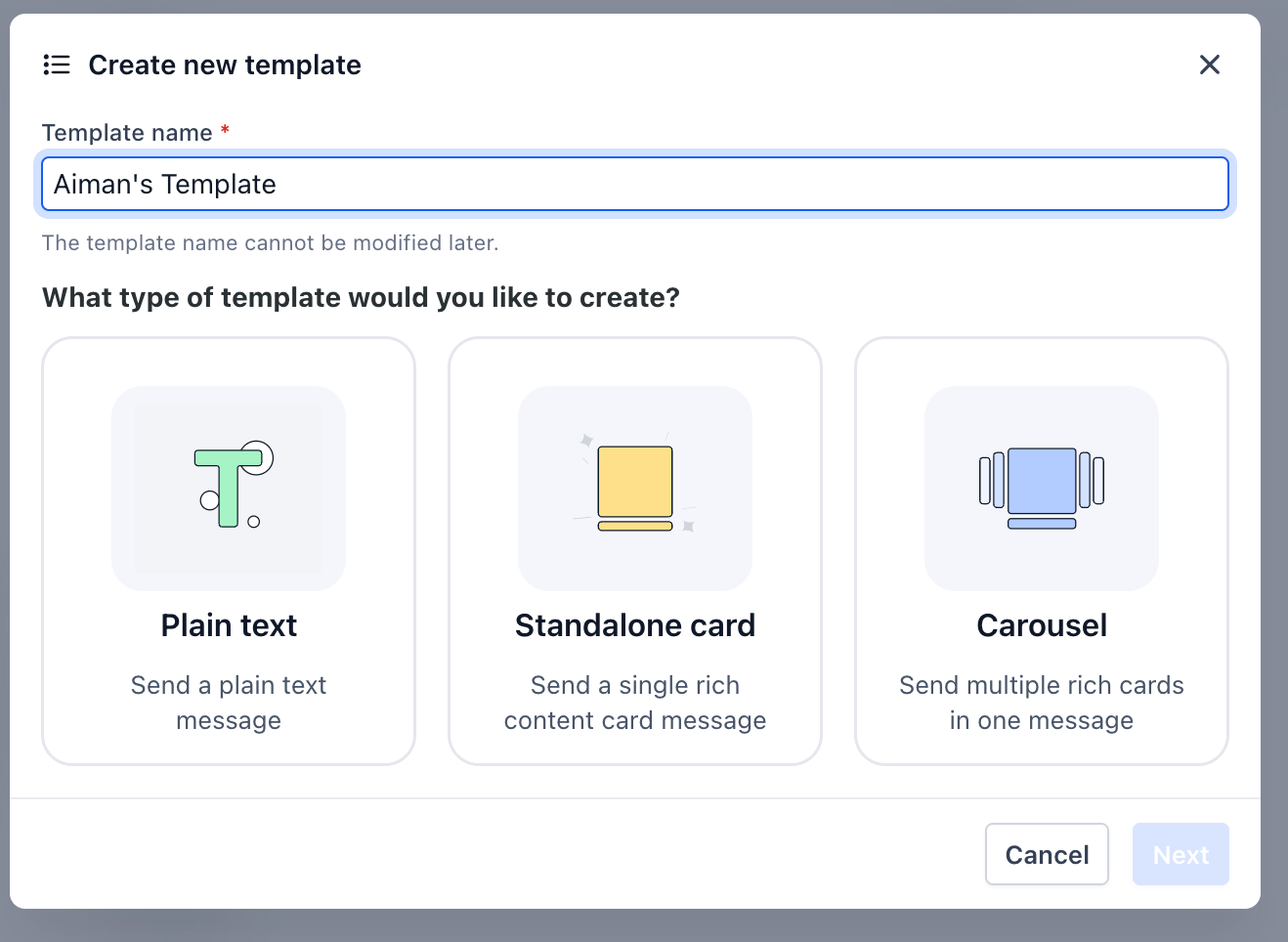
Explanation-
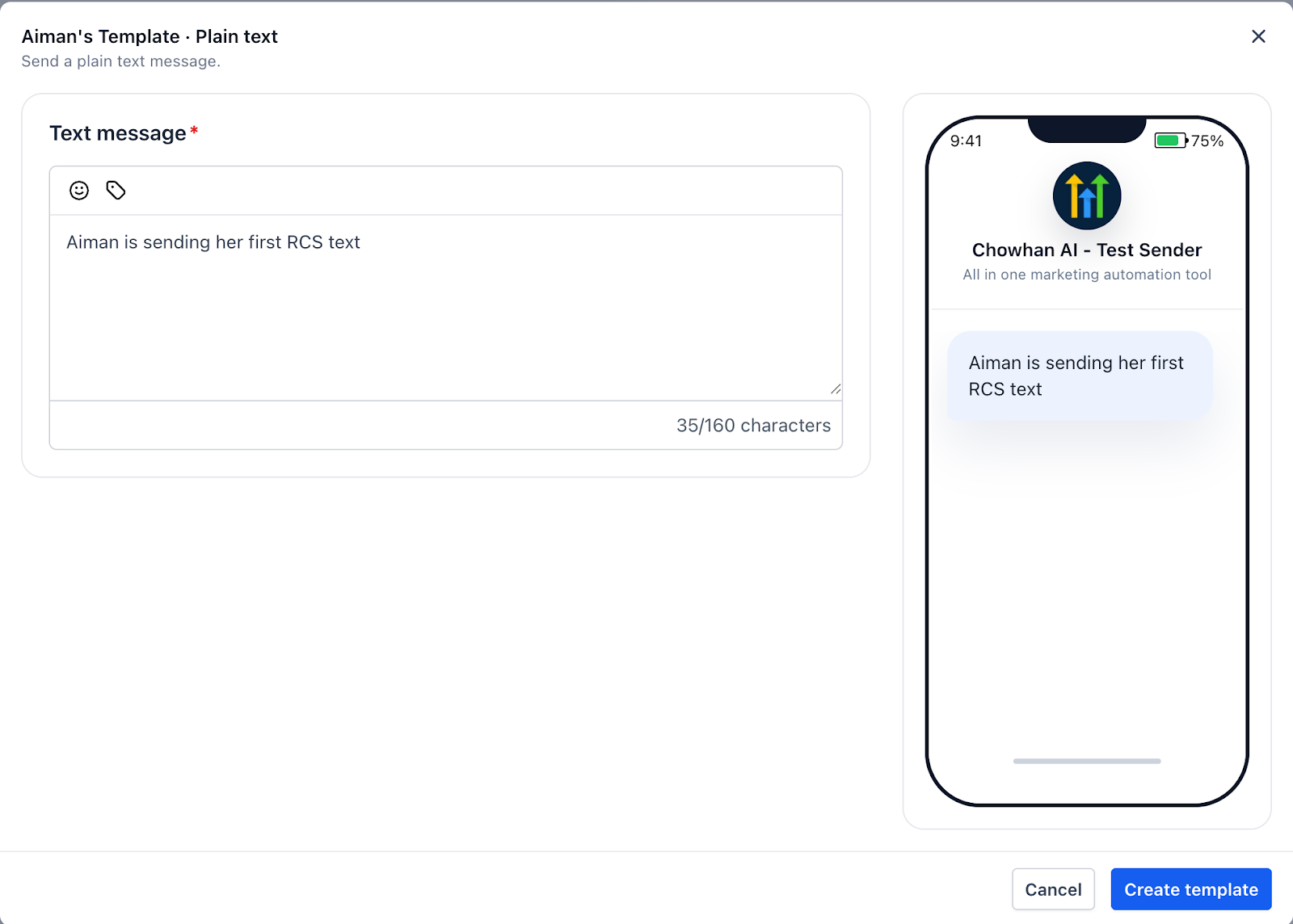
1. Plain Texts is used to send a simple text message. You enter the message content, and a live preview shows how it will appear on the recipient’s device. This format does not include media or buttons.
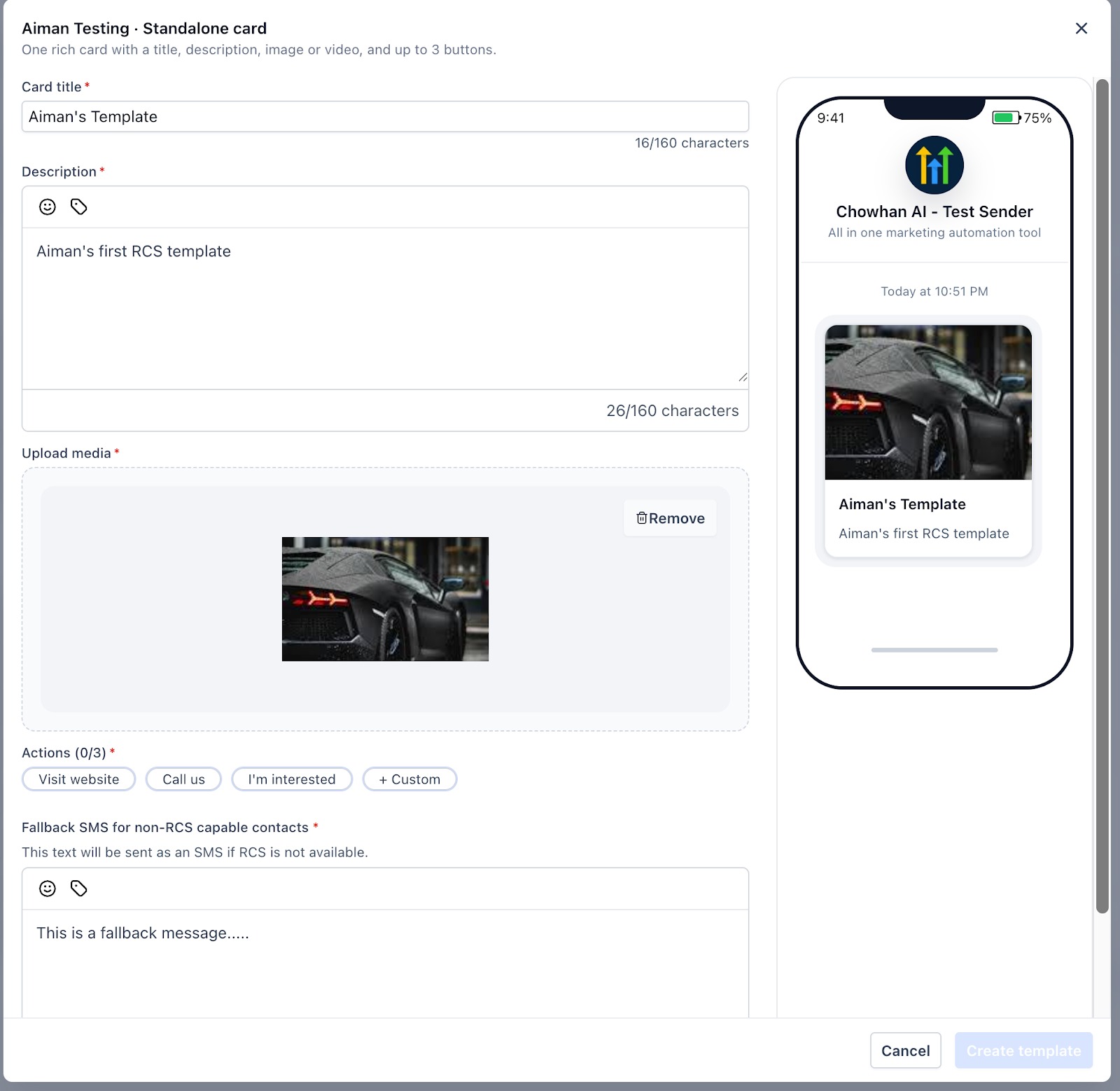
2. Standalone card allows you to create one rich card with a title, description, and uploaded media. You can add up to three action buttons. A fallback SMS message is required in case the contact is not RCS-capable.
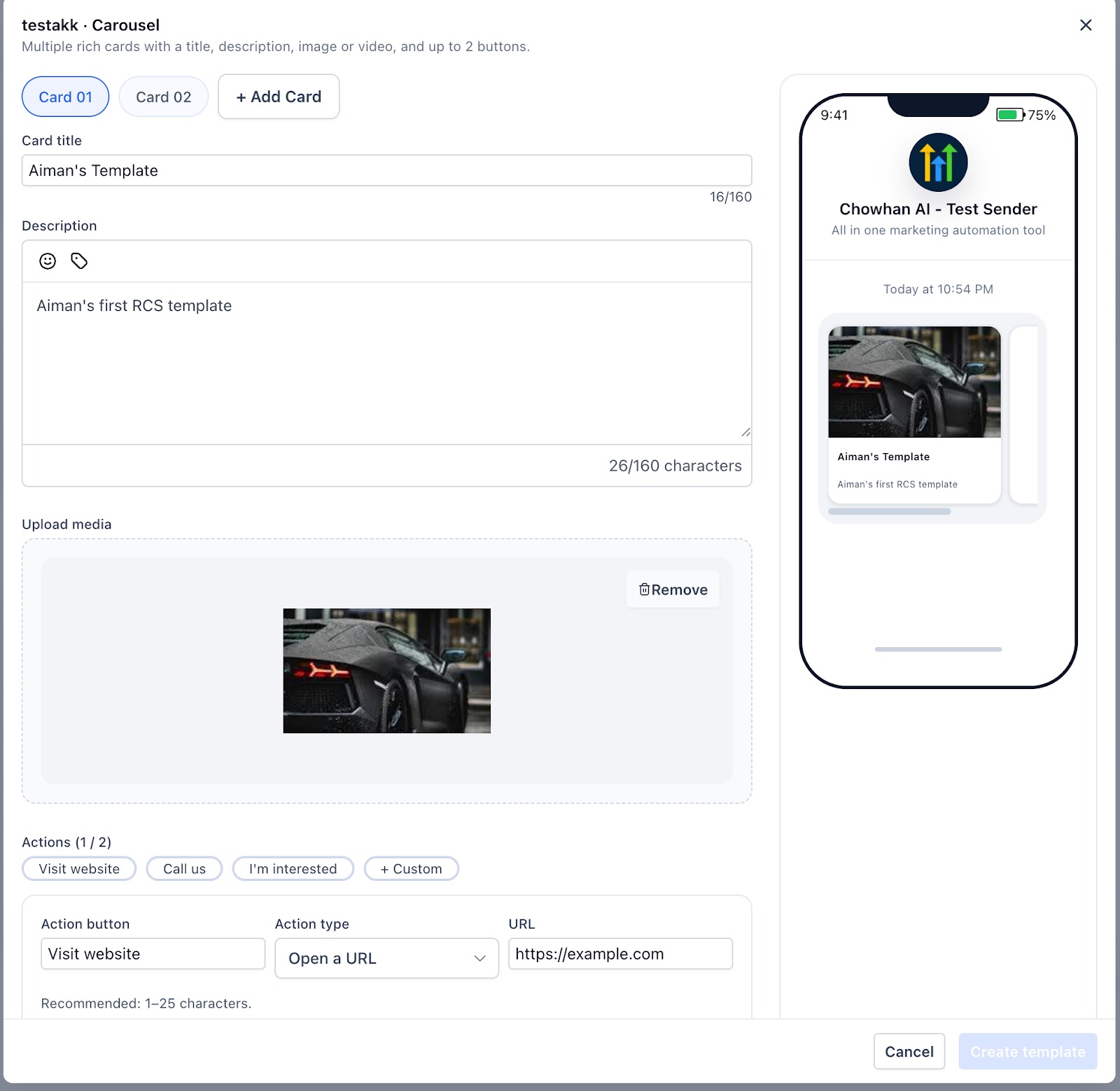
3. Carousel allows you to create multiple rich cards in a swipeable format. Each card includes a title, description, media, and up to two action buttons. A fallback SMS message is required for non-RCS-capable contacts
RCS Message Statuses
RCS messages display status indicators reflecting message progress, such as:
Sent
Delivered
Opened
These statuses are visible within the conversation interface.
Fallback to SMS: How It Works
Fallback occurs when:
Recipient cannot receive RCS
Network limitations exist
Rich components aren't supported
If fallback occurs:
The recipient receives SMS
Billing may reflect SMS pricing
Opt-outs apply across both RCS and SMS.
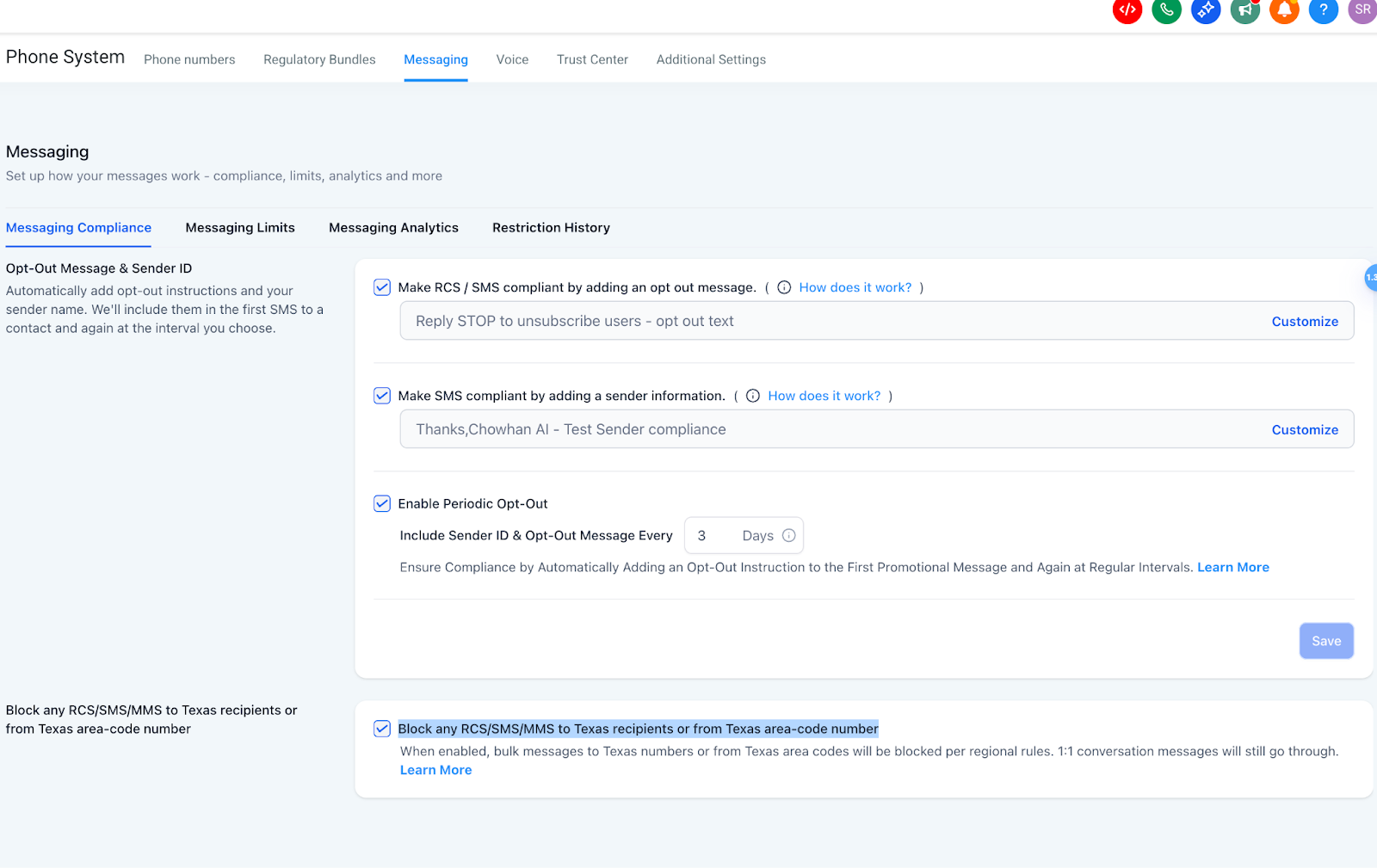
Opt-Out Behavior
Opt-out text is appended to the first 1:1 RCS message
It does not repeat periodically like SMS
Texas blocking rules apply the same as SMS/MMS
STOP and equivalent keywords suppress across channels
RCS Pricing & Billing
RCS billing depends on the message type and destination.
A) Message Type
Basic RCS messages (plain text) and Single RCS messages (rich content with media or attachments) are both billed for inbound and outbound traffic.
B) Billing Structure by Region
1. United States (US)
Basic Outbound/Inbound → Charged per segment
Single Outbound/Inbound → Charged per message (static rate)
Region Message Type Direction Billing Unit Price (USD $) US Basic RCS Text Outbound Per segment 0.0083 US Basic RCS Text Inbound Per message 0.0083 US Rich single RCS Inbound Per message 0.0165 US Rich RCS Outbound Per message 0.0220 For US Basic RCS Text, one segment is 160 UTF-8 bytes.
2. Non-US
Basic/Inbound → Charged per message (static rate)
Single Outbound/Inbound → Charged per message (static rate)
C) Carrier Fees
RCS carrier fees are billed as follows:
Usage Category → Billed directly by Twilio
Agency Accounts → Same pricing as Twilio
Location Accounts → Twilio pricing + 5% markup
Frequently Asked Questions
Will every message be RCS?
No. Some recipients will receive SMS fallback.
Can I use my existing phone number?
RCS often displays brand identity instead of a phone number in supported inboxes.
How long does approval take?
Timelines vary depending on submission quality and review volume.
Can I send images and buttons to everyone?
No. Not all recipients support rich components. Always include text fallback.
Can I send RCS snippets to a single contact?
Yes. Supported accounts can send saved RCS snippets, including Standalone Cards and Carousels, directly from a 1:1 Conversation.
Can I automate RCS messages?
Yes. Use the Send RCS and RCS Interactive Message Workflow actions to automate RCS messaging.
Was this article helpful?
That’s Great!
Thank you for your feedback
Sorry! We couldn't be helpful
Thank you for your feedback
Feedback sent
We appreciate your effort and will try to fix the article