What are AI-Powered Field Tooltips in Workflows?
Modified on: Tue, 10 Mar, 2026 at 5:08 AM
AI-Powered Field Tooltips bring smart, contextual help directly to individual fields inside the Workflow Builder. Instead of guessing what a setting does, you can hover an info icon to get a quick definition and open the AI assistant for a deeper, conversational explanation. This makes advanced configuration easier to understand and helps teams build workflows with more confidence and fewer mistakes.
What is AI-Powered Field Tooltips?
AI-Powered Field Tooltips add AI-assisted explanations at the field level inside workflow actions. This matters most when you’re configuring advanced settings and want to understand exactly how a specific field impacts workflow behavior—without leaving the builder or searching the Knowledge Base. This feature is currently in experiment and is live on two fields inside Advanced Settings for:
- Manual SMS action
- Manual Call action
Key Benefits of AI-Powered Field Tooltips
Field-level AI explanations reduce confusion during setup, especially in advanced settings where small configuration changes can affect timing, assignments, or workflow outcomes. These tooltips help you move faster while still understanding what each field does.
- Faster Setup: Get immediate clarity on settings while building workflows—no tab switching.
- Fewer Mistakes: Understand field impact before saving changes that could alter workflow behavior.
- Better Learning Curve: New users can learn the builder as they go with contextual help.
- Deeper Explanations on Demand: Use Explain Field to get a more detailed, conversational breakdown.
- Follow-Up Answers: Ask questions in the AI assistant to confirm your understanding.
How To Setup AI-Powered Field Tooltips
Proper setup starts with navigating to a supported workflow action and locating a field that includes the ℹ️ icon. Since the feature is experimental, the main “setup” is verifying you’re in the right area and using the tooltip and Explain Field flow correctly.
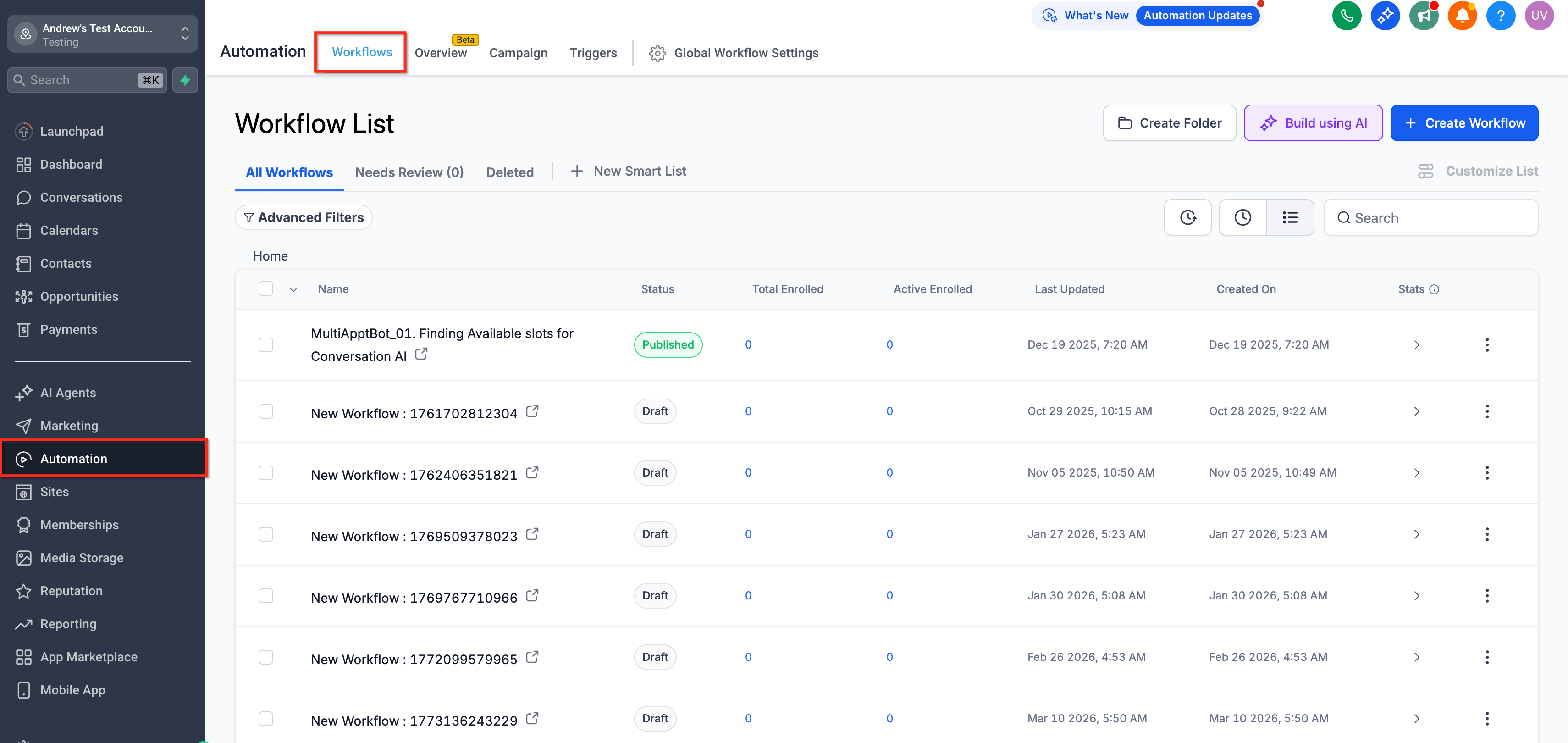
- Go to Automation → Workflows.
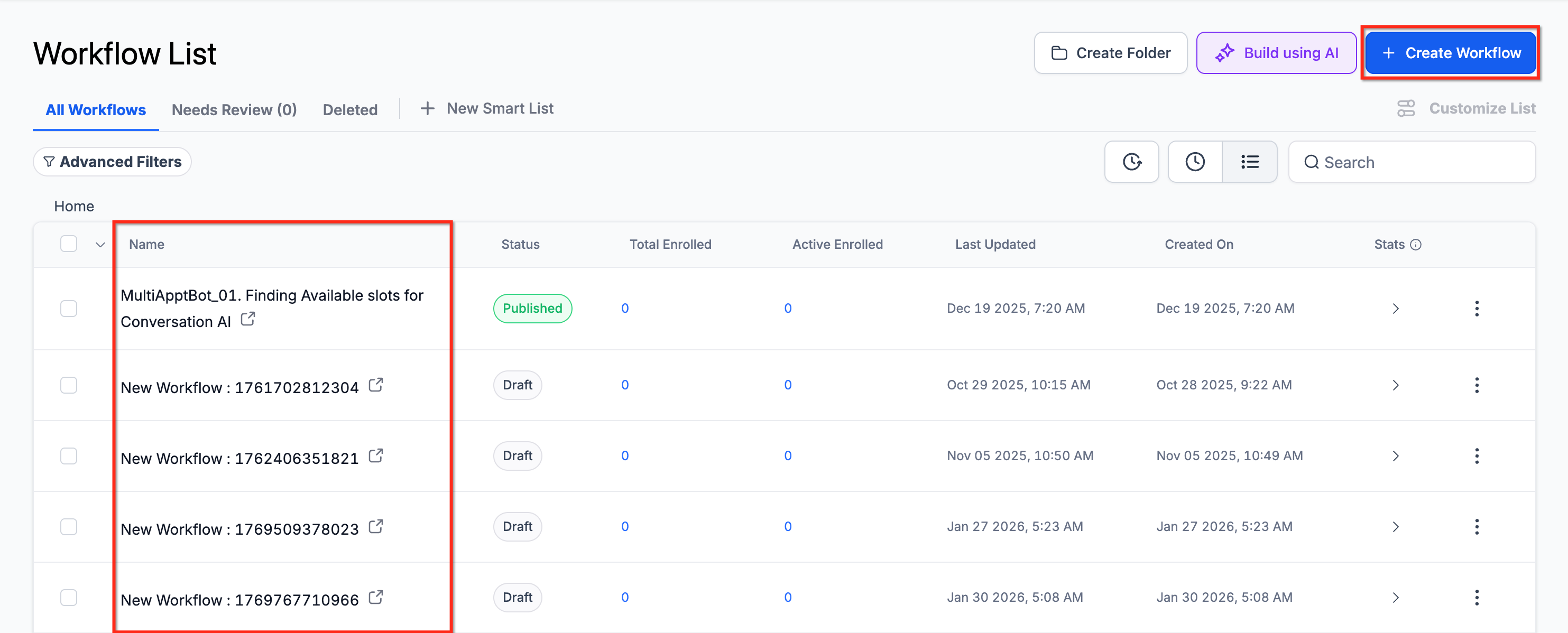
- Open an existing workflow (or create a new one).
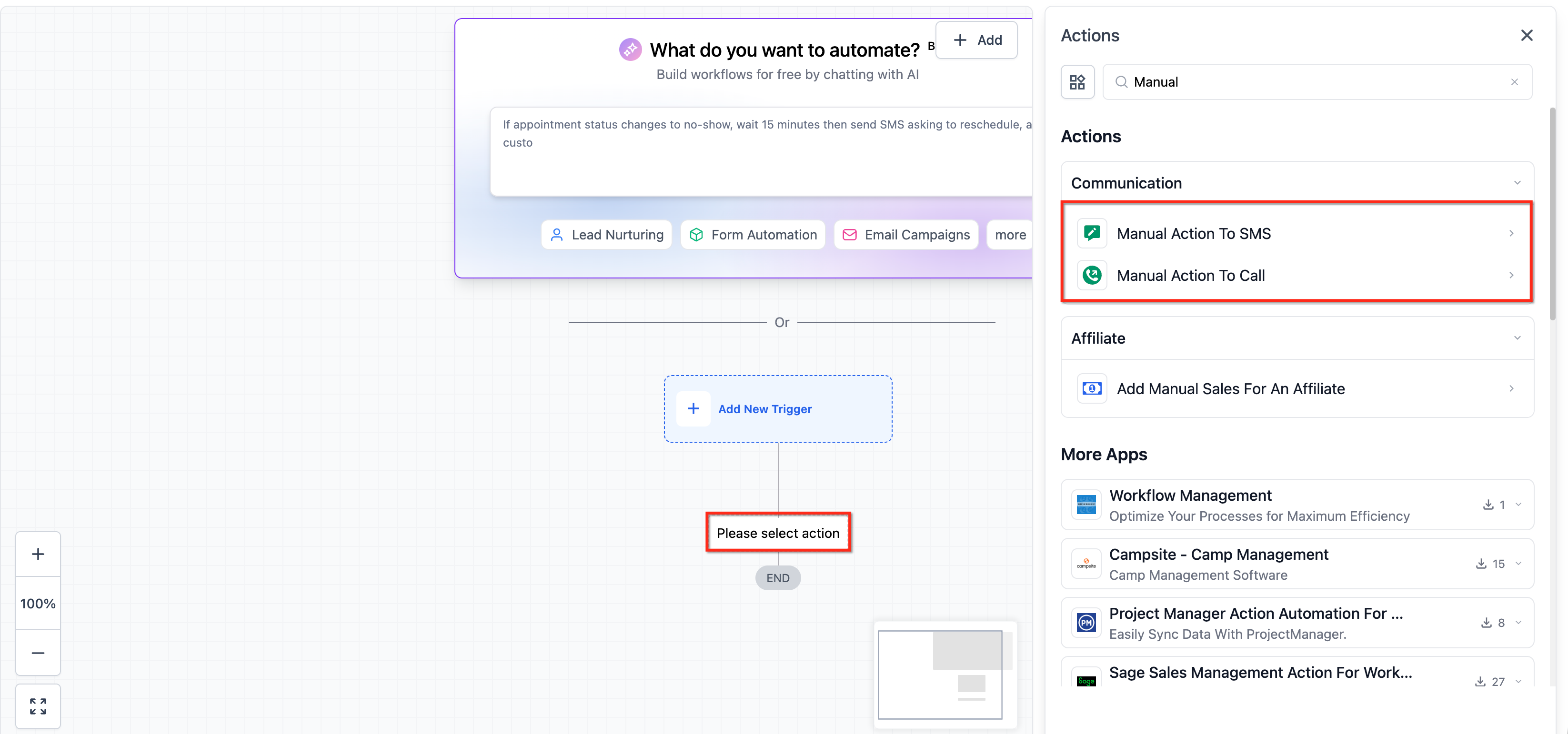
- Add or select one of the supported actions: Manual SMS, or Manual Call
- Open Advanced Settings in the action configuration panel.
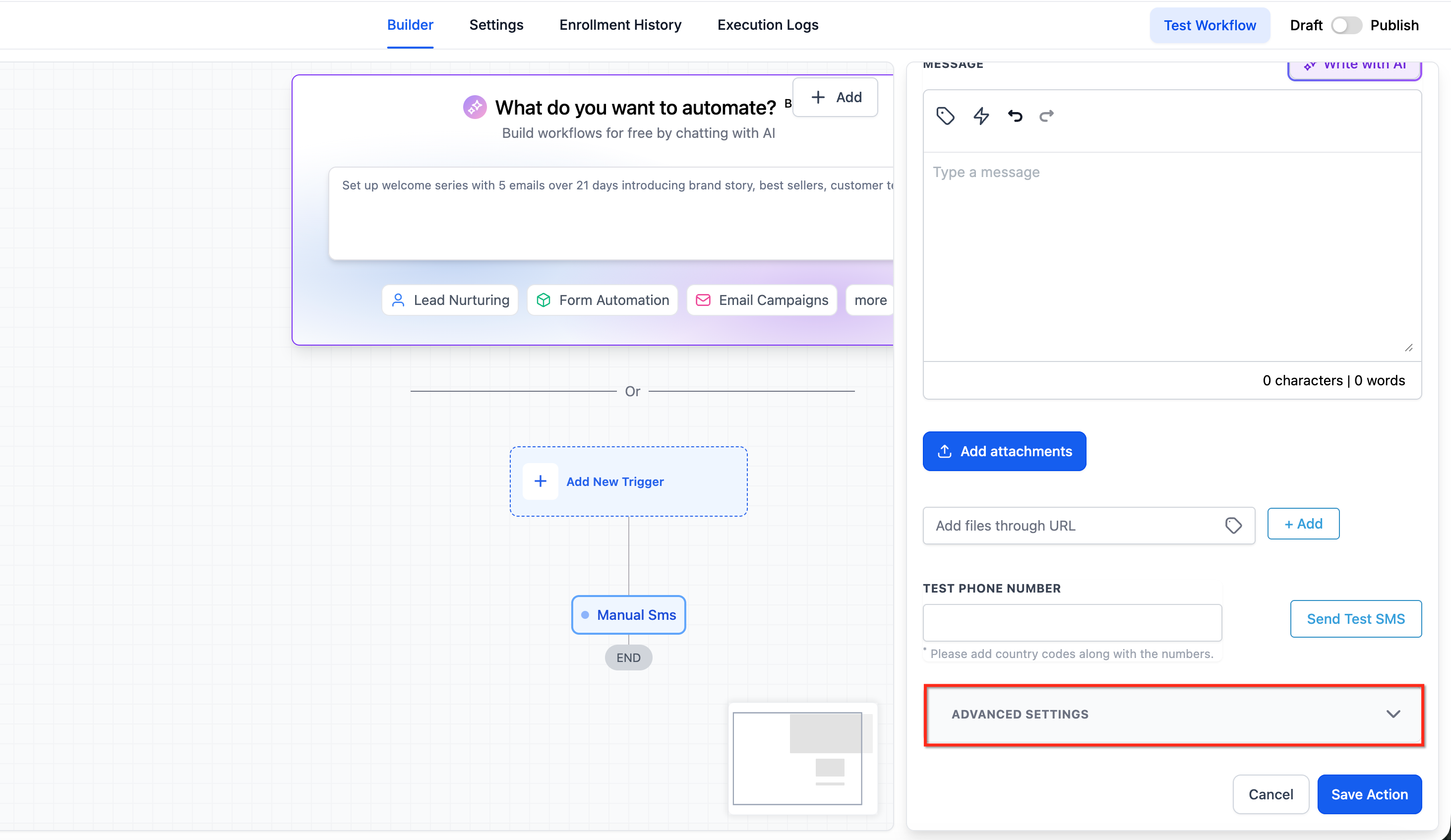
- Look for the ℹ️ icon next to a supported field. Hover over the ℹ️ icon to read the short tooltip description. Click Explain Field to open the AI assistant.
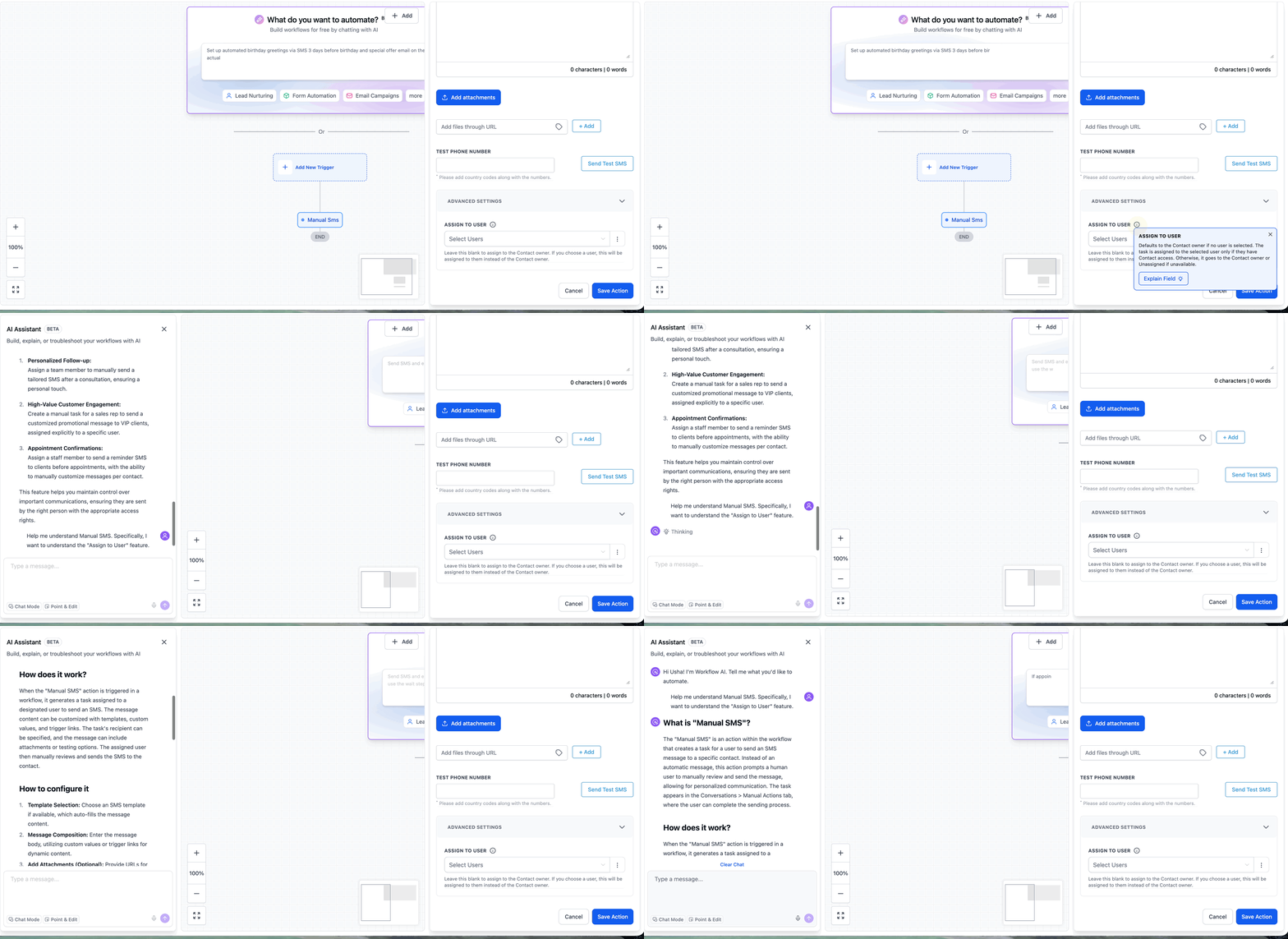
- Ask follow-up questions (example.
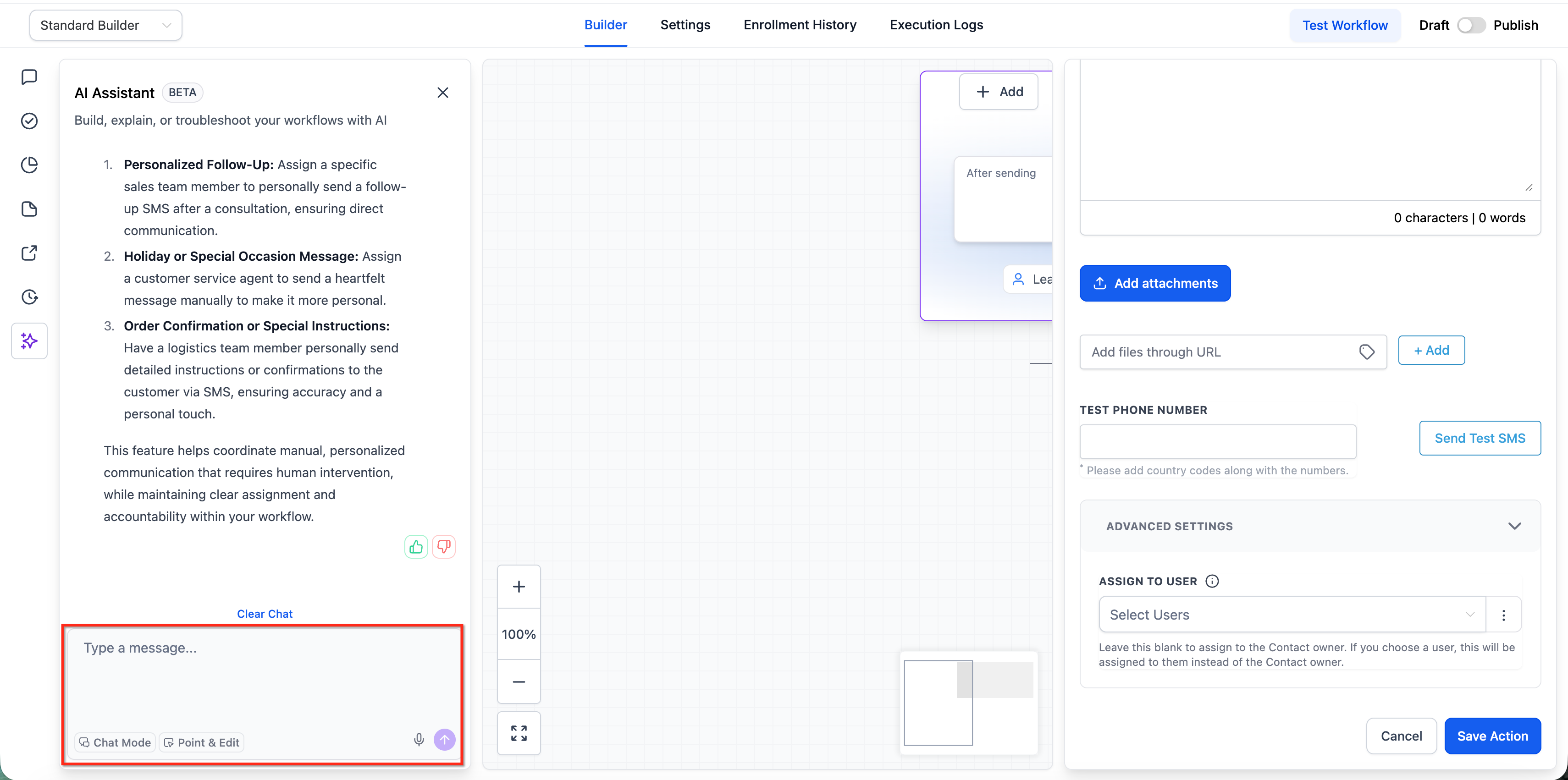
Frequently Asked Questions
Q: Why don’t I see the ℹ️ icon next to my fields?
AI-Powered Field Tooltips are currently in an experiment and may only appear for specific fields (and not on every account yet). Also confirm you’re viewing Advanced Settings in Manual SMS or Manual Call.
Q: I see the tooltip, but I don’t see the “Explain Field” button. Why?
In the experiment, the “Explain Field” CTA may only appear for supported fields and eligible accounts. Try checking another supported action (Manual SMS vs. Manual Call) or another field within Advanced Settings.
Q: Does “Explain Field” change any settings automatically?
No—“Explain Field” is designed to explain what the field does. You still control and save all workflow settings manually.
Q: Can I ask follow-up questions about my specific workflow goal?
Yes. After you click Explain Field, you can ask follow-ups to understand use cases and how the field may affect workflow behavior.
Q: Is this the same as “Learn More” on actions and triggers?
It’s related, but not the same entry point. “Learn More” provides AI explanations for actions/triggers, while AI-Powered Field Tooltips focus on individual fields inside action configuration.
Q: Will this expand to other actions and triggers?
That’s the intent if results are strong. Since it’s experimental, availability and scope may change as the rollout expands.
Q: What if the AI explanation doesn’t match what I’m seeing in the action?
Use the action documentation as the source of truth and validate configuration behavior before publishing major workflow changes. The AI assistant is meant to help you understand settings, but official action behavior is best confirmed via the action docs.
Q: Does this work outside of Workflows?
This experiment is currently focused on field-level help inside the Workflow Builder, starting with Manual SMS and Manual Call Advanced Settings.
Related Articles
Was this article helpful?
That’s Great!
Thank you for your feedback
Sorry! We couldn't be helpful
Thank you for your feedback
Feedback sent
We appreciate your effort and will try to fix the article