Use Fathom in HighLevel workflows to automate next steps from your meeting recordings, transcripts, and summaries. Once connected, Fathom can trigger workflows when a new recording is available or provide meeting data to later workflow actions. This helps teams send follow-ups, create tasks, and notify internal users without manually copying meeting notes.
Note: Fathom actions are premium workflow actions and may incur additional charges per execution.
TABLE OF CONTENTS
- What are Fathom Action & Triggers in Workflows?
- Key Benefits of Fathom Action & Triggers in Workflows
- How To Use Fathom Action and Triggers in Workflows
- Common Use Cases
- Frequently Asked Questions
- Related Articles
What are Fathom Action & Triggers in Workflows?
Fathom Actions & Triggers connect your Fathom meeting data to HighLevel workflows. A trigger can start a workflow when a new recording is processed, while actions can retrieve recordings, transcripts, or summaries for use in later workflow steps.
Fathom includes one workflow trigger and three workflow actions:
| Type | Name | What it does |
|---|---|---|
| Trigger | New Recording | Starts a workflow when a new Fathom recording is created and processed. |
| Action | List Recordings | Retrieves available Fathom recordings from the connected account. |
| Action | Fetch Transcript | Retrieves the transcript for a selected recording. |
| Action | Fetch Summary | Retrieves the AI-generated summary for a selected recording. |
Key Benefits of Fathom Action & Triggers in Workflows
- Automated follow-ups: Use transcript or summary details to create personalized emails after calls.
- Task creation: Convert meeting summaries into tasks in connected tools like ClickUp.
- Internal visibility: Notify team members when important meeting details or action items are available.
- Less manual work: Move meeting data into workflows without copying and pasting from Fathom.
- Flexible automation: Use Fathom data with other workflow actions, including AI, email, notifications, and task tools.
How To Use Fathom Action and Triggers in Workflows
Connecting Fathom before building your workflow ensures HighLevel can retrieve recordings, transcripts, and summaries from the correct Fathom account. You can connect Fathom from the Workflow Builder or from Settings → Integrations.
- Go to Automation → Workflows.
- Create a new workflow or edit an existing workflow.

- Click Add New Trigger or add a new workflow action.
- Select the Apps tab.
- Search for and select Fathom.
- Choose the New Recording trigger.
- If Fathom is not connected, click Connect Your Account.
- Under filters, choose where the trigger should listen for recordings, such as My Meetings or Team Meetings.
- Click Find New Records to test the trigger.
- Review the returned trigger data.
- Click Save Trigger.

- Click on the + button to add Actions.
- Choose the action you want to use:
- List Recordings
Retrieve a list of available Fathom recordings for the connected account.
What it does:- Fetch recordings based on the connected user
- Allows selection of recordings summary and other fields for downstream actions
- Fetch Transcript
Retrieve the transcript for a selected recording.
What it does:- Provides full meeting transcript
- Enables use of transcript data in AI and other workflow steps
- Fetch Summary
Retrieve the AI-generated summary for a selected recording.
What it does:- Provides concise meeting summaries
- Can be used for task extraction, notifications, and follow-ups
- Test and Save the Action.

Common Use Cases
AI-Powered Follow-Up Email After Sales Calls (with Competitor Context)
Problem:
Sales follow-ups are often inconsistent in quality and timing. Emails may lack personalization, fail to reflect the actual conversation, and do not account for competitors mentioned during the call—resulting in weaker positioning and lower conversion rates.
Workflow:
- Trigger: Fathom – New Recording
- Action: Fetch Transcript
- Action: Manus – Competitor Analysis
- Action: AI ( AI / OpenAI)
- Action: Send Email
What happens:
- Transcript is analyzed to identify competitors mentioned
- Manus enriches this with competitor insights
- AI generates a personalized follow-up email with strong positioning
- Email is sent automatically
AI Prompt (Follow-Up Email with Competitor Context):
You are a sales assistant.

Based on the following call transcript and competitor analysis, write a personalized follow-up email.

Include:
- A brief thank you
- Key points discussed
- Any objections or concerns mentioned
- Clear next steps
- Subtle positioning that differentiates us from competitors mentioned

When referencing competitors:
- Do NOT criticize competitors directly
- Highlight our strengths in a professional and confident manner
- Address any concerns raised during the call

Keep the tone professional, concise, and friendly.

Transcript:
{{transcript}}

Competitor Insights:
{{competitor_analysis}}
AI Prompt (Competitor Extraction & Analysis – Manus):
Analyze the following call transcript.

1. Identify any competitors mentioned.
2. For each competitor, provide:
   - Competitor name
   - Context in which they were mentioned
   - Perceived strengths
   - Possible weaknesses or gaps we can differentiate on

Return structured output.

Transcript:
{{transcript}}
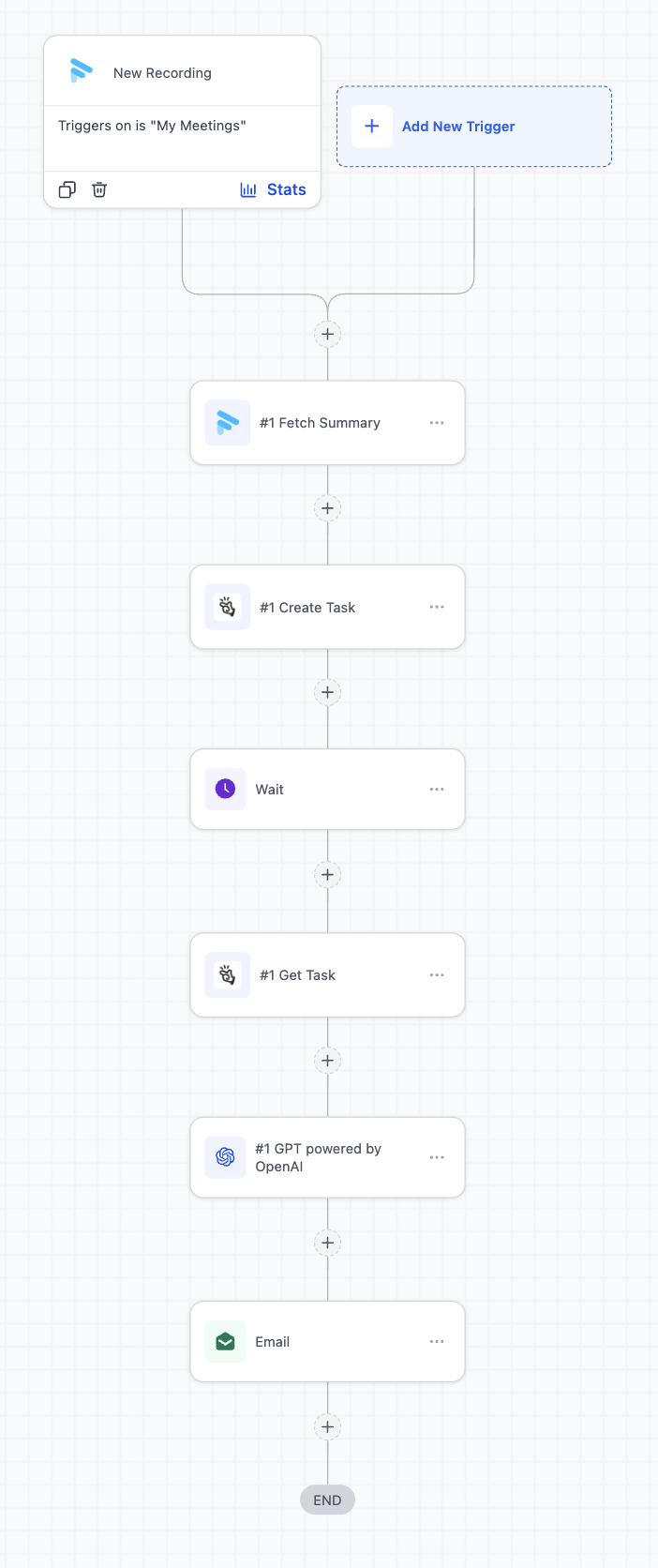
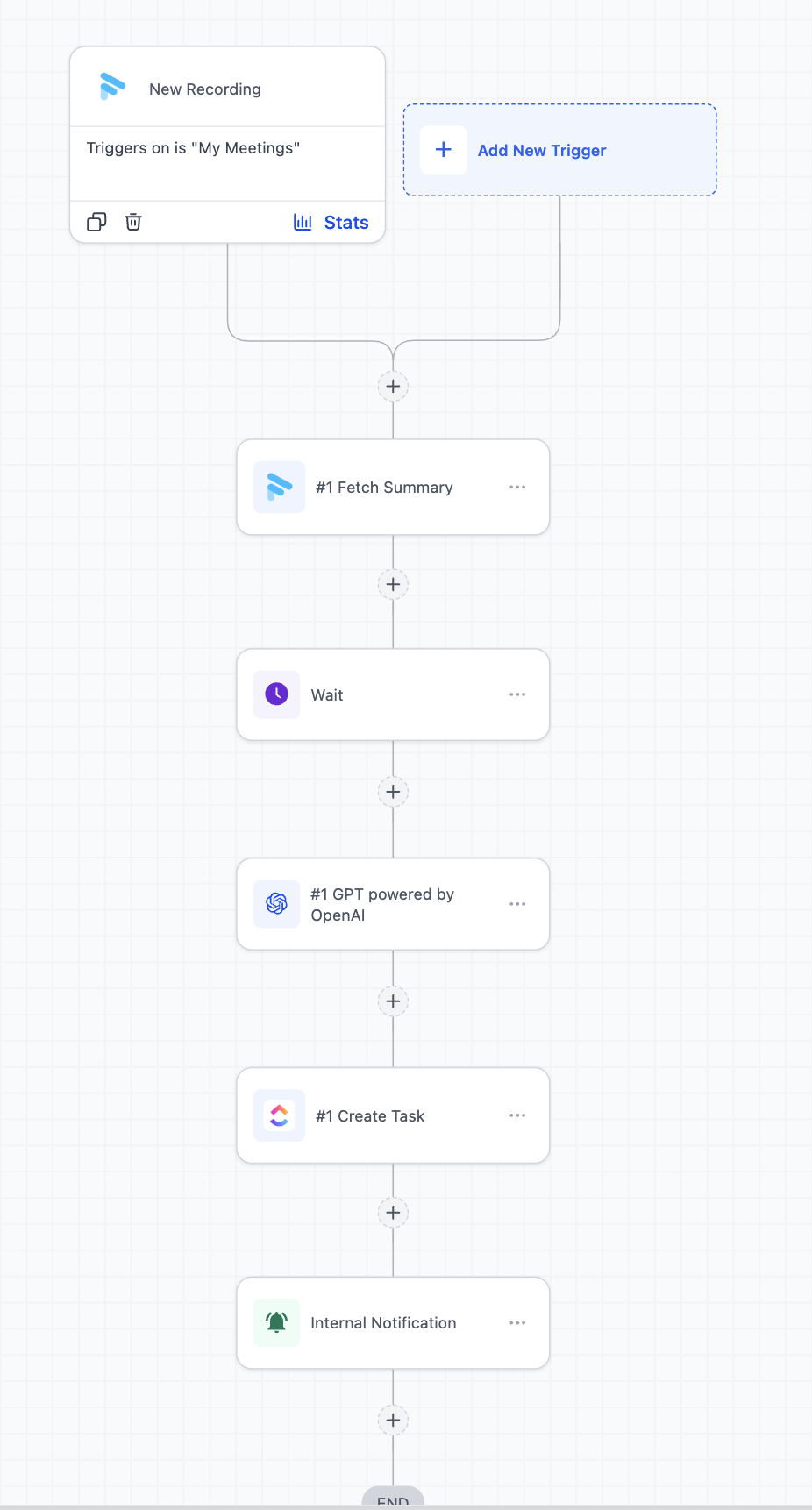
Client Call → Auto Summary + Task Assignment
Problem:
Action items and decisions from client calls are not consistently documented or tracked, leading to missed deliverables, unclear ownership, and inefficient execution.
Workflow:
- Trigger: Fathom – New Recording
- Action: Fetch Summary
- Action: AI (extract action items)
- Action: Create Task (ClickUp)
- Action: Send Internal Notification (GHL)
What happens:
- Meeting summary is generated
- AI extracts structured action items
- Tasks are created in ClickUp
- Internal notification is sent to the team
Frequently Asked Questions
Q: When does the New Recording trigger fire?
The trigger fires after the Fathom meeting recording is created and processed. This may take a few minutes after the meeting ends.
Q: Do I need to connect Fathom before using the trigger or actions?
Yes. Fathom must be connected before HighLevel can retrieve recordings, transcripts, or summaries.
Q: Are Fathom actions premium workflow actions?
Yes. Fathom actions are premium workflow actions and may incur charges per execution.
Q: Can I use Fathom transcripts in AI workflow actions?
Yes. You can pass transcript data into AI actions to generate follow-ups, extract action items, summarize discussion points, or prepare internal updates.
Q: Can Fathom recordings be matched to contacts automatically?
Contact matching is not automatic. You can use participant details, such as email address, within your workflow logic to match or update contacts.
Q: What should I do if no test records are found?
Confirm that Fathom is connected, the selected recording source has recent processed recordings, and the trigger or action filters are not too narrow.
Related Articles
Was this article helpful?
That’s Great!
Thank you for your feedback
Sorry! We couldn't be helpful
Thank you for your feedback
Feedback sent
We appreciate your effort and will try to fix the article