Messaging Limits help agencies control outbound SMS usage for eligible HighLevel sub-accounts. Depending on the configuration, limits can be based on the number of messages or message segments and may apply at daily or monthly levels.
Messaging Ramp and Messaging Limits are separate systems. Sub-accounts using Messaging Ramp follow a level-based warm-up model and cannot edit their Ramp limits directly. Locations using the Messaging Limits model follow the configurable limits described in this article.
1. What Are Messaging Limits?
Messaging Limits define how much outbound SMS usage is allowed for eligible sub-accounts.
Depending on your configuration, limits can be based on:
- Number of SMS messages
- Number of message segments
- Daily usage
- Monthly usage
Longer SMS messages can be split into multiple message segments. Segment-based limits provide more precise control over actual messaging usage than simply counting the number of messages sent.
2. Messaging Limits vs Messaging Ramp
Messaging Limits and Messaging Ramp control outbound messaging in different ways.
| Model | How It Works |
|---|---|
| Messaging Limits | Eligible agencies can configure supported outbound messaging limits for applicable sub-accounts. |
| Messaging Ramp | Uses a level-based warm-up system for LC Phone SMS/MMS sending. Locations on Ramp cannot directly edit their Ramp limits. |
3. How to Increase Messaging Limits
Eligible agencies can manage Messaging Limits at the agency level or adjust the limit for an individual supported sub-account.
Use the agency-level setting to define the default Messaging Limit configuration for eligible sub-accounts.
- Go to the Agency Dashboard.
- Navigate to Phone Integration.
- Select Account Creation.
- Configure the applicable daily or monthly limit using messages or segments.
This defines the agency-level default for eligible locations using the Messaging Limits model.
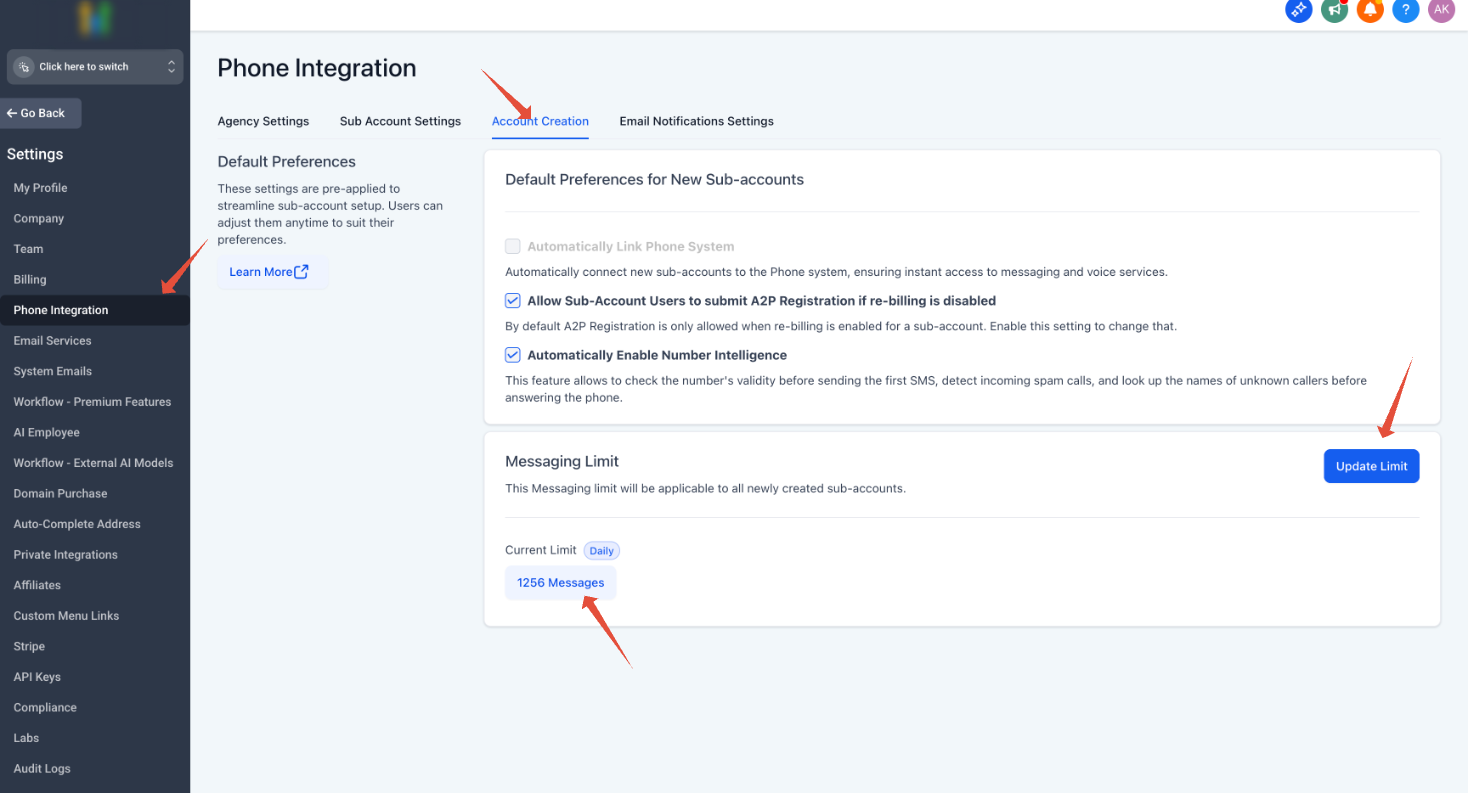
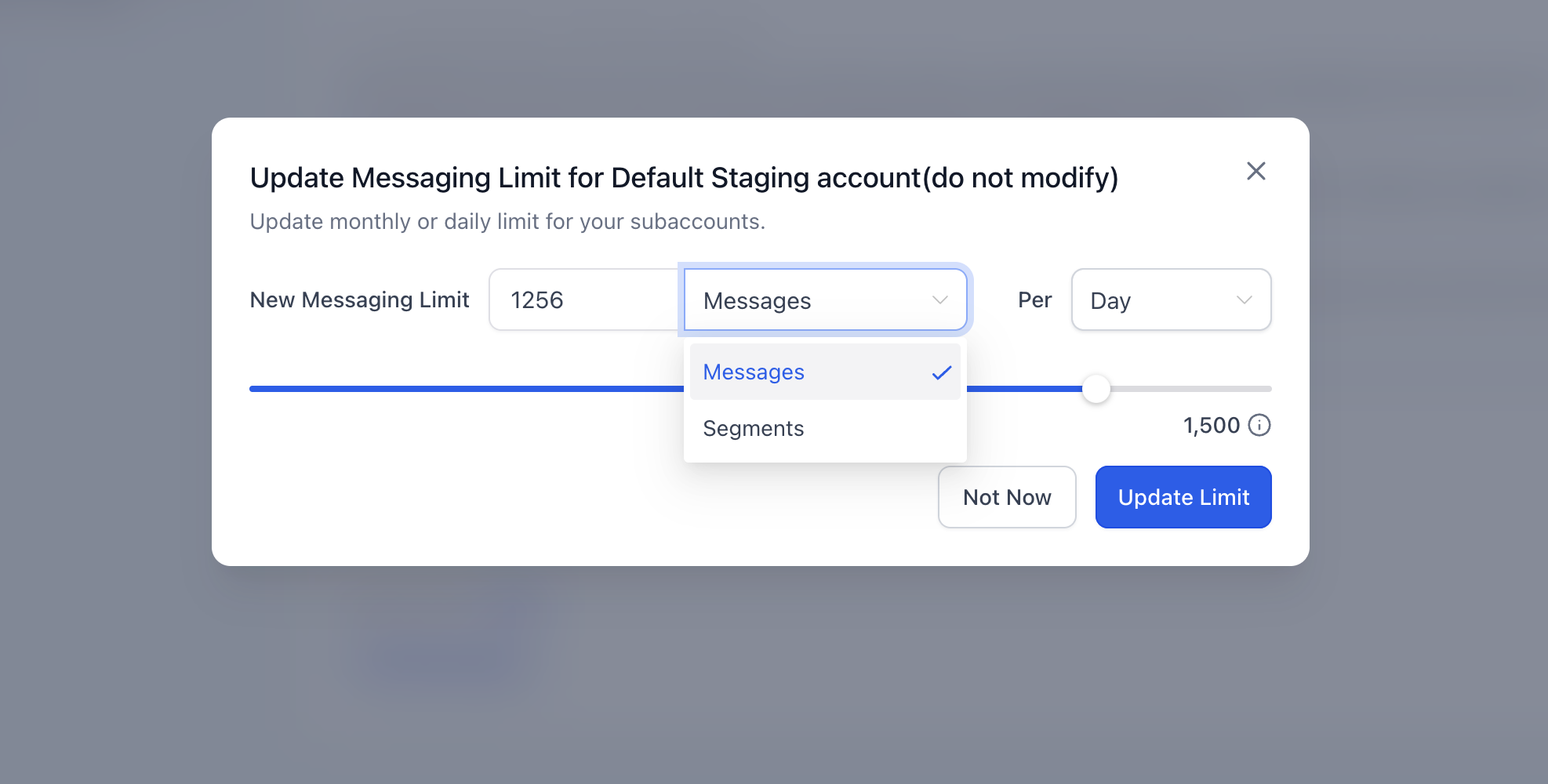
Note: Sub-accounts that remain on Messaging Ramp continue to follow the Ramp model instead of the agency Messaging Limit configuration.
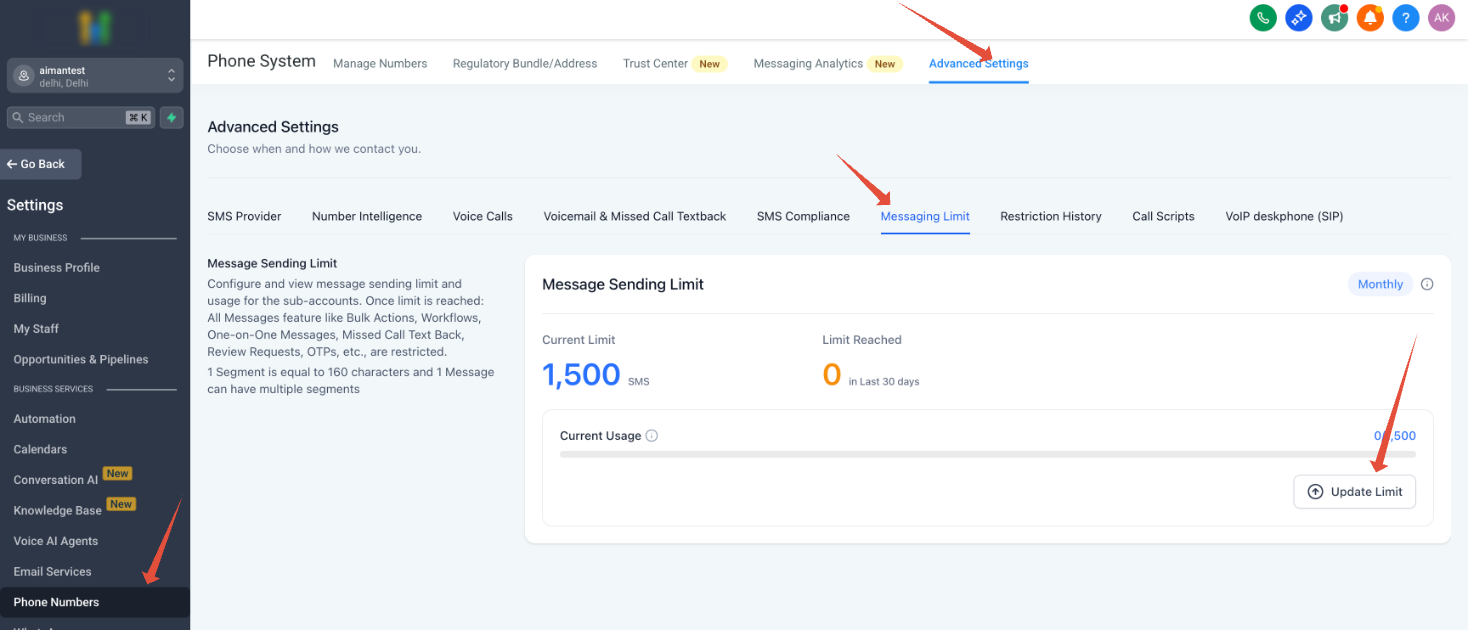
Use this option when you want to change the Messaging Limit for a specific eligible sub-account.
- Open the desired sub-account.
- Open the applicable Messaging Limit settings in the Phone System area.
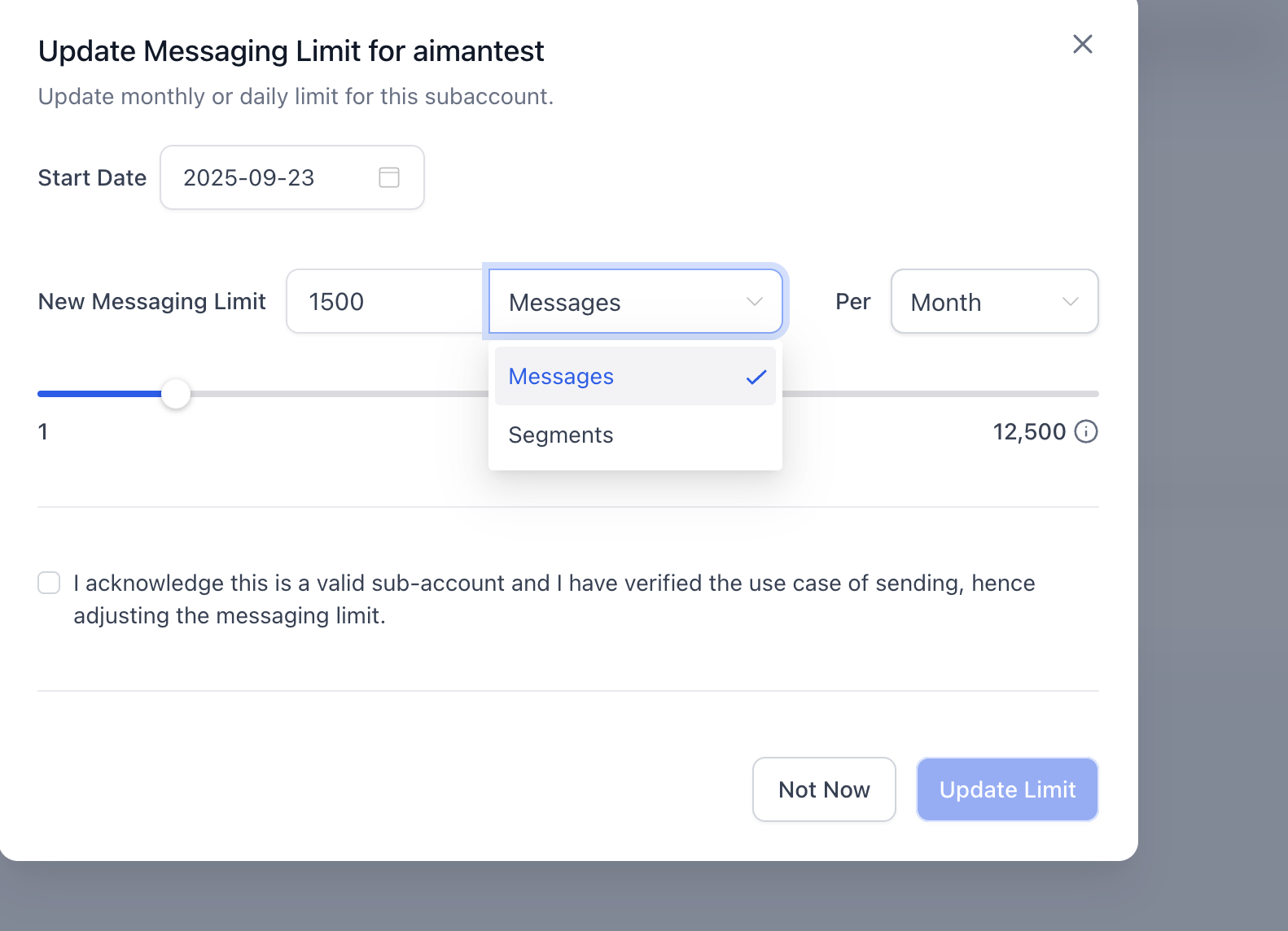
- Review the current usage and configured limit.
- Enter the new supported limit and save your changes.
The sub-account setting overrides the applicable default for that location.
UI verification: The exact sub-account navigation should be confirmed against the current HighLevel interface before publication because Phone System navigation can vary based on the messaging model available to the location.
4. Who Can Increase Messaging Limits?
Agency Owners and Admins can increase supported Messaging Limits when the agency meets the applicable eligibility requirements.
- If the agency has been on the platform for at least 3 months and is not in a trial period, eligible users can update a sub-account's Messaging Limit.
- If the agency does not meet the requirements or needs a limit beyond the available maximum, contact HighLevel Support for review.
5. What Happens When a Messaging Limit Is Reached?
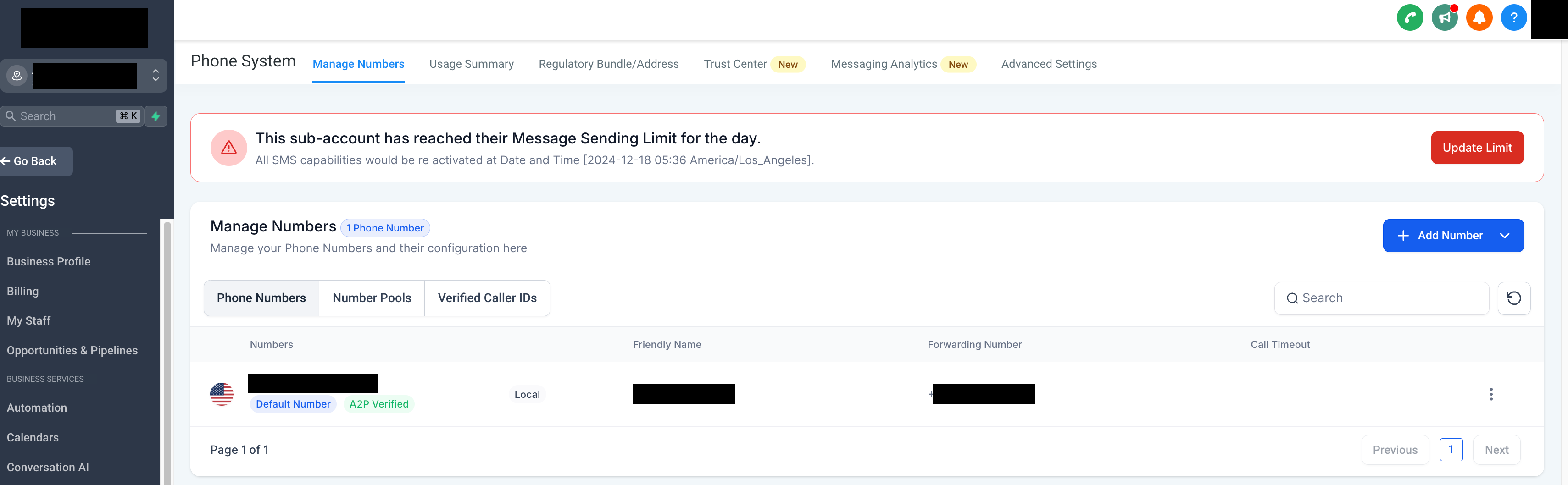
When a sub-account reaches its allowed outbound messaging limit, additional outbound SMS may be unavailable until capacity becomes available again or the applicable limit is increased.
HighLevel can display an in-app warning when the limit is reached. Depending on the account configuration, notification emails may also be sent to eligible recipients.
Inbound messaging can continue independently of some outbound sending restrictions.
6. Messaging Limits and Workflows
Messaging limits can also affect automated SMS actions in active workflows.
If a workflow reaches a Send SMS action while outbound SMS is unavailable because a Messaging Limit or Ramp restriction has been reached, the SMS action can fail.
Failed SMS messages are not automatically retried after outbound sending becomes available. Review the workflow's Execution Logs to identify affected contacts.
7. Provider and Carrier Restrictions
Increasing a HighLevel Messaging Limit does not override other messaging restrictions.
HighLevel, the connected phone provider, and mobile carriers can apply separate requirements related to:
- Messaging registration
- Carrier filtering
- Throughput
- Compliance
- Opt-out rates
- Delivery-error rates
Best practice: Scale messaging volume gradually and based on actual business needs. Sudden increases in volume can contribute to carrier filtering and deliverability problems.
8. Frequently Asked Questions
Was this article helpful?
That’s Great!
Thank you for your feedback
Sorry! We couldn't be helpful
Thank you for your feedback
Feedback sent
We appreciate your effort and will try to fix the article