The WhatsApp Media Action in HighLevel allows users to automatically send images, videos, documents, and audio files through WhatsApp workflows. Businesses can use it to share product information, tutorials, and important files without manually sending each message. Images, videos, and documents support optional captions, while audio messages do not.
Regular WhatsApp media messages must be sent within the customer's active 24-hour customer service window.
TABLE OF CONTENTS
- Key Benefits of the WhatsApp Media Action
- Supported WhatsApp Media Types
- WhatsApp Customer Service Window
- How to Set Up the WhatsApp Media Action
- Troubleshooting WhatsApp Media Messages
- Frequently Asked Questions
- Related Articles
Key Benefits of the WhatsApp Media Action
The WhatsApp Media Action helps businesses automate multimedia communication and provide customers with relevant information directly through WhatsApp.
Automated Media Delivery: Send media files automatically through workflows.
Flexible Communication: Share images, videos, documents, and audio based on customer needs.
Media Captions: Add context to supported media messages.
Workflow Integration: Combine media messages with triggers, conditions, and other workflow actions.
Improved Customer Experience: Deliver helpful content at the appropriate stage of a customer interaction.
Supported WhatsApp Media Types
WhatsApp supports different media formats, each with specific file size and caption restrictions. Using compatible files helps prevent upload and delivery errors.
| Media Type | Supported Formats | Maximum Size | Captions |
|---|---|---|---|
| Image | JPEG, PNG | 5 MB | Yes |
| Video | MP4, 3GP | 16 MB | Yes |
| Document | PDF, DOC, DOCX, TXT, PPT, PPTX, XLS, XLSX | 100 MB | Yes* |
| Audio | AAC, AMR, MP3, M4A, OGG (OPUS) | 16 MB | No |
Important:

• Audio captions are not supported. Any caption entered for an audio message will be ignored.
• Videos must use supported encoding, including H.264 video and AAC audio.
WhatsApp Customer Service Window
The WhatsApp Media Action requires an active 24-hour customer service window. This window starts or refreshes whenever a customer sends a WhatsApp message to the business.
Open Window: Send supported media messages through the WhatsApp Media Action.
Closed Window: Use an approved WhatsApp template to initiate or resume communication.
Use the WhatsApp: Customer Service Window Check action to determine which messaging option is appropriate.
How to Set Up the WhatsApp Media Action
Setting up the WhatsApp Media Action ensures media messages are sent from the correct number and within the permitted messaging window. Make sure WhatsApp is connected to your HighLevel sub-account before proceeding.
Step 1: Create or Open a Workflow
Navigate to Automation > Workflows.
Click Create Workflow > Start from Scratch, or open an existing workflow.
Add and configure the appropriate workflow trigger.
Step 2: Add the Customer Service Window Check
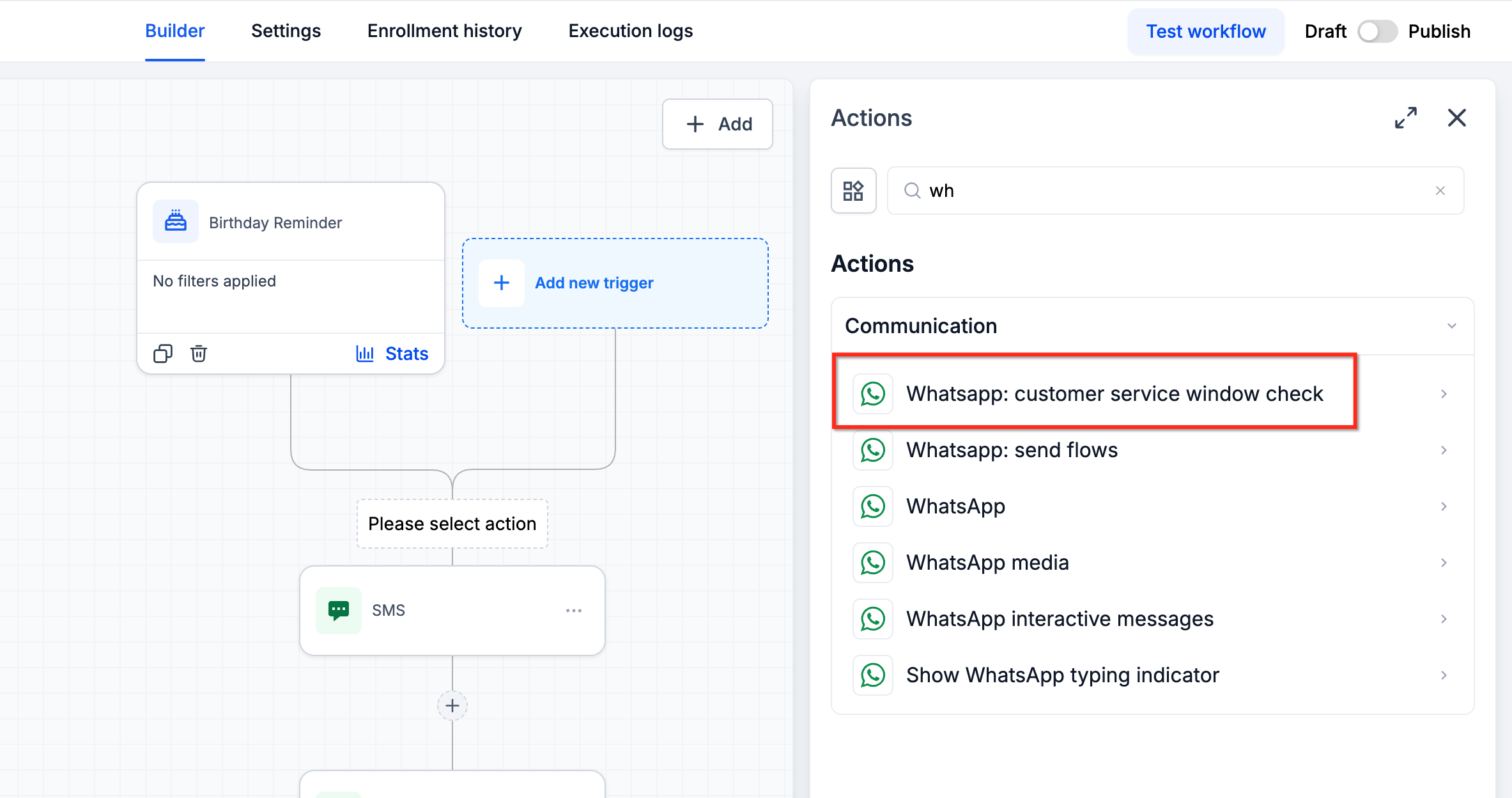
Click the + icon.
Search for WhatsApp: Customer Service Window Check.
Configure the action with the relevant WhatsApp number.
Save the configuration.
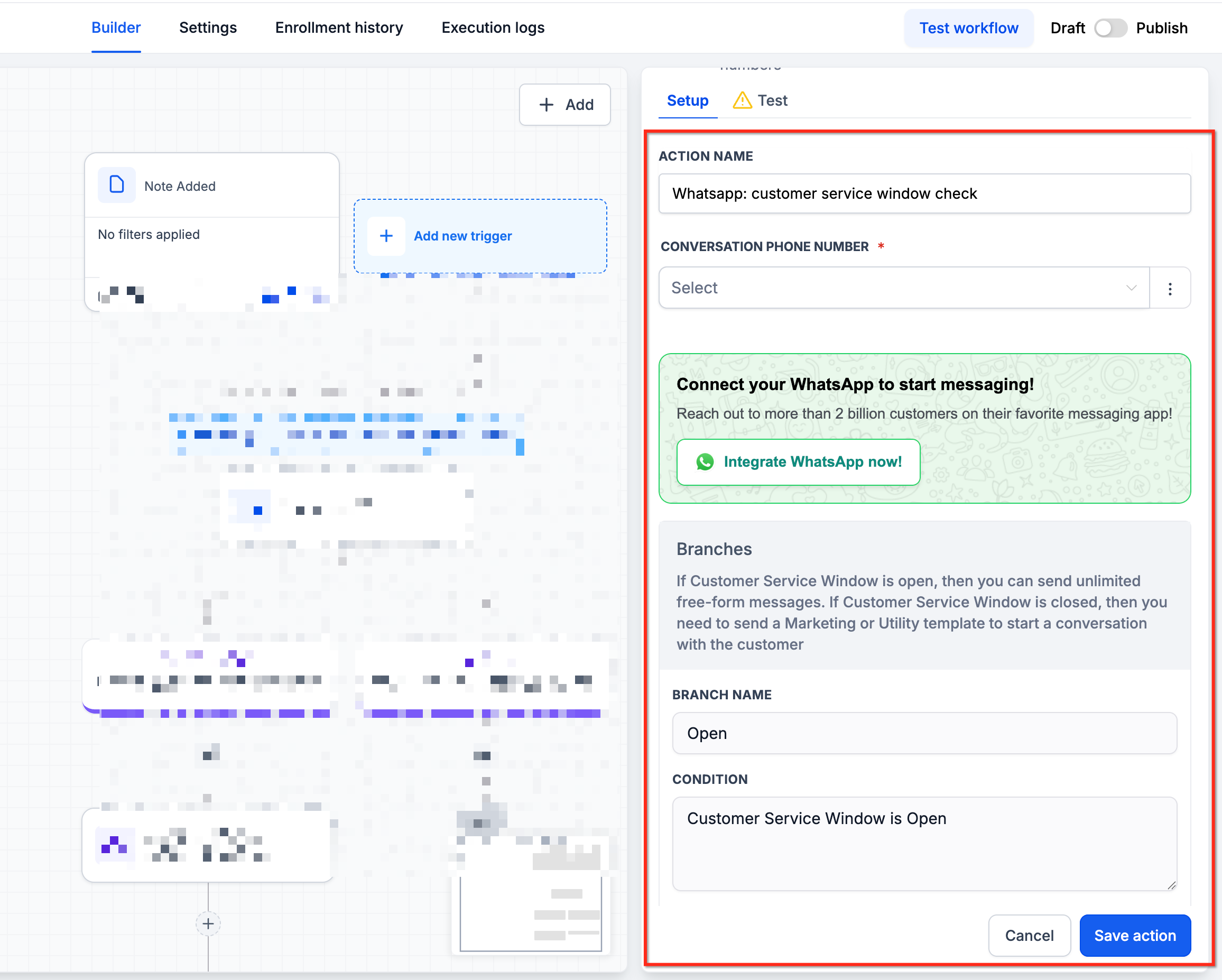
The action creates Open and Closed branches.
Step 3: Add the WhatsApp Media Action
Under the Open branch, click +.
Search for and select WhatsApp Media.
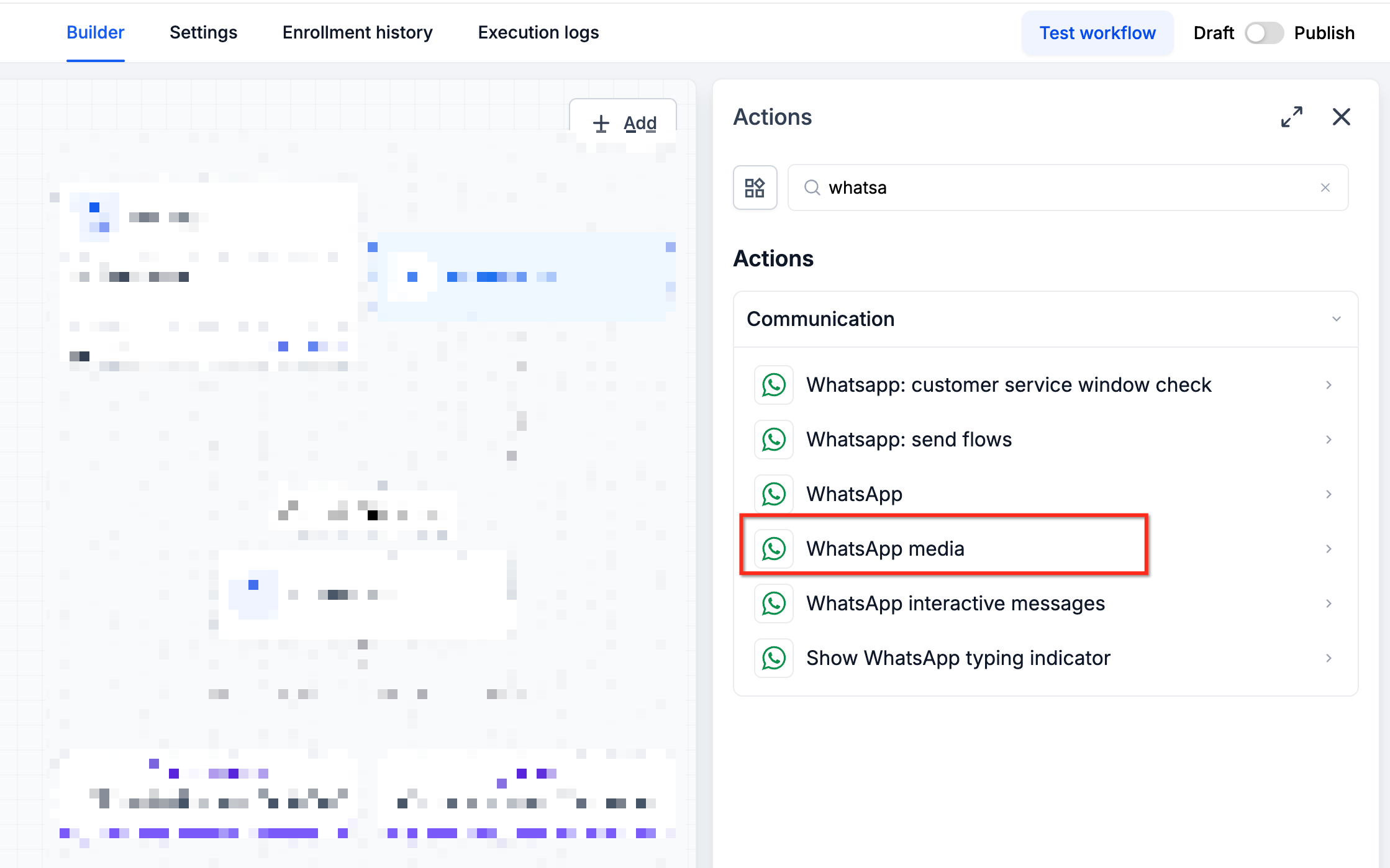
Choose the connected WhatsApp From Number.
Step 4: Configure the Media Message
Select the Media Type: Image, Video, Document, or Audio.
Upload a supported media file.
Add an optional caption for images, videos, or documents.
Click Save Action.
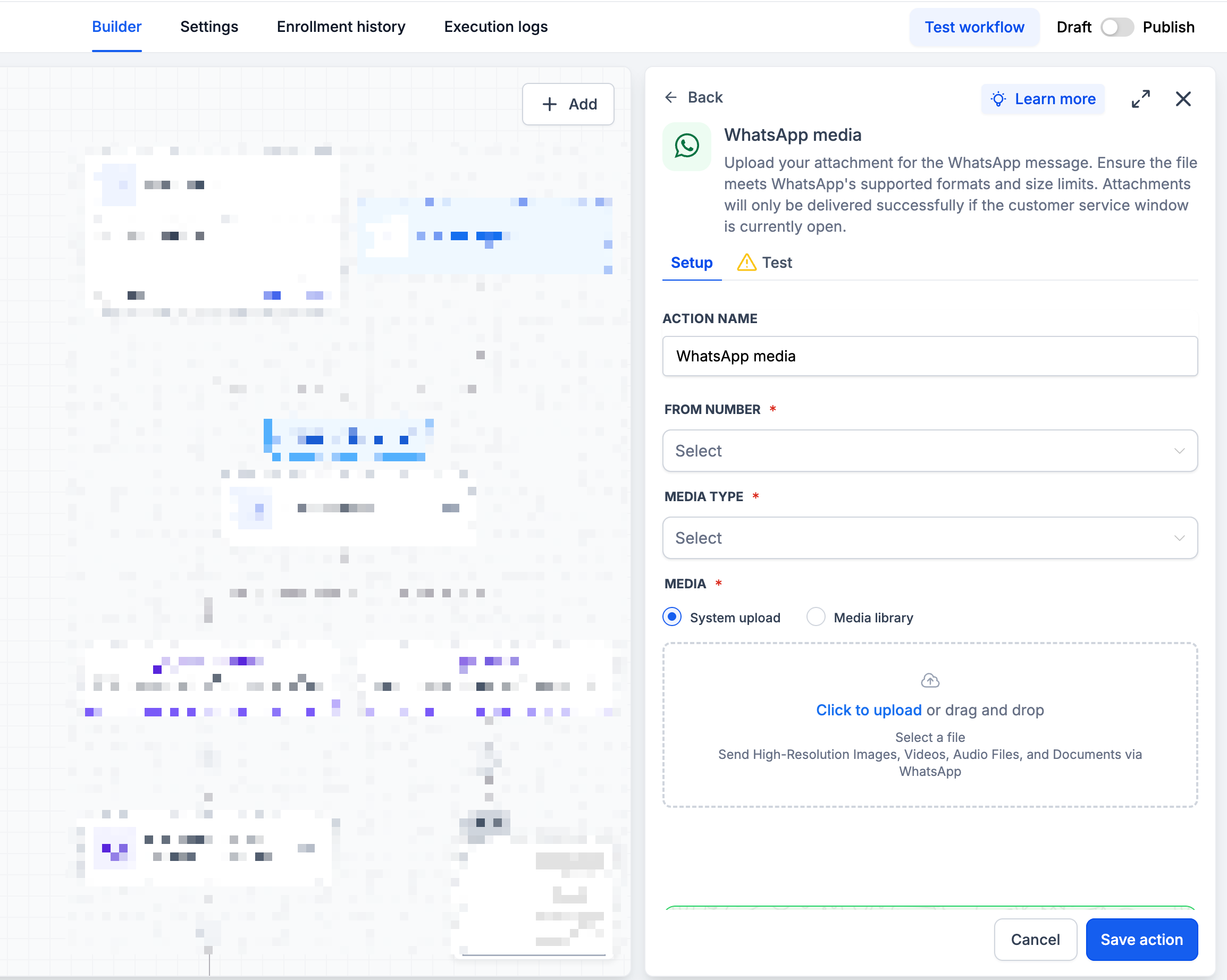
Note: Audio captions are ignored due to WhatsApp API restrictions.
Step 5: Save and Test the Workflow
Save and publish the workflow.
Test using a contact with an active WhatsApp customer service window.
Verify that the correct media file and supported caption are delivered.
Troubleshooting WhatsApp Media Messages
Media delivery may fail because of messaging restrictions or incompatible files. Checking the customer service window, sending number, and media requirements can help identify common issues.
| Issue | Recommended Solution |
|---|---|
| Media not delivered | Verify that the 24-hour window is open. |
| Unsupported file | Check the file type and size limits. |
| Missing audio caption | Audio captions are not supported. |
| Video upload failure | Verify supported video and audio encoding. |
| Media upload error 131053 | Check for invalid, corrupted, or oversized files. |
For additional information, see Error 131053 – Media Upload Error.
Frequently Asked Questions
Q: Can I send media outside the 24-hour customer service window?
No. Regular media messages require an open customer service window. Approved WhatsApp templates can be used outside that window.
Q: Can I add captions to audio messages?
No. WhatsApp does not support audio captions, and any caption text entered will be ignored.
Q: Do WhatsApp Media messages require template approval?
No. Regular media messages sent within an open customer service window do not require template approval.
Q: Can I use the WhatsApp Media Action with other workflow actions?
Yes. It can be combined with workflow triggers, conditions, and other supported actions to automate customer communication.
Related Articles
Was this article helpful?
That’s Great!
Thank you for your feedback
Sorry! We couldn't be helpful
Thank you for your feedback
Feedback sent
We appreciate your effort and will try to fix the article