Locations connected to their own Twilio account need the correct webhooks so Twilio can pass inbound calls, incoming messages, and call status updates to HighLevel.
Voice webhooks are configured on the individual Twilio phone number. Messaging can be configured directly on the number or through a linked Twilio Messaging Service, depending on the number's current configuration.
This guide provides the exact webhook endpoints, explains which messaging path to use, and includes troubleshooting steps for calls, messages, or status updates that do not appear correctly in HighLevel.
These instructions apply to locations using their own Twilio account. They do not apply to phone numbers managed through HighLevel's native LC Phone system.
If another application intentionally controls the phone number's existing webhooks, replacing those values can change how inbound traffic is routed. Confirm that the number should route calls and messages into HighLevel before replacing a custom webhook.
What is Twilio Webhook Configuration?
Twilio webhooks tell Twilio where to send events when someone calls or messages one of your Twilio phone numbers. Correct webhook configuration allows HighLevel to receive those events and display or process them inside the connected sub-account.
Voice configuration controls incoming calls and call status updates. Messaging configuration controls incoming SMS/MMS messages.
These settings are especially important after connecting an existing Twilio account, moving a number, changing a Messaging Service, or troubleshooting calls or texts that no longer appear correctly in HighLevel.
Key Benefits of Correct Webhook Configuration
Webhooks create the connection between Twilio and HighLevel for inbound communication. Correct configuration helps prevent missing calls, missing messages, and incomplete call-status information.
- Inbound Call Routing: Send incoming Twilio calls to HighLevel's voice endpoint.
- Incoming Message Delivery: Route inbound SMS/MMS activity into HighLevel.
- Call Status Synchronization: Send call-status events back to HighLevel using the dedicated call-status webhook.
- Messaging Service Support: Configure inbound messaging correctly when multiple numbers use a Twilio Messaging Service.
- Faster Troubleshooting: Separate voice, direct-number messaging, and Messaging Service configuration so the correct failure point can be identified quickly.
Before You Begin
Confirming the correct Twilio account, phone number, and messaging path before editing webhooks prevents configuration changes from being applied to the wrong client or number.
- Confirm the affected HighLevel location uses a connected Twilio account, not LC Phone.
- Log in to the Twilio account or subaccount that owns the phone number.
- Identify the exact phone number experiencing the issue.
- Confirm whether the phone number is attached to a Messaging Service.
- Do not replace webhook values belonging to another intentional integration unless the number should now route into HighLevel.
A2P 10DLC is separate from webhook configuration. Twilio may display A2P registration notices on the same screens. Completing webhook setup does not replace applicable A2P registration requirements.
Webhook Endpoints at a Glance
Each event type must point to the appropriate HighLevel endpoint. Copy these values exactly and use HTTP POST where specified.
| Event | Twilio Field | HighLevel Endpoint | Method |
|---|---|---|---|
| Incoming Call | A call comes in | https://services.leadconnectorhq.com/phone-system/voice-call/inbound | HTTP POST |
| Call Status Update | Call status changes | https://services.leadconnectorhq.com/appengine/twilio/incoming_call_status | HTTP POST |
| Incoming SMS/MMS | A message comes in / Messaging Service Request URL | https://services.leadconnectorhq.com/appengine/twilio/incoming_message | HTTP POST |
| Messaging Service Fallback | Fallback URL | https://services.leadconnectorhq.com/appengine/twilio/incoming_message | HTTP POST |
Do not mix the endpoints. The incoming-call URL, call-status URL, and incoming-message URL perform different functions.
Direct Number vs. Messaging Service
Incoming-message configuration depends on whether the Twilio number is using its own messaging webhook or belongs to a Messaging Service. Check the number's Active Configuration before changing messaging settings.
| Configuration | Where to Configure Incoming Messages |
|---|---|
| No Messaging Service linked | Configure the phone number's Messaging section directly. |
| Messaging Service linked | Open the linked Messaging Service and configure its Integration settings. |
Voice configuration is still managed on the individual phone number. A linked Messaging Service changes the messaging setup path, not the Voice Configuration steps below.
How to Set Up Twilio Webhooks for HighLevel
Configure voice first, then configure messaging using the path that applies to the phone number. Save each configuration before testing so Twilio uses the updated webhook values.
Step 1: Open the Twilio Phone Number
- Log in to the Twilio account or subaccount that owns the affected number.
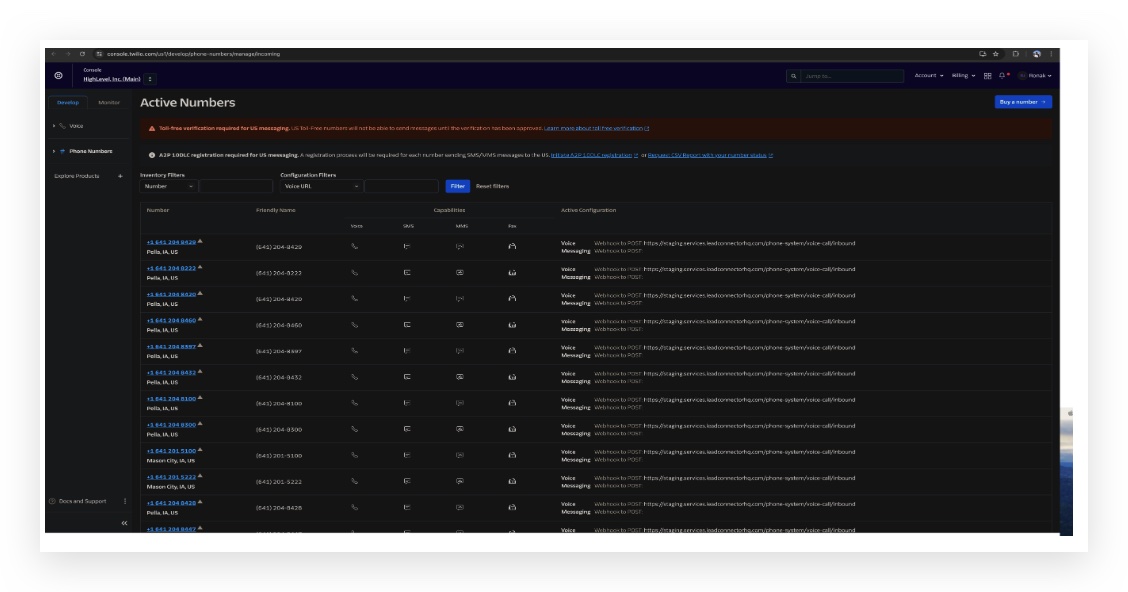
- Go to Phone Numbers → Manage → Active Numbers.
- Select the phone number you want to configure.
Step 2: Open the Number's Configure Tab
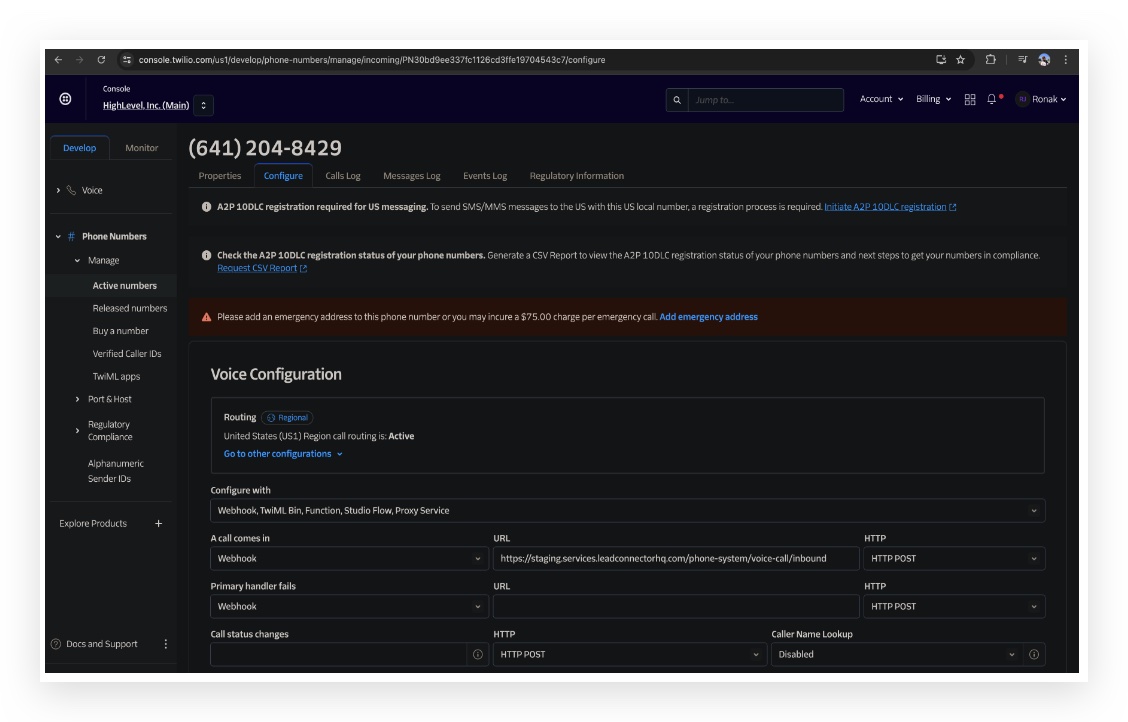
After selecting the phone number, open Configure. This page contains the routing, Voice Configuration, and Messaging configuration used for the number.
Step 3: Confirm US1 Voice Routing
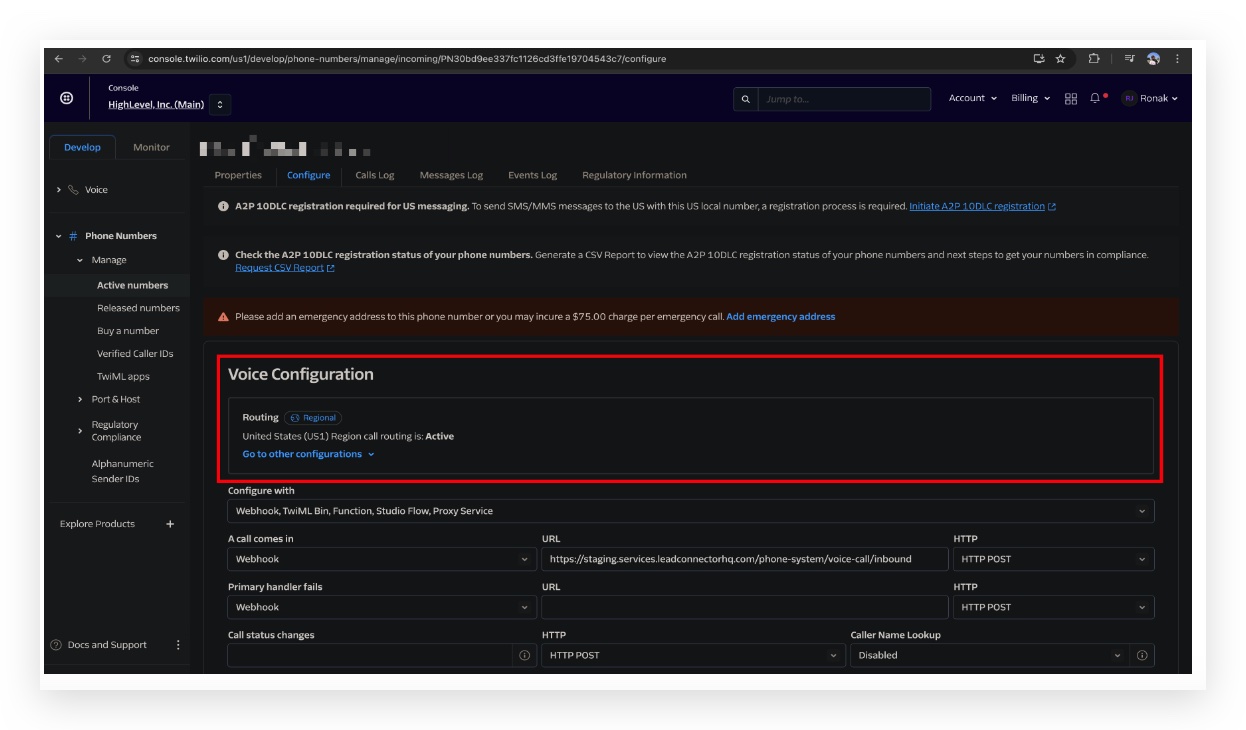
Under Voice Configuration, confirm the Routing area shows United States (US1) Region call routing is: Active. If US1 is not active, use Twilio's routing controls to update the configuration before continuing.
Step 4: Configure Incoming Calls and Call Status Updates
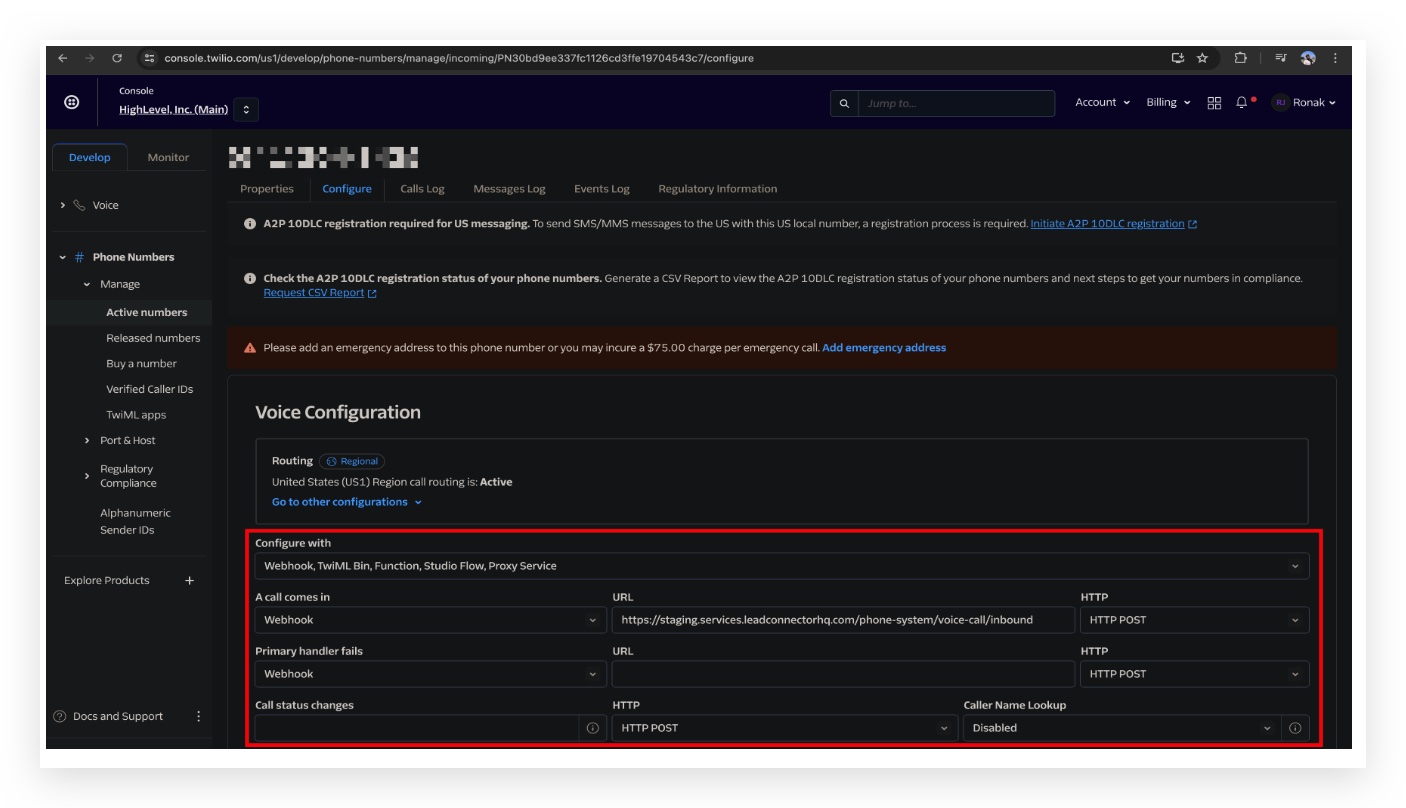
Voice Configuration needs two HighLevel endpoints: one for new inbound calls and one for subsequent call-status changes.
| Configure with | Webhook, TwiML Bin, Function, Studio Flow, Proxy Service |
| A call comes in | Webhook |
| Incoming Call URL | https://services.leadconnectorhq.com/phone-system/voice-call/inbound |
| HTTP | HTTP POST |
| Primary handler fails | No change required for this setup. |
| Call status changes URL | https://services.leadconnectorhq.com/appengine/twilio/incoming_call_status |
| Call Status HTTP | HTTP POST |
| Caller Name Lookup | Optional. Leave at your preferred setting. |
Save the phone-number configuration after entering the values.
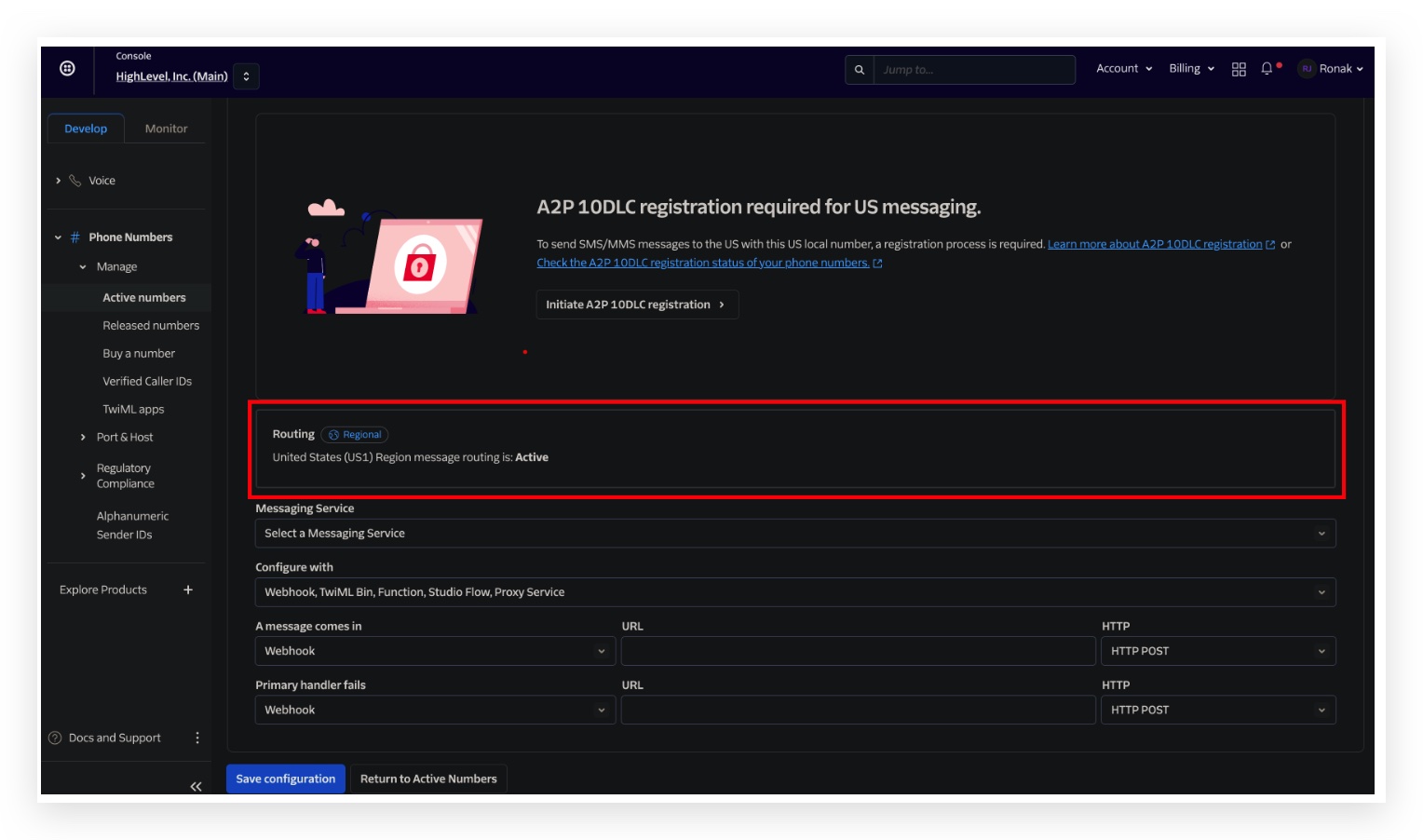
Step 5: Confirm US1 Messaging Routing
In the phone number's Messaging configuration, confirm United States (US1) Region message routing is: Active.
Step 6: Configure Incoming Messages
Use the path that matches the phone number's current Twilio configuration.
- Remain on the individual phone number's Configure page.
- Under Messaging, set Configure with to Webhook, TwiML Bin, Function, Studio Flow, Proxy Service.
- Set A message comes in to Webhook.
- Enter:
https://services.leadconnectorhq.com/appengine/twilio/incoming_message - Set the method to HTTP POST.
- Save the configuration.
If Active Configuration displays a linked Messaging Service, configure inbound messaging from that service instead of relying only on the number-level messaging field.
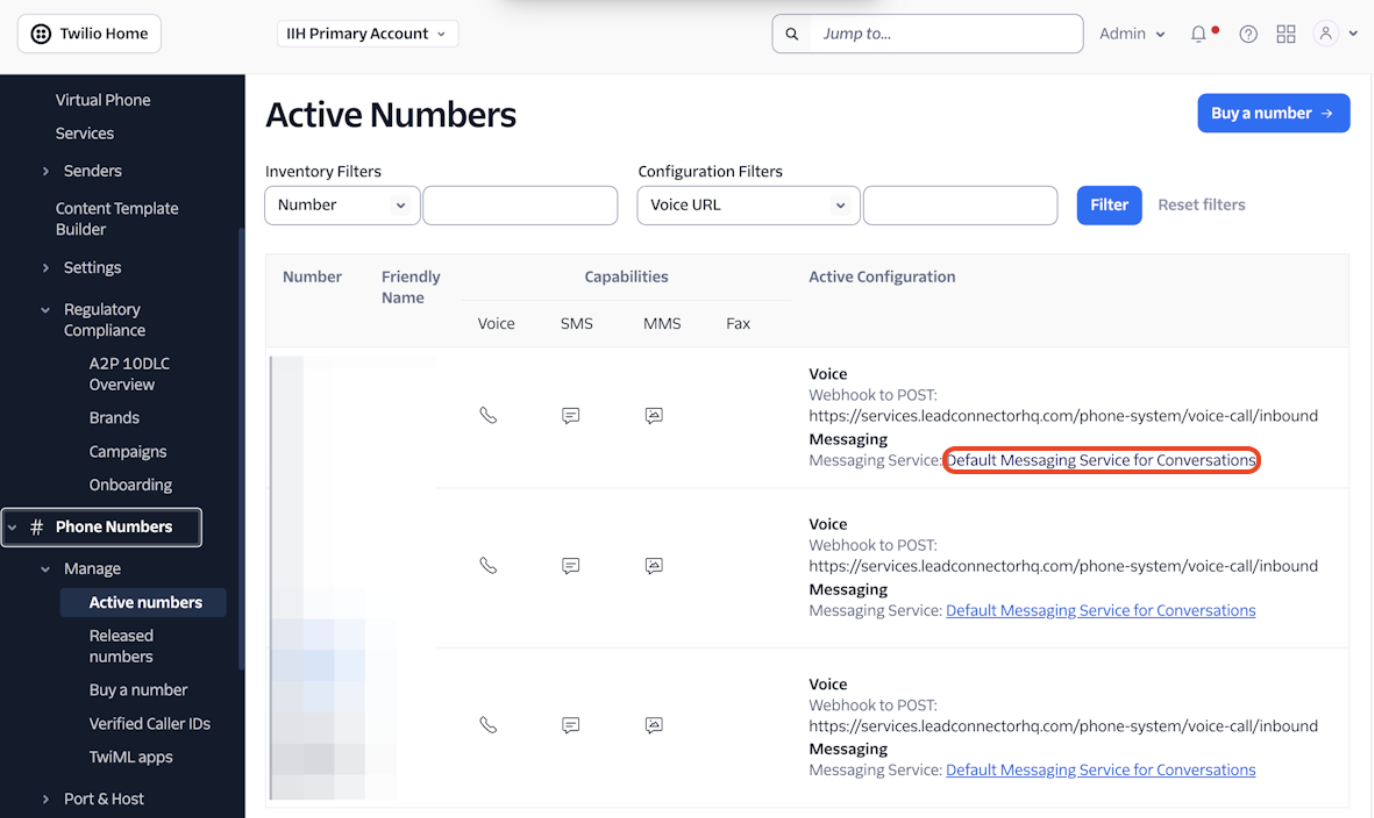
- From Active Numbers, click the linked Messaging Service.
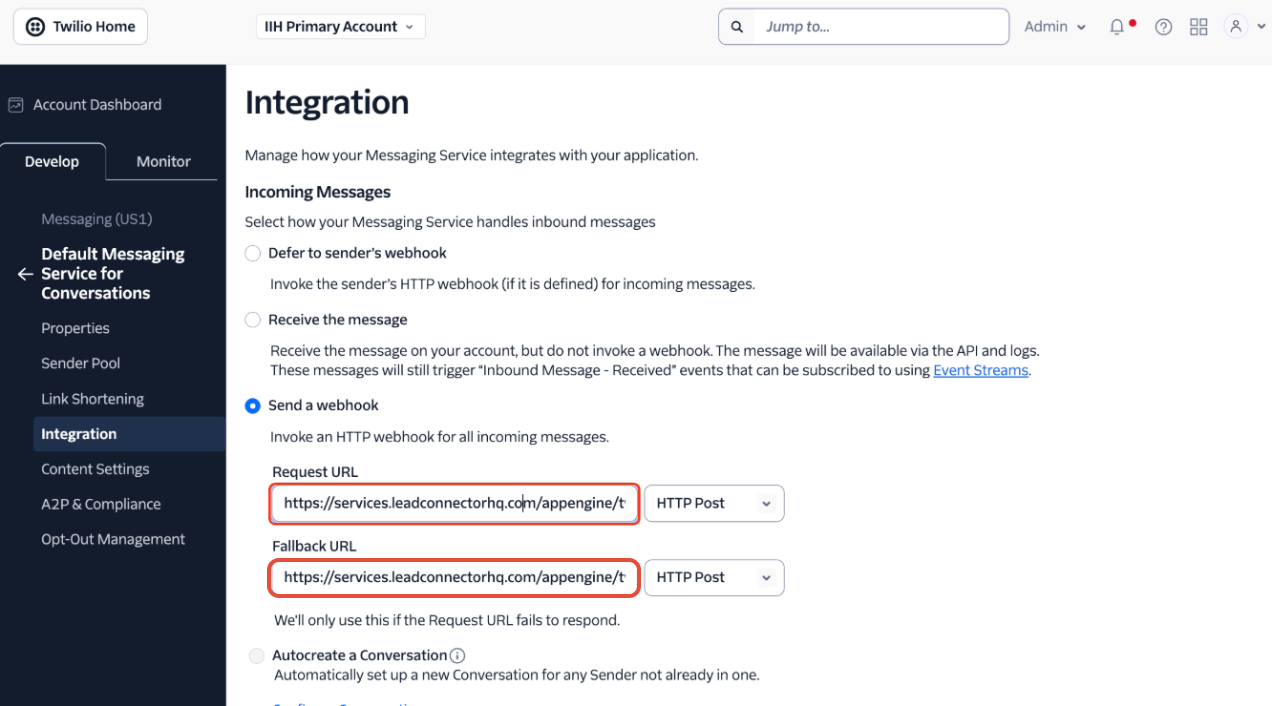
- Open Integration.
- Under Incoming Messages, select Send a webhook.
- Enter the following Request URL:
https://services.leadconnectorhq.com/appengine/twilio/incoming_message - Set the Request URL method to HTTP POST.
- Enter the same URL as the Fallback URL:
https://services.leadconnectorhq.com/appengine/twilio/incoming_message - Set the Fallback URL method to HTTP POST.
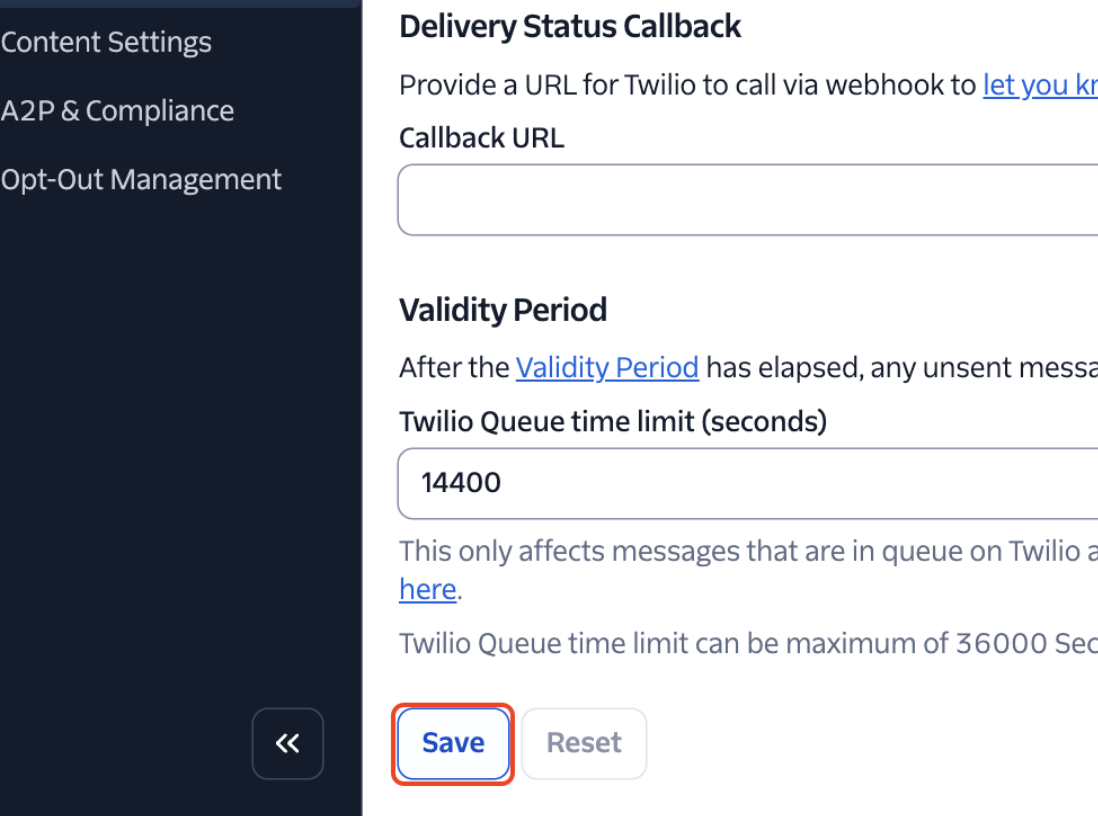
- Click Save.
The call-status callback configured earlier belongs to the phone number's Voice Configuration. Do not copy the call-status URL into the Messaging Service's Delivery Status Callback field.
Step 7: Test the Configuration
After saving the Twilio configuration, test each communication path separately so you can identify exactly which webhook is working or failing.
- Call the Twilio number from an external phone and confirm the incoming call reaches HighLevel.
- Send an SMS to the Twilio number and confirm the message appears in Conversations.
- Review the associated call activity in HighLevel to confirm call-status information is updating.
Troubleshooting Twilio Webhooks
Troubleshoot the event that is failing instead of changing every webhook at once. Voice, call status, and messaging use separate configuration fields, so one can fail while the others continue working.
Confirm the correct Twilio number is selected, US1 voice routing is active, A call comes in is set to Webhook, the incoming-call URL is exact, the method is HTTP POST, and the configuration has been saved.
Re-check the Call status changes URL and confirm it uses HTTP POST. The call-status endpoint is different from the inbound-call endpoint.
First determine whether the number is attached to a Messaging Service. If it is, check the service's Integration settings. If it is not, check the number-level messaging webhook. Also confirm the number supports SMS.
Review Twilio's Messaging Logs for the affected message. Confirm the message reached Twilio, note its status and Message SID, and use those details when escalating the issue.
If your Twilio account contains multiple subaccounts, confirm the affected phone number belongs to the same Twilio subaccount connected to the HighLevel location before changing webhooks.
Review whether another connected application or integration is managing the Twilio number. Repeatedly replacing webhooks without identifying the integration that owns them can cause routing conflicts.
Frequently Asked Questions
Was this article helpful?
That’s Great!
Thank you for your feedback
Sorry! We couldn't be helpful
Thank you for your feedback
Feedback sent
We appreciate your effort and will try to fix the article