Twilio provides tools to investigate messaging activity between Twilio and your application. If a message fails to go through, is delayed, or behaves unexpectedly, reviewing the Messaging Logs in Twilio should be your first step. These logs help you confirm delivery status, identify errors, and gather details for further troubleshooting.
How to Navigate to the Messaging Logs and Use Them
Step-by-Step Guide
Click Account (in the middle of the screen) → Subaccounts.
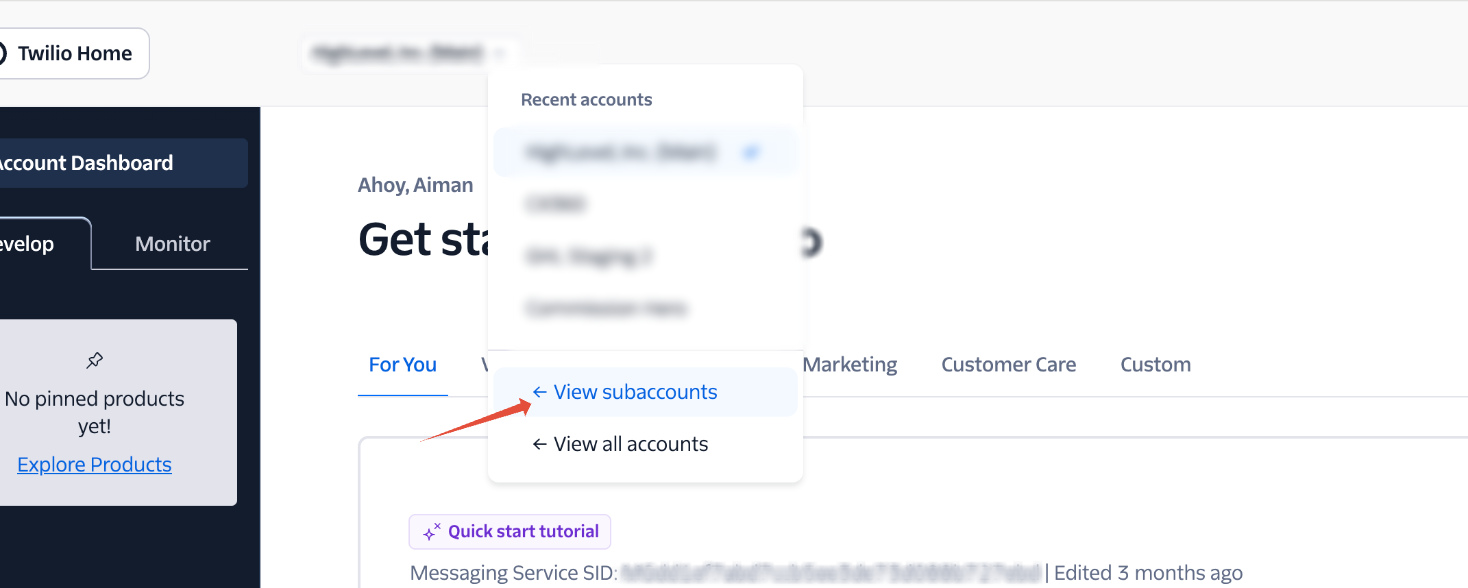
If there are too many subaccounts, go back to the platform and copy the Account SID for the location.
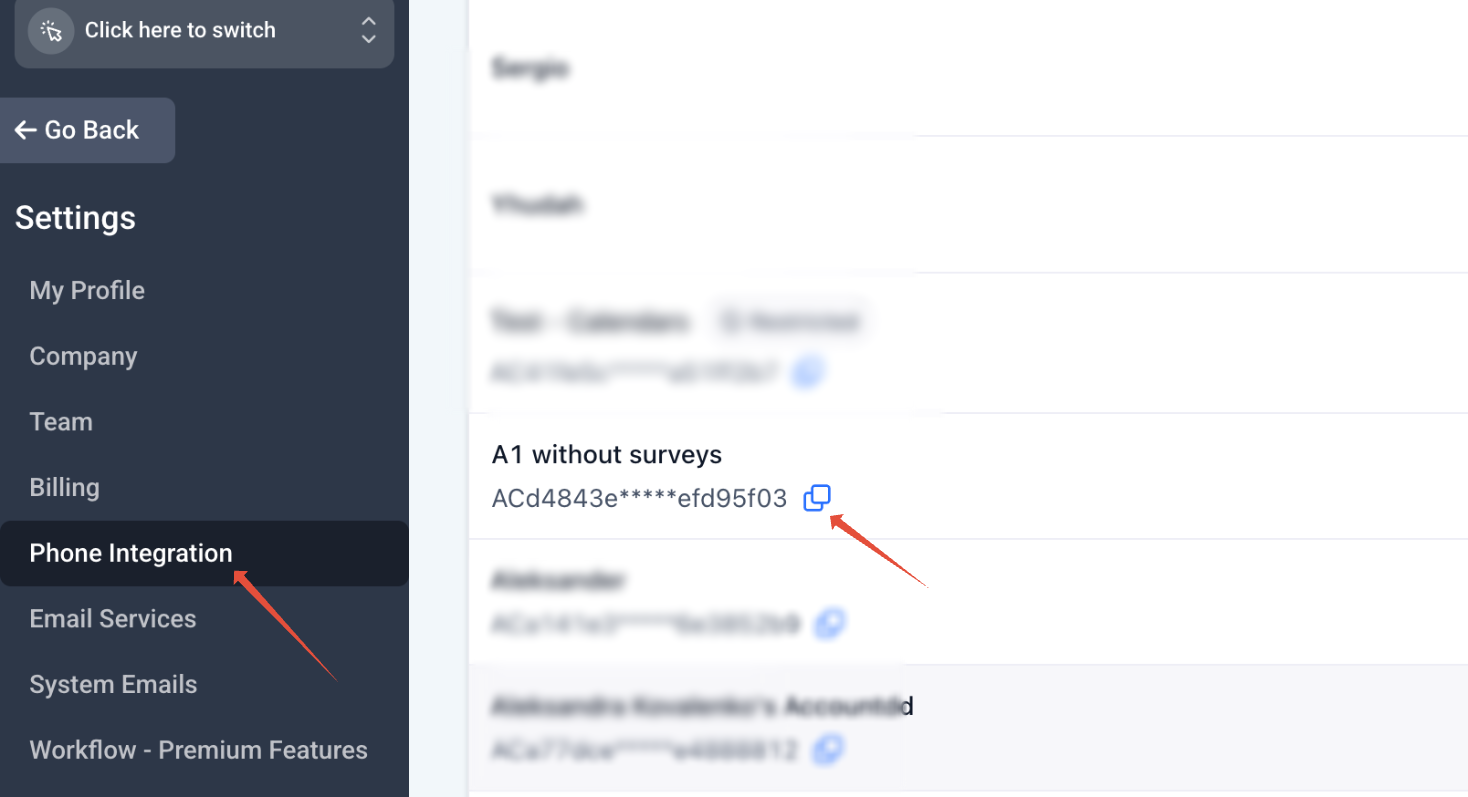
In Twilio, search for that Subaccount SID and open it.
Search based on the Twilio Subaccount SID in agency level settings → Twilio. Paste the Account SID here and click on it:

In the left panel: Monitor > Logs > Messaging.
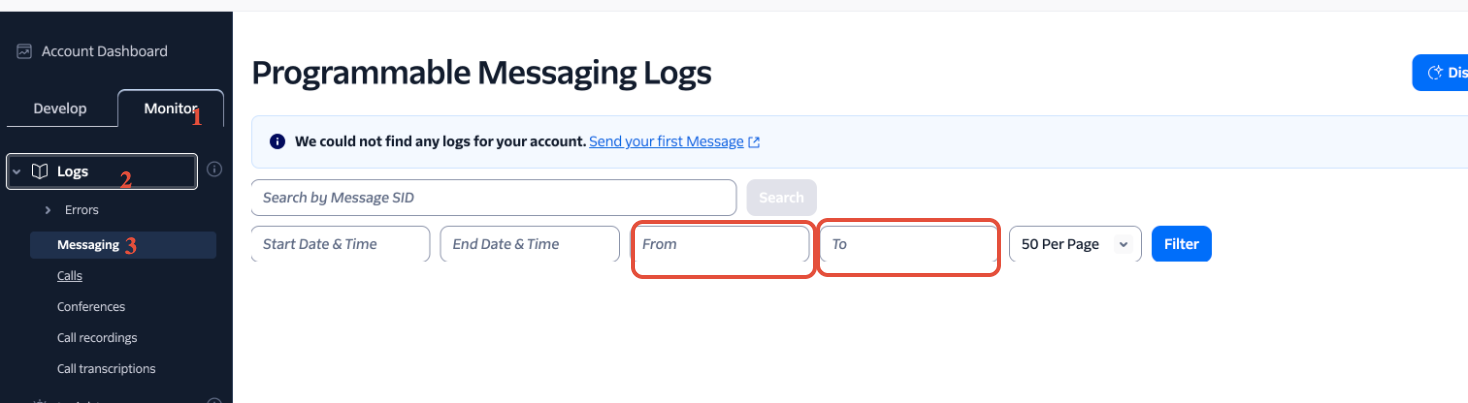
- Use the From field for incoming SMS sent by the contact.
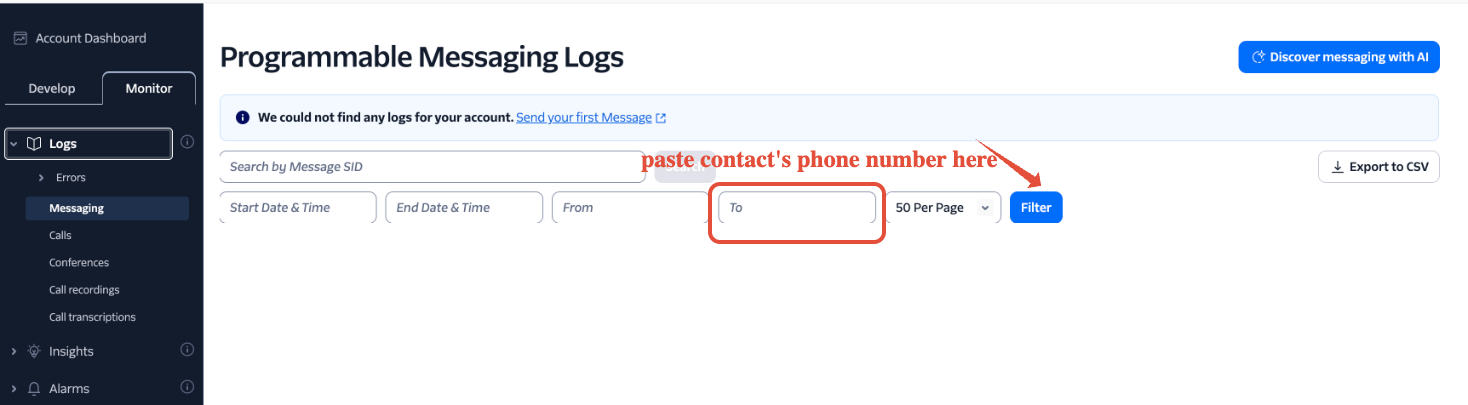
- Use the To field for outgoing SMS sent to the contact.
Enter the phone number in the format accepted by the Twilio Console.
Each log line shows:
- Message SID (unique identifier).
- TO and FROM numbers.
- Status (accepted, delivered, failed, etc.).
- Segments (number of parts if the SMS was split).
- Media (if MMS was attached).
Logs highlight issues:
- Yellow or red rows indicate failed or problematic messages.
- Green (200 status) indicates success. Green or successful request statuses indicate that the related Twilio request was processed successfully. For message delivery, always review the message's actual Status and any associated error code.

If Twilio shows the message as Delivered but the recipient did not receive it, copy the Message SID, recipient number, timestamp, and message status. Use these details when contacting Twilio Support so they can investigate the carrier-side delivery.
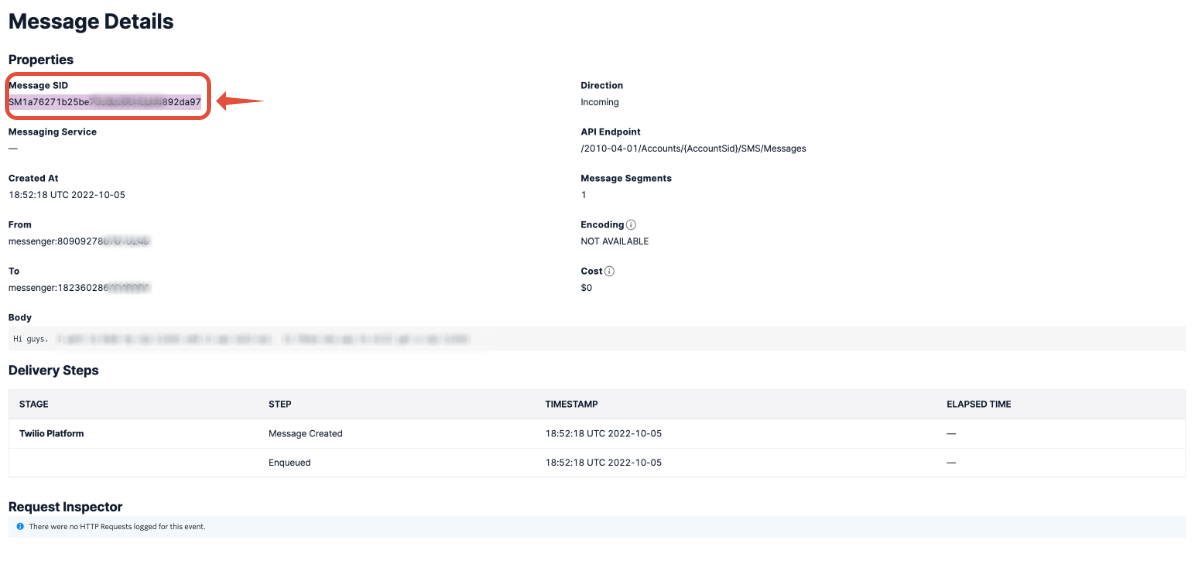
Click the hyperlinked date to see full details, including:
- Delivery Steps: request creation, queue time, carrier handoff.
- Request Inspector: requests/responses between Twilio and your app.
- Errors: color-coded statuses (e.g.,
404if a webhook endpoint is missing).
Hovering over records will preview message content.
In the detailed view of the message log, you can find the Message SID (Twilio's unique identifier for this message), as well as the time the resource was created, TO and FROM numbers, Delivery Steps, and the Request Inspector.
The Delivery Steps section of this log will show you when the request was created, how long it was queued on Twilio's platform, and when it was sent out to our carrier partner for delivery. These factors can help you determine where an undelivered message failed, or investigate latency issues.

The request inspector shows all requests and responses made when sending or receiving this message. You can easily see errors on requests by the color-coded status on the right of a request.

In the above response, we can see that we received a 404 response because Twilio was unable to find the tunnel for the webhook we set up for messages.
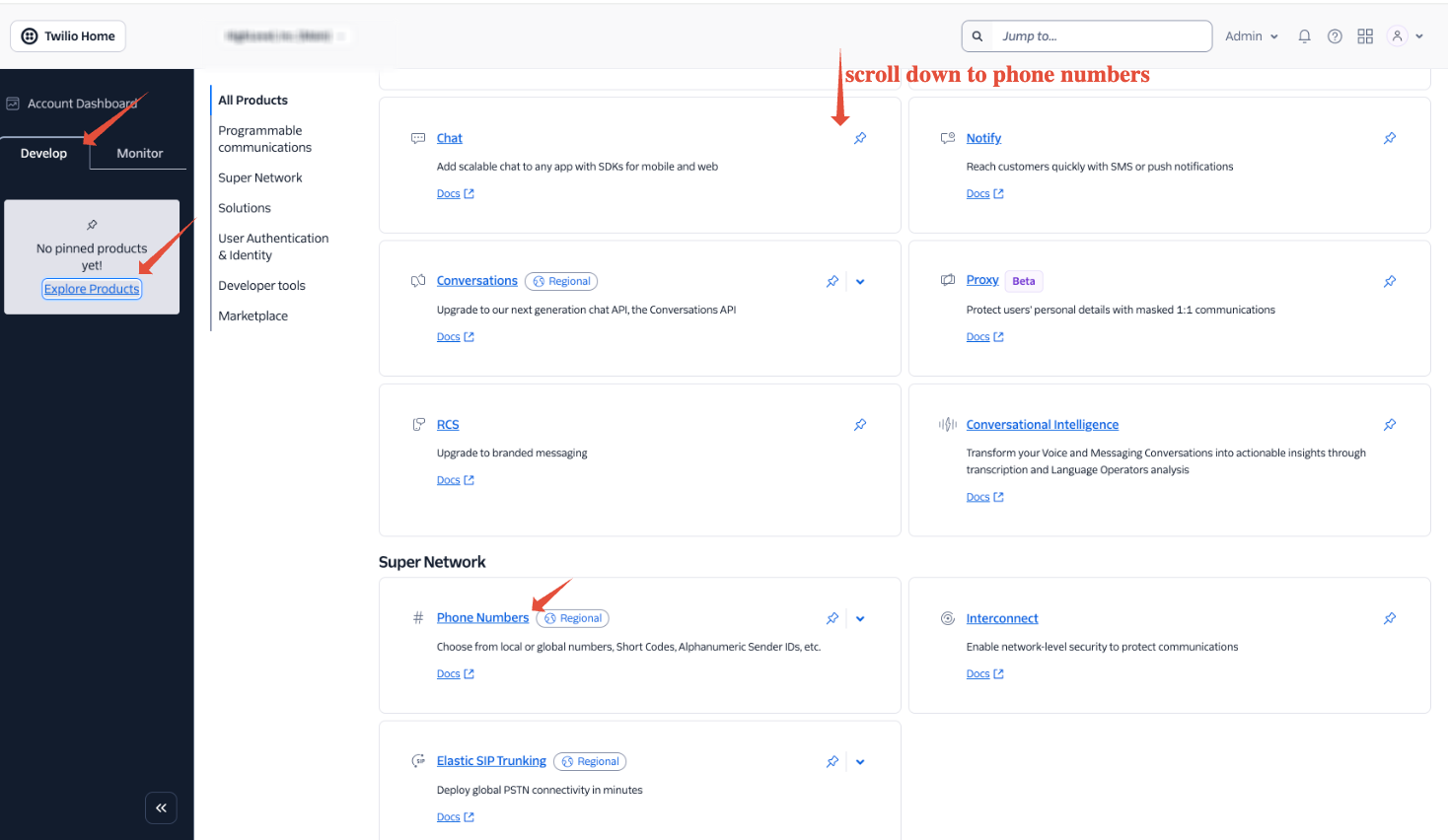
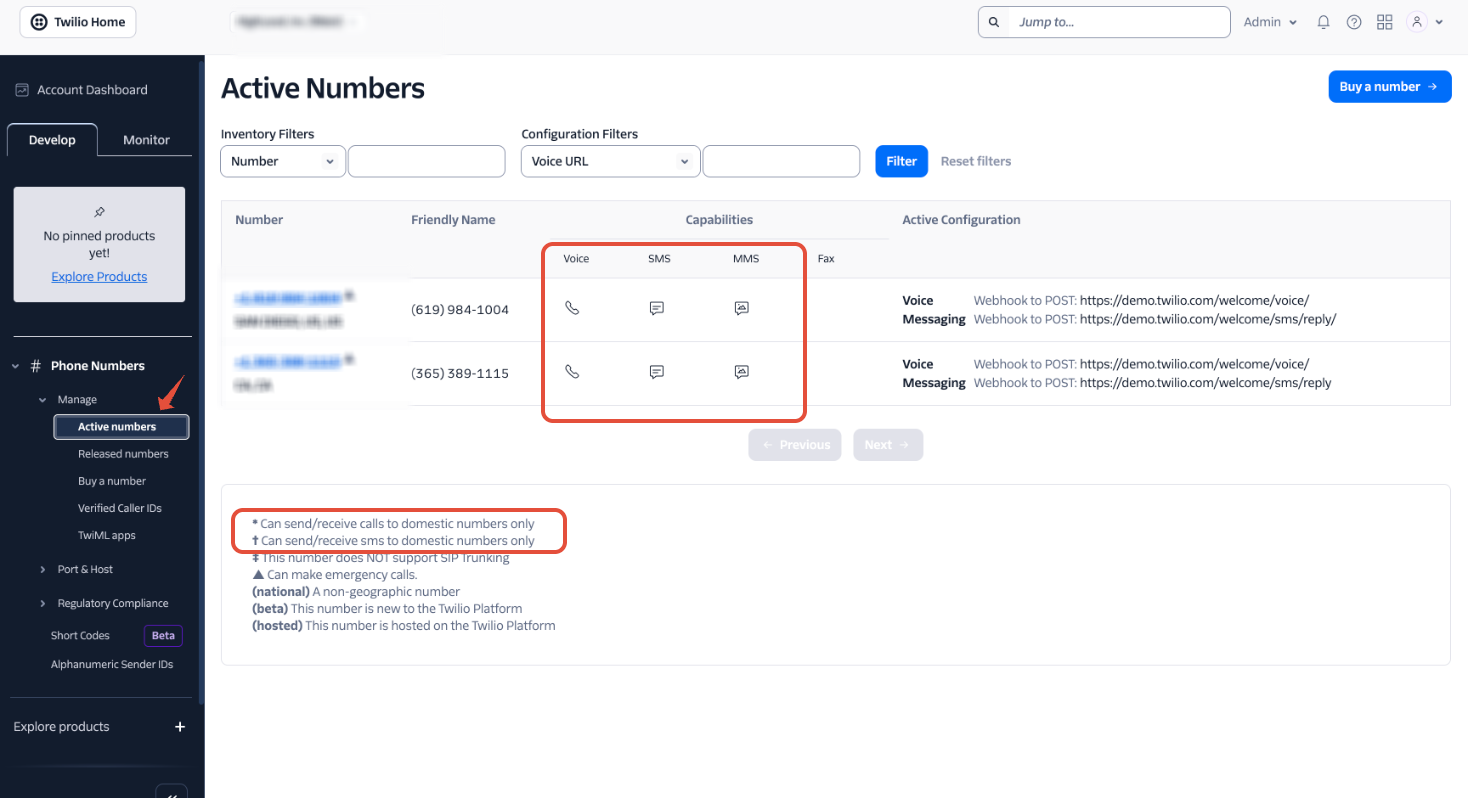
Check MMS Capability of a Twilio Number
Go to Explore Products → scroll down → Phone Numbers.
Check if the number has MMS capabilities, or if the number can send/receive SMS to domestic numbers only.
Frequently Asked Questions
Was this article helpful?
That’s Great!
Thank you for your feedback
Sorry! We couldn't be helpful
Thank you for your feedback
Feedback sent
We appreciate your effort and will try to fix the article