Call Scripts provide reusable talking points and conversation guidance that agents can view directly during live calls in supported HighLevel dialers. This article explains how to create and manage Call Scripts at the sub-account level and how agents can open and follow a script from the Web Dialer, HighLevel Mobile App, or LeadConnector Mobile App.
Note: This feature is available in HighLevel Web Dialer, HighLevel App Dialer and Lead Connector App.
TABLE OF CONTENTS
- What are Call Scripts?
- Key Benefits of Call Scripts
- How to Create and Use Call Scripts in Web & App Dialers
- What You Can Add to a Call Script
- How to Use Call Scripts in the Web & App Dialers
- Frequently Asked Questions
- Related Articles
What are Call Scripts?
Call Scripts provide on-demand conversation guidance that agents can view while speaking with a contact. Scripts can contain approved talk tracks, discovery questions, qualification criteria, objection-handling guidance, or compliance language so agents can stay consistent without switching tabs or searching for external notes.
Key Benefits of Call Scripts
Call Scripts enhance your team’s performance by providing clear, repeatable talk tracks that support effective communication and faster ramp-up times.
- Keep messaging consistent: Give agents repeatable talk tracks for common conversations.
- Support faster onboarding: Help new team members follow approved discovery and qualification processes.
- Reduce context switching: Keep guidance visible inside the dialer instead of requiring external notes or documents.
- Improve call structure: Help agents cover important questions, objections, and next steps consistently.
- Support compliance: Provide approved language agents can reference during relevant calls.
How to Create and Use Call Scripts in Web & App Dialers
Creating Call Scripts is a straightforward process designed to integrate guided call support into your existing workflow. Follow these steps to ensure your agents can access the right script at the right time:
1. Login to your sub-account and click on Settings.
2. Navigate to Phone Systems and click on Voice. 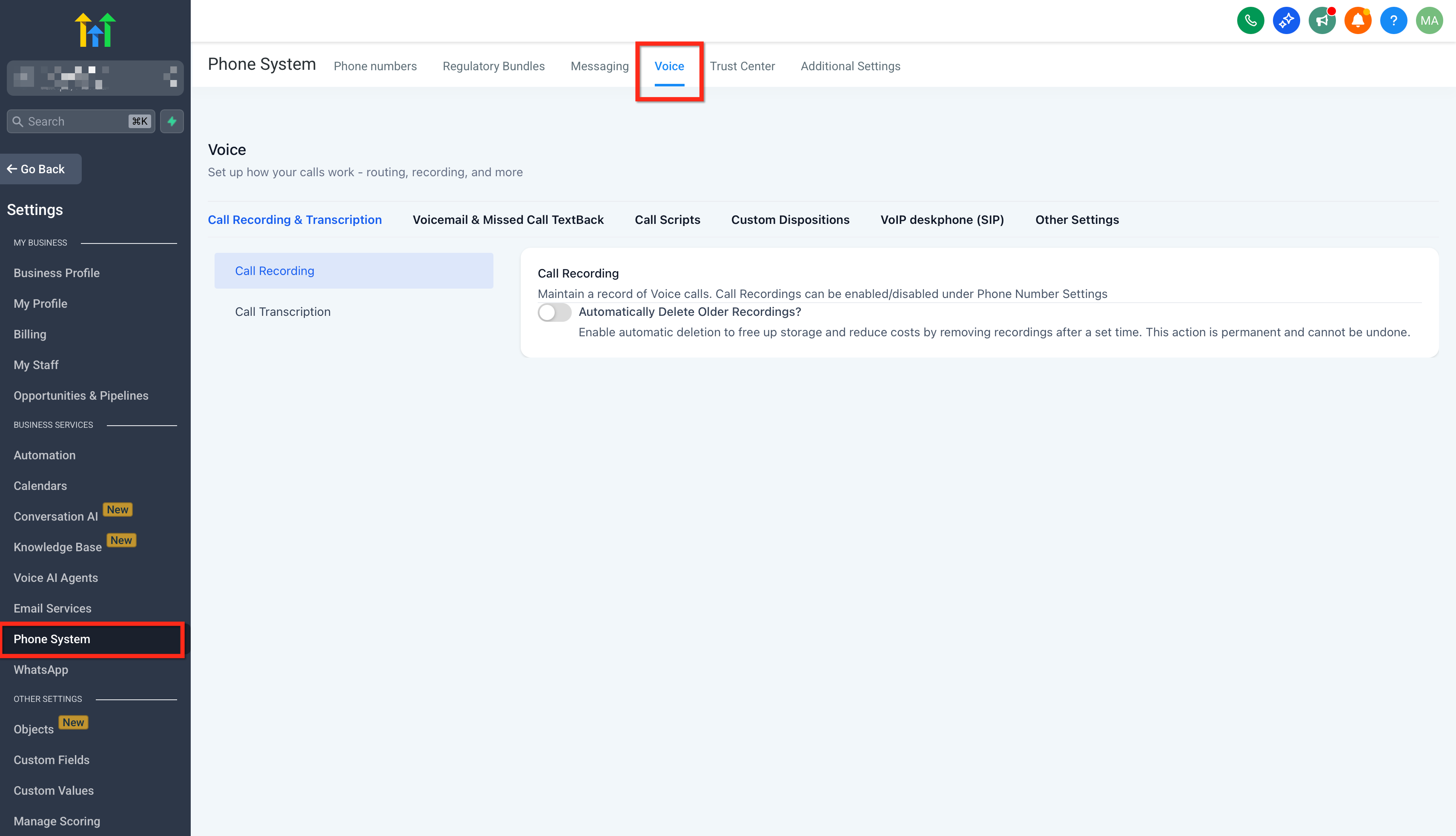
3. Click on Call Scripts and then on Add Scripts button.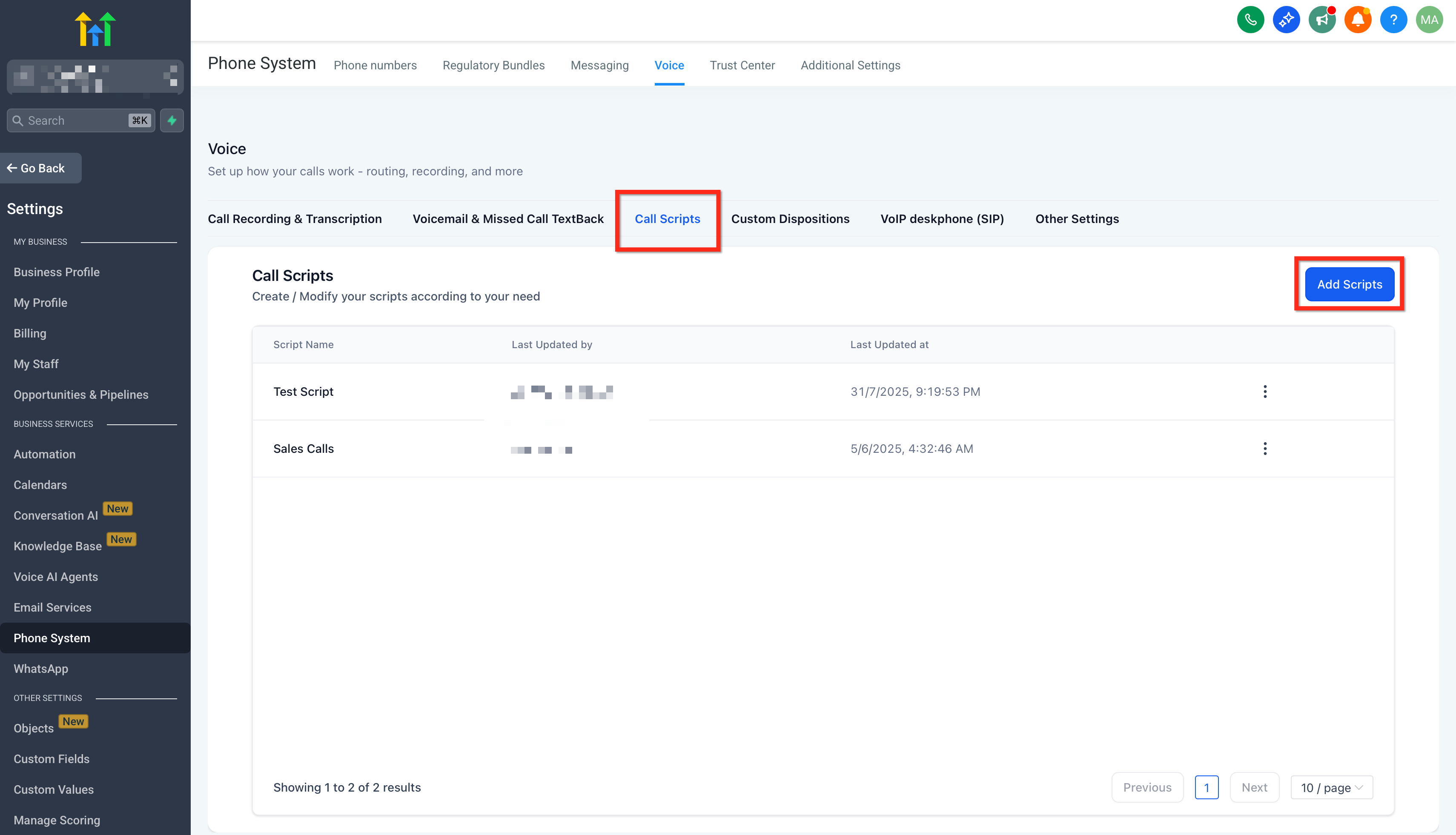
4. Create a new call script by inputting your preferred content and click on Save.
What You Can Add to a Call Script
Call Scripts currently support plain text. Use them for content such as:
- Opening statements
- Discovery questions
- Qualification criteria
- Objection-handling responses
- Required disclosures
- Closing or next-step prompts
Note: Rich-text formatting and clickable hyperlinks are not currently supported.
How to Use Call Scripts in the Web & App Dialers
Agents can access Call Scripts during live calls from directly within the Dialers, keeping the entire workflow in one place. This ensures conversations remain focused and consistent, without the need to open new tabs or refer to external documents.
Once a Call Script is available to you, you can open it directly from a supported dialer during an active call.
Steps to Use Call Scripts:
- Start or answer a call using the HighLevel Web Dialer, HighLevel Mobile App, or LeadConnector Mobile App.
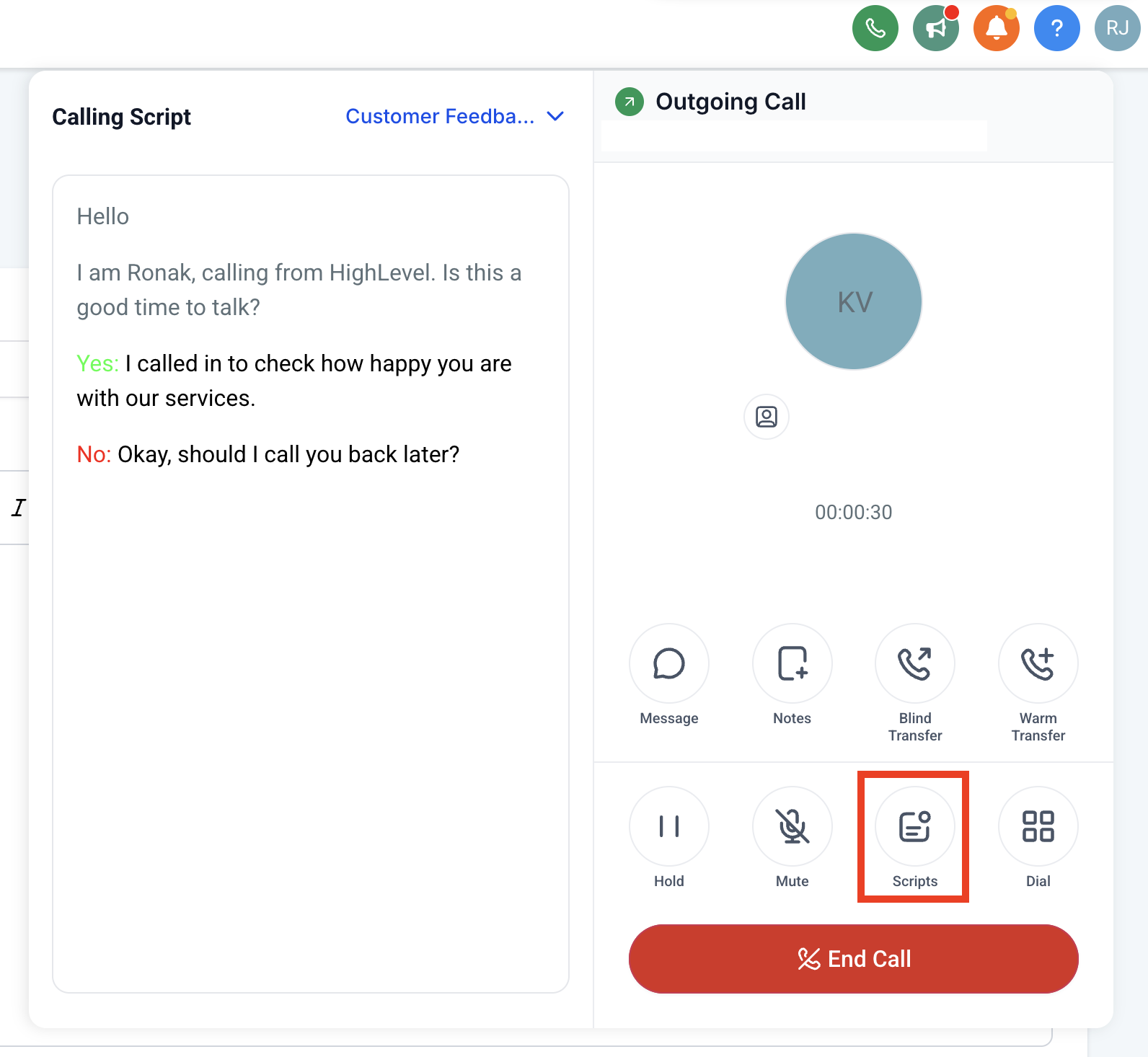
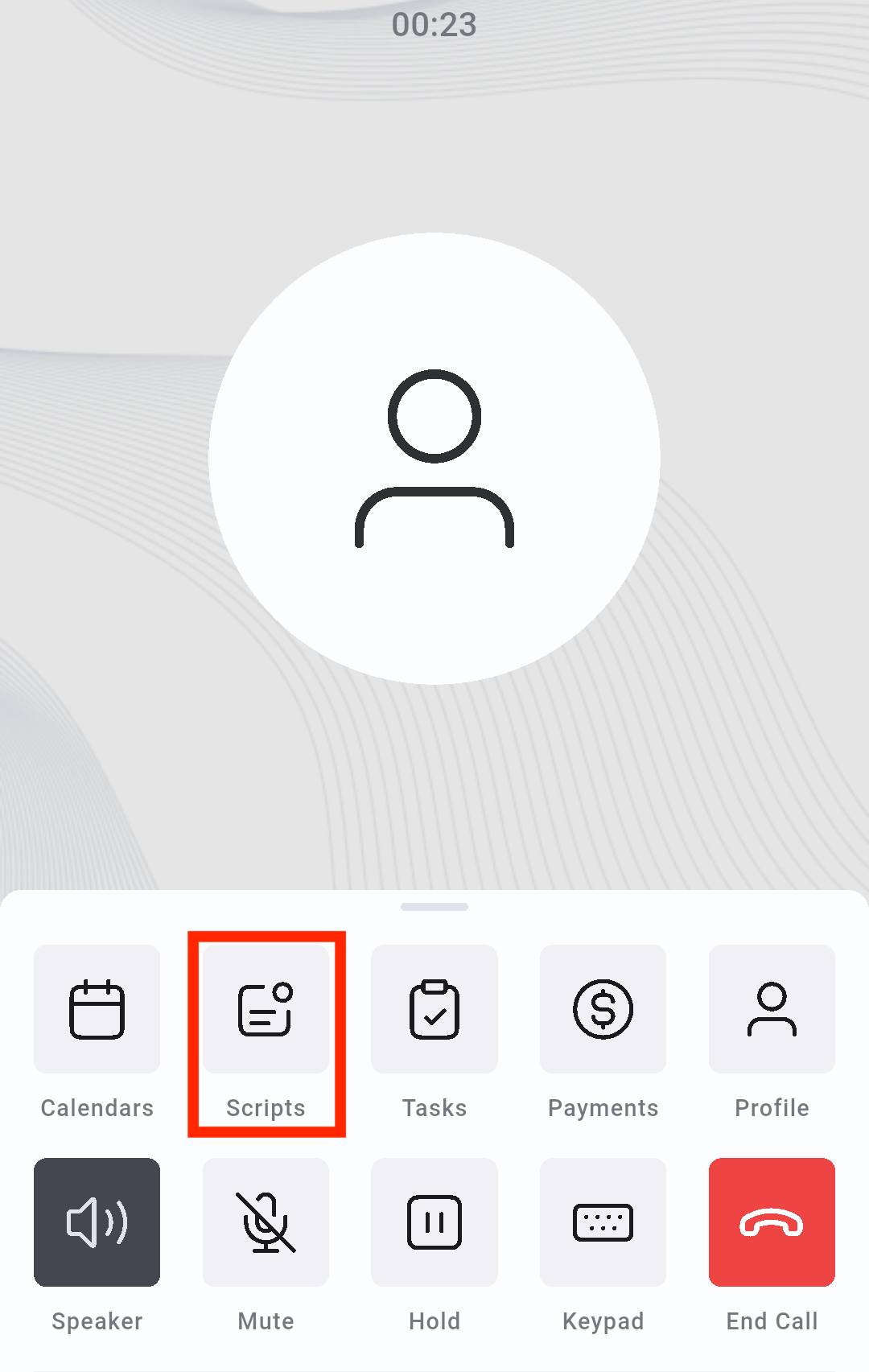
- During the active call, click or tap Scripts.
- Web Dialer
- App Dialer
- Web Dialer
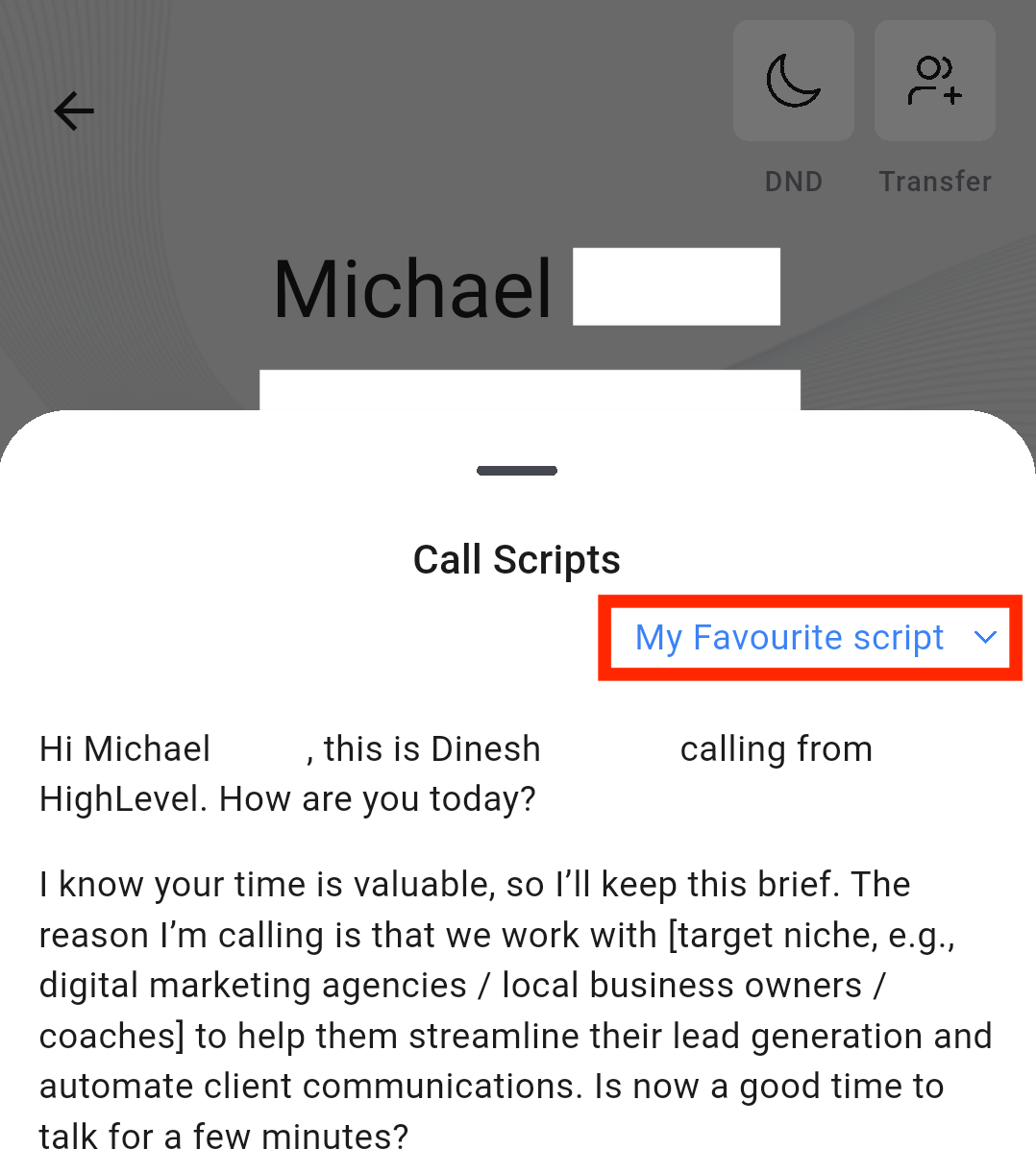
- Select the Call Script you want to use.
- Web Dialer
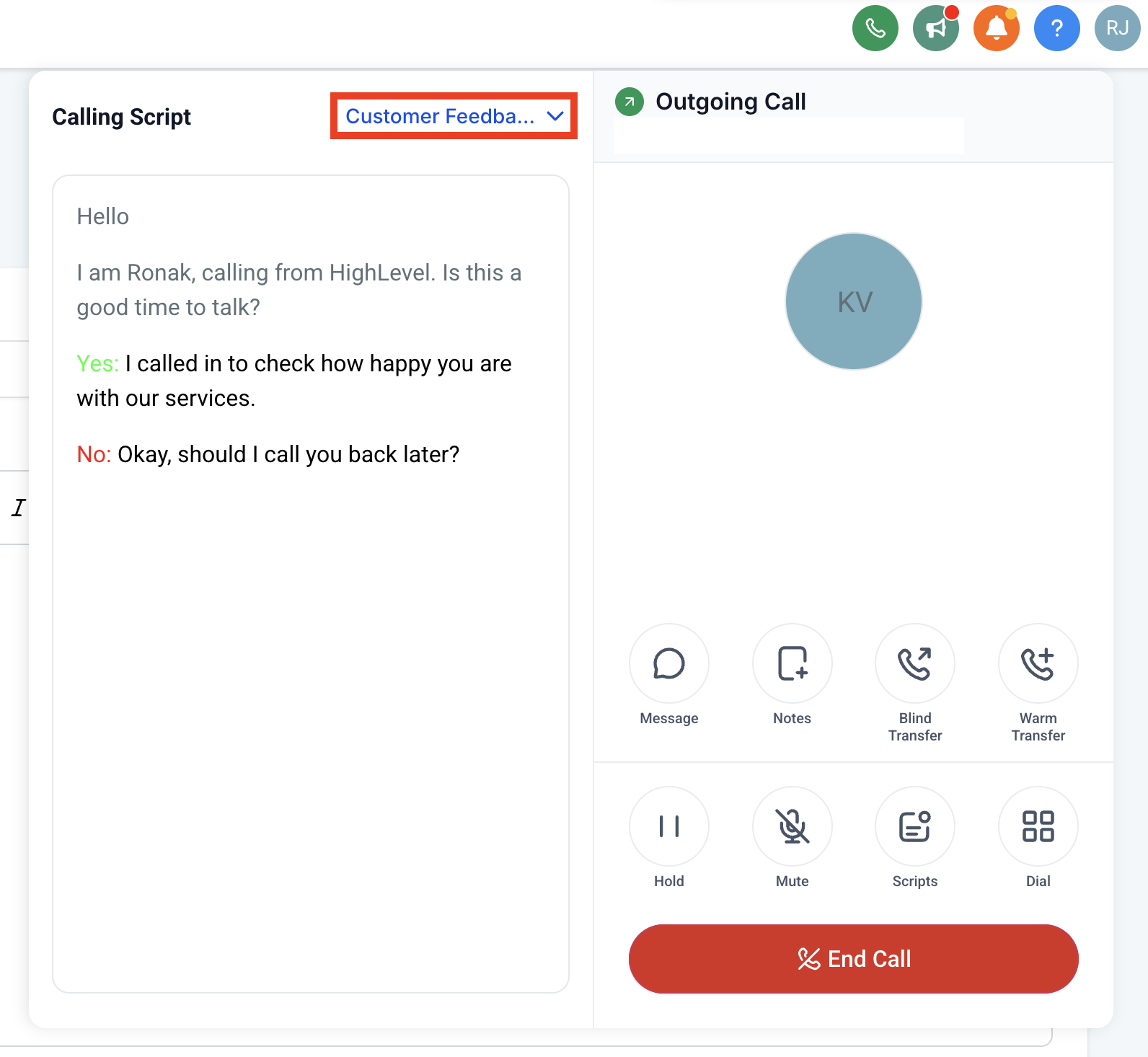
- App Dialer
- Web Dialer
- Review and follow the script while speaking with the contact. Switch scripts if another available script is more appropriate for the conversation.
Note: Opening or switching a Call Script does not affect the active call.
Frequently Asked Questions
Q. Why don't I see Call Scripts in the mobile app?
Make sure you're using the latest available version of the HighLevel or LeadConnector mobile app. If the option still isn't available, verify that a script has been created and is available to your user.
Q: Can call scripts be edited after they are created?
Yes, call scripts can be updated at any time from the web interface to refine your conversation guidance.
Q: Is the call script feature available for white labelled apps?
Yes, although updates for white labelled apps must be requested separately.
Q. Who can access a Call Script?
Call Scripts can be configured at the sub-account level and, where supported, assigned to specific users or teams. Users only see scripts available to them during supported calls.
Q: Can I format text or add links in call scripts?
At this time, Call Scripts support plain text only. Rich formatting and hyperlinks are not supported.
Q. When do edits to a Call Script become available?
Saved updates are reflected when users next open or reload the script in a supported dialer.
Q. Are Call Scripts the same as Manual Call actions?
No. A Call Script provides guidance during a live call. A Manual Call workflow action creates a call task for a user under Conversations → Manual Actions. You can use both together—for example, a workflow can create the call task and the agent can reference a Call Script while completing it.
Related Articles
Was this article helpful?
That’s Great!
Thank you for your feedback
Sorry! We couldn't be helpful
Thank you for your feedback
Feedback sent
We appreciate your effort and will try to fix the article