Ask AI can now create short cinematic videos and natural-sounding voiceovers directly from a conversation in HighLevel. You can control video duration, orientation, visual direction, image-based start and end frames, voice selection, pacing, and delivery without moving between separate creation tools.
Generated video and audio render directly in Ask AI so you can review the result before deciding what to do next. Video assets can also be saved to the Media Library for reuse across supported HighLevel workflows.
TABLE OF CONTENTS
- What is Ask AI Video and Audio Generation?
- Video Generation
- Start and End Frames
- Keeping On-Screen Text Clear
- Directing Camera Movement, Lighting, and Style
- 4K Video Generation
- Audio and Voiceover Generation
- Directing Voice Tone, Pace, and Emotion
- Longer Scripts and Audio Formats
- Brand Boards and Branded Video Workflows
- Saving Generated Video to the Media Library
- How Use Ask AI for Video and Audio Generation
- Frequently Asked Questions
- Related Articles
What is Ask AI Video and Audio Generation?
Ask AI video and audio generation expands Ask AI beyond text and image creation by letting you turn natural-language instructions into playable media. Video generation is designed for short-form promotional and creative content, while audio generation turns scripts into voiceovers with selectable voices and directable delivery.
With Ask AI, you can:
Generate 4, 6, or 8 second video clips.
Create landscape or vertical video.
Generate video at resolutions up to 4K.
Include a native synchronized audio track with generated video.
Animate previously generated images using start and end frames.
Preserve important on-screen copy by generating the text as an image before animating it.
Direct camera movement, lighting, visual style, and unwanted elements through prompts.
Turn scripts into voiceovers using one of ten voices.
Control voice tone, pacing, emotion, and playback speed.
Export generated audio as MP3, WAV, OPUS, or AAC.
Review video and audio directly inside the Ask AI conversation.
Important: Ask AI Voice Mode and Ask AI audio generation serve different purposes. Voice Mode lets you speak with Ask AI, while audio generation creates reusable voiceover content from a script. For details about conversational voice interaction, see How to Use Ask AI Voice Mode.
Video Generation
Ask AI video generation is intended for short-form creative assets such as promotional clips, product moments, social content, and branded visual sequences. Giving Ask AI specific information about the subject, shot, movement, duration, orientation, and desired style helps the generated video better match your intended use.
Video generation supports:
Duration: 4, 6, or 8 seconds
Orientation: Landscape or vertical
Resolution: Up to 4K
Audio: Native synchronized audio track
Prompt direction: Camera movement, lighting, visual style, and scene details
Negative prompts: Instructions describing elements or artifacts you do not want included
For example, you could prompt Ask AI with:
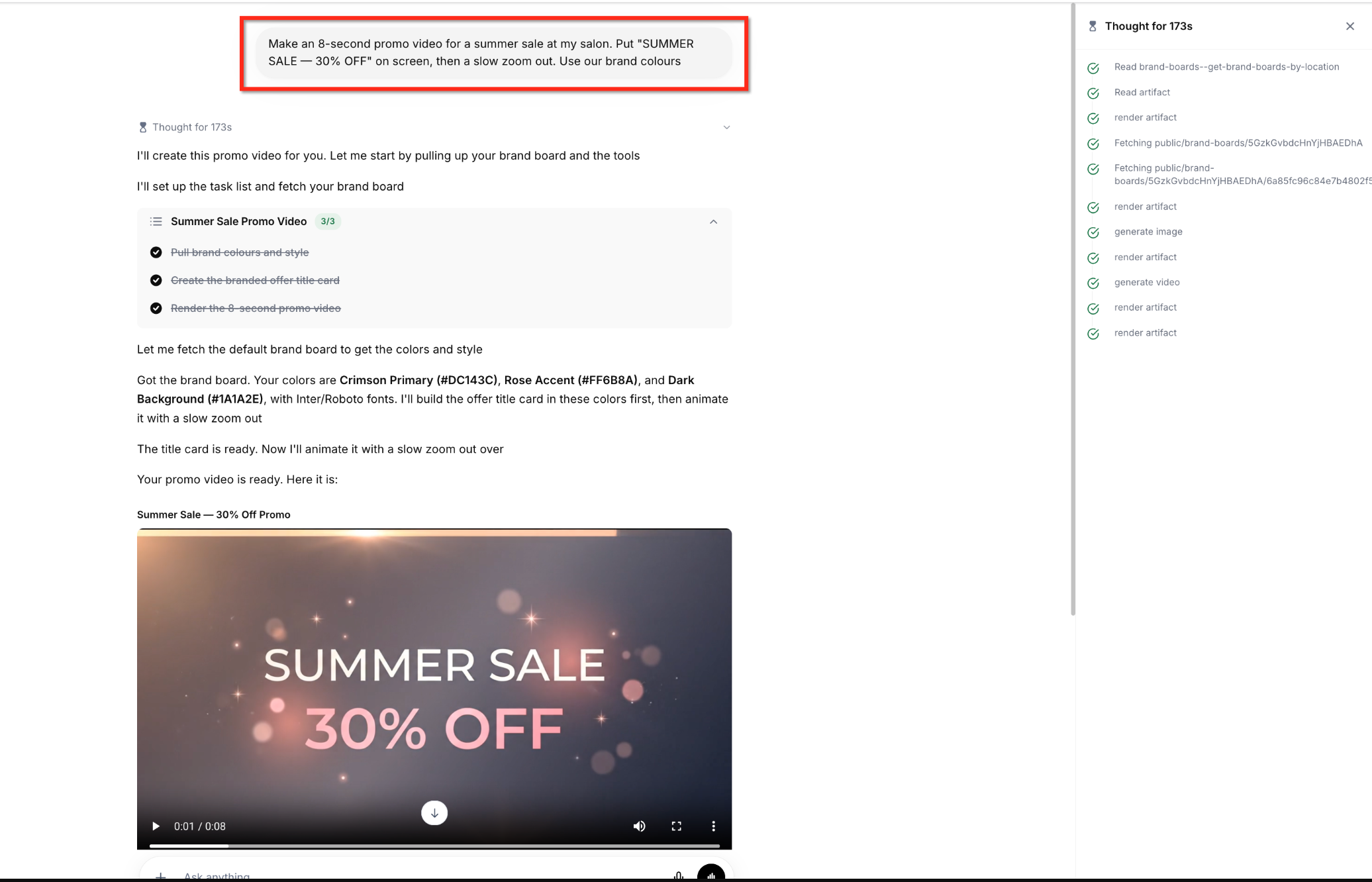
Make an 8-second summer sale promo video for my salon. Put “SUMMER SALE — 30% OFF” on screen and use a slow zoom out.
Ask AI can interpret the creative direction, prepare the required assets, generate the video, and return the completed clip as an inline player.
Start and End Frames
Start and end frames let you anchor a generated video to images that already represent the visual you want. This is especially useful when you need the video to begin with an established product image, finish on a call-to-action card, or animate between two designed states.
You can use generated images as visual references in several ways:
Begin the clip from a chosen image.
End the clip on a chosen image.
Provide both a start and an end image so the video transitions between them.
Animate an existing product shot into a promotional or call-to-action visual.
If you need to create or refine the source image first, see How to Generate and Edit Images Using Ask AI.
Keeping On-Screen Text Clear
Readable text is particularly important in ads, promotions, offers, and call-to-action scenes. Because video-generation models redraw the scene across frames, text generated directly inside a moving video can otherwise change shape, wobble, or become difficult to read.
Ask AI addresses this by generating the required text as an image first and then animating that visual. This helps the copy remain sharper and more consistent throughout the clip.
For stronger results, include the exact wording you want in your prompt and clearly identify which text should remain on screen.
Example:
Create an 8-second vertical promo with “BOOK TODAY — 20% OFF” visible from the first frame. Keep the text centered and readable while the camera slowly pulls back.
Directing Camera Movement, Lighting, and Style
Detailed creative direction gives Ask AI more information about how the scene should feel and move. Rather than describing only the subject, you can specify the type of shot, movement, lighting, atmosphere, and aesthetic you want.
Useful prompt details can include:
Slow zoom in or zoom out
Static camera
Product-focused close-up
Soft studio lighting
Golden-hour lighting
Cinematic or minimal styling
Bright commercial look
Luxury or editorial mood
Specific environmental details
You can also include a negative prompt to identify unwanted visual elements or artifacts. This gives the generation model additional guidance about what should not appear in the finished clip.
4K Video Generation
Higher-resolution video can provide more detail for workflows where visual quality is especially important, but it also requires more processing time. Ask AI therefore asks for confirmation before committing to the highest-resolution generation.
When choosing a resolution, consider the final destination of the clip. A social post may not always require the same output resolution as a video intended for a larger display or higher-quality production workflow.
Audio and Voiceover Generation
Ask AI audio generation turns a written script into a natural voiceover that can be reviewed directly in the conversation. Instead of selecting a voice automatically, Ask AI asks which available voice you want before generating the recording.
Audio generation supports:
Ten selectable voices
Direction for tone, emotion, pacing, and performance
Speed adjustment from 0.25x to 4x
Scripts up to 4,000 characters per take
Section-based generation for longer scripts
MP3, WAV, OPUS, and AAC export formats
Inline audio playback in Ask AI
A voiceover prompt can include both the script and performance direction.
For example:
Record this as a warm and upbeat product demo. Keep the delivery conversational and confident, with a slightly faster pace.
Directing Voice Tone, Pace, and Emotion
The written script determines what the voice says, while delivery instructions help define how the recording should sound. Providing performance guidance can make a voiceover better suited to its intended audience and context.
You can describe delivery using instructions such as:
Warm and upbeat
Calm and reassuring
Deep and authoritative
Friendly and conversational
Energetic and promotional
Slow and deliberate
Excited but natural
Speed can be adjusted from 0.25x to 4x, giving you additional control over the pacing of the recording.
Longer Scripts and Audio Formats
Longer narration often works better when it is divided into manageable sections. Ask AI supports up to 4,000 characters per take and can split longer material into sections, with each section rendered as its own audio player.
Available export formats are:
MP3
WAV
OPUS
AAC
The best format depends on where you intend to use the finished recording. Compatibility can vary between HighLevel products, so review the destination's supported file requirements before relying on a specific format. See Media Storage & File Upload Limits for additional file compatibility information.
Brand Boards and Branded Video Workflows
Brand Boards centralize visual elements such as logos, colors, and typography so they can be reused across supported HighLevel experiences. When creating branded media, having this information configured can give Ask AI useful visual context for the requested creative.
The supplied workflow example shows Ask AI retrieving Brand Board colors and styling before generating a promotional video. A Brand Board should not be treated as a requirement for every video-generation request unless the workflow specifically depends on established brand assets.
To configure your visual brand information, see How to Create a Brand Board.
Saving Generated Video to the Media Library
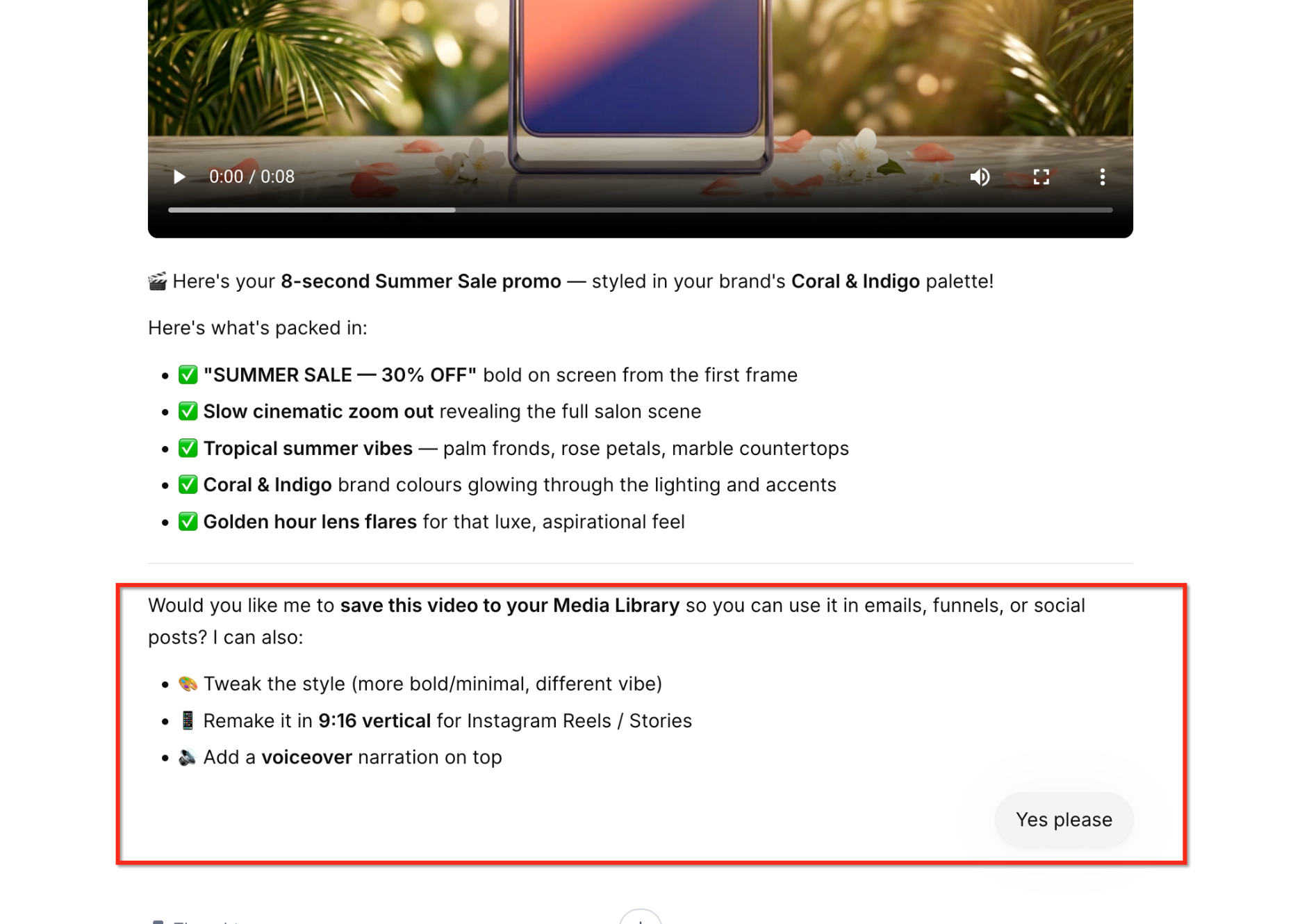
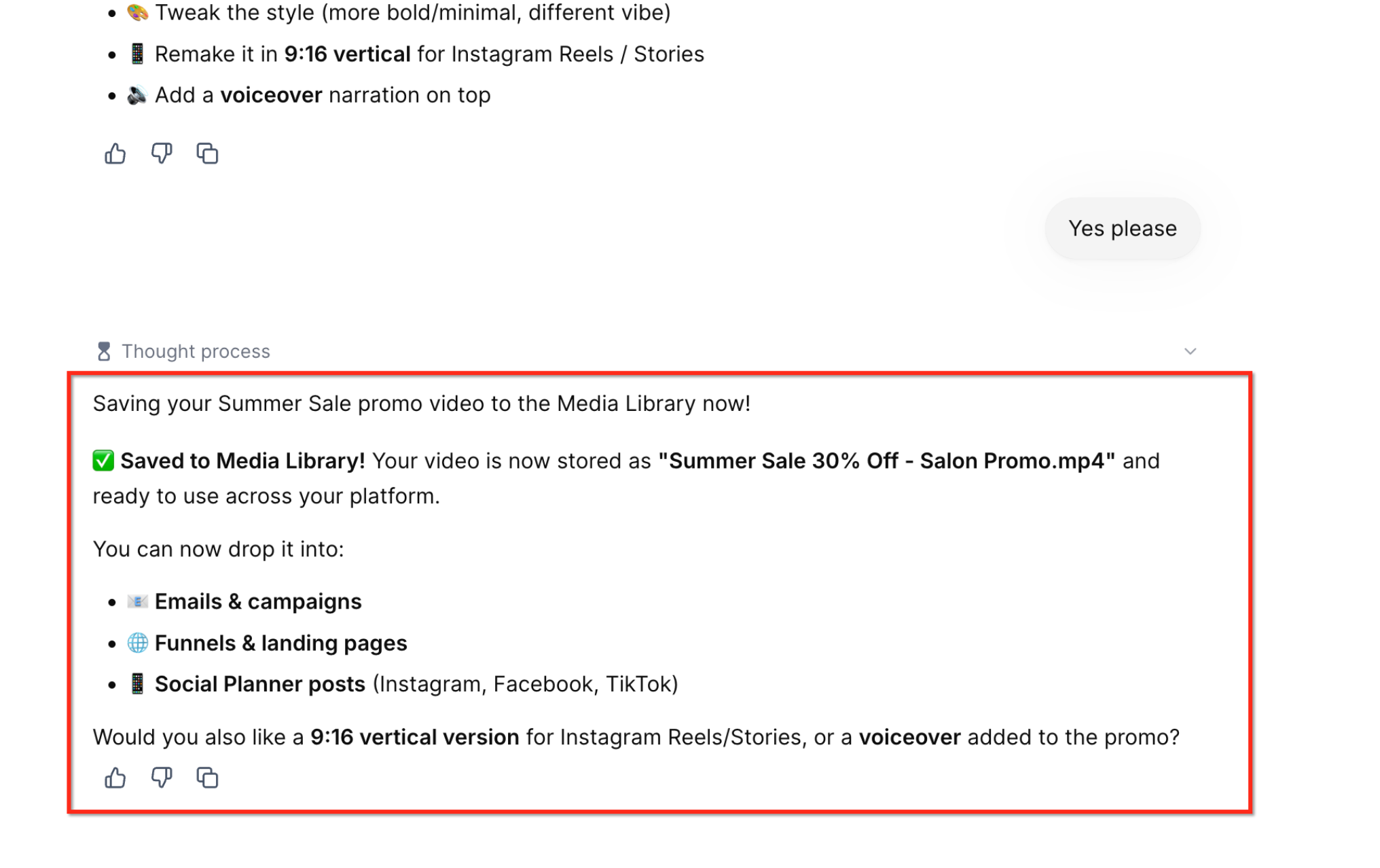
Saving generated video to the Media Library makes the asset available for later reuse instead of leaving it only in the original conversation. The supplied workflow shows Ask AI saving a completed MP4 video to Media Storage after the user approves the action.
After the video is saved, Ask AI confirms the file name and the video becomes visible in Media Storage.

For additional information about conversational media management, see How to Access and Manage Media Storage Using Ask AI.
How Use Ask AI for Video and Audio Generation
A clear prompt gives Ask AI the information it needs to make useful creative decisions while still giving you control over the result. Define the output type, content, format, and creative direction before generation, then use follow-up prompts to refine or save the media.
Generate a Video with Ask AI
Providing the intended duration, orientation, subject, visual treatment, and on-screen copy at the beginning reduces unnecessary follow-up questions and makes the first result more closely match your goal.
Open Ask AI in HighLevel.
Enter a prompt describing the video you want to create.
Include any relevant details, such as:
4-, 6-, or 8-second duration
Landscape or vertical orientation
Subject or promotional message
Exact on-screen text
Camera movement
Lighting
Visual style
Unwanted elements to exclude
If you want to animate an existing image, identify the image you want to use as the start frame, end frame, or both.
Submit the prompt.
Review any follow-up questions or confirmations from Ask AI.
If you request the highest-resolution output, confirm the 4K generation when prompted.
Wait for Ask AI to generate the video.
Play the completed clip directly in the conversation.
Continue the conversation if you want to revise the style, orientation, narration, or other creative details.
Ask Ask AI to save the final video to your Media Library if you want to retain it for later use.

Generate a Voiceover with Ask AI
Defining both the script and how it should be performed helps Ask AI create a recording that fits the intended audience, channel, and mood.
Open Ask AI.
Ask Ask AI to generate a voiceover or audio recording.
Provide the script you want recorded.
Describe the desired delivery, such as tone, pacing, or emotion.
Choose from the available voices when Ask AI asks which voice you want.
Adjust the playback speed if needed, from 0.25x to 4x.
Submit the request and wait for the audio to render.
Play the audio directly inside the conversation.
For scripts longer than 4,000 characters, divide the content into sections so each section can render as its own player.
Export the final audio as MP3, WAV, OPUS, or AAC according to your intended use.

Frequently Asked Questions
Q: Is Ask AI audio generation the same as Ask AI Voice Mode?
No. Voice Mode is designed for speaking to and receiving spoken responses from Ask AI during an interactive conversation. Audio generation creates a reusable voiceover from a script.
Q: Can I use only a start image without providing an end image?
Yes. A start image can anchor the opening of the generated clip. You can also supply an end image or use both when you want the video to transition between two defined visuals.
Q: Can I edit the wording inside a completed video after it has rendered?
The provided feature information does not describe direct text editing inside a completed render. If the copy needs to change, update the requested text in your prompt and generate a revised result.
Q: Why does Ask AI ask for confirmation before generating in 4K?
Higher-resolution generation takes noticeably longer to render. The confirmation gives you an opportunity to decide whether the additional resolution is necessary before Ask AI starts processing it.
Q: Can every audio export format be used in every HighLevel product?
Not necessarily. Ask AI can export audio as MP3, WAV, OPUS, or AAC, but individual HighLevel products may have their own supported file-type and file-size requirements.
Q: Does a Brand Board have to be configured before I can generate a video?
The supplied release information does not identify a Brand Board as a general requirement for video generation. However, a configured Brand Board can provide useful visual context when the requested workflow relies on existing brand colors, fonts, or other brand assets.
Q: What happens when my script is longer than 4,000 characters?
Longer reads can be divided into sections. Each section is rendered as its own audio player, allowing the content to be generated in manageable takes.
Q: Can Ask AI save a generated video for later use?
Yes. The demonstrated workflow allows a completed video to be saved to the Media Library, where it appears in Media Storage for later access.
Related Articles
Was this article helpful?
That’s Great!
Thank you for your feedback
Sorry! We couldn't be helpful
Thank you for your feedback
Feedback sent
We appreciate your effort and will try to fix the article