Connect Your Existing WhatsApp Business App
Keep using your existing WhatsApp Business App alongside the CRM — both work simultaneously with the same number.
What you will learn
TABLE OF CONTENTS
- What is Coexistence?
- Video Walkthrough
- Step-by-Step Setup
- Limitations
- Frequently Asked Questions
- The Coexistence New Flow: Screen by Screen
What is Coexistence?
Coexistence lets you connect your existing WhatsApp Business App to the CRM without losing access to the app. Once set up, you can send and receive WhatsApp messages from both your phone app and the CRM simultaneously — using the same number.
This is the right method if you are already actively using the WhatsApp Business App and want to continue using it alongside the CRM.
What works in Coexistence
- Send and receive messages from both the app and the CRM
- Use automation and workflows in the CRM
- Send approved template messages from the CRM
- Import up to 6 months of chat history
What does NOT work
- Sending template messages from the WhatsApp Business App
- Managing your WhatsApp Business profile from the CRM
- Connecting more than one number under Coexistence
- Nigeria and South Africa phone numbers
Unsupported CountriesThe Coexistence feature is not available for phone numbers from Nigeria or South Africa. If your number is from either of these countries, please use the New Number or BSP Migration method instead.
Video Walkthrough
Watch a full walkthrough of the Coexistence setup process before getting started.
Before You BeginMake sure you have your Facebook account credentials and the phone number currently active in your WhatsApp Business App ready. You will also need your device on hand to scan a QR code during the process.
Start the Signup Process
Navigate to Settings > WhatsApp and select Connect your WhatsApp
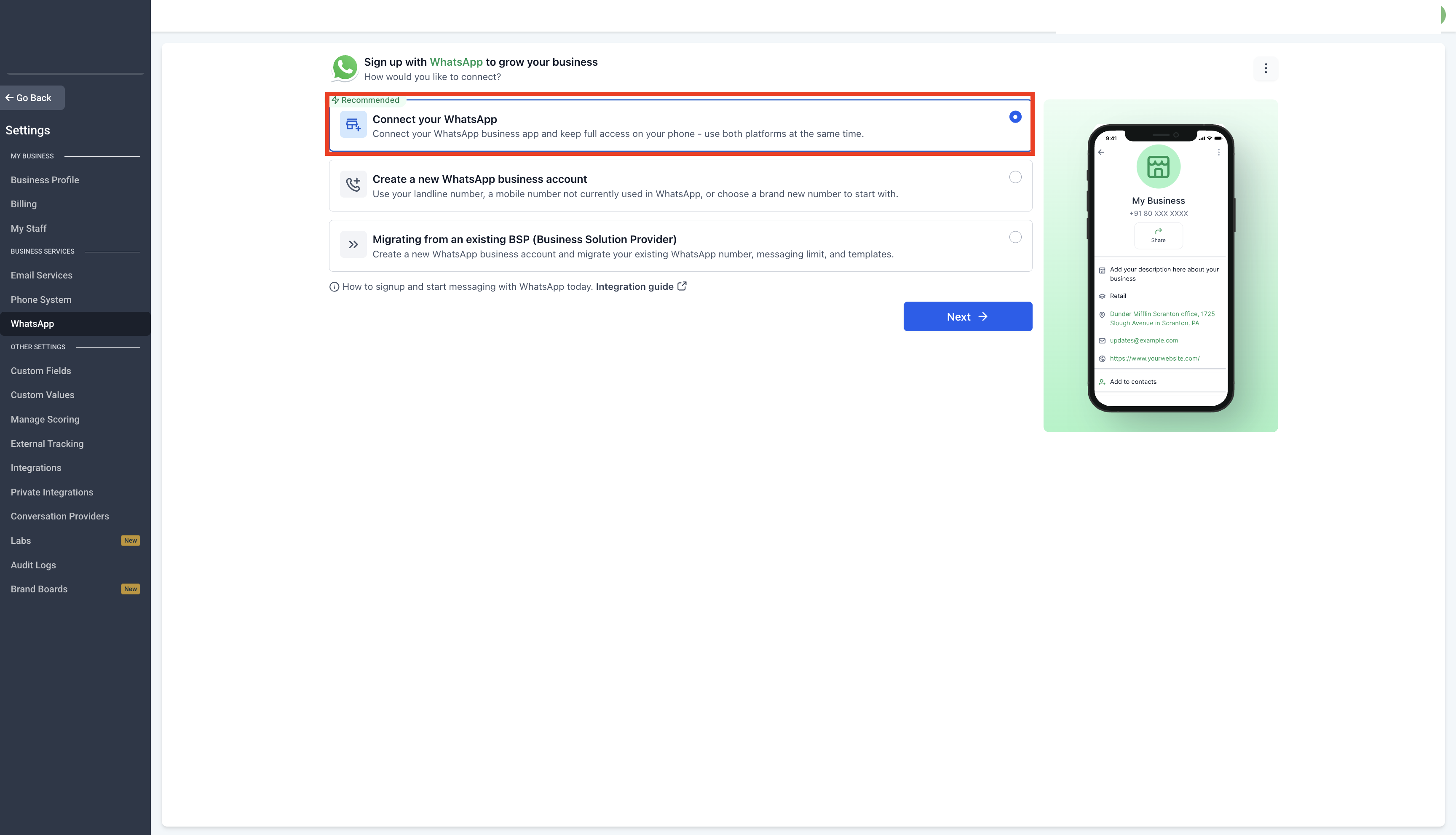
Continue with Signup
Follow the on-screen instructions to begin the registration process.
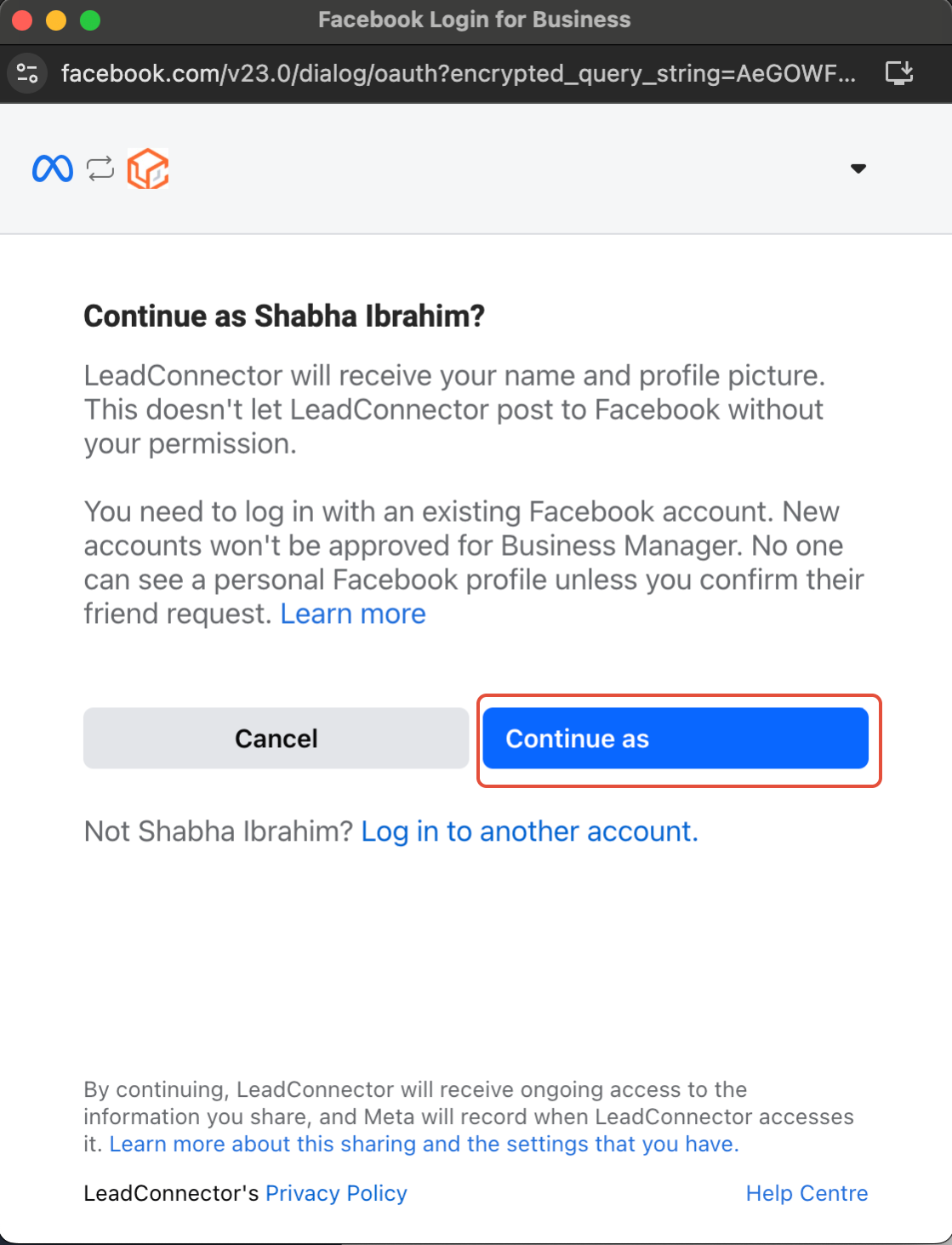
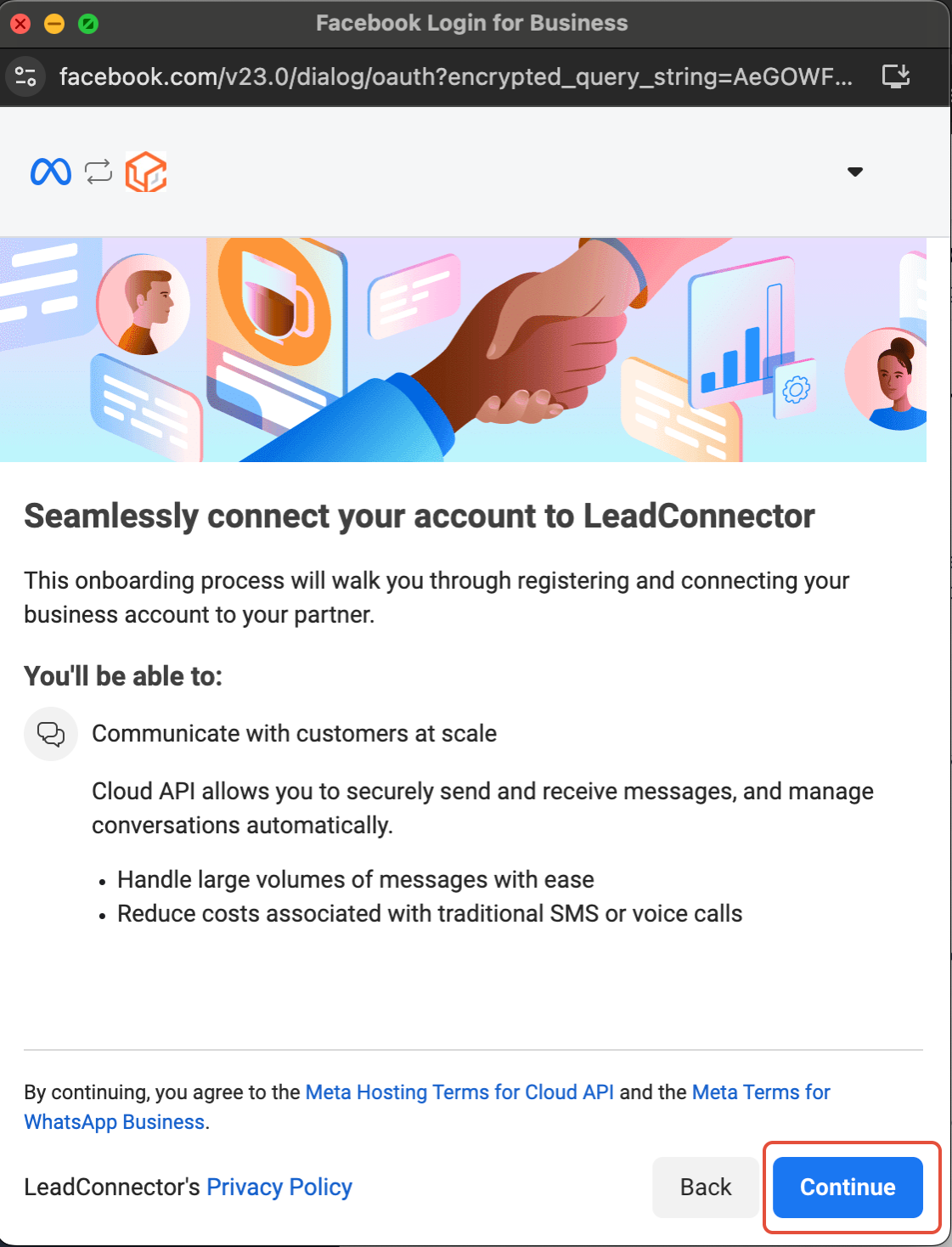
Connect to the CRM
Click Continue to proceed with the integration.
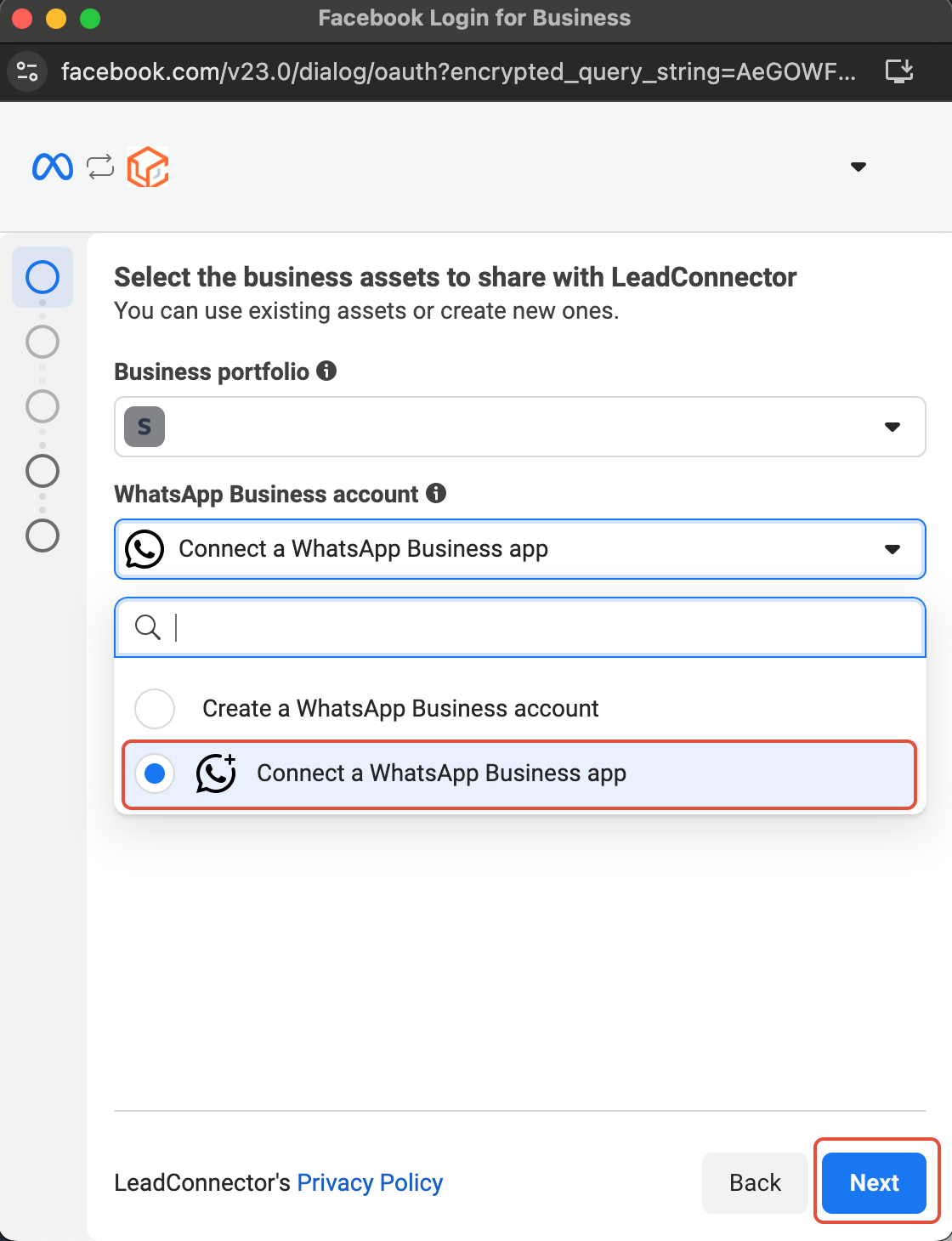
Select WhatsApp Business App
Click Connect a WhatsApp Business App, then tap Next.
Enter Your Phone Number
Add your WhatsApp Business phone number and tap Next.
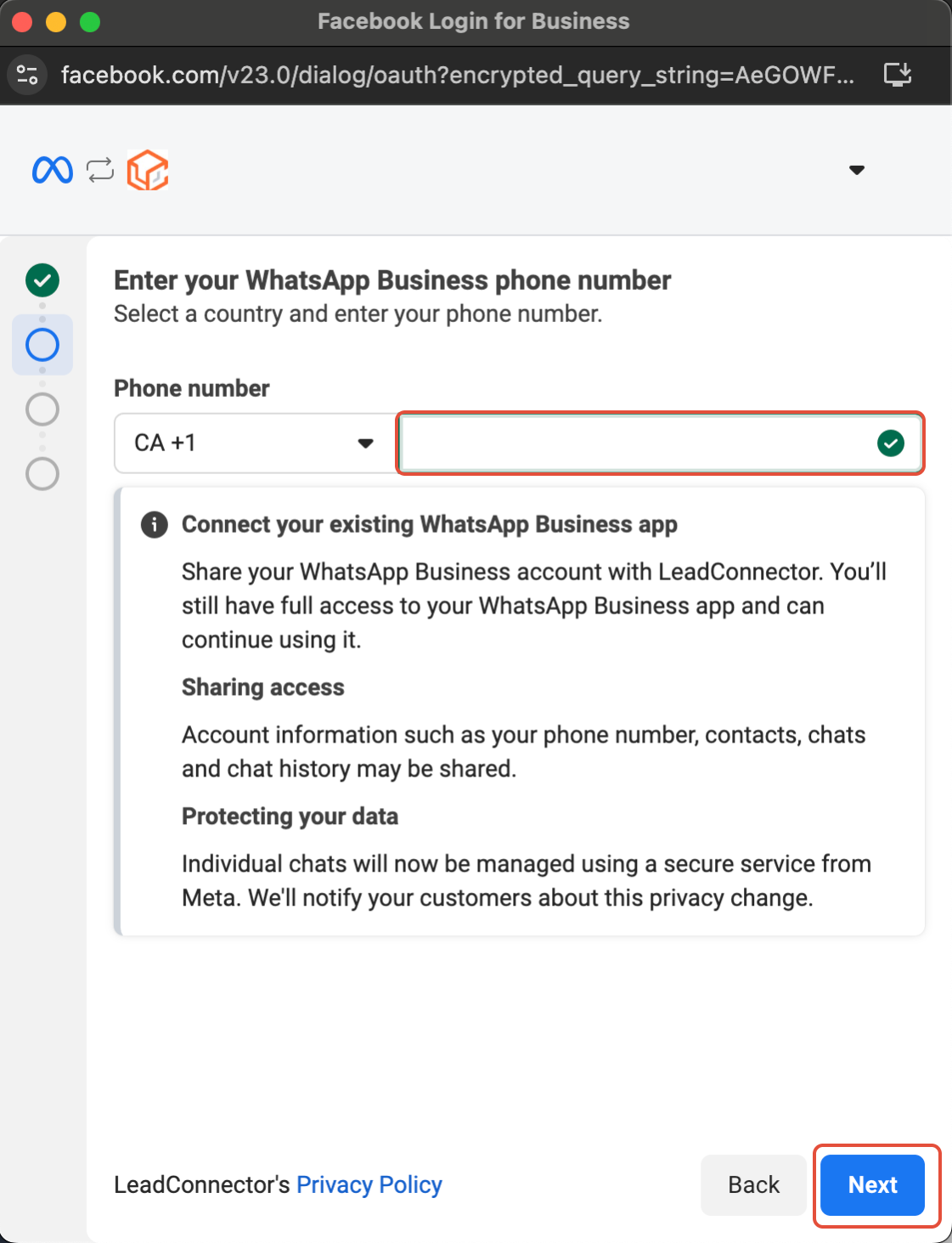
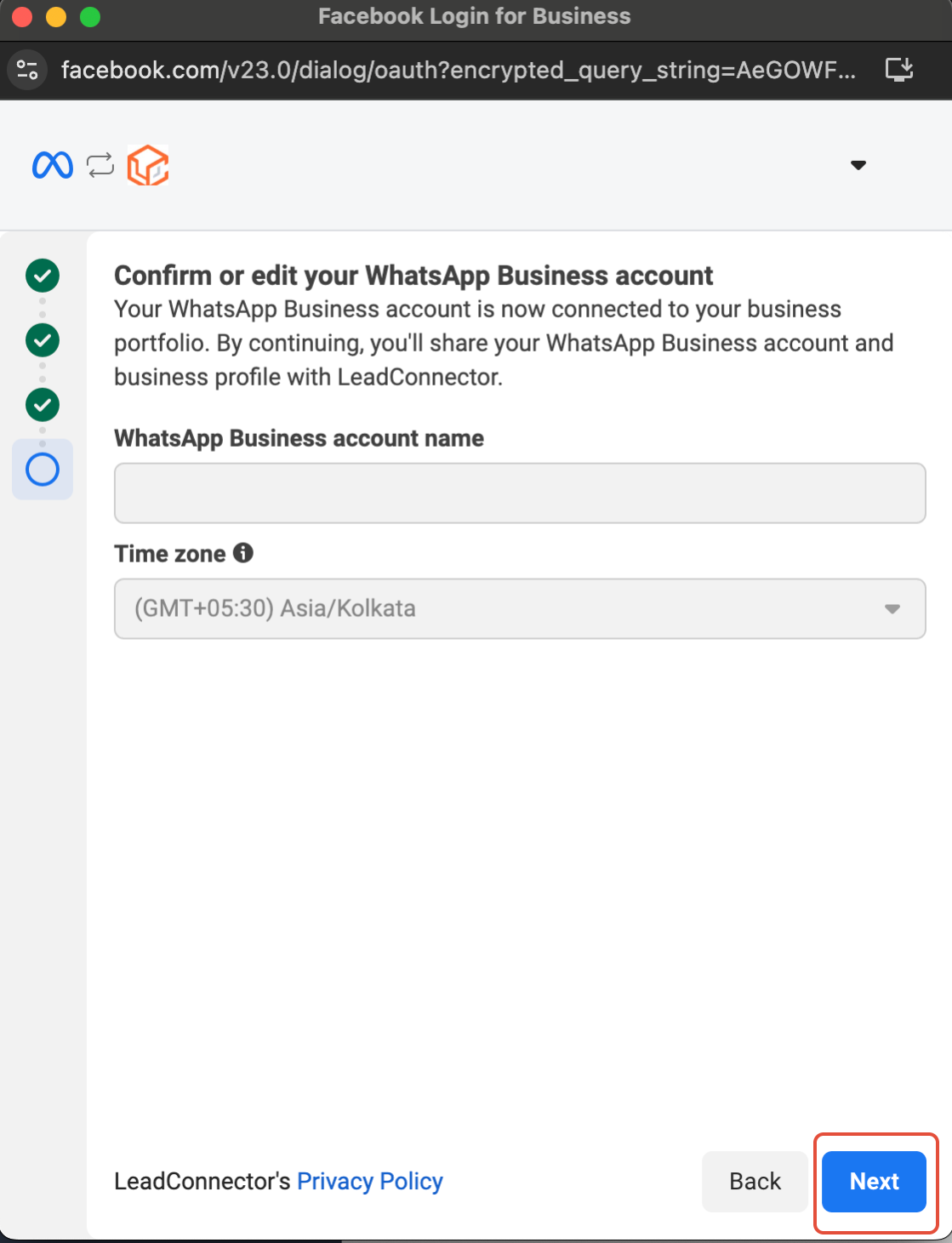
Verify Your Account Details
Review your WhatsApp Business Account details and make any corrections before proceeding.
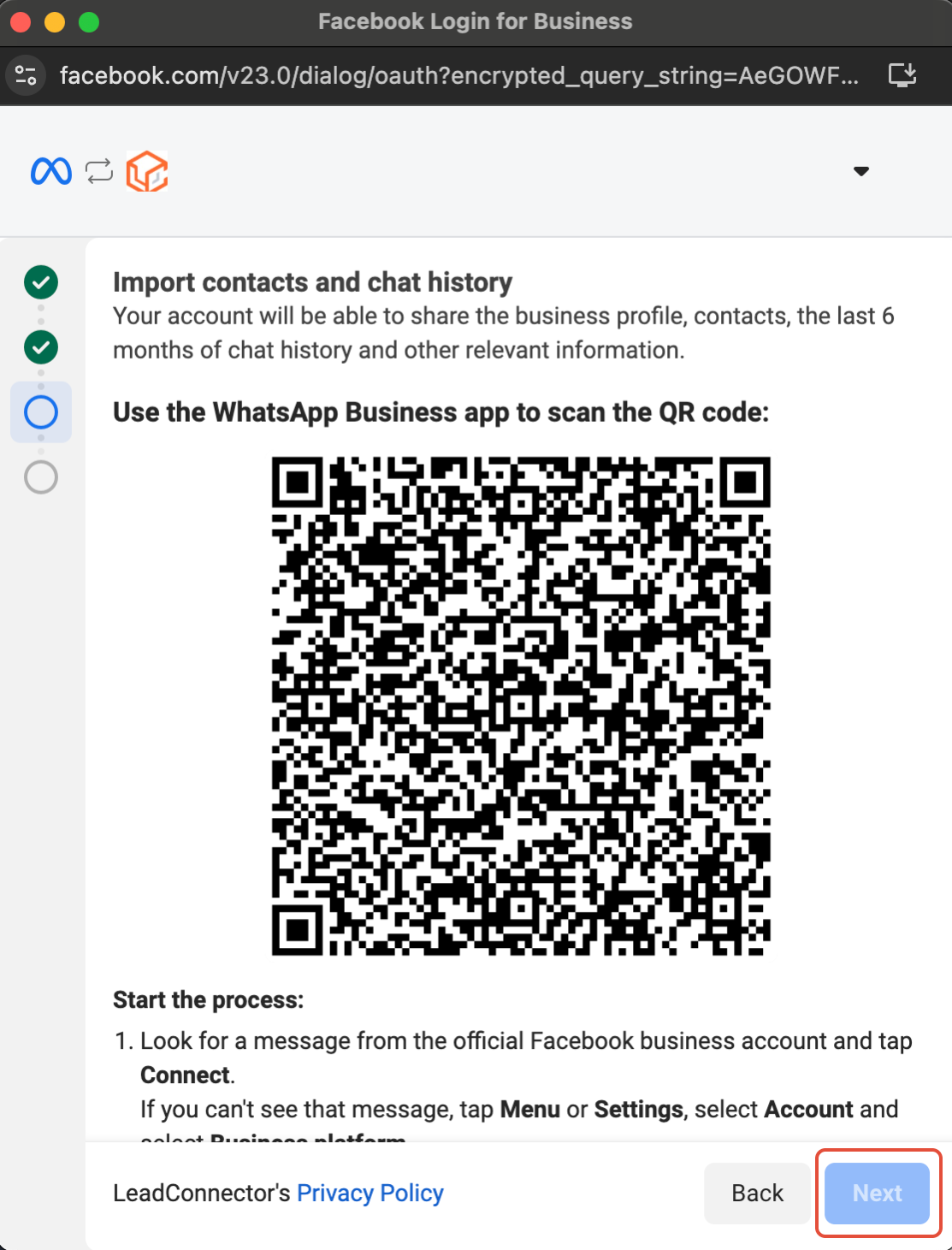
Import Contacts & Chat History
Import your contacts and up to six months of chat history from the WhatsApp Business App into the CRM.
- Update your WhatsApp Business App to the latest version before this step.
- Look for a message from the official Facebook Business account and scan the QR code when prompted.

Connect to the Business Platform
Scan the QR code to complete the connection. You can continue using your WhatsApp Business App alongside the CRM.

Share Chat History & Contacts
Your contacts and conversations will be securely synced with the CRM.

Setup Complete
Your WhatsApp Business App is now successfully integrated with the CRM.

Review and Confirm
Check all entered details carefully, then click Confirm.
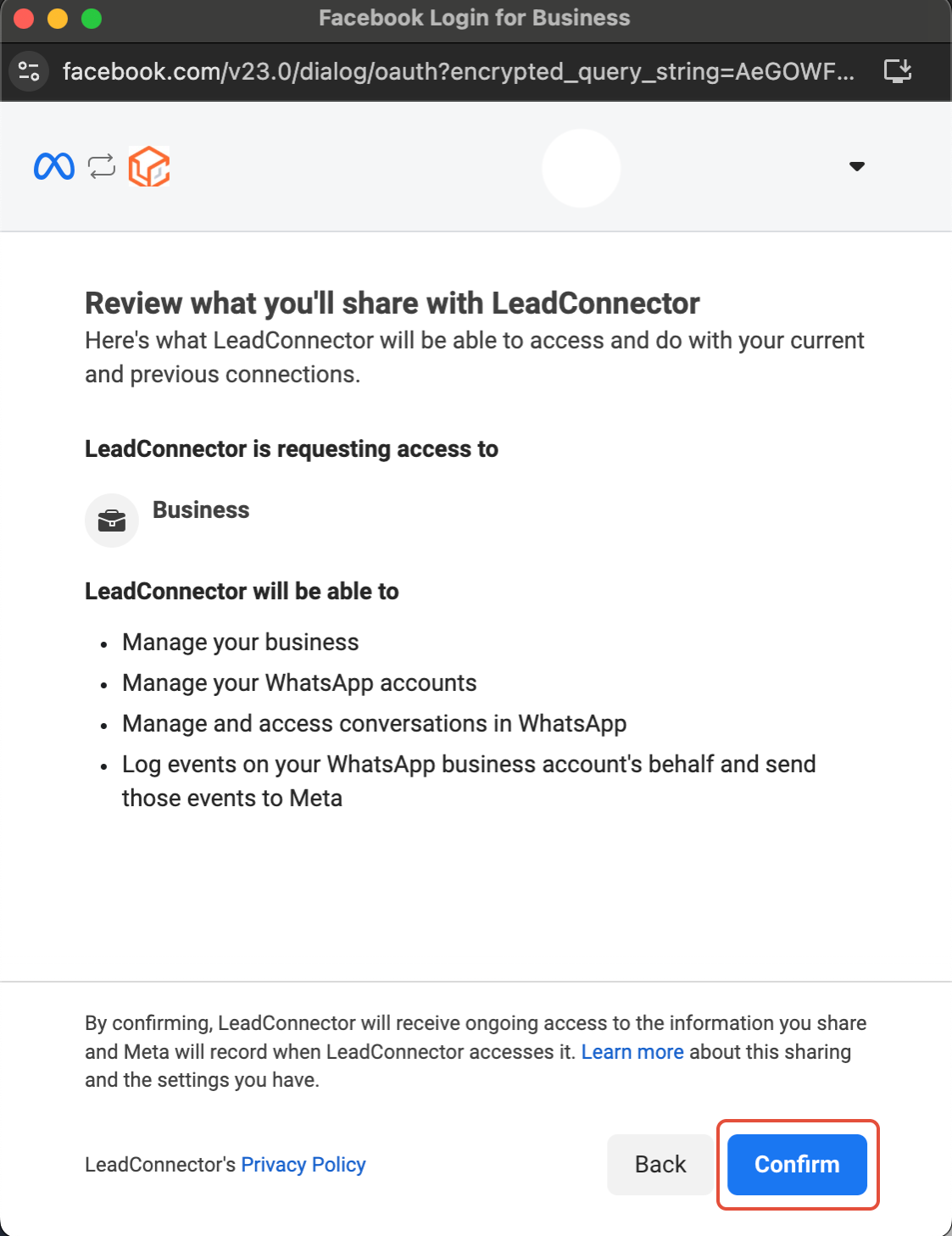
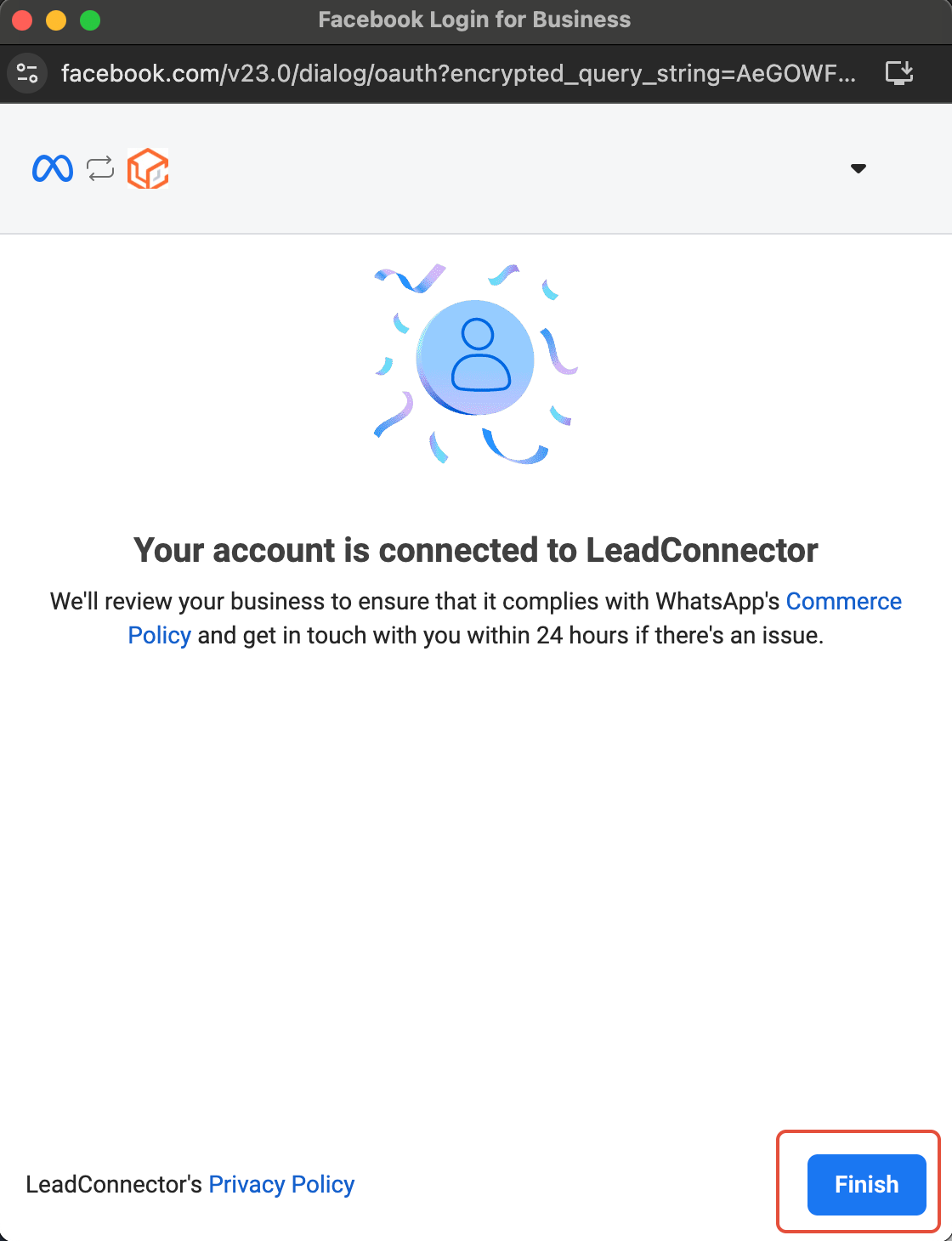
Integration Complete
Click Finish. Your WhatsApp Business App is fully integrated with the CRM. Send a test message to confirm everything is working.
NOTE
1. Sending template messages is not supported via the WhatsApp Business App — they can only be sent through the CRM.
2. You will manage your WhatsApp profile from the WhatsApp Business App, not the CRM.
3. You can only have a maximum of one phone number under Coexistence.
Limitations
Before choosing Coexistence, make sure you are aware of the following restrictions.
Template messages must be sent from the CRM
You cannot send WhatsApp template messages from the WhatsApp Business App. All templates must be created and sent through the CRM only.
Profile management stays in the WhatsApp Business App
Your WhatsApp Business profile — including your display name, profile picture, and business info — is managed from the WhatsApp Business App, not from the CRM.
One phone number only
You can connect a maximum of one phone number under Coexistence per account. If you need to add a second number, it must be connected using the New Number method.
Not available for Nigeria or South Africa
The Coexistence feature is not supported for phone numbers registered in Nigeria or South Africa. Use the New Number or BSP Migration method instead.
Frequently Asked Questions
Q: Will my existing chat history be lost when I connect?
No. During setup you can import up to six months of chat history from your WhatsApp Business App into the CRM. Make sure to update your app to the latest version before reaching Step 7 to ensure this works correctly.
Q: Can I still use my WhatsApp Business App after connecting?
Yes. That is the whole point of Coexistence. After setup, both your WhatsApp Business App and the CRM will be active simultaneously. Messages sent to your number will appear in both places.
Q: The QR code expired before I could scan it — what do I do?
Restart the setup from Step 7. Make sure your device is unlocked and the WhatsApp Business App is open before you reach the QR code step so you can scan it promptly. QR codes have a short expiry window.
Q: I cannot find the message from Facebook Business in my app — where is it?
Check your WhatsApp Business App for a message from "Facebook Business" or "Meta". It can take a few minutes to arrive. If it does not appear, ensure your app is updated to the latest version and restart the process. The message will not appear if the app is outdated.
Q: Can I send template messages from my WhatsApp Business App after connecting?
No. Template messages can only be sent through the CRM. This is a limitation of the Coexistence mode — the WhatsApp Business App does not support template sending via the Business API.
Q: My number is from Nigeria or South Africa — can I still use Coexistence?
No. Coexistence is not available for phone numbers from Nigeria or South Africa. You will need to use the New Number or BSP Migration method to connect your WhatsApp to the CRM.
.The Coexistence New Flow: Screen by Screen
The Coexistence flow is automatically triggered when the business customer enters a phone number that is already in use with the WhatsApp Business app. This is the new flow,
1 | Authentication Screen This screen authenticates business customers using their Facebook or Meta Business Suite credentials
|
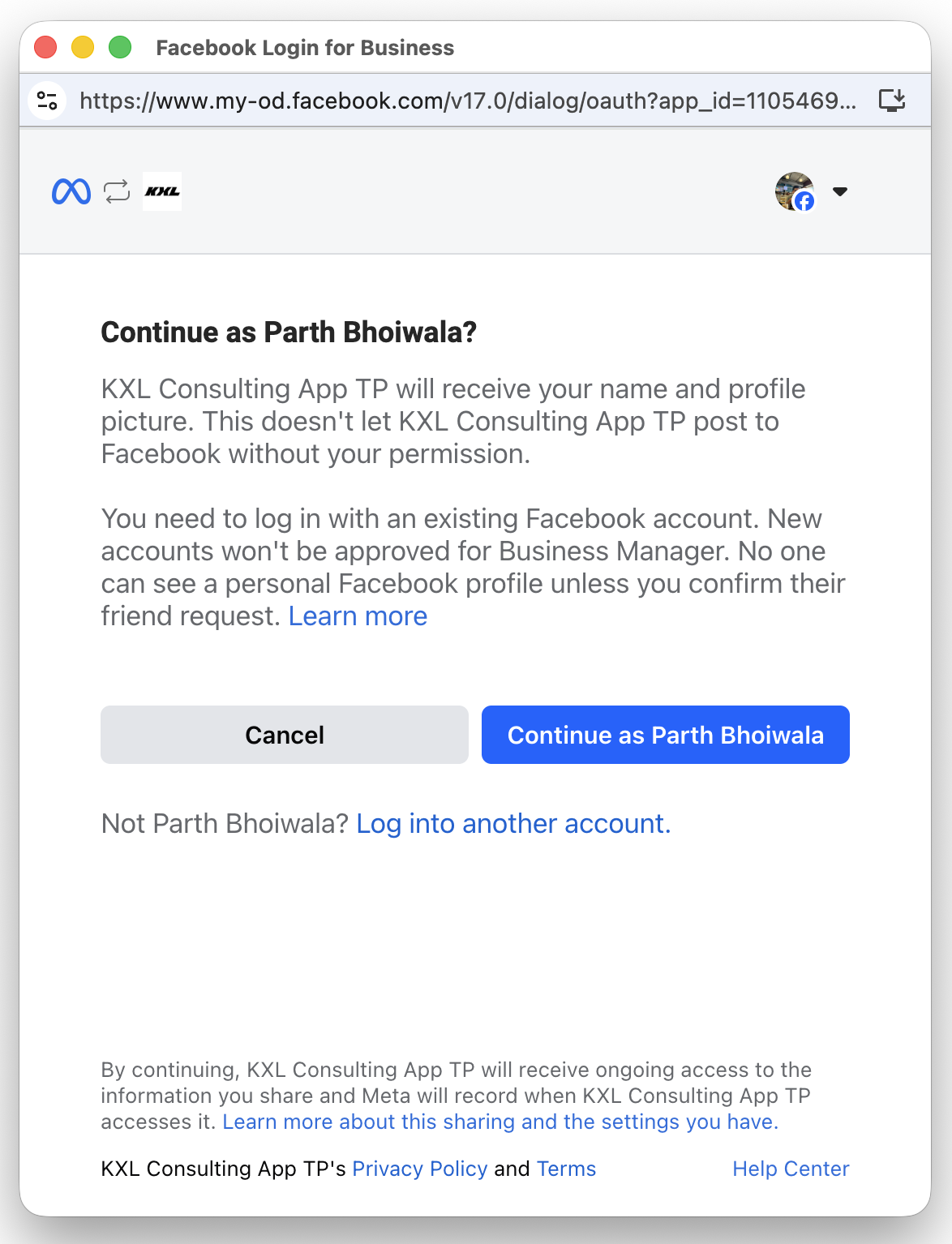
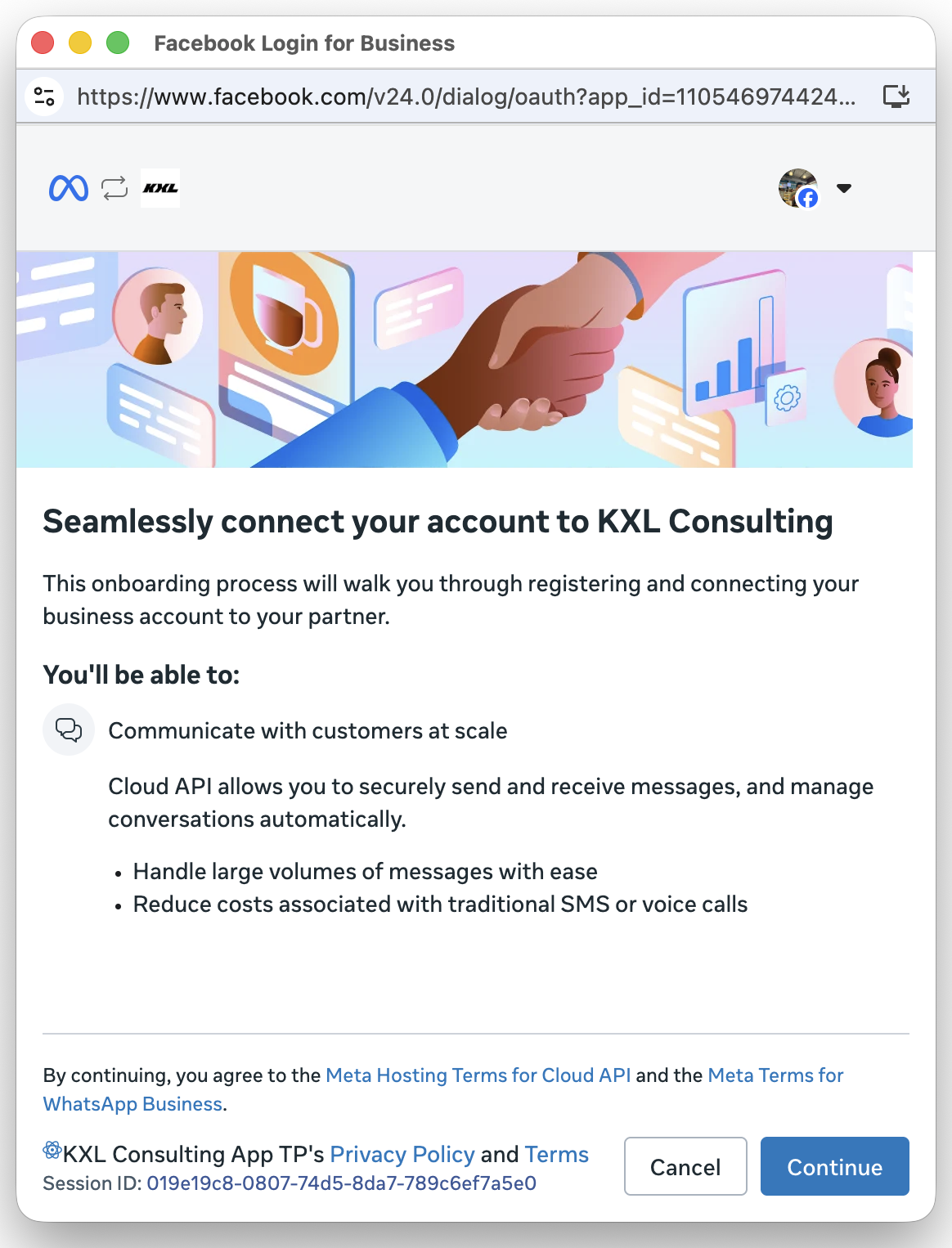
Authorization Screen This screen describes the data the business customer will be permitting your app to access. |
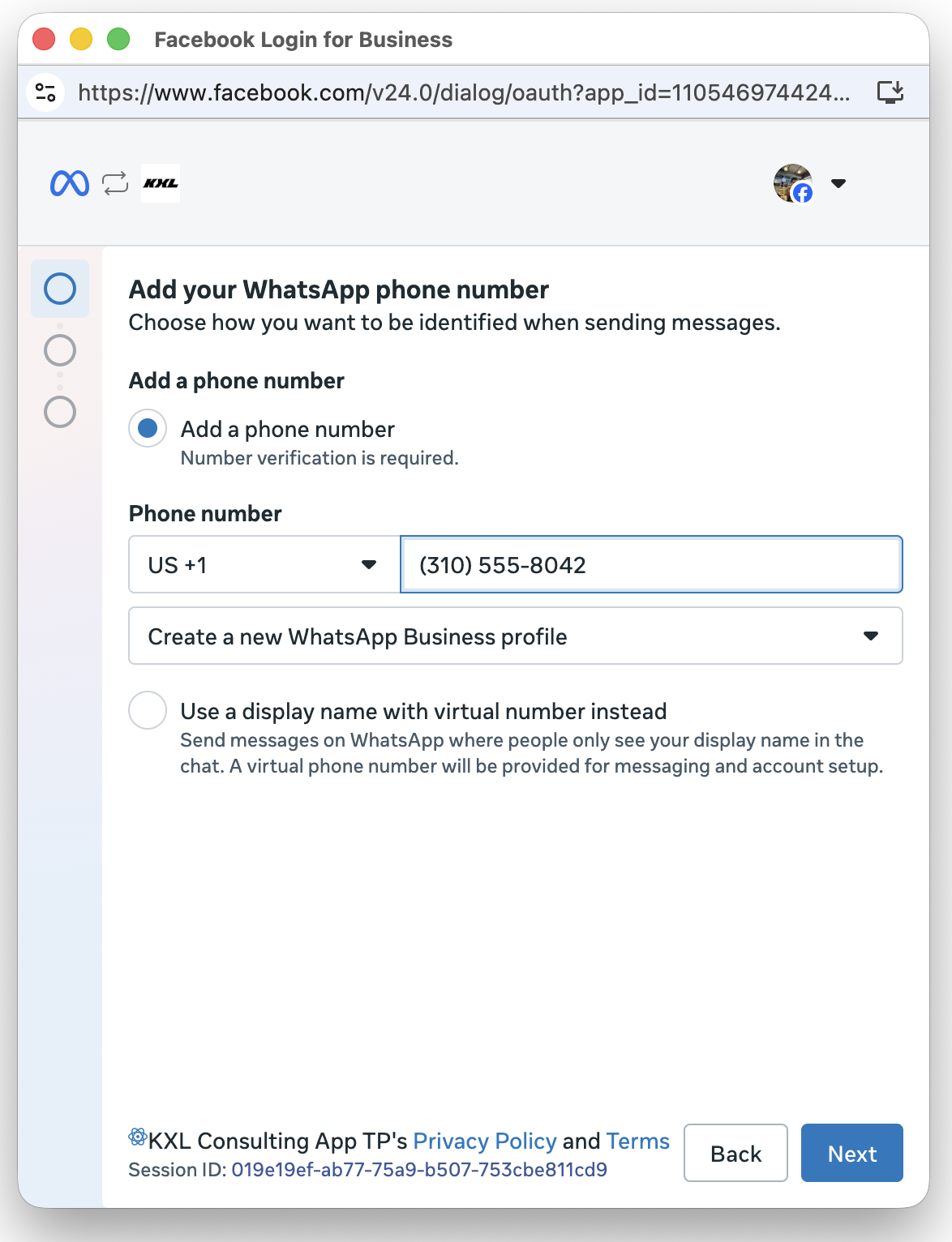
3 | Phone Number Entry Screen This screen lets the business customer enter the phone number they want to onboard. To trigger the Coexistence flow, the customer must enter a WhatsApp Business app phone number. |
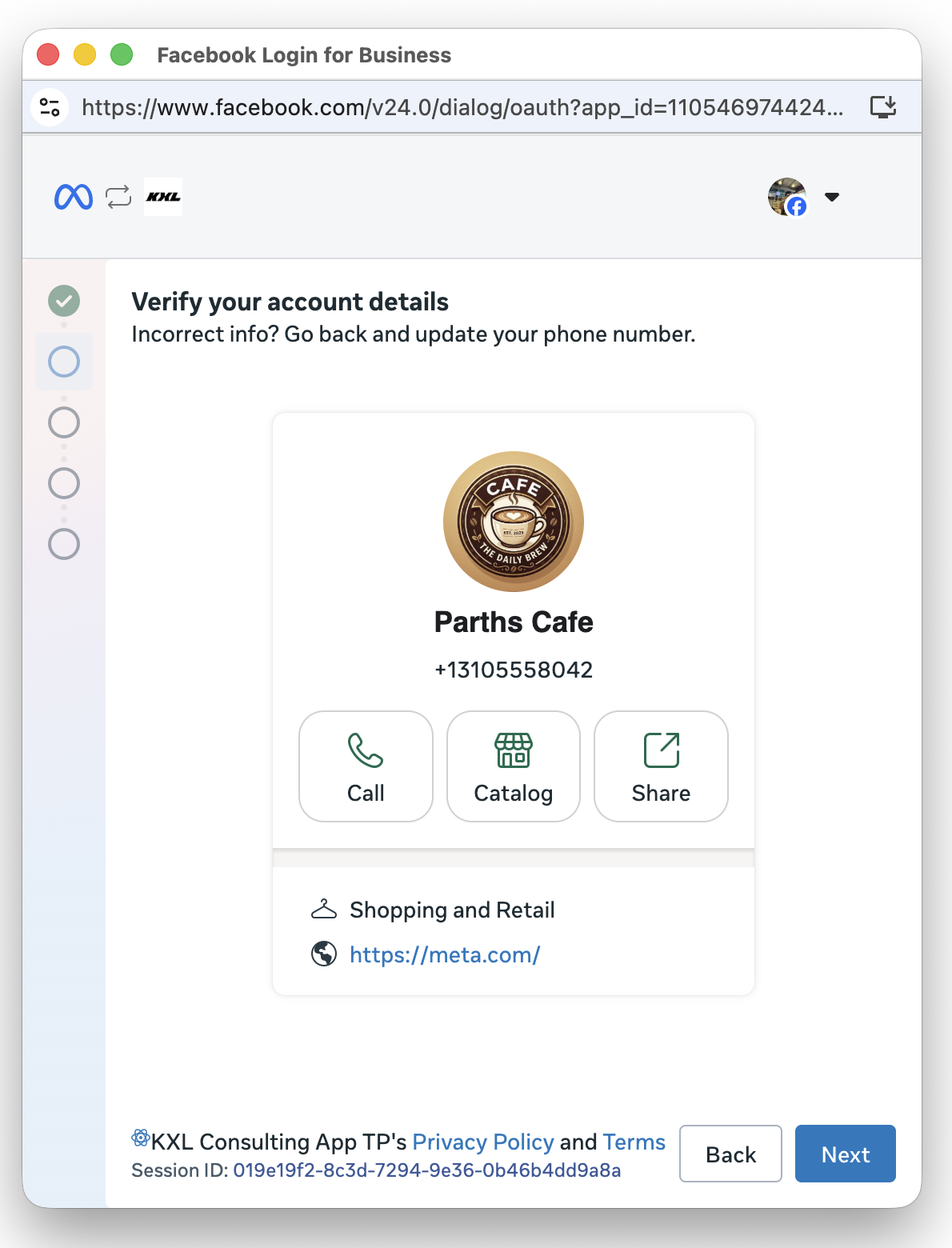
4 | Business Profile Screen This screen displays the WhatsApp Business app account details associated with the entered phone number — the profile picture, name, phone number, and website that the business has set in the WhatsApp Business app. The business customer reviews these details and confirms this is the WhatsApp Business app account they want to onboard. |
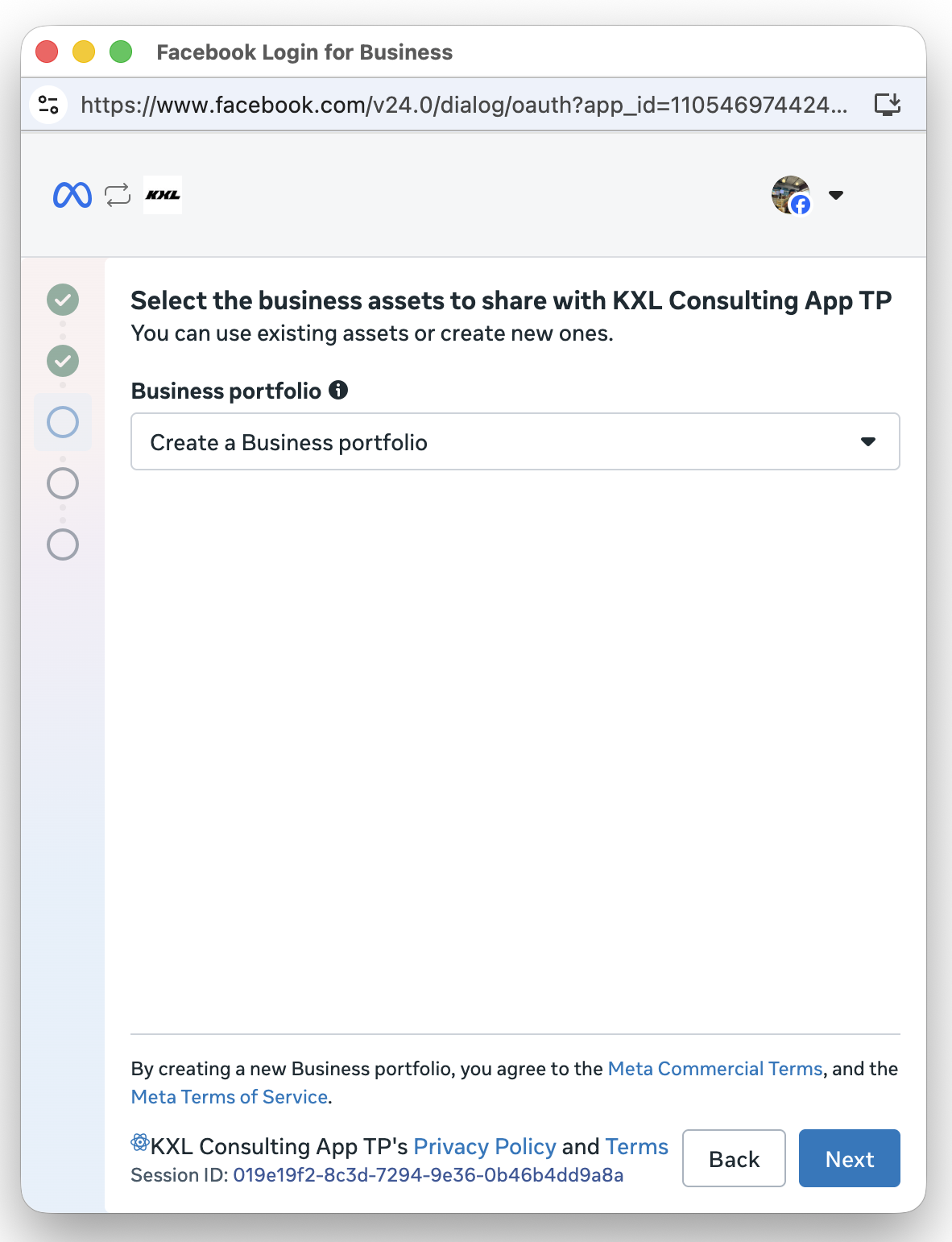
5 | Business Portfolio Selection Screen This screen lets the business customer select an existing Meta business portfolio to associate with the Coexistence onboarding, or create a new one. |
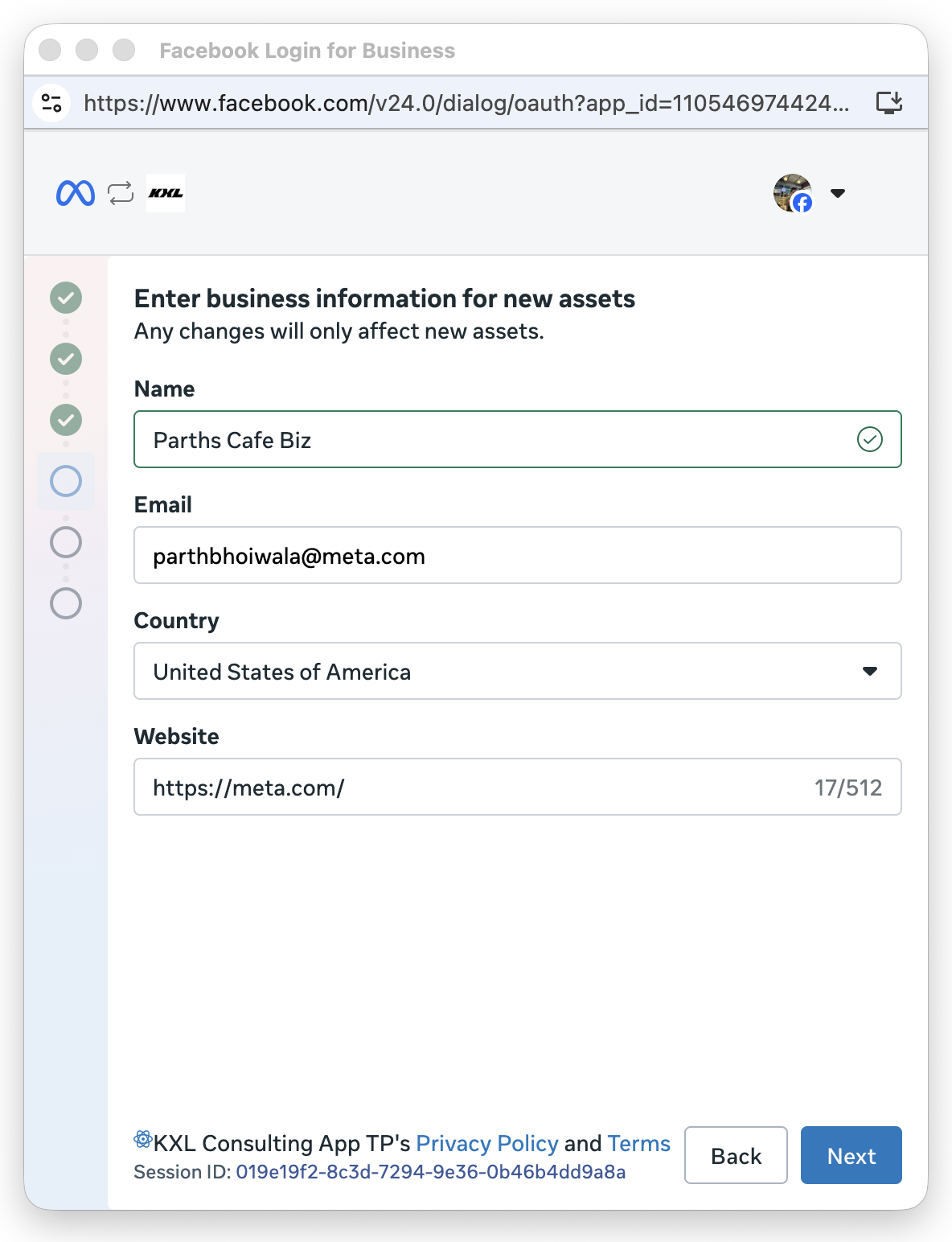
6 | Business Creation Screen This screen lets the business customer create a new business portfolio by entering business information: name, country, and website. |
7 | QR Code Verification Screen This screen displays a QR code that the business customer scans from inside the WhatsApp Business app on their phone. To make scanning easier, a WhatsApp message containing a link to the QR code is also delivered to the same number. Once the customer scans the QR code, the flow advances automatically. |
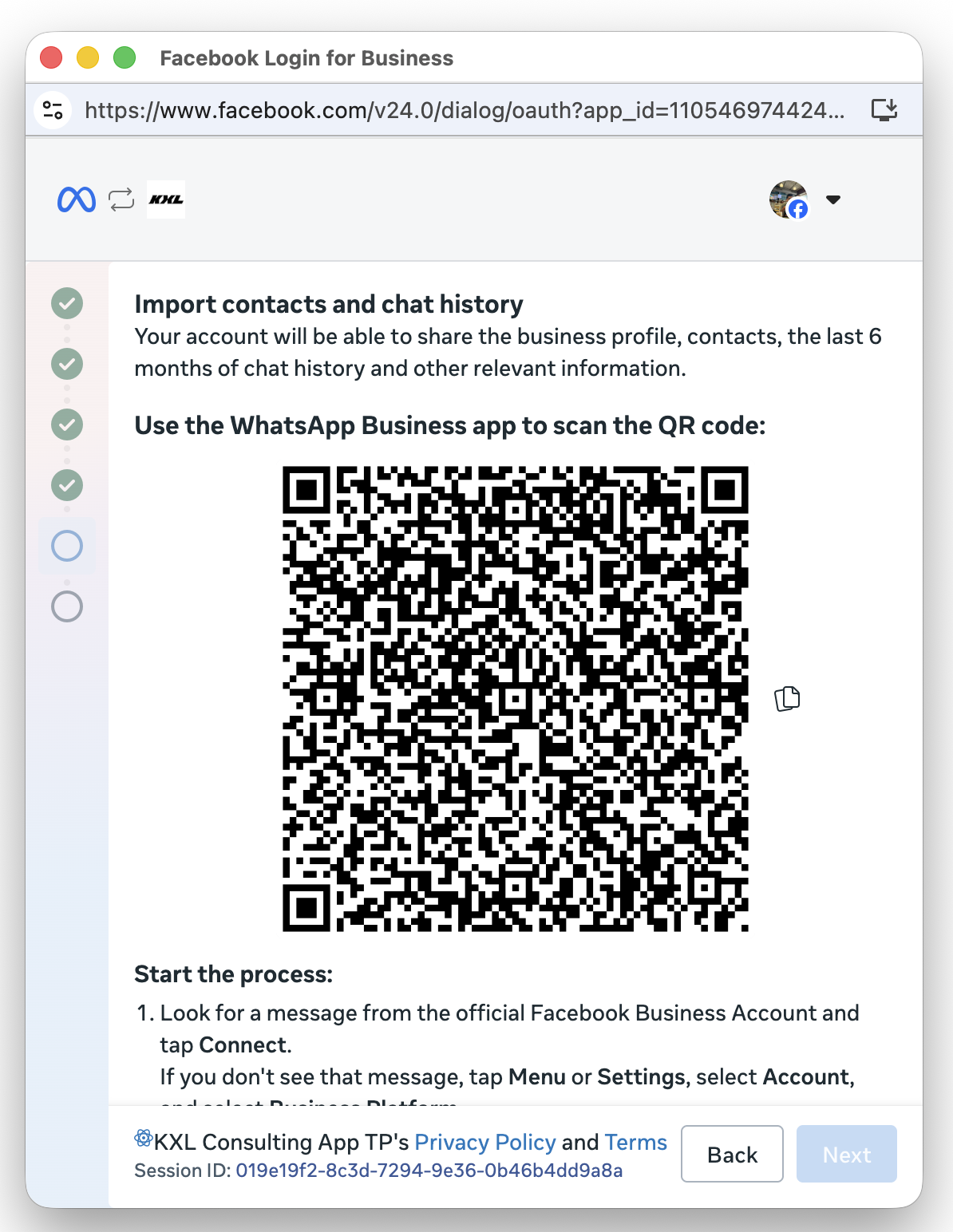
Needs validation from Meta documentation: Meta's current developer documentation for this step describes entering a verification code that the business customer copies from a message sent by the official Facebook Business Account, rather than explicitly a QR code to scan. Several Business Solution Provider guides (built directly on top of Embedded Signup) do describe a QR code being displayed and scanned, so it's possible the message contains both a tappable/scannable QR element and a typed code as alternate paths through the same step. Confirm which mechanic your implementation actually surfaces before publishing screenshots or exact wording for this screen.
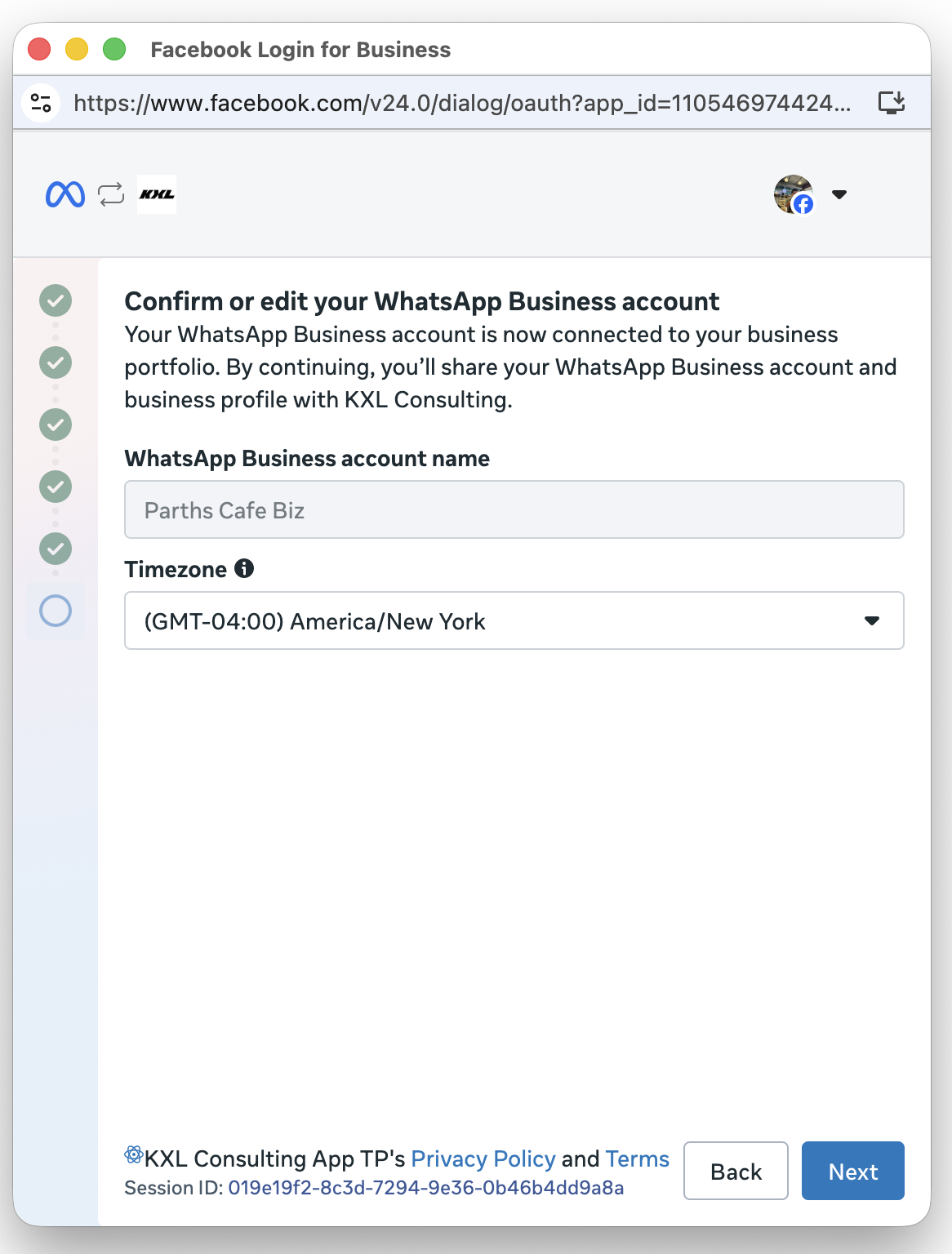
8 | Business Information Confirmation Screen This screen lets the business customer confirm their WhatsApp Business Account name (read-only) and select a time zone (required) for the account. |
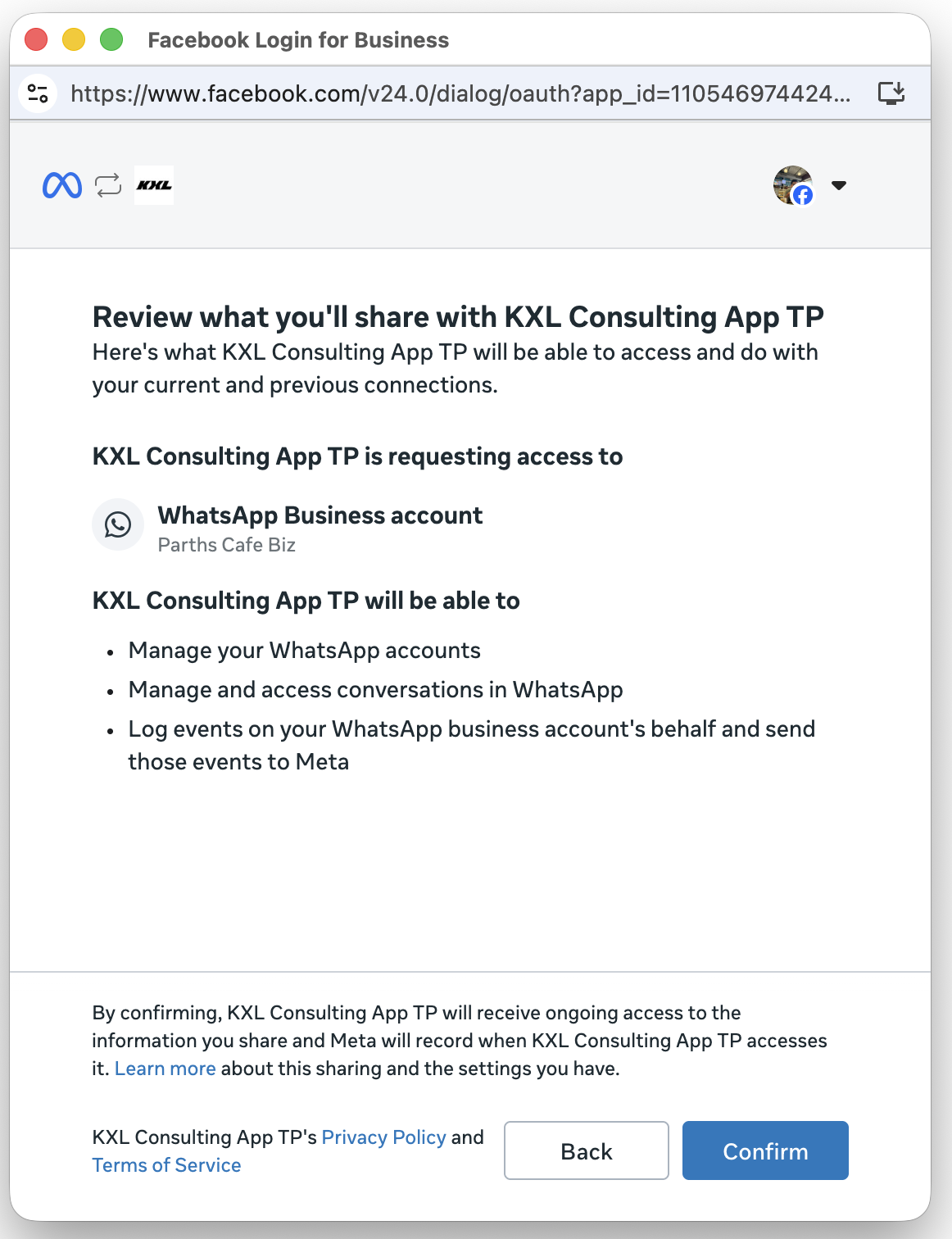
9 | Terms and Conditions Review Screen This screen presents the terms and conditions that the business customer must accept to complete Coexistence onboarding. |
10 | Success Screen This screen indicates that the Coexistence onboarding completed successfully. When the customer clicks Finish, a message event is triggered containing the customer's WhatsApp Business Account ID and business phone number ID, which you must use to onboard the customer to the platform. |
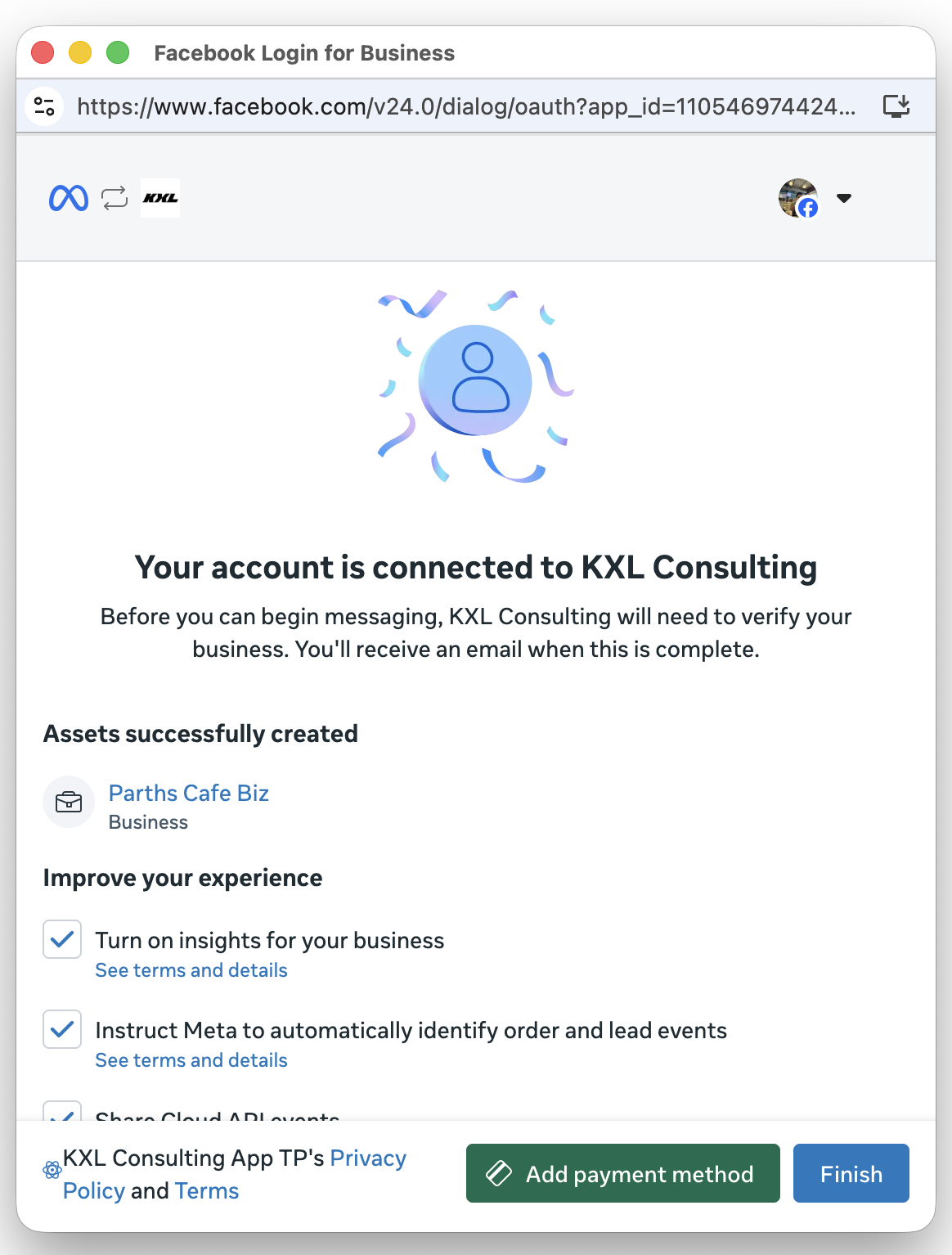
Do not add a payment method during the onboarding process. Once the onboarding is successfully completed, the required payment method will be automatically added from the backend.
Good to Know
A few operational details from Meta's Coexistence documentation are worth keeping in mind alongside the flow above, since they affect what happens immediately after a customer reaches the Success screen:
24-Hour Sync Window
Once onboarding completes, there is a 24-hour window to synchronize the customer's contacts and messaging history. If that window is missed, the customer must be offboarded and complete the Coexistence flow again from the start.
Chat History Sync Covers 180 Days
Synchronized history is delivered in three phases — day 0 to day 1, day 1 to day 90, and day 90 to day 180 — rather than as a single batch. Media assets are only included for messages sent within 14 days of onboarding; older media messages sync without their asset IDs.
Fixed Throughput Limit
To stay compatible with the WhatsApp Business app, a number running Coexistence has a fixed throughput of 20 messages per second, regardless of the business's usual Cloud API messaging limits.
Some App Features Are Disabled After Onboarding
Group chats, disappearing messages, view-once messages, live location messages, broadcast lists, voice and video calls, and business tools such as the catalog are not supported once a number is running Coexistence. Linked companion devices are also unlinked during onboarding and must be manually re-linked afterward.
Was this article helpful?
That’s Great!
Thank you for your feedback
Sorry! We couldn't be helpful
Thank you for your feedback
Feedback sent
We appreciate your effort and will try to fix the article