The Redesigned WhatsApp Onboarding Experience
The redesigned WhatsApp onboarding experience in CRM helps businesses connect WhatsApp based on their current setup. Whether a business already uses the WhatsApp Business App, needs a brand-new WhatsApp Business Account, or wants to migrate from another Business Solution Provider, the onboarding flow now provides a clearer path forward.
This experience gives agencies and businesses more flexibility when connecting WhatsApp to the CRM. Users can preserve existing WhatsApp assets, sync recent conversations when using Coexistence, or get started with a new number when they do not already have one.
TABLE OF CONTENTS
What is the Redesigned WhatsApp Onboarding Experience?
The redesigned WhatsApp onboarding experience gives users three clear setup paths based on how their business currently uses WhatsApp. Choosing the correct path helps prevent setup delays, protects existing WhatsApp assets, and ensures the account is connected to CRM in the right way.
Businesses can choose from the following onboarding paths:
- Connect an existing WhatsApp Business App with Coexistence
- Create a new WhatsApp Business Account
- Migrate from an existing Business Solution Provider, also known as a BSP
Key Benefits of the Redesigned Onboarding Experience
The redesigned onboarding flow helps businesses connect WhatsApp faster while reducing the risk of losing important account assets. Each path is designed for a different business scenario, making it easier to choose the right setup method before starting the connection process.
- Flexible Onboarding Paths: Choose the setup option that matches the business's current WhatsApp setup.
- Coexistence Support: Continue using the WhatsApp Business App on a phone while managing conversations inside the CRM.
- Chat History Sync: Bring up to six months of WhatsApp chat history into CRM when using Coexistence.
- Self-service BSP Migration: Migrate from another BSP to LeadConnector using Meta's Embedded Signup flow.
- Asset Preservation During Migration: Preserve the phone number, display name, quality rating, messaging limits, Official Business Account status, and approved templates.
- Faster Setup with 555 Numbers: Eligible sub-accounts can claim up to two free +1-555 business numbers during onboarding.
- Instant Number Verification: 555 numbers are automatically verified, so users only need display-name approval before using WhatsApp.
- Reduced Manual Work for Agencies: Agencies can onboard clients to WhatsApp without manual porting or sourcing a dedicated number in eligible cases.
Connect an Existing WhatsApp Business App with Coexistence
Coexistence allows businesses to keep using the WhatsApp Business App on their phone while also managing conversations inside CRM. This is useful for teams that already rely on the WhatsApp Business App but want CRM features such as centralized conversations, automation, contact records, and reporting.
Use this path when:
- The business already uses the WhatsApp Business App.
- The business wants to continue using WhatsApp on a mobile device.
- The business wants WhatsApp conversations available inside the CRM.
- The business wants to sync up to six months of existing chat history into CRM.
For Coexistence:
- Verify the country code.
- Confirm the number in Meta Business Manager.
- Make sure the WhatsApp Business App is available.
Create a New WhatsApp Business Account
Creating a new WhatsApp Business Account is best for businesses that are starting fresh or want to connect a number that is not currently active on WhatsApp. This path allows users to set up WhatsApp with a landline, unused mobile number, brand-new number, or eligible 555 business number.
Use this path when:
- The business does not already have a WhatsApp Business Account.
- The business has a landline or unused mobile number available.
- The business wants to start with a new WhatsApp setup.
- The business is eligible to claim a free +1-555 business number.
For a new WhatsApp Business Account:
- Remove the number from personal WhatsApp or WhatsApp Business App if applicable.
- Back up chats before removing the number.
- Confirm the number can receive SMS or voice verification unless using an eligible auto-verified 555 number.
Migrate from an Existing Business Solution Provider
BSP migration allows businesses already using another WhatsApp Business Solution Provider to move their WhatsApp Business Account to LeadConnector. This path is designed to preserve existing WhatsApp assets while avoiding the need to create a new WABA.
For BSP migration:
- Turn off two-step verification.
- Confirm business verification in Meta Business Manager.
- Confirm display-name approval.
Use this path when:
- The business currently uses a BSP such as 360Dialog, Twilio, Wati, Manychat, or another provider.
- The business wants to move the existing WhatsApp Business Account to LeadConnector.
- The business wants to preserve its existing WhatsApp number and account assets.
- The business wants to avoid creating a new WABA.
555 Business Phone Numbers
555 business phone numbers help eligible businesses start WhatsApp onboarding without sourcing a dedicated phone number first. These numbers are designed for use with the WhatsApp Business Platform and can speed up setup for agencies onboarding new clients.
Eligible sub-accounts can claim up to two free +1-555 numbers during WhatsApp onboarding.
Limitations:
- 555 numbers cannot be migrated to another WABA.
- 555 numbers cannot be used outside the WhatsApp Business Platform.
- 555 numbers are subject to eligibility and availability.
- Display-name approval is still required.
Needs validation from Meta documentation: Several BSPs (360Dialog, Wati, SleekFlow) describe 555 numbers as intended primarily for testing and evaluation, and specifically caution against using them for long-term, live production traffic given they can't be migrated or ported later. If a client plans to use a 555 number as their permanent business number rather than a quick-start option, it's worth setting that expectation before onboarding.
How to Set Up the Redesigned Onboarding Experience
Proper setup helps ensure the correct WhatsApp path is selected before connecting through Meta. Reviewing the prerequisites for each path reduces failed onboarding attempts and helps preserve existing WhatsApp data, account status, and approved assets.
1 | In CRM, navigate to the sub-account where WhatsApp should be connected. |
2 | Go to Settings. 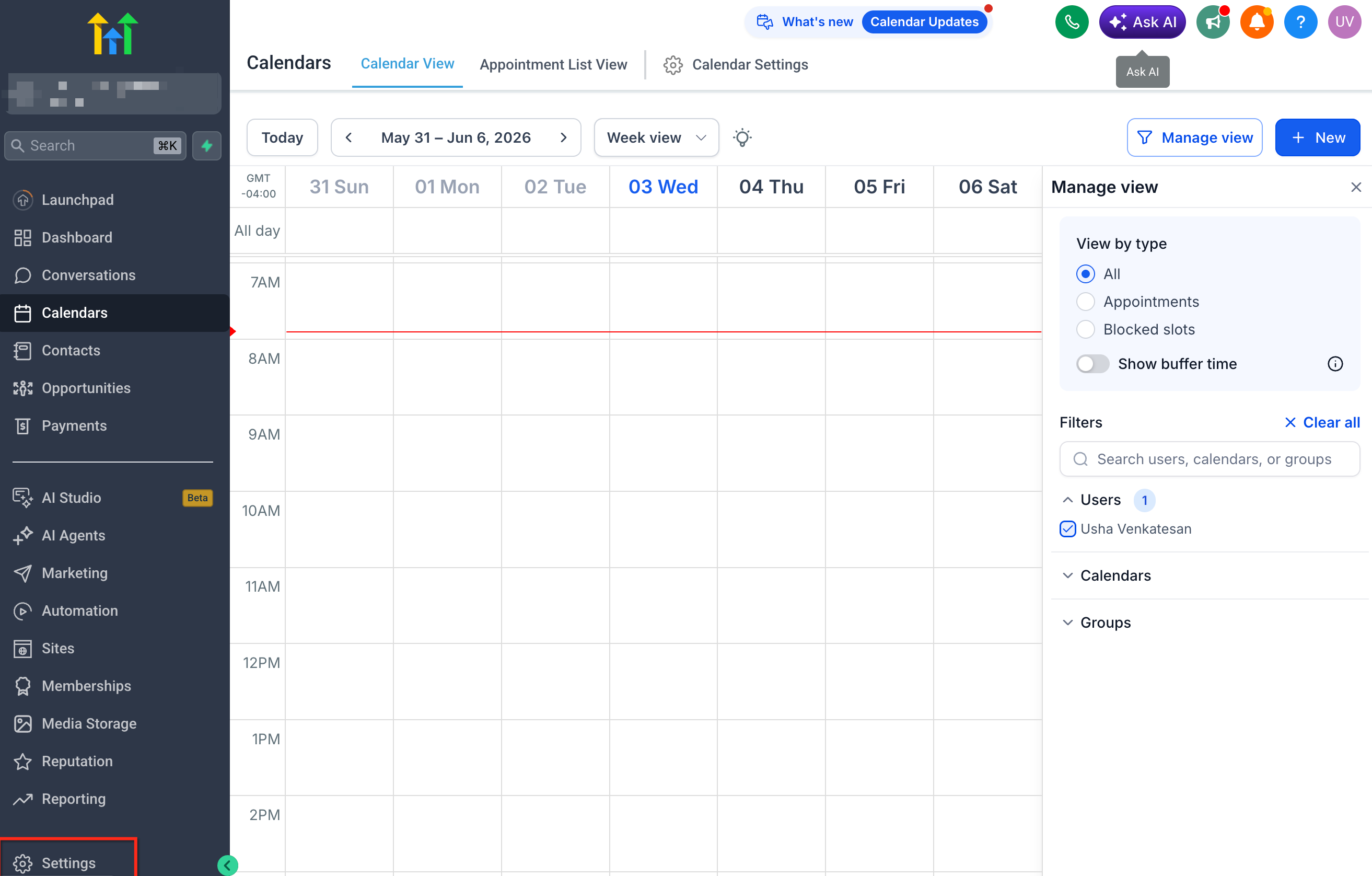 |
3 | Select WhatsApp. Review the available WhatsApp onboarding paths. 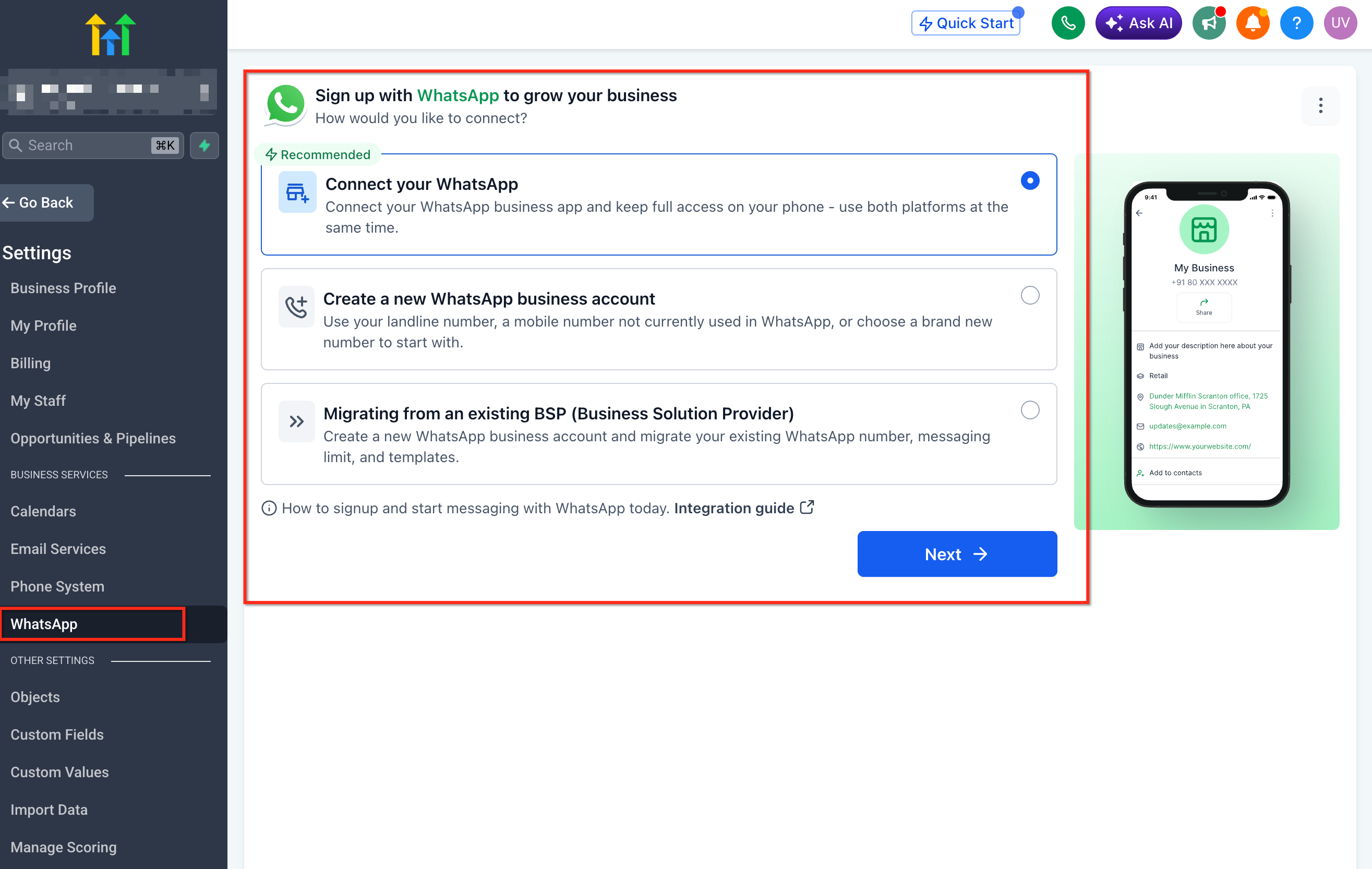 |
4 | Choose the path that matches the business's current WhatsApp setup: 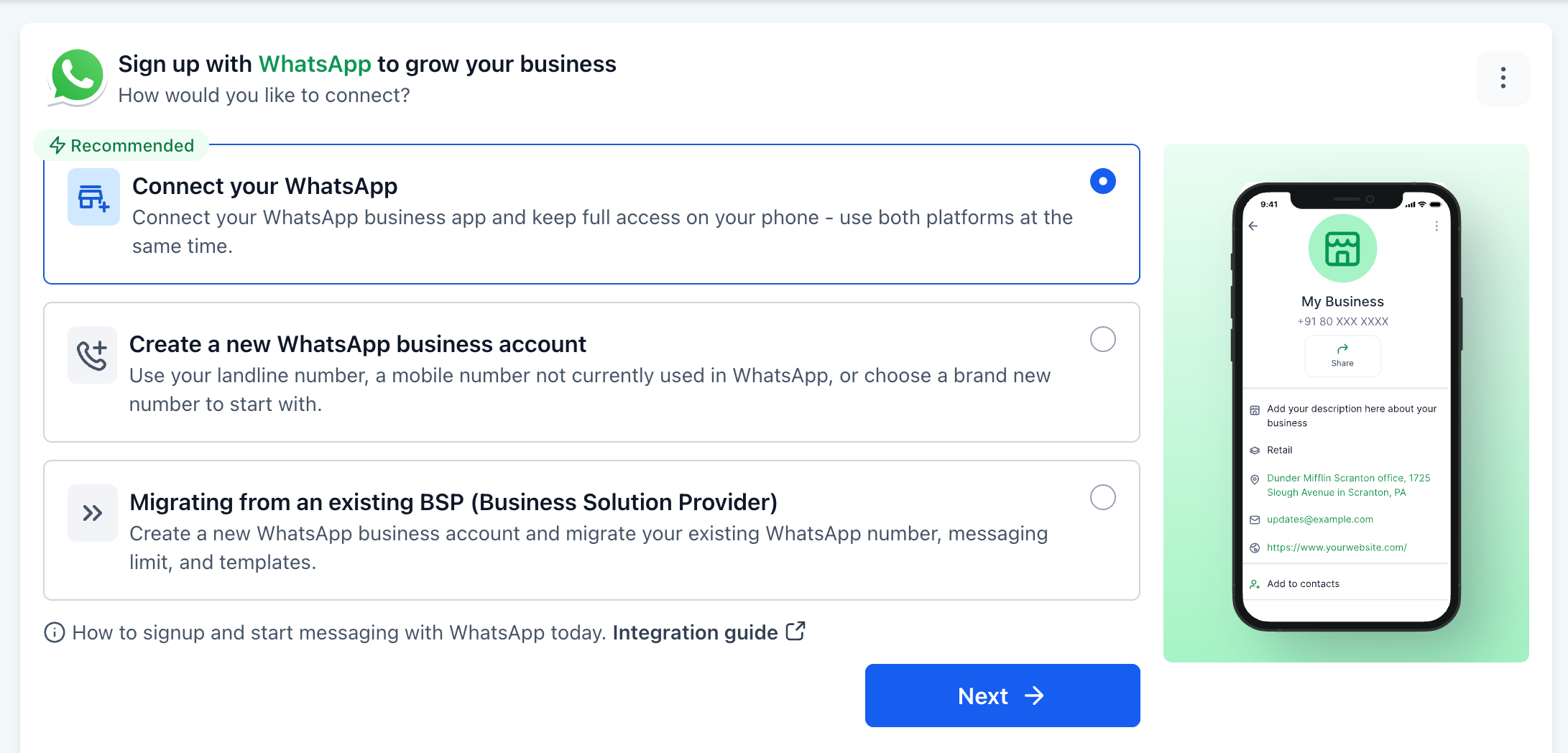 Select Connect your WhatsApp Business App with Coexistence if the business wants to keep using the WhatsApp Business App and sync conversations into CRM. 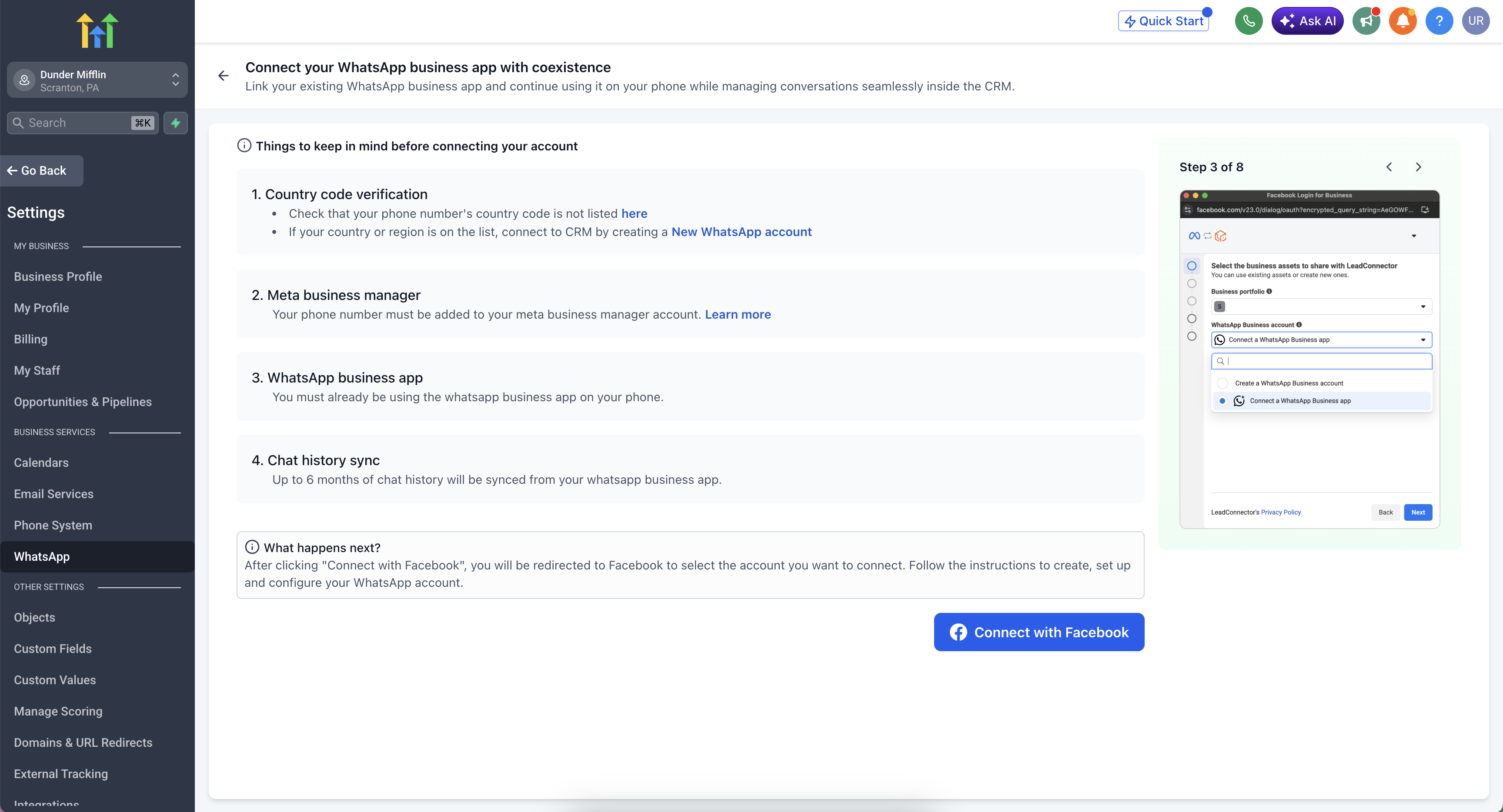 Select Create a New WhatsApp Business Account if the business is starting fresh with a landline, unused mobile number, brand-new number, or eligible 555 number. 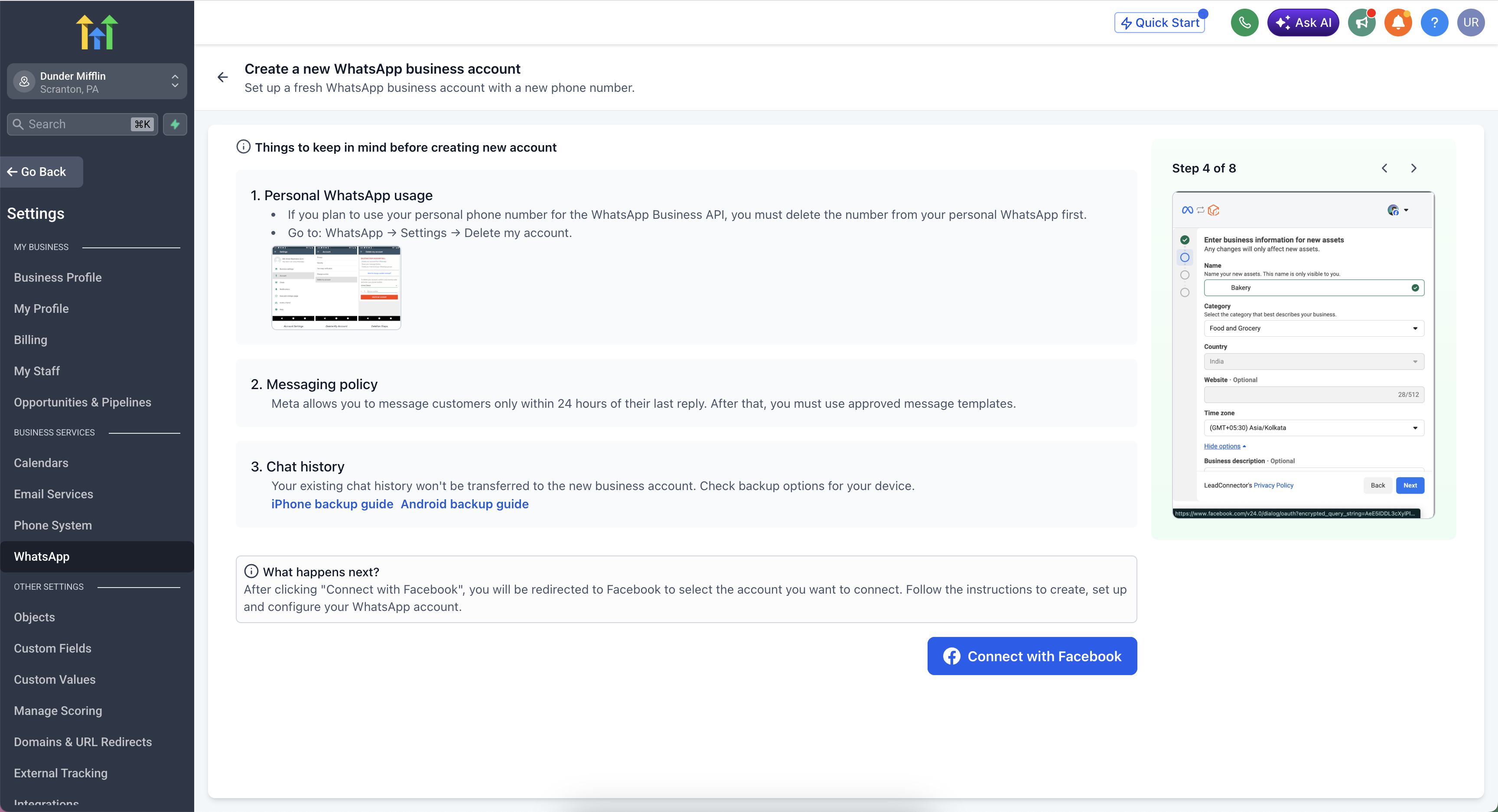 Select Migrate from an Existing BSP if the business already uses WhatsApp through another provider and wants to move to LeadConnector. 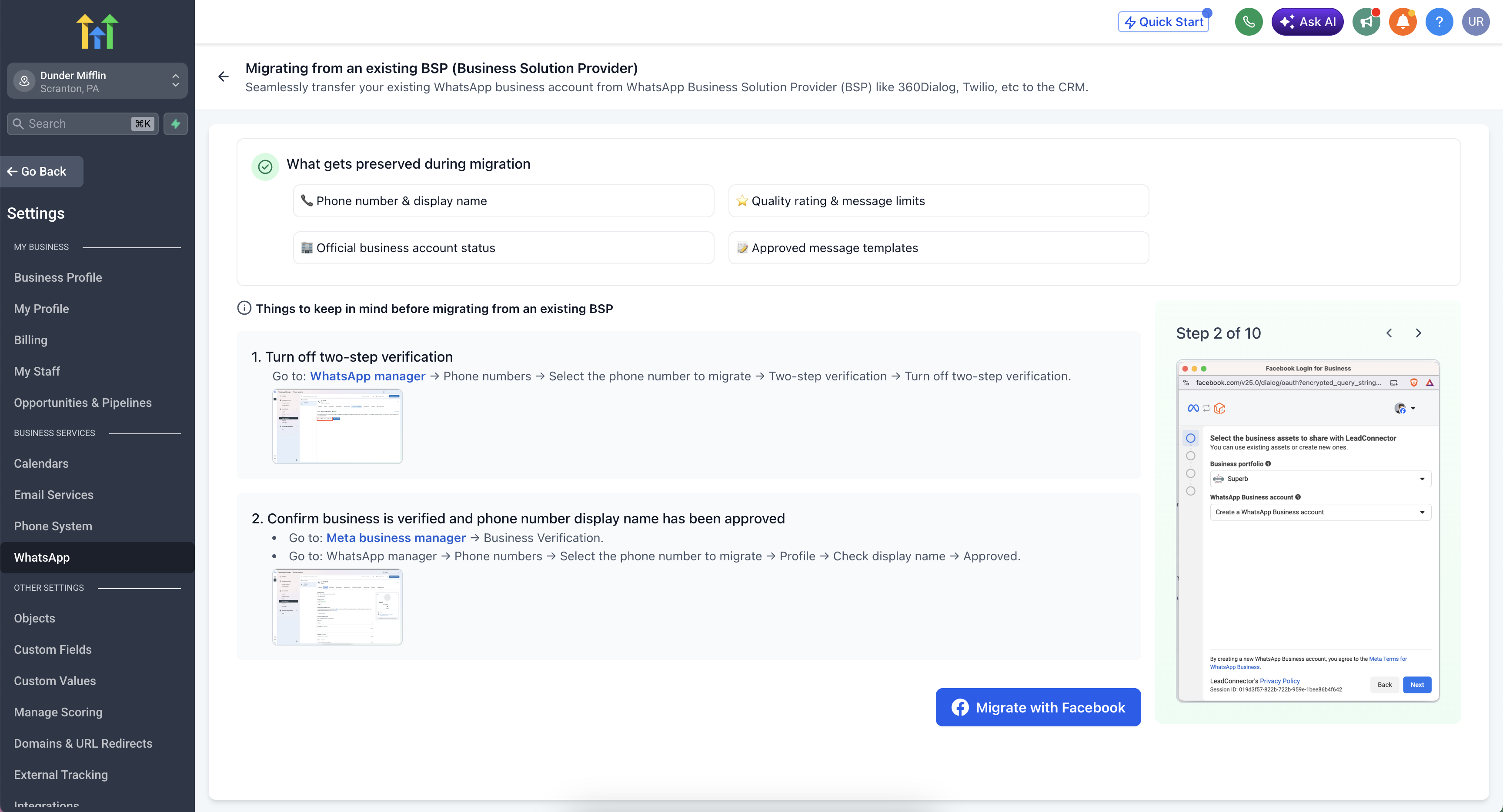 |
5 | Review the prerequisites shown in the onboarding screen. |
6 | Complete the required preparation for the selected path. |
7 | Click Connect with Facebook. |
8 | Complete the Meta Embedded Signup flow. |
9 | Follow the remaining prompts to finish connecting WhatsApp to CRM. |
10 | After onboarding is complete, review the WhatsApp settings, templates, phone number, and conversation behavior inside CRM. |
Frequently Asked Questions
Q: Which WhatsApp onboarding path should I choose?
Choose Coexistence if you already use the WhatsApp Business App and want to keep using it. Choose new WABA setup if you are starting fresh with a new or unused number. Choose BSP migration if your WhatsApp Business Account is currently connected through another provider and you want to move it to LeadConnector.
Q: Can I keep using the WhatsApp Business App after connecting to CRM?
Yes, when using the Coexistence path. Coexistence allows the business to keep using the WhatsApp Business App while managing conversations inside CRM.
Q: How much chat history can sync into CRM?
Coexistence can sync up to six months of WhatsApp chat history into the CRM.
Q: Will I lose my templates when migrating from another BSP?
No. Approved templates are preserved when migrating from another BSP to LeadConnector through the supported migration flow.
Q: Do I need to create a new WhatsApp Business Account when migrating from another BSP?
No. BSP migration is designed to move the existing WhatsApp Business Account to LeadConnector without creating a new WABA.
Q: Why do I need to turn off two-step verification before BSP migration?
Two-step verification can block or delay migration. Turning it off before starting helps Meta complete the transfer through the Embedded Signup flow.
Q: What happens if my display name is not approved?
The WhatsApp setup may not be fully usable until the display name is approved. Review Meta's display name requirements and resubmit if needed.
Related Articles
How to Set Up WhatsApp for a Sub-Account
WhatsApp Coexistence: Feature for Dual-Platform Messaging
WhatsApp Settings
In-App Business Verification for WhatsApp
How to Use LeadConnector/Twilio Phone Number for WhatsApp Business Account
Troubleshooting WhatsApp Coexistence Chat History Sync Issues
Was this article helpful?
That’s Great!
Thank you for your feedback
Sorry! We couldn't be helpful
Thank you for your feedback
Feedback sent
We appreciate your effort and will try to fix the article