Rescheduling an email campaign lets you change the planned delivery date or time without creating a new campaign. HighLevel supports rescheduling for Simple Schedule, Batch Schedule, and RSS Schedule campaigns.
TLDR: If a campaign is scheduled but has not been sent, go to Marketing > Emails > Campaigns > Email Campaigns, open the campaign's action menu, and select Reschedule. Update the schedule, click Save, then click Schedule to create the bulk actions. Do this at least 60 minutes before the scheduled send time.
TABLE OF CONTENTS
- What is Email Campaign Rescheduling?
- Key Benefits of Email Campaign Rescheduling
- Prerequisites and Limitations
- How To Reschedule an Email Campaign
- Reschedule From the Campaign Editor
- Frequently Asked Questions
- Related Articles
What is Email Campaign Rescheduling?
Email campaign rescheduling lets you change the scheduled delivery date or time for a campaign that has not yet been sent. You can access the rescheduling option directly from the Email Campaigns page or return to the scheduling step while editing the campaign.
Rescheduling is available for:
Simple Schedule campaigns
Batch Schedule campaigns
RSS Schedule campaigns
Key Benefits of Email Campaign Rescheduling
Rescheduling gives you control over an upcoming campaign when its original delivery time no longer works.
Change an upcoming send: Move a scheduled campaign to a different future date or time.
Keep the existing campaign: Adjust the delivery schedule without creating a replacement campaign.
Access the schedule quickly: Use the campaign action menu to open the scheduling step directly.
Prerequisites and Limitations
Before rescheduling a campaign, confirm that it is still scheduled and that enough time remains before its execution time.
The campaign must already be scheduled for Reschedule to appear in its action menu.
Complete the reschedule at least 60 minutes before the campaign's execution time.
Allow enough time for the system to process the updated schedule. Avoid relying on last-minute schedule changes.
Important: Saving changes does not complete the reschedule. You must also click Schedule so HighLevel can create the new bulk actions for the revised schedule.
How To Reschedule an Email Campaign
Use the Email Campaigns page when you need to change the delivery schedule of a campaign that has already been scheduled.
From the Sub-Account view, select Marketing in the left navigation.
Select Emails.
Select Campaigns.
Open Email Campaigns.
Locate the scheduled campaign you want to change.
Open the campaign's action menu.
Select Reschedule.
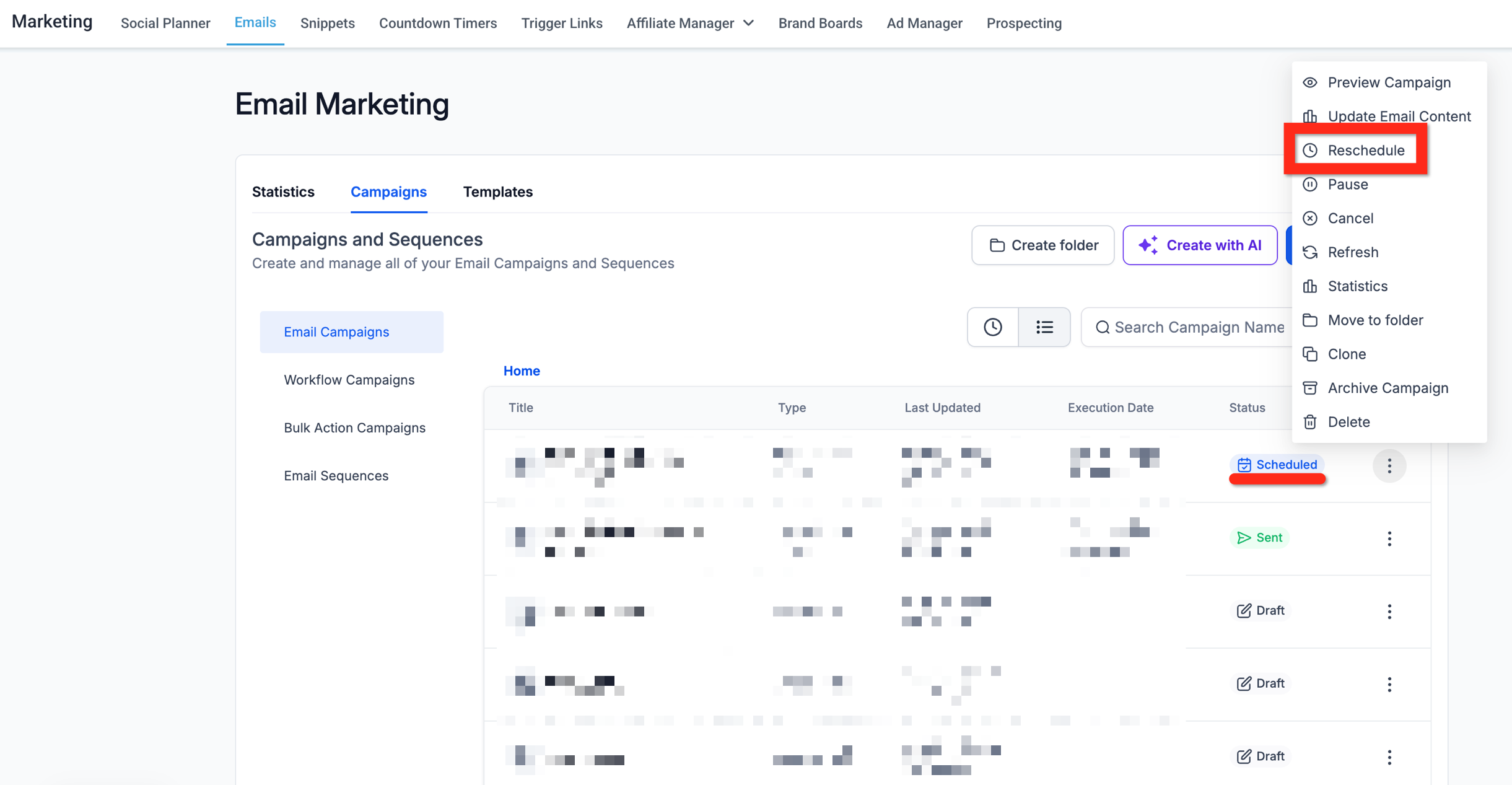
HighLevel opens the campaign editor directly at the scheduling step.
Update the campaign's schedule as needed.
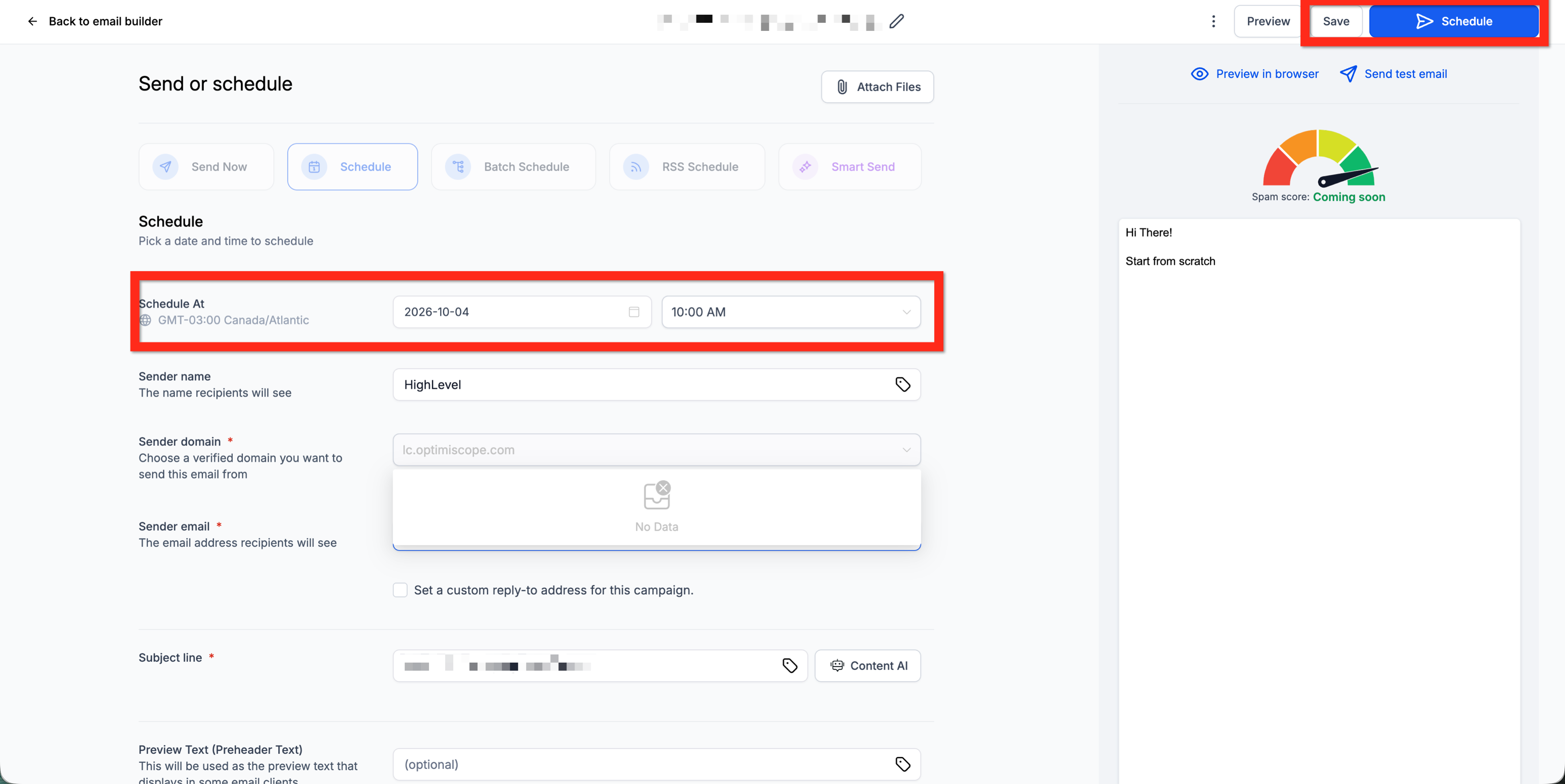
Click Save to save your changes.
Click Schedule to complete the reschedule and create the new bulk actions.
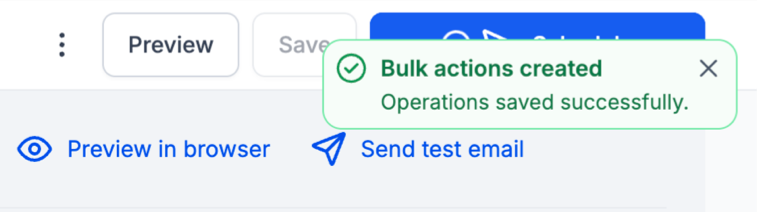
Important: Do not stop after clicking Save. Your changes may be saved, but the new bulk actions are not created until you also click Schedule.
Reschedule From the Campaign Editor
If you are already editing the campaign, you can return to its scheduling controls without going back to the Email Campaigns list.
From the campaign editor, click Send or Schedule.
Update the campaign's scheduling details.
Click Save.
Click Schedule to complete the reschedule and create the new bulk actions.
Remember to complete the change at least 60 minutes before the campaign's execution time and allow enough time for the system to process the updated schedule.
Frequently Asked Questions
Q: How close to the send time can I reschedule an email campaign?
A: Complete the reschedule at least 60 minutes before the campaign's execution time. Avoid waiting until the last minute so the system has enough time to process the updated schedule.
Q: Why didn't my new schedule take effect after I clicked Save?
A: Saving keeps your changes, but it does not complete the reschedule. Click Schedule after saving so HighLevel can create the new bulk actions for the revised schedule.
Q: Can I reschedule a campaign while I am already editing it?
A: Yes. Click Send or Schedule from the campaign editor, update the scheduling details, click Save, and then click Schedule.
Q: Which scheduled campaign types can be rescheduled?
A: Rescheduling is supported for Simple Schedule, Batch Schedule, and RSS Schedule campaigns.
Related Articles
Was this article helpful?
That’s Great!
Thank you for your feedback
Sorry! We couldn't be helpful
Thank you for your feedback
Feedback sent
We appreciate your effort and will try to fix the article