Batch scheduling lets you deliver marketing emails in timed batches rather than all at once. This helps manage traffic to your websites or funnels and reduces load on your sending infrastructure. Use this guide to configure a batch schedule using the Email Builder’s Batch Schedule option.
TABLE OF CONTENTS
- What is Batch Scheduling for Email Campaigns?
- Key Benefits of Batch Scheduling for Email Campaigns
- Pre Sending Checklist
- How To Batch Schedule an Email Campaign
- Frequently Asked Questions
- Related Articles
What is Batch Scheduling Email Campaigns?
Batch scheduling (also referred to as batch delivery or drip mode) spreads delivery across defined intervals. Instead of sending to your entire audience simultaneously, you control batch quantity, timing, and active days so delivery occurs gradually and predictably.
Key Benefits of Batch Scheduling Email Campaigns
Traffic management: Sends in timed batches to avoid sudden surges to your websites or funnels.
Server load control: Reduces potential tension on your server by pacing the send.
Flexible timing: Lets you choose batch quantity, repeat frequency, days, and start/end times.
Pre Sending Checklist
Here are some things to know before you begin this process.
- To send an email, make sure that you've created an email template to send the campaign
- To send an email, make sure that you have verified the domain to send the email.
How To Batch Schedule Email Campaigns
Follow these steps in the Email Builder to create your campaign and configure batch delivery (drip mode).
Step 1: Create an Email campaign
Go to Marketing > Email > Campaigns.
Create a New Campaign or Edit an Existing one.

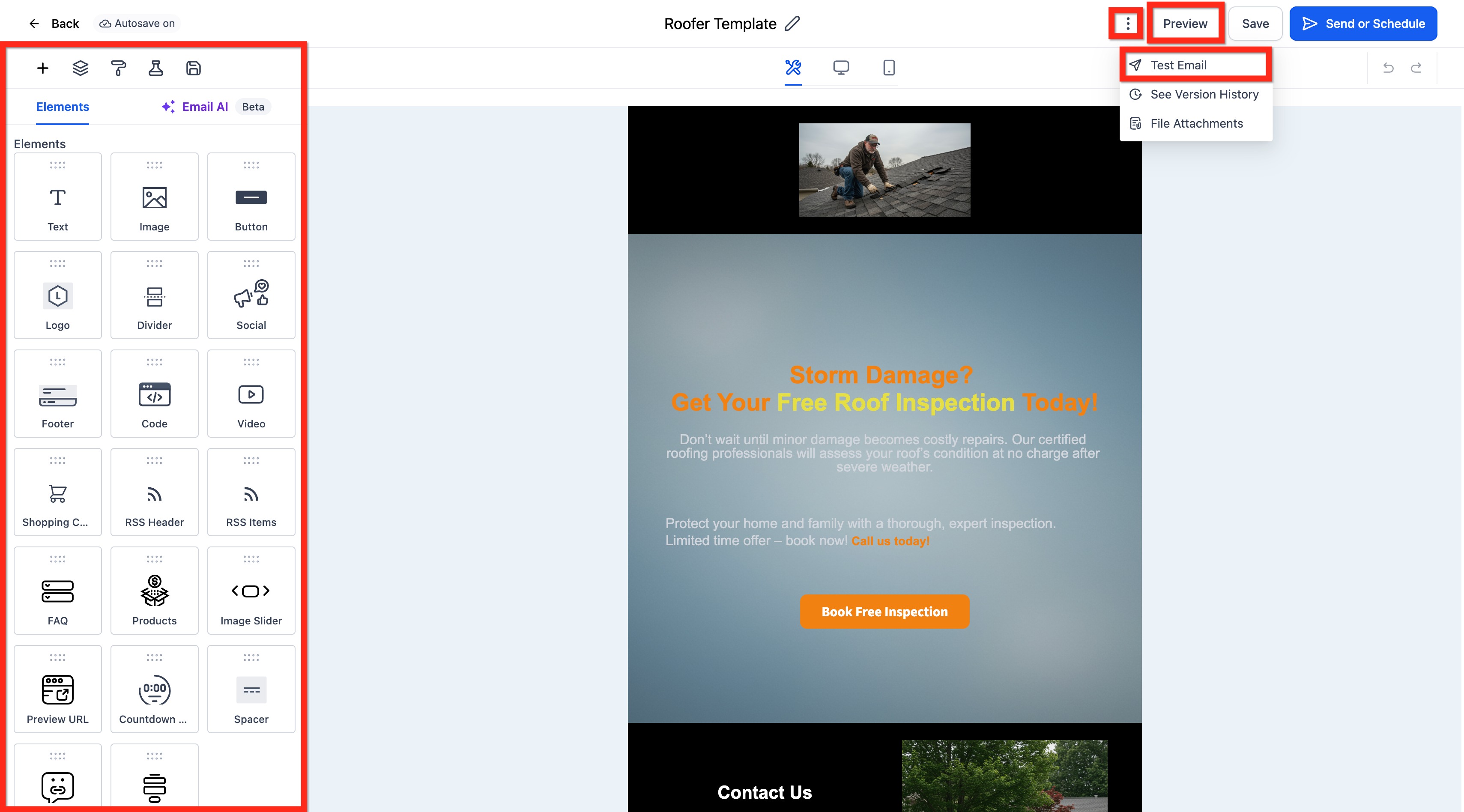
Step 2: Design the email
Note: Read this article to learn more about How to use the Email Builder and its Inline Editor.
Build or select a template.
Add content, images, and links.
Use Preview and Test Email to verify layout on desktop and mobile.
Step 3: Select delivery option (Batch Schedule)
Click on the Send or Schedule button.
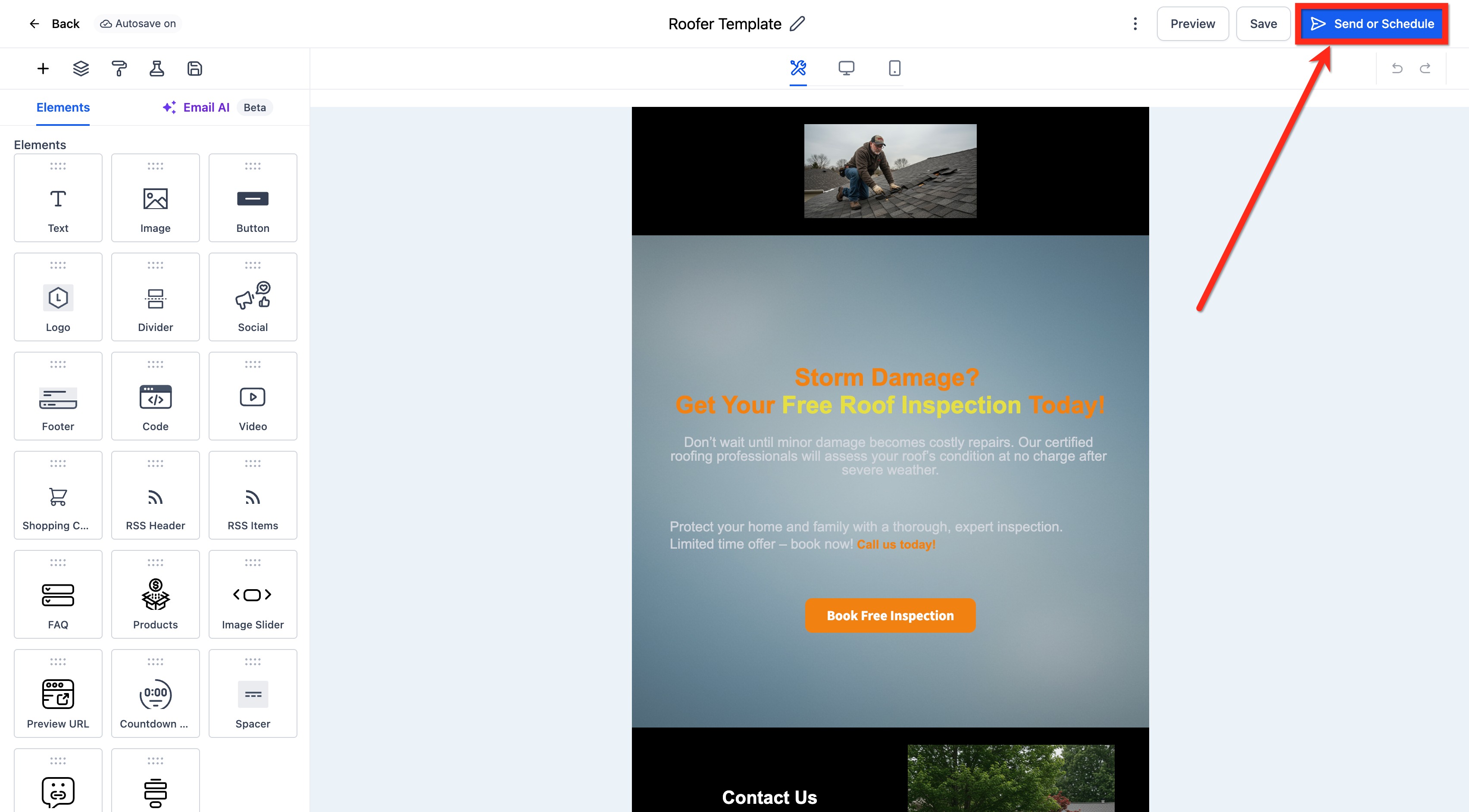
From the Sending Options select Batch Schedule and complete the steps below:
Add your Start date and time of the campaign.
Add the Batch Quantity.
Note: Batch Quantity refers to the number of emails sent per batch, not the number of batches. For example, if you have 10,000 recipients and set the Batch Quantity to 1,000, the system will send them in 10 batches of 1,000 emails each.
Add Repeat after (add number based on the frequency) and frequency as days, hours, minutes, and seconds.
If a saved draft previously used seconds, that field now clears automatically to prevent scheduling errors.Uncheck the days from the week when you don't want to send the Batch delivery Email Campaign.
Add the specific time for start and end.
Note: Validation (Batch Schedule)
If End time is earlier than Start time, an inline error appears under End time: End time can't be before start time.
If an End time is selected before Start time, an inline prompt appears under Start time: Please enter a valid start time.
Send and Schedule remain disabled until you fix the errors.
Editing Start time confirms with a single OK button.
Midnight (12:00 AM) boundaries are handled without false errors.

Add your name in the Sender Name section (Optional).
Choose or configure Sender Domain.
Add your email address in the Sender Email section.
Add Subject Line.
Add your Preview text in the Preview section. (Optional)
Add your recipients in the To section by choosing email(s) or smart list(s).

Note: Please check the details of the execution date, time, and time zone before scheduling!

There will be an option to delete or reschedule the email campaign. If the user wants to reschedule the campaign, they can click reschedule and set the date-time of the campaign.

The reschedule will be allowed before one hour of sending the email campaign. For example if the schedule date is 11 AM EST, it will allow us to reschedule till 10 AM EST.
Frequently Asked Questions
Q: I would like to edit the copy of the Batch Campaign, is it possible? I don't want the statistics to get affected.
Yes, you can edit the copy of the Ongoing Batch Schedule Campaign by clicking Update Email Content. Once you edit the copy before the execution date, please click save edits.
Note: It is not necessary for the copy will get updated but we try to update before the execution queue initiate in the server.
Q: How can I reschedule an RSS email campaign?
Rescheduling of Email Campaign is possible for Simple Schedule, Batch Schedule, and RSS Schedule before one hour (60mins) ahead of the execution date.
The user will be required to visit the Marketing > Email. Please visit the Email Campaign tab, it will have a list of Email Campaigns listed with Simple Schedule, RSS Schedule and Batch Schedule which can be rescheduled before one hour of execution date/time.
In the action button, there will be the option of Reschedule Campaign. The user can make the changes to the details of the Schedule and change the delivery model. Once the changes are done, the user is required to mark it as the rescheduled campaign to save the settings.
Q: What are the rate limits for sending in the system?
Add in drip mode:
Frequencies of 30 sec - 1 min: 1,000 messages per minute
Frequencies of 5 min: 4,999 messages per minute
Frequencies of 6 min - 10 min: 5,000 messages per minute
Frequencies of Above 10 min: 10,000 messages per minute
Add all at once & Add all at a scheduled time:
Less than 10k - we process - 15k contacts per hour
More than 10k but less than 50k - we process - 6k contacts per hour
More than 50k but less than 70k - we process - 3k contacts per hour
More than 70k - we process - 1.5k contacts per hour
The Repeat after interval dropdown does not include seconds. If you previously used a seconds-based interval, select 1 minute or higher.
Related Articles
Was this article helpful?
That’s Great!
Thank you for your feedback
Sorry! We couldn't be helpful
Thank you for your feedback
Feedback sent
We appreciate your effort and will try to fix the article