Magic Links give customers secure, password-free access to courses and community groups in HighLevel. Each link signs in the intended customer and directs them to content they already have permission to view. Time-limited links help protect customer accounts while making it easy to request a replacement when an emailed link expires.
Please note:
Newly created locations must use client portal magic links. You can create magic links in the Client Portal. Go to "Sites" > "Client Portal" > "Dashboard" to generate magic links for your clients.More details on client portal magic linkTABLE OF CONTENTS
- What is a Magic link in Memberships?
- Key Benefits of Magic Links
- How to Generate Magic Links?
- Magic Link Expiration
- Important: A Magic Link signs the customer in but does not grant content access. Confirm they have the correct course or group permissions before sending it.
- How to Send Magic Links in workflows and emails?
- Testing and Troubleshooting Magic Links
- Common Issues
- Frequently Asked Questions
- Related Articles
What is a Magic link in Memberships?
Magic Links are secure, customer-specific URLs that allow someone to access the Client Portal without entering a username or password. They simplify course and community access while protecting customer accounts through time-limited authentication.
When a customer selects a Magic Link, HighLevel signs them in and directs them to the appropriate course, community, or Client Portal destination. The customer will only see content they have already been granted permission to access.
Please Note:
If you’re using the magic link while logged in as your agency admin account, you’ll see all the available courses for that sub account. Key Benefits of Magic Links
Password-free access: Customers can sign in without remembering or resetting a password.
Secure authentication: Token-based links expire after a defined period instead of remaining active indefinitely.
Faster customer access: Customers can move directly from an email to their course or group.
Simple link recovery: Customers can request a new emailed link directly from the expiration page.
Content-based permissions: Customers only see courses, groups, and other content already assigned to them.
Fewer login issues: Easy access can reduce support requests related to forgotten credentials.
How to Generate Magic Links?
Generating a Magic Link from the Client Portal gives a specific customer immediate password-free access. These links expire after 15 minutes, so they should be sent and opened promptly.
- Go to Memberships → Client Portal.
- Scroll to Actions.
- Select Generate.
- Copy the generated Magic Link.
- Send the link directly to the intended customer.
After you generate a Magic Link, a countdown timer shows the remaining time before it expires. Once the current link expires, the Generate Magic Link button becomes available again so you can create a new link.
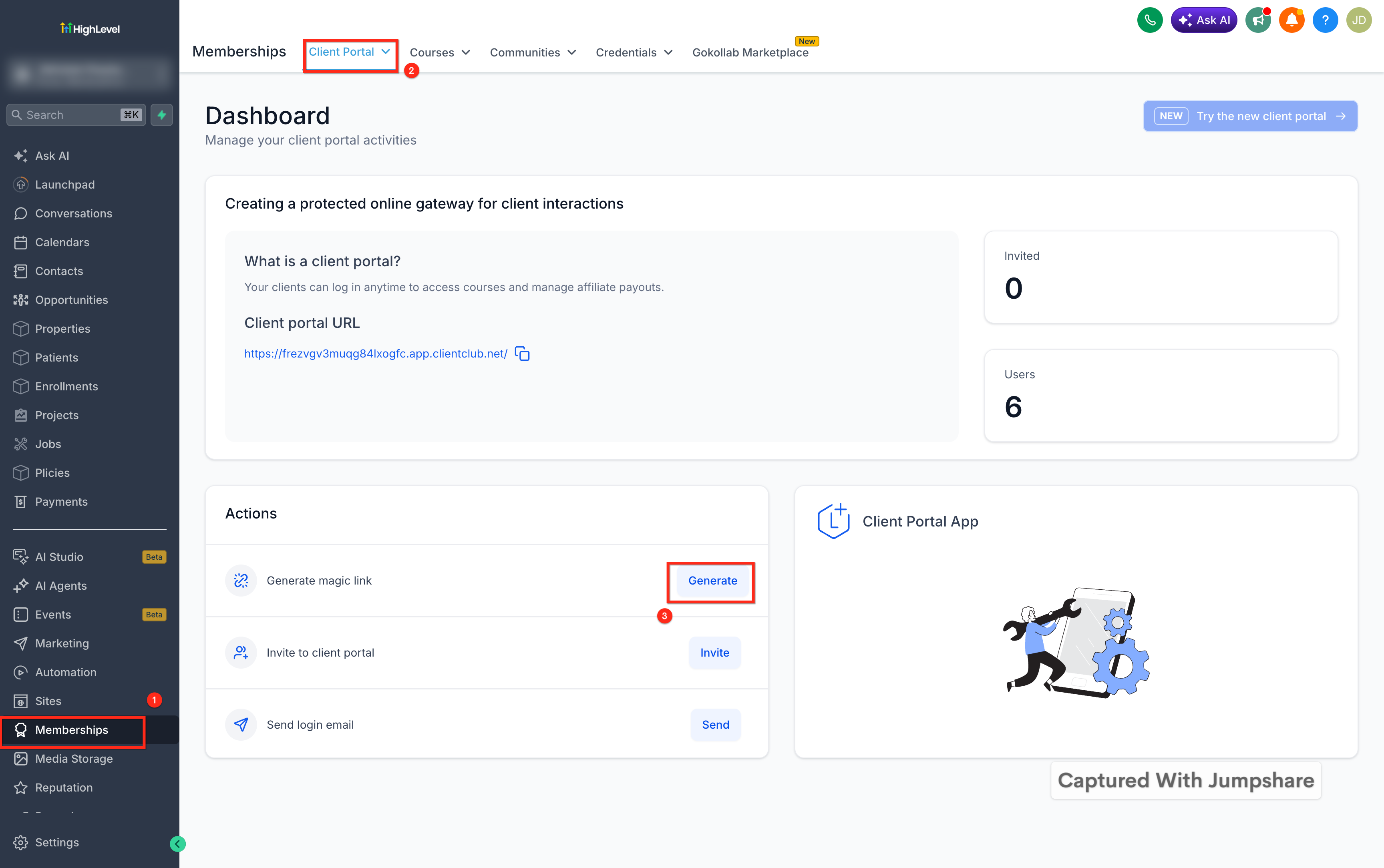
Important: A link generated directly from the subaccount expires after 15 minutes. Generate another link when the customer cannot open it within that period.Magic Link Expiration
Magic Link expiration depends on how the link is delivered.
Sent through email: Expires after 24 hours. If expired, the customer can select Send New Link to receive a replacement at their registered email address.
Generated under Memberships → Client Portal: Expires after 15 minutes. Generate a new link if the customer does not open it in time.
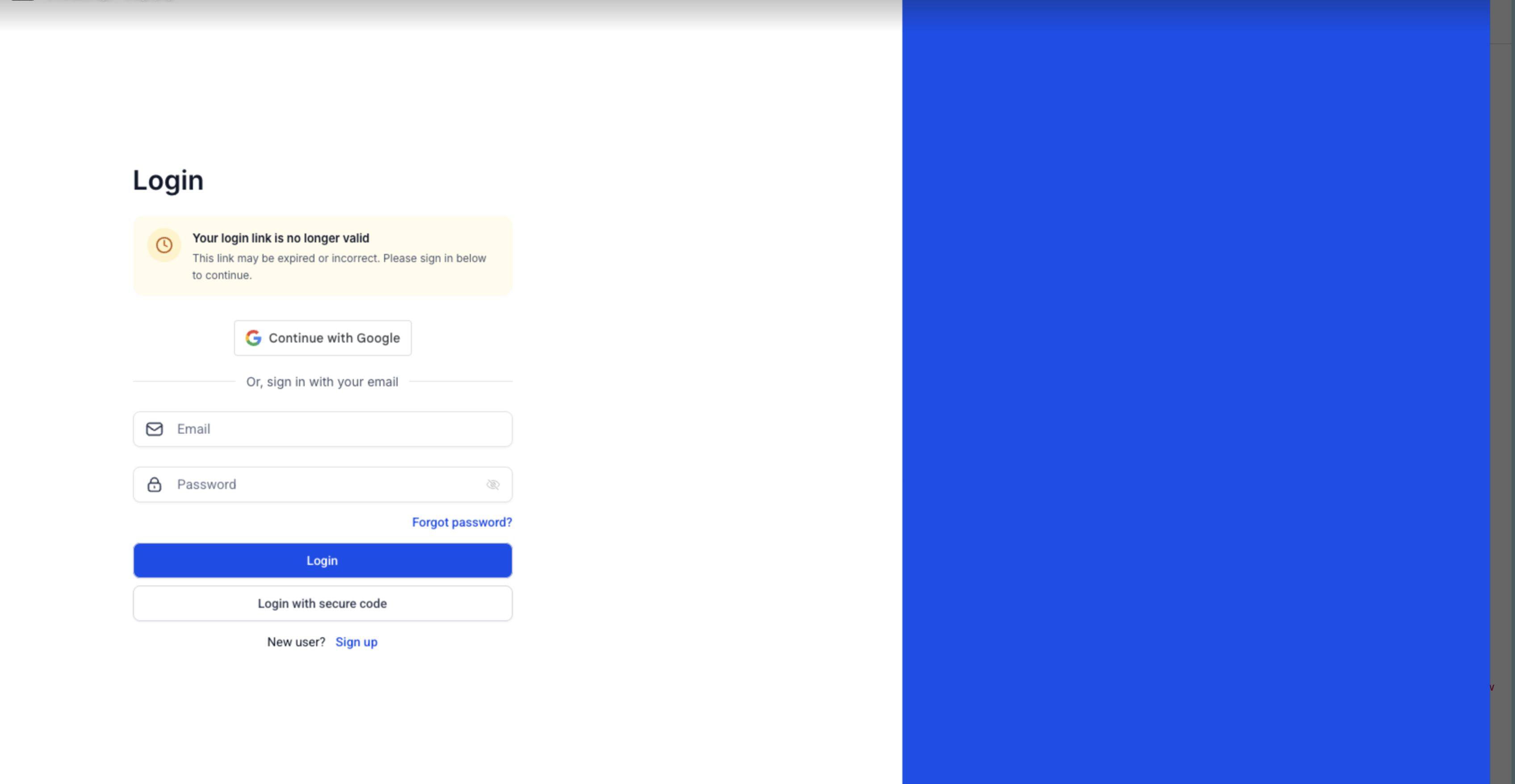
Important: A Magic Link signs the customer in but does not grant content access. Confirm they have the correct course or group permissions before sending it.
How to Send Magic Links in workflows and emails?
Step 1 : Go to workflows and setup a courses trigger

Learners Magic Link can be used with all courses triggers.
Note that learner magic link can only be used with Courses triggers(Category Started,Category Completed,Lesson Started,Lesson Completed,New Sign Up,Offer Access Granted,Offer Access Removed,Product Access Granted,Product Access Removed,Product Started,Product Completed)
Step 2 : Add an action like email or SMS which allows you to select Login Url(Magic Link)


When the email goes out it will automatically populate the learner Magic Link for the contact
Please Note:
Magic links should only be shared with prior consent. Anyone with the link will be able to access your course materialSending Learner Magic Link in Email Campaigns (Email Templates)

Magic Links can be send using email campaign by using the login Url(Magic Link) Custom value
Testing and Troubleshooting Magic Links
Test Magic Links with a real contact who has the correct course or group access. Open the link in a private or incognito window to confirm the correct destination and permissions without interference from an administrator session.
Common Issues
The link expired:
For emailed links, select Send New Link. For links generated under Memberships → Client Portal, return to Actions and select Generate again.
The replacement email did not arrive:
Check spam and filtered folders, then confirm the email address on the contact record is correct.
The customer cannot see the expected content:
Verify that the correct course, offer, product, or community group access has been assigned.
The wrong account opens:
Do not reuse or forward customer-specific links. Generate a new link for the correct contact.
More content appears during testing:
Open the link in a private or incognito window to prevent administrator permissions from affecting the results.

Frequently Asked Questions
Q: How long does a Magic Link remain valid?
Magic Links sent through email remain valid for 24 hours. Links generated directly under Membership → Client Portal remain valid for 15 minutes.
Q: What happens when an emailed Magic Link expires?
The customer can select Send New Link on the expiration page. HighLevel will send a replacement link to the customer’s registered email address.
Q: Does a Magic Link grant access to a course or group?
No. A Magic Link signs the customer in, but the customer must already have permission to access the course or group.
Q: Why can a customer sign in but not see the expected content?
Confirm that the customer has the correct course offer, product, or group access assigned to their contact record.
Related Articles
Was this article helpful?
That’s Great!
Thank you for your feedback
Sorry! We couldn't be helpful
Thank you for your feedback
Feedback sent
We appreciate your effort and will try to fix the article